

RunDiffusion now offers five AI 3D model generators for text-to-3D, image-to-3D, and multiview generation: Hunyuan 3D Pro, Hyper3D Rodin, Meshy v6, Trellis 2, and Tripo H3.1. Compare their supported inputs, settings, and output options, then open any tool directly on the platform.
AI 3D model generators compared at a glance
All five tools can be added to a RunDiffusion Board.
- Start with text: Hunyuan 3D Pro, Hyper3D Rodin, Meshy v6, or Tripo H3.1
- Start with one image: Any of the five tools
- Start with multiple images: Hunyuan 3D Pro, Hyper3D Rodin, Meshy v6, or Tripo H3.1
Hunyuan 3D Pro
Inputs: Text, one image, or up to eight directional images
Key controls: Generate Type, Face Count, and PBR Materials
Output: GLB asset with a preview thumbnail
Hyper3D Rodin
Inputs: Text, one image, or up to four images
Key controls: Condition Mode, Quality, Tier, Material, T/A Pose, and HighPack Addon
Output: GLB, OBJ, or STL
Meshy v6
Inputs: Text, one image, or up to four images
Key controls: Topology, Target Polycount, Symmetry Mode, Pose Mode, Generate Textures, and PBR Maps
Output: Downloadable GLB asset
Trellis 2
Input: One reference image
Key controls: Resolution, Decimation Target, Texture Size, Remesh, guidance, and UV controls
Output: Textured GLB asset
Tripo H3.1
Inputs: Text, one image, or two to four images
Key controls: Face Limit, Geometry Quality, Quad Mesh, Auto Size, Texture, PBR Materials, and Model, Image, and Texture Seeds
Output: 3D asset with optional textures and PBR materials
What is an AI 3D model generator?
An AI 3D model generator turns a text prompt or reference image into a 3D asset. For image-to-3D, the reference image guides the visible shape, proportions, colors, and surface details. The tool must estimate any areas the image does not show.
AI-generated 3D assets can support game props, product visualization, character concepts, marketing renders, 3D printing tests, and rapid prototyping. Explore more ways to use AI-powered 3D design and rapid prototyping on RunDiffusion.
Before using an asset, inspect it for mesh errors and plan for any retopology, texture, rigging, or print preparation it needs.
How to generate an AI 3D model on RunDiffusion
Each AI 3D generator in this guide is a tool you can add to a RunDiffusion Board. Run it on its own, or connect it to other Board tools to build a workflow. The steps below will explain how to add it to a RunDiffusion Board. If you prefer to go directly to the tool click on the links under each 3D model section to go directly to the tool instead.
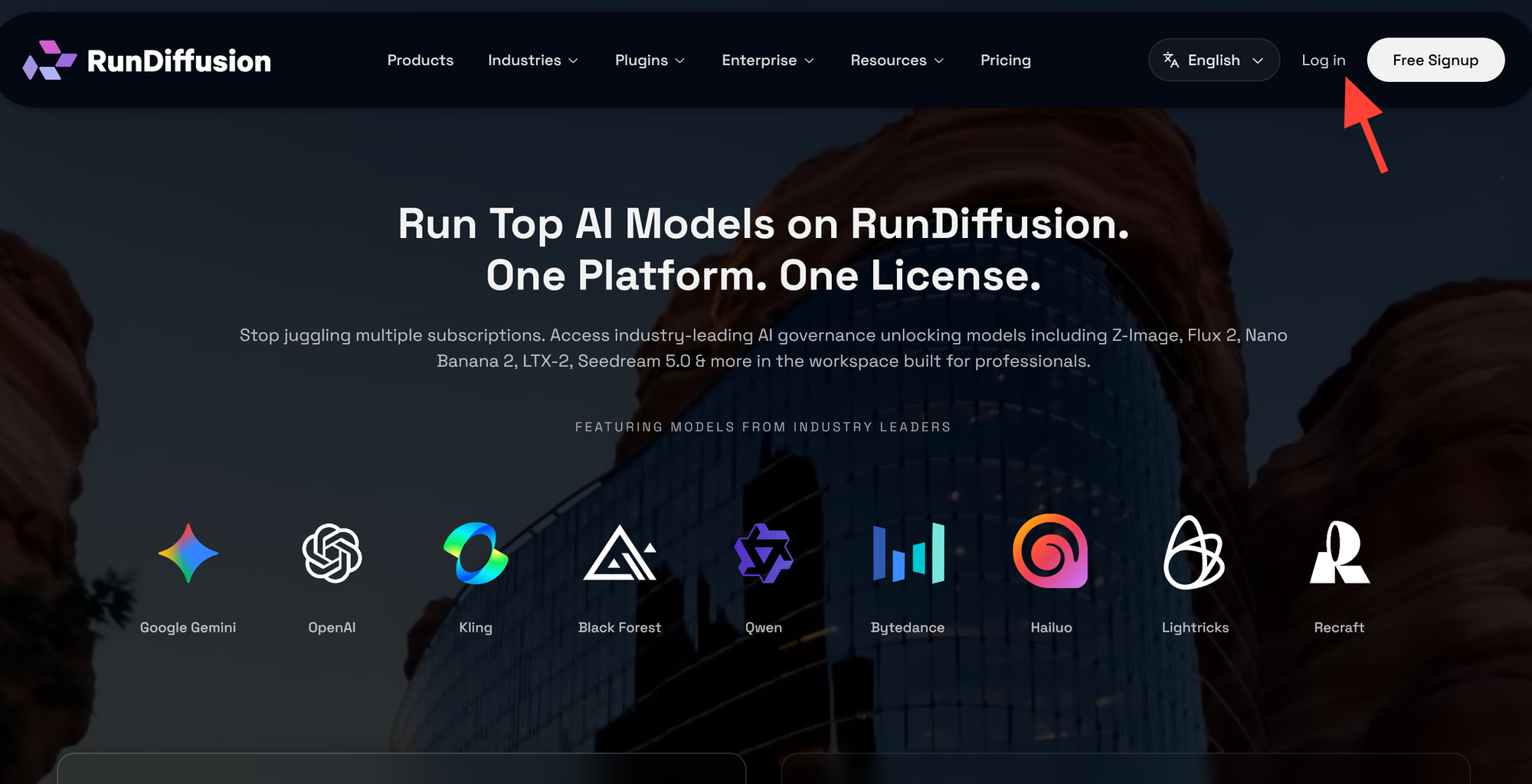
Step 1: Login or Signup for an Account on RunDiffusion
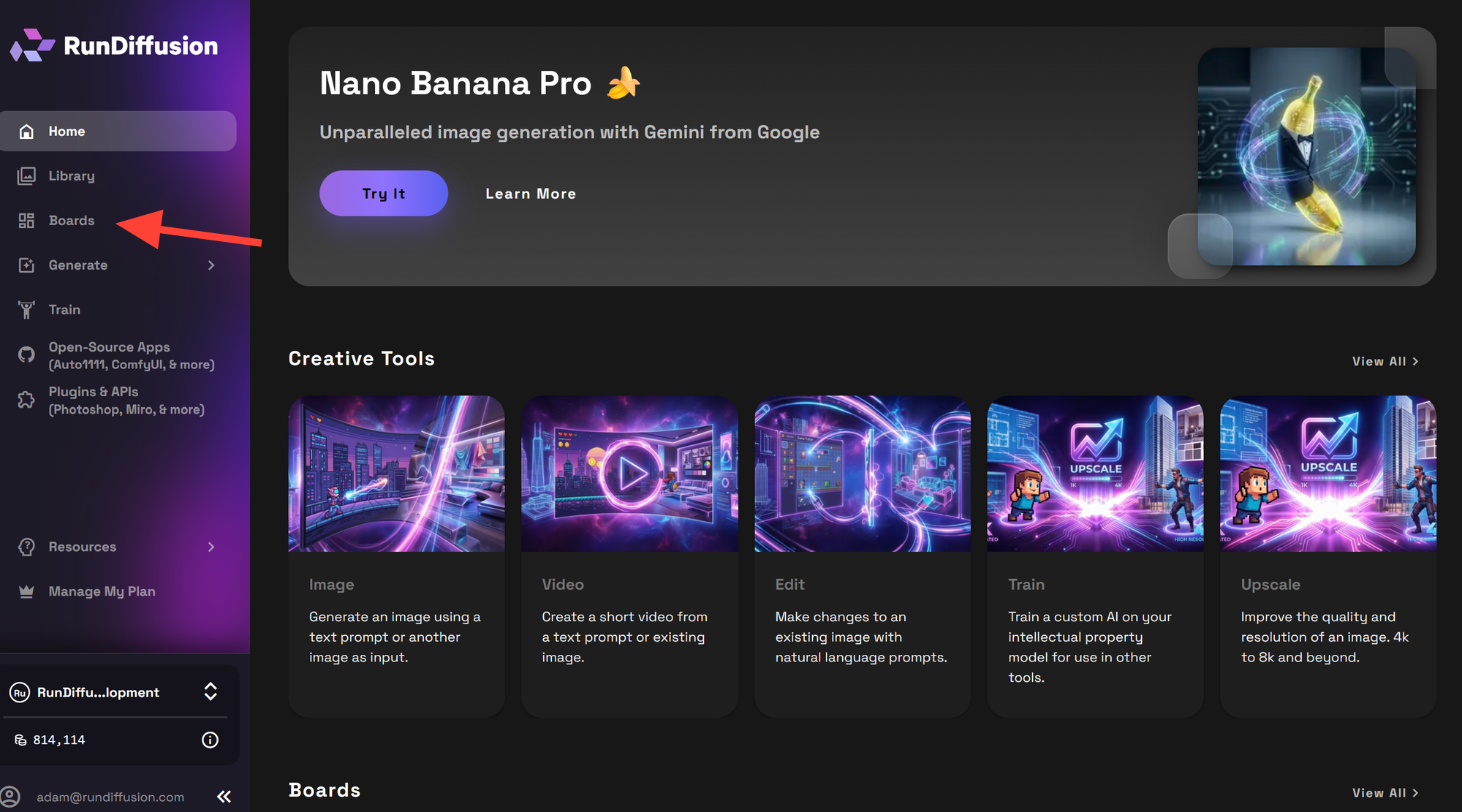
Step 2: Click on Boards on the left side panel to create your workflow.
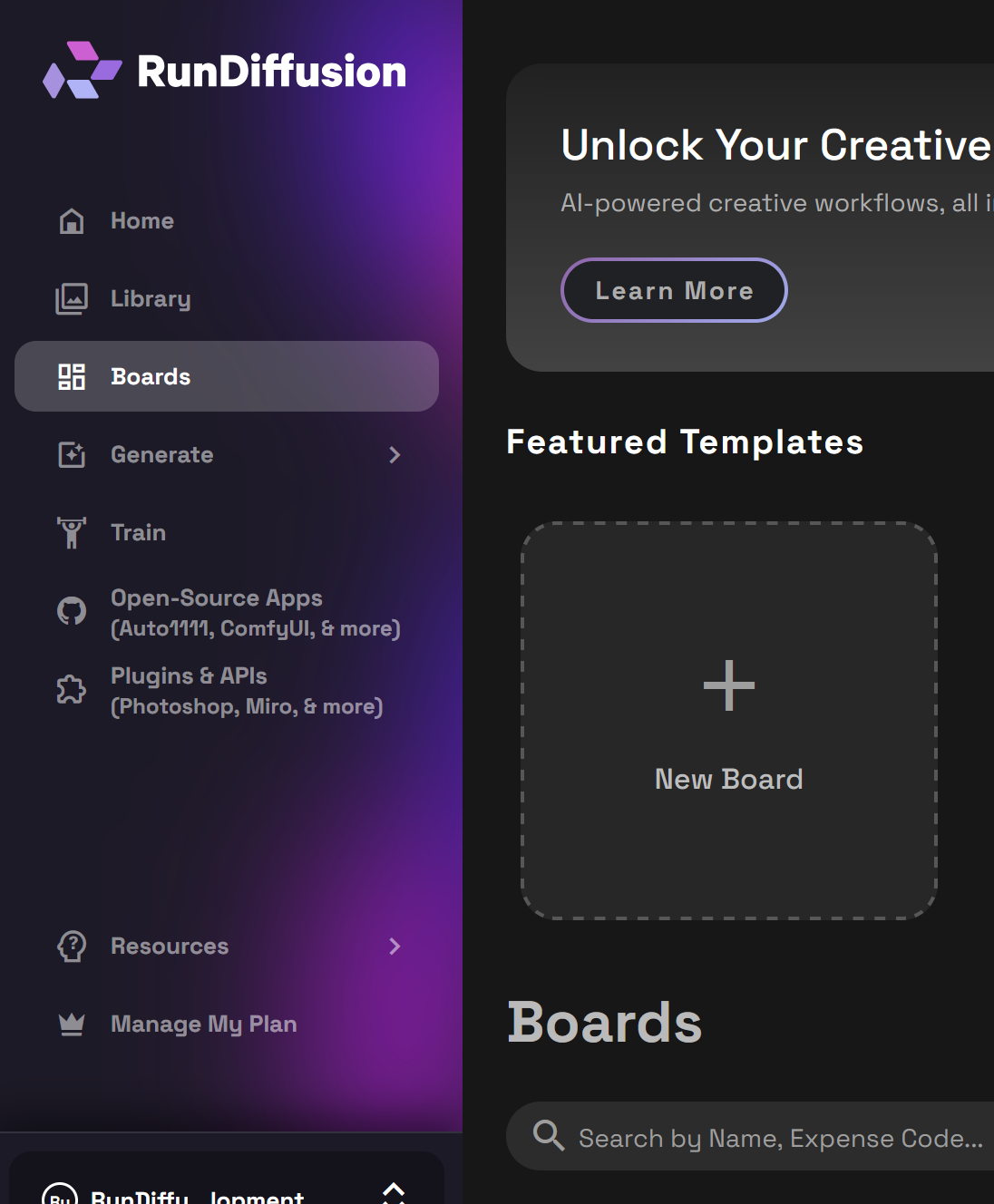
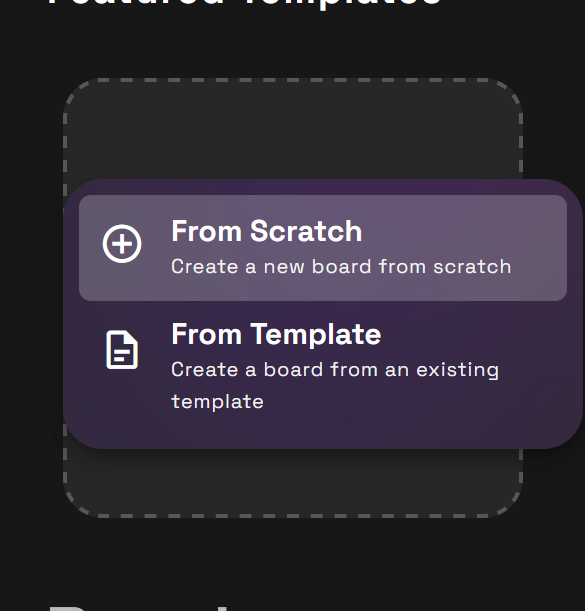
Step 3: Click on New Board then select From Scratch.
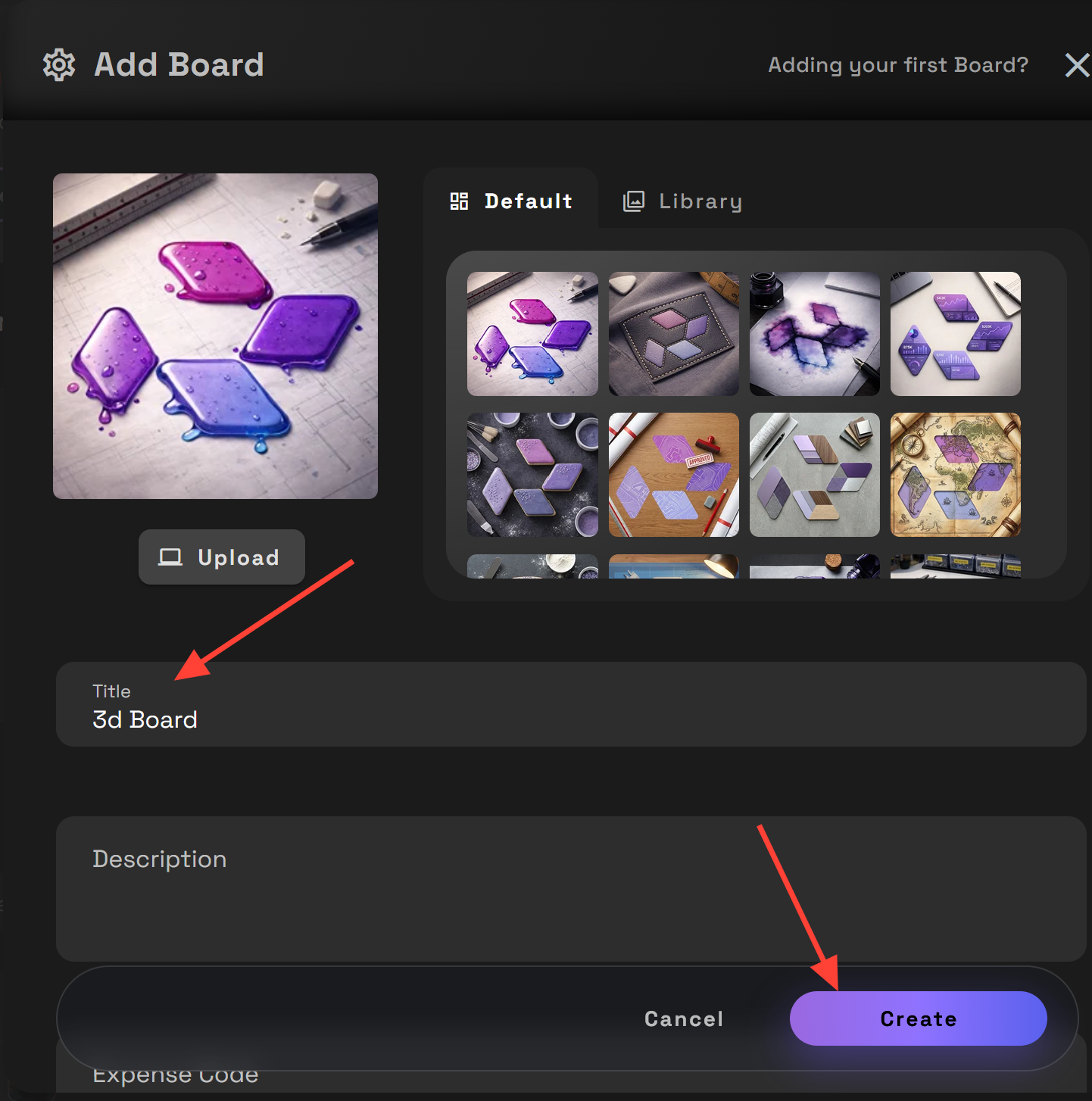
Step 4: Setup your Board. You can simply title your board and click create.
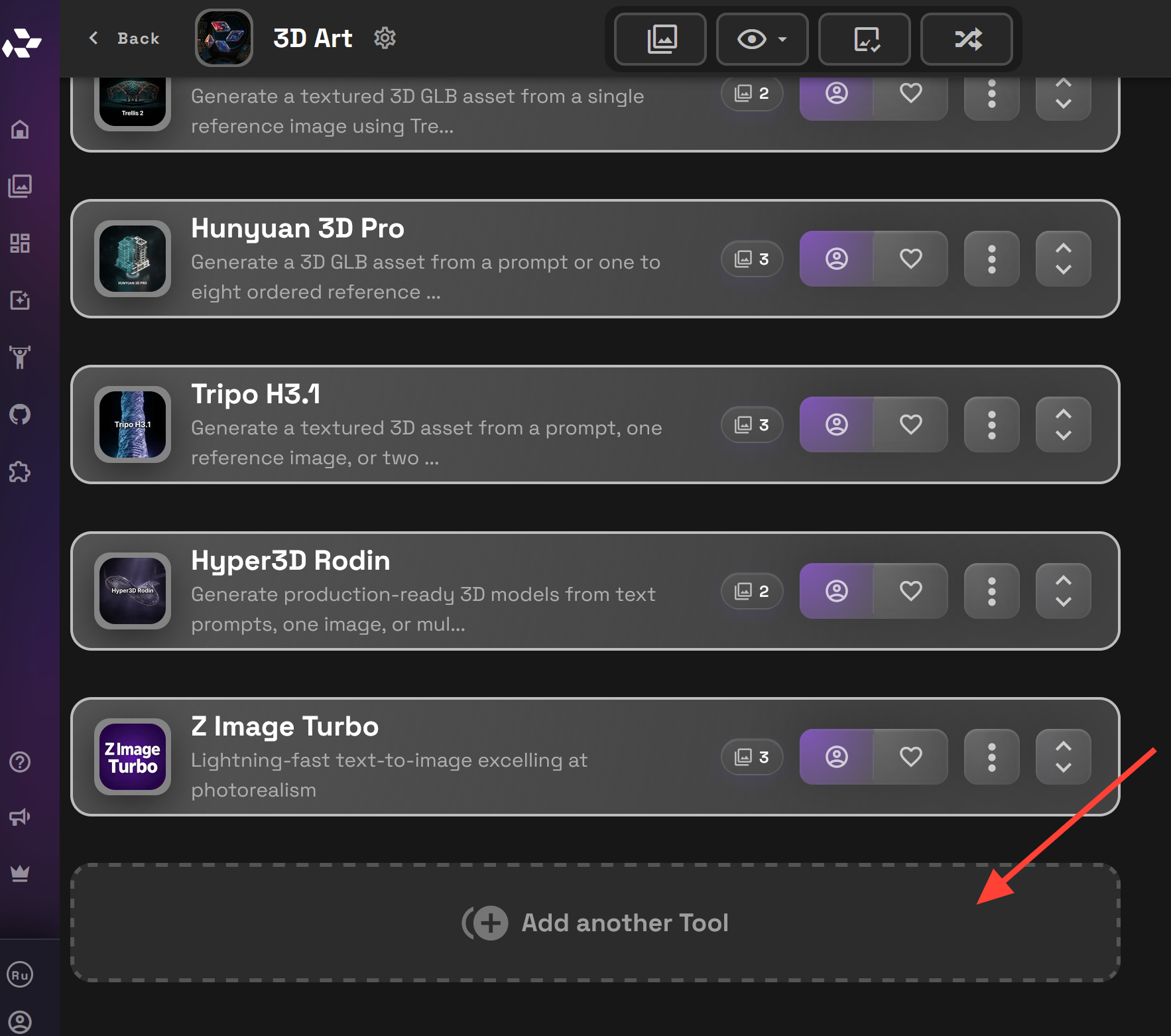
Step 5: Click Add tools. In Kits Select 3D and select one of the 3d tool options. If you click on the Tool tab you may also search for specific tools. You may also add an image tool to create images to use with your 3d tools.
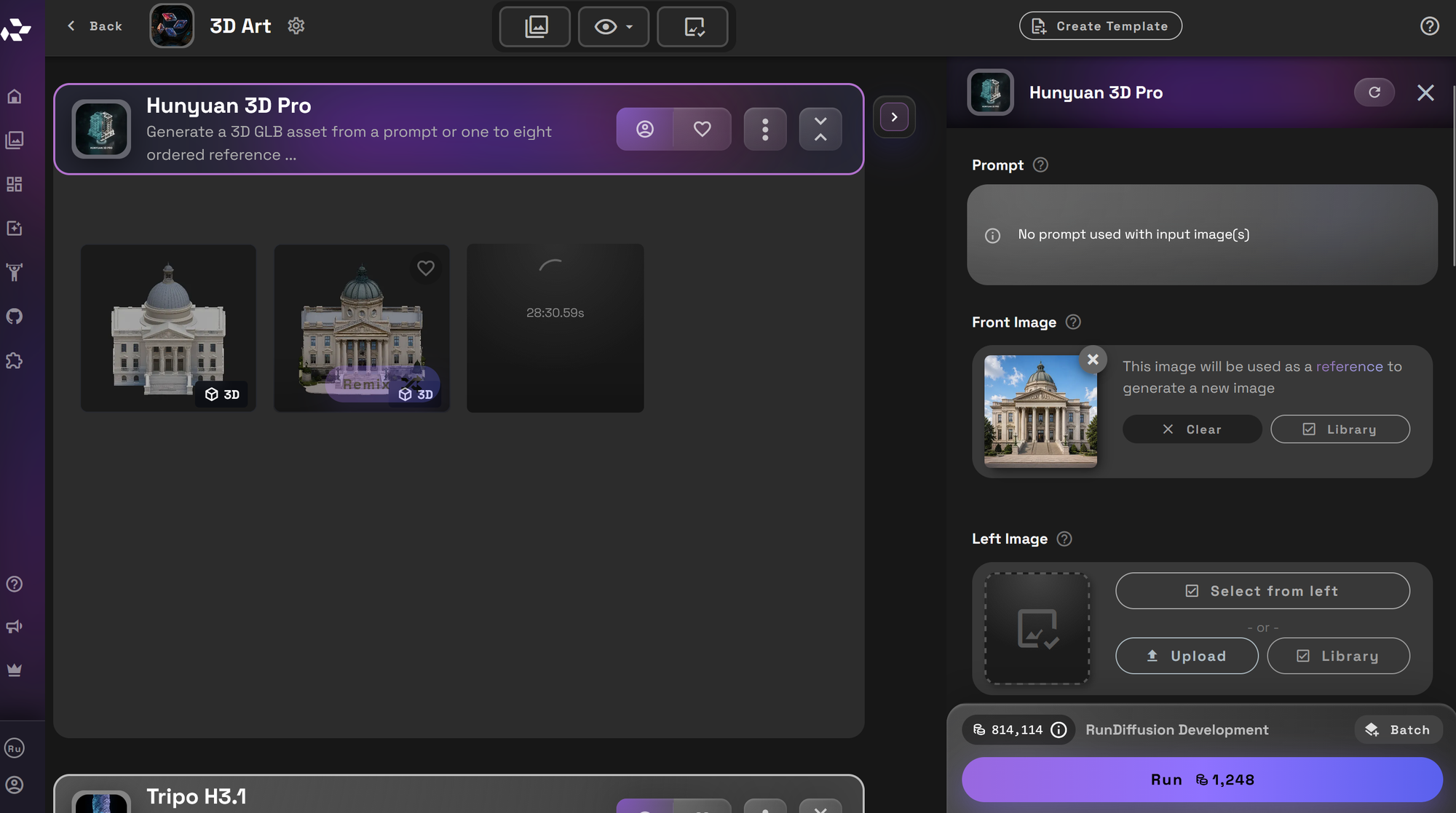
Step 6: Enter a text prompt or add or upload/select a reference image from your library. Each tool has different input requirements explained below. Some allow a reference image(s), some a prompt, and some allow a reference image with a prompt. At this time you may also adjust any settings.
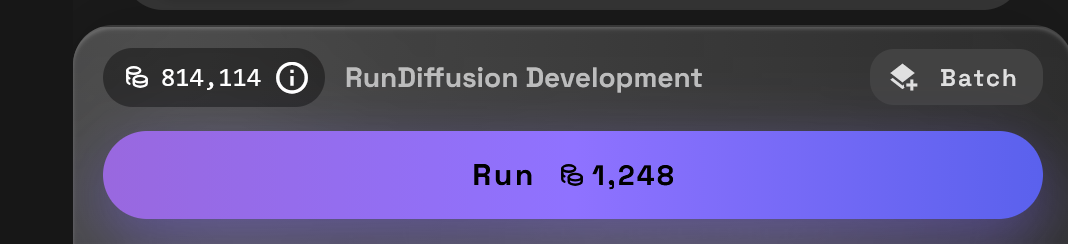
Step 7: To render your 3D creation click Run. This will generate the 3d object. Adjust the settings available in that tool, such as geometry, textures, materials, or export format.
Hunyuan 3D Pro: text, image, geometry, and PBR controls
Hunyuan 3D Pro generates 3D models from text prompts or reference images, returning a GLB asset with a preview thumbnail.
Leave Reference Images empty to generate from the prompt. Add images to use image-to-3D; for multiple views, use this recommended order: front, left, back, right, top, bottom, left-front, right-front.
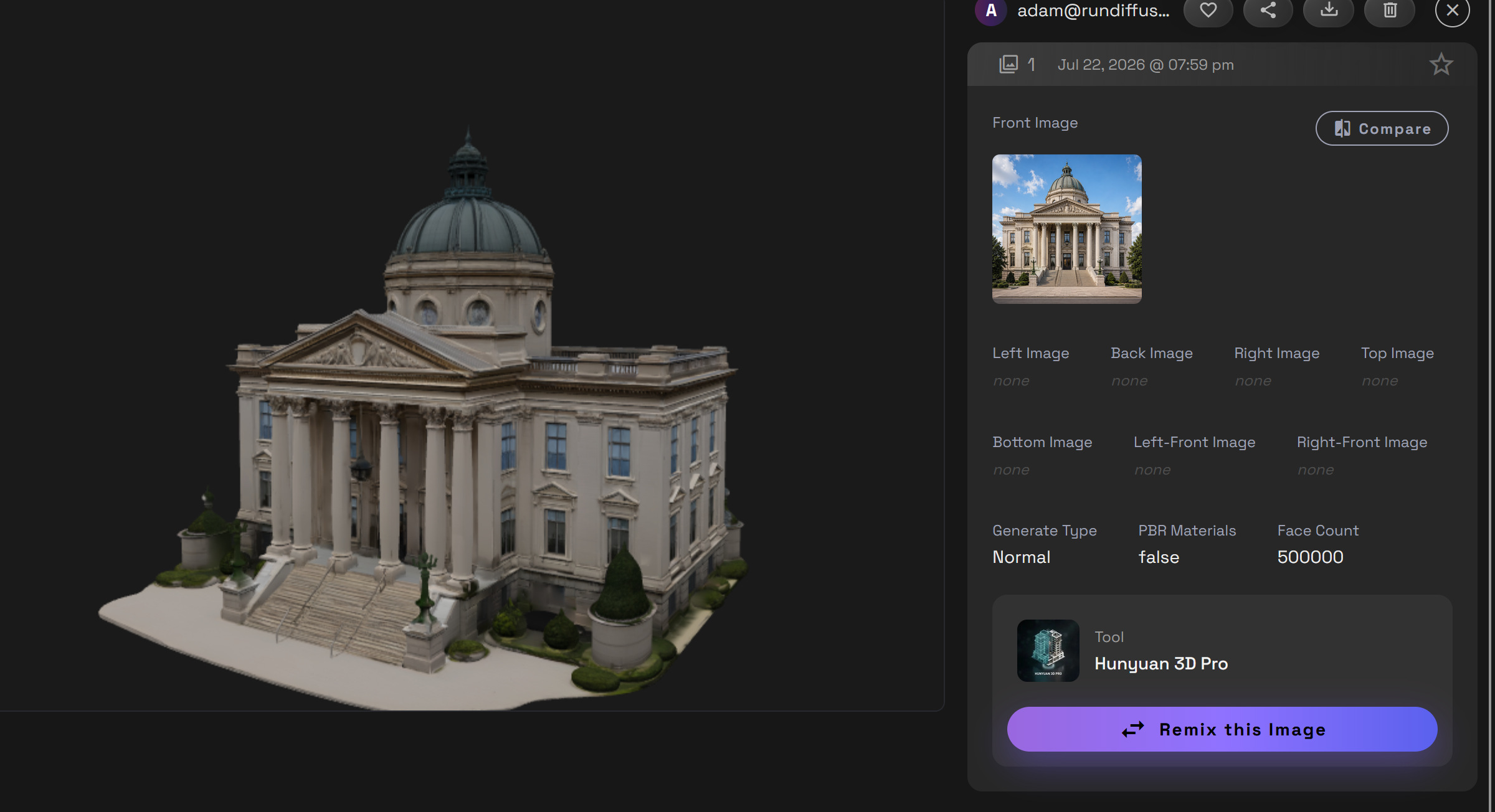
Hunyuan 3D Pro inputs and outputs
- Text-to-3D: Enter a prompt and leave the directional image fields empty.
- Single-image-to-3D: Add one reference image to guide the model.
- Multiview image-to-3D: Add views to any of the eight directional positions: Front Image, Left Image, Back Image, Right Image, Top Image, Bottom Image, Left-Front Image, and Right-Front Image.
- Output: A GLB asset with a preview thumbnail.
Key Hunyuan 3D Pro settings
- Generate Type: Normal or Geometry. Choose textured output or a geometry-only white model.
- PBR Materials: Enables physically based materials when generating a textured asset.
- Face Count: Controls mesh density.
For a node-based alternative, see the Hunyuan3D workflow in ComfyUI on RunDiffusion.
Hyper3D Rodin: text, image, and multiview 3D generation
Hyper3D Rodin creates 3D models from text prompts, one reference image, or multiple image references.
Leave Reference Images empty to generate from text. Add one image for image-to-3D, or add up to four images and use Concat for multiple views of the same object. Use Fuse to combine features from one or more images. In Concat mode, image order does not matter.
Choose GLB for in-app preview and 3D inspection.
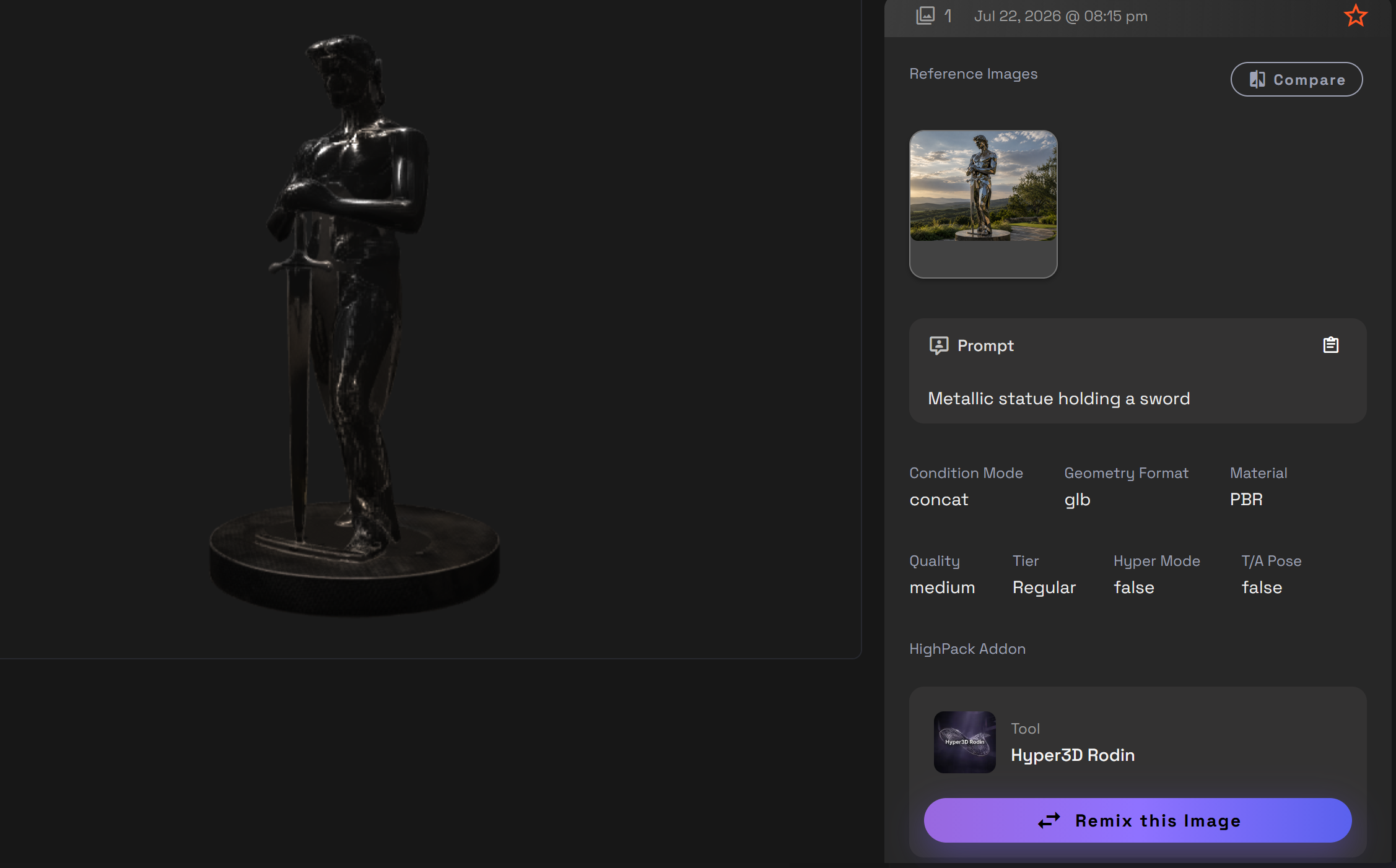
Hyper3D Rodin inputs and outputs
- Text-to-3D: Leave Reference Images empty and describe the model in the Prompt field.
- Single-image-to-3D: Add one reference image.
- Multiple-image-to-3D: Add up to four references. Use Concat for views of the same object or Fuse when you want to combine features.
- Output formats: GLB, OBJ, or STL. Choose GLB when you want in-app preview and 3D inspection.
Key Hyper3D Rodin settings
- Condition Mode: Concat or Fuse
- Geometry Format: GLB, OBJ, or STL
- Material: PBR or Shaded
- Quality: High, Medium, Low, or Extra Low
- Tier: Regular or Sketch
- HighPack Addon: Off or HighPack
- Hyper Mode: Optional advanced toggle
- T/A Pose: Optional pose toggle
Meshy v6: text and multiview 3D with topology and texture controls
Meshy v6 creates a downloadable GLB asset from a prompt or one to four reference images. For image-to-3D, use clear views of the same object from different angles.
Only the first four images are used, so choose the clearest views and do not mix subjects.
Texture options let Meshy generate surface detail, optionally guided by a short texture prompt or a separate texture reference image. PBR maps can add metallic, roughness, and normal detail when texture generation is enabled.
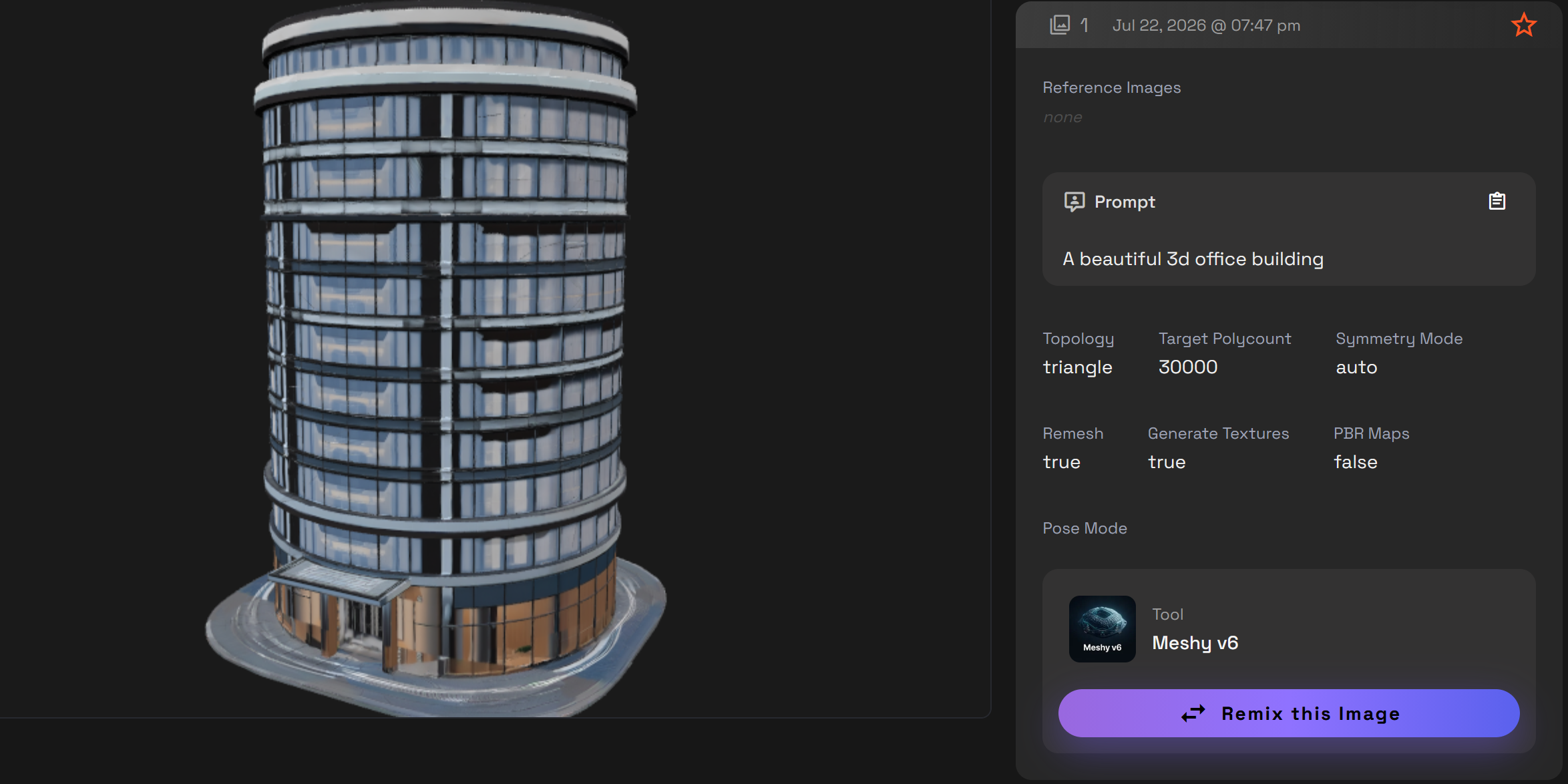
Meshy v6 inputs and outputs
- Text-to-3D: Enter a prompt and leave Reference Images empty.
- Single-image-to-3D: Add one clear reference image.
- Multiple-image-to-3D: Add up to four consistent views of the same object. The first four reference images are used.
- Texture reference: A separate Texture Reference Image can guide surface appearance.
- Output: A downloadable GLB asset.
Key Meshy v6 settings
- Topology: Triangle or Quad.
- Target Polycount: Sets the target polygon count.
- Symmetry Mode: Auto, On, or Off.
- Pose Mode: None, A-Pose, or T-Pose.
- Remesh: On or off.
- Generate Textures: Enables texture generation.
- Texture guidance: Use a short texture prompt or separate texture reference image.
- PBR Maps: Adds metallic, roughness, and normal information when textures are enabled.
Trellis 2: single-image-to-3D with remesh and UV controls
Trellis 2 converts a single reference image into a textured 3D GLB asset. Use a clear image of one object with good lighting and minimal background clutter for a cleaner reconstruction.
Choose 512p, 1024p, or 1536p resolution. Higher resolutions can capture more detail but cost more and take longer. Set Texture Size to 1024, 2048, or 4096, use Decimation Target to reduce mesh size, and enable Remesh to clean up geometry.
Use the advanced guidance, remesh, and UV controls when you need to preserve a silhouette, reduce artifacts, lower the file size, or clean up the mesh.
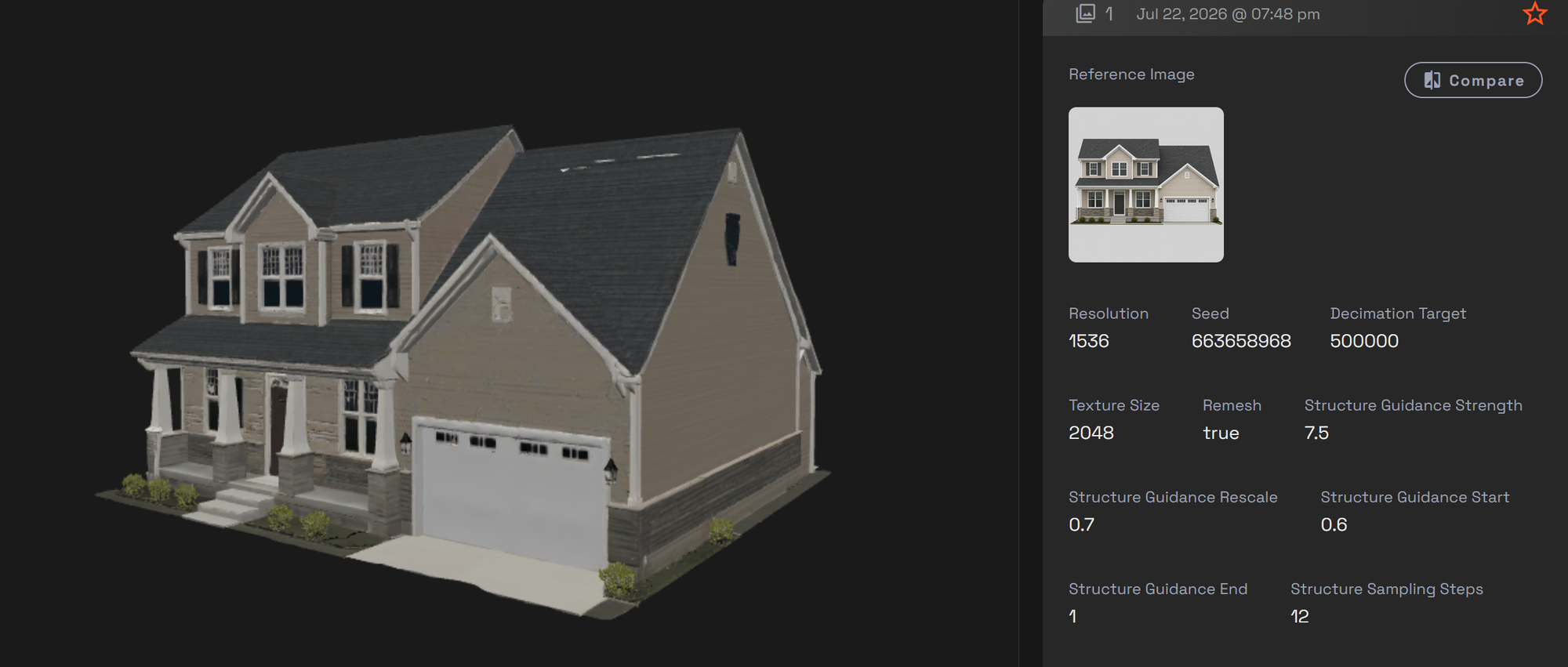
Trellis 2 inputs and outputs
- Input: One required Reference Image. Text-only and multiview inputs are not available.
- Output: A textured GLB asset.
- Resolution and texture: Resolution offers 512p, 1024p, and 1536p. Texture Size offers 1024, 2048, and 4096.
Key Trellis 2 settings
- Generation: Resolution, Texture Size, and Random or Custom Seed
- Mesh optimization: Decimation Target and Remesh
- Guidance: Structure, Shape, and Texture controls for Strength, Rescale, Start, End, Sampling Steps, and Rescale T
- Remesh refinement: Remesh Band and Remesh Project
- UV cleanup: UV Angle Threshold, UV Refine Iterations, UV Global Iterations, and UV Smooth Strength
Tripo H3.1: text, single-image, and multiview 3D generation
Tripo H3.1 generates 3D assets from text, one reference image, or multiview reference images. Leave Reference Images empty to create from a prompt, add one image for image-to-3D, or add two to four images of the same object for multiview reconstruction.
For multiview input, use images in this recommended order: front, left, back, right. Clear views of the same subject help Tripo create more complete geometry and more consistent textures.
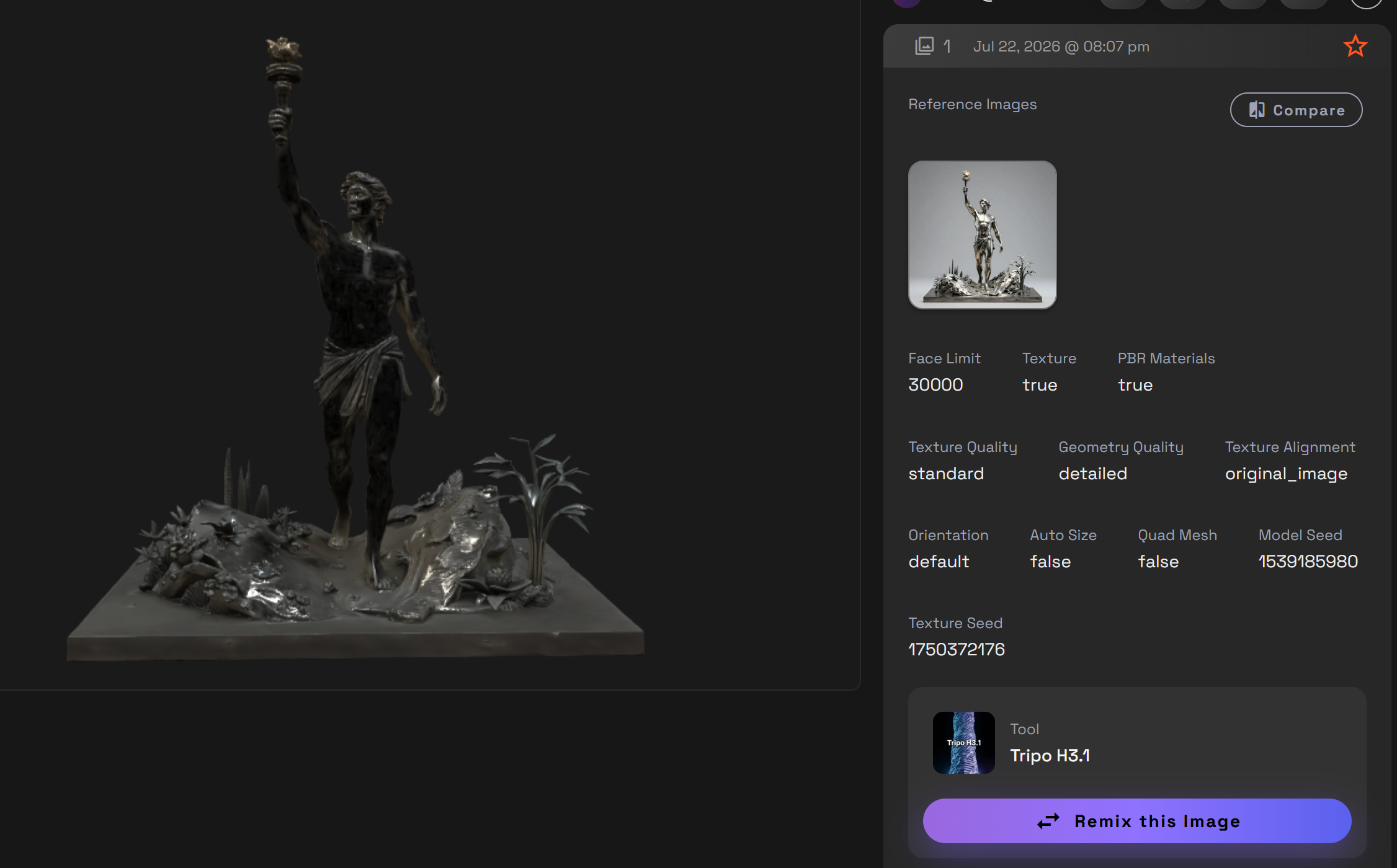
Tripo H3.1 inputs and outputs
- Text-to-3D: Leave Reference Images empty and enter a prompt.
- Single-image-to-3D: Add one reference image.
- Multiview image-to-3D: Add two to four views of the same subject in the recommended front, left, back, and right order.
- Output: A 3D asset with optional textures and PBR materials.
Key Tripo H3.1 settings
- Geometry Quality: Standard or Detailed.
- Negative Prompt: None or Custom.
- Face Limit: Controls the maximum mesh face count.
- Texture: Enables or disables texture generation.
- PBR Materials: Enables physically based material information.
- Texture Quality: Standard or Detailed.
- Texture Alignment: Controls how the generated texture aligns to the model.
- Auto Size: On or off.
- Quad Mesh: Requests quad-based mesh output.
- Model, Image, and Texture Seeds: Random or Custom values for each generation stage.
Which AI 3D model generator should you choose?
If you have only a text prompt
Use Hunyuan 3D Pro, Hyper3D Rodin, Meshy v6, or Tripo H3.1. Trellis 2 requires a reference image.
If you have one reference image
All five tools accept one reference image. Trellis 2 is designed specifically for single-image generation. Hunyuan 3D Pro, Rodin, Meshy v6, and Tripo H3.1 also accept text or multiple images.
If you have multiple reference images
Use Hunyuan 3D Pro, Hyper3D Rodin, Meshy v6, or Tripo H3.1. Hunyuan provides eight named image positions. Rodin accepts up to four images with Concat or Fuse. Meshy uses up to four references. Tripo accepts two to four ordered views.
If topology, polygon count, or pose matters
Meshy v6 provides Triangle or Quad topology, Target Polycount, three symmetry modes, three pose modes, and Remesh. Tripo H3.1 adds Face Limit, Quad Mesh, and Auto Size. Hunyuan 3D Pro provides Face Count.
If remeshing and UV cleanup matter
Trellis 2 includes Decimation Target, Remesh, structure, shape, texture, and UV controls for detailed control over mesh size, remeshing, and UV settings.
If export-format choice matters
Hyper3D Rodin offers GLB, OBJ, and STL. Use GLB to preview the model on RunDiffusion, or choose OBJ or STL when your 3D application requires one of those formats.
How to compare AI-generated 3D models
Rotate each asset and inspect it from every direction, not only the front-facing preview.
Compare the results using these checks:
- Reference alignment: Does the model preserve the subject's proportions, silhouette, colors, and defining features?
- Unseen geometry: Inspect the back, sides, underside, and partially hidden components.
- Mesh quality: Look for holes, floating fragments, fused components, extreme mesh density, and distorted thin structures.
- Texture consistency: Check the sides and back for seams, stretching, or details that only work from the original camera angle.
- Material response: View the model under different lighting and check for shadows or highlights baked into the texture.
- Project requirements: Check whether the result meets the requirements for a still render, animation, game engine, web, mobile, or 3D printing.
How to get better image-to-3D results
Clear, consistent reference images give the tool more useful information about shape, proportions, and surface detail.
- Use one subject. Avoid crowded scenes, groups of objects, and collages.
- Choose informative angles. A three-quarter image communicates more volume than a flat front view. For multiview generation, follow the tool's required or recommended image order.
- Keep the background simple. Strong separation helps the model understand the object's silhouette.
- Show the complete object. Avoid cropping feet, wheels, handles, ears, weapons, or other structurally important components.
- Use clear, high-resolution references. Blur and compression can remove the details you want the model to reproduce.
- Avoid extreme lighting. Strong shadows and reflections may be interpreted as surface colors or physical features.
- Keep multiview inputs consistent. Use the same subject, proportions, colors, and features in every view. Only combine different objects when the tool explicitly supports feature fusion and that is your goal.
Why use RunDiffusion for AI 3D generation?
RunDiffusion puts all five tools in one place. Add one to a Board to generate on its own, or connect it with other Board tools to build a workflow.
You can compare results without installing each tool or managing separate setups.
AI 3D model generator FAQ
Can AI turn one image into a 3D model?
Yes. All five tools can generate from one reference image. A clear three-quarter image shows more structural information than a flat front view because more of the subject is visible.
Is text-to-3D or image-to-3D better?
Use text-to-3D when you are exploring an idea without finished concept art. Use image-to-3D when shape, proportions, color, and surface details need to follow a reference. Add multiple views when the tool supports them and you need to show more of the object's hidden sides.
Do multiple reference images improve AI 3D generation?
Multiple clear views show more of the hidden geometry. Follow the selected tool's image limits and ordering guidance, and use consistent views of the same subject.
Are AI-generated 3D models ready for games or animation?
Not always. Inspect topology, face count, texture quality, PBR support, scale, mesh integrity, and rigging before using an asset in a game or animation project.
Can AI-generated 3D models be 3D printed?
Yes, after preparation. Verify that the mesh is watertight, correctly scaled, free of intersecting geometry, and suitable for the intended material and printer.
Generate an AI 3D model on RunDiffusion
Choose a tool below, add your prompt or reference images, and generate a 3D model on RunDiffusion.