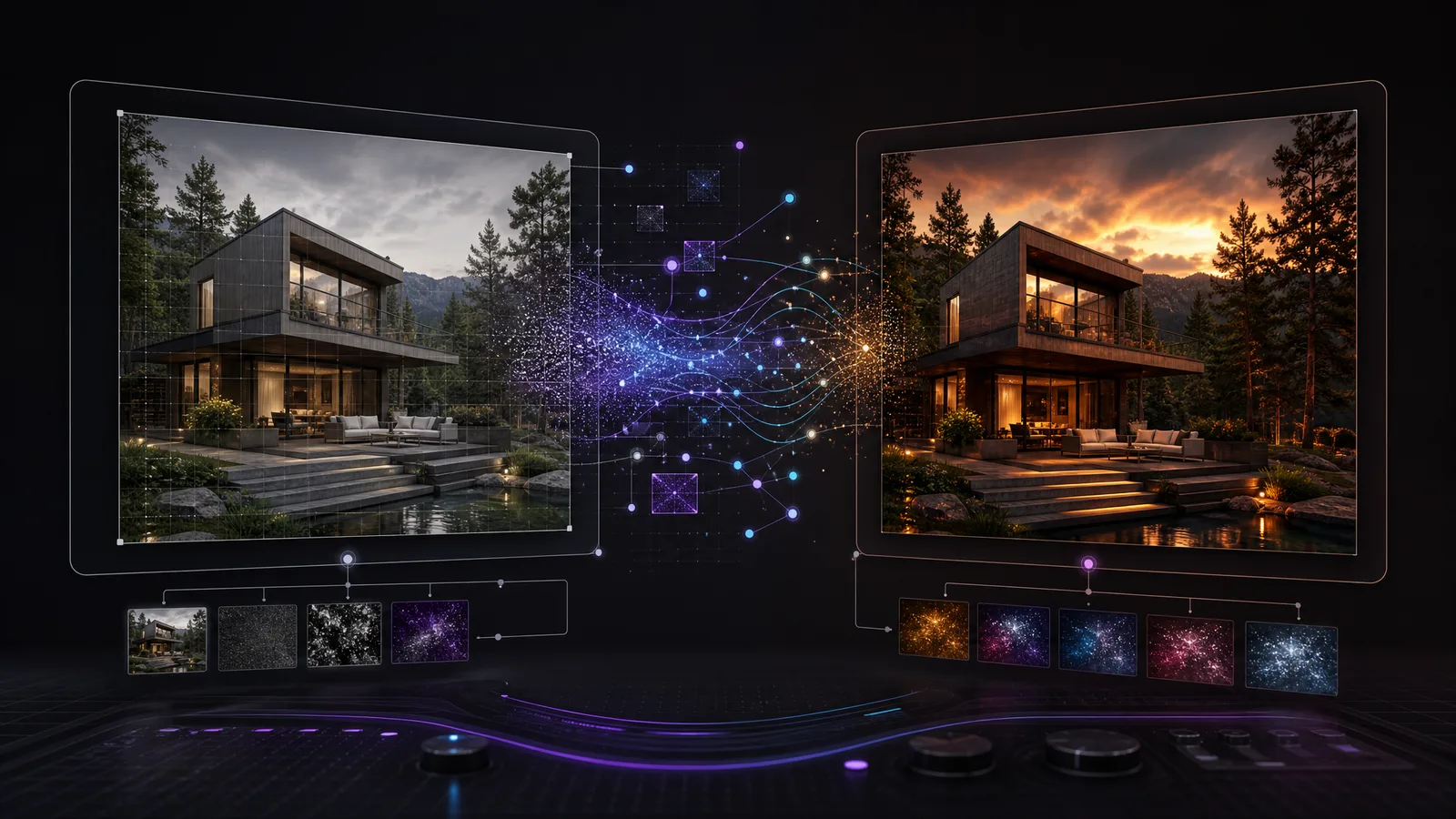
새 이미지와 특정 부분 편집을 위한 GPT Image 2.5 프롬프트를 작성하세요. 이 가이드에서는 프롬프트 구조와 변경할 요소, 유지할 요소를 다룹니다. 건축, 인테리어 디자인, 조경 예시를 통해 같은 원칙을 자신의 작업 대상에 적용하는 방법을 알아보세요.
RunDiffusion에서 도구 찾기
- RunDiffusion에 로그인합니다.

- 왼쪽 사이드바에서 Generate를 클릭한 다음 Image를 선택합니다.

- 도구 하단의 현재 모델 이름을 클릭해 Choose Tool을 엽니다.

- 먼저 Tools를 열고 ChatGPT Image 2.5를 검색합니다. Flare 또는 Sunburst를 선택합니다.

속도가 우선이면 Flare를, 이미지 품질이 우선이면 Sunburst를 선택하세요.
- Prompt를 입력하고 Run을 클릭해 일반적인 텍스트 기반 이미지 생성을 실행합니다.

추가 팁
편집할 때는 사진, 스케치, Photoshop 합성 이미지, 렌더링 또는 SketchUp, Revit, Rhino 등 디자인 도구에서 내보낸 이미지를 선택하세요.
원본 이미지를 업로드하거나 RunDiffusion 라이브러리에서 끌어오세요. 텍스트로 새 컨셉을 만들 때는 이미지 입력을 비워 두세요.
텍스트 기반 이미지 생성에서는 출력 크기를 선택하세요. 편집에서는 업로드한 이미지에서 크기를 추론합니다.
프롬프트를 입력하고 재료, 객체, 위치를 자신의 프로젝트 정보로 바꾸세요.
프롬프트 구조
텍스트 기반 이미지 생성
다음 구조를 출발점으로 사용하세요: 대상, 배경, 구도, 재료, 조명, 제약 조건.
- 대상: 주요 대상과 시각적 스타일을 지정합니다.
- 배경: 장소, 배경, 맥락을 설명합니다.
- 구도: 대상 배치, 카메라 위치, 프레이밍을 정합니다.
- 재료: 특정 요소에 색상, 재료, 텍스처를 지정합니다.
- 조명: 시간대, 날씨, 빛의 방향을 명시합니다.
- 제약 조건: 필수 요소와 원하지 않는 추가 요소를 나열합니다.
예시 프롬프트는 영어로 작성되어 있습니다.
프롬프트 템플릿
각 대괄호 자리표시자를 프로젝트 정보로 바꾸고 대괄호를 제거하세요. 레이블과 콜론은 선택 사항이며 일반 문장으로 작성해도 됩니다.
Create a [photorealistic image or concept illustration] of [subject].
Setting: [background, surroundings, and context].
Layout: [subject placement and arrangement of elements].
View: [camera position, angle, and framing].
Materials: [color, texture, and surface finish].
Lighting: [time of day, weather, and light direction].
Include/Preserve [required details]. Do not add [unwanted elements, signage, or text].
프롬프트 예시
Create a photorealistic image of a single-story courtyard house in a quiet garden with olive trees and low grasses. Arrange two wings around a rectangular stone courtyard. Use an eye-level view from the courtyard, showing the entrance and a furnished living room through large windows.
Use pale limestone walls, slim bronze window frames, matte oak flooring, and cream linen upholstery. Add soft morning daylight with gentle shadows. Keep the building proportions believable and verticals straight. Do not add people, cars, signs, logos, or text.

이미지 편집
기존 사진, 스케치, 합성 이미지, 렌더링 또는 내보낸 모델 뷰에 사용하세요. 프롬프트를 실행하기 전에 원본 이미지를 첨부하세요.
다음 구조를 출발점으로 사용하세요: 원본, 변경 사항, 위치, 재료, 유지 지침, 마무리.
- 원본: 업로드한 이미지와 그 내용을 지정합니다.
- 변경 사항: 교체, 이동, 제거 또는 렌더링할 요소를 지정합니다.
- 위치: 대상 영역이나 객체 위치를 명시합니다.
- 재료: 원하는 외관, 색상, 재료, 텍스처를 설명합니다.
- 유지: 유지할 형태, 구도, 색상, 객체를 나열합니다.
- 마무리: 조명, 반사, 접촉 그림자를 지정합니다.
프롬프트 템플릿
각 대괄호 자리표시자를 프로젝트 정보로 바꾸고 대괄호를 제거하세요. 레이블과 콜론은 선택 사항이며 일반 문장으로 작성해도 됩니다.
Edit the uploaded [photograph, sketch, composite, render, or model view].
Change only [element] at [location]. Use [appearance, material, color, texture, and scale].
Preserve [subject shape, composition, camera, crop, and surrounding objects].
Match the existing perspective.
Lighting: [retain the source lighting or specify a change]. Update reflections and contact shadows around the edit. Do not change [specific adjacent surfaces or objects].
프롬프트 예시
Edit the uploaded living room image. Replace only the two armchairs beside the window with low walnut lounge chairs upholstered in cream boucle. Keep each chair in the same position and orientation, with approximately the same footprint as the original.
Preserve the sofa, tables, rug, walls, windows, camera position, crop, and lighting. Show the timber legs touching the floor naturally, and update shadows and reflections around the replacement chairs. Do not add furniture or change the room layout.


변경 전(왼쪽): 남색 암체어. 변경 후(오른쪽): 편집 프롬프트 예시로 생성한 크림색 패브릭의 월넛 라운지 체어.
텍스트 기반 이미지 생성 예시 두 가지
두 예시 모두 텍스트만으로 시작합니다. 이미지 입력을 비워 두세요.
건축 컨셉 생성
원본 이미지가 생기기 전에 장면 프롬프트로 형태, 구도, 재료, 조명을 탐색하세요. 가로 방향 크기를 선택하세요. 이 예시는 1536 x 1024를 사용합니다.
예시
Create a photorealistic architectural image of a single-story courtyard house.
Setting: a quiet garden with olive trees and low grasses.
Layout: two simple wings around a rectangular stone courtyard.
View: eye-level perspective from the courtyard, showing the entrance and a furnished living room through large windows.
Materials: pale limestone walls, slim bronze window frames, matte oak flooring, and cream linen upholstery.
Lighting: soft morning daylight with gentle shadows.
Keep the building proportions believable and verticals straight. Do not add people, cars, signs, logos, or text.

재료 텍스처 생성
무드보드, Photoshop 합성, 재료 검토용 표면 견본을 생성하세요. 정사각형 크기를 선택하세요. 이 예시는 1024 x 1024를 사용합니다.
예시
Create a square limestone surface texture for an architectural material study.
View: straight-on, with the surface filling the entire image.
Material: warm ivory honed limestone with fine pores, subtle fossil flecks, and gentle tonal variation at a consistent scale.
Lighting: flat, diffuse, and even across the surface.
Show one continuous surface, without slab edges or grout lines. Avoid strong veins, stains, cracks, shadows, highlights, vignetting, perspective, objects, labels, and text. Keep the pattern evenly distributed for use as a texture swatch.

텍스처 프롬프트에서는 정면 뷰, 고른 조명, 표면 가장자리가 보이지 않도록 지정하세요. 표면에 이미지를 반복하기 전에 이음새를 확인하세요. 이 견본은 이음새가 없는 것으로 검증된 타일이나 완전한 3D 재료가 아닙니다.
편집 예시 8개: 건축, 인테리어, 조경
1. 모델 뷰를 건축 렌더링으로 변환
입력: SketchUp, Revit 또는 다른 모델링 도구에서 이미지로 내보낸 외관 투시도.
예시
Turn the uploaded model view into a photorealistic exterior.
Preserve the building outline, floor count, roof shape, window positions, columns, balconies, and entrance. Keep the original camera, perspective, and crop.
Apply pale limestone panels to the solid facade surfaces, dark bronze frames to the windows, and clear glazing. Use fine recessed panel joints and subtle stone variation. Finish the ground in dry, light gray concrete paving.
Add soft overcast daylight and realistic glass reflections. Keep the ground levels and neighboring building outlines. Do not add floors, openings, canopies, decorative screens, planting, or wet surfaces.


왼쪽: 모델 스타일 이미지. 오른쪽: 석회석 파사드, 브론즈 프레임, 마른 콘크리트 포장.
2. 파사드 재료 변경
입력: 상층부에 목재 외장재가 있는 외관.
예시
Replace only the upper-floor timber cladding with muted terracotta panels and fine vertical joints.
Preserve the facade depth, building silhouette, floor heights, window sizes, and window positions. Keep balcony edges, the ground-floor finish, and the roof material unchanged.
Maintain the camera, crop, daylight, sky, and landscaping. Match the panel texture scale to the building. Do not add fins, screens, or openings.


왼쪽: 목재 외장재. 오른쪽: 차분한 테라코타 패널.
각 재료 대안은 동일한 원본 이미지에서 생성하세요.
3. 실내 마감 변경
입력: 방 사진 또는 실내 모델 뷰.
예시
Edit the uploaded interior image. Change only the floor and the wall behind the sofa.
Replace the floor with wide matte oak boards. Run the long edges from the left wall toward the windows on the right, parallel to the front edge of the sofa. Do not run the boards from the camera toward the sofa. Finish the wall behind the sofa in warm ivory limewash with subtle texture and no visible panel joints.
Preserve the room dimensions, ceiling, doors, windows, skirting profiles, furniture, rug, and camera position. Keep the lighting direction and exposure. Update reflections and contact shadows for the new finishes.

왼쪽: 회색 타일과 도장 벽. 오른쪽: 오른쪽 창문 방향으로 놓인 오크 바닥재와 아이보리 라임워시.
4. 가구 교체
입력: 창문 옆에 암체어 두 개가 있는 실내.
예시
Replace only the two armchairs beside the window with low walnut lounge chairs upholstered in cream boucle.
Keep each chair in the same position and orientation, with approximately the same footprint as the original. Show the timber legs touching the floor naturally.
Preserve the sofa, tables, rug, walls, windows, camera position, crop, and lighting. Update shadows and reflections around the replacement chairs. Do not add furniture or change the room layout.

왼쪽: 남색 암체어. 오른쪽: 크림색 패브릭의 월넛 라운지 체어.
5. 좌석 공간 재배치
입력: 소파, 커피 테이블, 암체어 두 개가 있는 라운지.
예시
Rearrange only the two armchairs in the uploaded lounge.
Keep the sofa and coffee table in place. Move both armchairs to the foreground, on the camera side of the coffee table. Place them side by side, facing directly toward the sofa. Show the backs of both chairs to the camera. The coffee table must sit between the chairs and the sofa. Do not place the chairs at the left and right ends of the table. Keep a clear walking route beside the seating group.
Retain exactly two chairs with the same navy upholstery, furniture designs, and sizes. Preserve the rug, room geometry, finishes, doors, windows, camera, crop, and lighting direction. Reconstruct the floor where the chairs previously stood. Update contact shadows. Do not add or duplicate furniture.

왼쪽: 원래 좌석 배치. 오른쪽: 소파를 바라보도록 커피 테이블 앞으로 옮긴 의자 두 개.
6. 포장 및 식재 변경
입력: 진입로와 식재 구역이 있는 조경 뷰.
예시
Edit only the entrance path finish and its planting beds.
Replace the paving with warm gray rectangular stone slabs laid across the path. Retain the path width and alignment. Replace the planting within the existing beds with low grasses and compact shrubs.
Preserve the bed boundaries, mature trees, site levels, steps, drainage channels, building, and entrance. Keep the camera, crop, and lighting unchanged.
Keep the walking route and doorway clear. Do not add trees, steps, water features, or retaining walls.

왼쪽: 벽돌 길과 혼합 식재. 오른쪽: 회색 석판, 낮은 풀, 작은 관목.
7. 객체 제거
입력: 주차된 차가 파사드를 가리고 있는 외관.
예시
Remove only the parked car in front of the building.
Reconstruct the paving and background behind it, continuing visible joints, edges, and surface textures. Remove the car's shadow and its reflections in nearby glass.
Preserve the building, entrance, planting, street furniture, camera position, crop, and daylight. Do not replace the car with another object.

왼쪽: 주차된 차. 오른쪽: 차를 제거한 모습. 이전에 가려져 있던 포장과 배경 디테일은 생성된 것입니다.
8. 낮을 저녁으로 변경
입력: 승인된 낮 시간대 외관.
예시
Change the uploaded exterior to an early-evening view.
Preserve the geometry, openings, material assignments, camera position, crop, furniture, and landscaping. Let brightness and reflections respond to evening light.
Use a blue-hour sky, warm light inside existing glazed rooms, and discreet entrance lighting. Keep facade textures visible in the remaining daylight.
Do not add windows, decorative light strips, or dramatic spotlights.

왼쪽: 낮 시간대 외관. 오른쪽: 따뜻한 실내 조명이 있는 블루 아워 조명.
활용 팁
- 깔끔한 원본을 사용하세요. 메뉴, 선택 강조 표시, 불필요한 주석이 없는 선명한 사진, 스케치, 합성 이미지 또는 내보낸 뷰를 사용하세요.
- 정확한 대상을 지정하세요. “change the materials” 대신 “the wall behind the sofa” 또는 “upper-floor timber cladding”이라고 작성하세요.
- 범위를 좁게 유지하세요. 가구 재배치는 조명이나 파사드 검토와 분리하세요.
- 참고 이미지의 역할을 지정하세요. 여러 입력을 지원하는 경우: “Image 1 defines the room. Image 2 supplies only the chair design.”
- 편집할 요소와 고정할 요소를 구분하세요. 카메라와 형상은 유지하되 이동한 객체 주변의 그림자와 반사는 바뀔 수 있도록 하세요.
- 적절한 원본을 재사용하세요. 순차 편집에는 가장 최근에 승인된 결과물을, 서로 비교할 디자인 대안에는 동일한 원본을 사용하세요.
- 전체 결과를 검토하세요. 개구부, 층고, 가구 수, 변경하지 않은 표면을 확인하세요. 유지 지침이 형상을 고정하는 것은 아닙니다.
- 도구에서 크기를 설정하세요. 텍스트 기반 이미지 생성에서는 도구에서 크기를 선택하세요. 편집에서는 원본 이미지의 크기를 따릅니다. 프롬프트에 “4K”라고 적는다고 해상도가 설정되지는 않습니다.
도면과 모델에서 치수와 기술적 요구 사항을 확인하세요. 더 많은 RunDiffusion 건축 워크플로를 탐색하세요.
모델을 선택하고 생성을 시작하세요
디테일에 맞춰 조정된 모델입니다. 모델을 열어 이 가이드를 실제 작업에 적용해 보세요.