
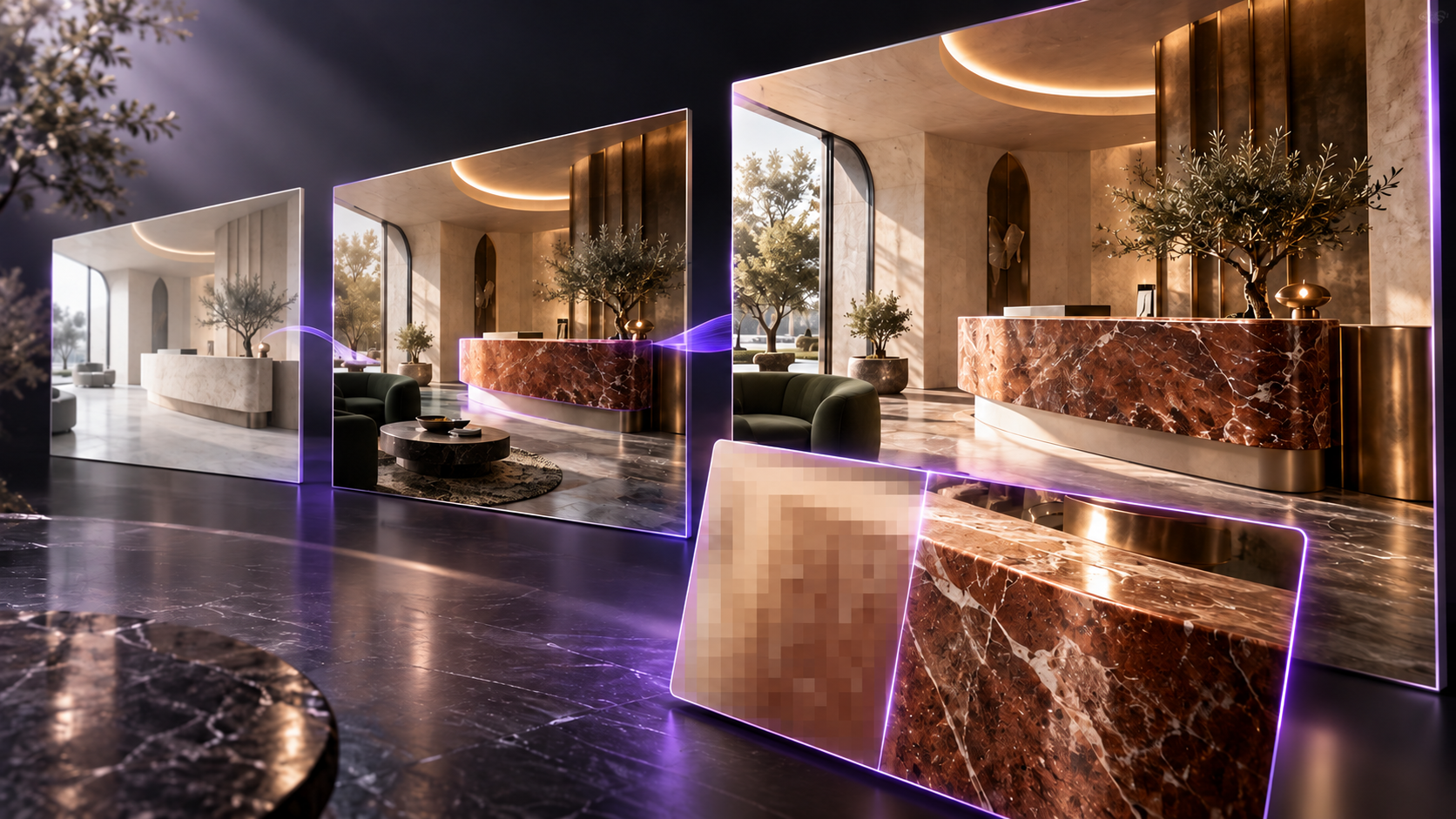
Flux 3 Image, Flux 3 Klein, Flux 3 Klein Base, and Flux 3 Video Upscale are now available on RunDiffusion. Generate or edit images with the three image tools, or increase the resolution of an existing clip with Video Upscale.
Choose an image or video workflow
Flux 3 Image: Generate or edit with up to ten reference images and output tiers from 0.75K to 4K. Expand Prompt is off by default.
Flux 3 Klein: Generate or edit with up to ten references. Expand Prompt is on by default, and 4K output is available in square format.
Flux 3 Klein Base: Use the Klein Base variant with more inference steps than Klein. Compare the same brief and settings when evaluating the two variants.
Flux 3 Video Upscale: Upload an existing MP4 and choose Precise or Creative reconstruction at a target resolution above the source.
Flux 3 Image
Generate detailed images from text or edit with up to ten reference images, using output sizes from 0.75K to 4K.
Build the image around a clear brief
Use Prompt to describe the composition, materials, lighting, and any required text. For editing, describe the change to make and identify what should stay the same. Each reference image must be at least 256 pixels on both sides.
Image Size offers wide, square, and portrait formats across 0.75K, 1K, 2K, and 4K tiers. Higher resolution can take several minutes. Expand Prompt is off by default; enable it when you want additional descriptive detail while preserving the intent of your brief.
Use references for a design presentation
Combine a building view with selected material or landscape references, then assign each reference a purpose. A focused edit might retain the building massing and camera position while changing only the facade cladding.
For a presentation image with signage, specify the exact wording in the prompt and review the lettering in the generated result before using it in a client deliverable.
Example: a hotel reception lounge

Flux 3 Klein
Generate an image from a text prompt, or add up to ten reference images to edit an existing visual or combine elements from several sources.
Generate or edit with references
Leave Reference Images empty to generate from your prompt alone. When you add images, describe the finished composition and explain the role of each reference. For an interior concept, you could supply a room render, a material reference, and a furniture image, then specify which parts of the room should stay the same.
Image Size includes landscape, square, and portrait formats at 0.75K, 1K, and 2K. A 4K option is available for square output. Expand Prompt is on by default and develops your instructions into a more detailed description, using the reference images when supplied.
A starting prompt for an interior edit
Keep the camera position, room geometry, window placement, and furniture arrangement from the first image. Use the second image as the reference for the oak wall finish. Preserve the daylight direction and the pale stone floor.
Example: a courtyard-house concept

Flux 3 Klein Base
This variant uses more inference steps than Flux 3 Klein and supports both text-based image generation and editing with up to ten reference images.
Work from a prompt or several images
Describe the image you want to create in Prompt. Add Reference Images when you want to edit a supplied image or combine visual references. For a product or architectural concept, give each image a clear role: the main composition, the material palette, or the object to include.
Choose landscape, square, or portrait output in Image Size. The available tiers are 0.75K, 1K, and 2K, with 4K available for square output. Expand Prompt is enabled by default. A Seed field is also available for controlling the random input used during generation.
Compare a defined design brief
Use the same prompt, reference images, and output size when comparing Klein Base with Klein. Check the areas that matter to the brief, such as material transitions, small fixtures, and the relationship between foreground objects and the room.
For example, ask for a reception desk in pale travertine with a dark bronze inset, using one image for the room and another for the stone finish.
Example: a courtyard-house concept

Flux 3 Video Upscale
Increase the resolution of an existing MP4 clip using Precise reconstruction or Creative detail enhancement.
Choose the target resolution
Upload an MP4 in Video Input. Clips can be up to 20 seconds long and 50 MB. Target Resolution offers 1080p, 1440p (2K), and 2160p (4K); choose a target higher than the source video resolution.
Precise mode keeps the reconstruction close to the source. Creative mode can add or reinterpret detail. An optional Prompt lets you describe the details you want Creative mode to emphasize.
Check architectural detail across the clip
For a rendered walkthrough or exterior camera move, start with Precise when retaining the existing design is the priority. Consider Creative when you want additional surface detail and can review the changes it makes.
Inspect several frames, including areas with windows, railings, signage, foliage, and reflective materials. Check that fine detail remains consistent as the camera moves before using the upscaled clip in a presentation.
Example: a museum clip upscaled to 1080p
The museum source clip used for the upscale example also appears in the Wan 3.0 tools update.
Related changelogs
View all product updates in the RunDiffusion changelog.