Learn how to use Juggernaut Base with LoRA on the RunDiffusion Platform for more flexible and customized image generation.
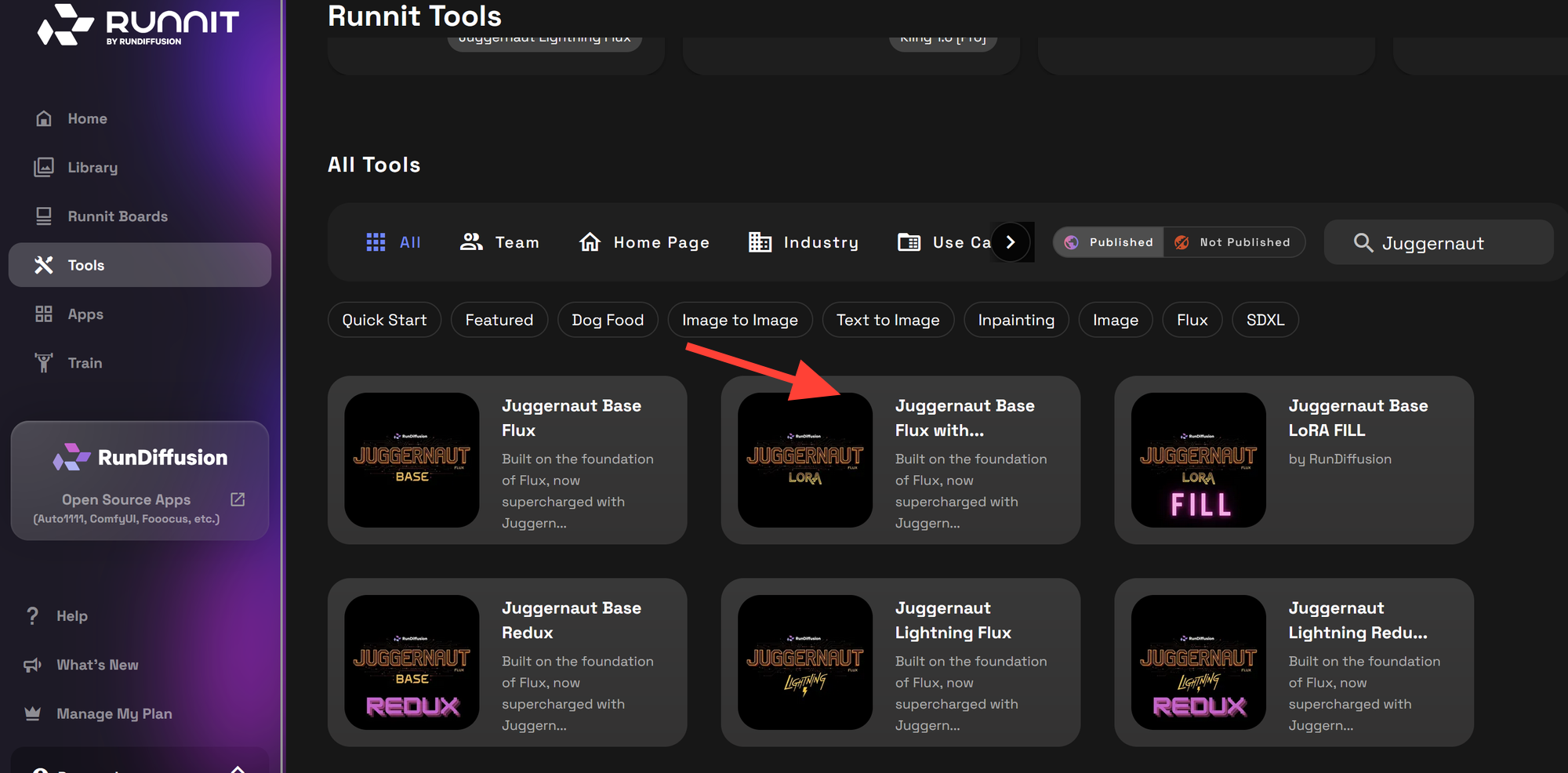
Start prompting above, or click on an image below to start generating with Juggernaut Base Flux with LoRA
PROMPT
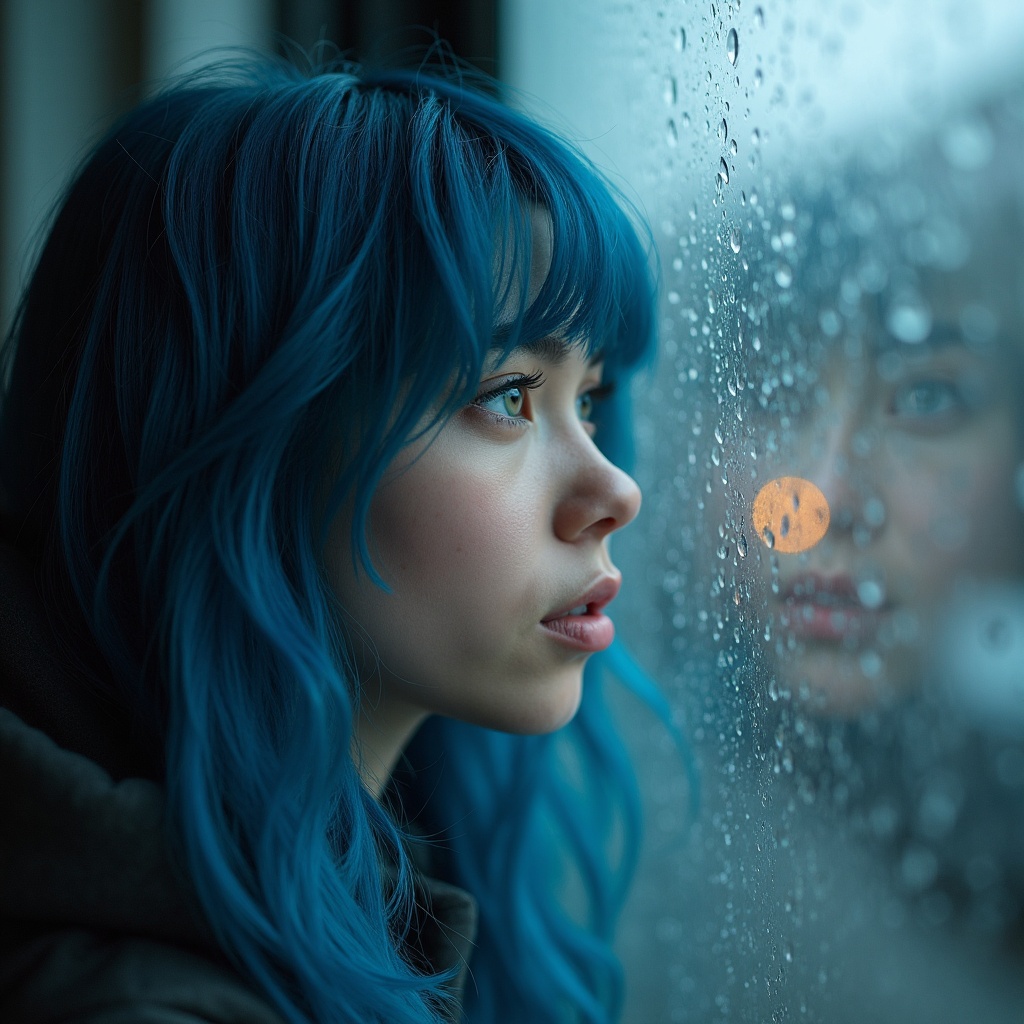
"A young woman with vivid blue hair gazing out a rain-streaked window, her reflection slightly visible on the glass. Portrait style with soft lighting, emotional expression, and a moody atmosphere. Taken at an intimate medium close-up with a shallow depth of focus."
PROMPT
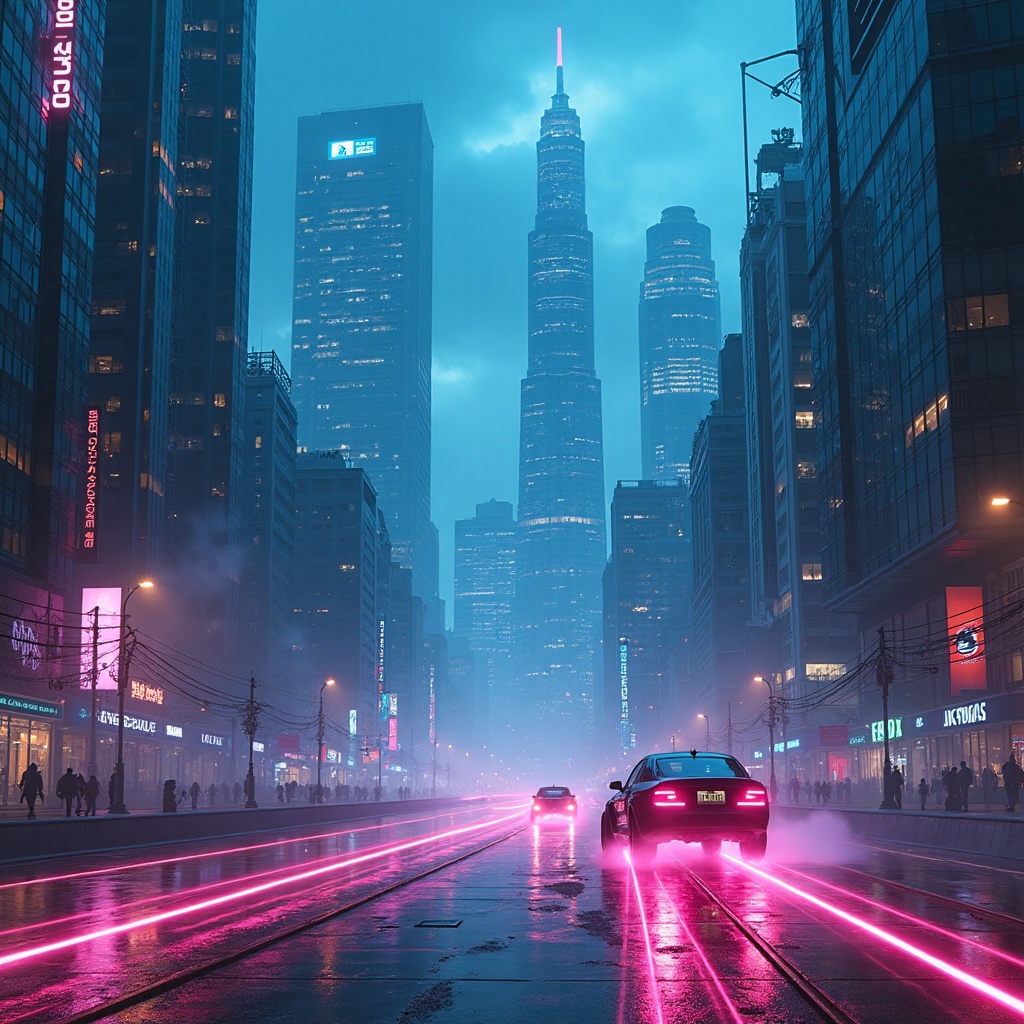
"A futuristic city skyline with towering glass skyscrapers under a neon-lit sky. Flying cars zip through the air leaving trails of light in their wake. Cyberpunk style with glowing blue and magenta hues dominating the scene. The lighting is moody and dramatic with reflections bouncing off wet streets."
PROMPT
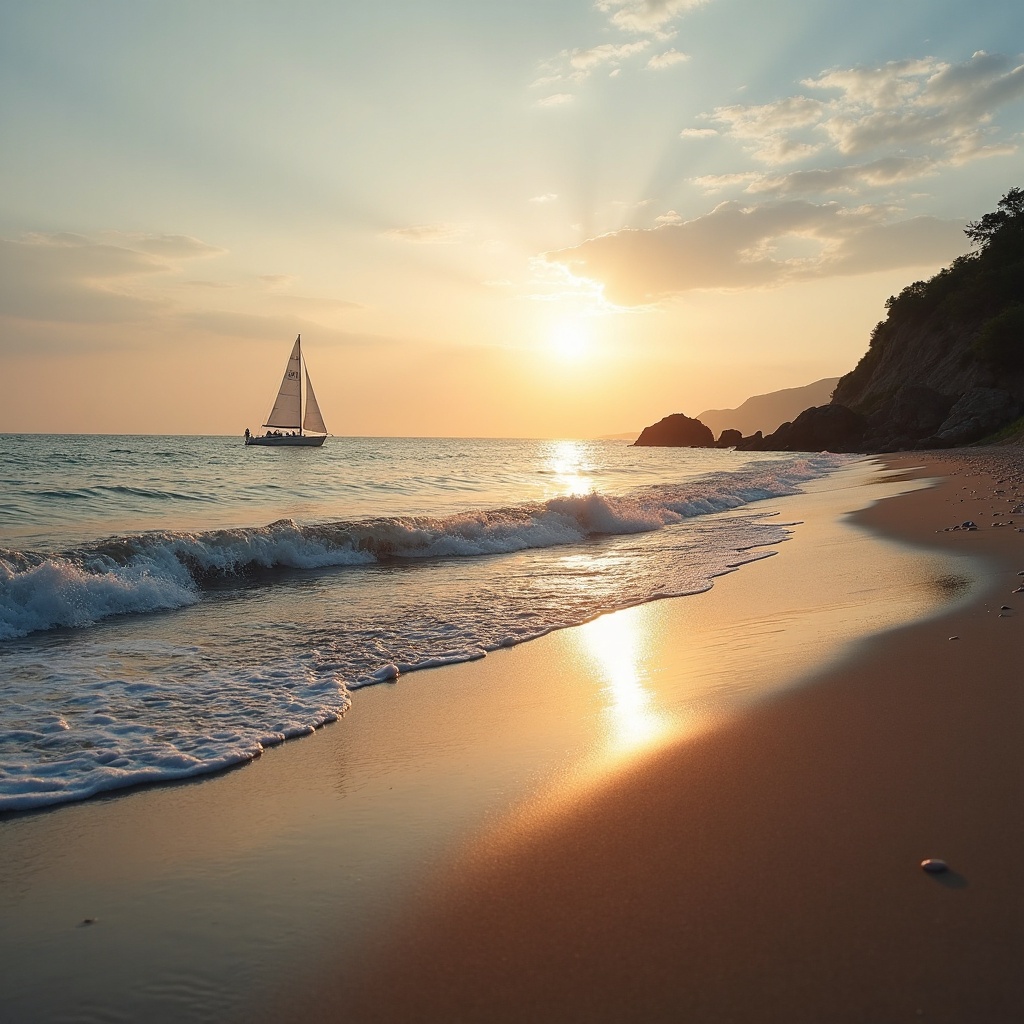
"A serene beach at sunset with gentle waves washing onto the shore, a lone sailboat in the distance. Nature landscape style with golden hour lighting and soft pastel skies reflecting on the wet sand."
PROMPT
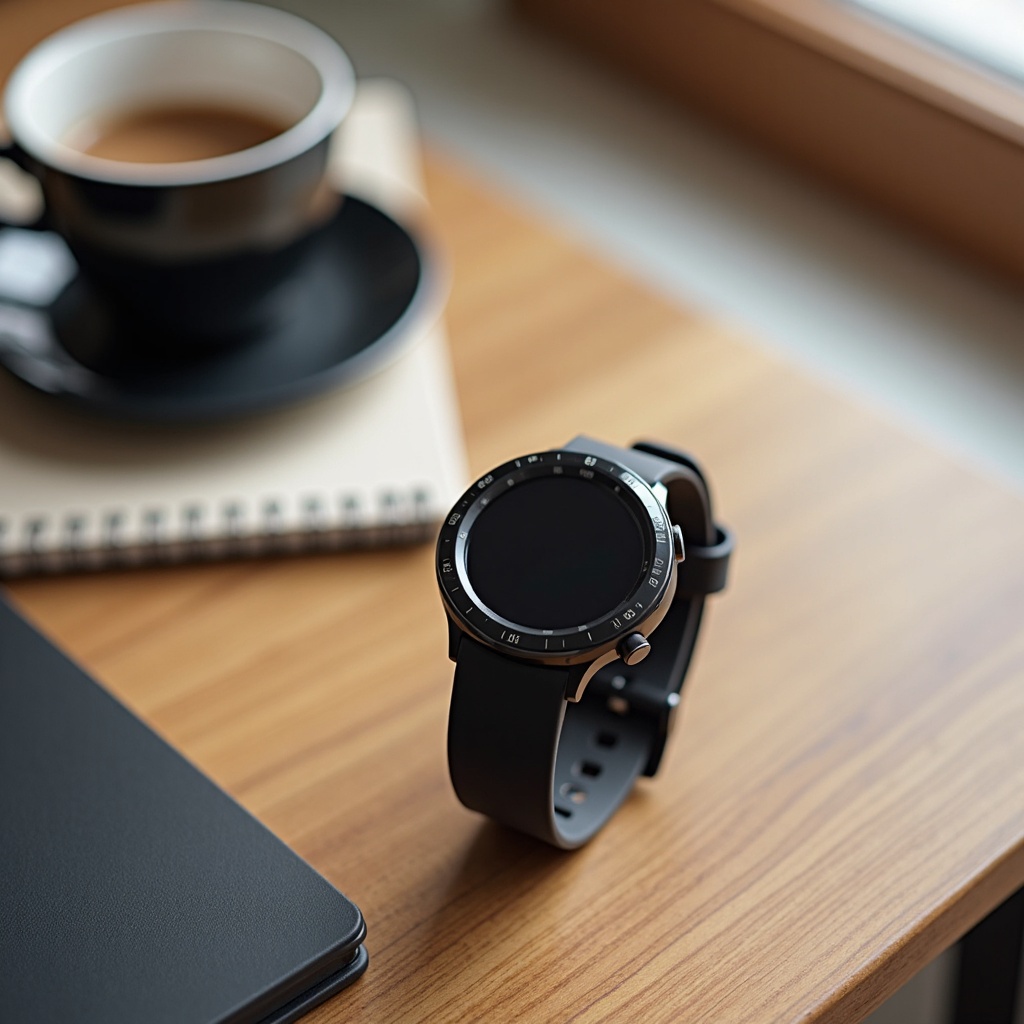
"A sleek black smartwatch displayed on a wooden desk next to a cup of coffee and a notepad. The setting is a bright and airy modern office environment. In a photorealistic style with soft natural lighting and high detail on the metal texture of the watch face. The shot is taken from a high angle to showcase the product and its surroundings."
PROMPT
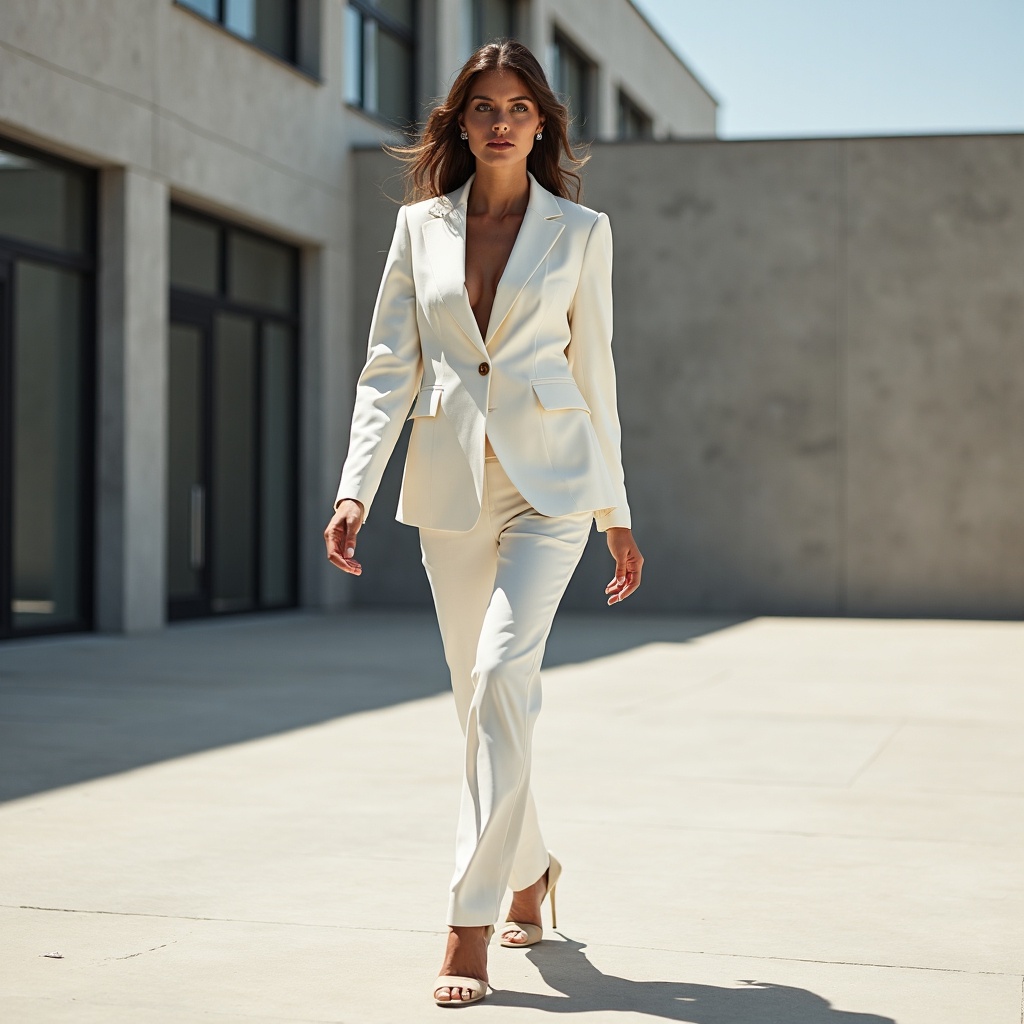
"A confident woman in a tailored white blazer walking through a minimalist urban setting. Fashion editorial style with bright daylight casting long shadows and a shallow depth of focus to highlight the fabric texture. The scene is composed with a centered composition and dynamic stride."
PROMPT
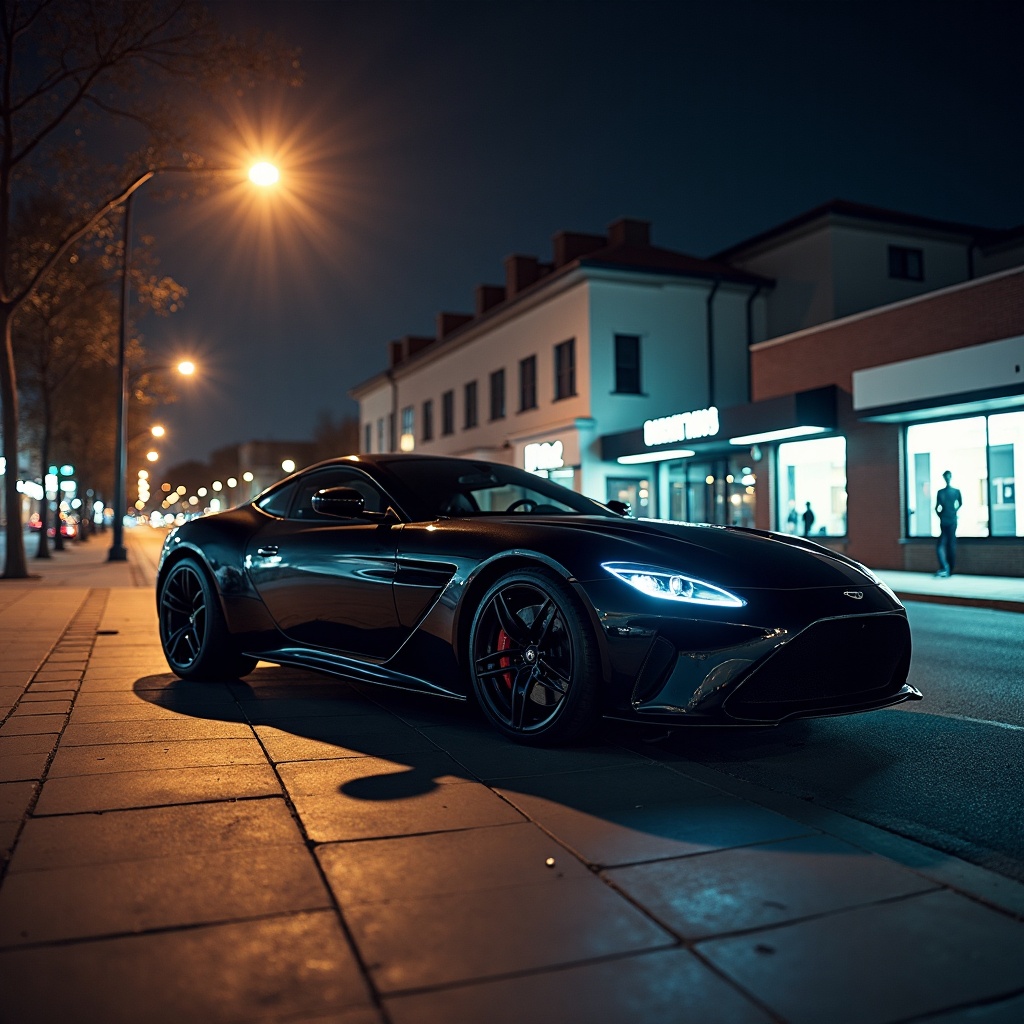
"A sleek luxury car parked under a glowing streetlamp in an empty downtown street at night. The car’s glossy black surface reflects the neon lights around it. Cinematic style with dramatic shadows, moody tones, and a low-angle view emphasizing power and design."
PROMPT
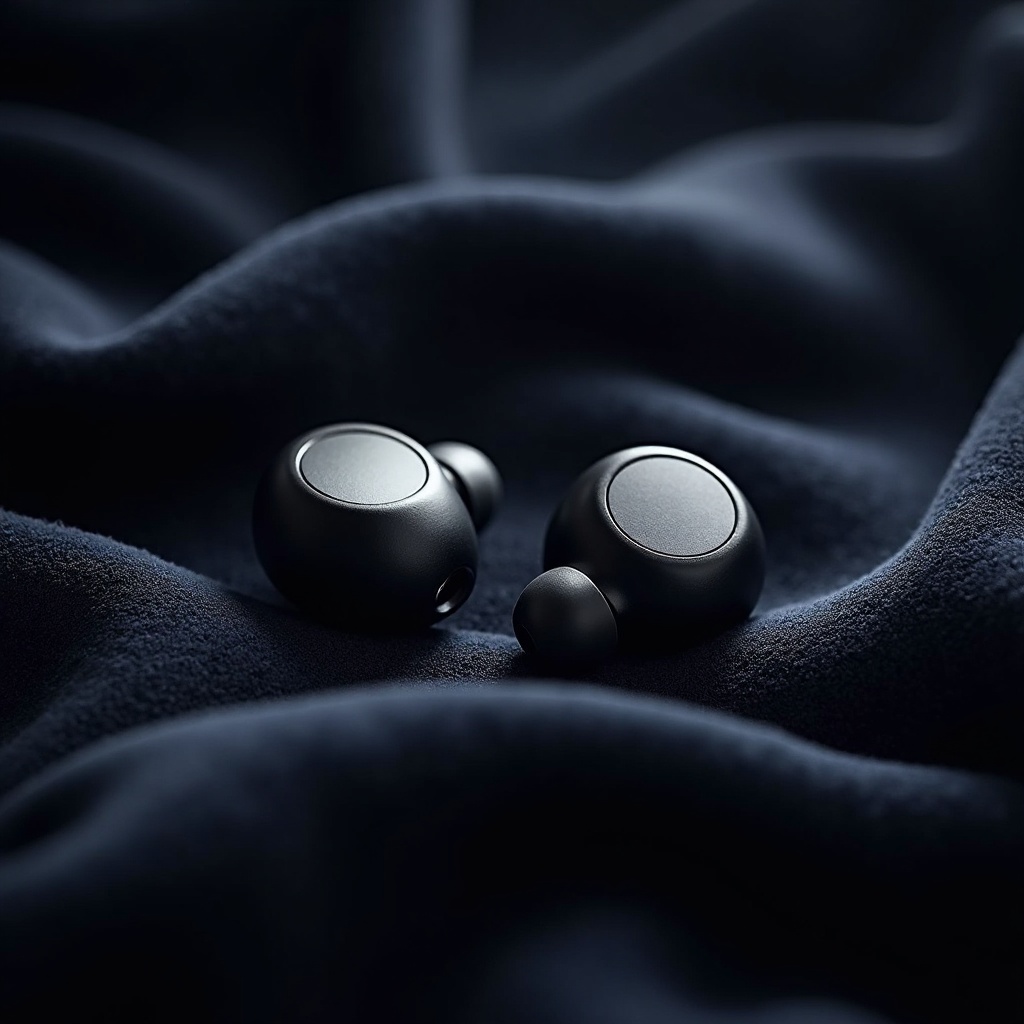
"A pair of modern wireless earbuds placed on a dark velvet background with a spotlight highlighting their smooth surface. Product photography with macro focus and deep shadows to bring out the elegance."
PROMPT
"A group of coworkers collaborating at a wooden table covered with laptops and coffee mugs in a modern office with large windows. Corporate photography style with bright natural lighting and a clean, organized environment. The focus is on teamwork with an overhead perspective capturing interaction."
1 / 2
Combining the Juggernaut base model with a LoRA on the RunDiffusion Platform (Formerly Runnit Platform) is one of the most effective ways to generate bold, high-fidelity AI art without having to dive into local installations or complex setups. In this guide, we’ll walk you through how to pair a LoRA (Low-Rank Adaptation) with the powerful Juggernaut checkpoint using the cloud-native RunDiffusion Platform. If you're looking to level up your AI image generation—this workflow is for you.
Why Use Juggernaut with LoRA?
Juggernaut is one of the most versatile and photorealistic flux models out there. It’s known for clean, cinematic results and works exceptionally well with portrait LoRAs, stylization LoRAs, fashion ad texture LoRAs, and influencer Loras to name a few.
When combined with LoRA models on the RunDiffusion Platform, users can fine-tune generation results for:
Specific characters or aesthetics
Artistic styles (anime, 3D render, illustration)
Costumes, poses, or body types
No need to merge models or handle hardware — the RunDiffusion Platform takes care of the backend so you can focus on the creative process.
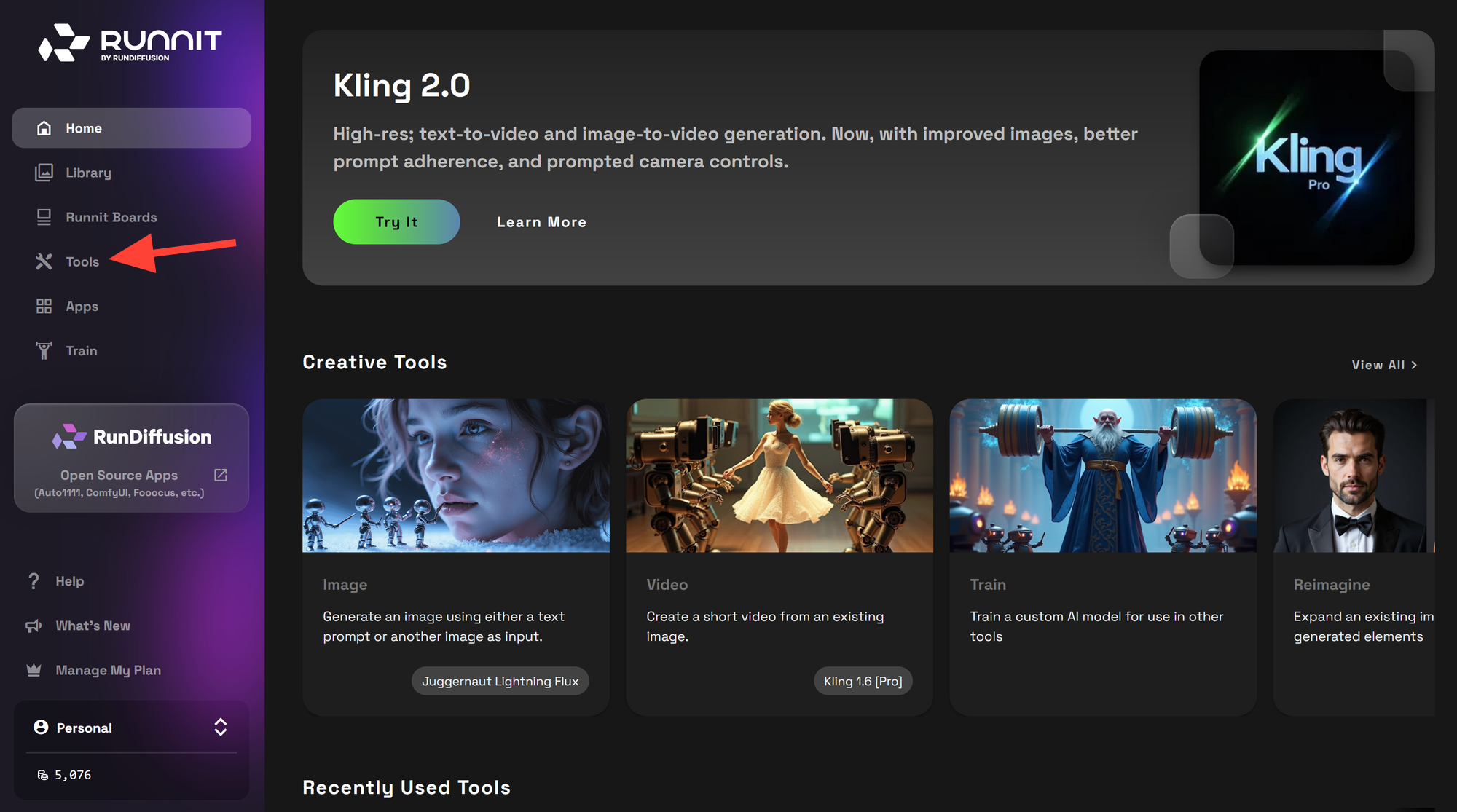
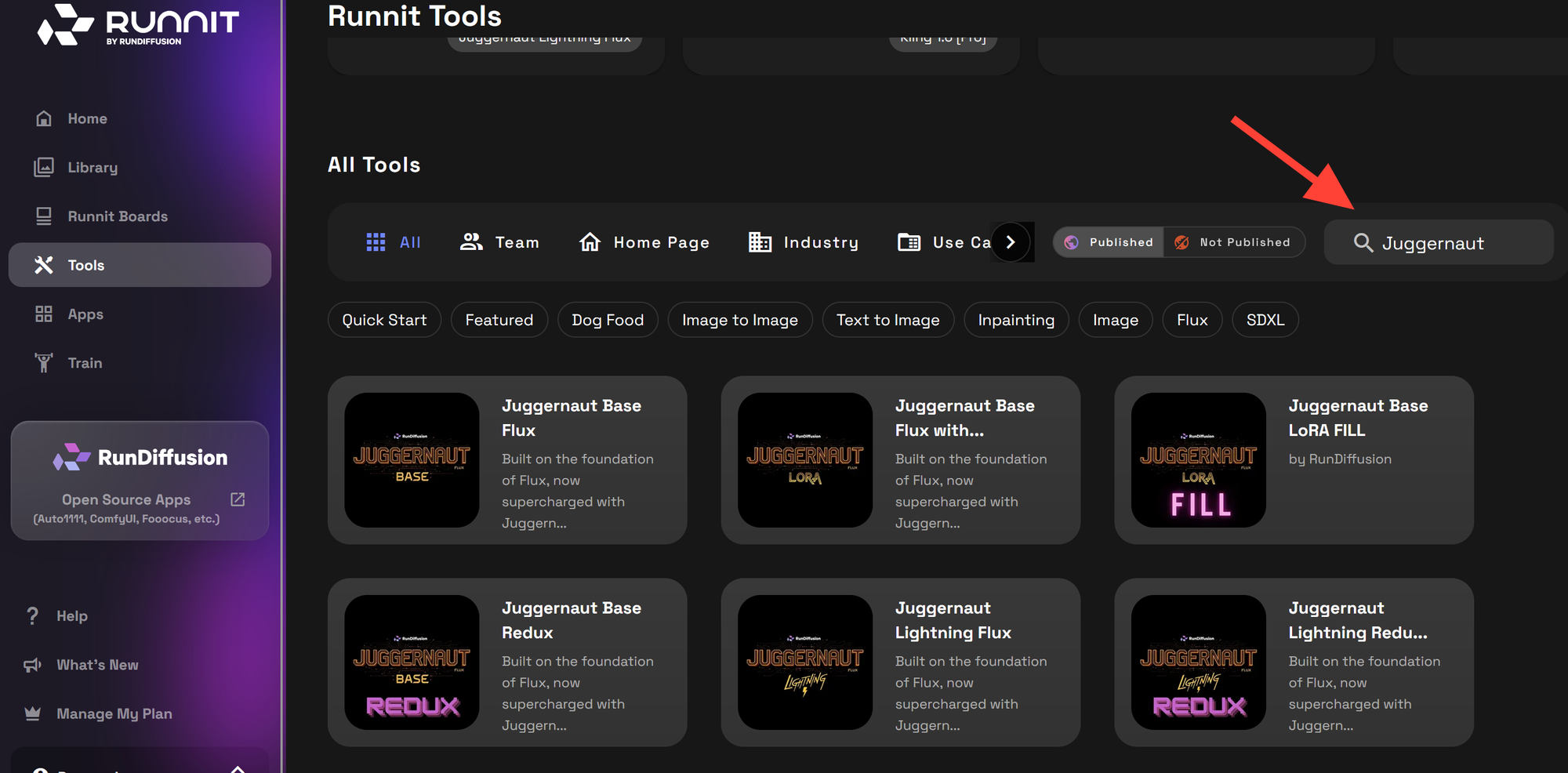
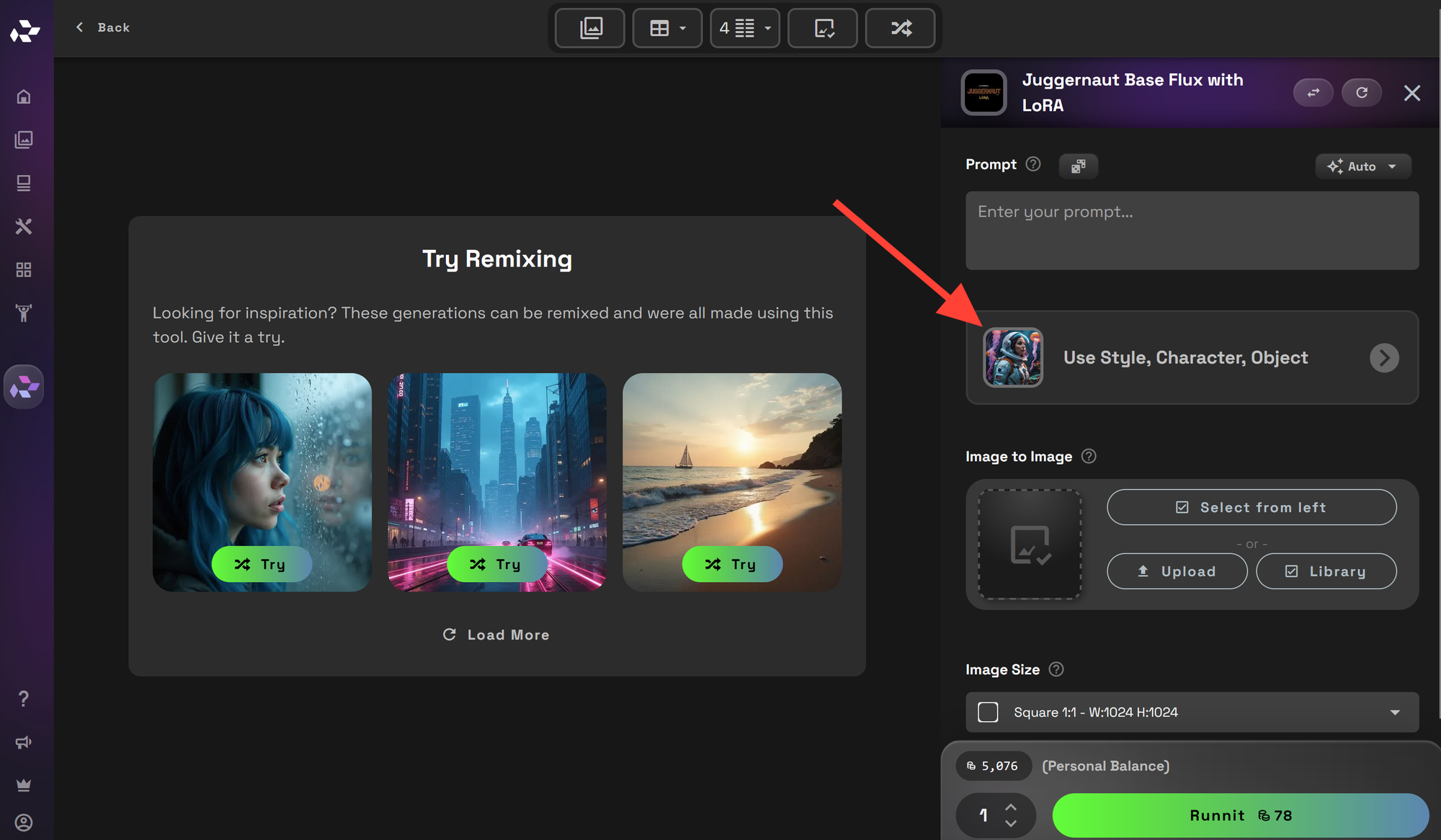
Getting Started: base Juggernaut with LoRA on the RunDiffusion Platform
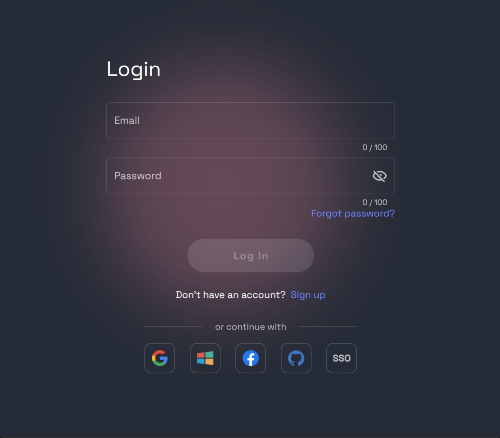
Login
Login to your account with your credentials or email and password.
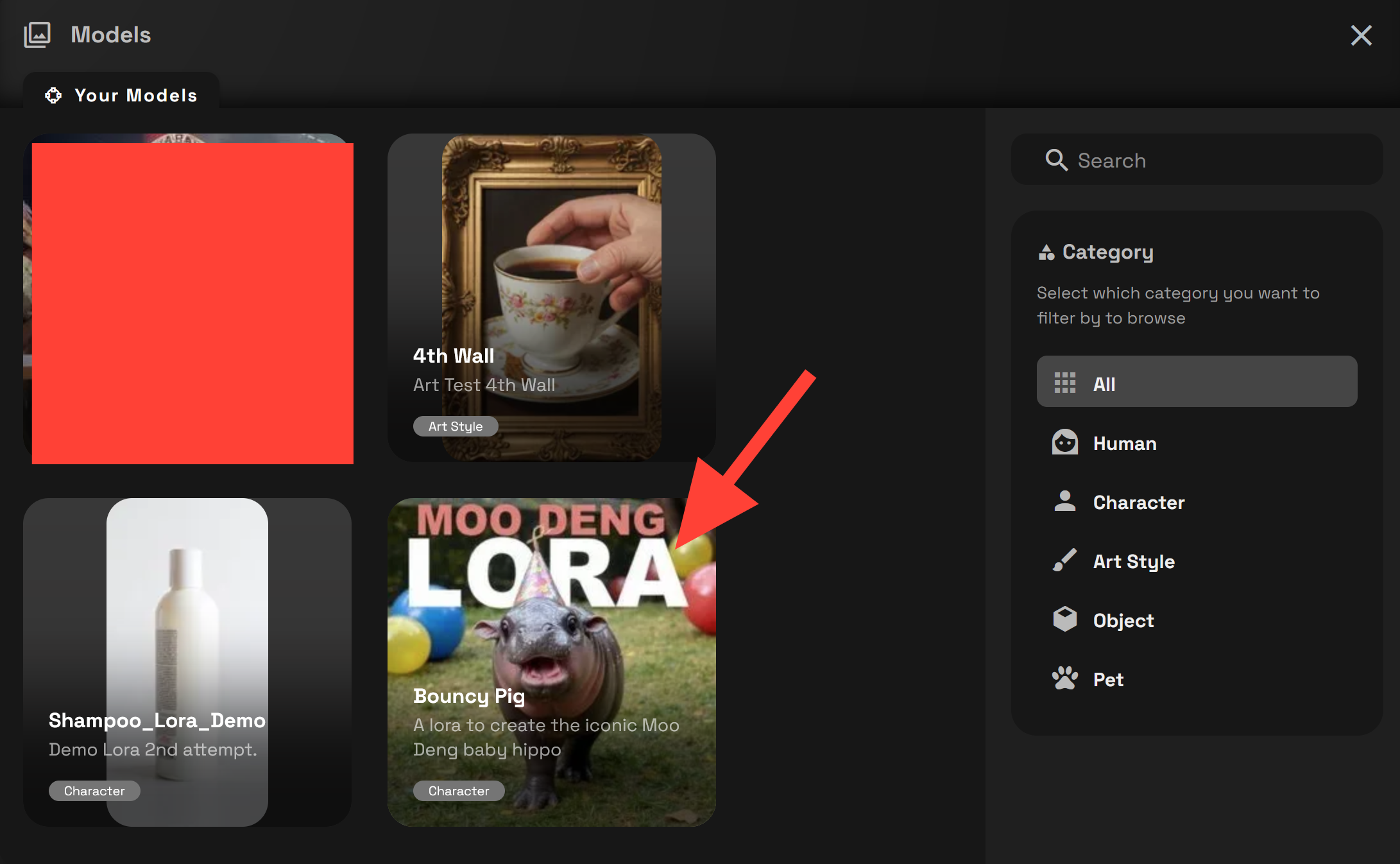
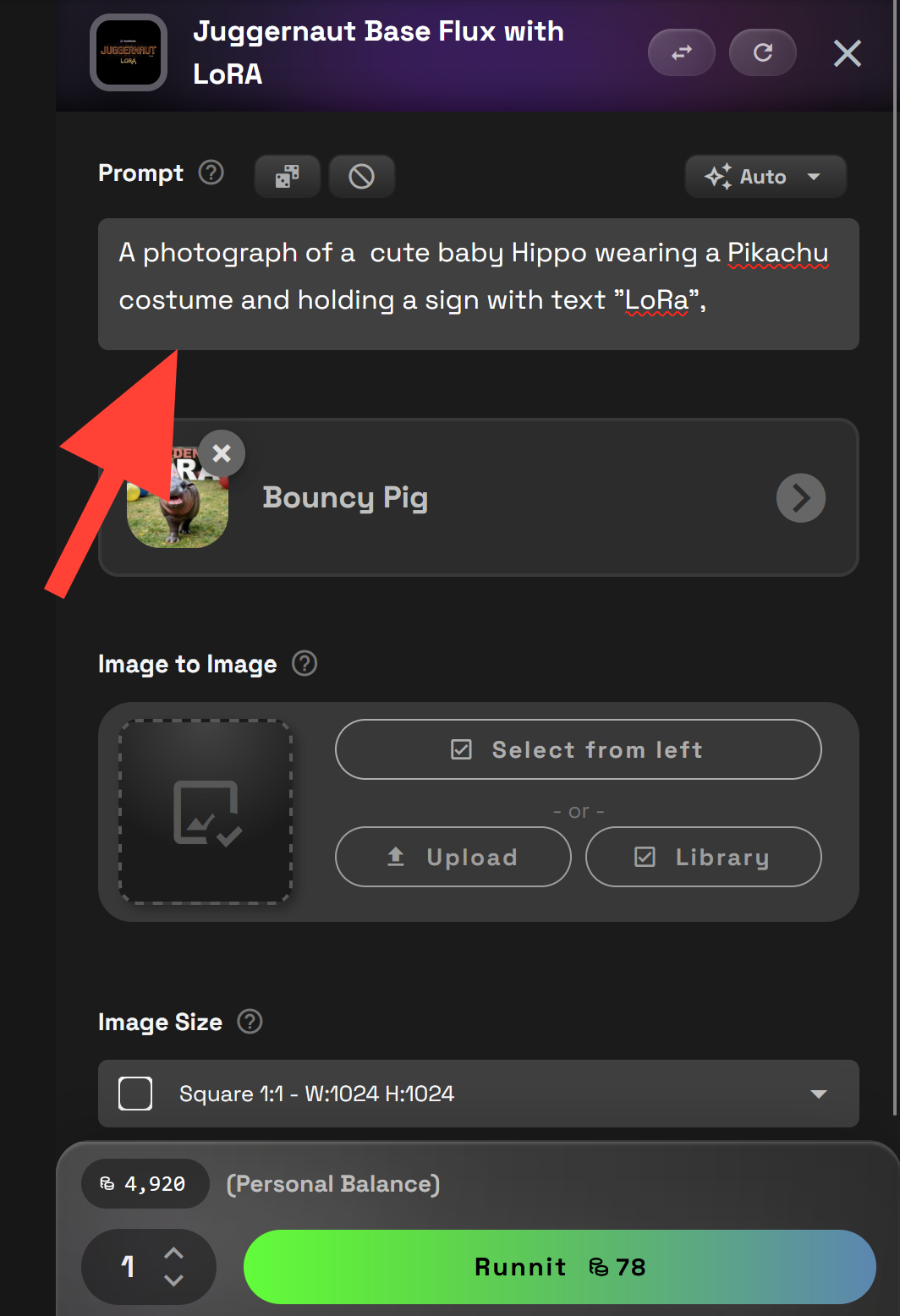
They are separated on the right by category to make searching easier if you have trained multiple Lora Models.
Enter a Prompt
Here fill out a prompt to help guide the AI in creating the image you want.
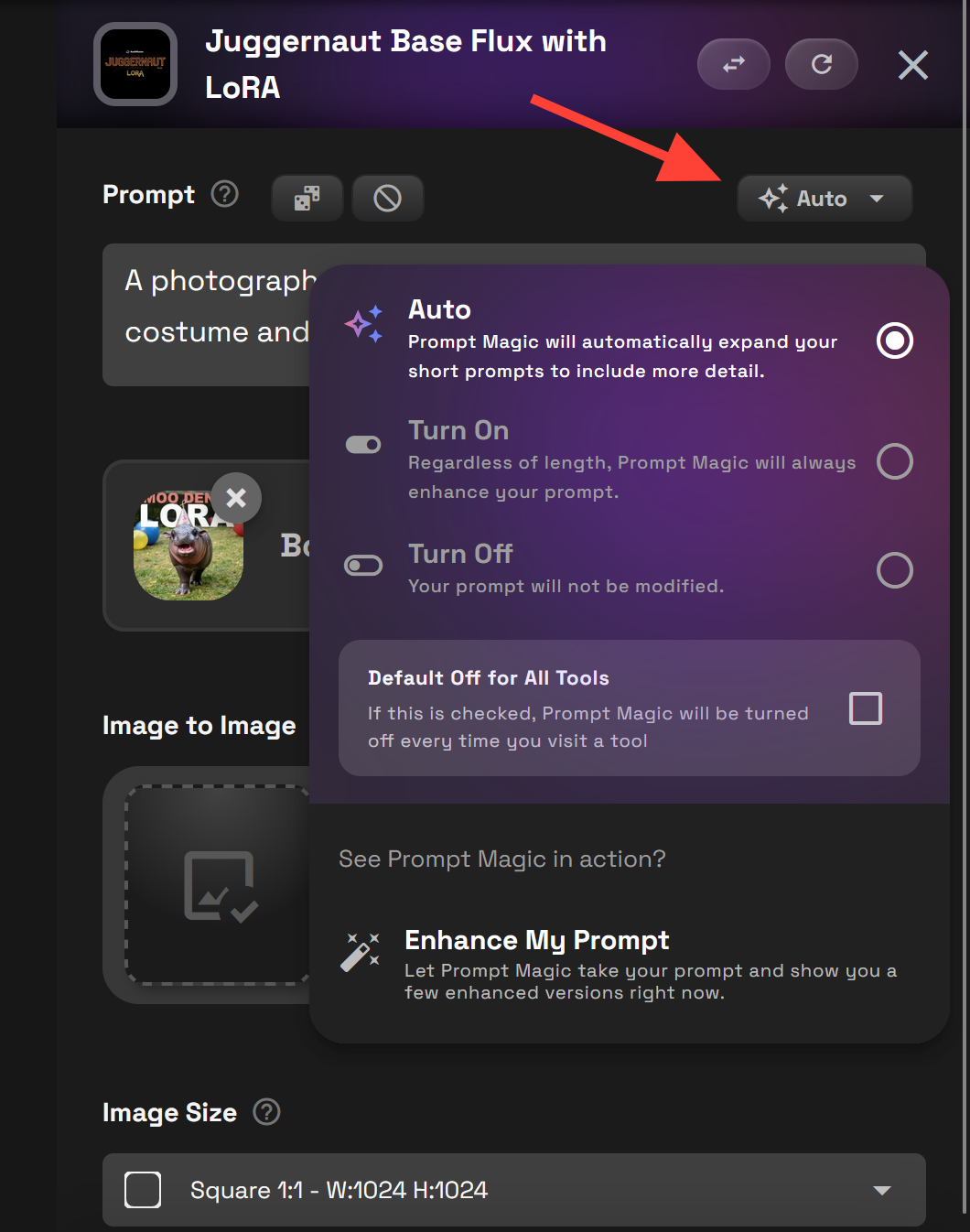
If you need assistance with your prompt you can use the magic prompt feature adjusting the setting to On. If you do not need it you can turn it off or leave it on the default setting Auto.
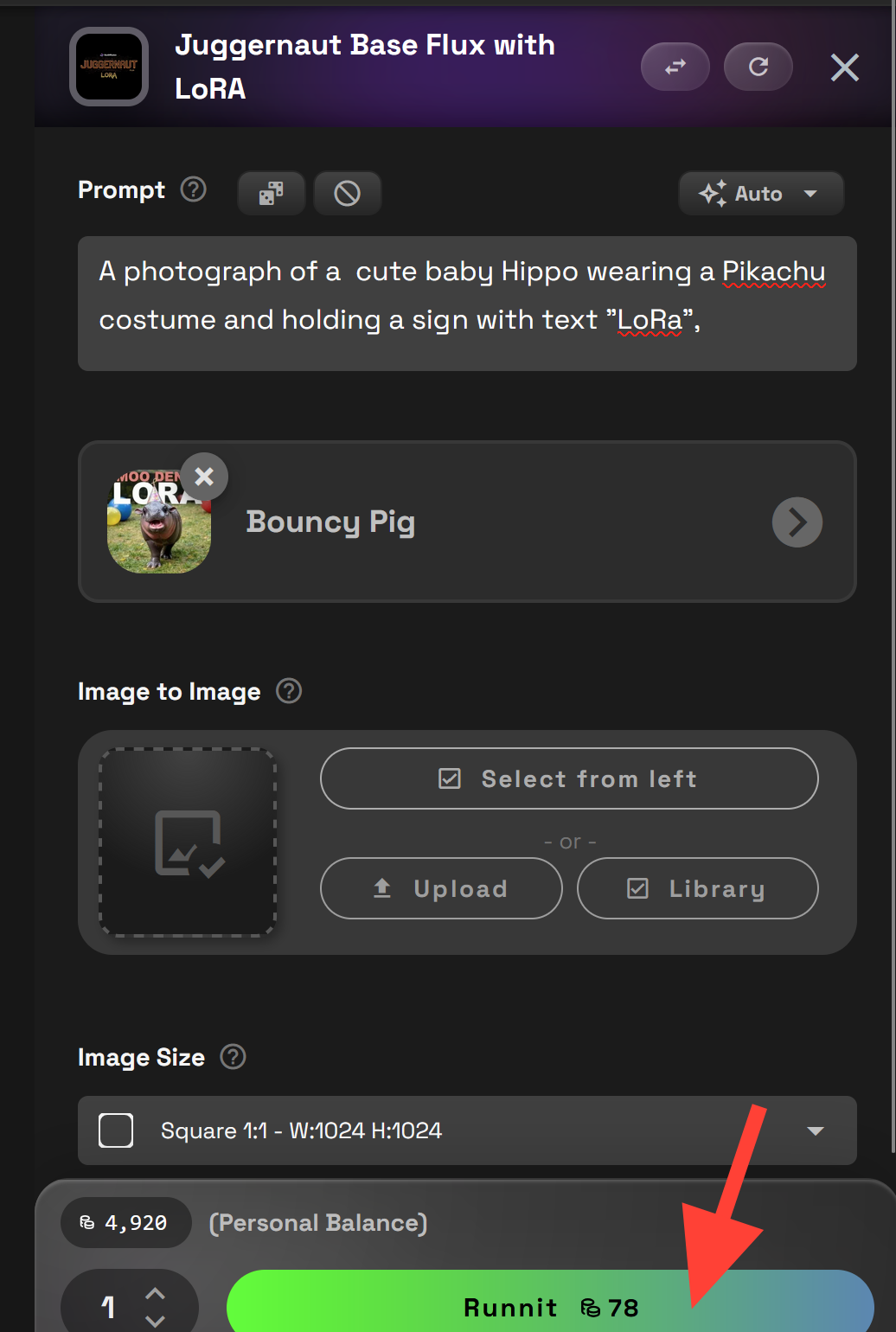
Generate your image
Click Run to generate your image.
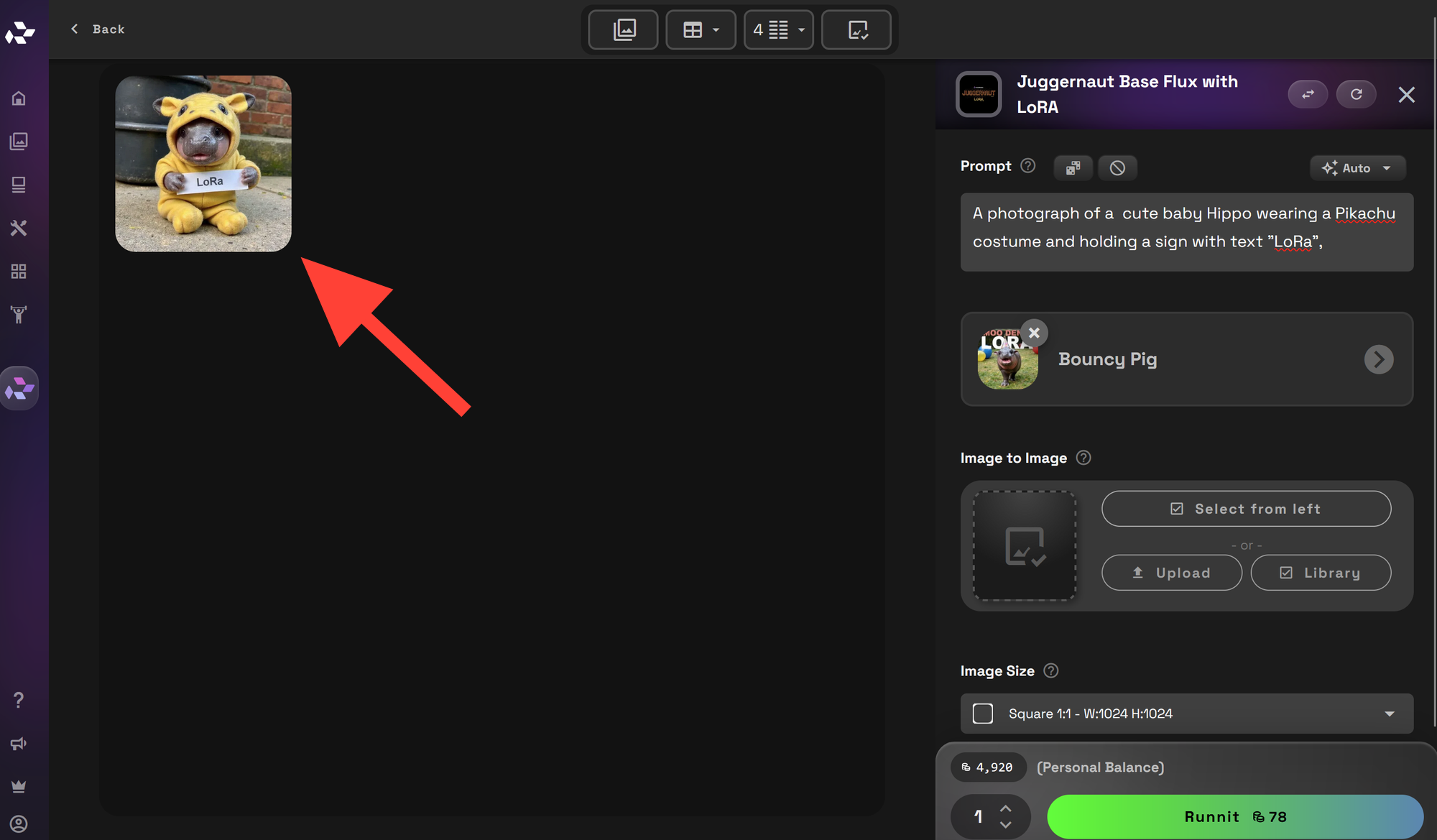
Examining your image
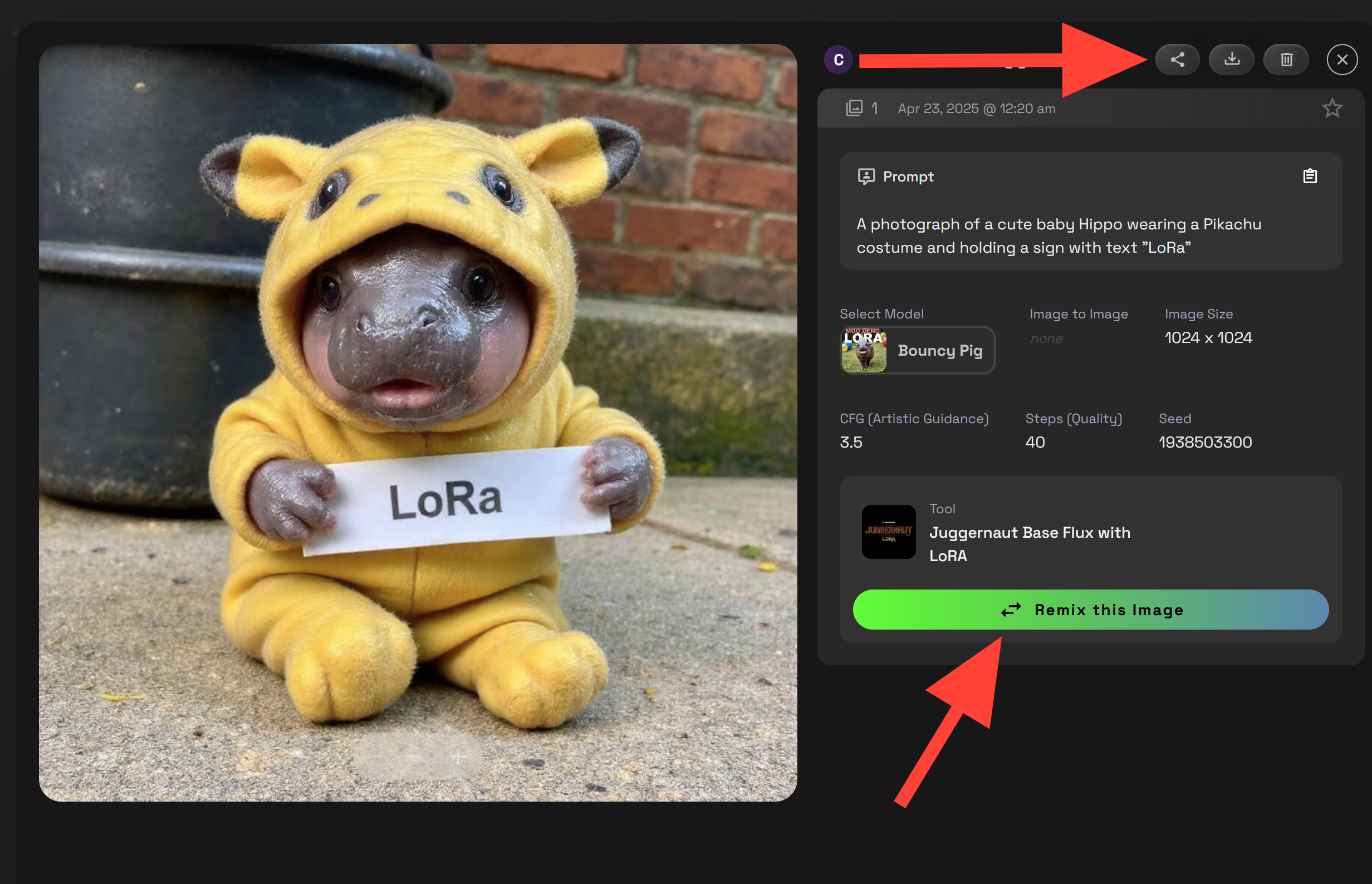
You can click on your image on the left side of the UI.
You can download, share, delete or remix your image.
Additional Settings
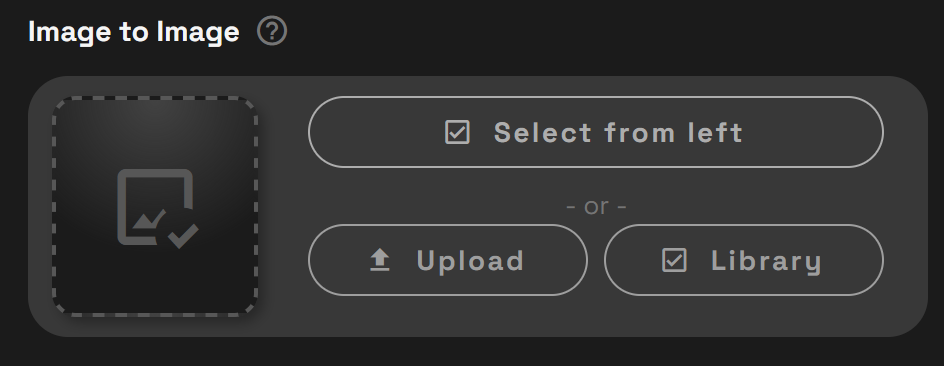
Image-to-Image Use a starting image to guide your generation. Instead of starting from scratch, Image-to-Image lets you upload or select a base image. The AI then uses that image’s structure, shapes, or composition to influence your output.
Great for:
Altering poses or outfits while keeping character details
Stylizing an existing image
Making variations of a generated piece
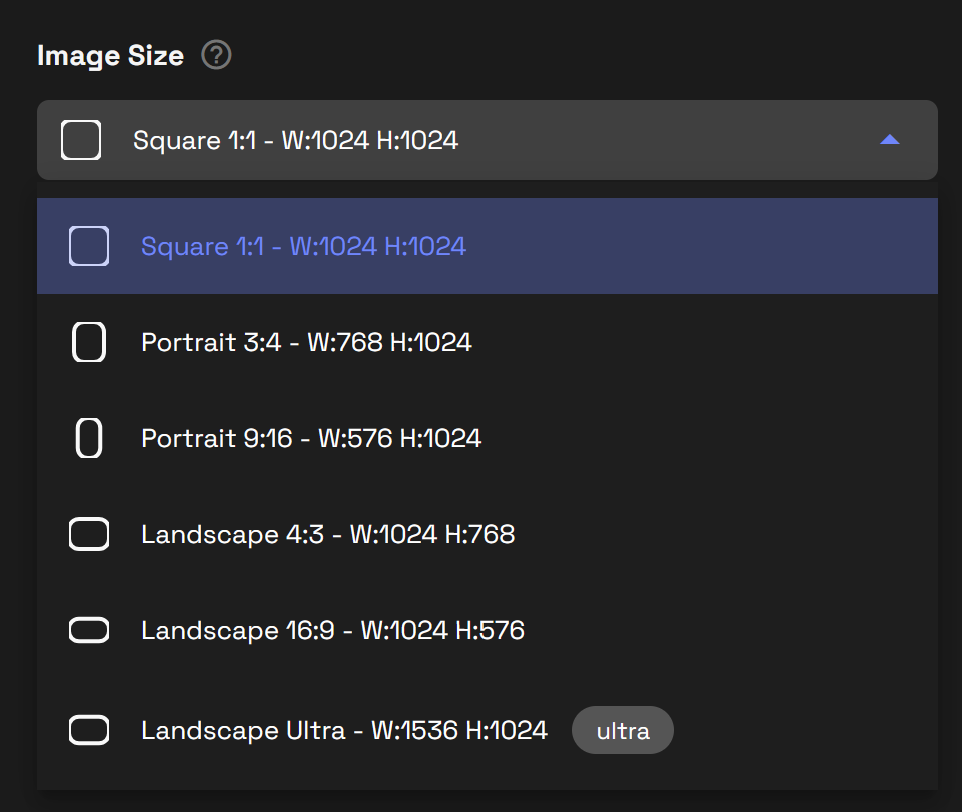
Resolution Set the output size of your image. Pro Tip: Keep your subject centered if using square formats!
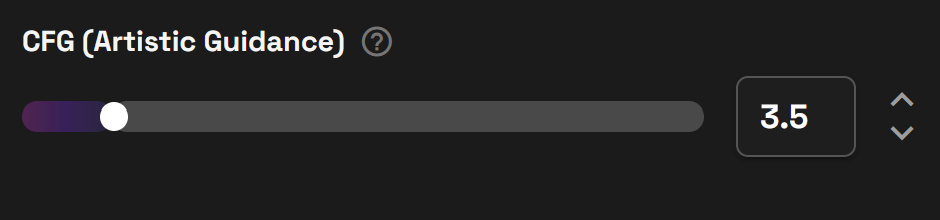
CFG Scale Controls how closely the AI follows your prompt. CFG Scale tells the AI how "obedient" it should be to your text prompt.
Try this: If you're getting weird results, lower the CFG slightly!
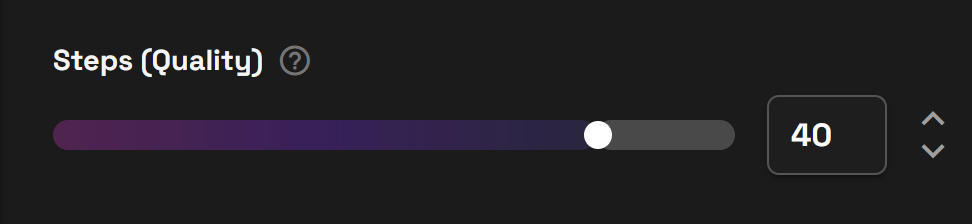
Steps Controls how many times the AI refines your image. Steps are the number of iterations the AI takes to "think through" your prompt.
Fewer steps (20–30): Fast, may be less detailed
More steps (40–60+): Slower, higher detail and polish
Watch out: Too many steps = diminishing returns. 35–45 is often the sweet spot.
Seed = a unique recipe number for your image. Every generation uses a "seed" number that determines randomness. Using the same seed with the exact same settings will produce the same image again.
Random Seed (default): New look every time
Fixed Seed: Reproduce or slightly tweak a specific result allowing you to adjust prompts.
Fixed Seed is Helpful for:
Re-creating a favorite image
Making small variations with controlled randomness
Whether you’re building branded visuals, character designs, or just exploring AI creativity, combining Juggernaut and LoRA on the RunDiffusion Platform makes high-quality generation simple, fast, and flexible—all in your browser.