
Introduction
Google DeepMind’s Veo 3 is now live on the RunDiffusion Platform (Formerly Runnit Platform), bringing advanced text-to-video generation to creators in the cloud. This tool lets you type a simple prompt and generate cinematic, high-quality video from scratch.
In this tutorial, you’ll learn how to prompt and use Veo 3 text to video tool on the RunDiffusion Platform.
What is Veo 3?
Veo 3 is Google DeepMind’s most advanced text-to-video model. It supports:
- High-resolution video generation
- Smooth motion and scene consistency
- Natural language control over visuals, style, and even sound
- Realistic lighting, environments, and camera effects
How to Launch Veo 3 on the RunDiffusion Platform
Follow these steps to get started:
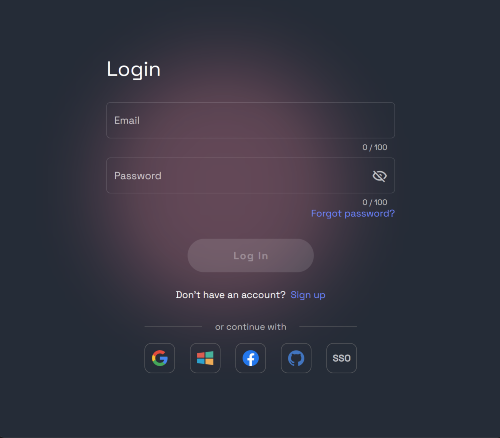
Login to your account
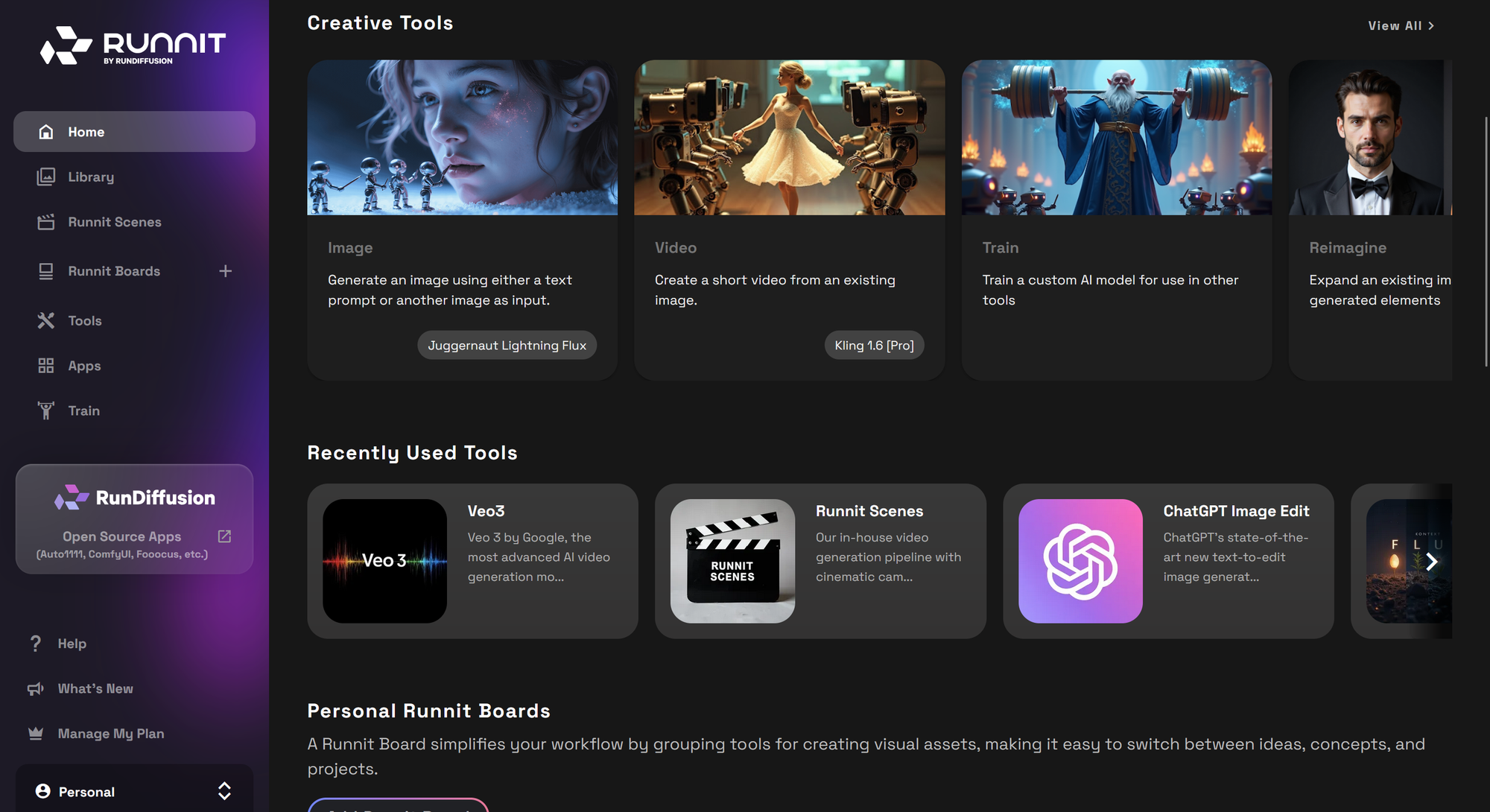
Go to the RunDiffusion Platform dashboard
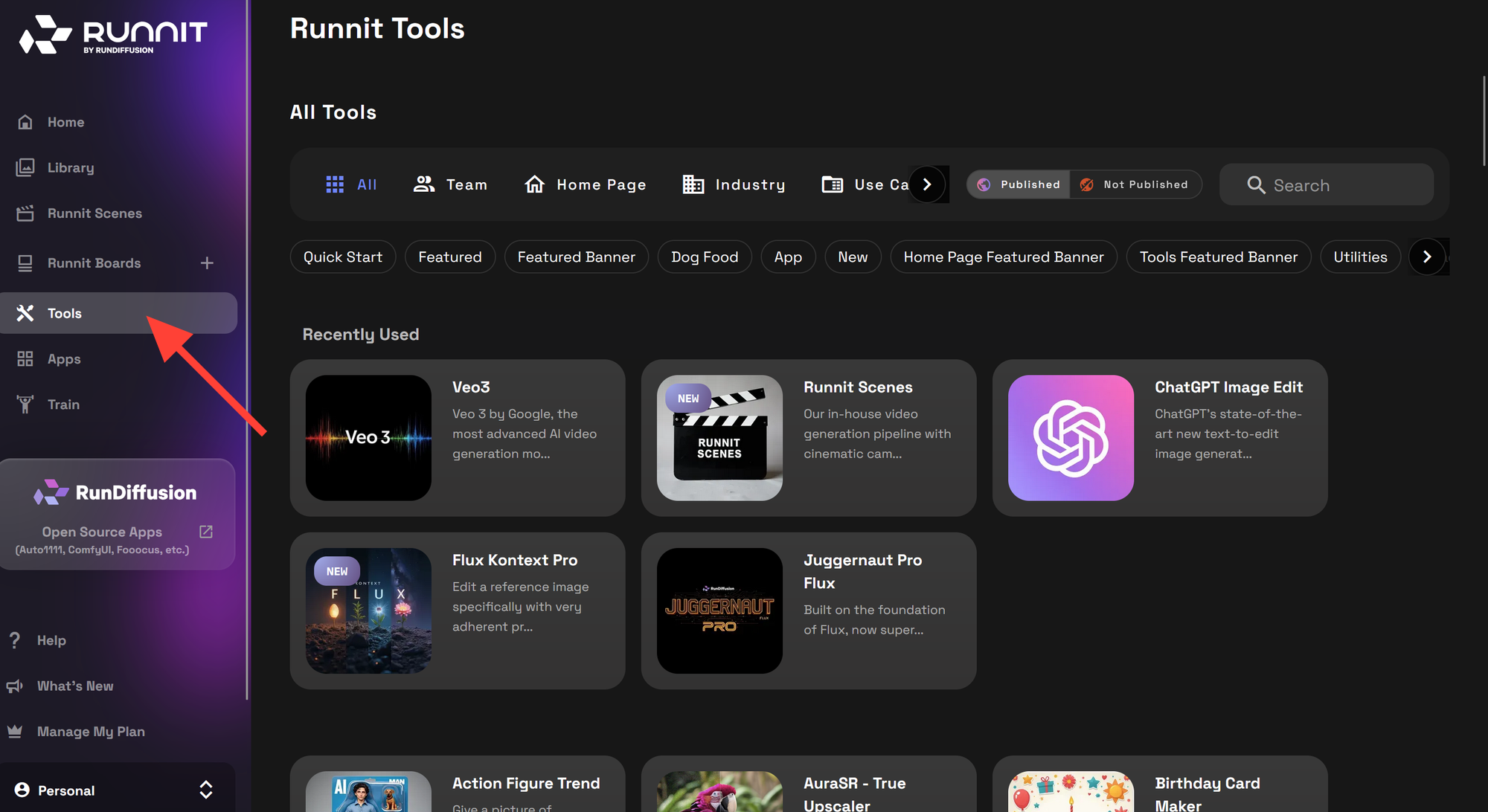
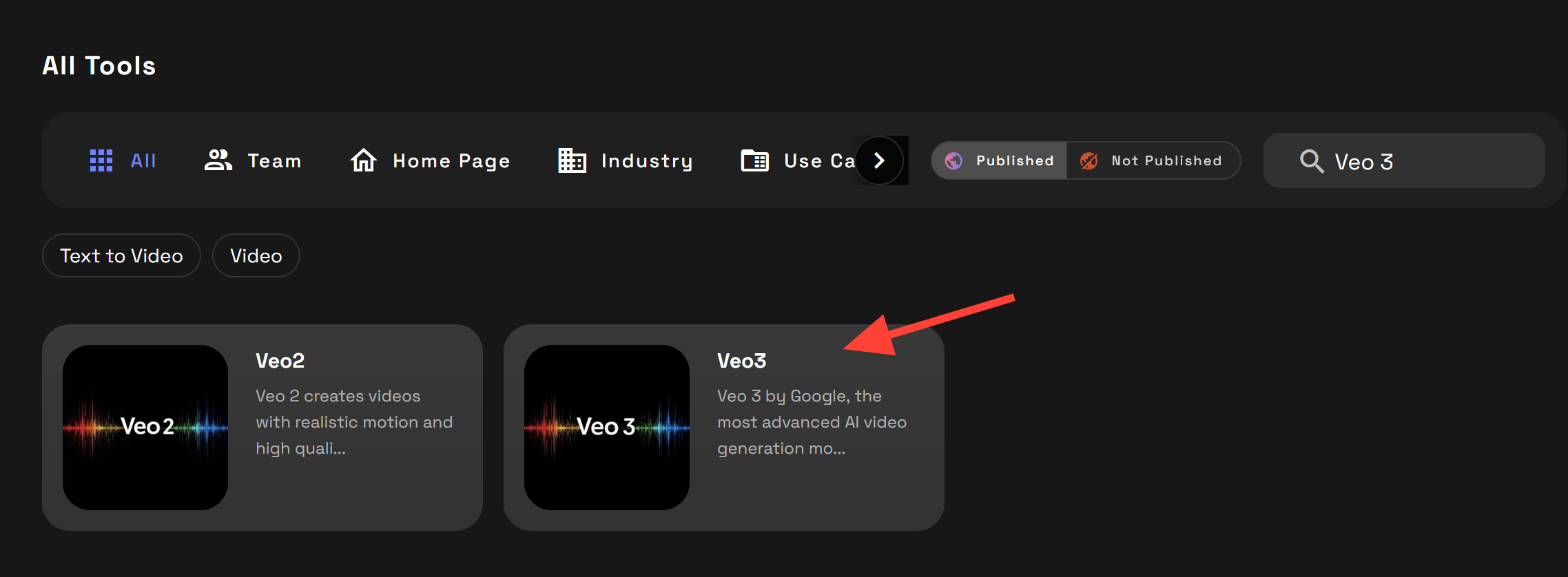
Click on Tools on the left sidebar.
In the Search bar type Veo 3
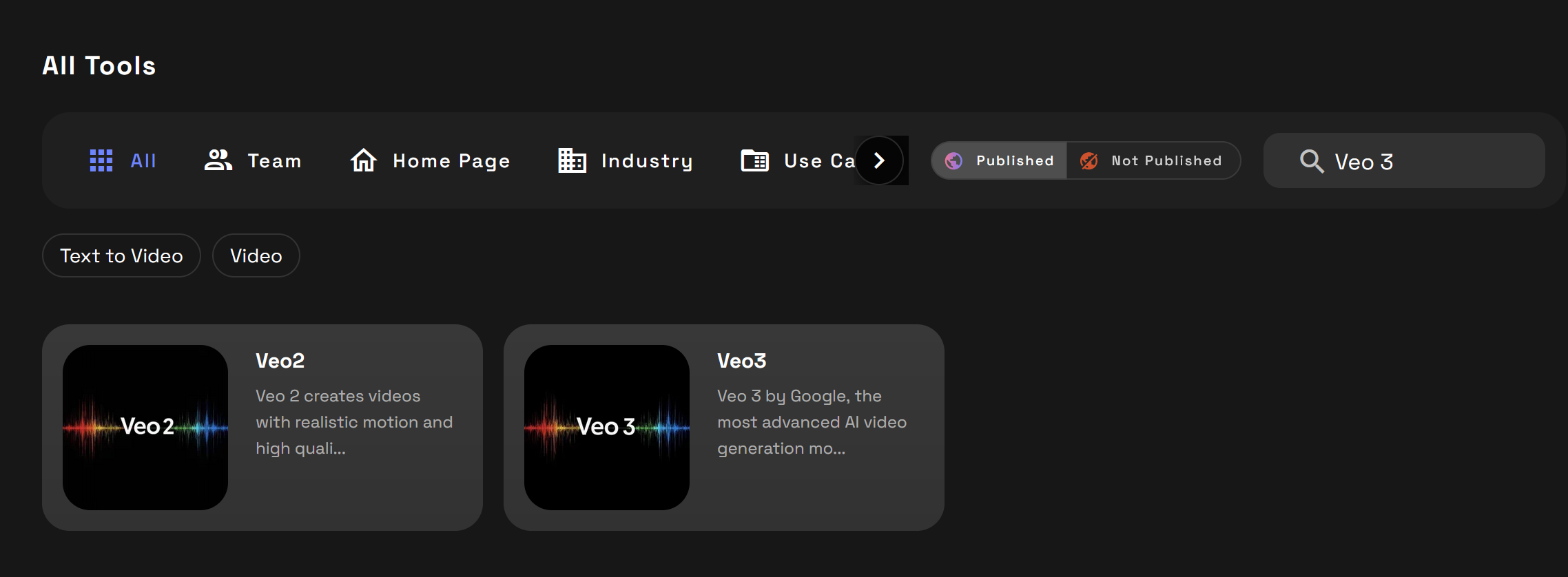
Click on the Veo 3 tool
Write a Prompt and Click Run. I’ll explain more about how to write a good prompt below.
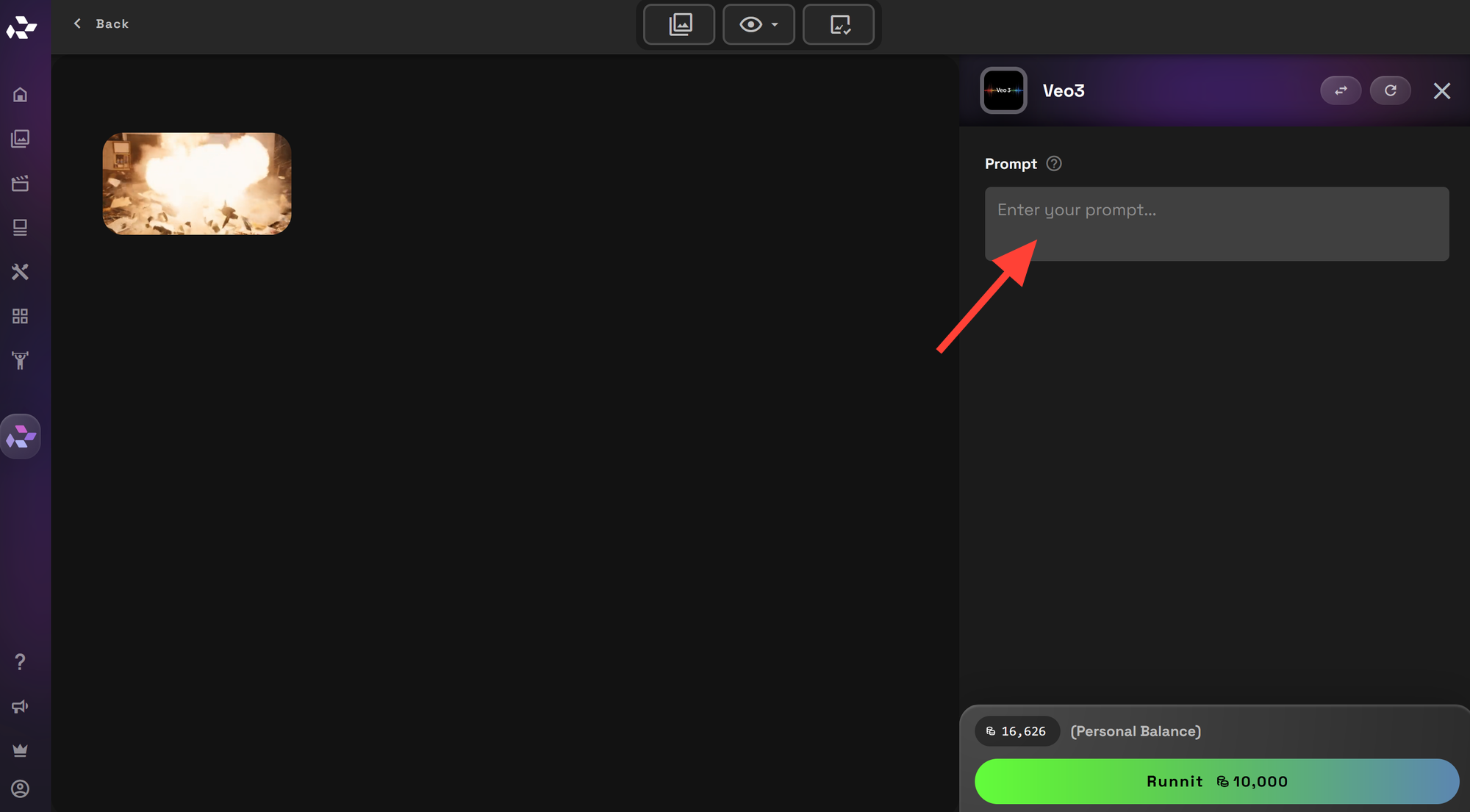
Prompt: A futuristic city with a detective wearing a trench coat. He walks in the rain and stops dramatically to face the camera offering a card to the camera with the text "RunDiffusion" and he says "Try Veo on RunDiffusion."
Prompting Tips: Visuals, Style, Sound, and Dialogue
Veo 3 is entirely prompt-driven. This means the quality of your video depends on how clearly and precisely you describe what you want. Prompts work best when they include the following four elements:
- Visual Description – What happens, who is in the scene, and where it takes place
- Cinematic Style – The mood, tone, visual look, or artistic influence
- Audio and Ambience – Background sounds, music, or sound effects
- Dialogue or Voiceover – Spoken lines, narration, or character speech
Each element can be written in its own sentence or line for clarity.
Visual Description
Start with a clear scene setup. Describe the subject, setting, and key actions using specific language.
Effective example
A young woman stands at a rural train station during a thunderstorm. She holds a red umbrella as a train rushes by in the background.
Less effective
A girl is outside. It's dramatic.
Cinematic Style
Describe the visual tone, composition, or reference an artistic influence. You may include directors, genres, or time periods if relevant.
Effective examples
Shot in the style of a 1970s crime thriller with grainy film texture and deep shadows.
Inspired by Wes Anderson films with symmetrical framing, pastel tones, and vintage typography.
Avoid vague terms like stylish, cool, or dramatic unless you define what that looks like visually.
Audio and Ambience
Use separate sentences to describe background music, ambient noise, or sound effects. Keep it simple and direct.
Effective examples
Soft jazz music plays in the background.
Waves crash on the shore.
Footsteps echo on a wooden floor as wind blows through tall grass.
Avoid descriptions like make it sound cinematic or good music unless you clarify the type of sound.
Dialogue and Voiceover
You can include spoken lines by characters or narration. Use quotation marks and briefly describe tone or delivery if needed.
Effective examples
The astronaut says, "This is not what we expected."
A narrator says, "In the end, only one question remained."
Less effective
Add some talking or put voiceover in it.
Use Cases for Veo 3 on the RunDiffusion Platform
Veo 3 is perfect for:
- Pitching video concepts and cut scenes for films or games
- Creating stylized social media content
- Generating moodboards and visual prototypes
- Exploring surreal or experimental ideas
- Digital Marketing
Explore More Tools on the RunDiffusion Platform
If you want to expand your creative toolbox, try these additional features on the RunDiffusion Platform:
Start & End Frames for Runnit Scenes | RunDiffusion
Enhance your Runnit Scenes with Start & End Frame control for cinematic precision. Define custom opening and closing visuals to craft narrative arcs, seamless transitions, and looping content.
RunDiffusion Team
Platform Update: Price Reductions for Veo 3 & New Features for Kling 2.1 Pro | RunDiffusion
Published on September 10, 2025 Today, we’re excited to announce several key updates to our video model lineup, including significant price reductions for the Veo 3 family and a powerful new creative feature for Kling 2.1 Pro. Veo 3 & Veo 3 Fast: 30% Price Reduction & New Aspect Ratio To make our most powerful video models more accessible, we have reduced the generation cost for both Veo 3 and Veo 3 Fast by 30%, effective immediately. Additionally, we have added a highly requested feature t
RunDiffusion Team

Conclusion
Veo 3 on the RunDiffusion Platform lets you turn words into cinematic videos. Just describe your vision and the tool will do the rest. Whether you're a creative director, marketer, or storyteller, this tool gives you a powerful new way to bring ideas to life through AI-generated video.