
Seedance 2.5 works best when the prompt answers four questions in playback order: What is the subject? What does it do? How does the camera see it? What should the result look like?
Keep those answers concise. Clear nouns, verbs, camera direction, and visible style choices are more useful than a long stack of adjectives.
This Seedance 2.5 prompt guide shows how to build that direction from a RunDiffusion Board for text-to-video, frame-guided video, references, storyboards, camera, and native audio.
Quick Answer
Use two levels of instruction in a Seedance 2.5 prompt:
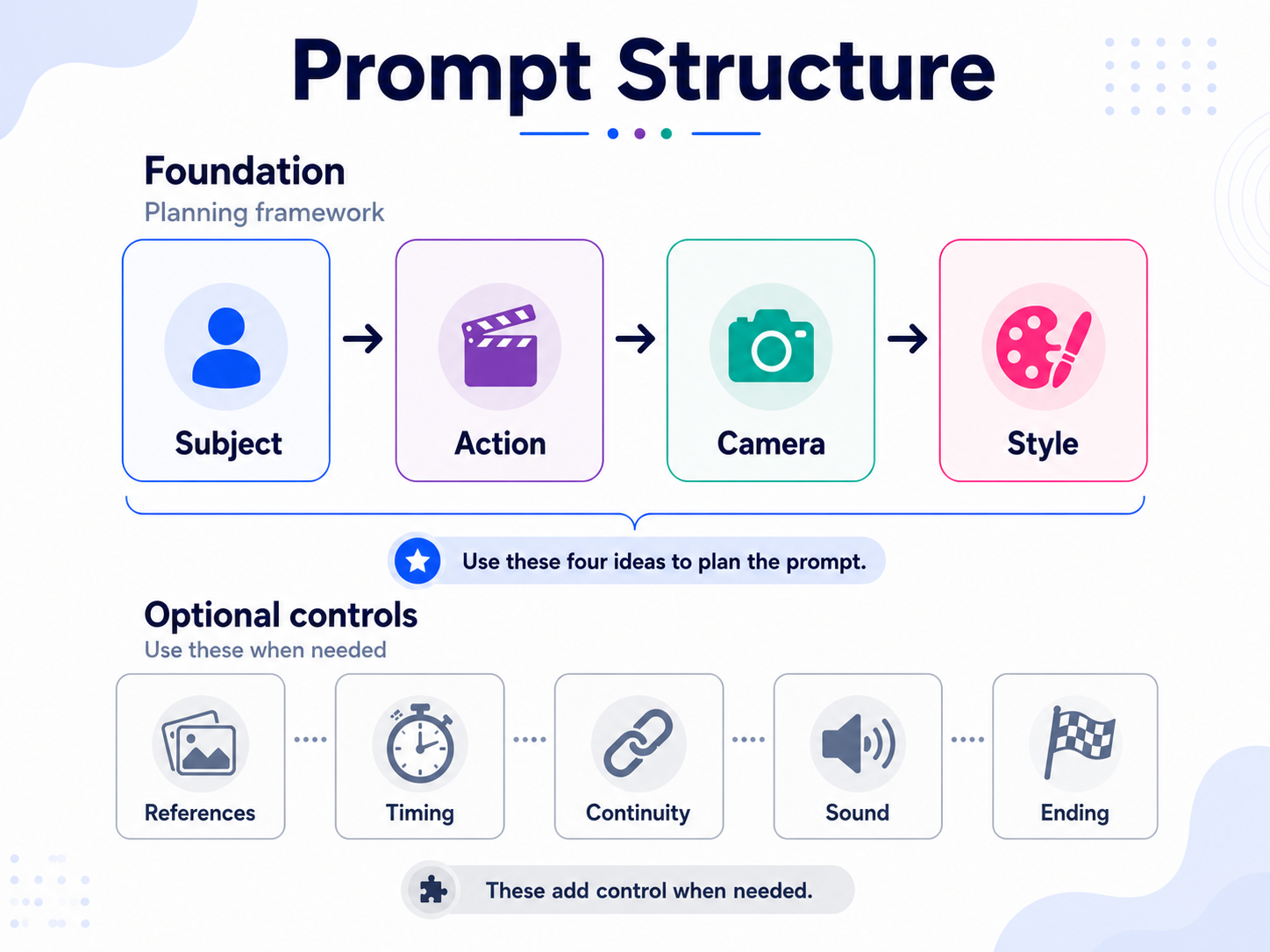
- Foundation: Subject → Action → Camera → Style.
- Optional controls: References, Timing, Continuity, Sound, and Ending.
Plan the four-part foundation first, then write it as direct natural-language direction. Add an optional control only when it removes a specific uncertainty.
Key Takeaways
- Start with Subject → Action → Camera → Style.
- Use one main action and one compatible camera move per shot.
- Write events in the order the viewer will see them.
- Describe visible style choices instead of vague adjectives.
- Give each reference one clearly scoped role in Ref. to Video.
- Add timing only when several events must fit one clip.
- Test at 480p, then move to 720p after the prompt works.
- Keep the project, references, tests, and tools on one Board.
Seedance 2.5 at a Glance
Inside a RunDiffusion Board, use Seedance 2.5 for text-to-video and shots controlled by a Start Frame, or by both a Start Frame and an End Frame. Use Seedance 2.5 Ref. to Video when reference images or a reference video should guide the result.
- Generate clips up to 30 seconds.
- Create from text, a Start Frame, or Start and End Frames.
- Use up to 30 images and one video in Ref. to Video.
- Guide action, camera behavior, timing, and native audio.
- Plan connected shots with storyboards and continuity notes.
Using Seedance 2.5 on RunDiffusion
Add the Seedance 2.5 Tools to a Board
These steps take you from the RunDiffusion homepage to your first Seedance 2.5 generation.
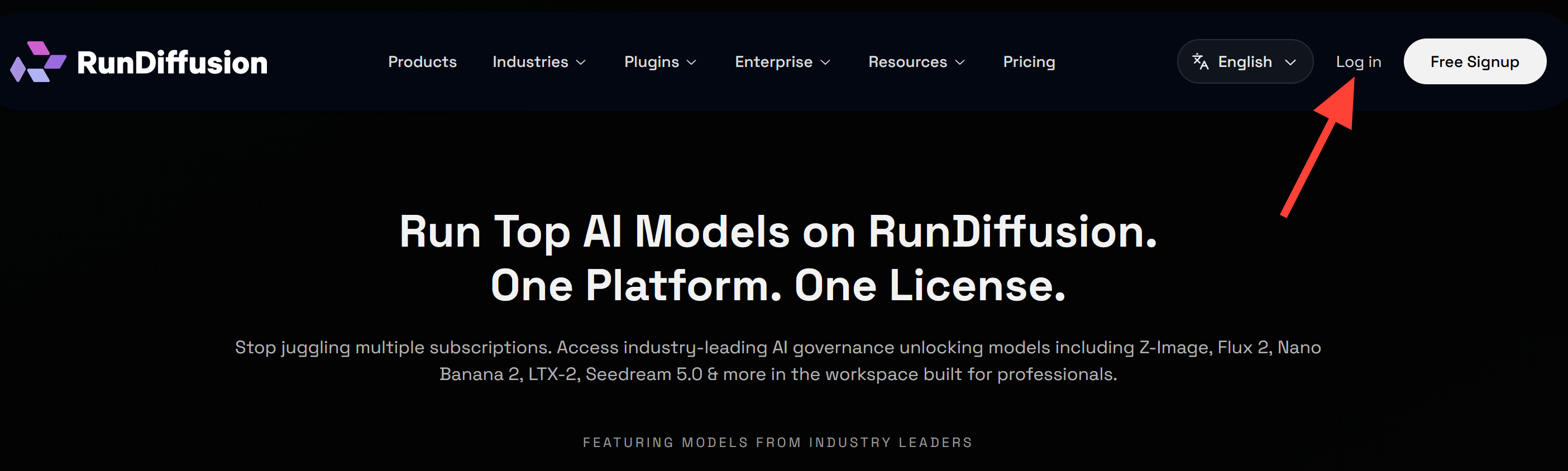
1. Log in to RunDiffusion
Open RunDiffusion and select Log in from the top navigation.
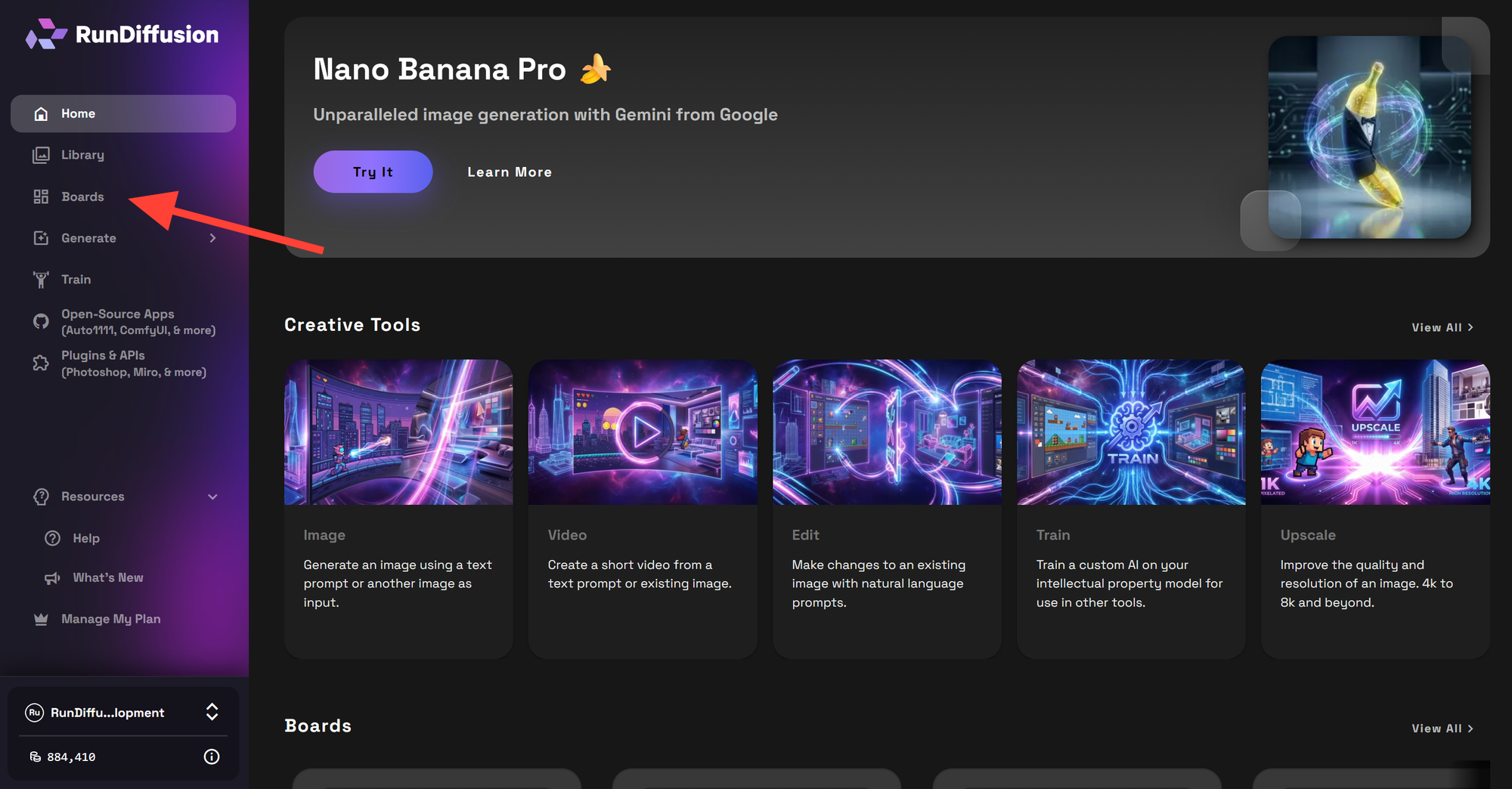
2. Open Boards
After logging in, select Boards in the left sidebar. Boards give you a visual workspace where you can add and run creative tools.
3. Create a New Board
On the Boards page, click New Board.
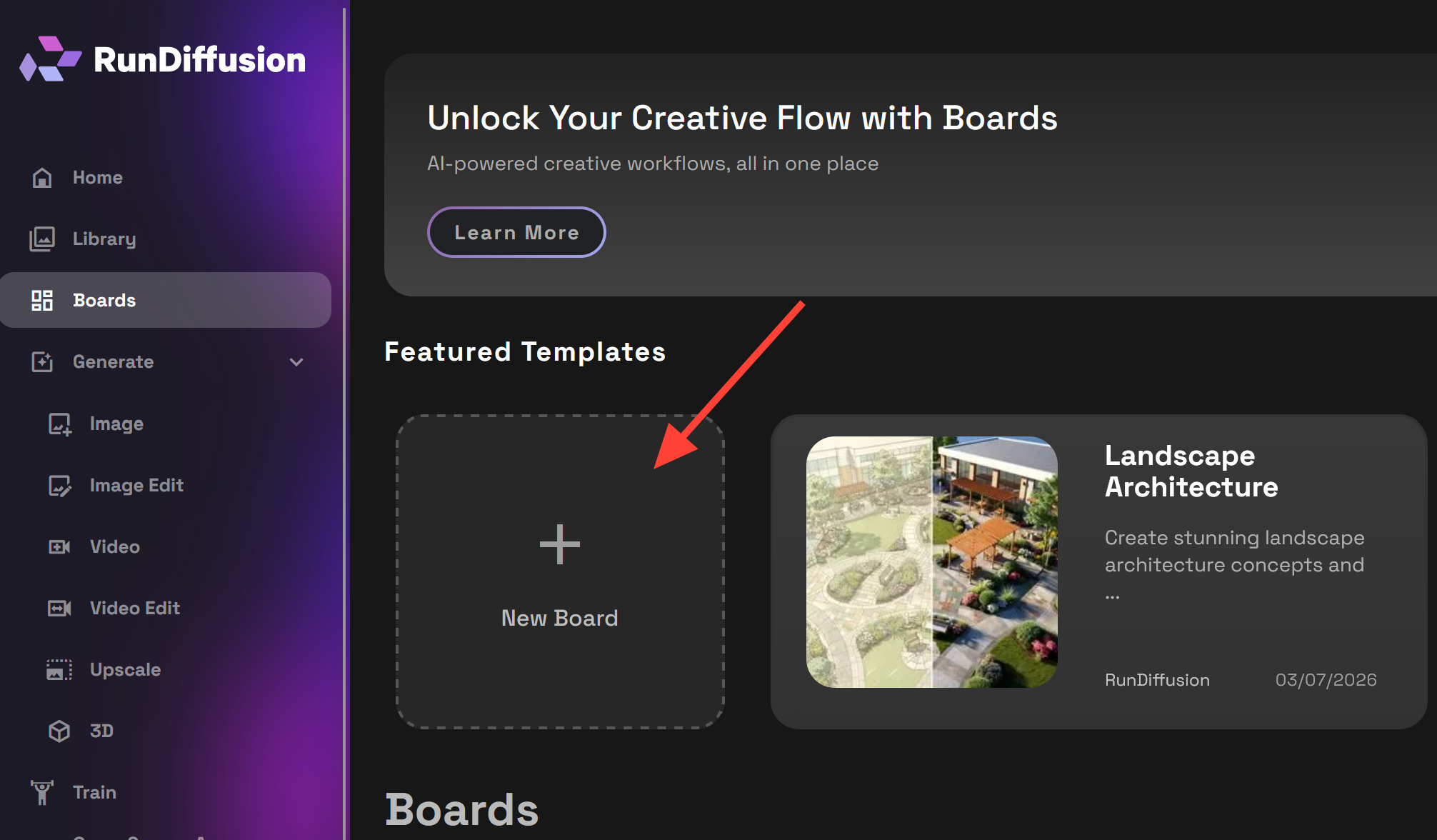
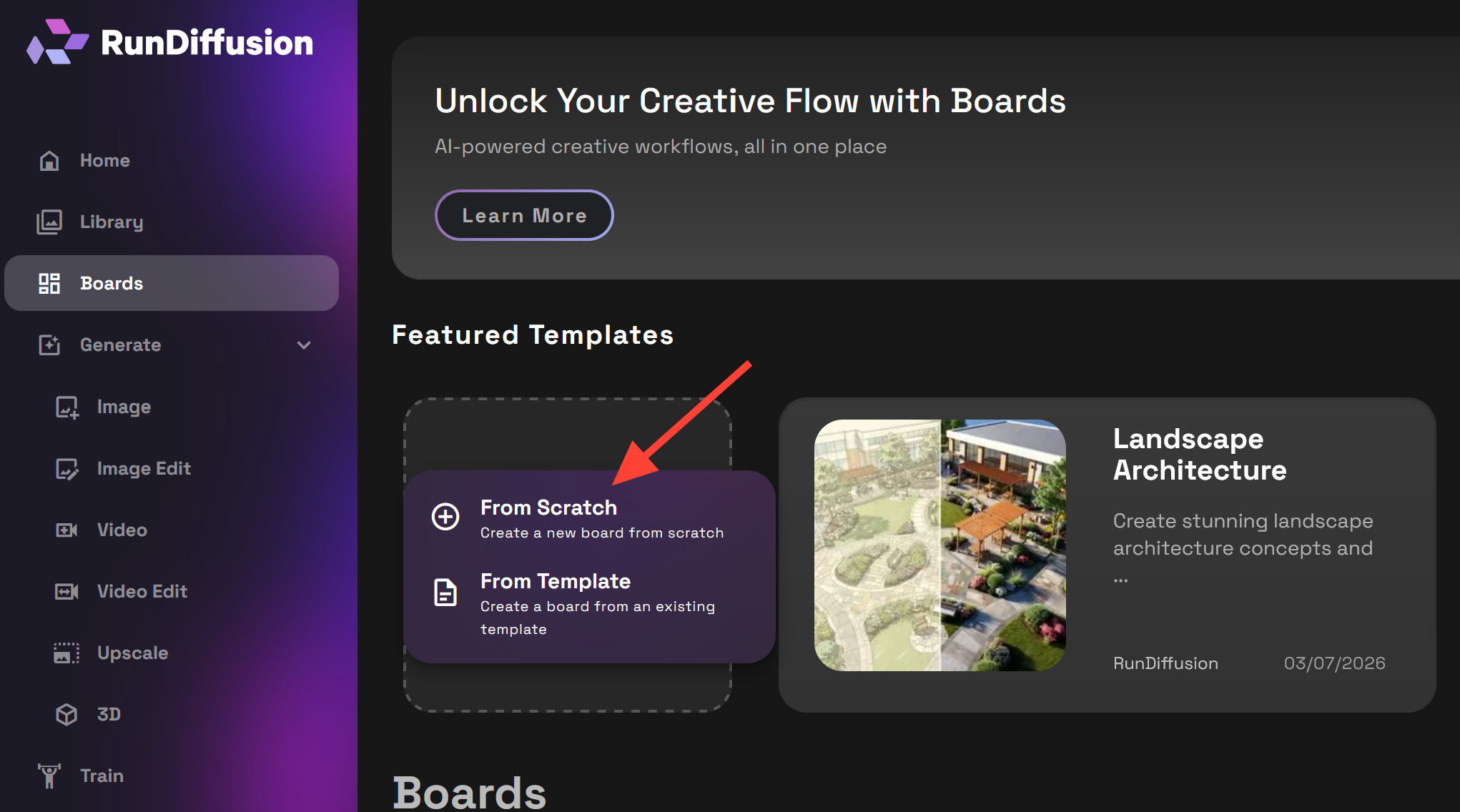
4. Start From Scratch
Choose From Scratch. This gives you an empty Board so you can add only the tools needed for the Seedance 2.5 workflow.
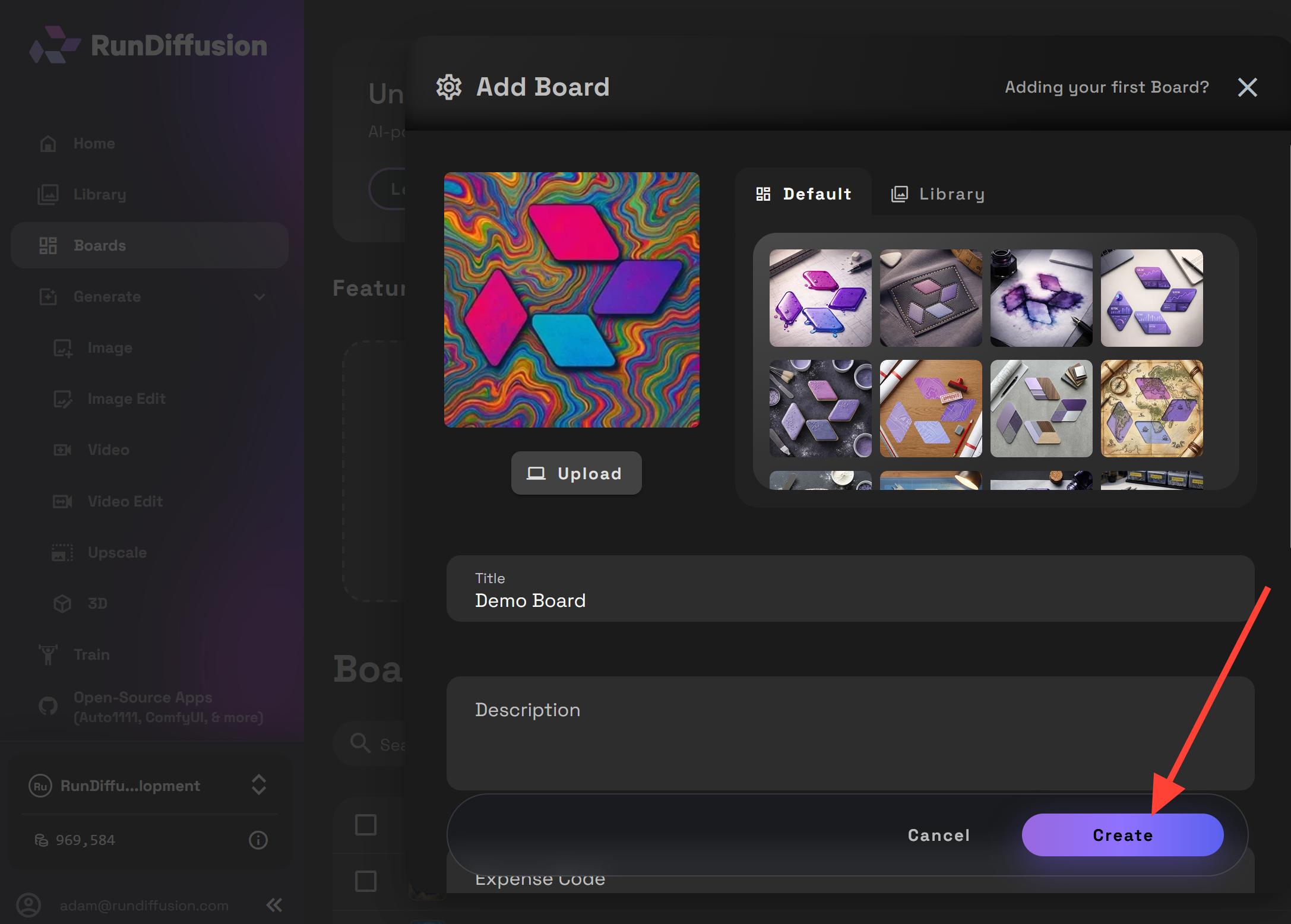
5. Set Up the Board
Choose a cover, enter a clear Board title, and add an optional description. Then click Create.
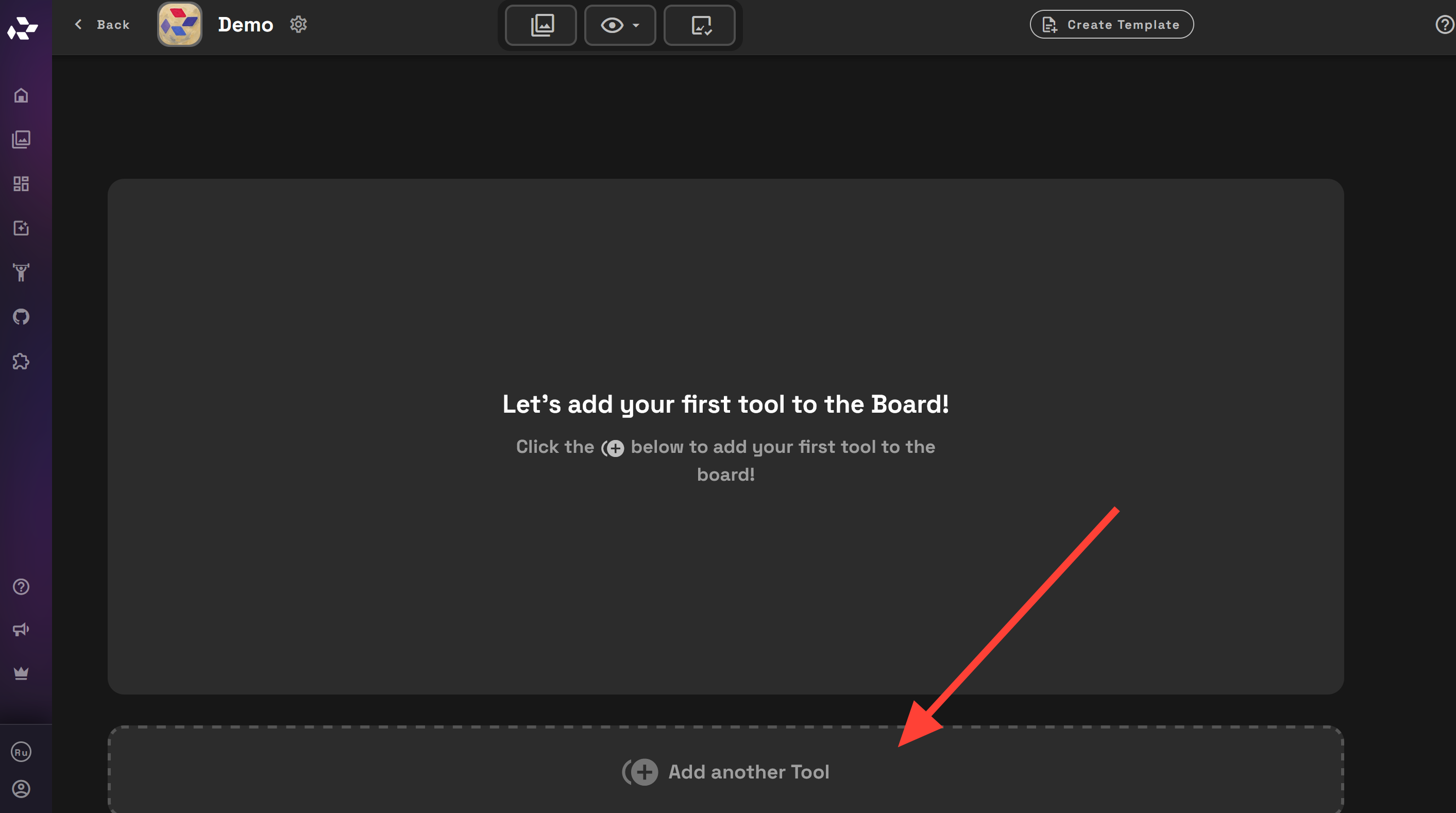
6. Add a Tool
Inside the empty Board, click Add another Tool to open the tool picker.
7. Search for Seedance 2.5
In the Choose Tool window, open the Tools tab and search for Seedance 2.5. Add the tool that matches the workflow:
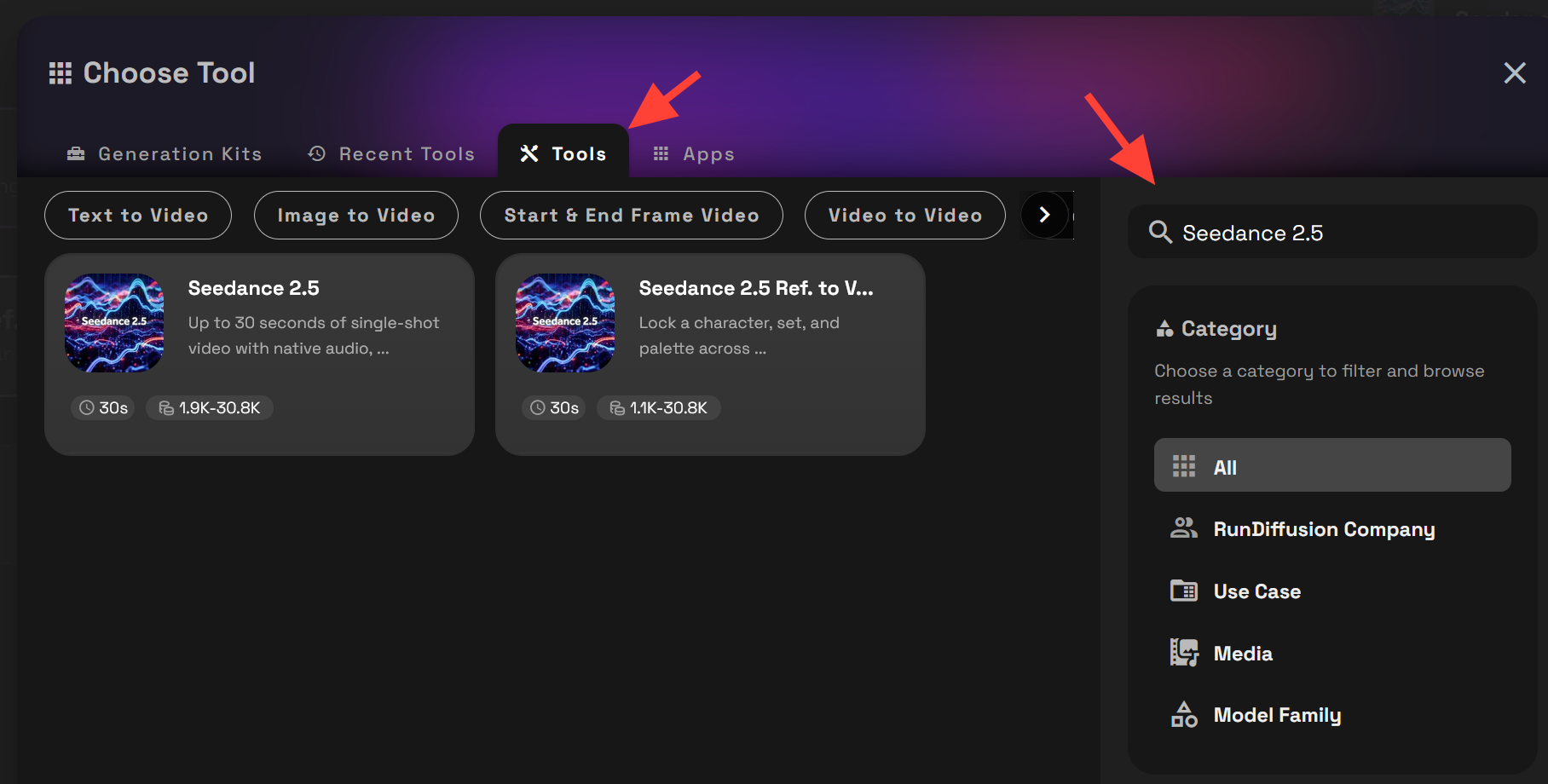
- Seedance 2.5: Use it for text-to-video and shots controlled by a Start Frame, or by both a Start Frame and an End Frame.
- Seedance 2.5 Ref. to Video: Use it when reference images or a reference video should guide products, environments, storyboards, motion, timing, camera behavior, or sound.
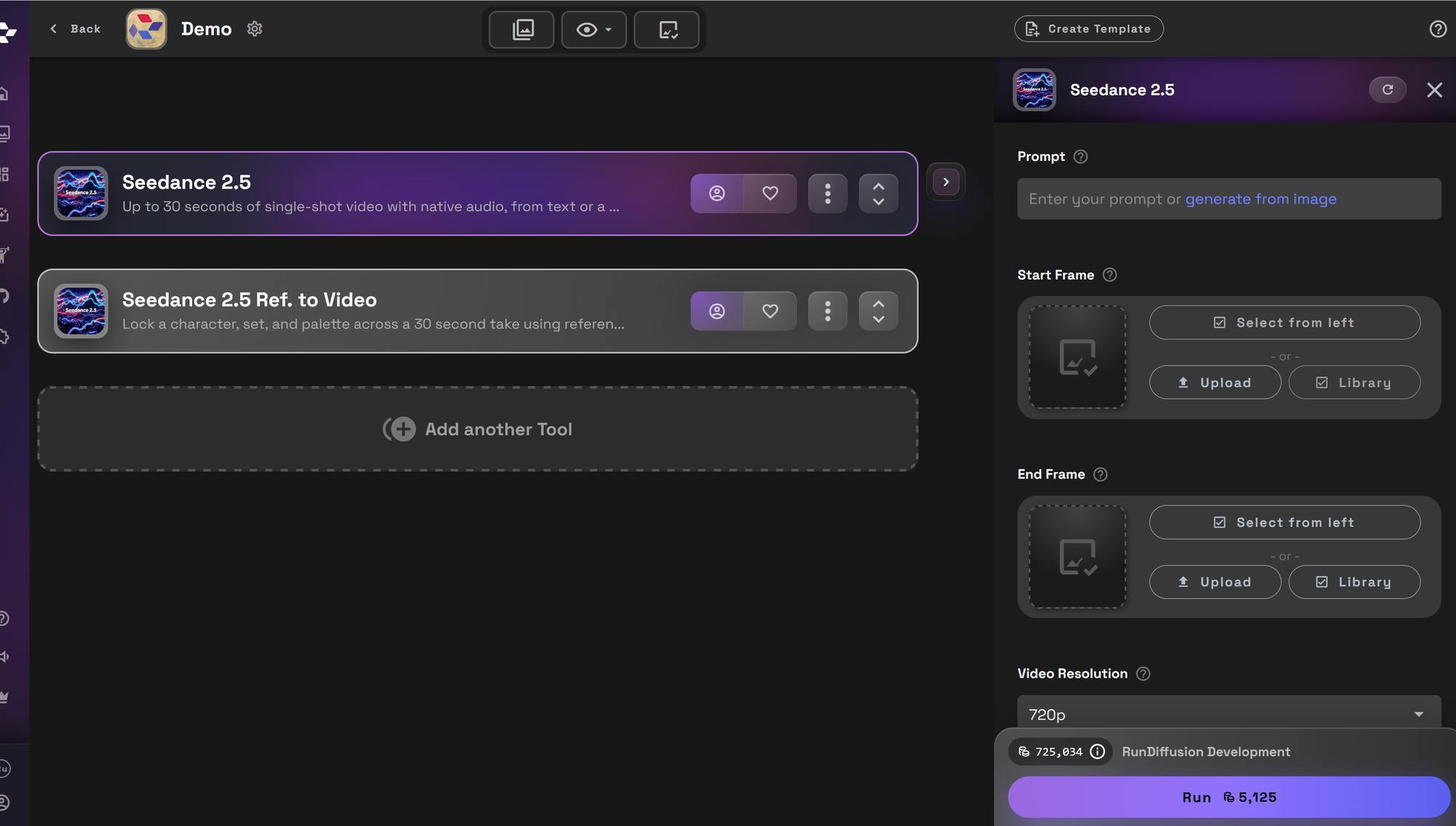
8. Enter a Prompt and Run the Tool
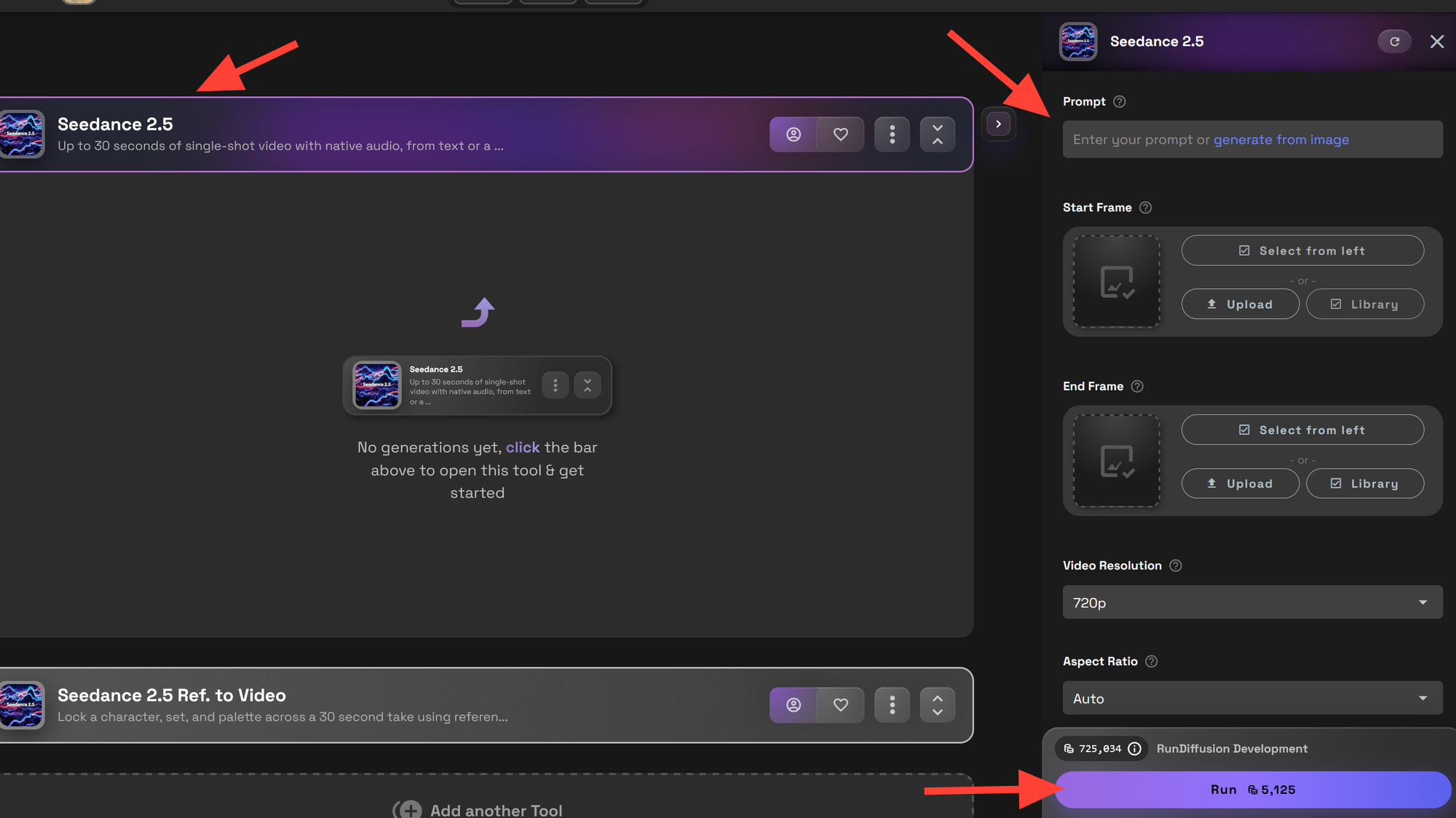
In Seedance 2.5, enter the prompt in the Prompt field. Add a Start Frame, or add both a Start Frame and an End Frame, by uploading or selecting images from your library. Set Video Resolution and Aspect Ratio, then click Run.
In Seedance 2.5 Ref. to Video, enter the prompt, then add up to 30 Reference Images and one Reference Video with Select from left, Upload, or Library. Set Video Resolution and Video Duration, then click Run. Identify uploaded files in the prompt as @image1, @image2, @video1, and so on, and give each one a clearly scoped role.
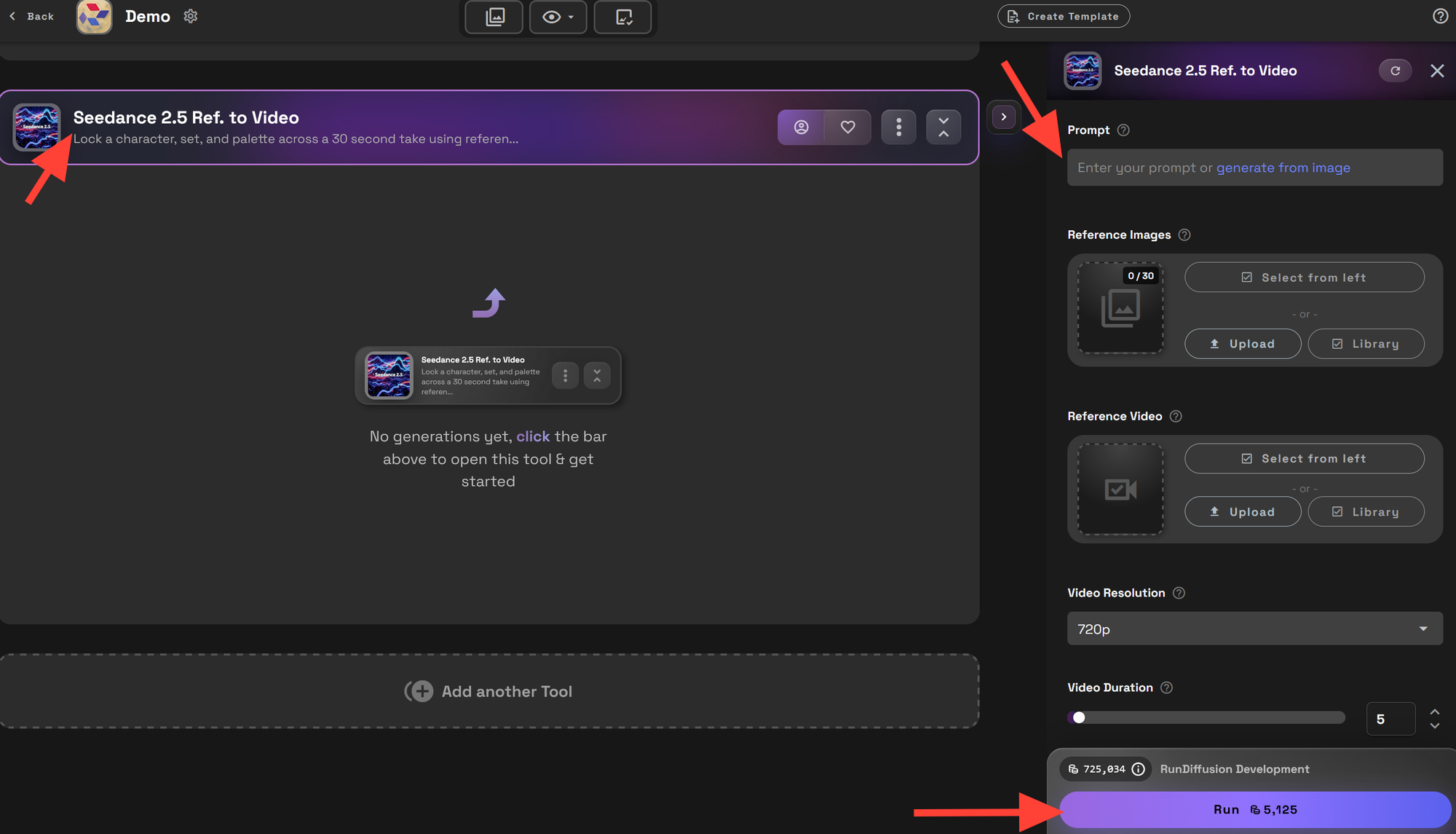
Run the first test at 480p. Once the prompt is working, switch to 720p. Use one Board per project or campaign, and keep Seedance 2.5, supporting tools, prompt variations, and reference assets together.
The Seedance 2.5 Prompt Foundation
The four parts below are the foundation. They are not an instruction to fill the prompt with every possible production detail. Use the shortest wording that removes ambiguity.
1. Subject
Name what appears on screen and where it is. Include only the attributes that define the subject or must remain stable.
A limestone cultural center beside the coast at blue hour.
2. Action
Use verbs. Describe what changes over time in the order it happens. For a short clip, one clear event is usually enough.
Weak:
A dramatic cultural center, cinematic and elegant.
Stronger:
The cultural center's entry doors open. Warm light spreads
across the stone floor as the lobby lights come on.
3. Camera
State the shot size or viewpoint, then choose one primary movement. Add lens feel, speed, or a focal target only when it changes the result. Keep the lens feel consistent across connected beats.
Wide eye-level view. Slow forward dolly toward the entrance.
4. Style
Describe visible choices: medium, realism, lighting, palette, texture, contrast, or atmosphere. Avoid words that do not tell the model what to show.
Instead of:
Cinematic, premium, beautiful, stunning.
Use:
Photoreal architectural film. Soft blue-hour light, warm
interiors, natural contrast, and restrained reflections.
Putting the Four Parts Together
A limestone cultural center stands beside the coast at blue
hour. The entry doors open as the lobby lights come on,
spreading warm light across the stone floor. Use a wide
eye-level view and a slow forward dolly toward the entrance.
Keep the look photoreal, with soft blue-hour light, warm
interiors, natural contrast, and restrained reflections.
Use the four parts as a planning checklist, then write the prompt as direct natural-language direction. The words Subject, Action, Camera, and Style do not need to appear inside the prompt.
Optional Prompt Controls
The foundation remains Subject → Action → Camera → Style. References, Timing, Continuity, Sound, and Ending sit outside it. Add one only when it gives the shot necessary control; do not add every option by default.
References
In Seedance 2.5 Ref. to Video, identify each uploaded asset and give it one clearly scoped role. That role may combine closely related controls, such as camera path and timing, but should not mix unrelated responsibilities. Do not ask several references to control the same detail in conflicting ways. A reference can control the entire video or one specific beat. When it belongs to one moment, place its reference tag inside that timed beat so Seedance knows when it should take control.
@image1 defines the exact building design and materials.
@video1 supplies only the camera path and timing.
Timing
Use time ranges when several events must fit one sequence. A single-shot prompt does not need a timeline. When connected shots need a specific transition, name it between the relevant beats: a match cut, whip pan, hard cut, or continuous camera move. A single continuous shot does not need transition instructions.
00–03s: Establish the empty lot and open sketchbook.
03–08s: The sketch rises as a glowing wireframe.
08–15s: Materials resolve into the finished building.
Continuity
Set the global continuity rules once. If a critical material, prop, light direction, environment, or subject detail may change between beats, repeat it in the beat where drift is most likely.
Preserve the roofline, facade rhythm, material palette, and
light direction throughout the sequence.
Sound
Add dialogue, effects, ambience, or music only when audio is part of the concept. Tie physical sounds to visible actions. For ambience or music, describe how it changes over time—rise, hold, or resolve—rather than only naming a mood or genre.
Light wind and distant waves rise as the doors open, then hold
beneath one quiet door latch and resolve as the camera settles.
Do not include dialogue or music.
Ending
Define the last frame when the final composition matters for review, editing, or campaign layout.
End on a stable three-quarter view with the full roofline
visible and clean space above it.
Choose the Right Seedance 2.5 Workflow
Text-to-Video
Use text-to-video when the subject and scene can be defined in words. Write the four-part foundation, then add sound or an ending only if needed.
- Concept and mood studies
- Establishing and environmental shots
- Architecture and product ideas without fixed references
- Abstract motion and non-human narrative scenes
Start-Frame Image-to-Video
Use a Start Frame when the image defines the exact opening. The frame already supplies much of the subject and style, so spend prompt words on the action and camera.
- Treat the image as the exact opening composition.
- Name the details that cannot change.
- Describe what begins moving and how the camera departs.
- Add an ending only when the final state matters.
Start and End Frames
Use both frame controls when the opening and final composition are fixed. Describe the physical bridge between them instead of writing only that one image should become the other.
Use the start frame as the exact opening composition.
The camera descends toward the complex in one smooth move.
Cloud shadows cross the roofs as the view approaches.
Finish in the exact framing of the end frame.
Use photoreal daylight and stable architectural geometry.
Reference-Driven Video
Use Seedance 2.5 Ref. to Video when images or a video should control the subject, environment, storyboard, movement, camera, timing, or sound. Assign each asset one clearly scoped role.
Motion Reference
State what the reference video transfers and what it must not copy. A clean clip with one readable motion is easiest to use.
@video1 supplies only the turntable timing and camera path.
Do not copy its object, setting, lighting, text, or audio.
@image1 defines the product. @image2 defines the location.
Concise Prompt Examples
15-Second Architecture Prompt
Use @image1 as the exact cultural-center design. Preserve the
roofline, limestone facade, bronze frames, and entry geometry.

00–05s: Grasses move as the entry lights come on.
05–11s: Reflections travel across the glazing.
11–15s: Settle into a clear exterior hero view.

Begin with a wide pedestrian-height view and dolly slowly
toward the entrance. Keep the architecture photoreal at blue
hour with warm interiors. Include light coastal wind and waves.
Do not include dialogue or music.
For more architecture-specific direction, use our Seedance architecture workflow. It shows how to choose an authoritative design reference, preserve geometry, control the camera, and keep environmental movement restrained.
15-Second Product Prompt
Use @image1 as the exact travel brewer. Preserve its shape,
charcoal finish, silver rim, controls, and logo position.

00–05s: Condensation moves down the body.
05–10s: The lid rotates once and locks.
10–15s: Coffee pours into a clear cup, then stops.

Begin with a macro view, then pull back slowly to a stable hero
view. Use clean, warm morning light and a photoreal product-film
look. Include one click, a controlled pour, and quiet room tone.
Protect the product before styling the scene: preserve its silhouette, proportions, parts, materials, controls, logo position, and visible text. Add final campaign copy in editing.
Non-Human Narrative Prompt
A sealed red document box sits under one green archive lamp.
The seal lifts. A drawer closes in the dark aisle, and the lamp
flickers once before holding steady. Begin with a locked wide
view, then push slowly toward the box. Use a photoreal nocturnal
look with warm light and deep shadow. Include paper movement,
one distant drawer, room tone, and lamp buzz. Hold on the broken
seal for the final second.
Use a Storyboard with Seedance 2.5
A storyboard can be one organized reference image or separate shot images. Keep panels large, number them in order, and show one readable action per panel.
Add Nano Banana Pro and Seedance 2.5 Ref. to Video to the same Board. Use our Nano Banana Pro prompt guide to build characters, environments, product views, and storyboard panels before moving into video generation.
Upload the storyboard to Seedance 2.5 Ref. to Video, then state its role alongside the four-part foundation.
@image1 defines the empty lot, sketchbook, and final building.
Follow panels 1-6 from sketch to wireframe to reality. Use each
panel's framing and connect the moves smoothly. Keep the look
photoreal with warm transformation light. Preserve the same lot,
sketchbook, hands, building, and skyline. Do not render borders,
labels, numbers, or page graphics. Include pencil texture, city
ambience, and a soft energy rise.
15-Second Storyboard Example
This six-panel storyboard plans a first-person architecture sequence from an empty lot and sketch through a wireframe emergence, material transformation, and final building reveal.
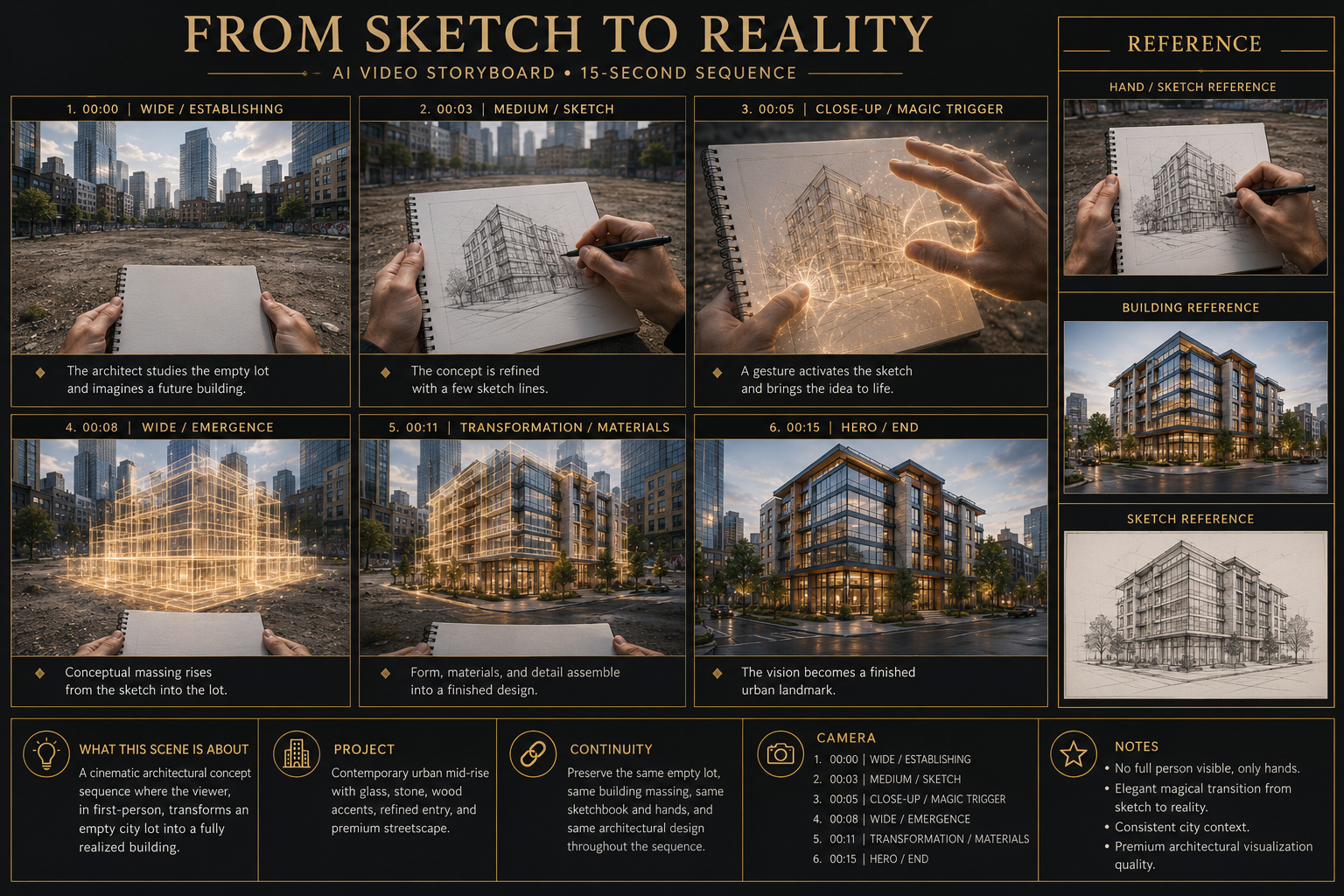
The finished 15-second, 720p video follows the six planned moments as one continuous sequence with native audio.
Treat the storyboard as strong shot guidance. If the chosen duration cannot support every panel, remove panels instead of rushing the action.
Camera Language for Seedance 2.5
Use camera language to remove ambiguity, not to make the prompt sound technical. One compatible instruction is usually enough for a shot.
Shot size and viewpoint
- Wide: shows the complete subject and environment.
- Medium: balances the subject's action with context.
- Close-up: directs attention to one detail or object.
- Macro: shows texture, controls, liquid, or fine motion.
- Overhead: clarifies a layout or process.
- Point of view: places the viewer inside the action.
Lens feel
- Wide-angle depth: emphasizes space and foreground-to-background distance.
- Natural perspective: keeps scale and distance familiar.
- Telephoto compression: flattens distance and isolates the focal subject.
Camera movement
- Dolly: moves toward or away from the subject.
- Tracking: follows motion through space.
- Lateral glide: creates controlled parallax.
- Orbit: reveals form around a product or object.
- Rise: moves the camera upward through space.
- Tilt: pivots the camera up or down from a fixed position.
- Locked camera: lets the action carry the shot.
[Shot size] from [viewpoint] with [optional lens feel].
The camera [one movement] at [speed], keeping [subject]
as the focal point.
Common Seedance 2.5 Prompting Problems
- Moving still: Add a visible action, a camera path, or both.
- Rushed clip: Reduce the number of events or give them more time.
- Competing references: Give each asset one clearly scoped role and remove duplicates.
- Design drift: State critical geometry and materials early in the prompt.
- Chaotic camera: Choose one main movement for each shot.
- Busy audio: Use only sounds that support visible events.
- Weak final frame: Add an ending instruction when delivery needs one.
A Better Seedance 2.5 Testing Workflow
Pass 1: Prove the Foundation
Test one subject, one action, one camera move, and one visible style. Skip timelines, dialogue, and extra references.
Pass 2: Add One Control
Add one reference, a timing plan, continuity, sound, or an ending. Confirm that it fixes a specific weakness before adding another control.
Pass 3: Generate the Delivery Version
Keep the approved prompt and references on the same Board. Move from 480p tests to 720p, then complete sound and finishing work.
This staged approach follows our RunDiffusion video production workflow. A Board keeps generation, targeted refinement, sound, and final enhancement together while each remains a separate production decision.
Reusable Seedance 2.5 Prompt Templates
Core Template
[Describe the subject, setting, and critical stable details.]
[Describe one clear event in playback order.]
Use [shot size and viewpoint] with [optional lens feel] and
[one camera movement], keeping [focal target] clear. Use
[visible medium, lighting, palette, and texture].
Reference Template
@image1 defines [the subject for the full video]. Preserve
[critical details].

00–05s: [First event.]
05–11s: @image2 defines [this beat's setting or action].
11–15s: [Resolution.]

@video1 supplies [one clearly scoped role, such as camera path
and timing]. Use [visible style and lighting].
Timed Sequence Template
[Describe the primary subject and setting.]

00–05s: [First event.]
05–11s: [Second event.] Use [match cut, whip pan, hard cut, or
continuous camera move] from the previous beat.
11–15s: [Resolution.]

Use [one camera decision for each change]. Maintain [one lens
feel and consistent visual treatment]. Preserve [only the
details that must remain stable]. Include [only intentional
dialogue, effects, ambience, or music] and describe how
ambience or music [rises, holds, or resolves].
Delete every unused line. A template should make the prompt clearer, not longer.
Seedance 2.5 Pre-Generation Checklist
- Is the subject specific and easy to identify?
- Is the action written with clear verbs in playback order?
- Does each shot use one compatible camera instruction?
- Does the style describe visible choices?
- Does every uploaded reference have one clearly scoped role?
- Can the selected duration support the planned action?
- Did I include only the continuity details that may drift?
- Is sound included only when it matters?
- Does the final composition need an ending instruction?
- Am I testing one major change at a time on the Board?
Seedance 2.5 Frequently Asked Questions
What is the best Seedance 2.5 prompt structure?
Plan the prompt as Subject → Action → Camera → Style, then write those ideas as direct natural-language direction. You do not need to type the category labels. Add references, timing, continuity, sound, or an ending only when the shot needs them.
Do Seedance 2.5 prompts need to be long?
No. Prompt length should match scene complexity. A single shot can be four direct sentences. A reference-driven sequence needs more words only because it has more decisions to control.
When should I use timing?
Use time ranges when several events must happen within one clip. Do not add a beat plan to a single clear action.
Can Seedance 2.5 make a 30-second video?
Yes. Keep the sequence centered on one concept and give each event enough time to read. For a 30-second sequence, a four-beat plan is a useful starting point: 00–06s opener, 06–14s development, 14–24s escalation, and 24–30s resolution. This is planning guidance, not required Seedance syntax. There is no need to force every 30-second prompt into the same number of beats.
Can Seedance 2.5 use a storyboard?
Yes. Upload it in Ref. to Video and state that it controls shot order, framing, action, and camera. Tell the tool not to render panel borders, labels, arrows, numbers, or the page background.
Can a reference video control camera movement?
Yes. Assign @video1 one clearly scoped role—such as camera path and timing—then state what it must not copy.
How should I set up Seedance 2.5 on a Board?
Create one Board for the project and add Seedance 2.5, Seedance 2.5 Ref. to Video, or both. Keep the source assets, supporting tools, prompt versions, and selected results on that Board.
Why can a people-focused generation be blocked?
Seedance 2.5 may block or limit people-focused generations because of upstream model moderation. For people-focused video, use MiniMax H3, Kling 3.0, or Gemini Omni Flash Video. For people-focused source images, use Flux 3.
Should final campaign text be generated in the video?
Leave planned negative space and add approved copy in editing. When existing product text is visible, protect it as part of the reference and review every frame.
Do Seedance 2.0 prompting techniques still apply?
Yes. Clear reference roles, chronological action, camera direction, continuity, and sound planning still apply. Use our Seedance 2.0 prompt guide for additional examples, but follow the controls in the current Seedance 2.5 tools.
Final Thoughts
Start with Subject → Action → Camera → Style on a dedicated Board. Generate the simplest version that can prove the idea. Then add one reference or control at a time, keeping every word tied to something the viewer can see or hear.