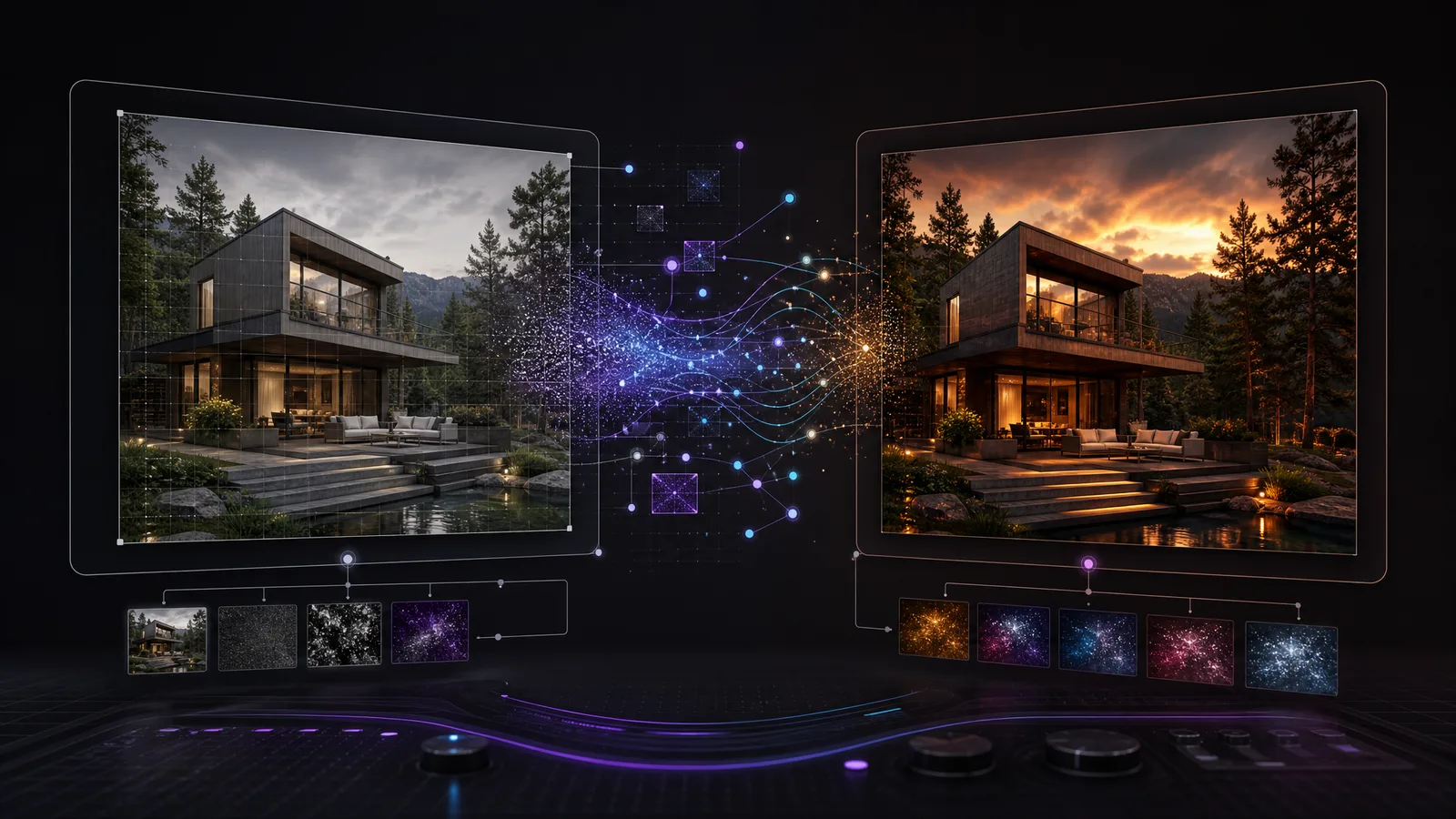
新しい画像の生成や対象を絞った編集のために、GPT Image 2.5のプロンプトを書きましょう。このガイドでは、プロンプトの構成、変更する内容、保つ内容を説明します。建築、インテリア、ランドスケープの例を通じて、同じ考え方を自分の題材に応用する方法を示します。
RunDiffusionでツールを探す
- まず、RunDiffusionにログインします。

- 左側のサイドバーでGenerateをクリックし、次にImageを選択します。

- ツール下部の現在のモデル名をクリックし、Choose Toolを開きます。

- まず、Toolsを開いてChatGPT Image 2.5を検索し、FlareまたはSunburstを選択します。

速さを優先するならFlare、画質を優先するならSunburstを選びます。
- 通常のテキストからの画像生成では、Promptを入力してRunをクリックします。

追加のヒント
編集には、写真、スケッチ、Photoshopの合成画像、レンダリング、またはSketchUp、Revit、Rhinoなどから書き出した画像を選びます。
元画像をアップロードするか、RunDiffusionのライブラリからドラッグします。テキストから新しいコンセプトを作る場合は、画像入力を空にします。
テキストからの画像生成では出力寸法を選びます。編集では、アップロードした画像から寸法が決まります。
プロンプトを入力し、素材、物体、場所を自分のプロジェクトに合わせて置き換えます。
プロンプトの構成
テキストから画像を生成
次の構成を出発点にしましょう:主題、環境、構図、素材、照明、制約。
- 主題:中心となる対象とビジュアルのスタイルを指定します。
- 環境:場所、背景、状況を説明します。
- 構図:対象の配置、カメラ位置、フレーミングを指定します。
- 素材:特定の要素に色、素材、質感を割り当てます。
- 照明:時間帯、天候、光の向きを指定します。
- 制約:必要な特徴と、加えたくない要素を列挙します。
プロンプト例は英語で記載しています。
プロンプトのテンプレート
角括弧内の項目をプロジェクトの詳細に置き換え、括弧を削除してください。ラベルとコロンは任意で、通常の文章として書いてもかまいません。
Create a [photorealistic image or concept illustration] of [subject].
Setting: [background, surroundings, and context].
Layout: [subject placement and arrangement of elements].
View: [camera position, angle, and framing].
Materials: [color, texture, and surface finish].
Lighting: [time of day, weather, and light direction].
Include/Preserve [required details]. Do not add [unwanted elements, signage, or text].
プロンプトの例
Create a photorealistic image of a single-story courtyard house in a quiet garden with olive trees and low grasses. Arrange two wings around a rectangular stone courtyard. Use an eye-level view from the courtyard, showing the entrance and a furnished living room through large windows.
Use pale limestone walls, slim bronze window frames, matte oak flooring, and cream linen upholstery. Add soft morning daylight with gentle shadows. Keep the building proportions believable and verticals straight. Do not add people, cars, signs, logos, or text.

画像を編集
既存の写真、スケッチ、合成画像、レンダリング、書き出したモデルビューに使います。プロンプトを実行する前に元画像を添付してください。
次の構成を出発点にしましょう:元画像、変更内容、場所、素材、維持する内容、仕上げ。
- 元画像:アップロードした画像と、そこに写っているものを示します。
- 変更内容:置換、移動、削除、レンダリングする要素を指定します。
- 場所:対象の領域や物体の位置を指定します。
- 素材:希望する外観、色、素材、質感を説明します。
- 維持する内容:残す形状、構図、色、物体を列挙します。
- 仕上げ:照明、反射、接触部分の影を指定します。
プロンプトのテンプレート
角括弧内の項目をプロジェクトの詳細に置き換え、括弧を削除してください。ラベルとコロンは任意で、通常の文章として書いてもかまいません。
Edit the uploaded [photograph, sketch, composite, render, or model view].
Change only [element] at [location]. Use [appearance, material, color, texture, and scale].
Preserve [subject shape, composition, camera, crop, and surrounding objects].
Match the existing perspective.
Lighting: [retain the source lighting or specify a change]. Update reflections and contact shadows around the edit. Do not change [specific adjacent surfaces or objects].
プロンプトの例
Edit the uploaded living room image. Replace only the two armchairs beside the window with low walnut lounge chairs upholstered in cream boucle. Keep each chair in the same position and orientation, with approximately the same footprint as the original.
Preserve the sofa, tables, rug, walls, windows, camera position, crop, and lighting. Show the timber legs touching the floor naturally, and update shadows and reflections around the replacement chairs. Do not add furniture or change the room layout.


変更前(左):ネイビーのアームチェア。変更後(右):編集プロンプト例で生成した、クリーム色の張地のウォールナット製ラウンジチェア。
テキストからの画像生成の例2つ
どちらもテキストのみから始めます。画像入力は空にしてください。
建築コンセプトを作る
元画像がない段階で、シーンのプロンプトを使って形態、構図、素材、照明を検討します。横長の寸法を選びます。この例は1536 x 1024です。
例
Create a photorealistic architectural image of a single-story courtyard house.
Setting: a quiet garden with olive trees and low grasses.
Layout: two simple wings around a rectangular stone courtyard.
View: eye-level perspective from the courtyard, showing the entrance and a furnished living room through large windows.
Materials: pale limestone walls, slim bronze window frames, matte oak flooring, and cream linen upholstery.
Lighting: soft morning daylight with gentle shadows.
Keep the building proportions believable and verticals straight. Do not add people, cars, signs, logos, or text.

素材テクスチャを作る
ムードボード、Photoshopの合成、素材検討用の表面サンプルを生成します。正方形の寸法を選びます。この例は1024 x 1024です。
例
Create a square limestone surface texture for an architectural material study.
View: straight-on, with the surface filling the entire image.
Material: warm ivory honed limestone with fine pores, subtle fossil flecks, and gentle tonal variation at a consistent scale.
Lighting: flat, diffuse, and even across the surface.
Show one continuous surface, without slab edges or grout lines. Avoid strong veins, stains, cracks, shadows, highlights, vignetting, perspective, objects, labels, and text. Keep the pattern evenly distributed for use as a texture swatch.

テクスチャのプロンプトでは、正面からの視点、均一な照明、表面の端が見えないことを指定します。面に繰り返し配置する前に継ぎ目を確認してください。このサンプルは、検証済みのシームレスタイルや完全な3Dマテリアルではありません。
建築・インテリア・ランドスケープの編集例8つ
1. モデルビューから建築レンダリングへ
入力:SketchUp、Revitなどのモデリングツールから画像として書き出した外観パース。
例
Turn the uploaded model view into a photorealistic exterior.
Preserve the building outline, floor count, roof shape, window positions, columns, balconies, and entrance. Keep the original camera, perspective, and crop.
Apply pale limestone panels to the solid facade surfaces, dark bronze frames to the windows, and clear glazing. Use fine recessed panel joints and subtle stone variation. Finish the ground in dry, light gray concrete paving.
Add soft overcast daylight and realistic glass reflections. Keep the ground levels and neighboring building outlines. Do not add floors, openings, canopies, decorative screens, planting, or wet surfaces.


左:モデル風の画像。右:石灰岩のファサード、ブロンズの窓枠、乾いたコンクリート舗装。
2. ファサードの素材を変える
入力:上階に木製外装材がある外観。
例
Replace only the upper-floor timber cladding with muted terracotta panels and fine vertical joints.
Preserve the facade depth, building silhouette, floor heights, window sizes, and window positions. Keep balcony edges, the ground-floor finish, and the roof material unchanged.
Maintain the camera, crop, daylight, sky, and landscaping. Match the panel texture scale to the building. Do not add fins, screens, or openings.


左:木製外装。右:落ち着いたテラコッタパネル。
各素材の案は、同じ元画像から生成してください。
3. インテリアの仕上げを変える
入力:部屋の写真または内観のモデルビュー。
例
Edit the uploaded interior image. Change only the floor and the wall behind the sofa.
Replace the floor with wide matte oak boards. Run the long edges from the left wall toward the windows on the right, parallel to the front edge of the sofa. Do not run the boards from the camera toward the sofa. Finish the wall behind the sofa in warm ivory limewash with subtle texture and no visible panel joints.
Preserve the room dimensions, ceiling, doors, windows, skirting profiles, furniture, rug, and camera position. Keep the lighting direction and exposure. Update reflections and contact shadows for the new finishes.

左:グレーのタイルと塗装壁。右:右側の窓に向かって並ぶオークの床板とアイボリーのライムウォッシュ。
4. 家具を置き換える
入力:窓の横にアームチェア2脚がある内観。
例
Replace only the two armchairs beside the window with low walnut lounge chairs upholstered in cream boucle.
Keep each chair in the same position and orientation, with approximately the same footprint as the original. Show the timber legs touching the floor naturally.
Preserve the sofa, tables, rug, walls, windows, camera position, crop, and lighting. Update shadows and reflections around the replacement chairs. Do not add furniture or change the room layout.

左:ネイビーのアームチェア。右:クリーム色の張地のウォールナット製ラウンジチェア。
5. 座席エリアを並べ替える
入力:ソファ、コーヒーテーブル、アームチェア2脚があるラウンジ。
例
Rearrange only the two armchairs in the uploaded lounge.
Keep the sofa and coffee table in place. Move both armchairs to the foreground, on the camera side of the coffee table. Place them side by side, facing directly toward the sofa. Show the backs of both chairs to the camera. The coffee table must sit between the chairs and the sofa. Do not place the chairs at the left and right ends of the table. Keep a clear walking route beside the seating group.
Retain exactly two chairs with the same navy upholstery, furniture designs, and sizes. Preserve the rug, room geometry, finishes, doors, windows, camera, crop, and lighting direction. Reconstruct the floor where the chairs previously stood. Update contact shadows. Do not add or duplicate furniture.

左:元の座席配置。右:コーヒーテーブルの手前に移動し、ソファに向かい合う椅子2脚。
6. 舗装と植栽を変える
入力:入口への通路と植栽帯があるランドスケープ画像。
例
Edit only the entrance path finish and its planting beds.
Replace the paving with warm gray rectangular stone slabs laid across the path. Retain the path width and alignment. Replace the planting within the existing beds with low grasses and compact shrubs.
Preserve the bed boundaries, mature trees, site levels, steps, drainage channels, building, and entrance. Keep the camera, crop, and lighting unchanged.
Keep the walking route and doorway clear. Do not add trees, steps, water features, or retaining walls.

左:レンガの通路と多様な植栽。右:グレーの石板、低い草、コンパクトな低木。
7. 物体を削除する
入力:駐車した車がファサードを隠している外観。
例
Remove only the parked car in front of the building.
Reconstruct the paving and background behind it, continuing visible joints, edges, and surface textures. Remove the car's shadow and its reflections in nearby glass.
Preserve the building, entrance, planting, street furniture, camera position, crop, and daylight. Do not replace the car with another object.

左:駐車した車。右:車を削除。隠れていた舗装や背景の細部は生成されたものです。
8. 昼景を夕景に変える
入力:承認済みの日中の外観。
例
Change the uploaded exterior to an early-evening view.
Preserve the geometry, openings, material assignments, camera position, crop, furniture, and landscaping. Let brightness and reflections respond to evening light.
Use a blue-hour sky, warm light inside existing glazed rooms, and discreet entrance lighting. Keep facade textures visible in the remaining daylight.
Do not add windows, decorative light strips, or dramatic spotlights.

左:日中の外観。右:暖かな室内光を伴うブルーアワーの照明。
実践のヒント
- 見やすい元画像を使う。メニュー、選択のハイライト、不要な注釈がない、明瞭な写真、スケッチ、合成画像、書き出したビューを使います。
- 対象を正確に指定する。「change the materials」ではなく、「the wall behind the sofa」や「upper-floor timber cladding」と書きます。
- 範囲を絞る。家具の配置変更は、照明やファサードの検討と分けます。
- 参考画像の役割を指定する。複数入力に対応している場合:「Image 1 defines the room. Image 2 supplies only the chair design.」
- 変更する部分と固定する部分を分ける。カメラと形状を保ちつつ、移動した物体の周囲の影や反射は変化させます。
- 適切な元画像を再利用する。連続する編集では最新の承認済み出力を使い、比較するデザイン案では同じ元画像を使います。
- 結果全体を点検する。開口部、階高、家具の数、変更しない表面を確認します。維持するよう指示しても、形状が固定されるわけではありません。
- サイズはツールで設定する。テキストからの画像生成では、ツール内で寸法を選びます。編集では元画像の寸法に従います。プロンプトに「4K」と書いても解像度は設定されません。
寸法や技術的な要件は、図面とモデルで確認してください。さらに、RunDiffusionの建築ワークフローをご覧ください。
モデルを選んで生成を始める
細部の表現に向けて調整されたモデルです。1つ開いて、このガイドを実践しましょう。