
Kling 2.1, the most advanced AI video generator to date, is now fully integrated into the RunDiffusion Platform (Formerly Runnit Platform). No setup, no dependencies—just open the tool or add it to your board and start generating cinematic-quality AI video from text or image prompts.
Kling 2.1 is ideal for short-form content creation—perfect for creators working on product visuals, social media videos, commercials, and indie film projects.
Why Use Kling 2.1 on the RunDiffusion Platform?
Kling 2.1 brings fast, high-quality AI video generation directly to your workflow on the RunDiffusion Platform. It’s designed for users who need eye-catching results quickly, without having to manage complex settings or tools.
With Kling 2.1 on the RunDiffusion Platform, you can:
- Generate smooth, high-quality motion in a few clicks
- Create visually consistent and stylish short videos
- Run it all on RunDiffusion—no downloads, no setup
- Use Kling 2.1 directly as a Tool or drop it into any Board on the RunDiffusion Platform
Whether you're producing branded reels, social ads, commercial spots, or cinematic concepts, Kling 2.1 fits seamlessly into your creative process.
Use Cases for Kling 2.1
- Short-form video ads and product reels
- Launch campaigns for social media
- Animated commercial teasers
- Storyboarding for film and creative briefs
Kling 2.1 offers a smooth and focused experience for quick-turn around visual storytelling.
How to Use Kling 2.1 on the RunDiffusion Platform
Getting started is quick and cloud-native:
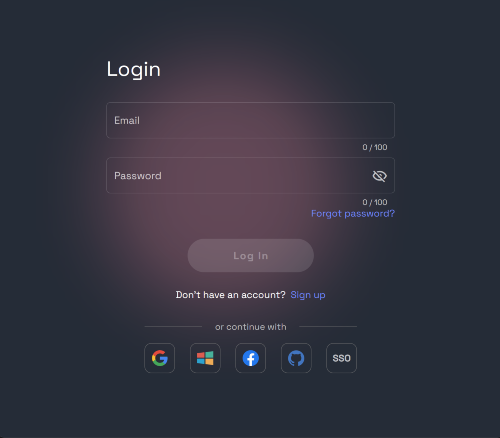
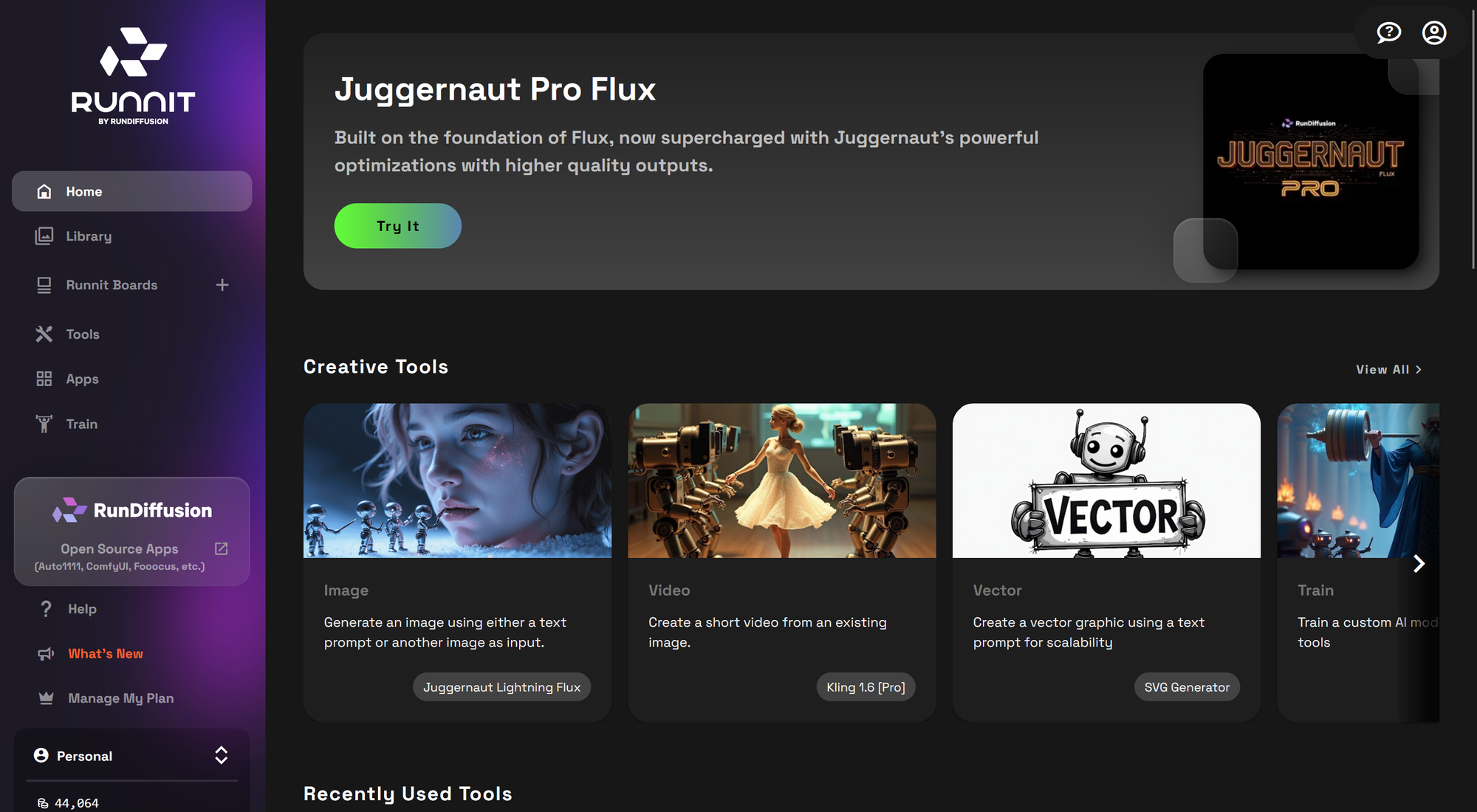
Click on Tools or create a new Board on the RunDiffusion Platform.
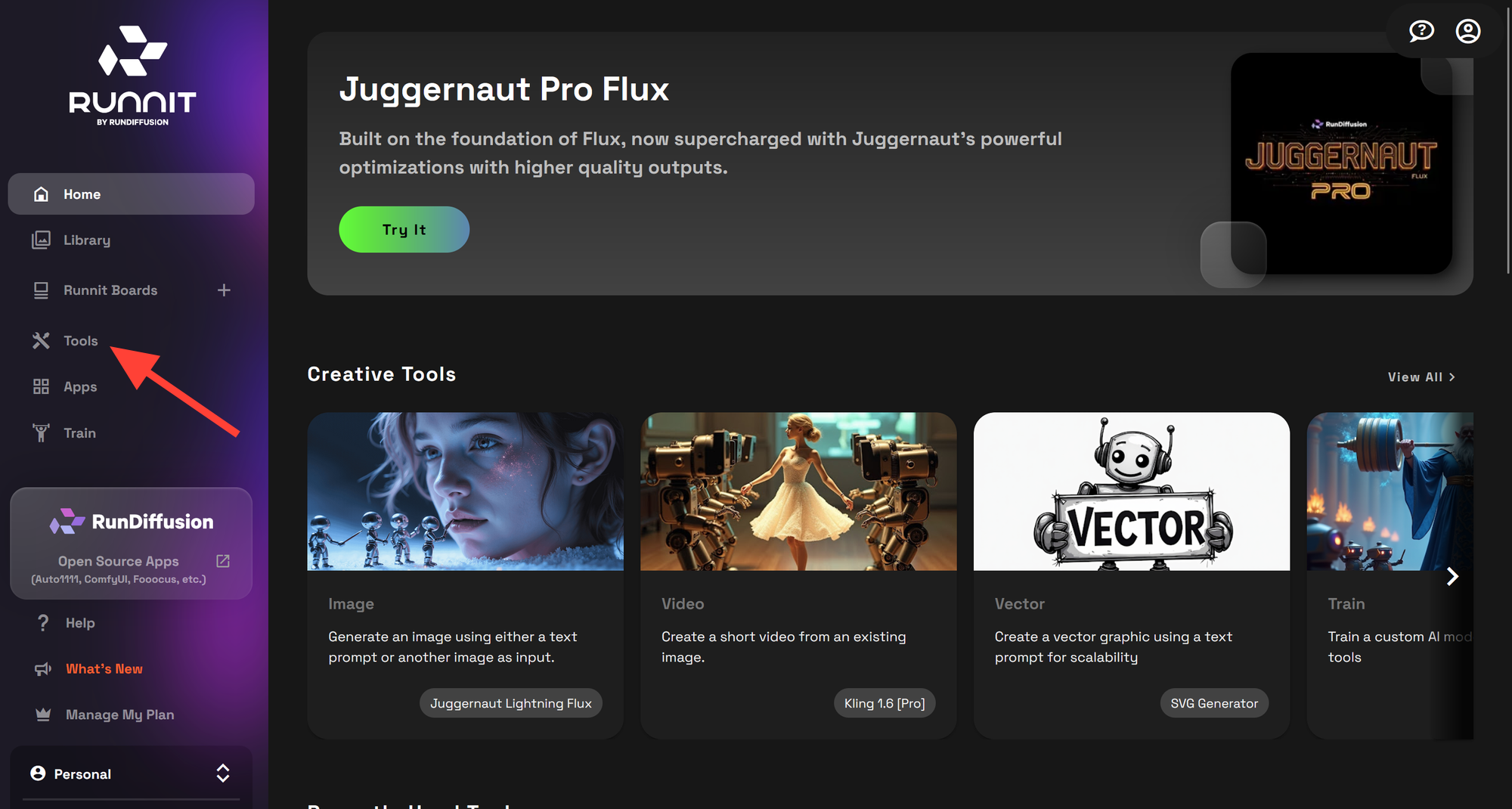
You can click on the tag Text to Video or search for Kling 2.1 or Kling 2.0
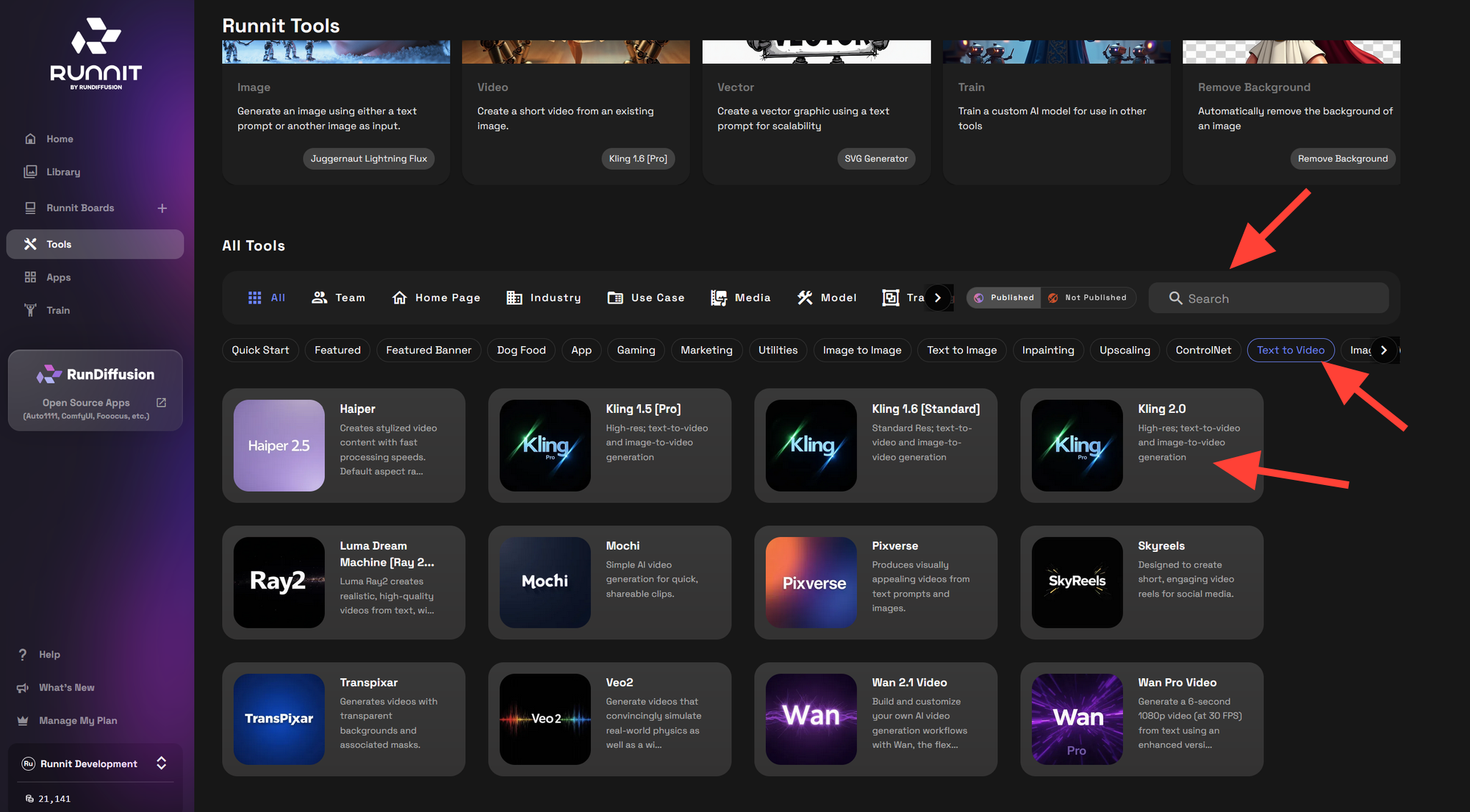
Click on the Kling 2.1 or Kling 2.0 Tool
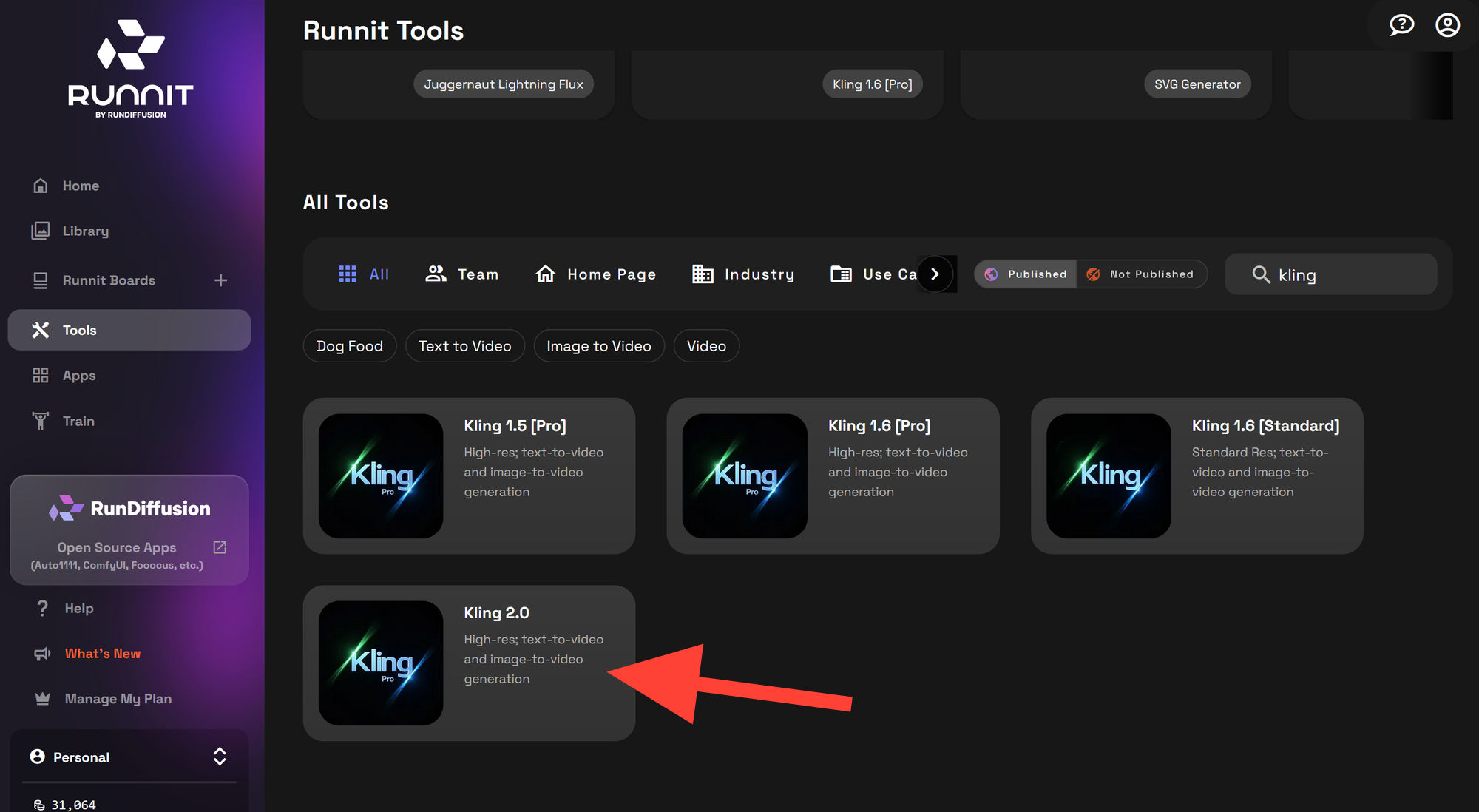
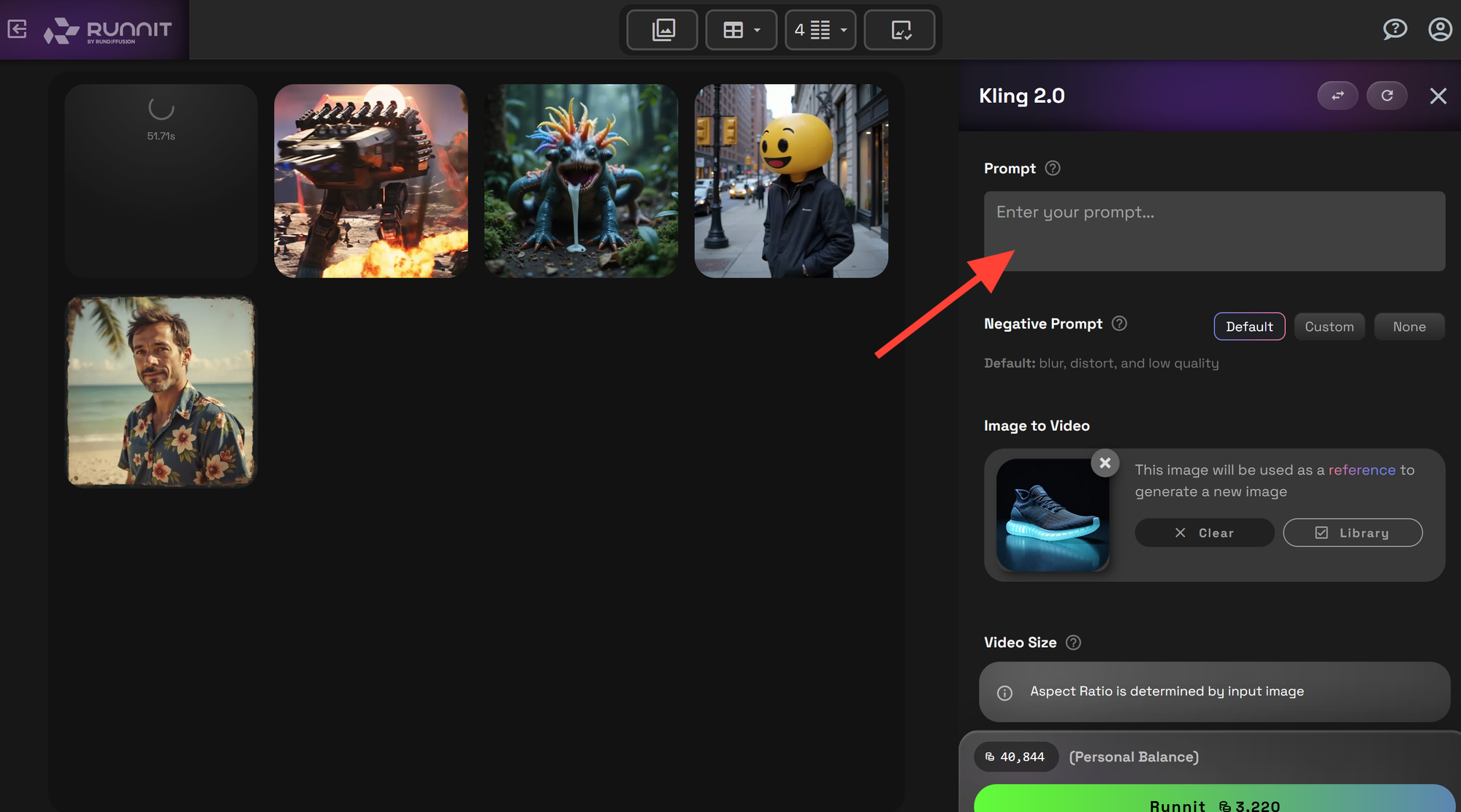
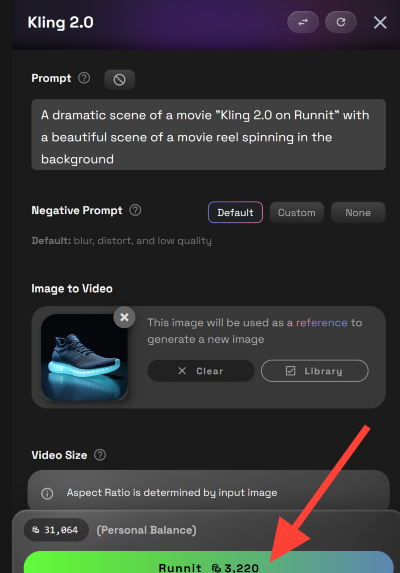
In the Kling 2.1 or Kling 2.0 Tool, enter a detailed prompt into the Prompt box
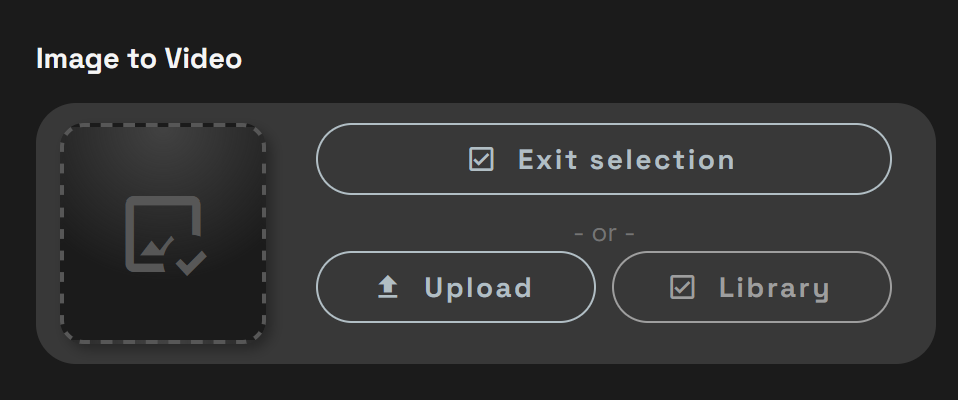
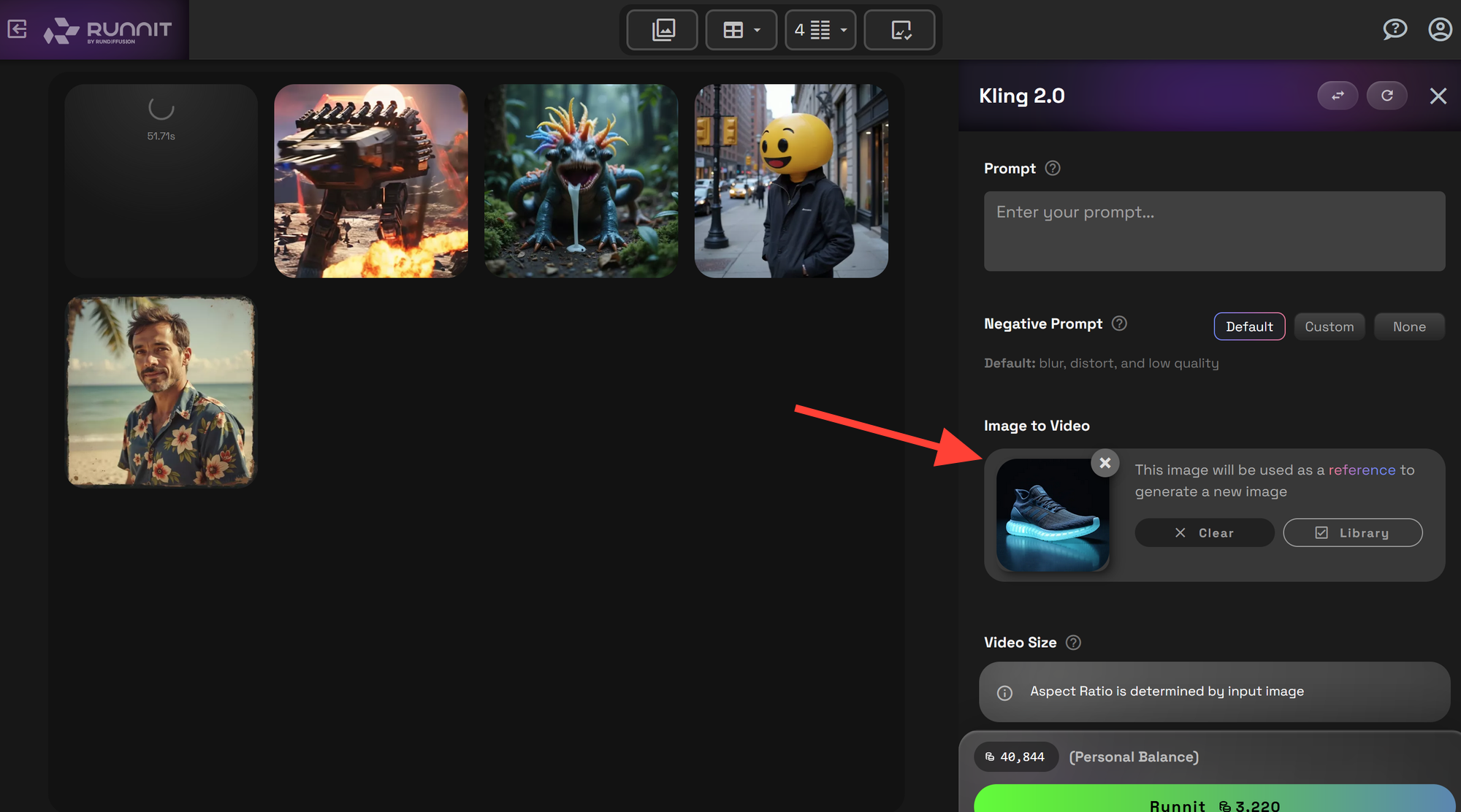
Optional: Upload or Select a Starting Image
You may upload an image or choose one from your library to use as the starting frame.
Minimum size: 300 × 300 pixels
Recommended starting image resolutions:
- 1024 × 1024
- 1280 × 720
- 960 × 960
- 1080 × 1920
- 1920 × 1080
- 1400 × 1400
Once your input is ready, click Run to begin your video generation
Note: Kling 2.1 and Kling 2.0 are powerful models—generations may take 8–15 minutes to complete.
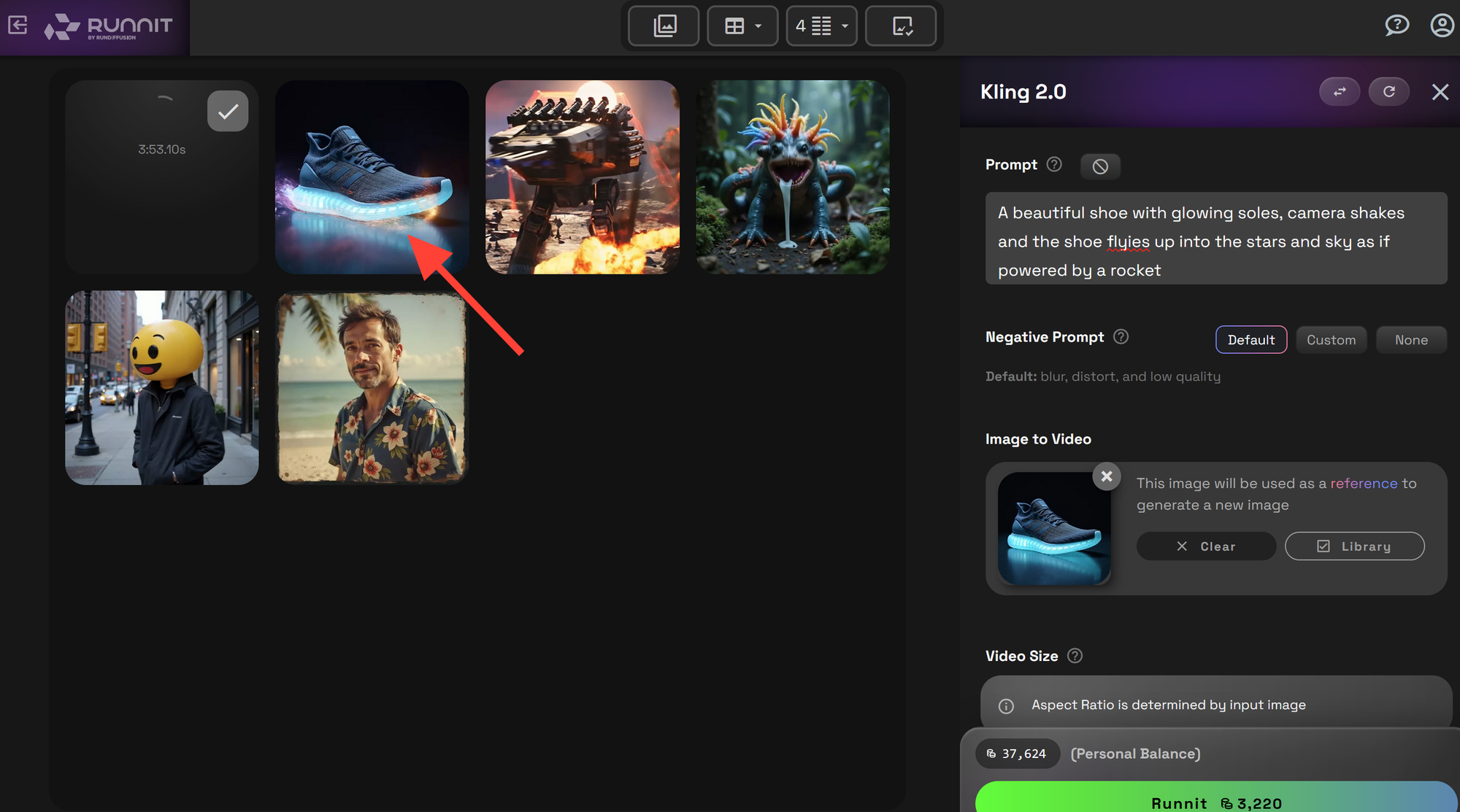
Completed Videos will show up on the left side. Click on an image to view your video and download them.
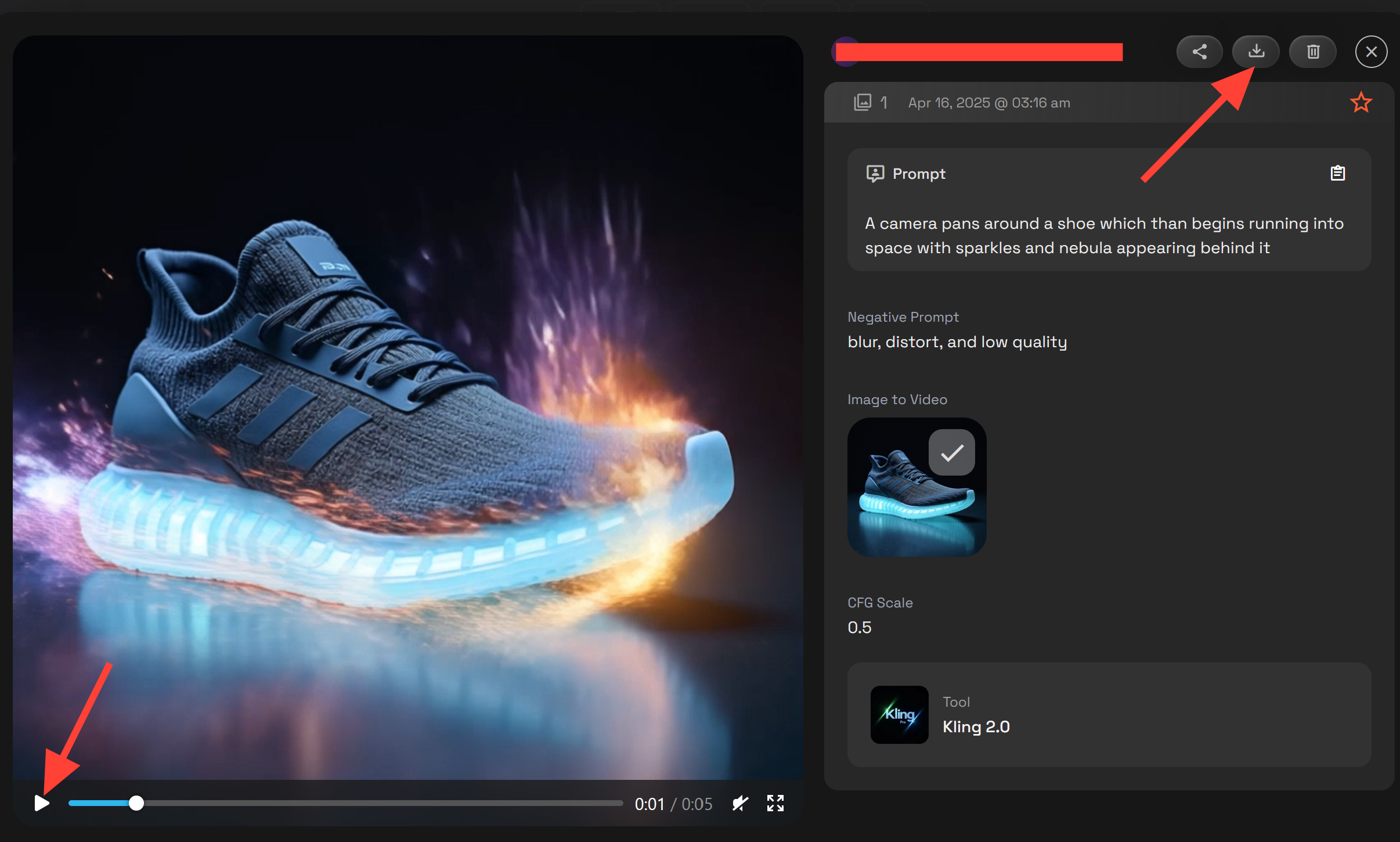
Clicking on an image you can play the video and download it.
Want to experiment? You can try multiple prompts side-by-side within your session to test variations. Here's an example prompt:
"A beautiful shoe with glowing soles, camera shakes and the shoe flies up into the stars and sky as if powered by a rocket."
🧹 Add Kling 2.1 to Your Boards on the RunDiffusion Platform
Want to visualize a campaign or pitch? Add Kling 2.1 to your Board on the RunDiffusion Platform, and consider adding these tools to create a workflow.
Creating Your First Board on the RunDiffusion Platform | RunDiffusion
From Image Generation to Video Boards on the RunDiffusion Platform allow you to seamlessly move from image generation to inpainting and finally to video creation, all within a structured workflow. This guide will walk you through setting up a Board on the RunDiffusion Platform that will: ✅ Generate an AI image ✅ Edit and refine it using inpainting ✅ Animate it into a video Step 1: Setting Up Your Board on the RunDiffusion Platform To begin, navigate to the RunDiffusion Platform from the RunDiffusion website. If you don’t have an account yet, you’ll need to create
RunDiffusion Team
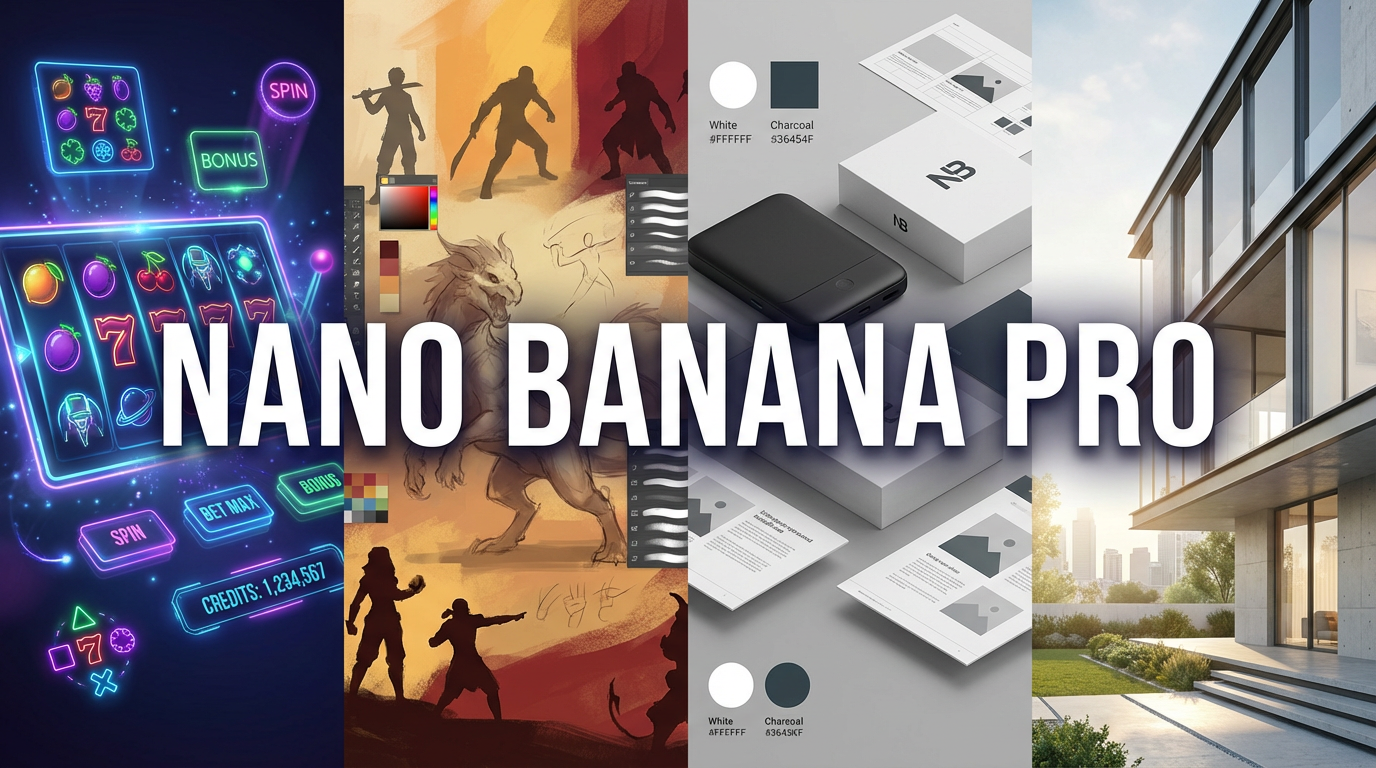
Nano Banana Pro: Now Available on RunDiffusion | RunDiffusion
Nano Banana Pro is available on RunDiffusion, offering higher-fidelity image generation, accurate text rendering, and powerful editing with Nano Banana Pro Edit. It is designed for architecture, product design, creative production, and iGaming teams.
RunDiffusion Team
Inpainting on the RunDiffusion Platform | RunDiffusion
Use Nano Banana Pro on a RunDiffusion Board to edit an existing image. Upload your source image, describe the change and generate a revised version.
RunDiffusion Team
Boards on the RunDiffusion Platform make it easy to organize ideas, compare styles, and collaborate visually—all within the same session.
✅ Start Creating with Kling 2.1 on the RunDiffusion Platform
Ready to turn your prompt into cinematic motion?
FAQ: Kling 2.1 on the RunDiffusion Platform
What is Kling 2.1?
Kling 2.1 is a high-end AI video generator capable of producing smooth, cinematic short-form video from text or image prompts. It is fully integrated into the RunDiffusion Platform with no setup or installation required.
What makes Kling 2.1 different from other video models?
Kling 2.1 delivers faster, cleaner motion and more consistent visual quality than prior models. It excels at short-form storytelling, product visuals, social media ads, and cinematic concepts where speed and polish matter.
Do I need to install anything to use Kling 2.1 on the RunDiffusion Platform?
No. Kling 2.1 runs entirely in the cloud. Just log in, open the tool, or add it to any Board on the RunDiffusion Platform.
Where can I find Kling 2.1 inside the RunDiffusion Platform?
On the RunDiffusion Platform, go to Tools or open a Board. Use the Text to Video tag or search for “Kling 2.1” or “Kling 2.0.”
Can I start from an image instead of just text?
Yes. You can upload an image or select one from your library.
Minimum resolution: 300 × 300 pixels
Recommended options include 1024×1024, 1280×720, 1080×1920, and other common aspect ratios.
Where do my completed videos appear?
Your finished videos appear on the left side of the interface. Click any image to preview and download the video.
Can I test multiple ideas in one session?
Yes. You can generate multiple prompts side-by-side to compare variations, styles, or narrative directions.
What are the best use cases for Kling 2.1?
Kling 2.1 is ideal for:
- Short-form ads and product reels
- Social media launch campaigns
- Animated commercial teasers
- Storyboards for film, pitch decks, and creative briefs
Can I integrate Kling 2.1 into a larger workflow?
Yes. Add Kling 2.1 to your Board on the RunDiffusion Platform and combine it with tools such as Text-to-Image or Nano Banana Pro to build end-to-end campaign visuals in one place.
Is Kling 2.0 still available?
Yes. Both Kling 2.1 and Kling 2.0 are available on the RunDiffusion Platform. You can choose either depending on your preferred style or performance needs.
How do I get started?
Log into your RunDiffusion account, open the RunDiffusion Platform, search for Kling 2.1, and start generating cinematic motion from your prompts.