
A Quick Guide Using FILES ONLY
If you're running out of space or simply want to tidy up your file storage on RunDiffusion, you're in the right place. This article will show you exactly how to delete files using the FILES ONLY application. It's a simple and safe process. Shared files won't count against your storage.
Why Use FILES ONLY?
RunDiffusion offers a streamlined application called FILES ONLY (displayed as FILE BROWSER ONLY) that lets you browse and manage your stored files without launching a full image generation environment. It's the perfect way to quickly clean up your workspace.
Step-by-Step: Deleting Files with FILES ONLY
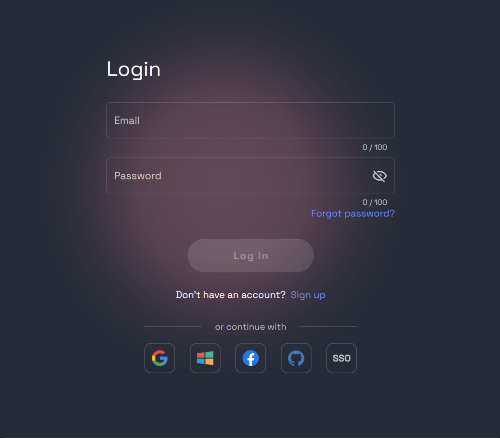
1. Log In
Use your usual credentials to log in at https://app.rundiffusion.com.
2. Select the FILES ONLY Application
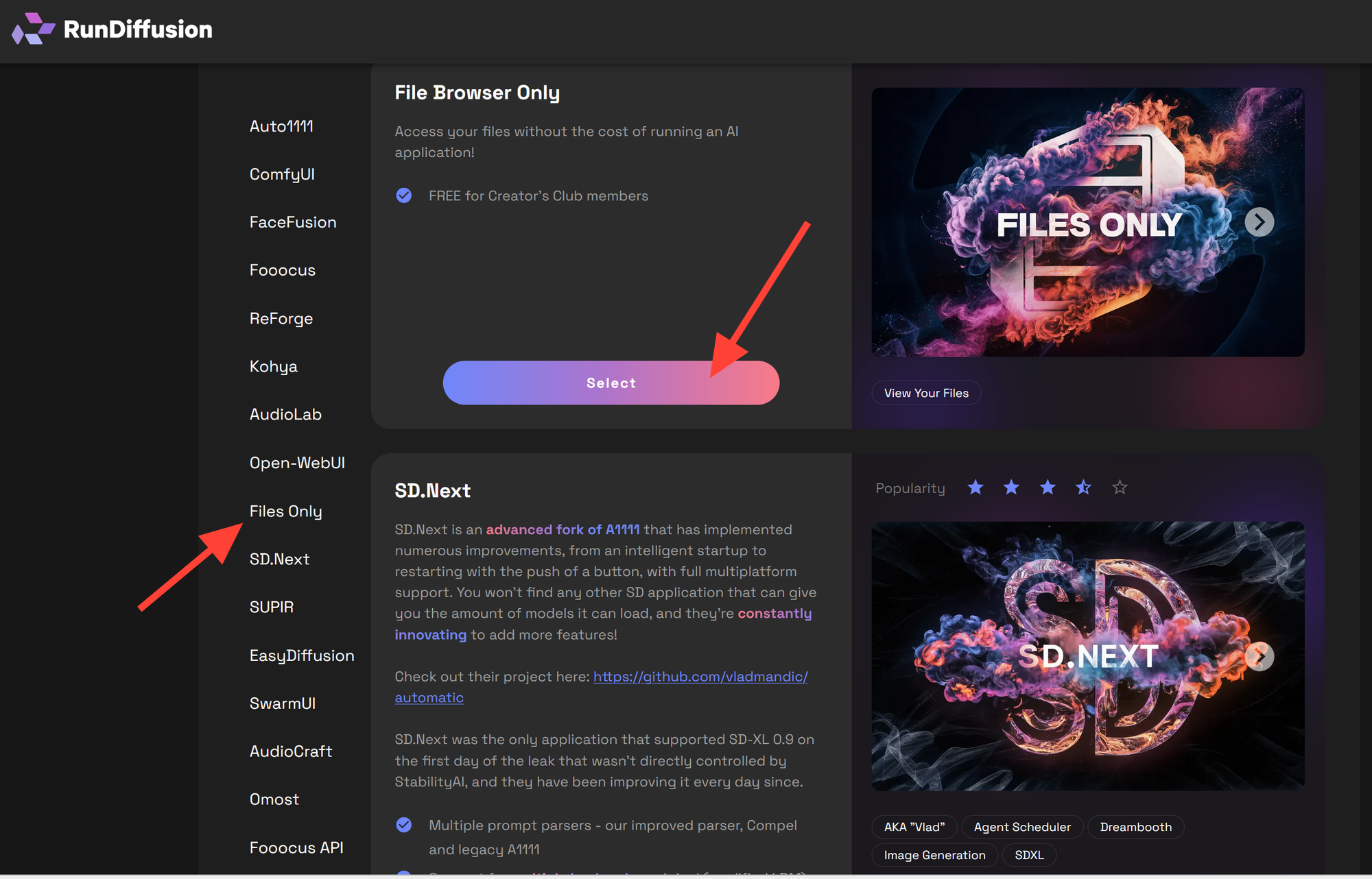
- On the left side select Files Only to choose the application.
- Click Select on the File Browser Only to move to the setup screen.
3. Launch the Session
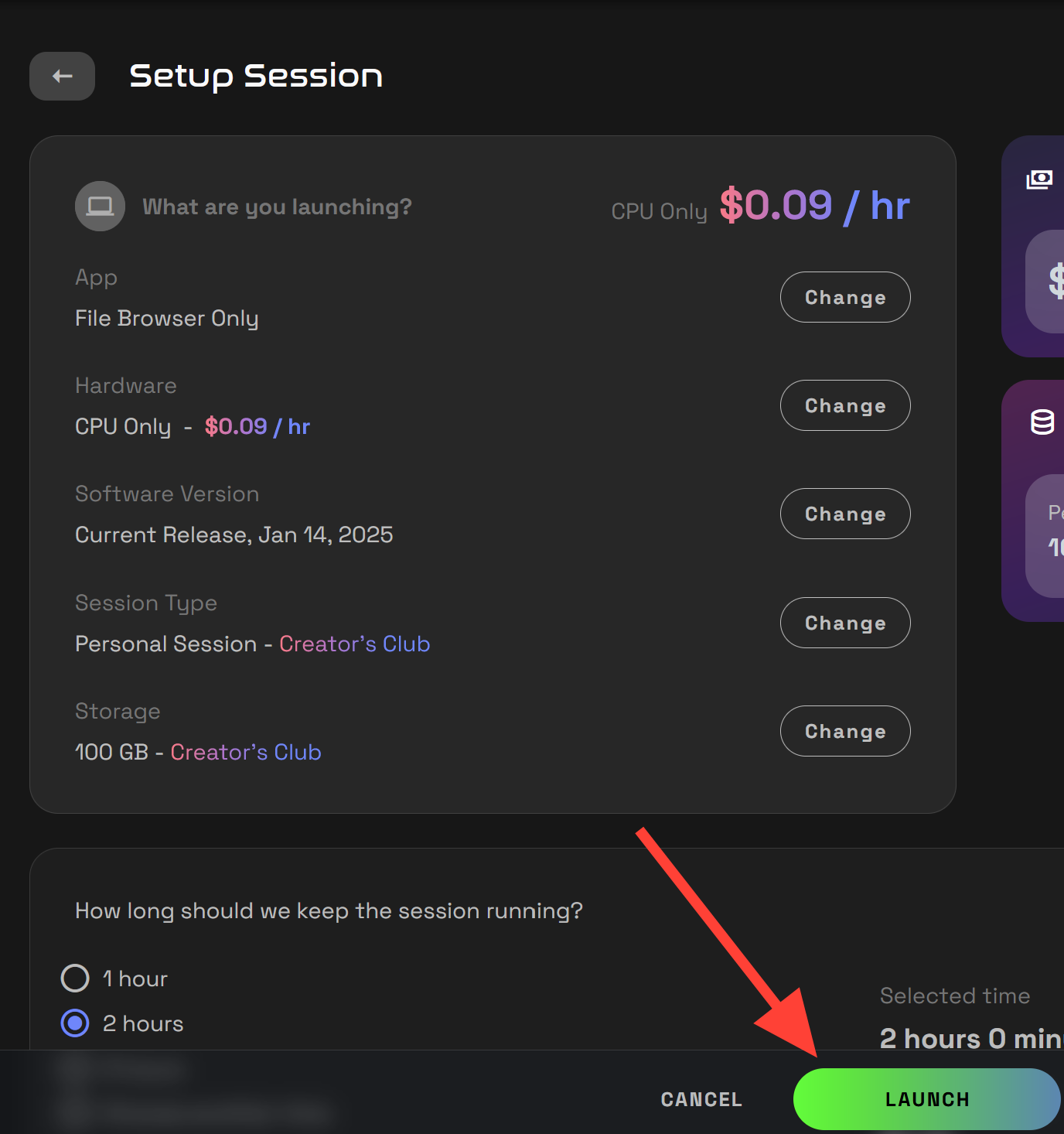
- Click SETUP SESSION, then click Launch.
4. Explore Key Folders
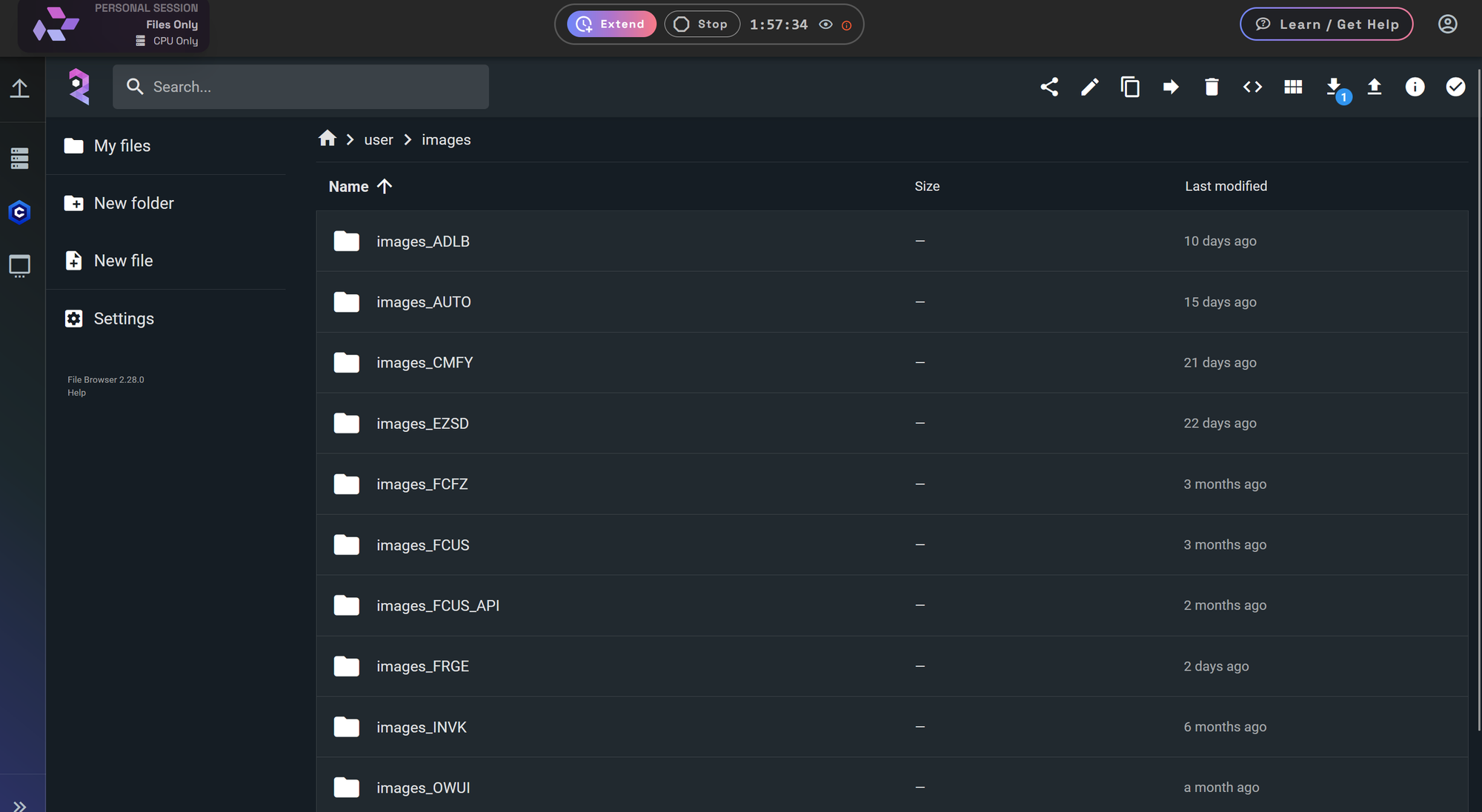
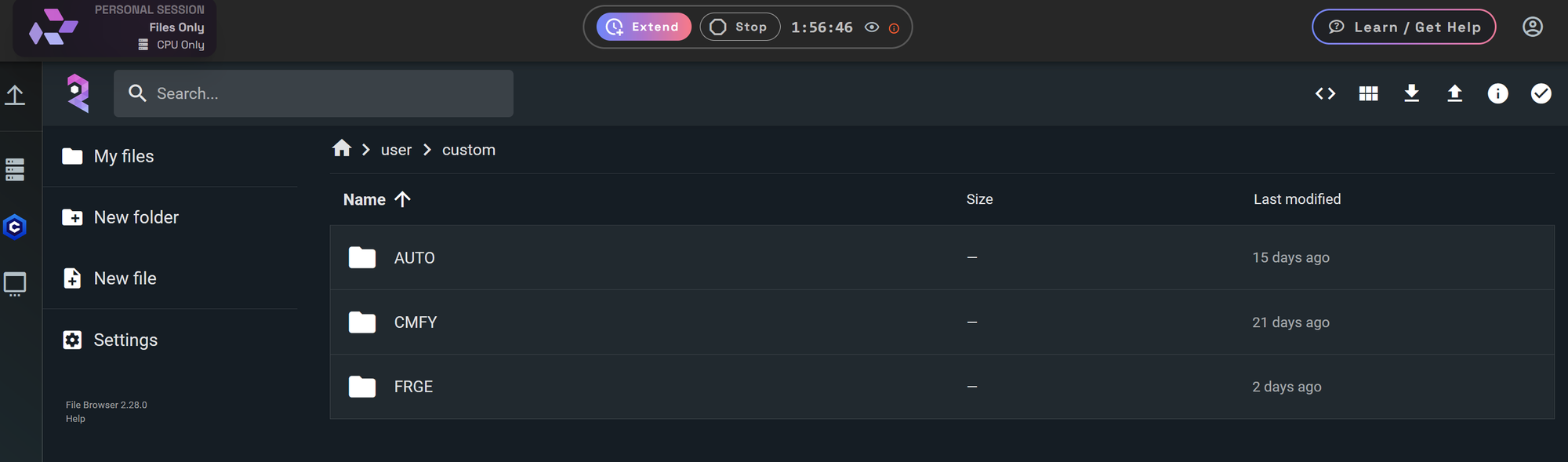
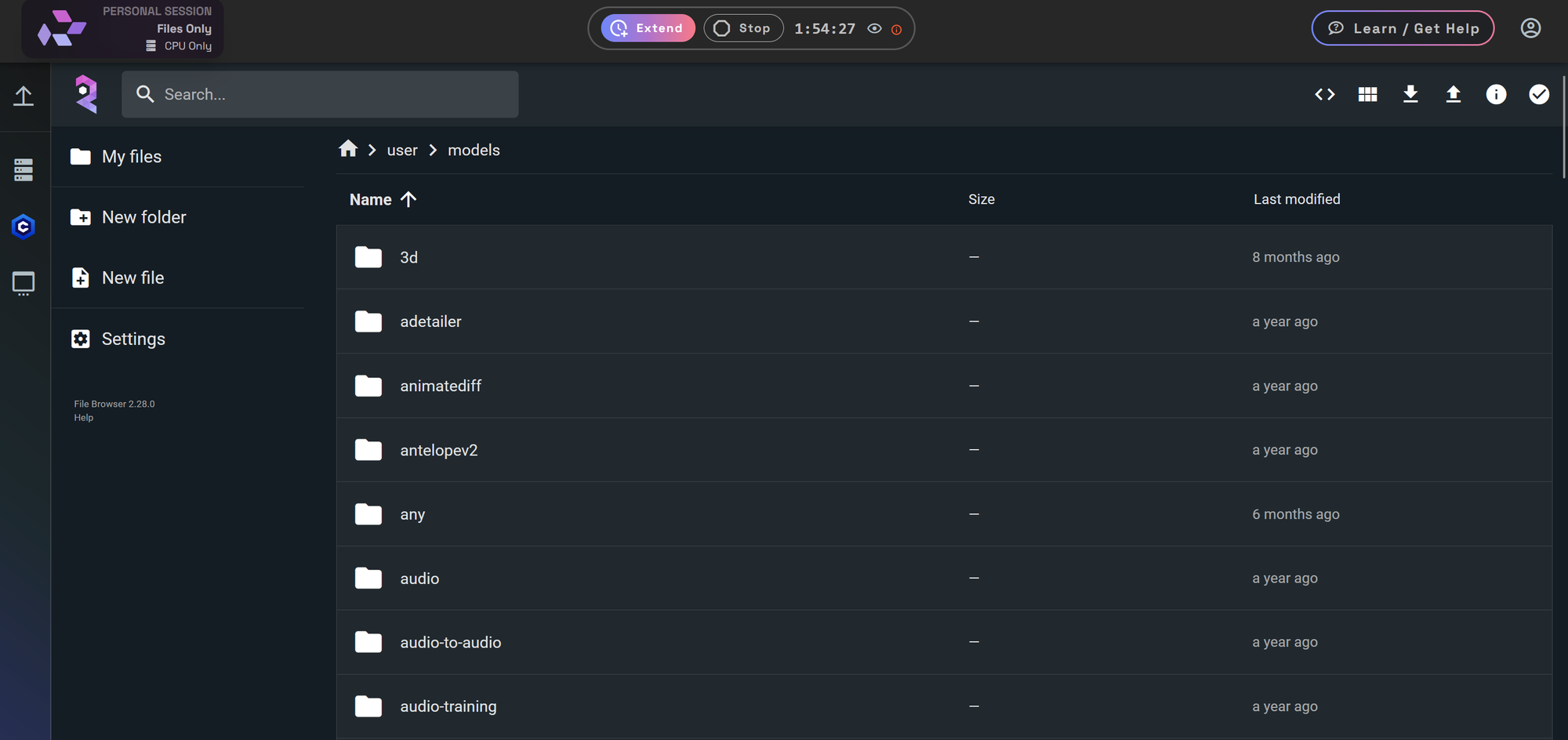
Inside the session, you'll see several folders. The most relevant ones are:
- IMAGES: Your generated images are separated by application in this folder.
- CUSTOM: Here are your custom configuration files.
- MODELS: Checkpoints, LoRAs, VAEs, and other model files can be found here.
5. Delete Unnecessary Files
- Browse through these folders.
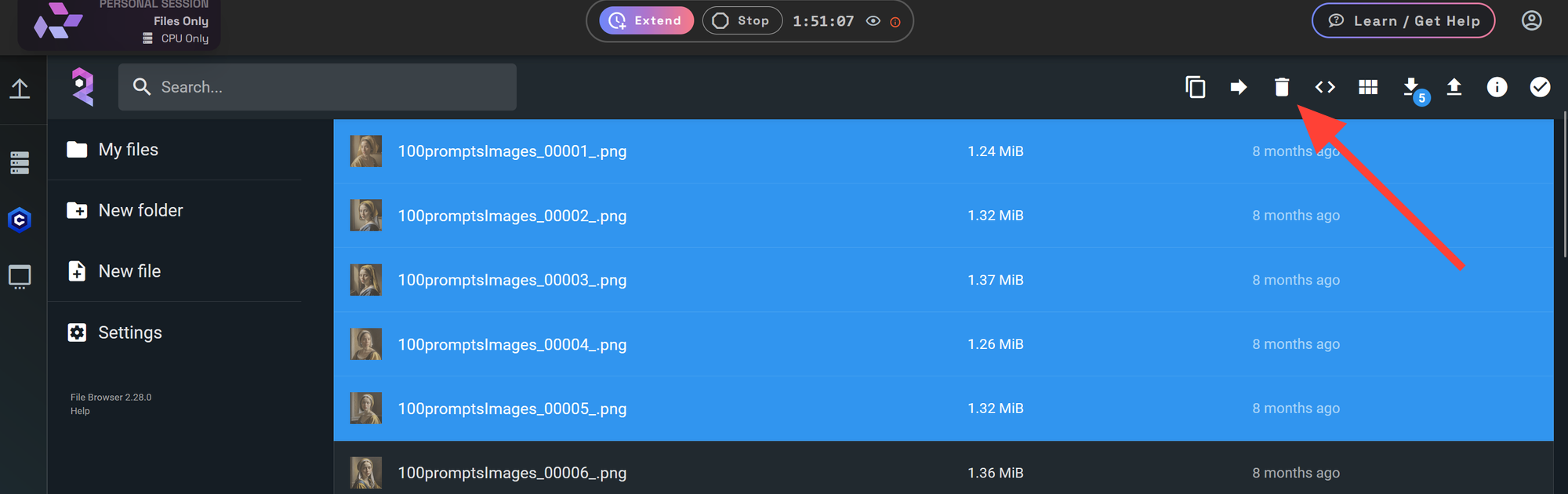
- To delete files first, click to select the ones you wish to remove. You can select multiple files by holding the Ctrl key and clicking each file individually, or hold the Shift key and click two files to select all files between them.
- With the files selected you can then click on the delete icon at the top which looks like a trash can. WARNING: Once deleted we can't recover your files so be sure to backup and download important files before deleting.
6. Don't Worry About Shared Files
Feel free to delete anything—shared files will be automatically restored in your next session. These do not count against your personal storage quota.
Final Thoughts
Regularly clearing out unneeded files can help keep your RunDiffusion environment clean and optimized. With FILES ONLY, it's fast, safe, and easy.
Want to learn more about managing your AI workspace? Check out related guides: