

RunDiffusion Teams let organizations manage shared access, billing, and workspaces separately from personal accounts. If you were invited to a Team, follow the steps below to accept your invite and switch into the correct account.
A quick note on wording: some companies rename Team to their own label, such as Organization or Studio. If your buttons use a different label, that is expected. The steps are the same.
Need to set up or upgrade a Team plan first? Review RunDiffusion pricing or the Enterprise overview for team workspaces, SSO, analytics, and budgeting.
Part 1: New Member - Accept the Invite
Open the invitation email and choose the correct option:
- Sign Up if you are a new user
- Login if you already have a RunDiffusion account
Both options open the RunDiffusion sign-in page with your invitation attached. You may briefly see:
Loading your team member invitation...
Then you will see a Welcome to [Team Name] banner.
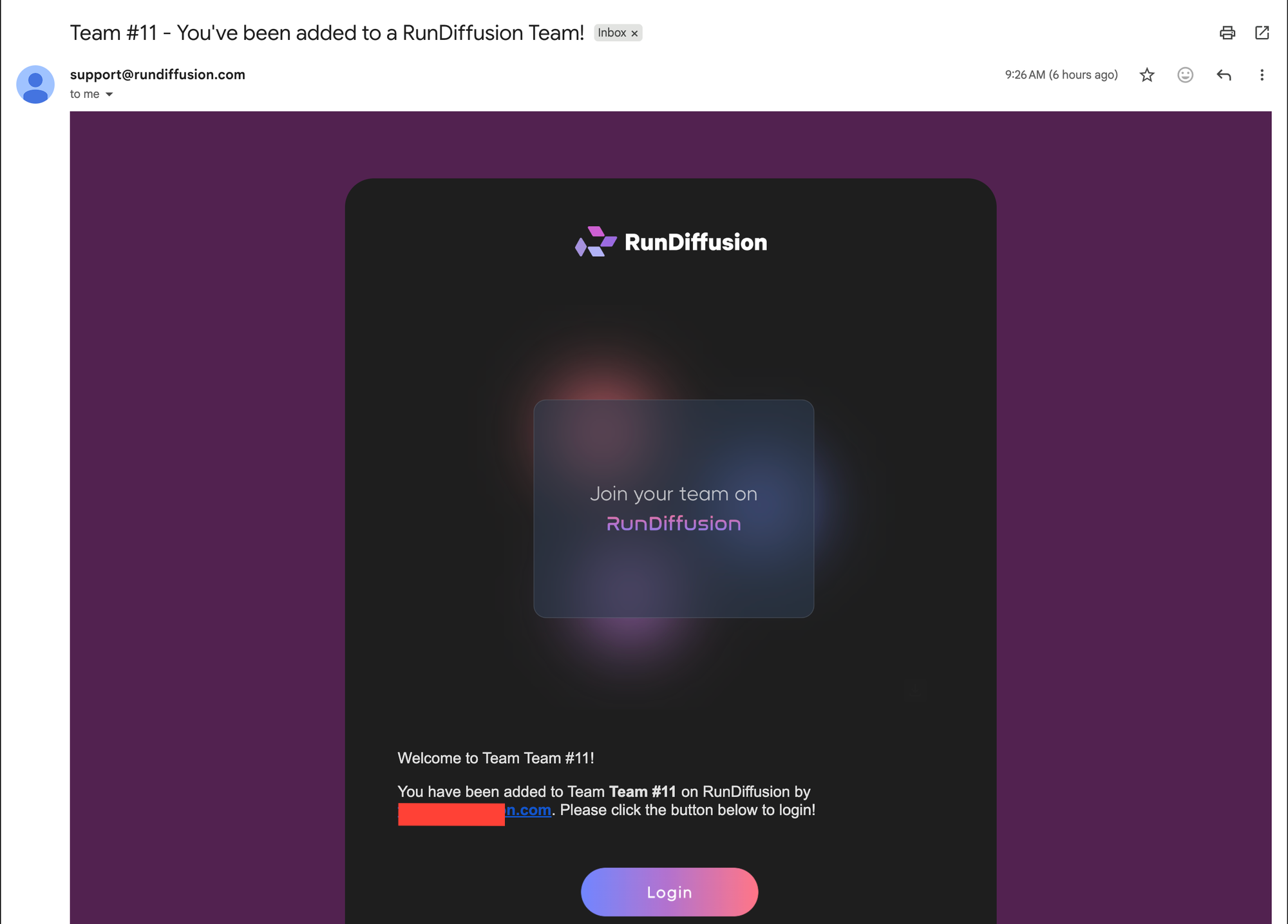
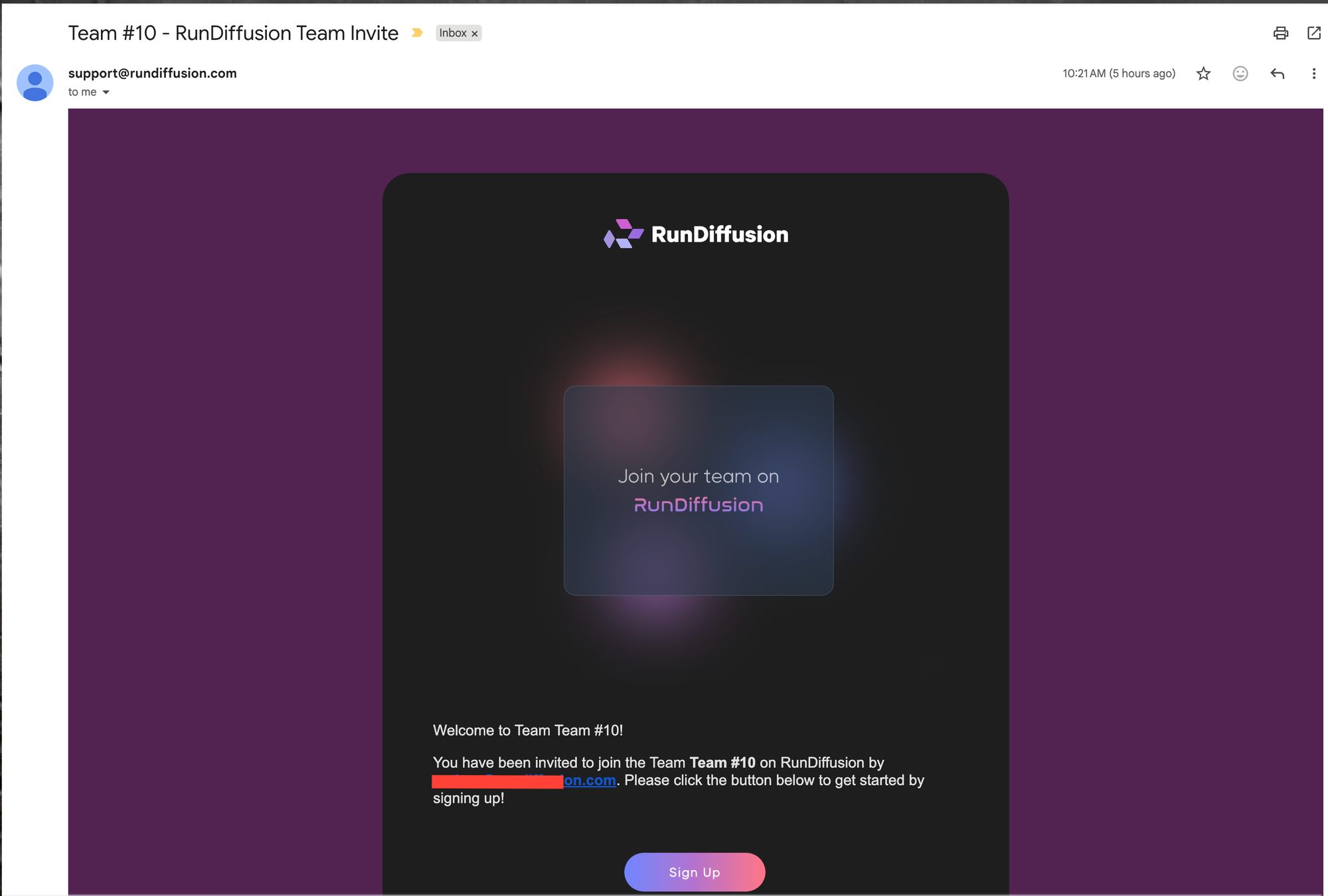
Your invited email address is filled in automatically. New users can complete sign-up to create an account. Existing users can log in as usual.
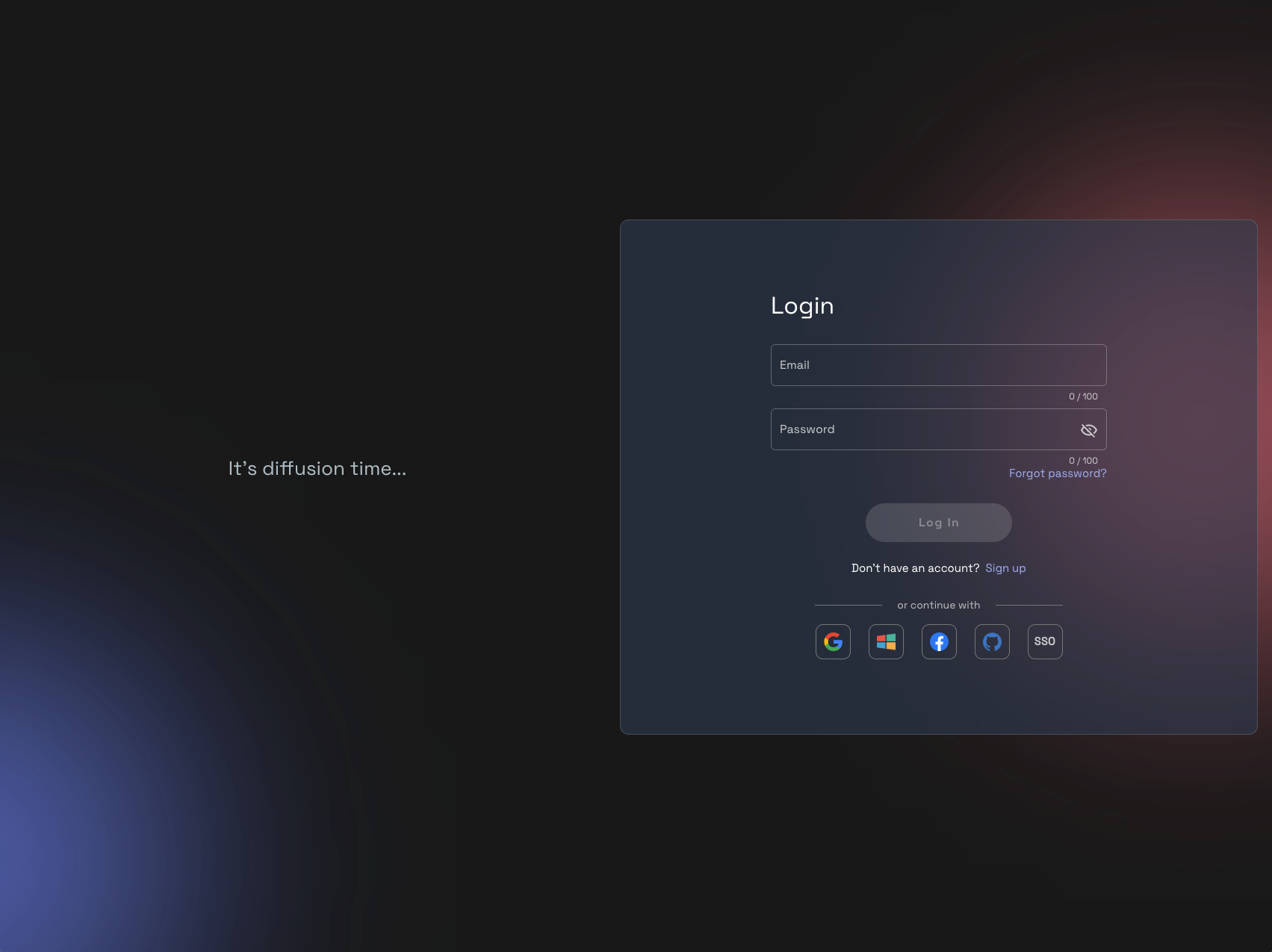
Once you finish, you are a member of the Team.
If you click an invite link you have already used, you may see:
You're already signed up!
Choose Go to Login, then switch into the Team from your account switcher.
Part 2: Switch Into Your Team Account
Your Team account is separate from your free Personal account. Team work, billing, and access live inside the Team account.
To switch into your Team:
- Open the account switcher from your account avatar or name.
- In Switch Account, choose your Team from the Teams list.
- Use the search box if you belong to multiple Teams.
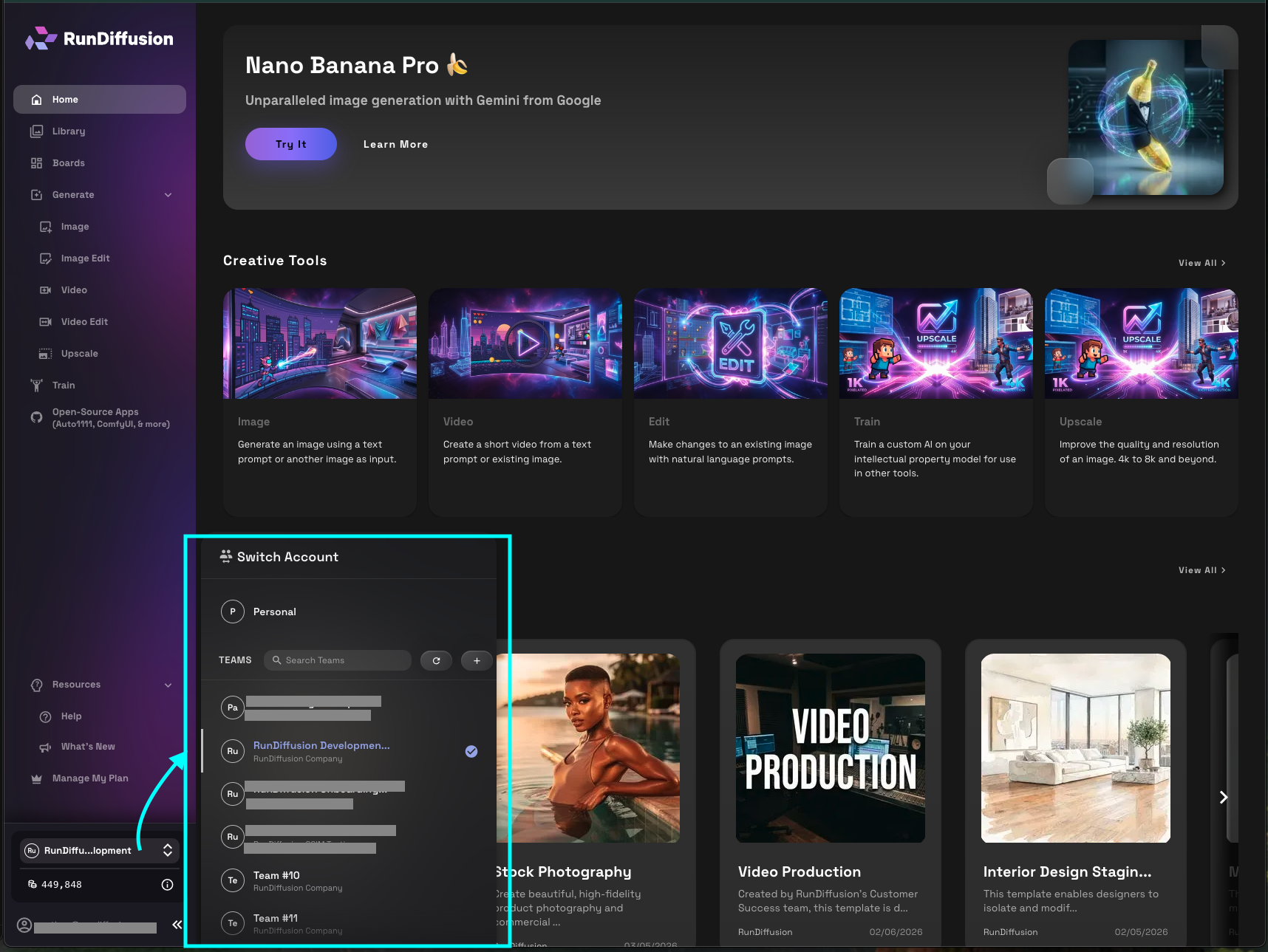
You are now working inside the Team account.
For more help with Personal and Team account settings, see account management.
Part 3: Join a Team That Requires SSO
Some Teams require Single Sign-On. If your Team enforces SSO, accepting the invite routes you through your company's identity provider instead of asking you to create or enter a password.
When you open the invite, you will see a Welcome to [Team Name] screen with this message:
Your team uses Single Sign-On. Redirecting you to sign in...
Let the redirect happen, or select Continue with SSO.
If you are an admin configuring identity access, review the SSO and user provisioning setup guide as the next step.
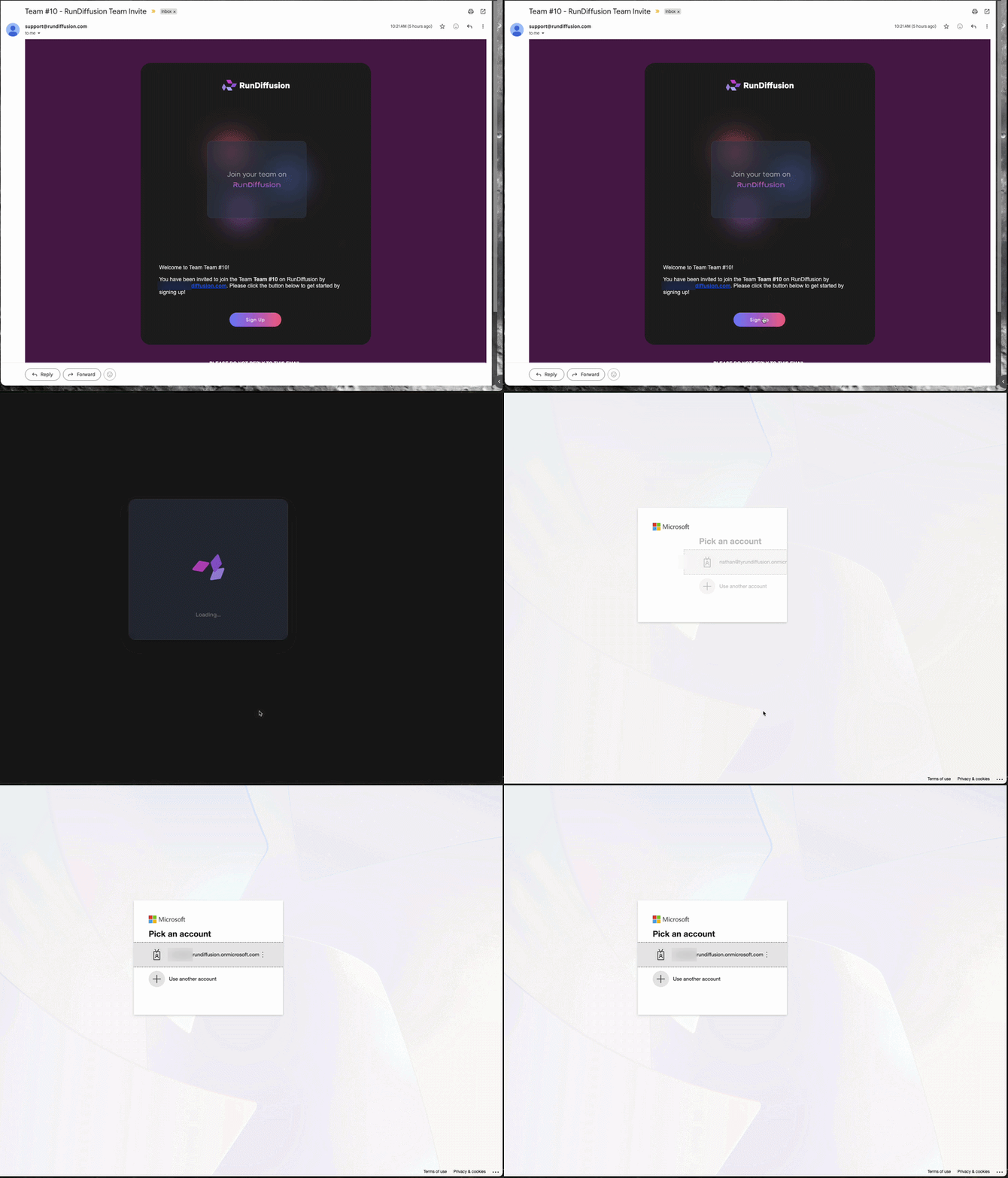
Then:
- Sign in with your company's identity provider.
- After SSO succeeds, RunDiffusion returns you automatically.
- You are placed directly into the Team.
If You Signed In With the Wrong SSO Account
If the account you used with your identity provider does not match the invited email address, you may see:
This invitation was sent to user@[your-company-domain], but you signed in with a different account. Please sign in with the invited account - you may need to sign out of your identity provider first.
Choose Try a different account, sign out of your identity provider if needed, then sign in again with the invited email address.
Part 4: Ask Your Company to Add You and Recheck Access
Some companies claim their email domain. If you sign in with a company-managed email address, such as user@[your-company-domain], but you are not yet in one of that company's Teams, RunDiffusion may show a dialog titled:
Ask [Company] to add you
This means your email domain is managed by that company, but you do not currently have Team access.
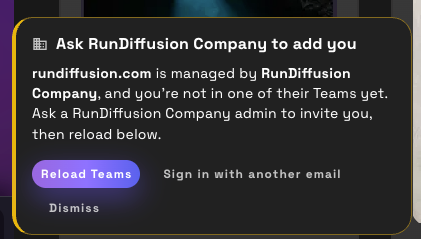
Ask a Team admin at your company to invite you. Once they have added you, choose Recheck access. RunDiffusion will refresh your membership and let you continue once your Team access is confirmed.
You can also choose Sign in with another email if you meant to use a personal address.
For larger rollouts, seat planning, or help getting your company set up, contact sales.
Why You May Need to Reload Teams
Your Team membership is confirmed when you sign in. If an admin adds you after you are already signed in, you do not need to fully sign out.
Choose Reload Teams to refresh your account access.
Once your membership is confirmed, the dialog changes to a one-click Switch to [Team Name] button.
Quick Troubleshooting
I Never Got the Invite Email
Check your spam folder and confirm that the admin invited the exact email address you use to sign in. The admin can resend the invite from Add Members.
It Says I'm Already Signed Up
Choose Go to Login, then use the account switcher to switch into the Team.
SSO Keeps Sending Me Back
You may be signed in with the wrong identity-provider account. Choose Try a different account, sign out of your identity provider if needed, then sign in with the invited email address.
I'm Signed In but Don't See the Team
If your email is on a company-managed domain, make sure a Team admin has invited you. Then choose Recheck access or Reload Teams to refresh your membership.