
A Quick How-To Guide
Managing your AI-generated content is just as important as creating it. Whether you're clearing out old projects or organizing your workspace, learning how to delete files on RunDiffusion's platform (Formerly Runnit Platform) is an essential skill. In this guide, we'll walk you through the simple steps to delete your generations.
Why Deleting Files Matters
Keeping your RunDiffusion Library environment clean ensures faster load times, easier navigation, and better performance. Plus, it makes managing your image library a breeze when you're generating high volumes of content.
How to Delete Files on RunDiffusion
Follow these quick steps to delete your image generations from Runnit:
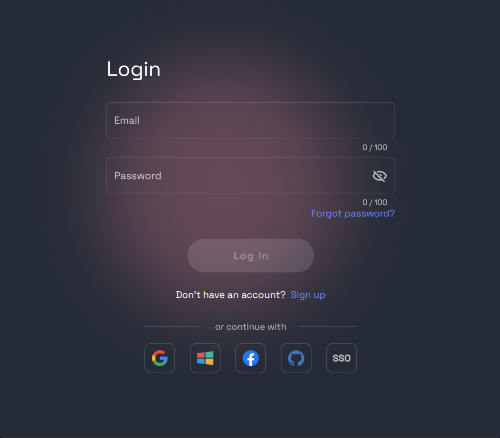
1. Login to Your Runnit Account
Head to the login page: https://app.rundiffusion.com/login and sign in with your credentials.
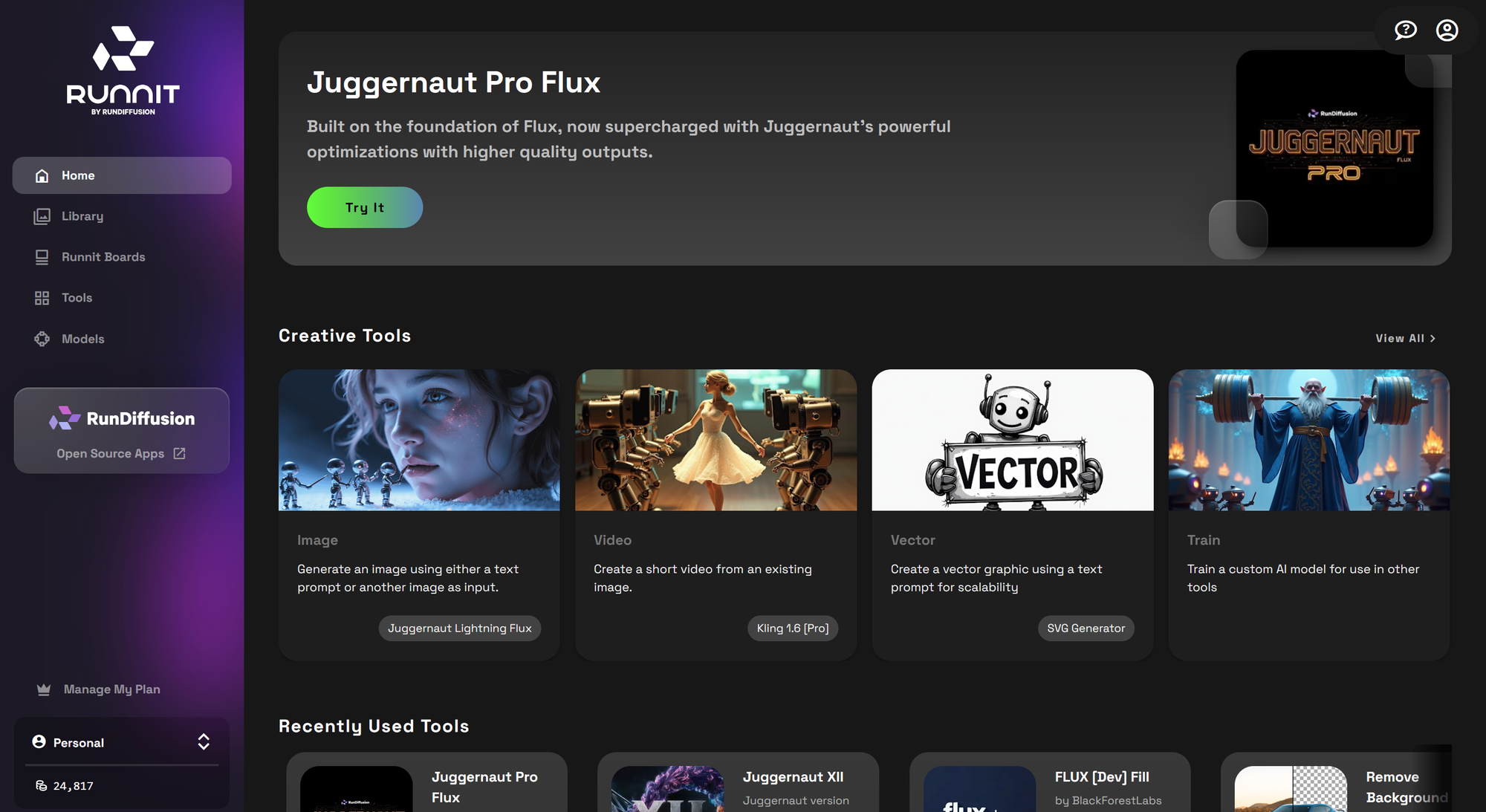
2. Go to the RunDiffusion's Platform
Once logged in, navigate directly to the platform dashboard: https://app.rundiffusion.com/runnit/home
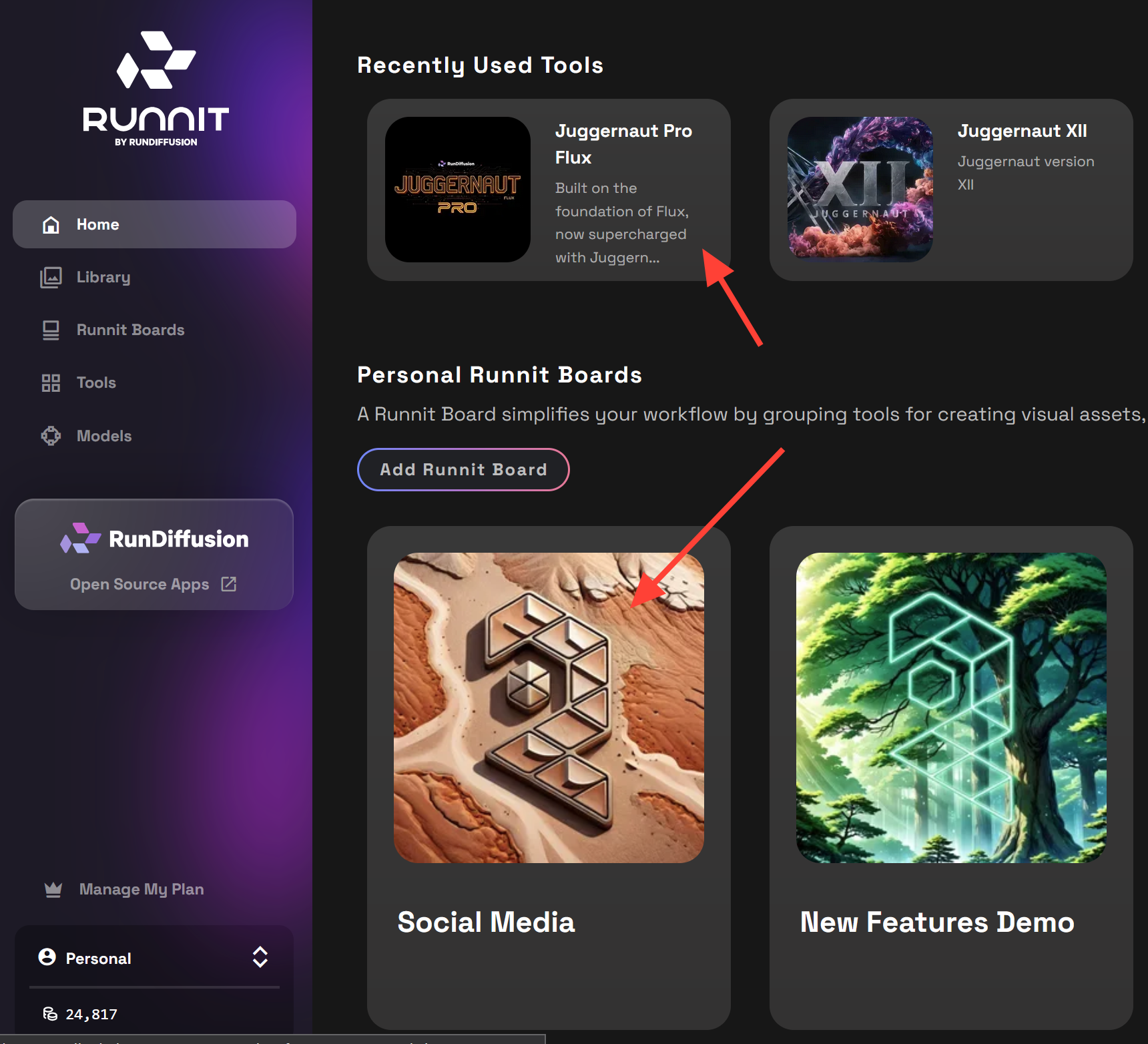
3. Open a Runnit Board
Select any Runnit board you've used recently
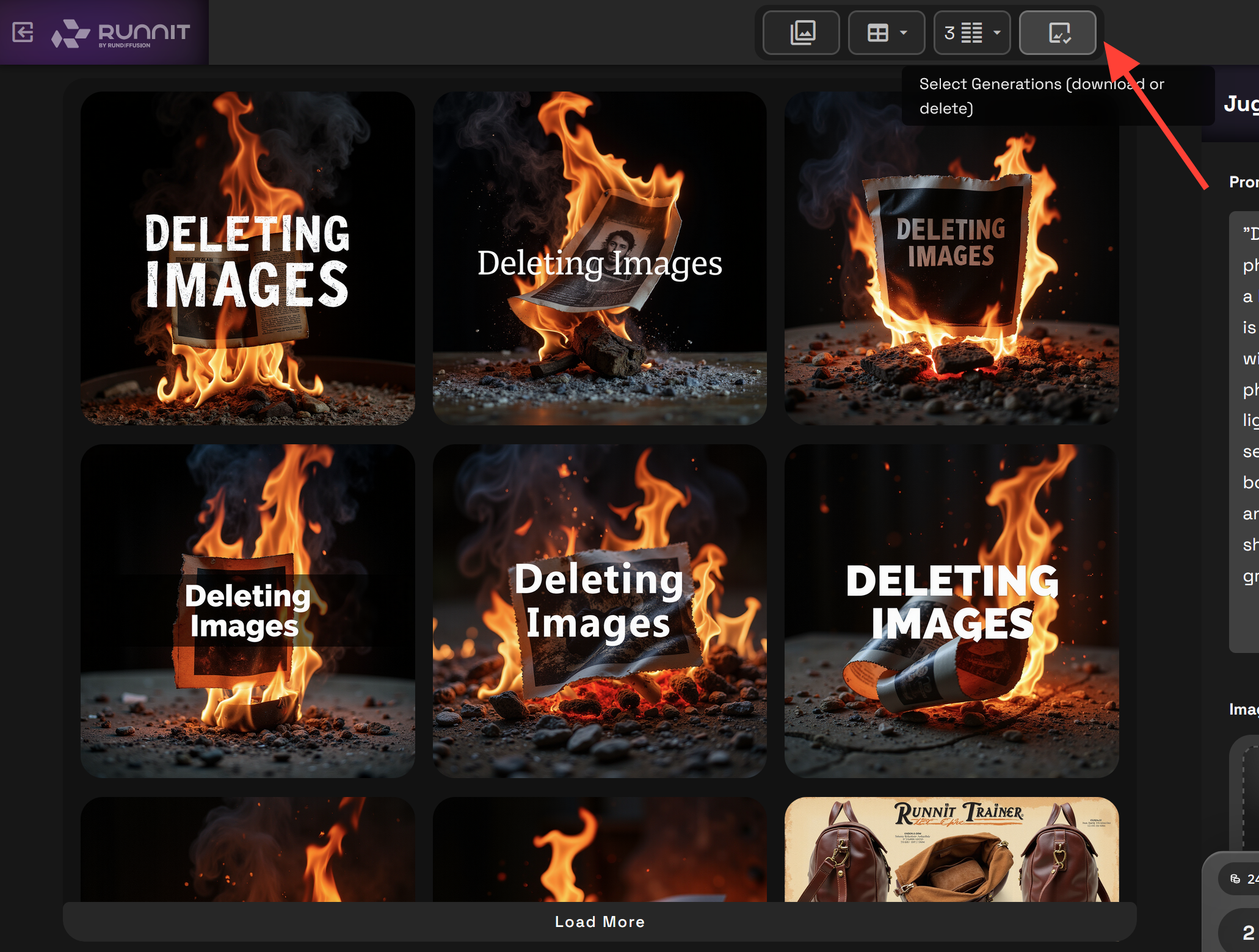
4. Click the Select Generations Icon
Look for the Select Generations icon near your output gallery. This enables multi-selection mode.
5. Choose the Files You Want to Delete
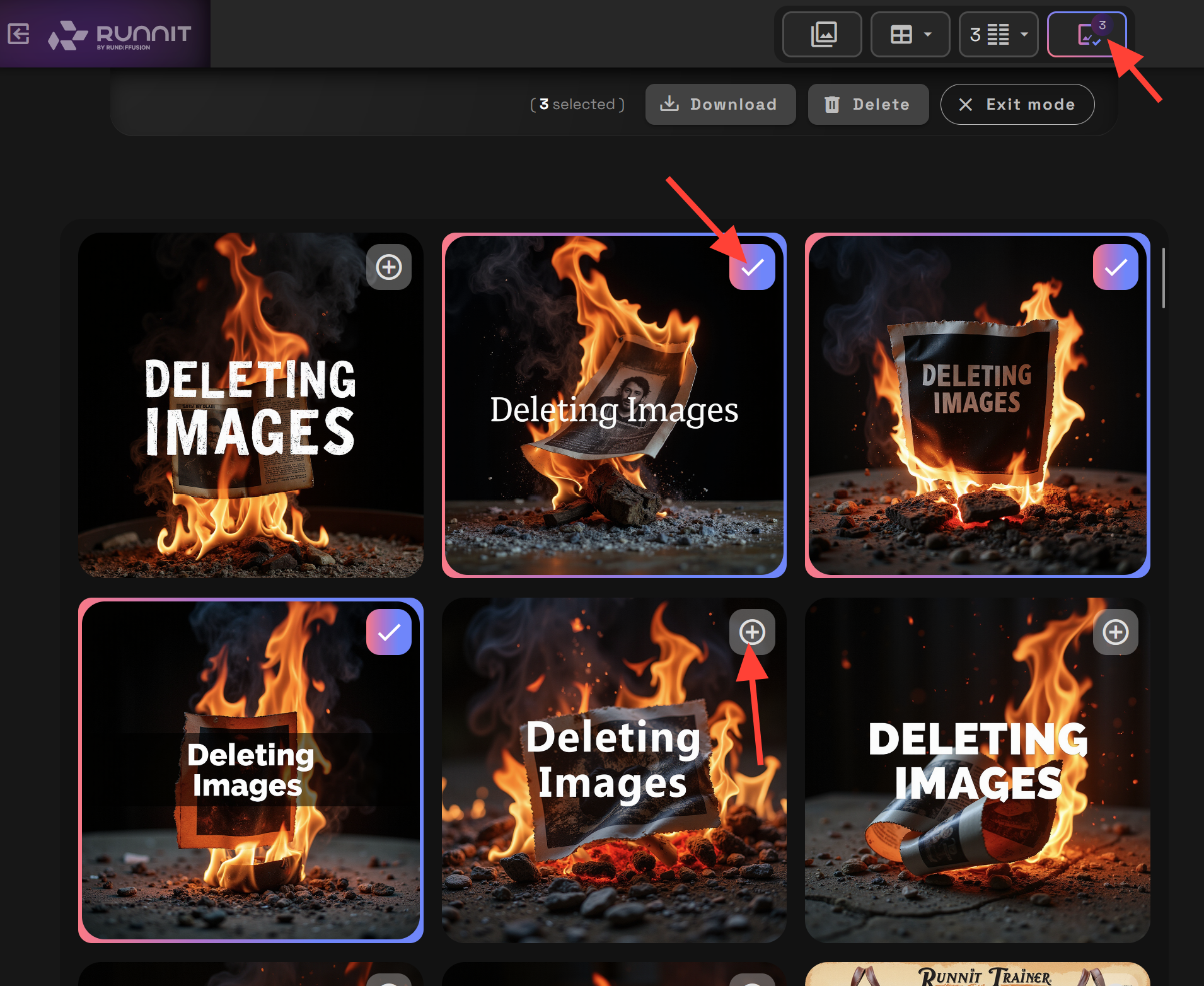
Once you click on Select generations you can now select multiple images by clicking on the plus sign in the top right of the image. Doing so will give it a colored border and a check mark. Those files are now selected and you can download them as a group or delete them as a group.
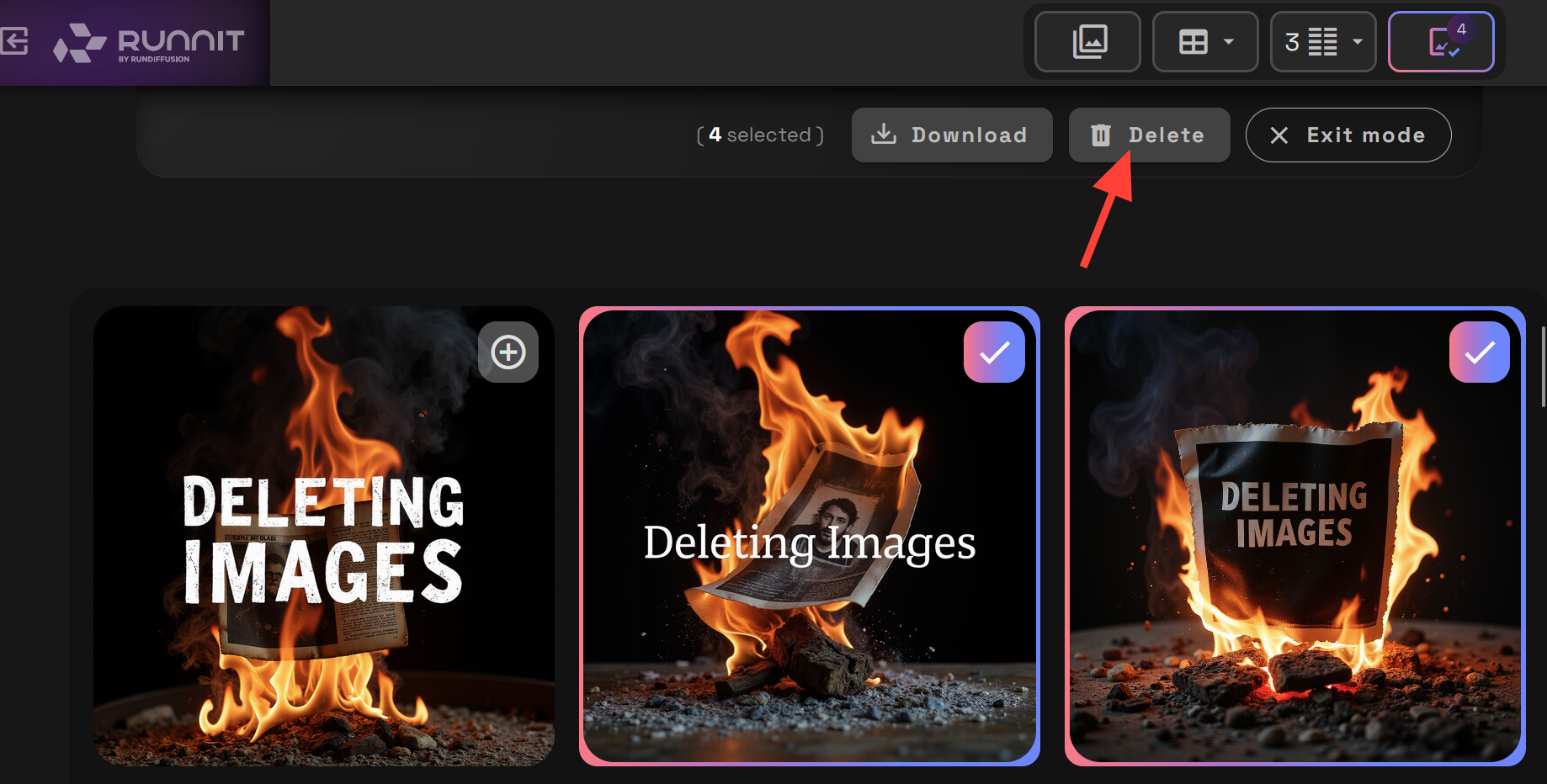
6. Click the Delete Icon
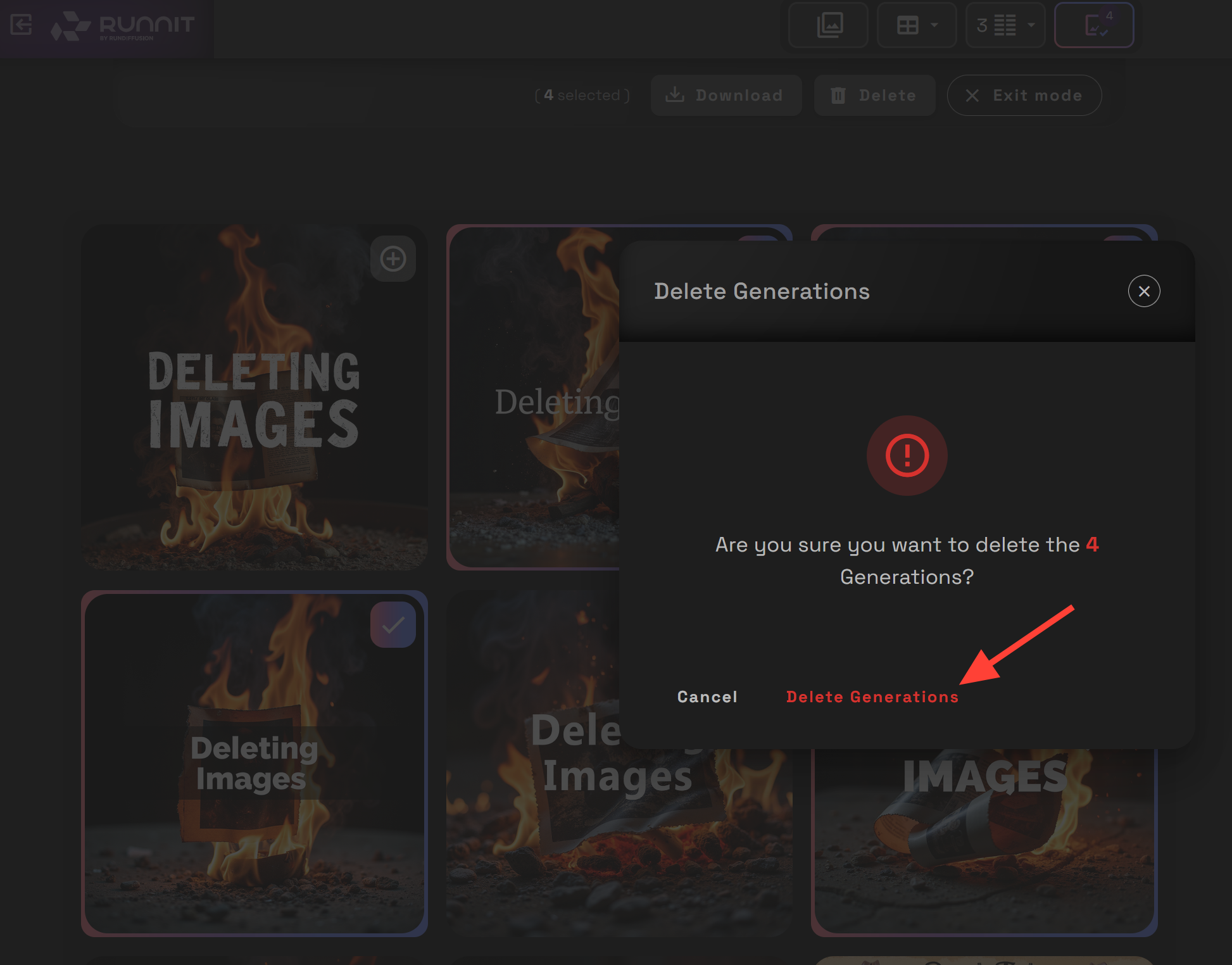
Click the Delete icon that appears, and confirm the deletion. The selected files will be permanently removed from your account. Once this action is performed we can not recover the images so be very careful and confident you want to delete that file forever. We always recommend downloading files you may need before deleting them.
Best Practices for File Management
- Regularly Clean Up: Delete outdated or test generations to keep your workspace efficient.
- Backup Important Work: Before deleting, consider downloading important outputs for external storage.
Explore More Runnit Workflows
Looking to do more with Runnit? Check out these guides: