
What is Generation Select and Download?
The Select Generation and Download feature in the RunDiffusion Platform allows you to quickly select multiple files from your library and download them efficiently. This is useful for backing up images and other assets you've created in RunDiffusion.
Accessing the RunDiffusion Platform (Formerly Runnit Platform)
Login to your RunDiffusion account.
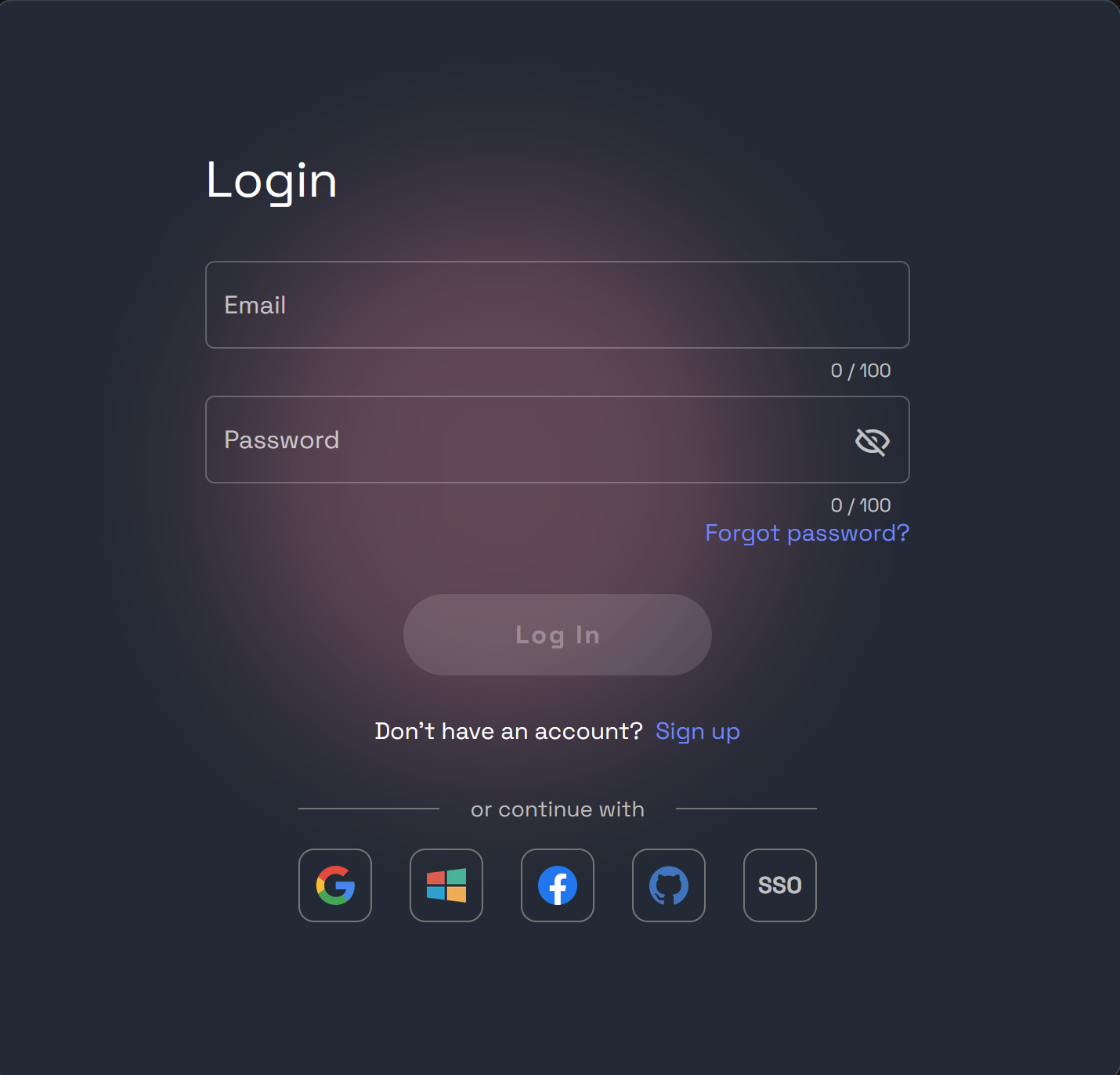
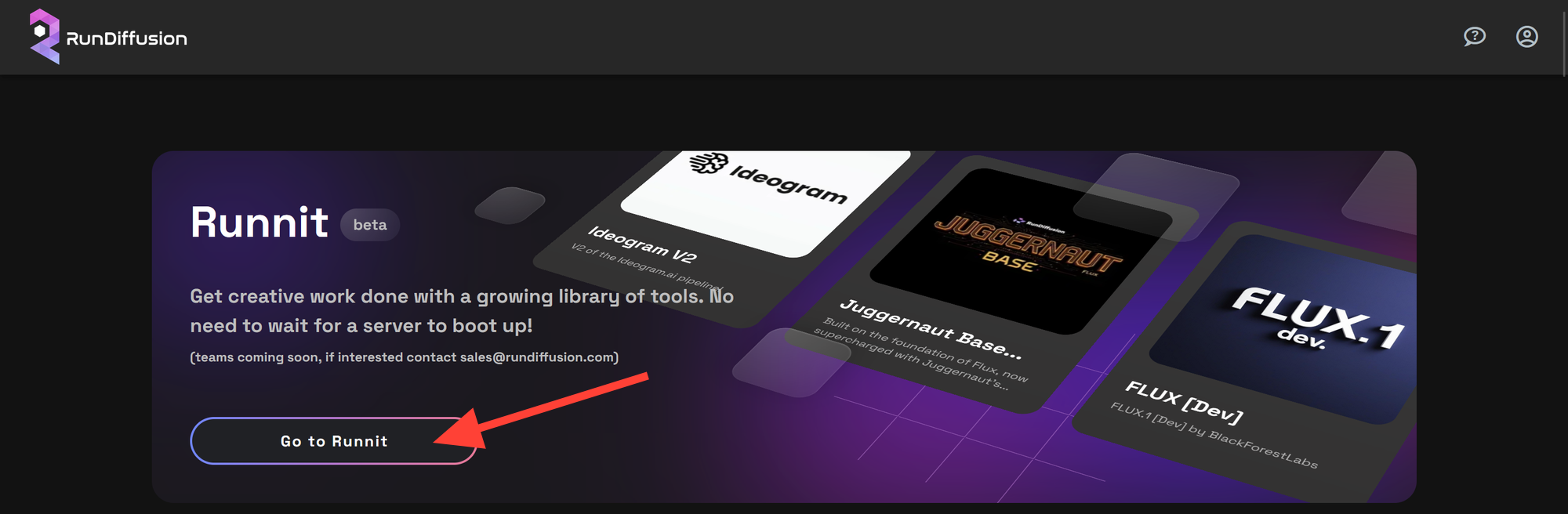
Navigate to the RunDiffusion Platform by clicking on the "RunDiffusion Platform" tab in the dashboard.
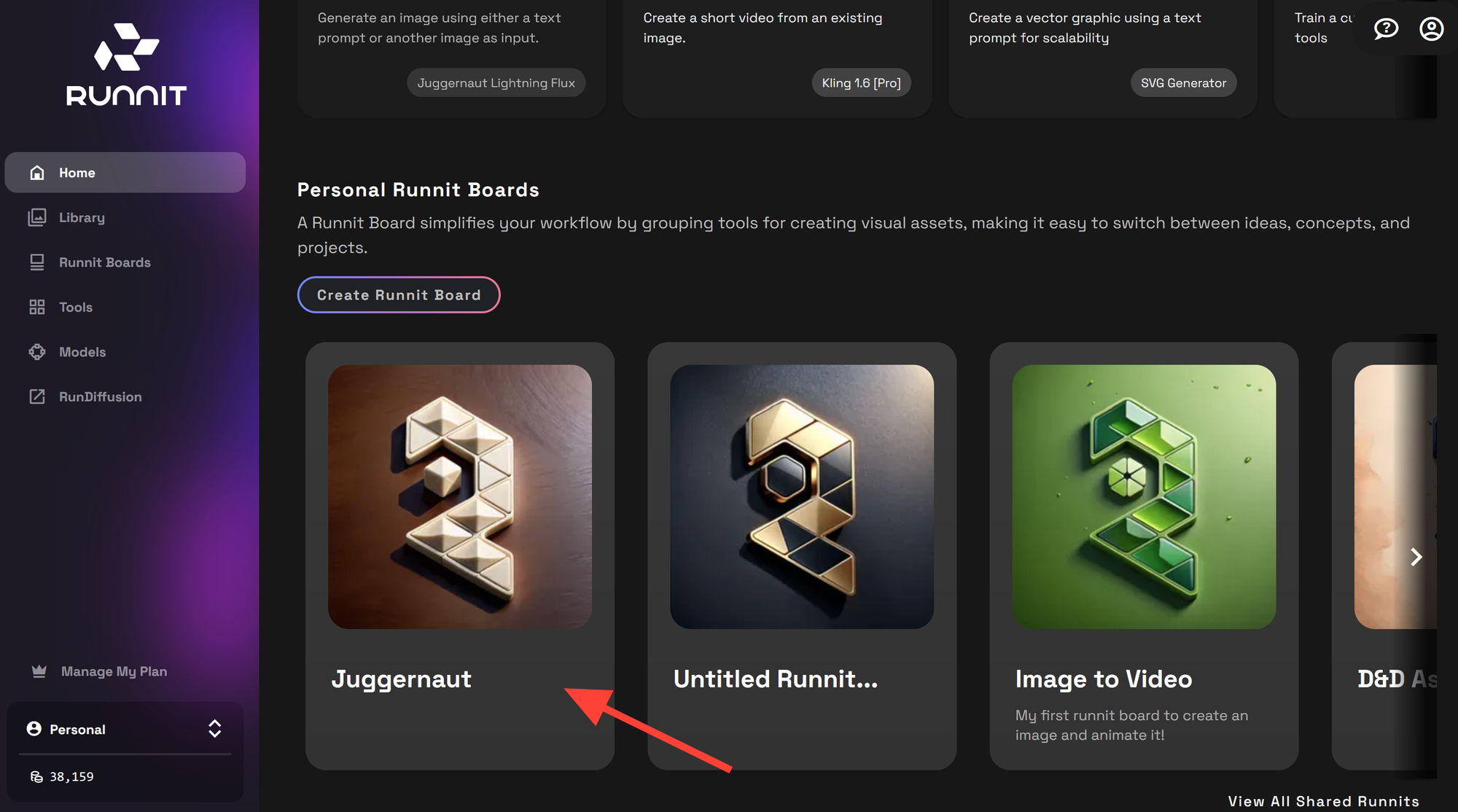
Click on an existing Board on the RunDiffusion Platform where you have images you want to download.
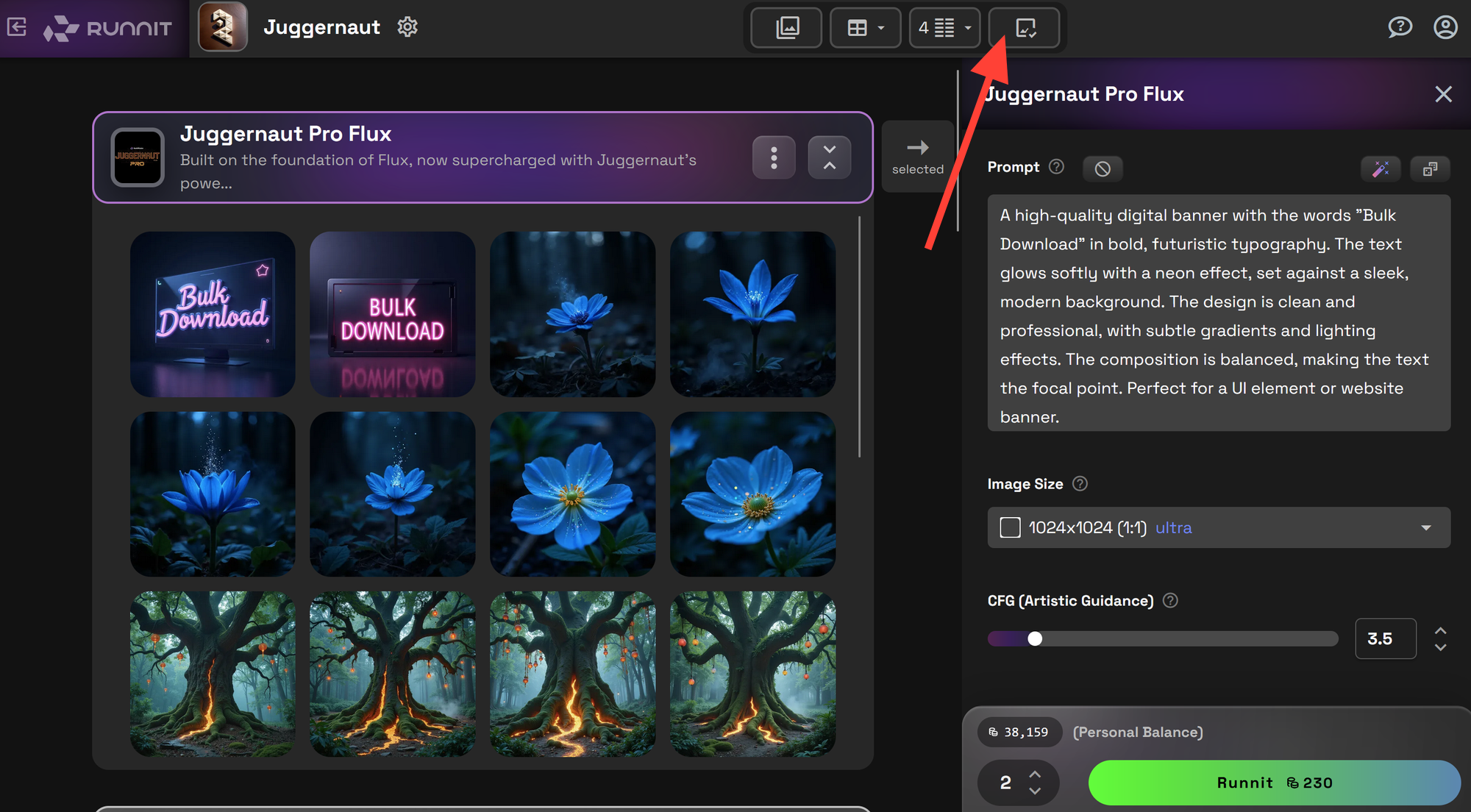
Click on the bulk Select generations button at the top of your Board on the RunDiffusion Platform.
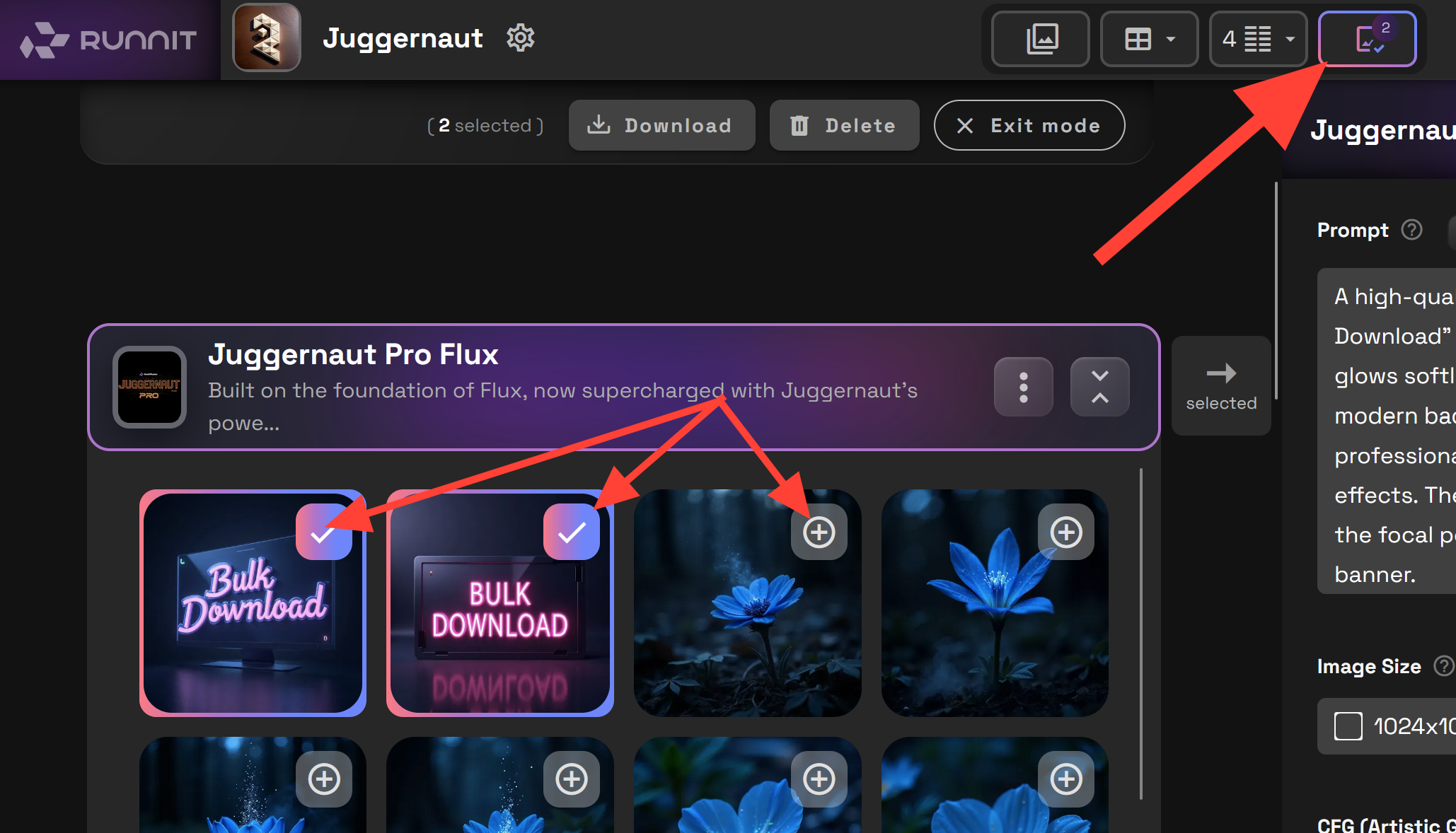
Click on the Plus sign of the images you wish to download. When you click on the plus sign it will replace that icon with a check mark. These are now ready to download.
Click on Download. If you do not want to download click on Exit Mode. If you click on Delete you can also delete the selected images so be careful with your selections.
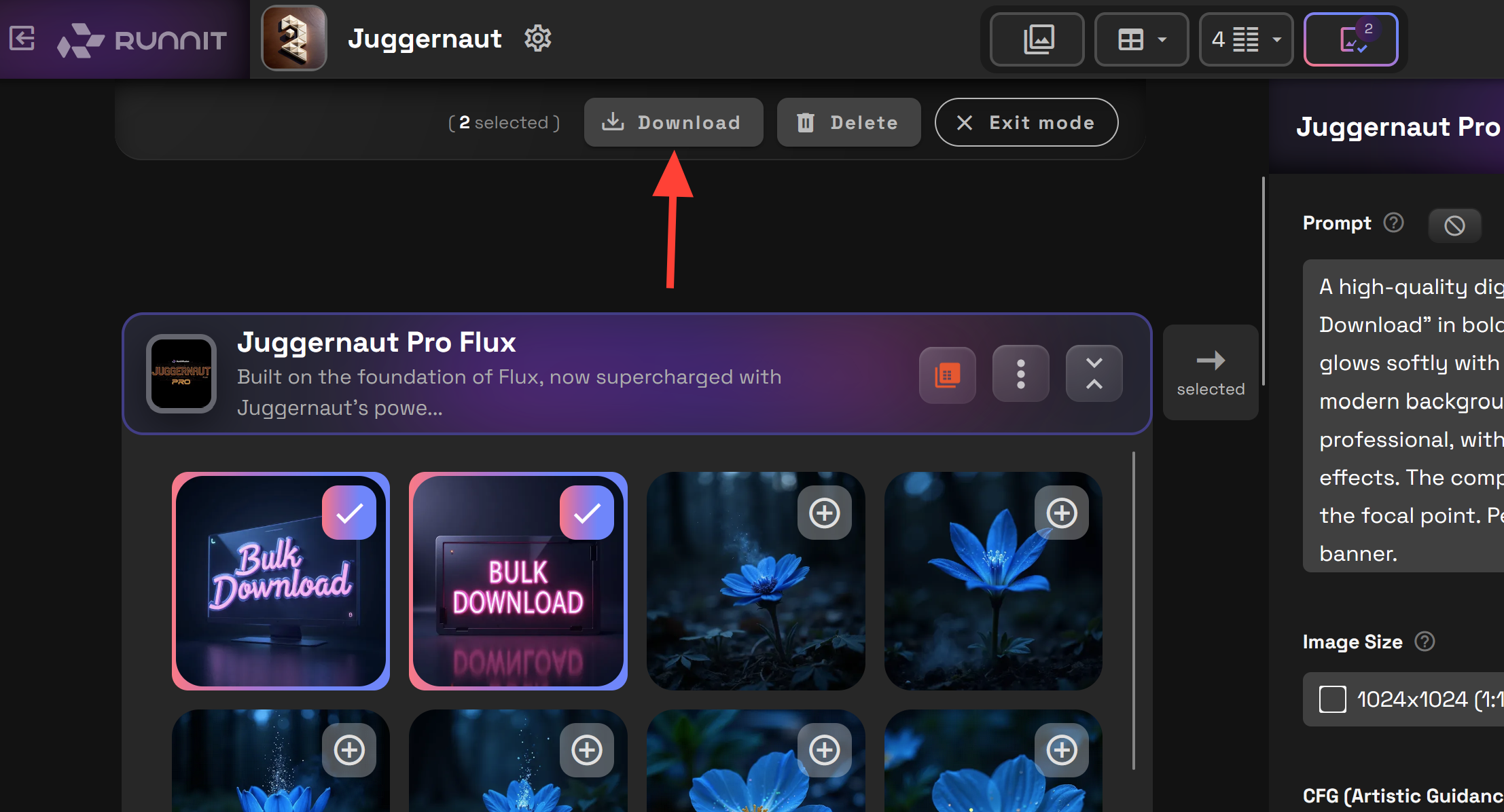
Once you click Download your browser should automatically download the selected assets in a zip file. Make sure to check the zip file to be certain everything downloaded correctly before deleting assets.
For Further reading
RunDiffusion Platform Basics
Inpainting on the RunDiffusion Platform
Creating your first Board on the RunDiffusion Platform