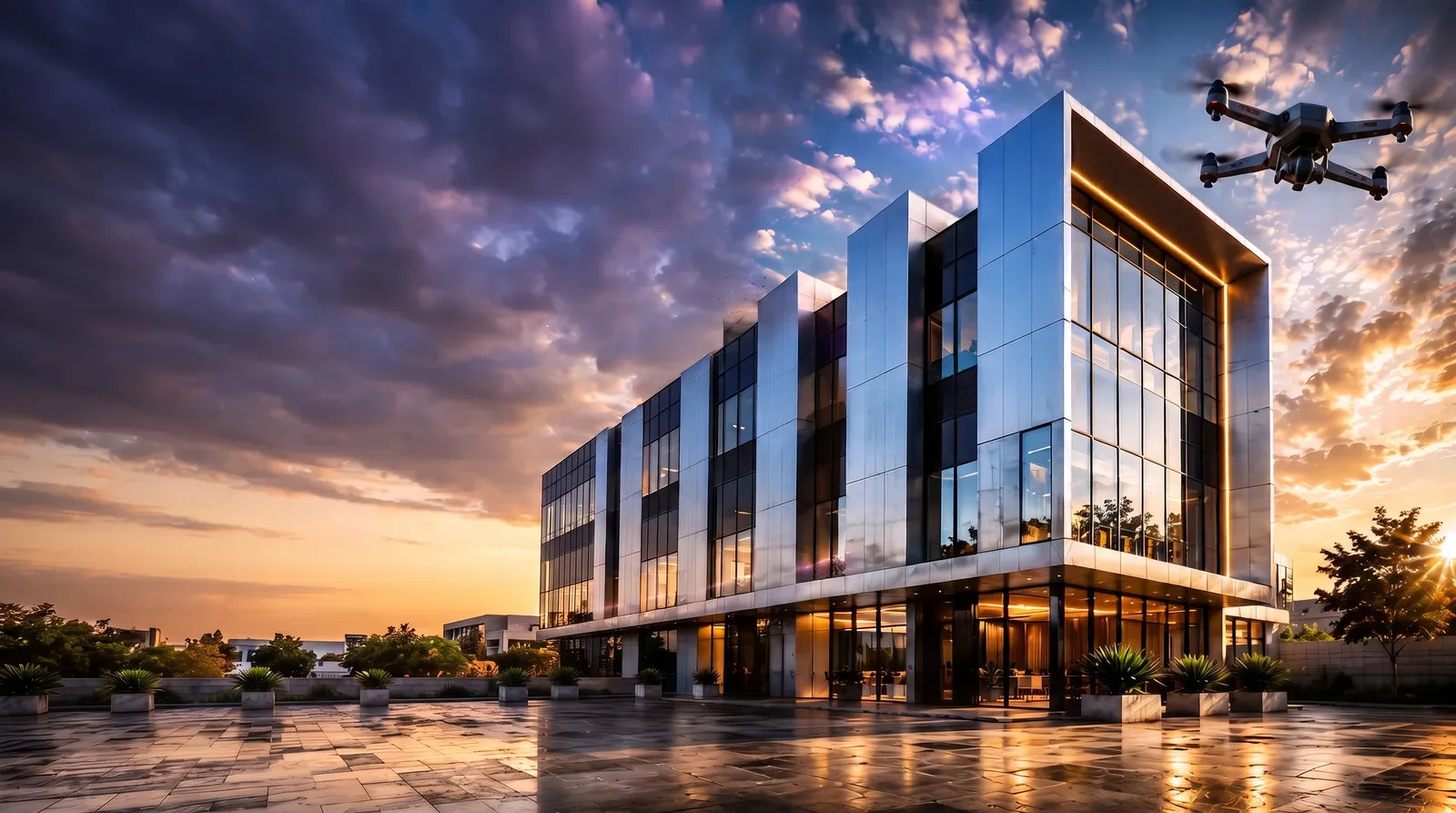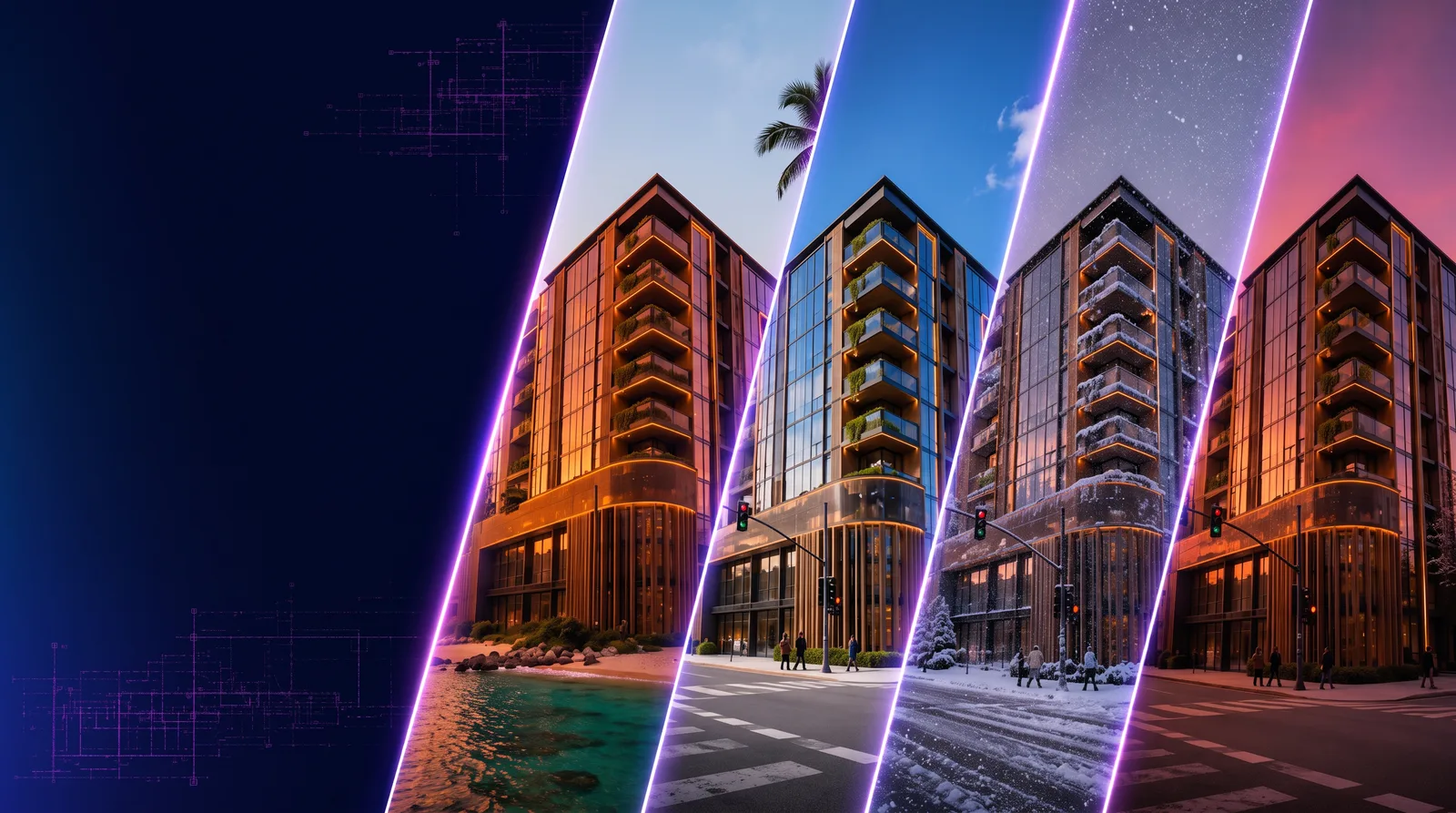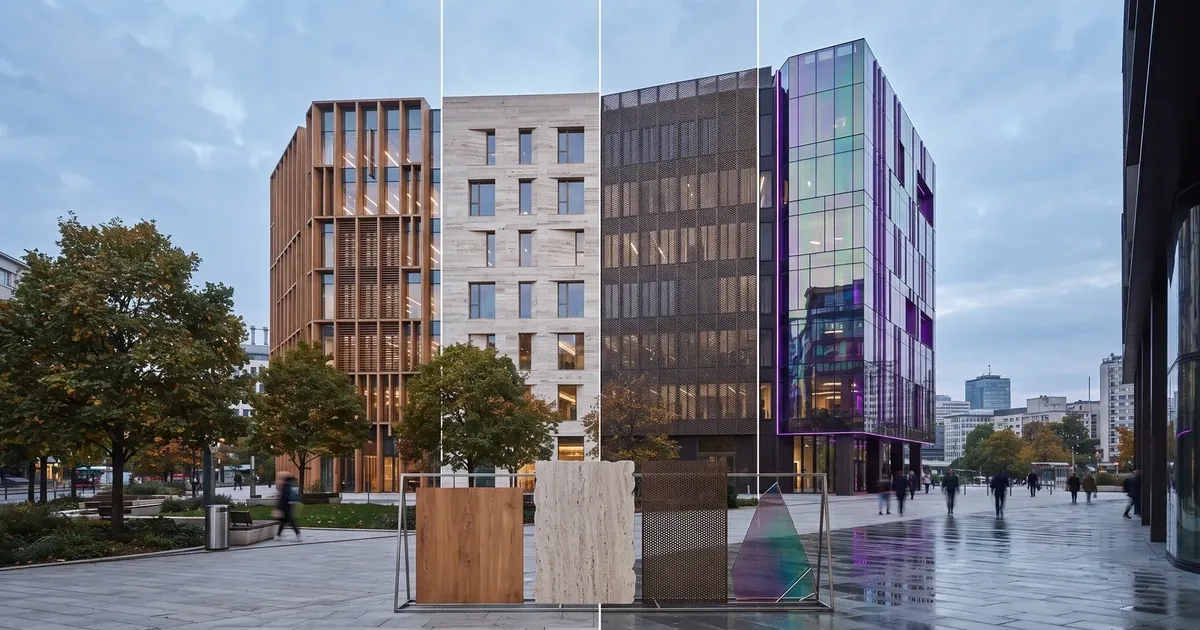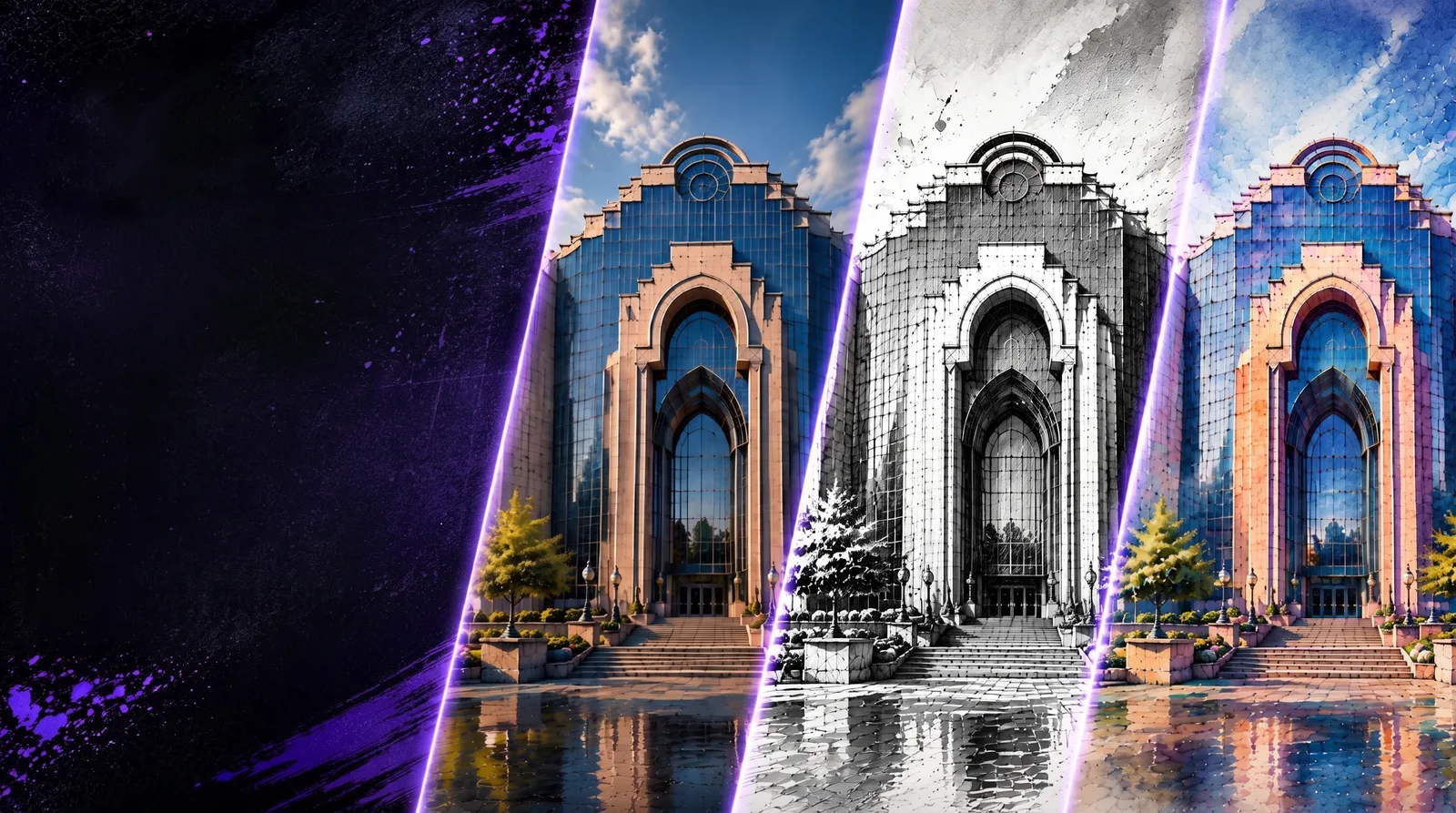
Design Transfer applies the visual language of a reference image to another architectural concept while preserving the target image's main layout, massing, proportions, or composition so related options stay visually consistent.
Design Transfer on RunDiffusion
Design Transfer on RunDiffusion helps you apply a consistent style, design language, or visual direction across multiple architectural options. Upload a reference image and a target concept, then guide RunDiffusion to carry the look and feel from one design into another while preserving the core structure of each option.
Use it when you want to compare concepts without rebuilding the same visual direction from scratch. It is especially useful for option studies, client presentations, façade iterations, interior concepts, and fast visual alignment across a set of design explorations.
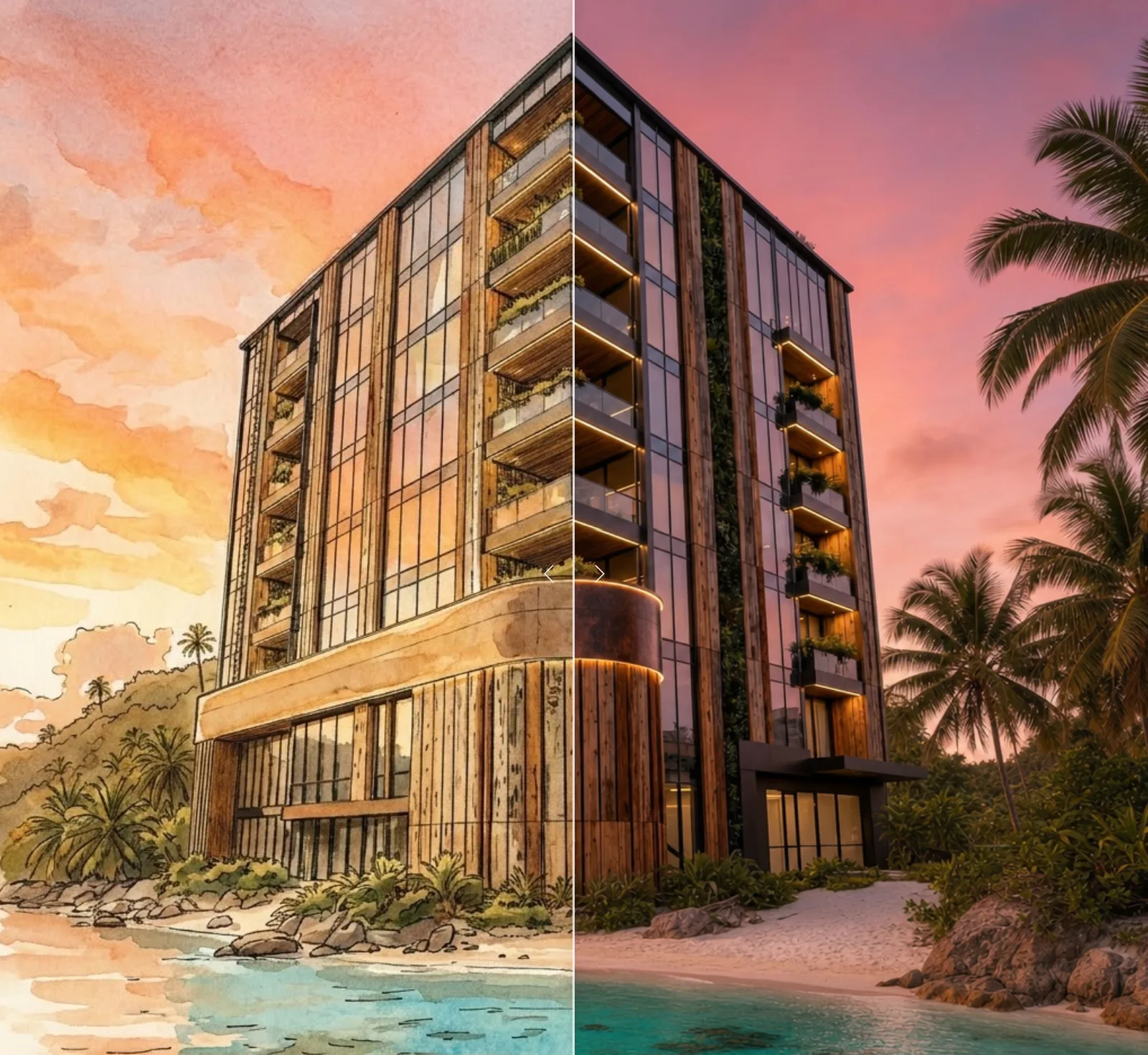
Apply a Design Language Across Options
Start with a design image that captures the style you want, then apply that direction to another concept or option. This lets you keep explorations visually consistent while testing different layouts, masses, façades, interiors, or presentation directions.
Use this workflow to transfer:
- Material language
- Façade rhythm
- Color palette
- Lighting style
- Presentation mood
- Interior design direction
- Exterior character
- Brand or studio visual language
- Concept family consistency
The goal is to make multiple options feel like they belong to the same design study while still preserving the differences between each option.
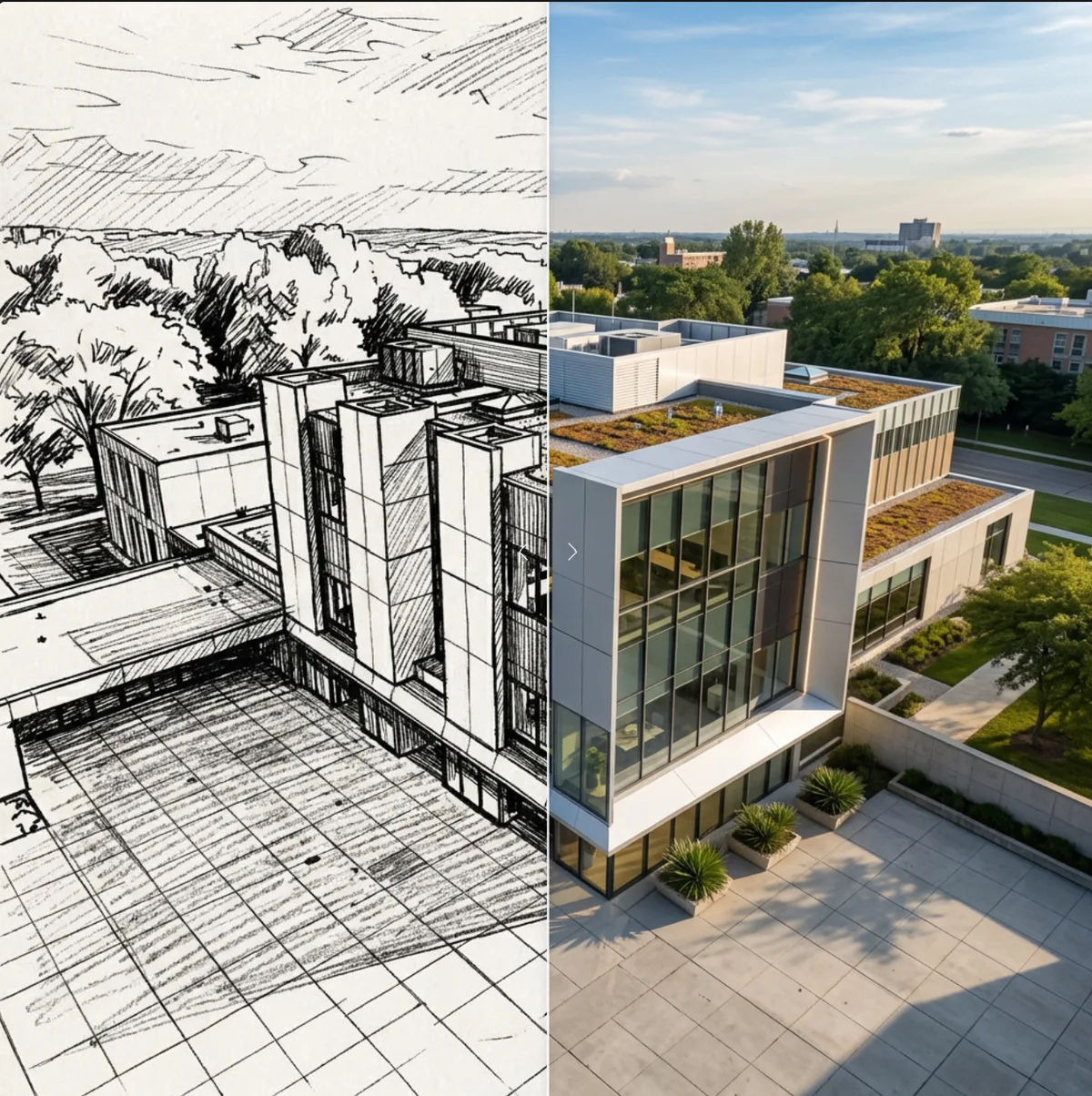
Watch the Video Tutorial
The video tutorial walks through the Design Transfer process step by step, from choosing a reference direction to applying that style across another design option.
Use it to follow along, compare prompt choices, and see how consistent design language can help speed up architectural exploration.
How to Use Design Transfer
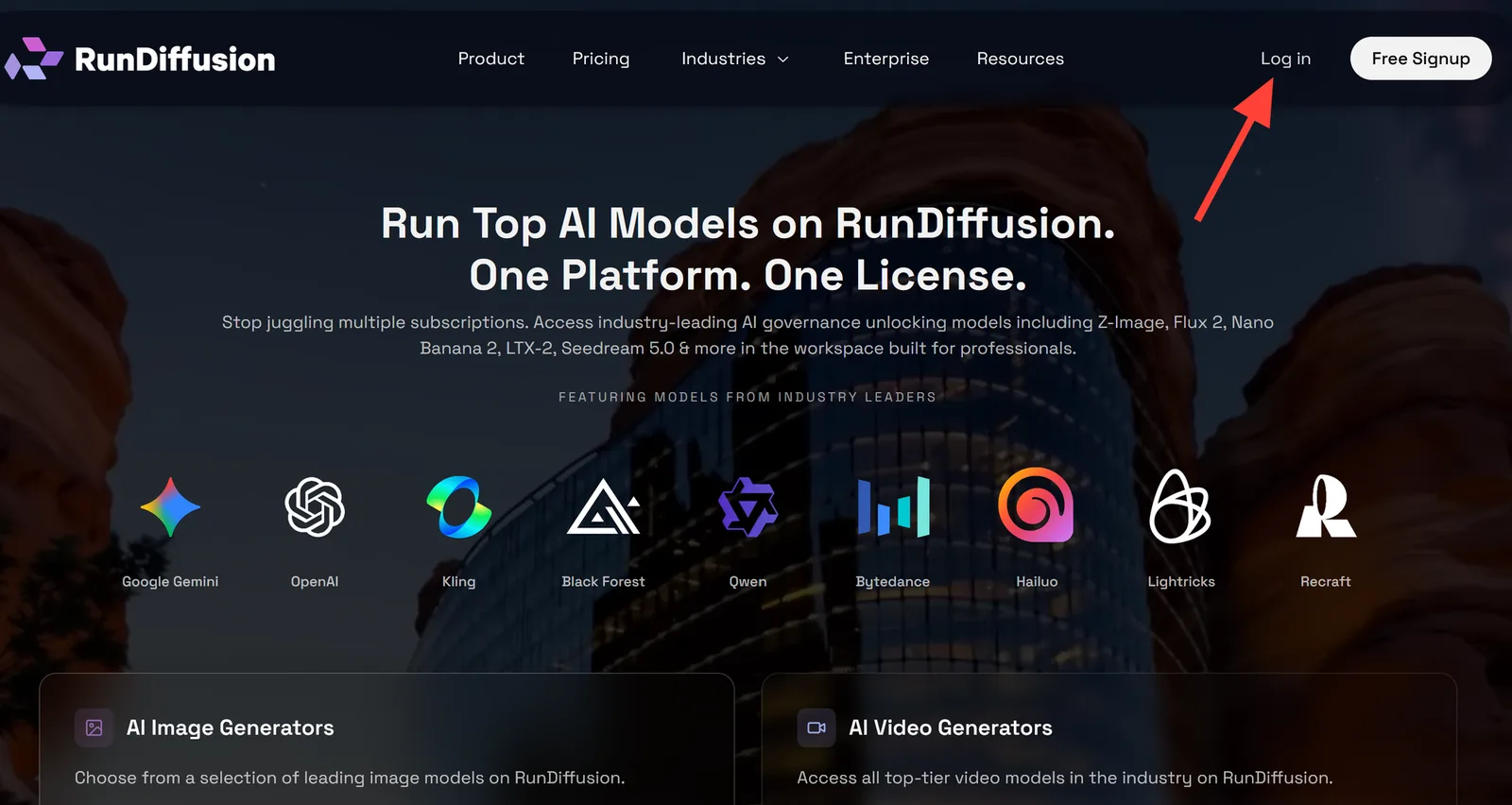
- Log in to RunDiffusion.
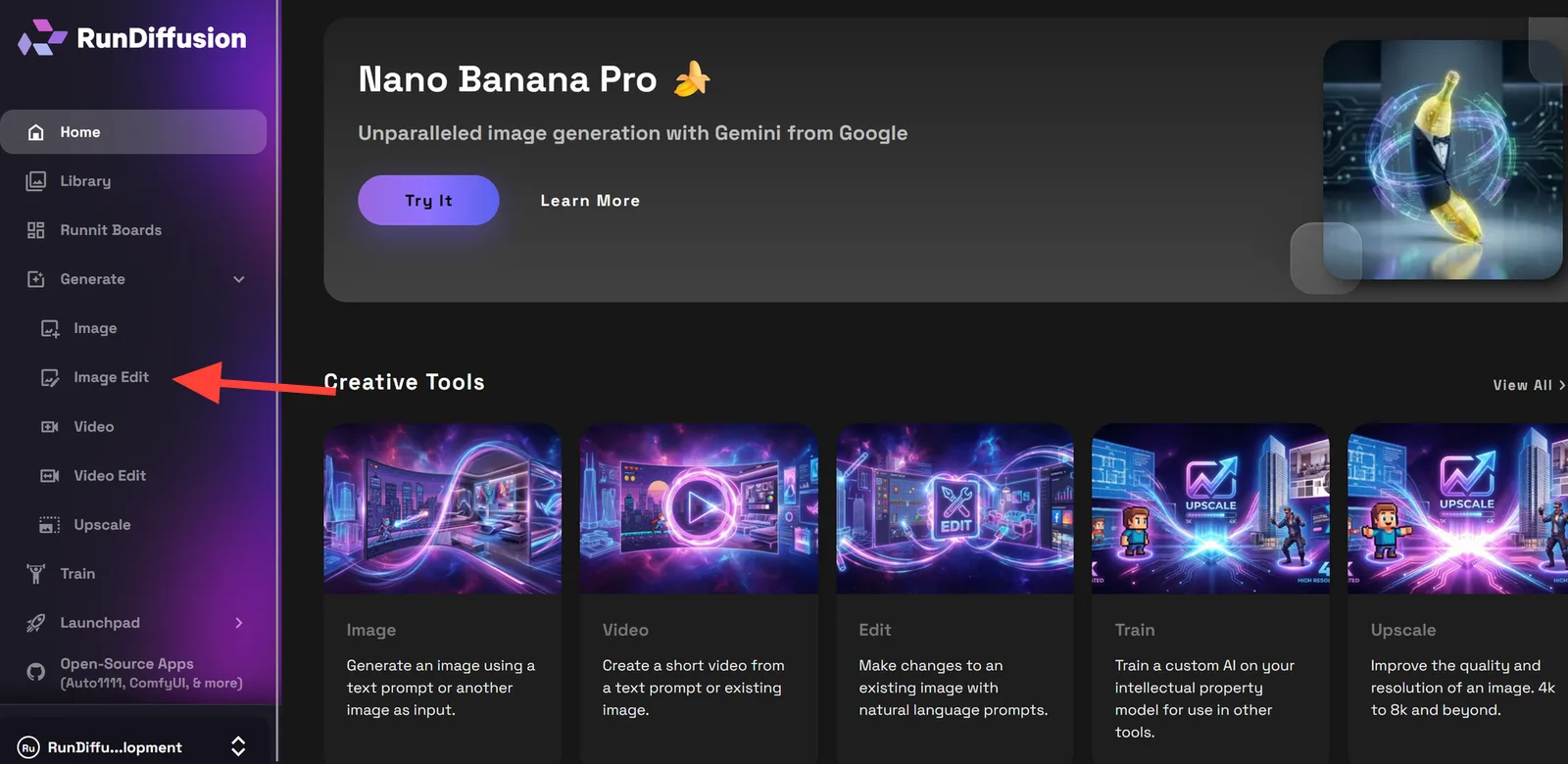
- You are automatically redirected to the RunDiffusion Platform (Formerly Runnit Platform). Click Generate in the left sidebar.
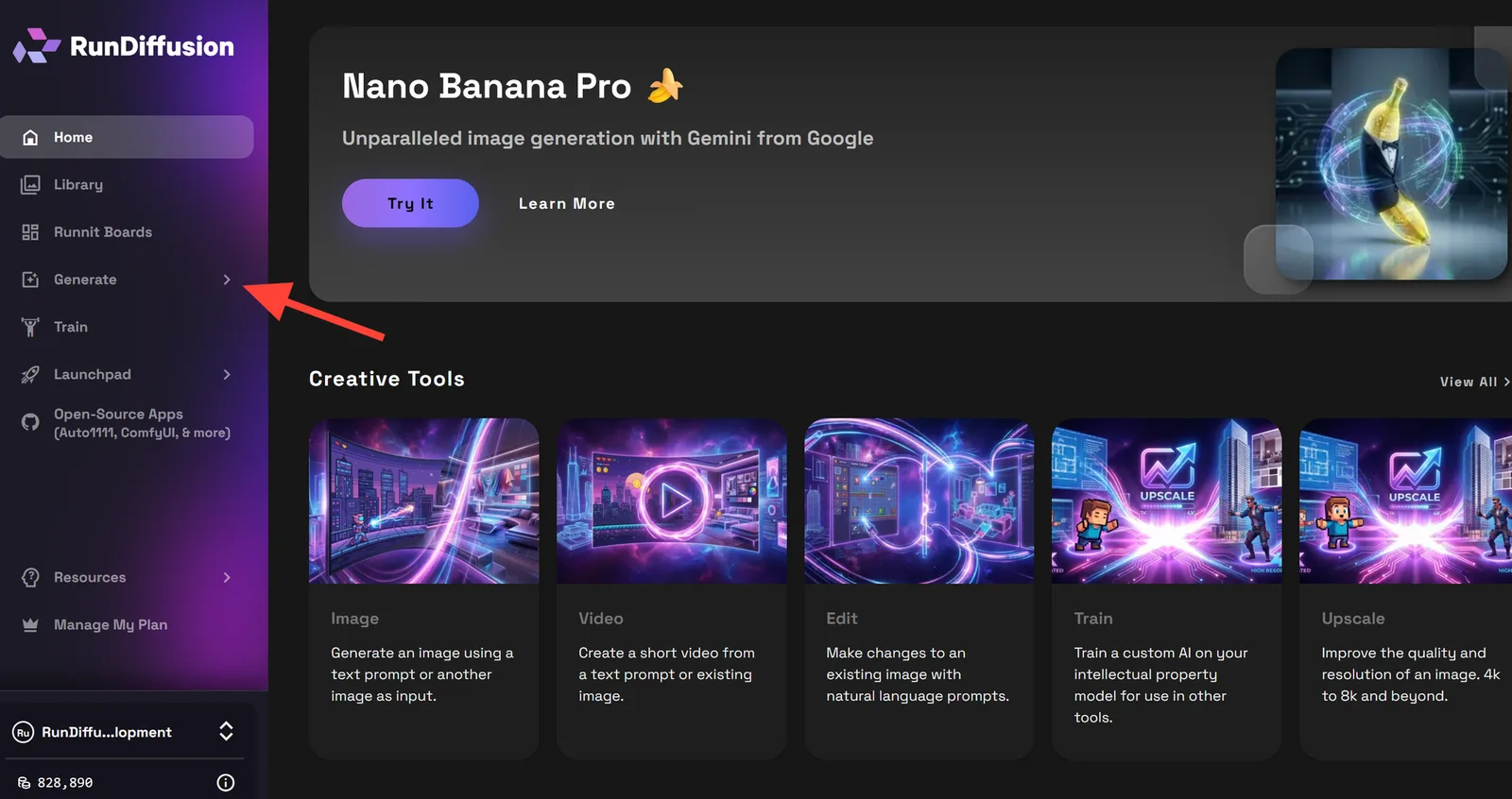
- Choose Image Edit.
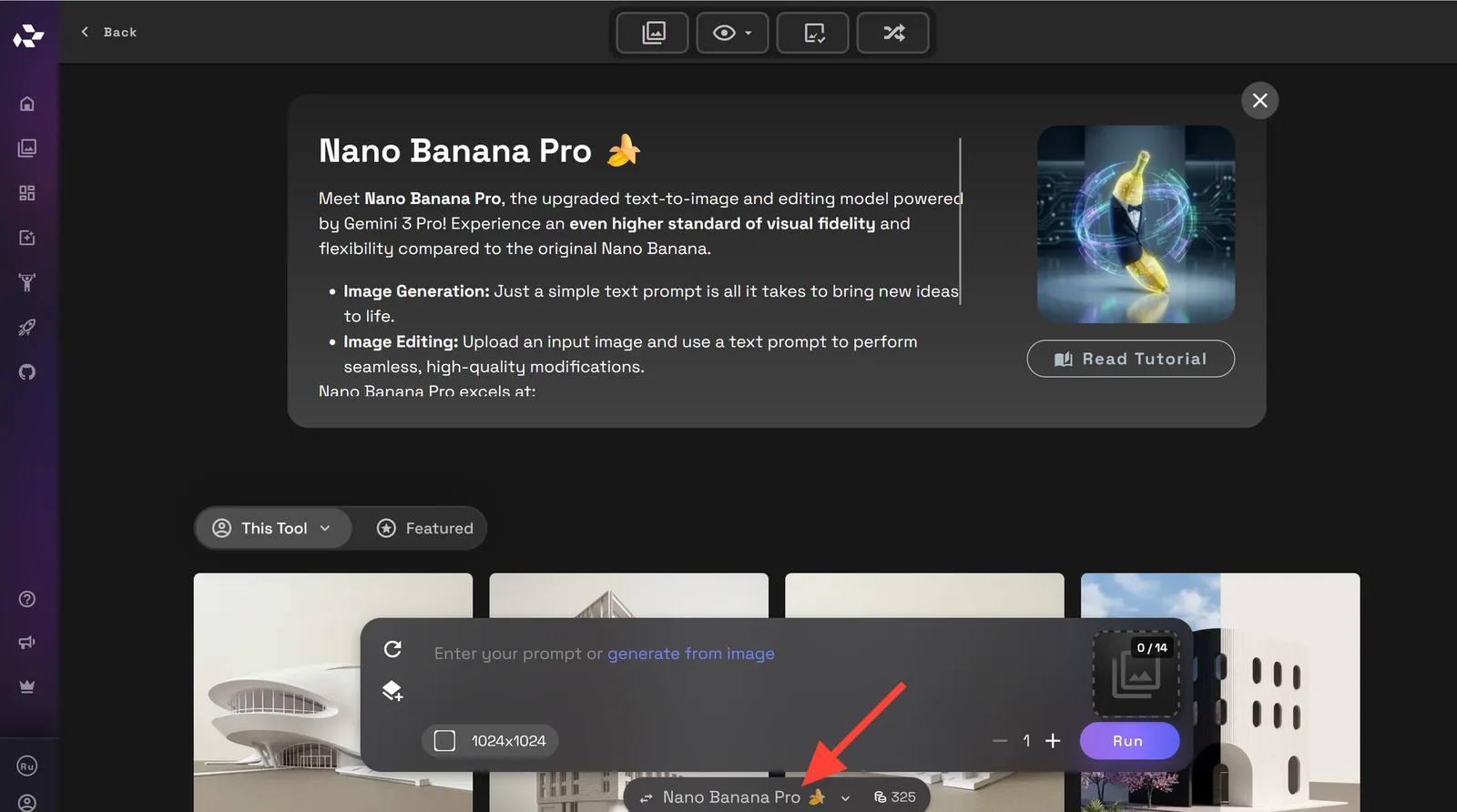
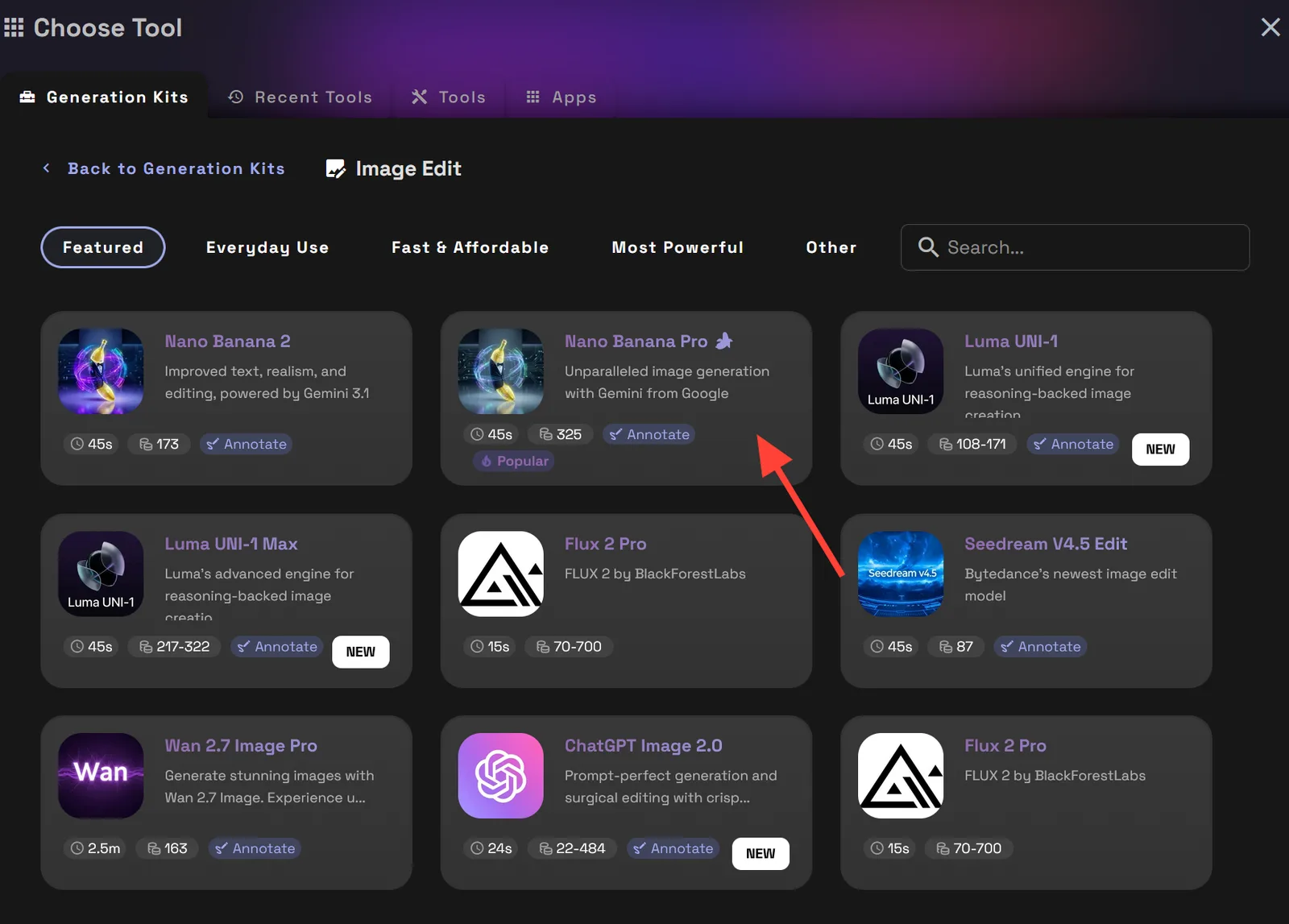
- Check to makes sure your tool is Nano Banana Pro. If it isn't click on the name of the tool at the bottom. This will allow you to select another tool if necessary.
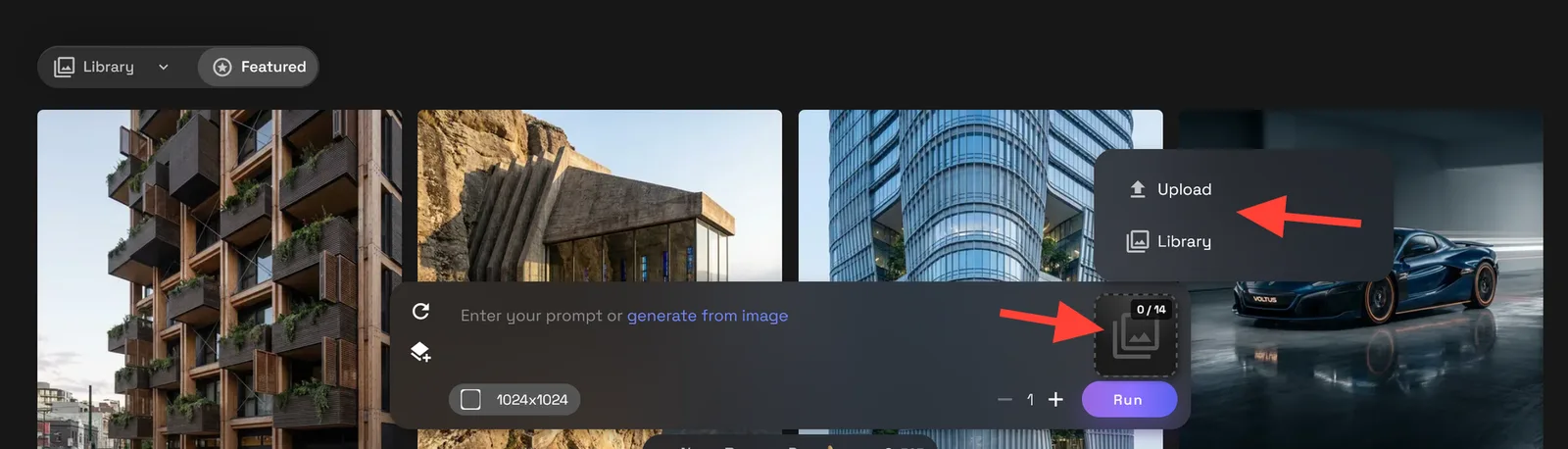
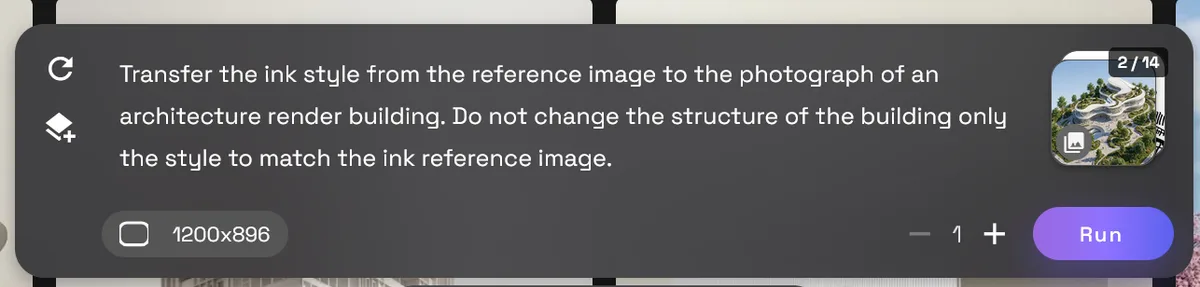
- Upload a reference image and an in house image of the style you want to use. To upload from your computer click upload, if you generated an image on RunDiffusion you can select it from your library.
- Prompt the model to preserve the original layout, massing, proportions, or composition while transferring the design direction.
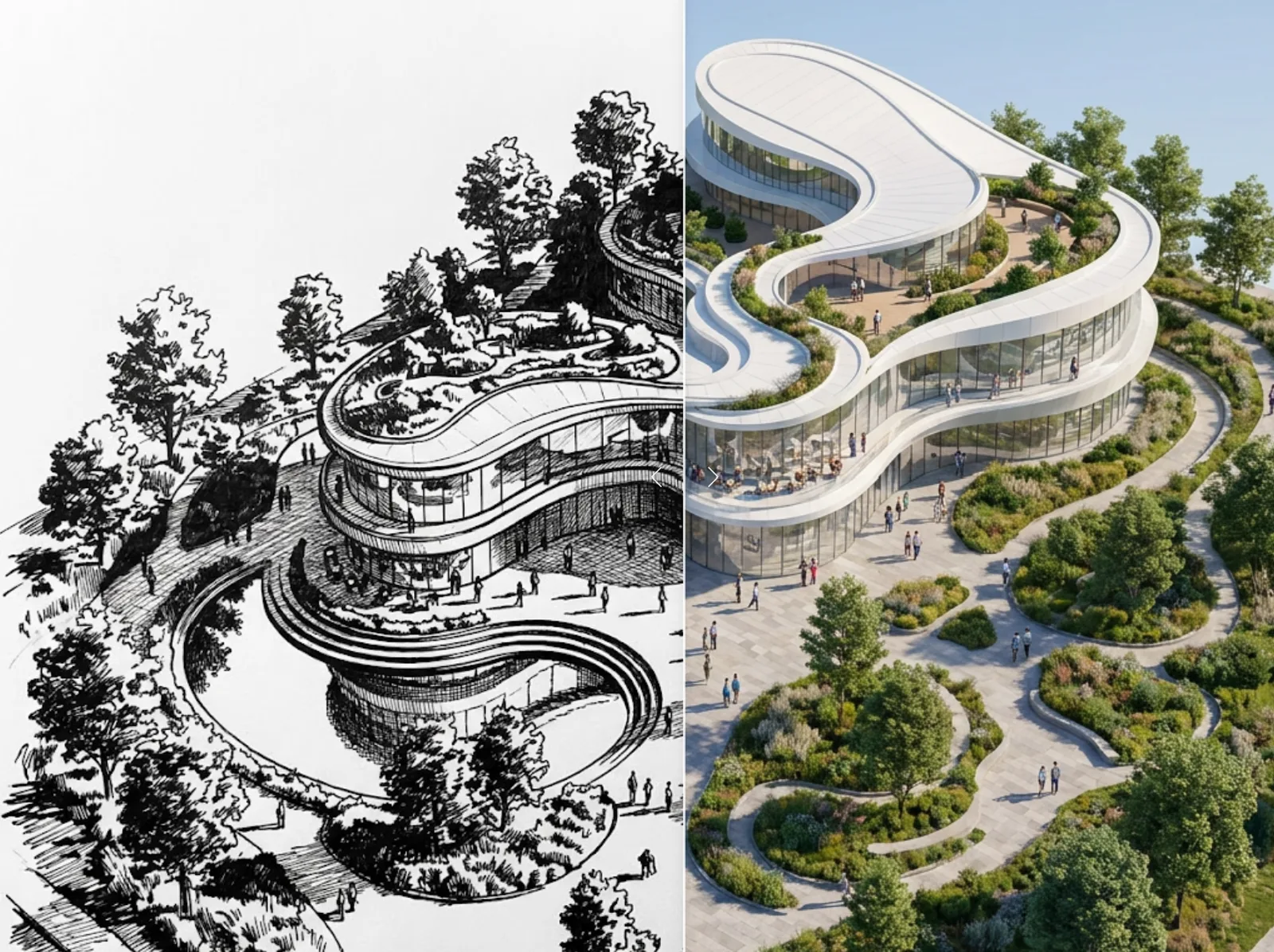
Example Prompt: Transfer the ink style from the reference image to the photograph of an architecture building. Do not change the structure of the building only the style to match the ink reference image.
- Click Run to render your image.
When to Use This Workflow
Design Transfer works best when you have one strong visual direction and want to apply it across other options quickly.
Use it for:
- Design option studies
- Client presentation sets
- Façade variations
- Interior concept alignment
- Material palette consistency
- Competition boards
- Studio critique packages
- Brand or project visual consistency
- Fast exploration across multiple massing options
Tips for Cleaner Design Transfers
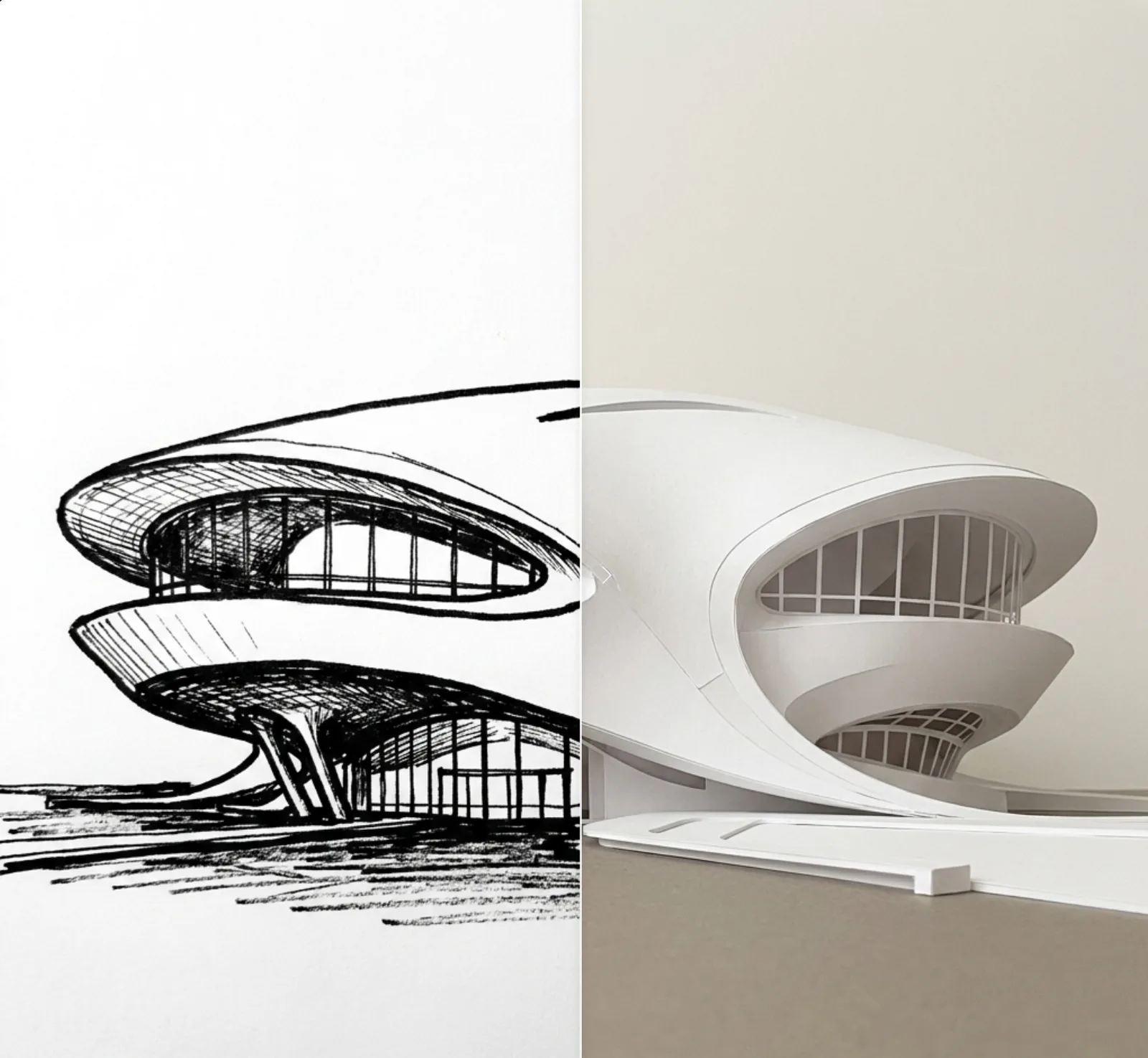
Start with a strong reference image. The clearer the style source is, the easier it is to transfer that design language to another option.
For better outputs:
- Use a reference image with a clear material palette or visual direction.
- Tell the workflow exactly what to preserve in the target image.
- Separate structure from style in your prompt.
- Generate multiple versions to compare how strongly the style is applied.
Keep Architectural Explorations Consistent on RunDiffusion
Design Transfer gives you a faster way to apply a shared design language across options without manually rebuilding every visual direction. Use it to keep studies consistent, compare options clearly, and move faster from early exploration to polished presentation imagery.
Continue Your Architecture Workflow
Design Transfer helps you apply a consistent design language across options so explorations stay aligned and move faster. From here, you can prepare stronger presentation assets with related RunDiffusion workflows.
- Use Scene Transfer to test the design in different lighting, seasons, and environmental contexts.
- Use Drone Flyovers and Rotations to create motion studies for client presentations and design reviews.
- Explore the full RunDiffusion Architecture AI Solutions for more tools built around concepting, visualization, and presentation.
For larger teams, studios, and organizations, visit RunDiffusion Enterprise.
Pick a model and start generating
These models are tuned for detail — open one and put this guide to work.
Frequently asked questions
QWhat can Design Transfer carry from one image to another?
It can carry material language, facade rhythm, color palette, lighting style, presentation mood, interior direction, exterior character, and other consistent visual cues.
QWhat images do I need for Design Transfer?
Use one project or target image and one reference image that clearly represents the visual direction you want to apply.
QWhat should the prompt preserve during a design transfer?
Tell the workflow to preserve the target image's layout, massing, proportions, structure, or composition while transferring the selected design direction.
QWhen is Design Transfer useful?
It is useful for design-option studies, client presentation sets, facade variations, interior concepts, material-palette alignment, studio reviews, and project-wide visual consistency.