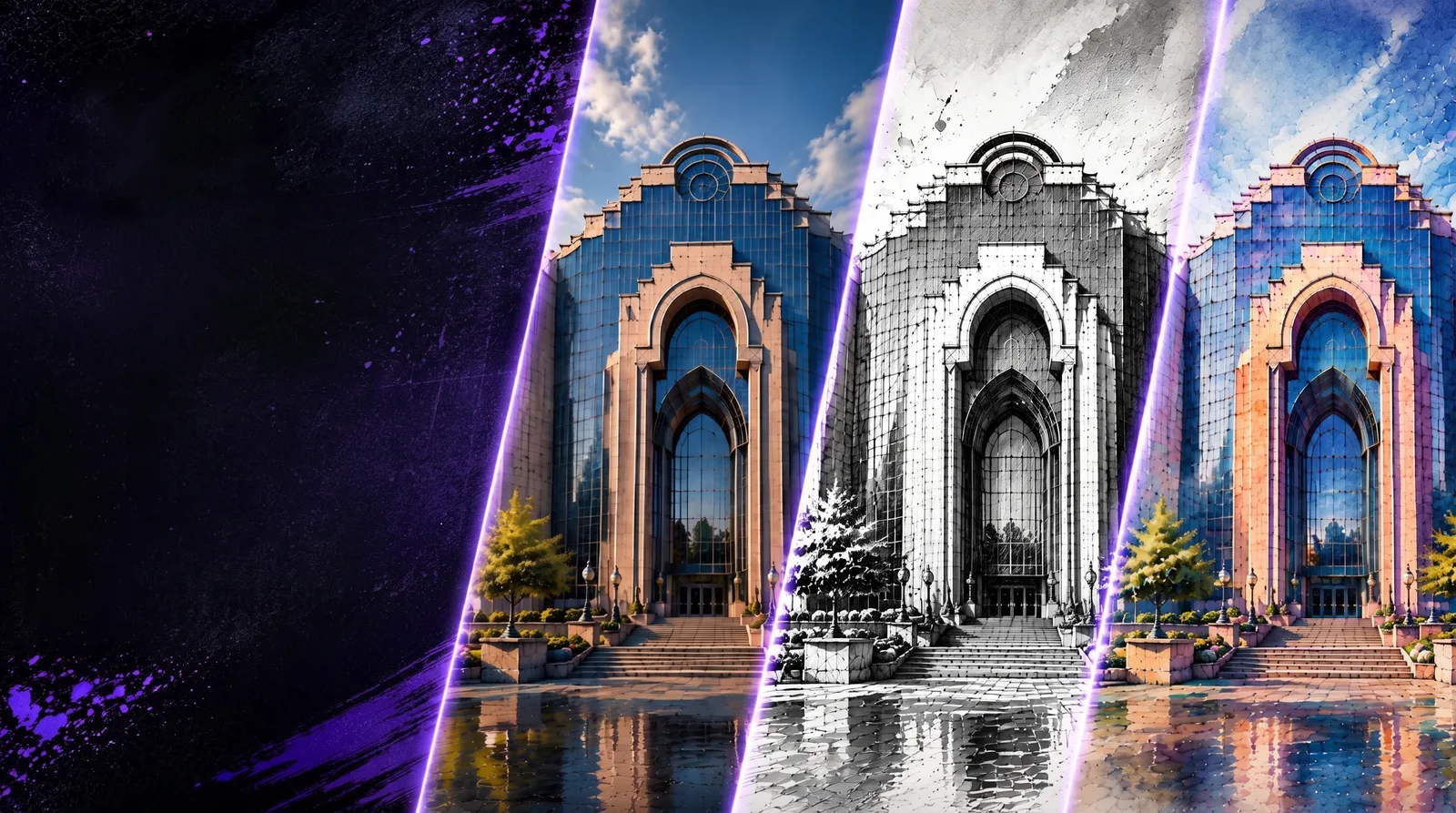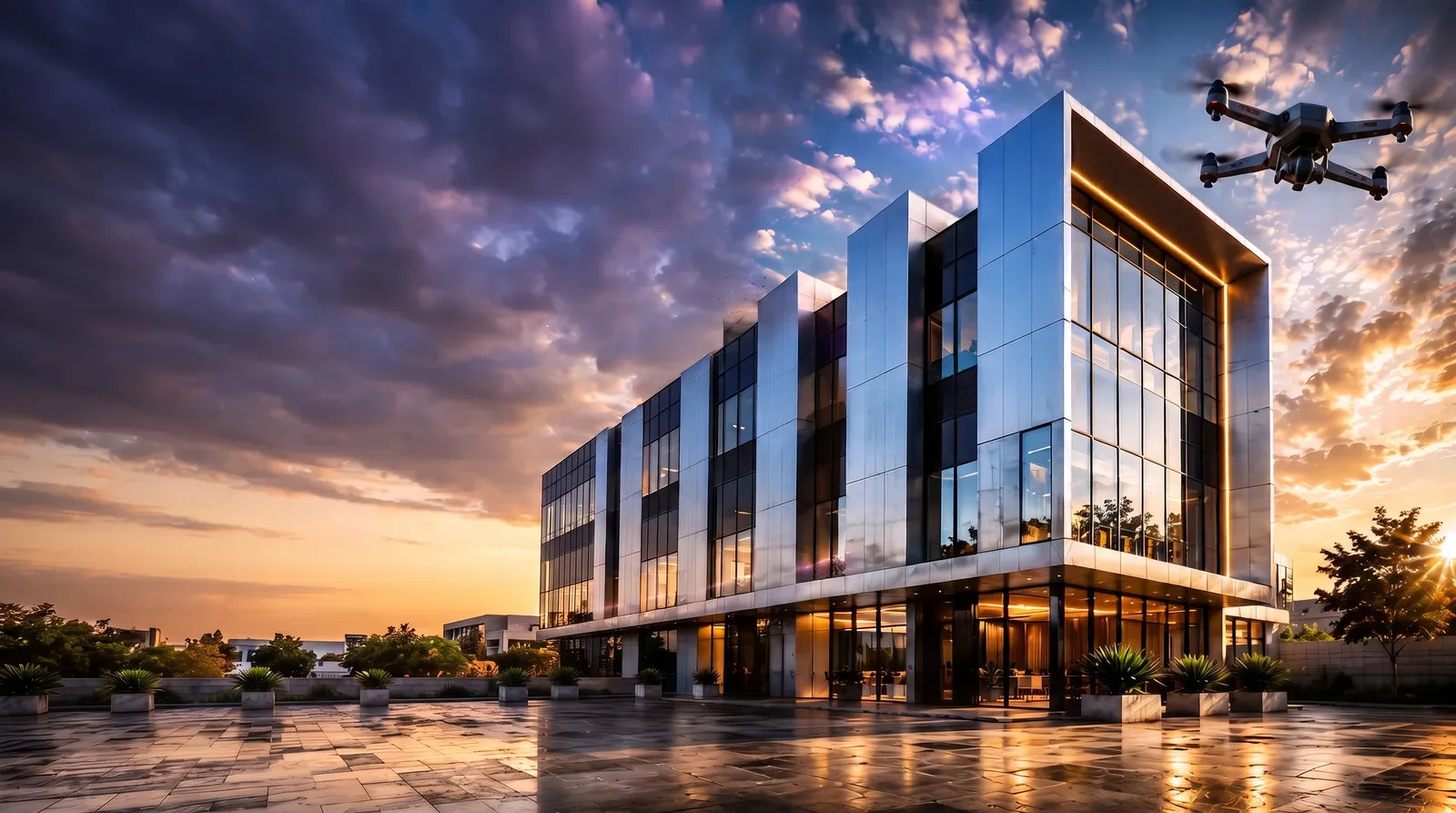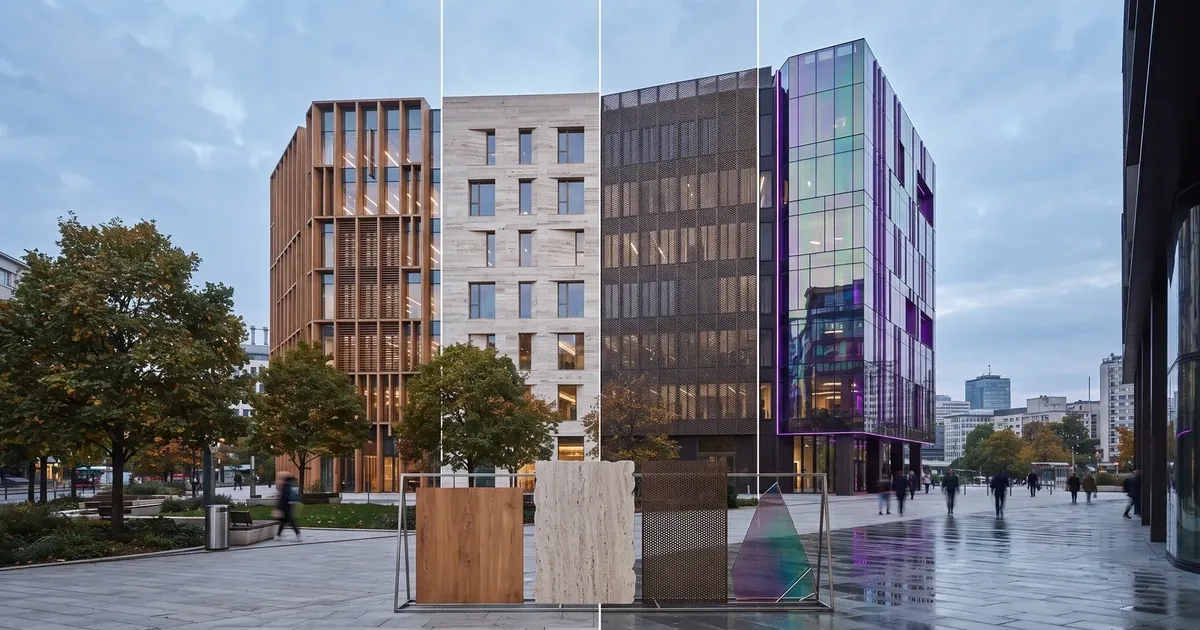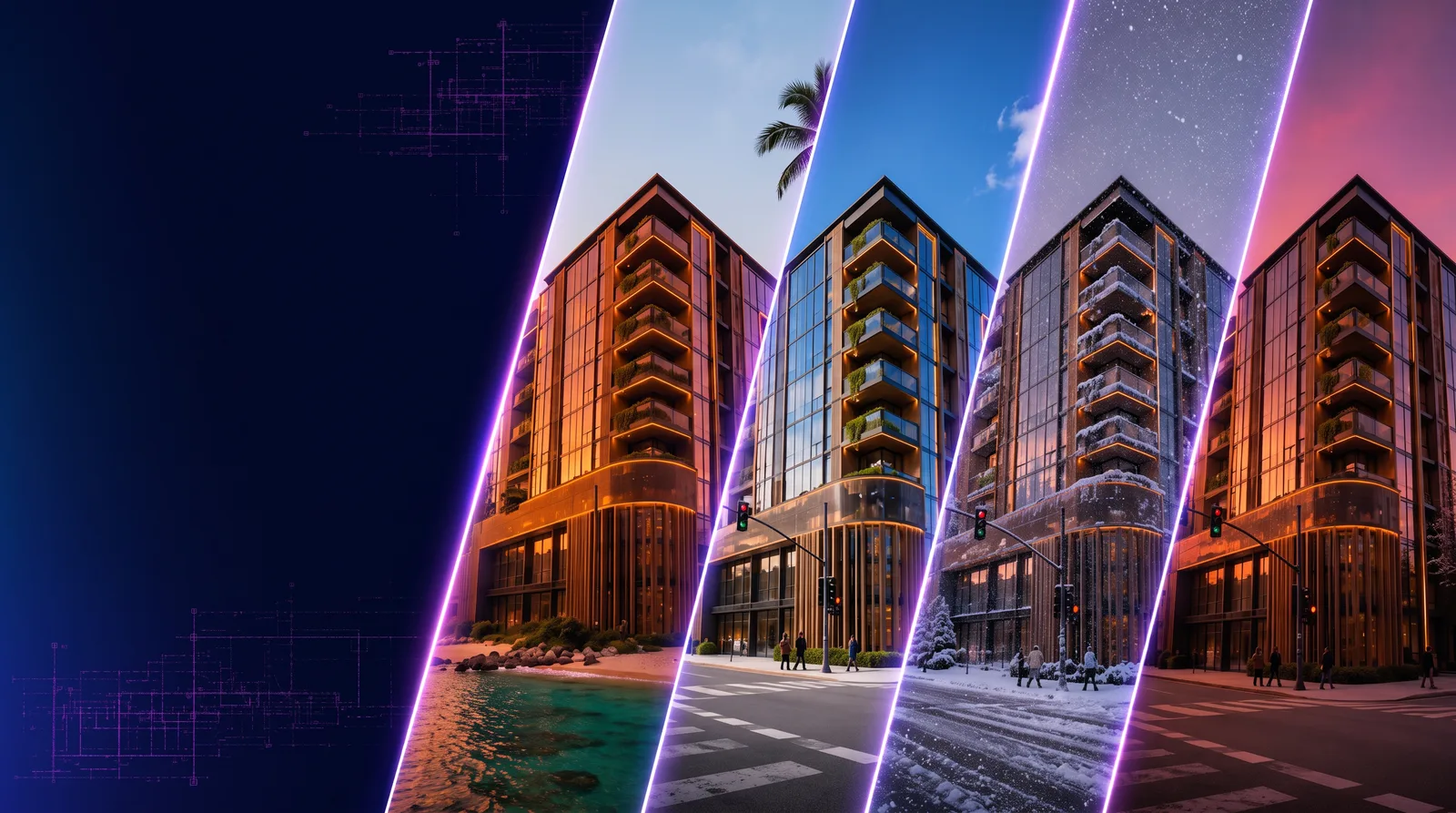
Scene Transfer places an existing architectural concept into alternative lighting, seasons, weather, and environmental settings while keeping the building recognizable, making it easier to compare mood, context, and presentation direction.
Scene Transfer on RunDiffusion
Scene Transfer on RunDiffusion helps you place an architectural concept into alternate lighting, seasonal, and environmental scenarios. Upload an exterior render, sketch-to-render output, white card study, or developed façade concept, then use prompts to explore how the same design feels in a different context.
Use it when the building is working, but you want to evaluate mood, atmosphere, site character, or presentation direction. You can test golden hour, overcast weather, winter snow, rainy streets, desert landscapes, dense urban settings, forest surroundings, coastal environments, and more.
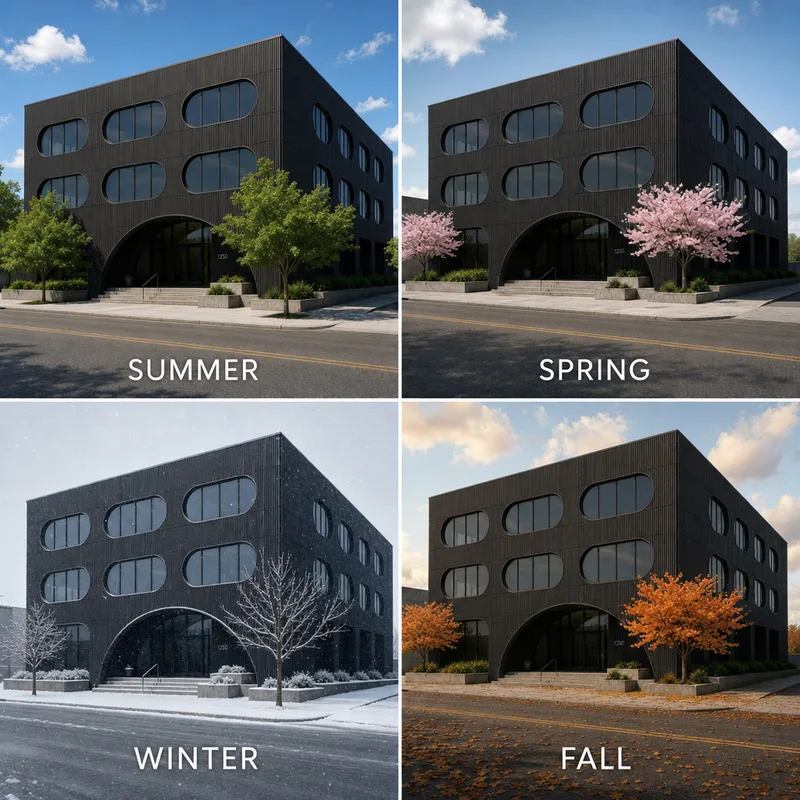
Move One Design Into Different Environments
Start with a clear architectural image and use RunDiffusion to generate alternate scenes while keeping the design itself recognizable. This helps you compare how lighting, weather, landscape, and surroundings affect the way the project is perceived.
Use this workflow to explore:
- Morning, midday, sunset, or night lighting
- Spring, summer, fall, or winter environments
- Urban, suburban, rural, coastal, desert, or forest settings
- Rain, snow, fog, haze, or clear weather
- Warm, cinematic, minimal, dramatic, or realistic moods
- Presentation-ready context variations
The goal is to change the scene around the architecture while preserving the original design intent.
Watch the Video Tutorial
The video tutorial walks through the Scene Transfer process step by step, from uploading the starting image to generating alternate lighting, season, and context variations.
Use it to follow along, test prompt changes, and see how the same architectural concept can shift across different environments.
How to Use Scene Transfer
- Log in to RunDiffusion.
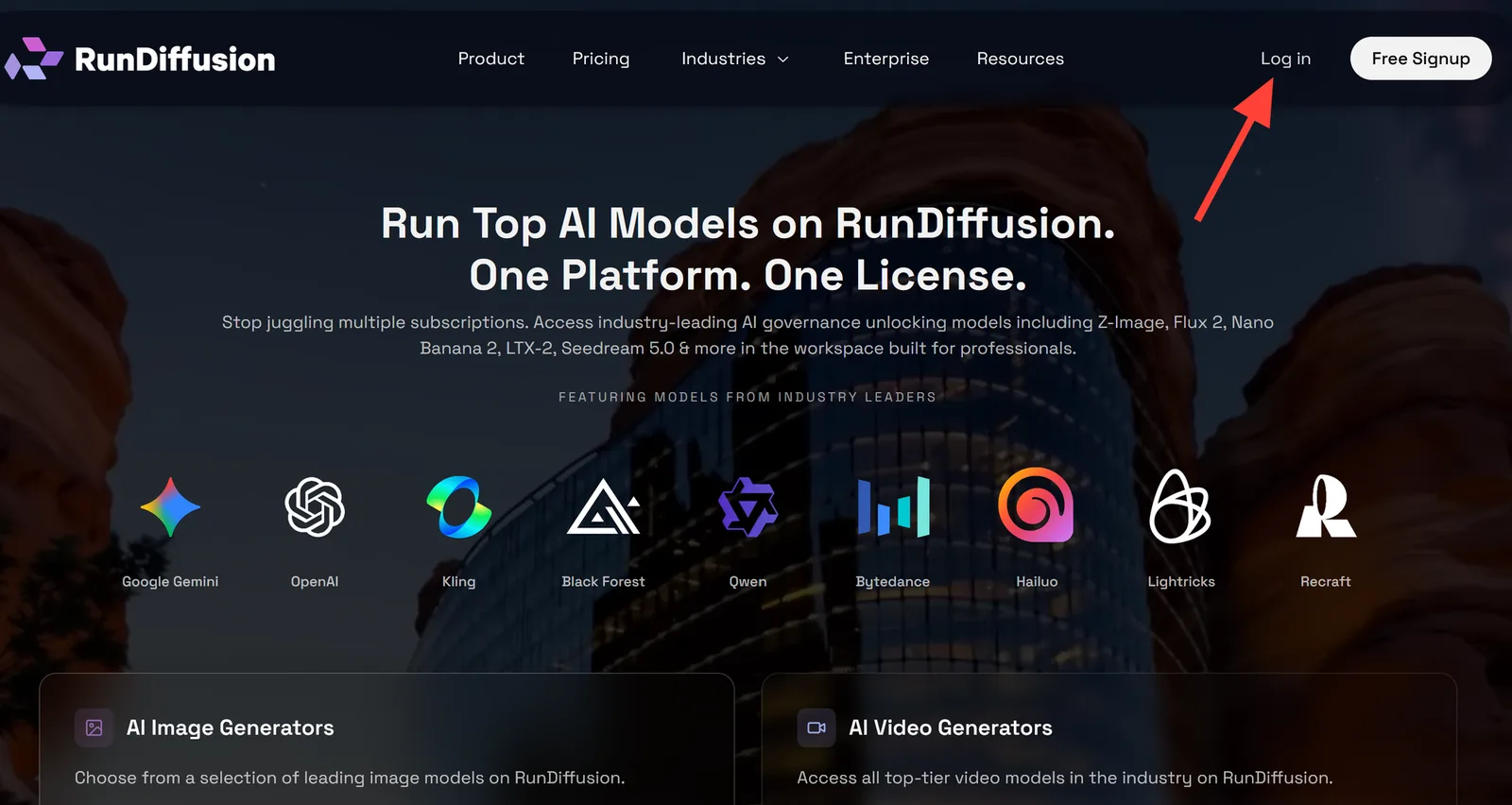
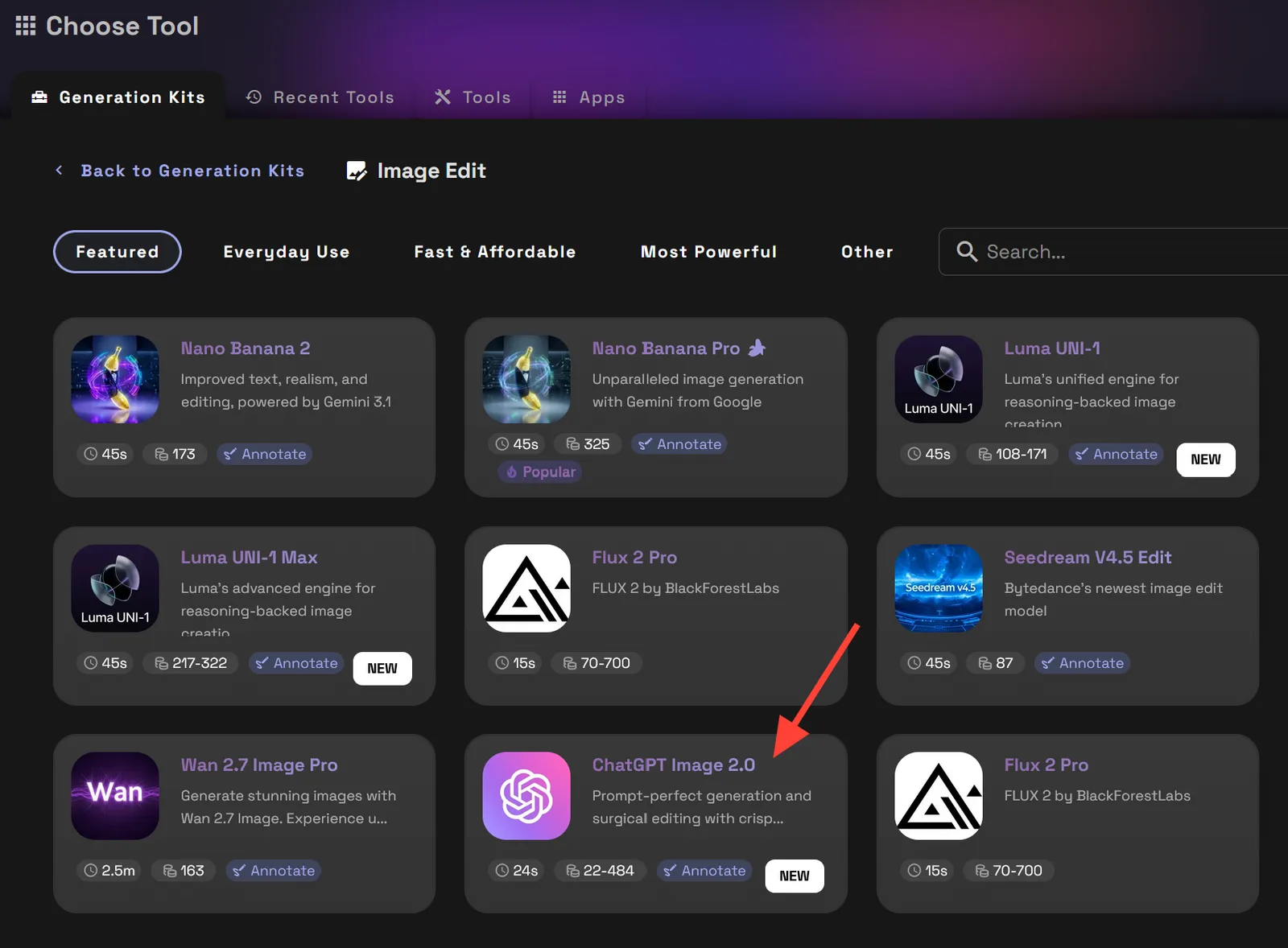
- You are automatically redirected to the RunDiffusion Platform (Formerly Runnit Platform). Click Generate in the left sidebar and choose Image Edit. Make sure the selected model is ChatGPT Image 2.0.
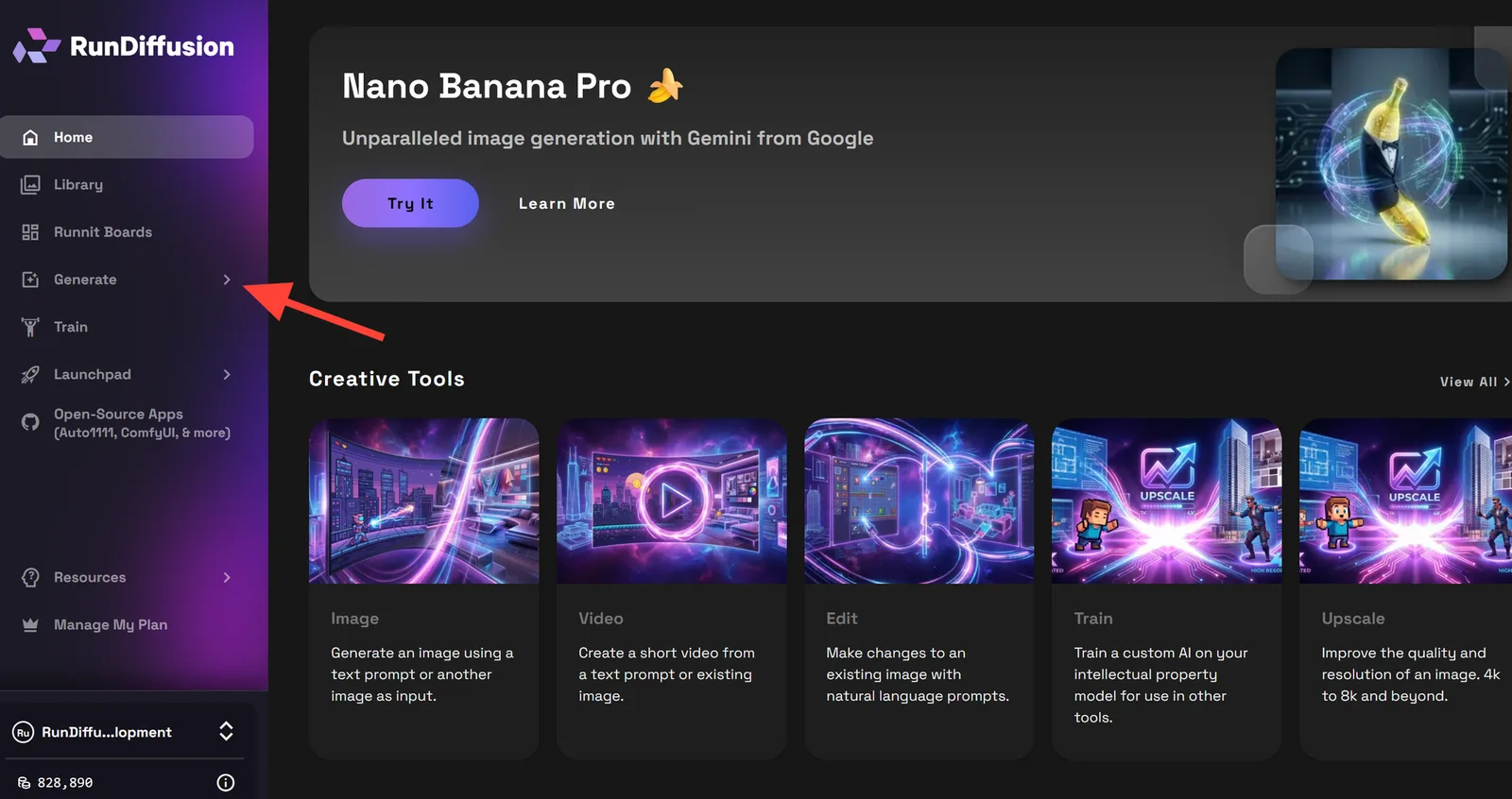
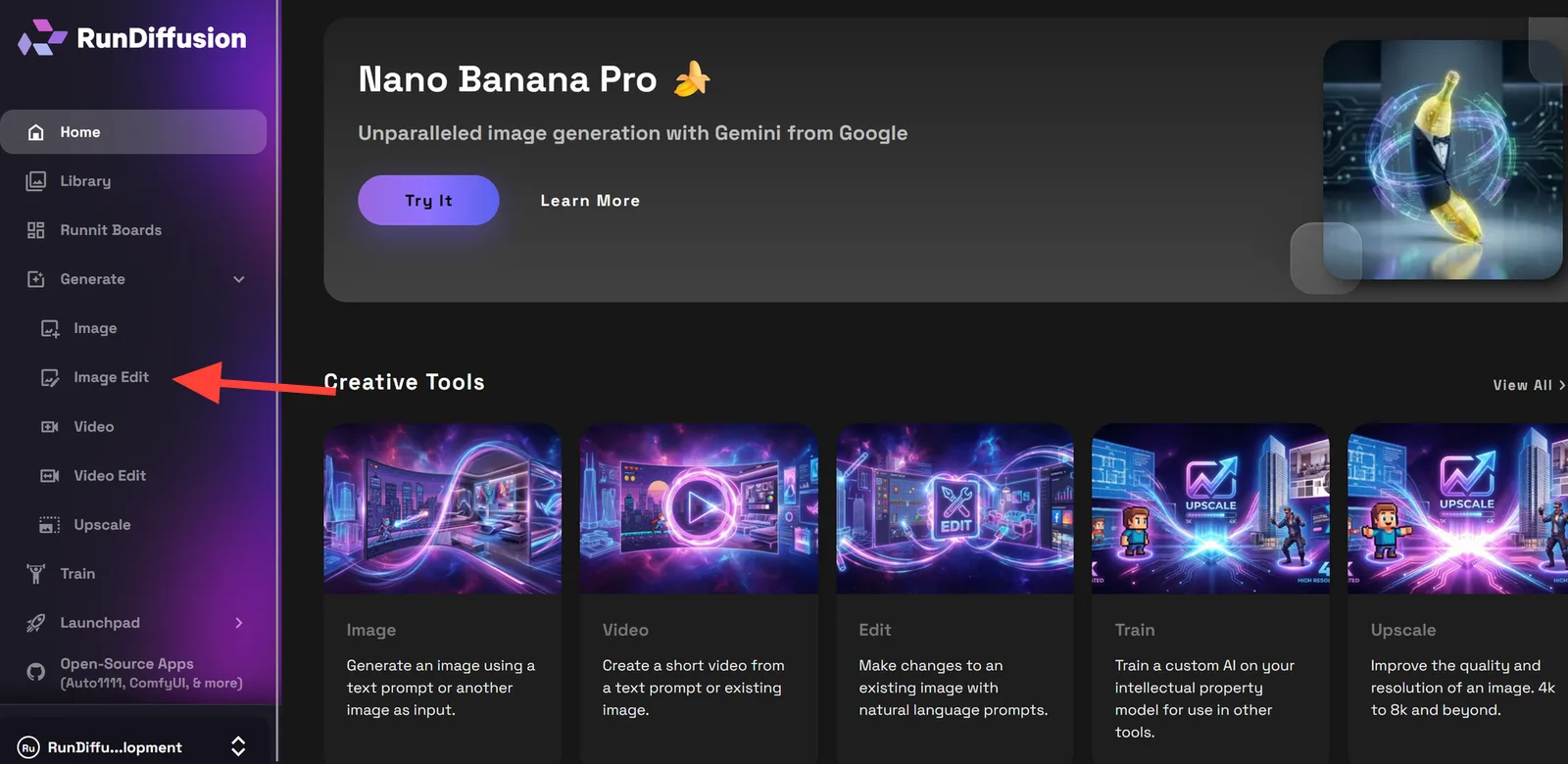
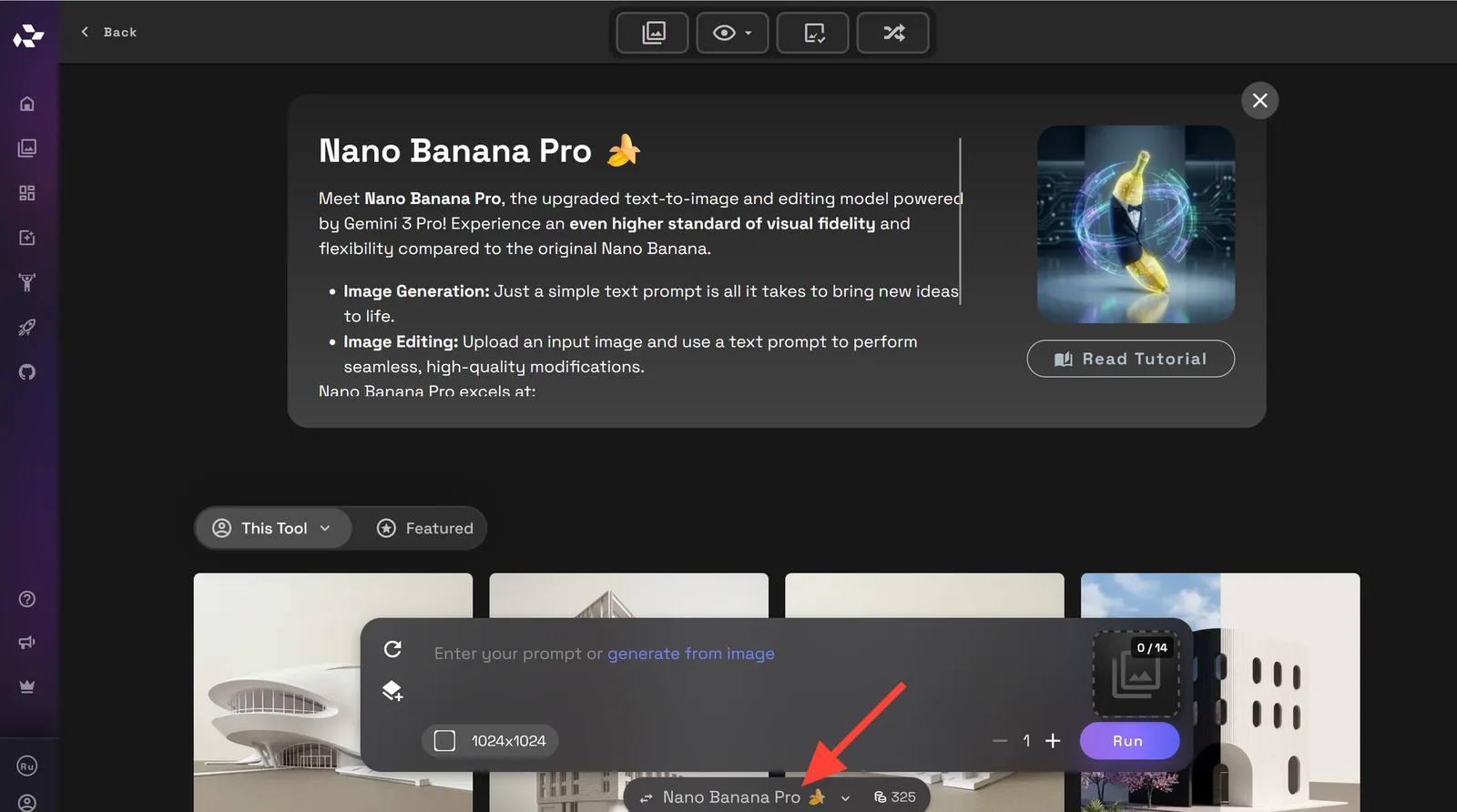
If needed, choose Featured and select ChatGPT Image 2.0.
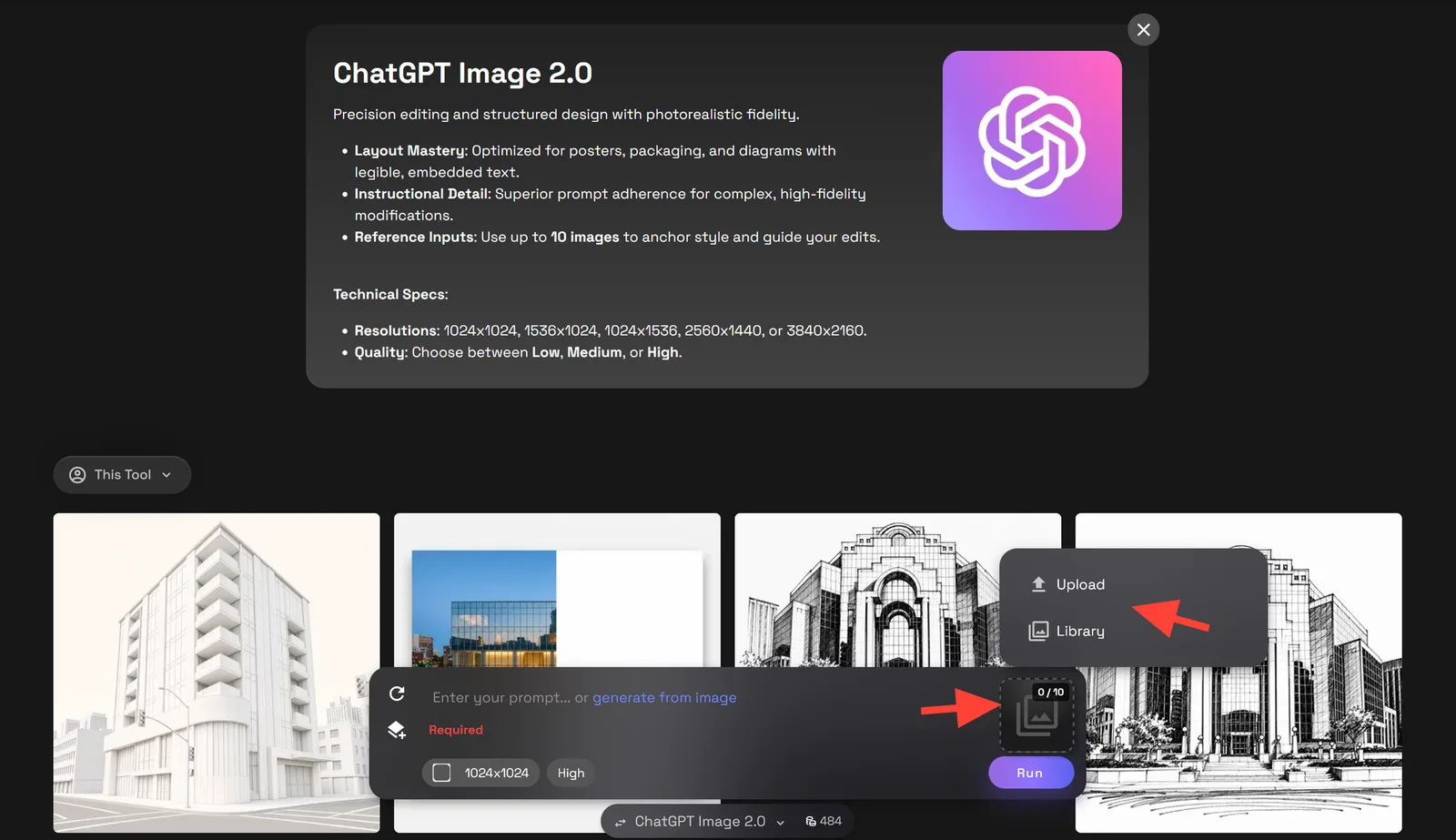
Next once the tool loads Upload your architectural render, concept image, or design study. Select Upload to upload from your computer and Library to select an image from your RunDiffusion Library.
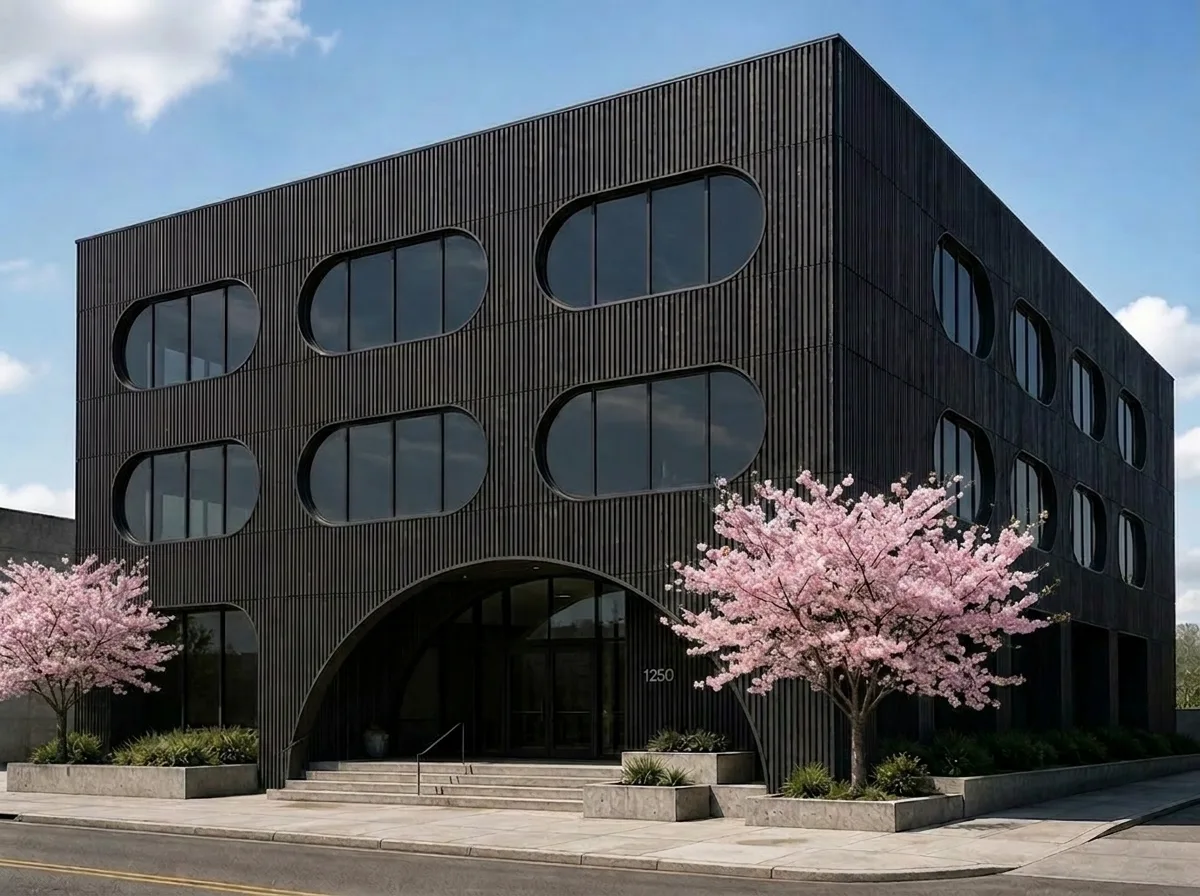
Example Image:
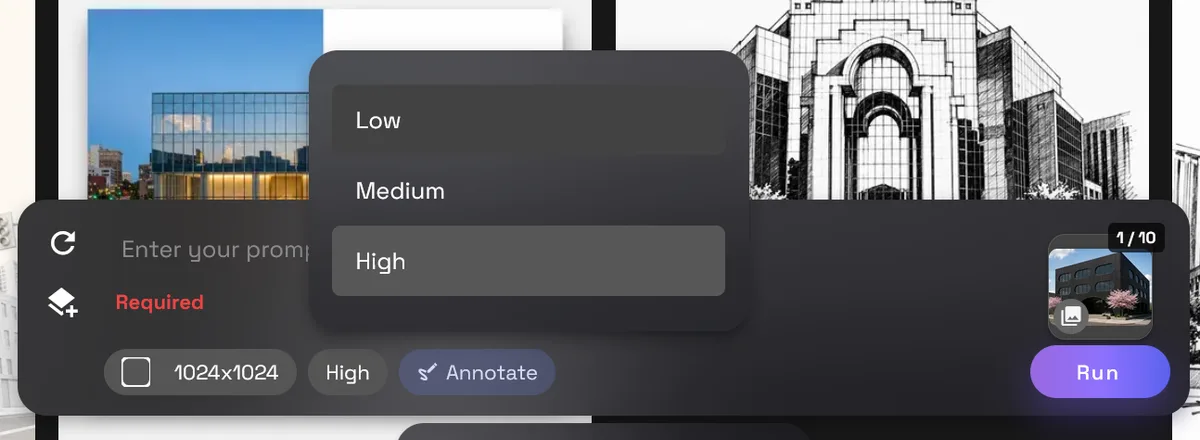
- Choose the quality Low, Medium or High. We recommend Medium or High.
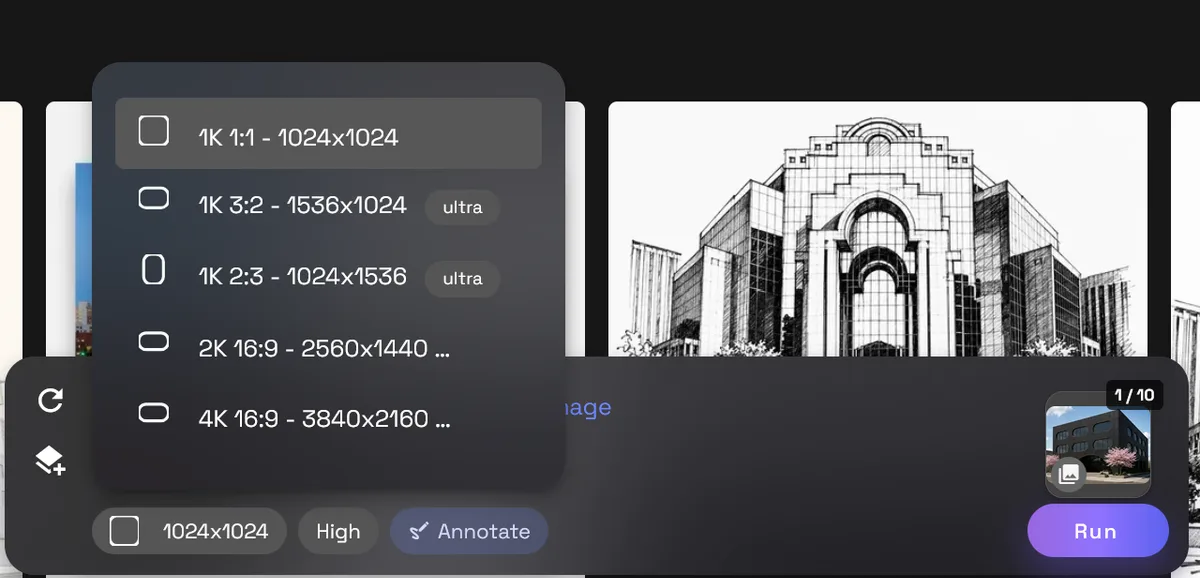
- Select a resolution that aligns with your input image to avoid distortion or stretching. If your exact resolution is not available select one that is close to the original. If the output is not ideal you can change to Nano Banana Pro or Nano Banana 2.
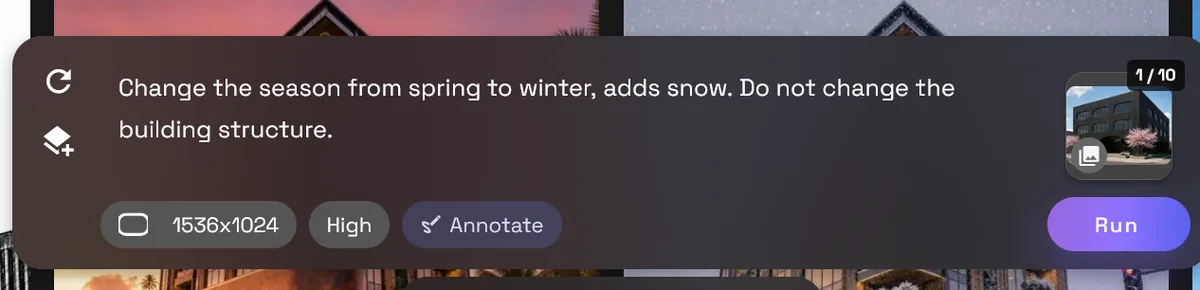
- Add a prompt describing the new scene, lighting, season, or context.
Example Prompt: Change the season from spring to winter and add snow. Do not change the building structure.
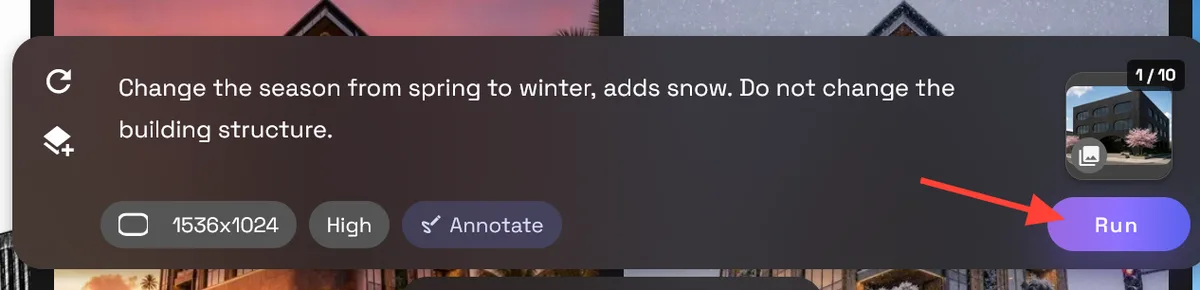
- Click Run to generate your new Architectural render.
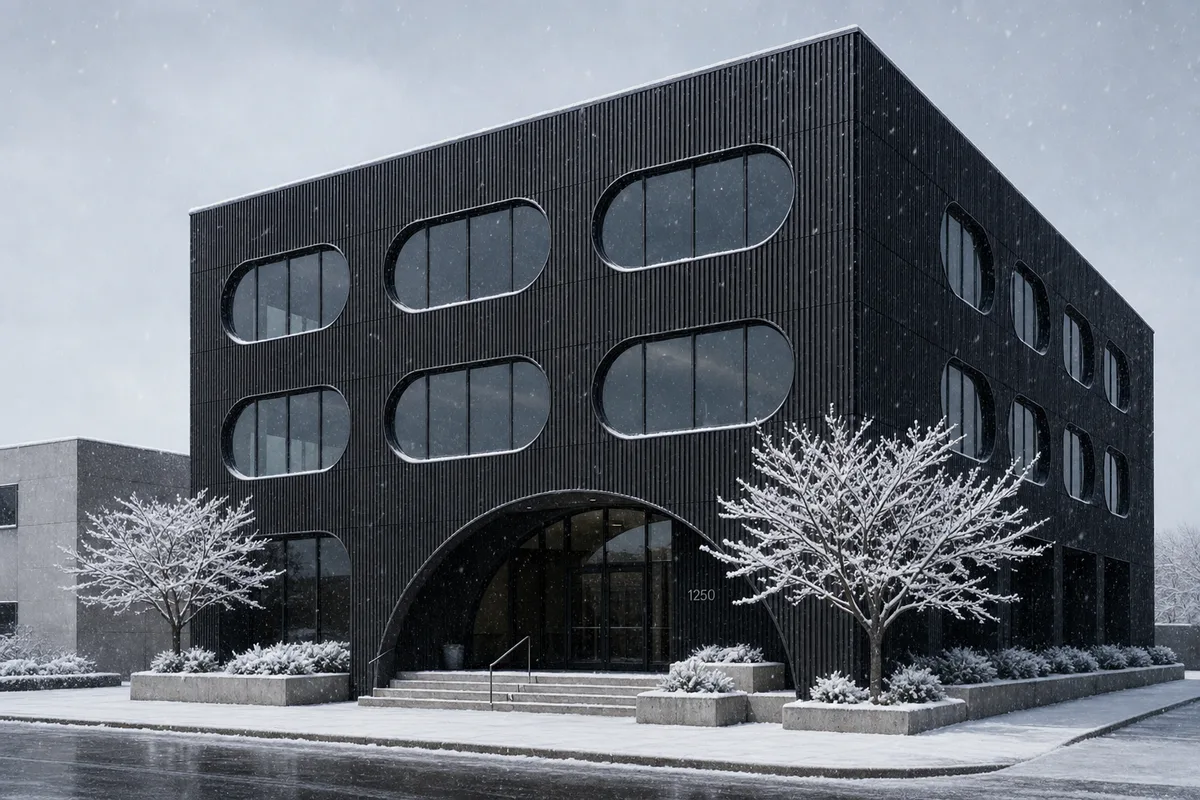
Tips for Cleaner Scene Transfers
Start with an image where the building is clear and the main design elements are easy to read. The workflow should have enough visual information to preserve the architecture while changing the surrounding scene.
For better outputs:
- Tell the workflow what to preserve: building form, façade, proportions, camera angle, and composition.
- Describe the new environment clearly.
- Keep the prompt focused on context, season, lighting, and mood.
- Generate several scene options from the same base image
When to Use This Workflow
Scene Transfer works best when you already have a strong architectural image and want to test how context changes the perception of the design.
Use it for:
- Lighting studies
- Seasonal presentation options
- Environmental context exploration
- Mood and atmosphere testing
- Client-facing design previews
- Marketing or portfolio visuals
- Comparing site narratives
- Creating multiple presentation directions from one base image
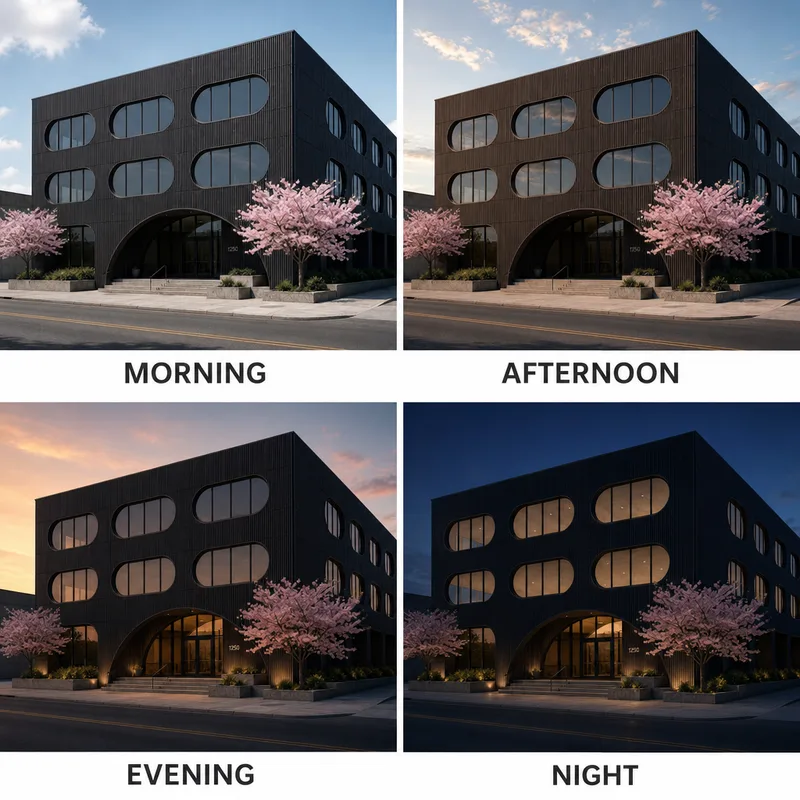
Create Context Variations on RunDiffusion
Scene Transfer gives you a faster way to evaluate how an architectural concept performs across different moods, seasons, lighting conditions, and environmental settings. Use it to compare scenarios, refine presentation direction, and place your design into the context that best supports the story you want to tell.
Continue Your Architecture Workflow
Scene Transfer helps you evaluate how lighting, season, mood, and context affect the way your architecture is presented. From here, you can keep refining the design story with related RunDiffusion workflows.
- Use Design Transfer to apply a consistent visual language across multiple design options.
- Use Drone Flyovers and Rotations to turn your still image into a motion study for reviews and presentations.
- Explore the full RunDiffusion Architecture AI Solutions for more tools built around concepting, visualization, and presentation.
For larger teams, studios, and organizations, visit RunDiffusion Enterprise.
Pick a model and start generating
These models are tuned for detail — open one and put this guide to work.
Frequently asked questions
QWhat can Scene Transfer change around an architectural design?
It can change the time of day, season, weather, landscape, site context, atmosphere, and presentation mood around the architecture.
QWhat type of image works as a Scene Transfer input?
You can start with a clear exterior render, sketch-to-render result, white card study, or developed facade concept.
QWhat should Scene Transfer preserve?
Ask it to preserve the building form, facade, proportions, camera angle, and composition while changing the surrounding scene.
QWhen is Scene Transfer useful?
It is useful for lighting studies, seasonal presentation options, environmental-context exploration, client previews, portfolio images, and comparing different site narratives.