RunDiffusion just added five high-performance Topaz tools to its creative AI suite, giving image professionals new ways to enhance clarity, resolution, and detail without ever leaving the cloud. Whether you're repairing low-res assets or refining noisy renders, these new features offer fast, intelligent solutions tailored for modern AI-enhanced workflows.
In this article, we explore each new tool now available on the RunDiffusion Platform (Formerly Runnit Platform), what they do, and how they can enhance your creative outputs.
Topaz Denoise
Cleans up grainy and noisy images, especially from low light or high ISO shots
Topaz Denoise intelligently eliminates sensor noise while preserving important details. It’s great for rescuing images captured in less-than-ideal conditions.
- Removes noise while keeping details sharp
- Ideal for low-light and high ISO images
- Enhances clarity without softening
Topaz Sharpen
Fixes various types of blur (motion, focus issues) to make your subjects and details crisp
Topaz Sharpen naturally sharpens images by addressing the actual cause of blur rather than just boosting contrast. Perfect for slightly soft or shaky shots.
- Corrects motion blur, focus blur, and softness
- Produces crisp, natural-looking results
- Maintains a realistic appearance
Topaz Generative Sharpen
Introduces new, realistic detail in heavily blurred or low-detail areas
Topaz Generative Sharpen goes beyond traditional sharpening. It uses AI to restore clarity and add detail to very soft or low-quality images.
- Adds realistic texture and detail
- Great for very soft or low-res images
- AI reconstructs detail that wasn't there originally
Topaz Upscale
Increases image resolution significantly without losing quality
Topaz Upscale allows you to enlarge your images (up to 6x or more) for print or display while preserving fine details.
- High-quality enlargement for print or web
- Maintains clarity during scaling
- Ideal for making smaller images usable in large formats
Topaz Generative Upscale
Upscales images and adds new, realistic details during the process
Topaz Generative Upscale is perfect for extremely low-resolution images where added detail is needed. It intelligently fills in gaps during upscaling.
- Enhances while enlarging
- Adds believable texture and structure
- Designed for low-res image recovery and enhancement
Getting Started with These Tools
Using these new tools is simple:

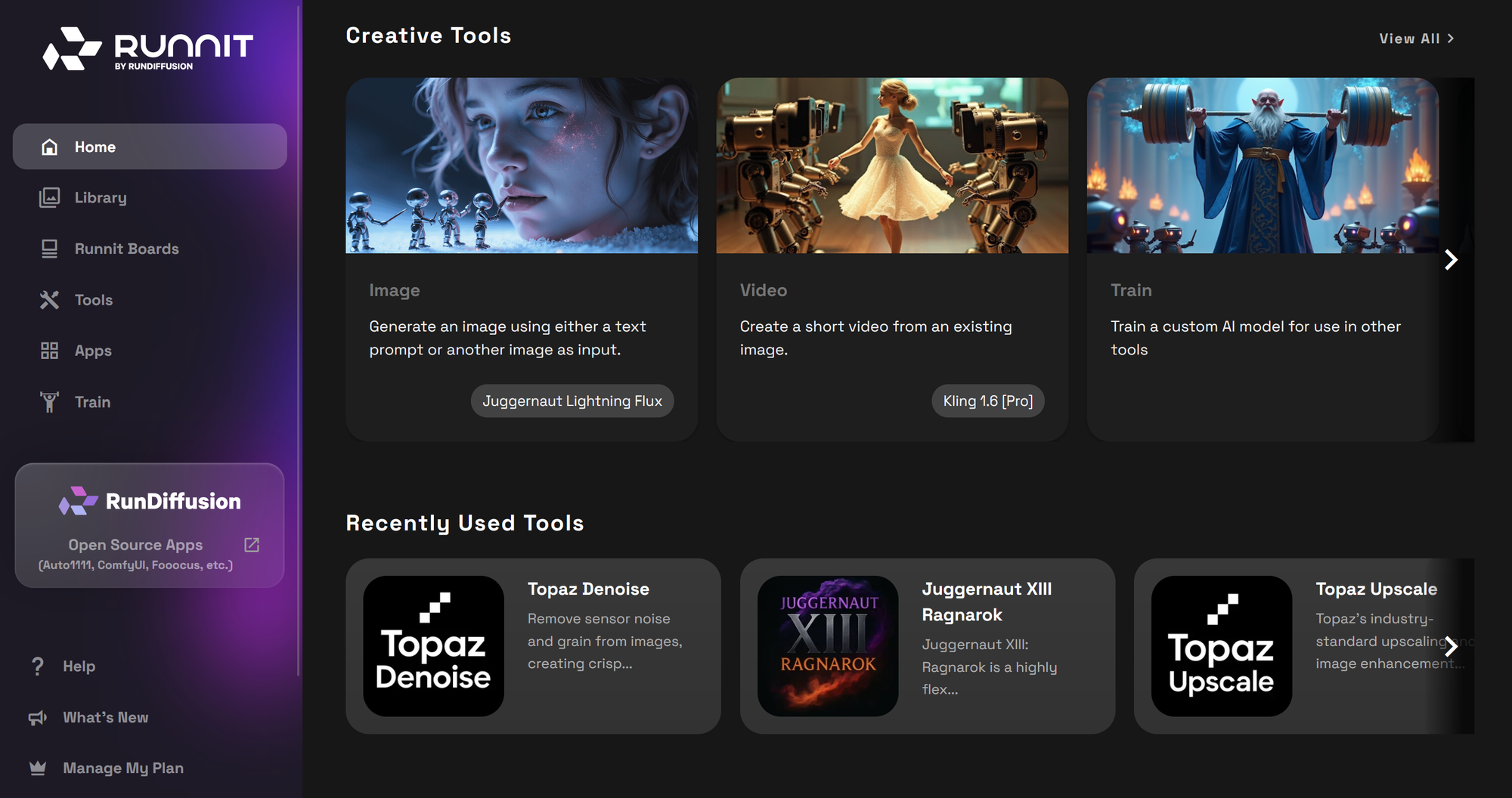
Click on Tools on the left sidebar.

Scroll down to the Search bar and type Topaz.
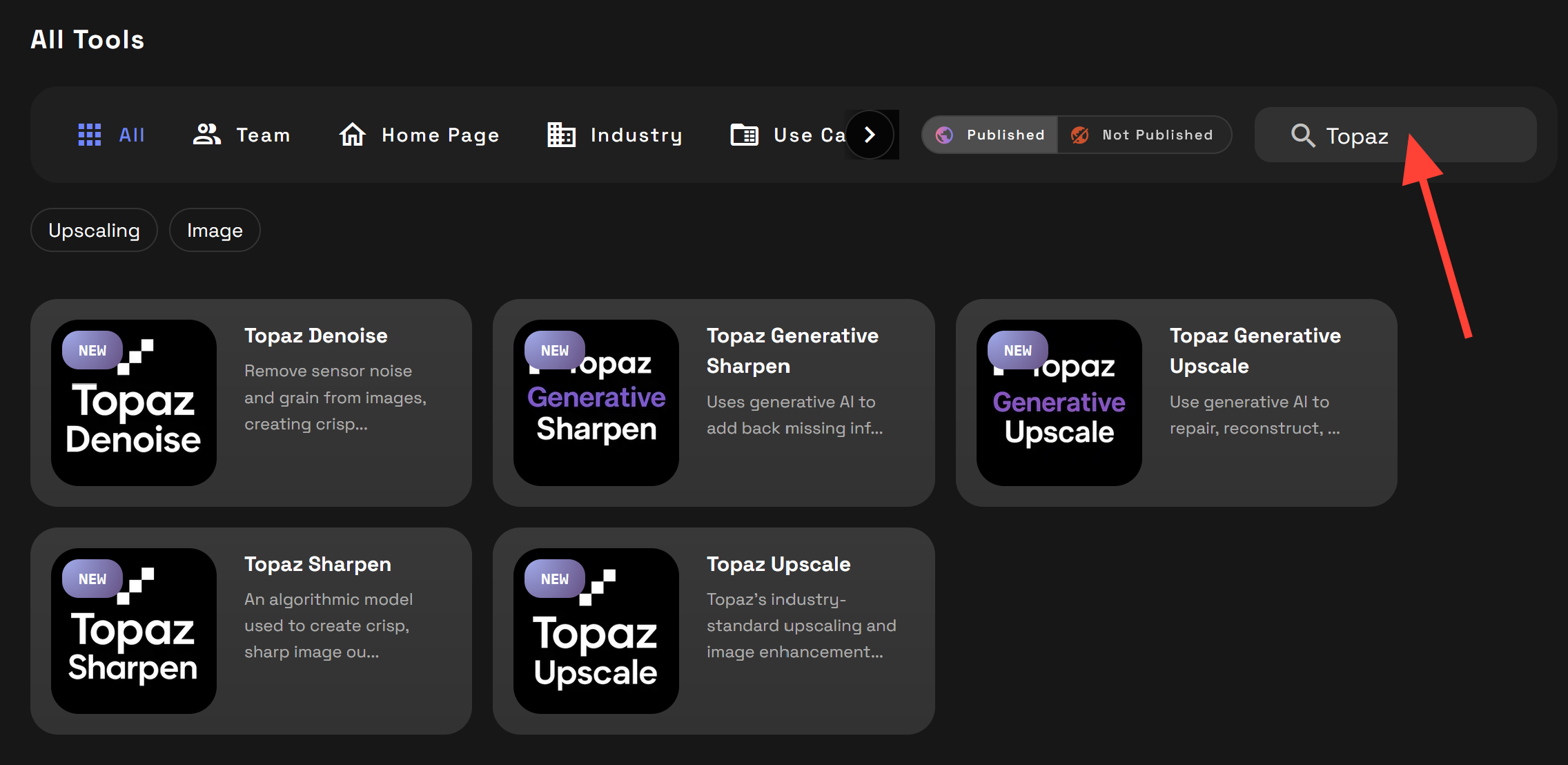
Click on one of the Topaz tools. For this tutorial select Topaz Upscale.
Click on Upload to select an image from your computer or Library to select an image you already have uploaded or that you generated on the platform.
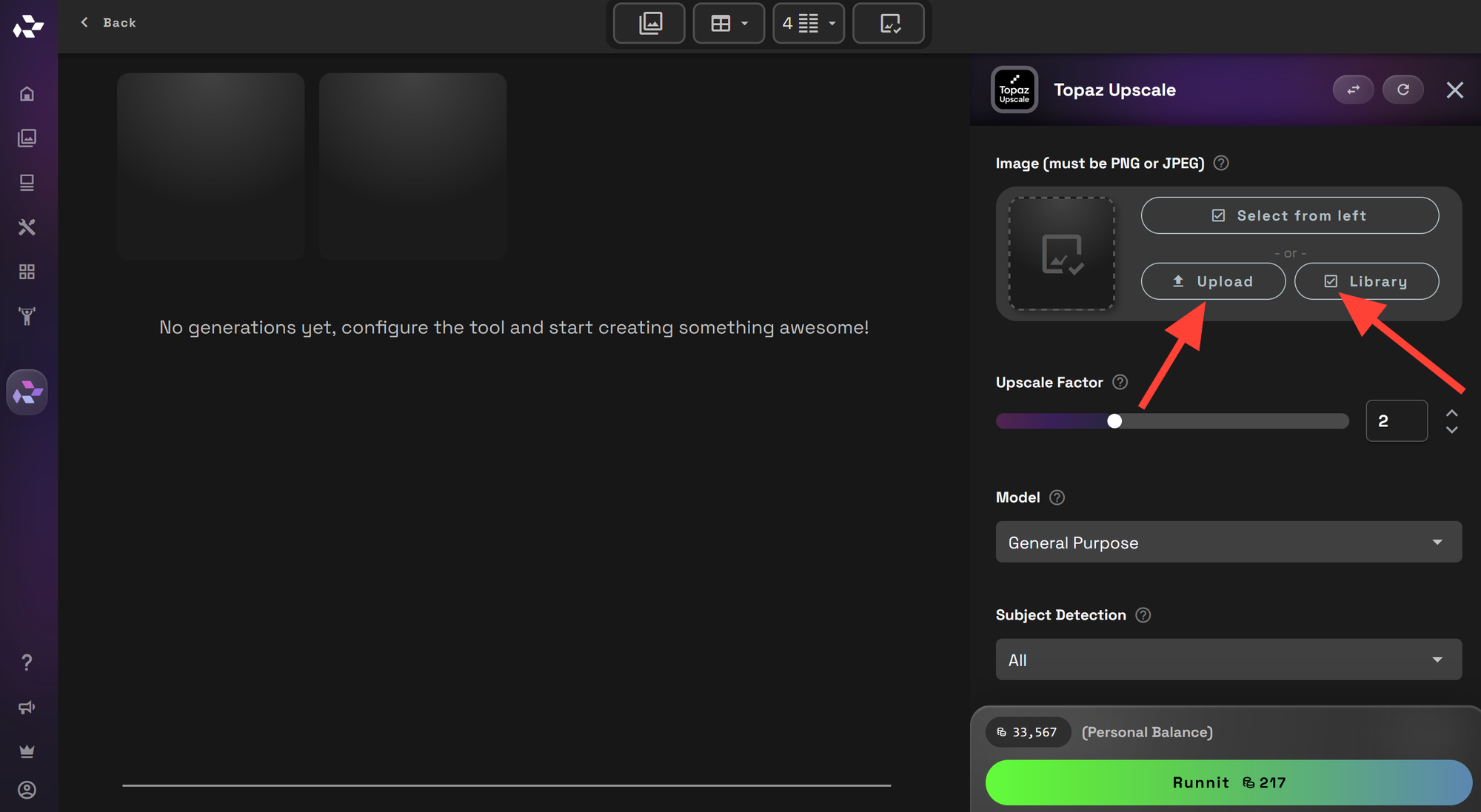
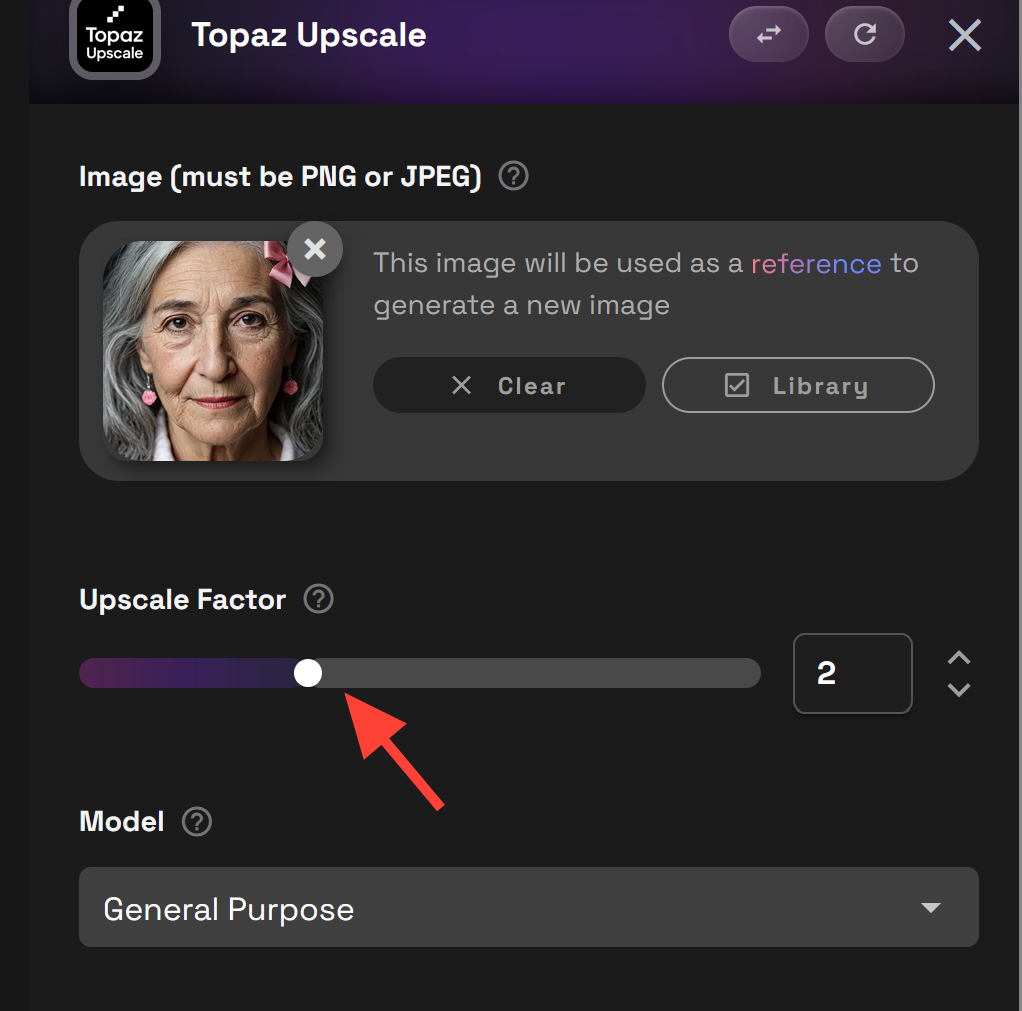
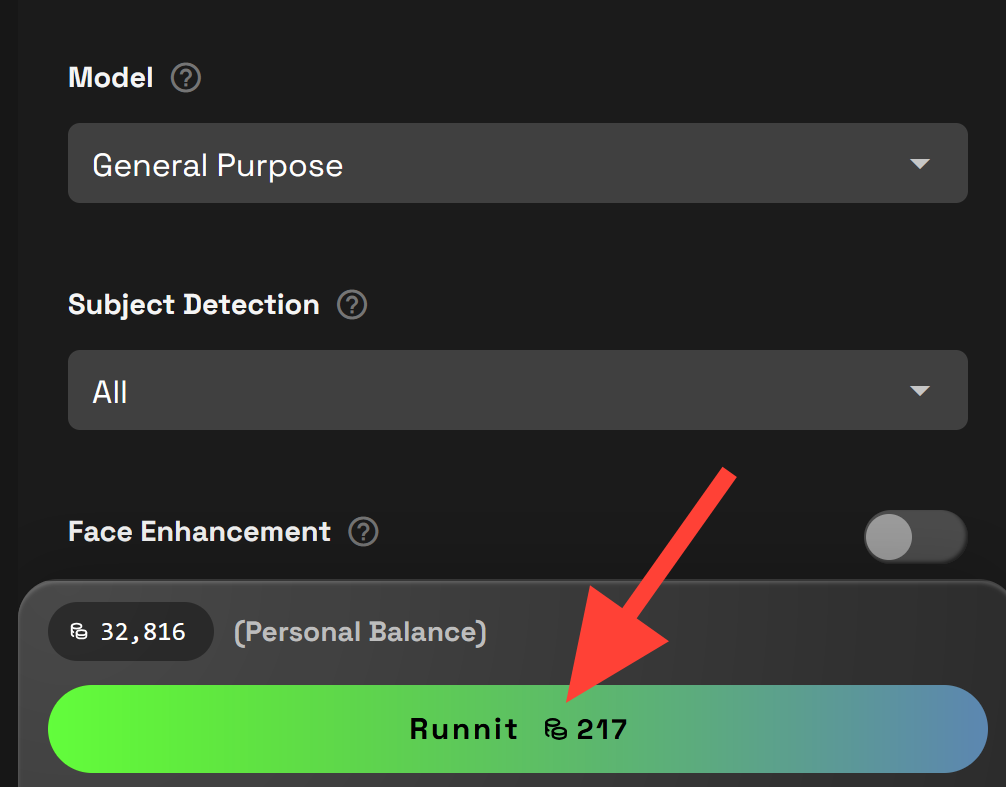
Choose the upscale factor. The default is 2 and
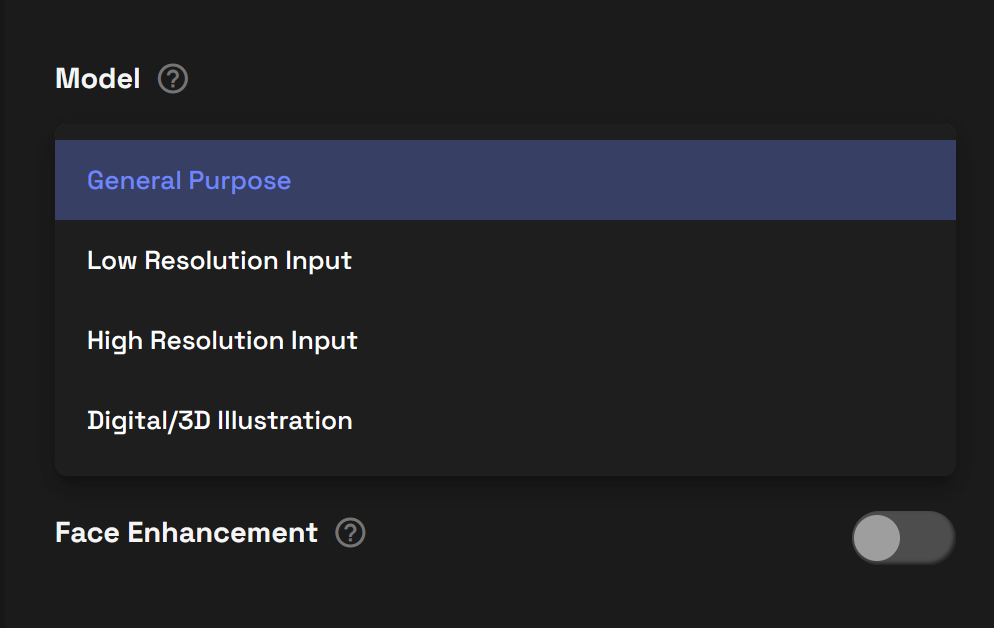
Now choose a model that best aligns with your input image.
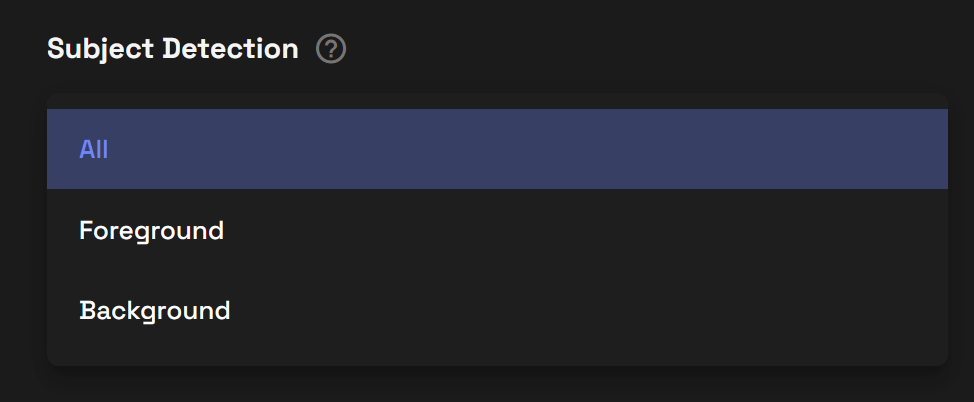
Next you must choose the most important part to upscale All, Foreground, or Background.
If you are using a face you can toggle on Face Enhancement. You can adjust Face Enhancement Creativity 0 is conservative and 1 is very creative. Face Enhancement Strength adjust the sharpness relative to the background of the image.
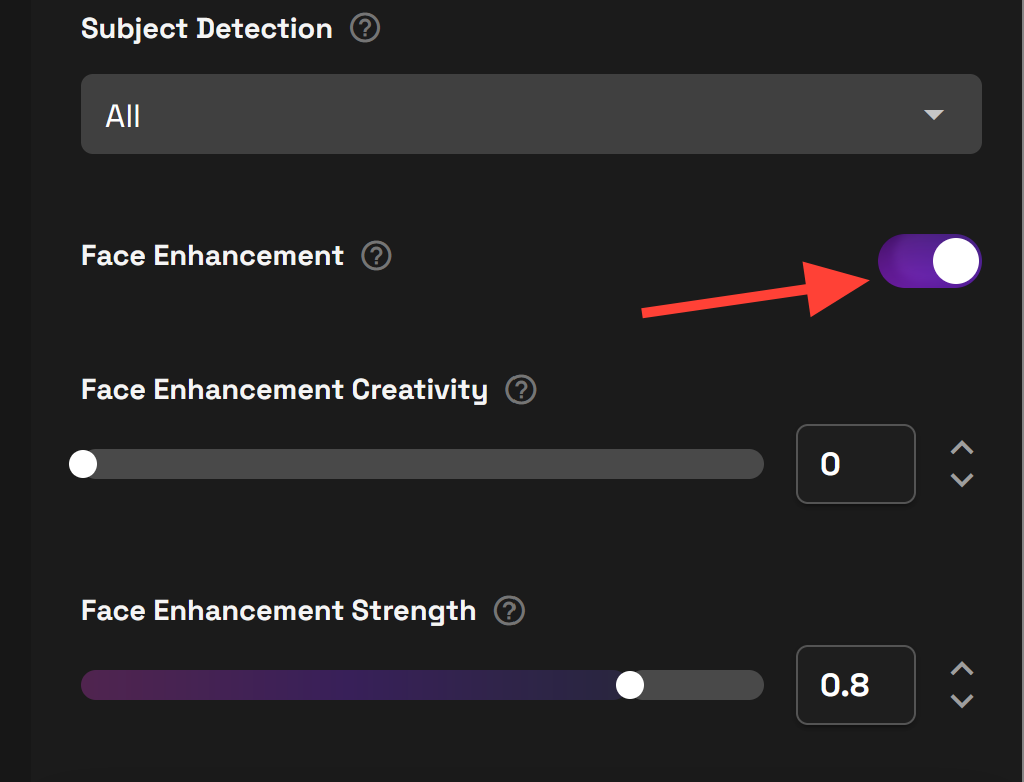
Click Generate when you are ready to start upscaling!
Normal, X2 and X4.
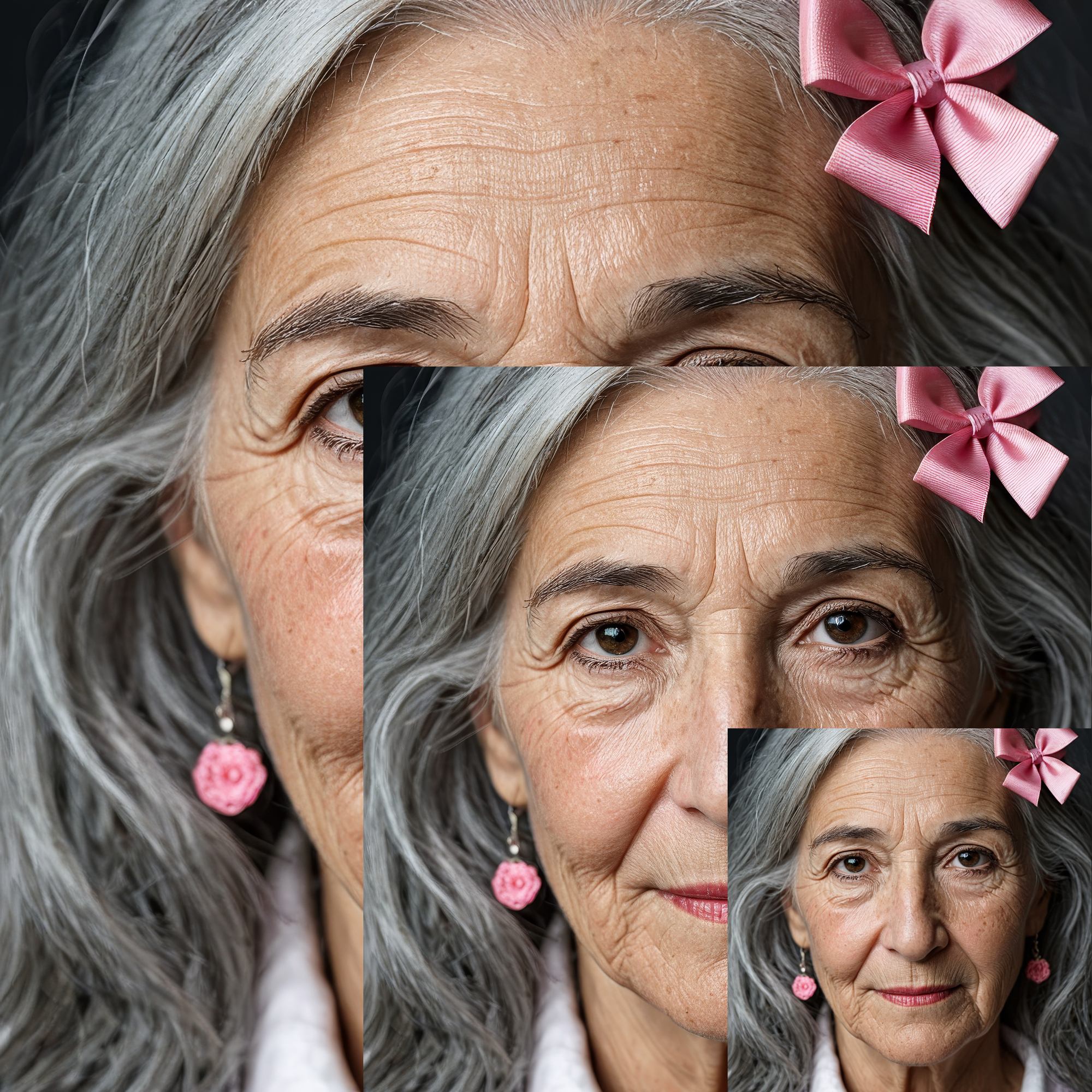
Original and 4x Upscaled Image.

Final Thoughts
The addition of these five Topaz tools on the RunDiffusion Platform represents a major upgrade for creators working in the cloud. Whether you're enhancing an image for presentation or refining visual outputs, these tools deliver speed, quality, and ease of use.
Further Reading
Introducing the Magnific Upscaler: AI-Powered Detail & Texture Reinvention | RunDiffusion
Published on November 3, 2025 Today, we’re excited to introduce the Magnific Upscaler, a powerful new tool on the RunDiffusion Platform. This tool goes far beyond traditional upscaling; it uses generative AI to invent new, high-fidelity details and rich textures, allowing you to transform your visuals with stunning clarity and complexity. A New Level of Creative Control Magnific provides a professional-grade workflow. Start by selecting an Optimization profile (like “Portrait” or “Digital Art”) to
RunDiffusion Team

Ultimate SD Upscaler Tutorial | RunDiffusion
Step-by-Step Guide for Ultimate SD Upscaler in ComfyUI This tutorial will guide you through using the UltimateSD Upscaler workflow on RunDiffusion, based on the provided JSON workflow file. This guide is designed for upscaling images while retaining high fidelity and applying custom models. Follow these steps to upscale your images effectively. You can drop the image below to load the workflow and then edit it as you need Before we jump into the individual nodes let’s make sure we have the ne
RunDiffusion Team