

- Describe subject action, camera movement, scene, and atmosphere.
- Use start or end images and continuity constraints when the shot requires them.
- Describe audio when sound is part of the video.
FLUX 3 can turn a written brief, one or two architectural renderings, or an existing clip into video with synchronized audio. Strong prompts define the subject and action, camera direction, scene and atmosphere, motion qualities, and continuity constraints when relevant. Describe audio when sound matters.
Architecture teams use FLUX 3 on RunDiffusion to create project films, render animation, daylight transitions, video continuations, narration, and synchronized sound. The workflow supports the production and review needs of medium and large architecture firms.
Core principle: Direct the scene instead of listing objects. Clearly describe what happens, how the subject moves, how the camera behaves, and the overall atmosphere. Use one clear framing term, one movement, and one subject action per shot. For multiple shots, define each shot and mark the cuts; add timecodes only when timing must land at a specific point.
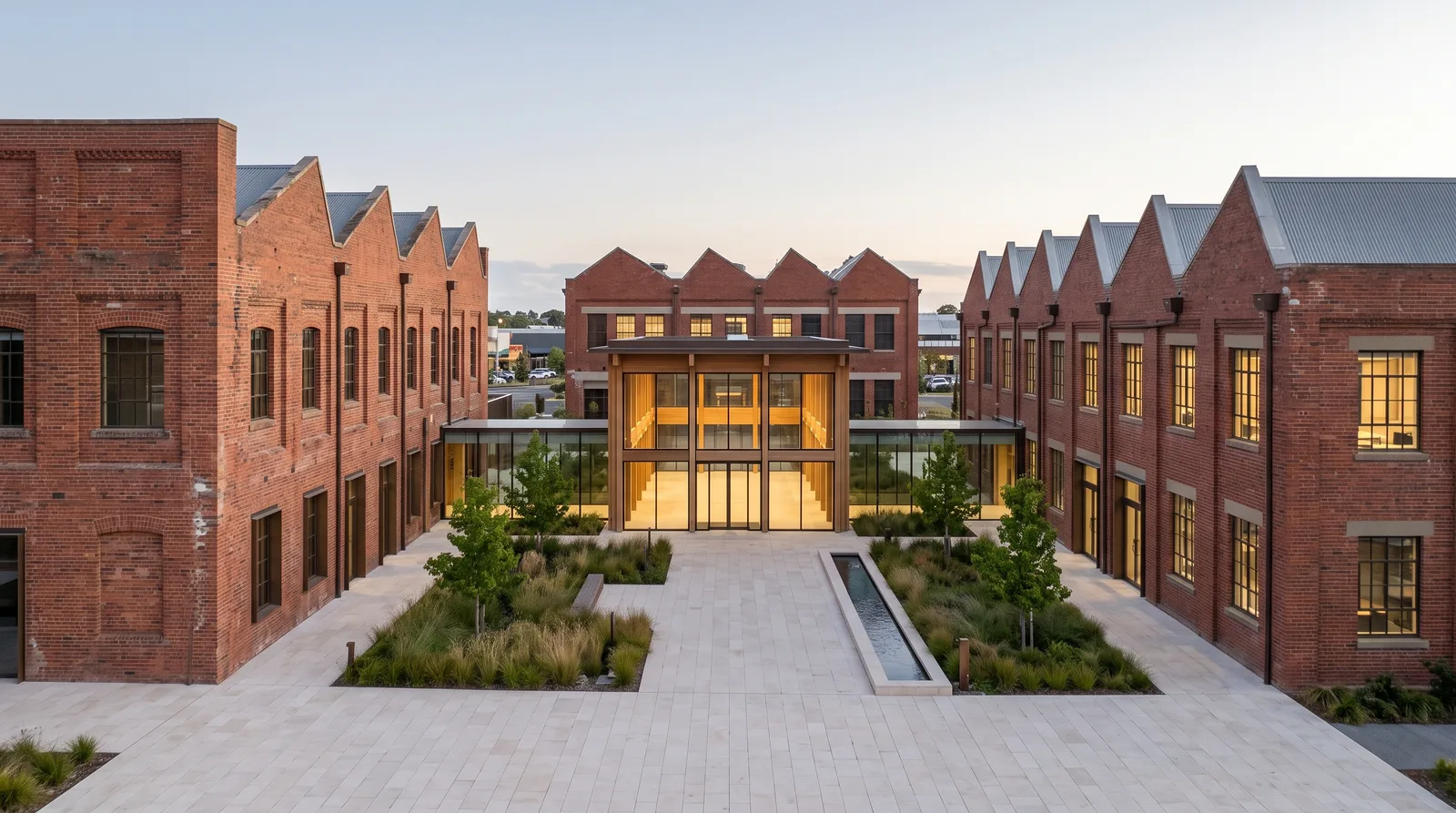
Example prompt:
Wide shot of an adaptive-reuse headquarters courtyard in warm
evening light.

The camera slowly dollies forward along the central stone path
toward the illuminated glass-and-timber atrium. Ornamental grasses
move lightly and the reflecting pool ripples.

Light wind through the grasses and faint water movement.
A slow forward dolly through an adaptive-reuse headquarters courtyard, with motion limited to landscape and water.
Quick Answer
A reliable FLUX 3 video prompt follows this order:
Subject and action + camera direction + scene and atmosphere + motion qualities + audio when needed + continuity constraints when relevant
For a simple shot, use a simple prompt:
Wide eye-level shot of a mass-timber workplace building at dawn.

Lobby lights turn on as reflections move across the glazing and
young trees shift in a light wind. The camera makes one slow
forward dolly across the empty arrival court.

Measured movement, warm early light, and deep focus.

Sound: wind in the trees, water in the linear drain, and airflow
through the lobby ceiling diffusers.
For a longer multi-shot architectural film, use the six-part schema: Core summary, Scene, Subject description, Dynamic narrative, Audio, and Style & color. The schema is optional; use it when the look and story must hold across several shots.
FLUX 3 at a Glance
RunDiffusion offers the following FLUX 3 tools: Flux 3 Video, Flux 3 Extend Video, Flux 3 Draft Video, and Flux 3 Draft Extend Video.
Primary inputs: A text prompt, one start image, a start-and-end image pair, or an existing source clip.
Core method: Visible action + readable camera direction + achievable timing + scene-based audio + explicit continuity
Prompt formats: Short prompt, natural-language one-liner, labeled fields, timestamp prompt, or full multi-shot brief
Generation length: Up to 20 seconds for most Flux 3 tools.
Audio: Optional synchronized dialogue, ambience, physical effects, and music
RunDiffusion Quick Start
- Log in to RunDiffusion.

- Open Boards from the left sidebar. A Board keeps the project's source images, prompts, generations, and revisions together.

- On the Boards page, click New Board.

- Choose From Scratch.

- Choose a cover, enter a clear Board title, add an optional description, then click Create.

- Inside the empty Board, click Add another Tool.

- In Choose Tool, keep Generation Kits selected and choose Video.

- In Video, keep Featured selected and choose
Flux 3 Video.

- Open the
Flux 3 Videotool and enter your prompt. Add a Start Frame when needed, choose the video resolution and aspect ratio, review Advanced options, then click Run. Add an End Frame when the workflow uses a start-and-end-frame transition.

1. Choose the Right FLUX 3 Workflow
For architectural work, decide whether the shot should start from text alone, one approved opening rendering, or two compatible endpoint renderings. A start image anchors the opening composition. An end image can be added with the start image to anchor the final composition.
Text-to-Video
Use text-to-video when you want FLUX 3 to create an architectural scene from a written brief and you do not need to match an approved opening rendering.
This mode gives the model the most freedom. It works well for early concept films, workplace and campus studies, master-plan flyovers, facade-motion ideas, arrival sequences, and atmospheric architecture B-roll.
Your prompt should establish:
- Which building, interior, campus, or district appears
- What visible action or change occurs
- How the camera behaves
- How the site, light, weather, time of day, and atmosphere appear
- What motion quality the shot should have
- What the architectural environment sounds like when audio matters
- For multiple shots, where each shot begins and where the cuts occur
Start-Frame Image-to-Video
Use one approved architectural rendering when the video must begin from that composition. The Start Frame image defines the exact opening frame; the prompt describes how the scene moves forward. When only one image is supplied, it always serves as the start frame.
Do not spend most of the prompt redescribing what is already clear in the image. Focus on:
- The visible action that begins from the supplied frame
- One clear camera movement
- Changes in light, water, vegetation, doors, screens, or reflections
- The pace and motion quality
- Audio from the scene when sound matters
Start-and-End-Frame Video
Use a start image and an end image when both architectural endpoints matter. FLUX 3 creates the motion between the two supplied compositions. Keep the frames related—the same building or space and a compatible camera setup—then describe the motion between them.
The wider the visual difference between the start and end images, the more freedom FLUX 3 has to invent the transition. Use closely related views when predictability matters.
An end image cannot be used by itself in this workflow. To control the ending frame, supply both a start image and an end image.
Choose by Architectural Deliverable
Match the workflow to the material your team has already approved. Do not use a more complex input structure when a simpler one gives the project enough control.
- Use text-to-video when no source image needs to set the opening frame.
- Use one start image when the supplied rendering should be the exact opening frame.
- Use start and end images when both endpoint frames matter.
- Use continuation when the source clip should keep unfolding without a cut.
The Simple FLUX 3 Prompt Formula
For architectural video, build the prompt from these documented components:
- Subject and action: Name the building or space and describe what happens.
- Camera direction: Choose framing and one clear movement.
- Scene and atmosphere: Describe the site, lighting, weather, time of day, and mood.
- Motion qualities: State whether movement is slow, abrupt, precise, cinematic, or documentary.
- Continuity constraints: Add them only when they matter for a multi-shot sequence or continuation.
- Audio: Name speech, ambience, effects, or music only when the shot needs them.
Architecture Prompt Template
[Framing] of [building, interior, or district] at
[time, weather, and atmosphere].

[Subject or architectural element] [visible action].

The camera [one movement] while [supporting motion].

[Motion qualities, lighting, palette, and style].

Sound: [specific sources when audio matters].
Complete Architecture Prompt
Wide architectural exterior of an adaptive-reuse corporate
headquarters campus at early evening.

Lobby lights turn on gradually as daylight fades. Reflections move
across the atrium glazing and grasses shift in a light wind.

The camera tracks slowly across the empty arrival plaza.

Measured movement, realistic materials, natural contrast, and deep
focus.

Sound: light wind, distant traffic, courtyard water, and airflow
through the atrium ceiling diffusers.
Why This Prompt Is Strong
- It identifies the architectural subject and visible action.
- It uses one clear framing choice and camera movement.
- It describes the scene and atmosphere.
- It gives the movement a measured quality.
- It names concrete sound sources from the scene.

Short Prompts, Long Prompts, and Structured Prompts
Match prompt length to the amount of control the shot needs. Use a short prompt for exploration. Add camera, motion, atmosphere, and audio only when they improve control.
Use a Short Prompt for Exploration
A short architecture prompt leaves framing, secondary environmental motion, lighting details, and sound choices open to the model.
Wide shot of a commercial office tower and empty forecourt at
golden hour. Slow dolly in as a light breeze moves the distant
trees.
A short prompt leaves secondary choices open while keeping one clear camera movement and one source of environmental motion.
Use this approach for:
- Early architectural-film exploration
- One clear building and camera idea
- Campus, facade, interior, or master-plan B-roll
- Alternative presentation directions
- Early testing before adding more timing, audio, or scene detail
Use a Longer Prompt for Control
Longer natural language works when action, camera behavior, pacing, audio, or several scene details need tighter direction.
Aerial wide shot approaching a large mass-timber workplace campus
at sunrise.

Morning light moves across the timber columns while trees shift in
a light wind and reflections change across the curtain wall.

The camera flies forward at a slow constant speed and descends
slightly above the landscaped arrival court.

Warm early light, realistic materials, restrained contrast, deep
focus, and measured motion.

Sound: light wind, distant city traffic, and water moving through
the arrival-court channel. No music.
Use longer prompts for:
- A specific architectural camera direction
- Several coordinated actions or environmental changes
- Detailed scene, lighting, weather, and atmosphere
- Narration and architectural sound direction
- Multi-element shots that need tighter control
- Client-reviewed project films and presentations
Longer is not automatically better. Every sentence should establish a visible decision, a sound source, a timing target, or a continuity rule.
Use Labeled Fields for Easy Revision
Labeled fields are useful when a design team wants to revise the camera, subject action, motion, lighting, palette, audio, or style without rewriting the complete prompt.
Camera shot: Locked wide shot.

Subject + action: A commercial office tower rises above a
pale-stone podium as the distant tree canopy moves in a breeze.

Depth of field: Deep; the tower and landscape remain sharp.

Lighting + palette: Warm golden-hour light, bronze facade, pale
stone, and a soft blue sky.

Motion: Light movement in the distant tree canopy.

Style: Photoreal architectural film.

Audio: Breeze through the tree line and distant birds.
The labeled version separates framing, motion, lighting, style, and audio so a project team can revise one variable at a time.
Use Timestamps When Timing Matters
Timestamp prompting works when a facade change, lighting transition, camera reveal, or cut must happen at a specific point. Use a small number of achievable beats.
0.0–1.5s — Medium shot of a senior architect studying a
life-sciences campus model. A slow dolly in begins.

1.5–3.5s — He leans slightly toward the central glass connector and
studies it closely.

3.5–5.0s — He straightens and gives a small, satisfied nod as the
camera settles.

Audio: Only the brief rustle of his jacket as he leans forward and
one soft shift of tracing paper on the desk. No continuous ambience
and no music.

Style: Photoreal architecture campaign with soft natural light.
A timestamp prompt gives the architect one clear action in each beat and connects sound to visible movement.
Two or three major beats are usually enough for a short clip. If every half-second receives a new instruction, motion can become rushed or visually confused.
The Advanced Multi-Shot Prompt Structure
Use the full structure when a longer architectural film needs several shots, a consistent subject description, timed actions, coordinated audio, or one visual treatment across the complete sequence.
The Six-Part Structure for Architecture
- Core summary: State the project and sequence arc.
- Scene: Define each space, light, weather, and depth.
- Subject description: Write one fixed architectural project description.
- Dynamic narrative: Describe each shot; add timecodes when timing matters.
- Audio: Direct the architectural soundscape for each shot.
- Style & color: Establish one global presentation treatment.
For architecture, use Subject description to identify the same building or space consistently across shots. Keep that wording unchanged when the same subject returns.
Reusable Multi-Shot Template
Core summary:
[One sentence describing the complete sequence and its arc.]

Scene:
Shot 1: [setting, light, atmosphere, and depth of field].
Shot 2: [setting, light, atmosphere, and depth of field].

Subject description:
[One consistent description of the building or space.]

Dynamic narrative:
Shot 1 [0.0s-4.0s]: [camera move and visible action].
Shot 2 [4.0s-8.0s]: [cut, camera move, action, and pacing].

Audio:
Shot 1: [ambience, effects, speech, or music as needed].
Shot 2: [ambience, effects, speech, or music as needed].

Style & color:
[Realism, palette, contrast, grain, and global look].
Multi-Shot Architecture Example
Core summary:
A short architectural film presents a university engineering
complex from its main approach through the central atrium and up to
the rooftop research terrace.

Scene:
Shot 1: Early-morning exterior beside a planted arrival court.
Shot 2: Daylit central atrium with exposed steel bridges.
Shot 3: Rooftop terrace overlooking two laboratory wings.

Subject description:
A university engineering complex with two laboratory wings, a
transparent central atrium, exposed steel bridges, pale precast
facades, and deep aluminum sunshades.

Dynamic narrative:
Shot 1 [0.0s-4.0s]: A wide eye-level shot tracks slowly across the
empty arrival court while grasses move and reflections shift.
Shot 2 [4.0s-8.0s]: Hard cut inside. The camera glides beneath the
bridges as daylight moves across the terrazzo floor.
Shot 3 [8.0s-12.0s]: Hard cut to the roof. The camera rises slightly
to reveal both wings and the surrounding campus.

Audio:
Shot 1: wind in planting, distant traffic, and water at a drain.
Shot 2: low ventilation through the atrium ceiling diffusers.
Shot 3: rooftop wind and distant traffic below. No dialogue.

Style & color:
High-fidelity architectural film, realistic materials, natural
contrast, deep focus, measured movement, and neutral color.
For architecture-specific movement patterns, see our guide to drone flyovers and rotations.
Be Direct with Your Intentions
Architectural video still needs actions that can be placed on a timeline. Abstract words such as active, welcoming, premium, or dramatic describe an impression but not the visible change that creates it.
This is vague:
The headquarters feels active, open, and welcoming.
This is directable:
Lobby lights turn on across the ground floor while the entrance
doors slide open and reflections move over the stone paving.
The camera makes one slow push-in and stops on the atrium axis.
Write Actions in Playback Order
Use chronological connectors when sequence matters:
- First
- As
- Then
- After
- While
- Finally
One continuous action chain is usually easier to generate than several unrelated commands.
Camera Direction for FLUX 3
Camera language should clarify the building and spatial sequence, not compete with them. Start with one framing term, one movement, and one readable architectural or environmental change.
Framing
- Extreme close-up: isolates a material joint or small detail
- Close-up: shows a facade component, fixture, or material surface
- Medium-wide shot: frames an entrance, room, or structural bay
- Elevation-like shot: presents a facade with controlled perspective
- Wide shot: shows the building in its immediate site context
- Establishing shot: presents the complete project and surrounding scale
Angles
- Eye level: presents a pedestrian view of arrival and circulation
- Low angle: emphasizes height, structure, and facade depth
- High angle: reveals site planning, roofs, and circulation
- Overhead: maps courtyards, blocks, and master-plan relationships
- Ground level: emphasizes paving, drainage, planting, and facade base
- Point of view: places the viewer on a realistic path through the space
Movements
- Push in: camera moves closer
- Pull out: camera moves away
- Pan: camera turns horizontally from a fixed position
- Tilt: camera turns vertically from a fixed position
- Tracking: camera follows a moving subject
- Truck: camera moves sideways
- Pedestal: camera moves vertically
- Arc or orbit: camera travels around the subject
- Crane: camera rises or descends through space
- Handheld follow: controlled human movement with light instability
- Static or locked-off: camera does not move
Focus
- Deep focus: foreground and background remain readable
- Shallow depth of field: subject is sharp against a soft background
- Rack focus: focus moves between two clear subjects
- Macro focus: isolates very small surface detail
One Main Camera Idea Per Shot
This is clear:
Eye-level tracking shot moving parallel to the precast facade
at a steady pace.
This is overloaded:
Low aerial handheld orbit around the tower with a fast push-in,
whip pan, rack focus, sudden zoom, and rolling horizon.
If you need a new camera direction, use a new shot and name the cut. Do not ask one continuous camera to be static, handheld, aerial, and orbiting at the same moment.
Composition and Perspective for Architecture
Architectural camera direction should explain spatial order and scale. Use composition language that supports the review goal.
- Use axial or one-point perspective for entrances, atriums, corridors, and formal interior sequences.
- Use a lateral move with a stable foreground when facade depth, structural rhythm, or landscape layers need parallax.
- Request straight verticals and a level horizon when the building must read accurately.
- Use deep focus for complete buildings, master plans, and spatial relationships.
- Reserve shallow focus for material details or a deliberate foreground-to-background reveal.
Lens Direction Without Unwanted Distortion
Lens language communicates spatial intent. When a Start Frame is supplied, the image already sets the opening composition; add lens language only when it changes the intended camera behavior.
- Use a corrected wide architectural view when the building and immediate site must remain visible together.
- Use a normal perspective for neutral proportions in workplace, atrium, laboratory, and facade studies.
- Use a compressed or telephoto view when aligning distant building layers or a tower against its context.
- Avoid fisheye or extreme wide-angle distortion unless that effect is an intentional part of the concept.
Transitions Between Architectural Spaces
Do not force one continuous camera through disconnected spaces. Choose the transition that matches the actual spatial relationship.
- Use a hard cut when the camera changes floors, buildings, or unrelated viewpoints.
- Use a match cut when an entrance axis, structural grid, roofline, or material detail aligns across shots.
- Use one continuous shot only when its route through the architecture is physically possible.
- Generate separate clips when each space requires its own approved rendering or camera setup.
Aspect Ratio by Deliverable
Choose the aspect ratio in RunDiffusion before writing the final camera direction. Compose for the destination rather than relying on a later crop.
- Use 16:9 for project films, presentations, websites, and broad site or interior views.
- Use 9:16 for vertical project promotion, tower studies, and details that read clearly in a narrow frame.
- Restage the camera for vertical output instead of cropping a wide master-plan or campus composition.
- Keep essential entrances, tower crowns, signage, and context inside the final frame throughout the move.
Prompting Dialogue, Ambience, Effects, and Music
FLUX 3 can generate synchronized audio with the video. For architecture, name the sources: wind through landscape, water at drains, door motors, airflow at ventilation grilles, and passing traffic. Add restrained narration separately when the shot needs it.
Four audio categories are useful to direct:
- Speech: Who speaks, the exact words, and the delivery.
- Ambience: Continuing sound from the environment.
- Effects: Sounds caused by visible actions.
- Music: Style, pace, and its position in the mix.
You do not need all four. Use only the layers that support the shot.
Audio Prompt Template
Dialogue or voiceover:
[Speaker] says, "[exact words]." [Concrete delivery direction].

Ambience:
[Specific environmental sources].

Effects:
[Sounds connected to visible actions].

Music:
[Style, tempo, instrumentation, and role in the mix].
Identify the Speaker
A quoted line without a visible speaker or voiceover instruction can be misread as text that should appear inside the frame.
For an on-camera speaker:
A project architect stands beside the campus model and says,
"The atrium connects the existing buildings into one workplace."

Calm, conversational voice, speaking to one client across the table.
No other people are visible.
For narration:
Voiceover: "The new structure follows the industrial grid."

Close, dry recording, measured pace, no announcer delivery.
No on-screen text or subtitles.
Write Speakable Dialogue
- Use contractions when the character would naturally use them.
- Remove setup the viewer can already see.
- Keep punctuation simple.
- Give the character a reason to speak.
- Leave time before and after the line for breath and reaction.
- Shorten the copy if the final word is being cut off.
Architecture Voiceover Example
Wide locked shot inside a completed mass-timber office atrium.

Sunlight moves across the timber columns while reflections shift on
the polished floor. No people are visible.

Voiceover: "The central atrium brings daylight into every level."

Calm project narration, close dry recording, measured pace, no
announcer delivery, and no on-screen text or subtitles.

Ambience: airflow through ceiling diffusers and faint traffic
filtered through the glazing. No music.
Connect Sound to the Picture
Specific sound sources work better than broad mood words.
Instead of:
Moody ambience and cinematic sound effects.
Write:
Rain ticks against the steel entrance canopy. Water moves through
the slot drain, automatic doors open once, and ventilation hums
inside the lobby. Distant traffic remains low in the background.
No music.
Start-frame workplace example:
Wide shot of a mass-timber workplace atrium.

The camera slowly dollies forward as a single employee carrying a
portfolio walks toward the revolving door. She pauses and looks up
at the exposed timber structure as the camera settles.

Audio: Only short, distinct heel clicks on the stone floor, each
followed by a brief natural echo that fully decays. No continuous
ambience and no music.
A start-frame workplace shot using only discrete, visible sound sources instead of a continuous ambient layer.
Multilingual Project Narration
For multilingual project narration, name the language beside each line. Use native script, romanized text, or a plain-language meaning instruction as the project requires. Keep each segment short and review pronunciation, speaker attribution, timing, and meaning before approval.
Voice Consistency Across Project Clips
Reuse the complete voice direction across related clips: speaker description, language, register, accent when relevant, recording setup, delivery, and the no-announcer guardrail. Repeating the direction can improve continuity, but it does not guarantee the same voice performer in every generation. Review each clip before combining it into a project film.
Image-to-Video Prompting
One or two clean architectural renderings can define the opening and ending frames. Remove review markups or unwanted labels before upload. With one image, the prompt drives motion from the exact opening frame. With two images, the prompt describes the motion between the supplied endpoints.
Architectural Source-Image Preflight
Prepare the start image and, when needed, a compatible end image before prompting. Clean approved renderings give FLUX 3 clear architectural endpoints and make design drift easier to identify during review.
- Use the same design revision for both endpoint images.
- Remove review comments, selection outlines, cursors, temporary dimensions, and unwanted text.
- Use clean images with enough visible detail for review.
- Keep start and end images related through the same building or space and a compatible camera setup.
- Choose a transition that gives FLUX 3 a plausible path between the endpoints.
- Confirm that the firm has permission to use every rendering, image, logo, and other source asset.

Start-Frame Prompt Template
[Subject or architectural element] [visible action].

The camera [one movement] while [supporting motion].

[Scene, atmosphere, and motion qualities].

Sound: [specific sources when audio matters].
Architecture Start-Frame Example
From the supplied exterior Start Frame, the camera trucks slowly
from left to right along the empty arrival court.

Roof monitors catch changing morning light, grasses move in a light
crosswind, and water drains from the canopy after rain.

Measured architectural film, realistic materials, and deep focus.

Sound: light wind, water at the drains, distant roadway noise, and
ventilation from rooftop equipment. No dialogue or music.
Start-and-End-Frame Prompt Template
[Opening scene] transitions into [ending scene].

[Visible change] while the camera [one continuous movement].

[Motion qualities, atmosphere, and pacing].

Sound: [specific sources when audio matters].
Architecture Start-and-End-Frame Example
The supplied morning view of the regional rail terminal transitions
into the supplied evening view.

The camera makes one slow forward dolly along the empty arrival
axis. Daylight softens, canopy lights turn on gradually, and
reflections deepen across the glazing and wet paving.

Sound: light wind, distant rail movement, water at the drains, and
an electrical hum from the canopy lights. No dialogue or music.
Start-and-end-frame transition from the supplied morning rendering to the supplied evening rendering.
Video Continuation
Architectural continuation begins from the final camera motion, not from a new description of the project. Watch the final seconds of the source clip before writing the prompt.
Identify:
- The building, space, and site visible at the endpoint
- The camera's current height, direction, and speed
- The last visible environmental or building change
- The scene's light, weather, reflections, and material response
- The active architectural ambience and effects
- The next physically possible section of the camera path
A silent continuation of the adaptive-reuse headquarters clip, beginning from the source video's final frame and extending the existing camera path.
Continuation Template
Continue without a cut.

The existing [camera movement] continues along [path] as
[the next visible action unfolds].

[Scene, atmosphere, and motion qualities].

Continue [existing sound] and add [sound from the new action].
Architecture Continuation Example
Continue without a cut from the airport terminal source clip.

The existing slow dolly continues along the empty departure
concourse. Daylight spreads across the floor, exterior service
lights fade, and the camera passes beneath the next structural bay.

Continue the airflow through ceiling diffusers and the distant
airfield rumble.
Practical FLUX 3 Architecture Prompt Examples
Convention Center Arrival
Wide eye-level shot of a regional convention and exhibition center
at first light.

Water drains from the canopy after overnight rain, flags move
lightly, and reflections shift across the glazing.

The camera tracks slowly beneath the deep entrance canopy across an
empty arrival plaza.

Realistic architectural film, cool morning light, straight
verticals, deep focus, natural materials, and restrained contrast.

Sound: water at the drains, light wind, distant roadway noise, and
low interior ventilation. No dialogue or music.
Text-to-video architectural arrival shot generated from the Convention Center Arrival prompt.
Vertical Mixed-Use Tower Study
Vertical 9:16 architectural film of a high-rise residential tower
and substantial mixed-use podium at blue hour.

Interior lights turn on in an irregular pattern while reflections
deepen across the curtain wall.

The camera rises slowly from the landscaped arrival canopy toward
the tower crown.

Natural blue-hour exposure, realistic glazing, warm interior light,
deep focus, and restrained architectural visualization.

Sound: light wind, distant traffic, and airflow at the podium
ventilation louvers. No dialogue or music.
Clinical Research Atrium
Wide locked-off shot inside the main atrium of a clinical research
building before opening.

Motorized blinds rise gradually as morning light crosses the
terrazzo floor. Reflections change on the glazed bridges and the
automatic entrance doors open once, then close.

Realistic institutional architecture, neutral daylight, straight
verticals, deep focus, and natural material color.

Sound: airflow through ceiling diffusers, one door cycle, and
distant elevator machinery. No dialogue or music.
Operable Facade Daylight Study
Locked medium-wide exterior of a mid-rise office building's south
facade at midday.

Perforated aluminum sunshades rotate gradually across several
structural bays as sunlight moves over the precast frame. Shadows
move across the glazing while the camera remains static.

Realistic daylight study, neutral exposure, straight verticals,
deep focus, and accurate material response.

Sound: light wind, distant traffic, and quiet shade motors during
rotation. No dialogue or music.
Urban Master Plan Flyover
Aerial wide shot approaching a completed mixed-use urban district
at early morning.

The camera follows one slow descending arc at a constant speed,
revealing the public space and transit station.

Realistic planning visualization, natural daylight, deep focus,
restrained color, and credible construction detail.

Sound: high wind, distant city traffic, and train movement at the
station. No dialogue or music.
Multi-Shot Life-Sciences Campus Film
Core summary:
A project film presents a large life-sciences campus from the
arrival court through its shared atrium and laboratory wing.

Scene:
Shot 1: Early-morning exterior at the campus arrival court.
Shot 2: Daylit shared atrium between the laboratory buildings.
Shot 3: Laboratory-wing exterior beside a planted service court.

Subject description:
A life-sciences campus with pale precast frames, recessed glazing,
vertical aluminum sunshades, and a transparent central atrium.

Dynamic narrative:
Shot 1 [0.0s-4.0s]: Wide tracking shot across the empty arrival
court as trees move and reflections shift across the glazing.
Shot 2 [4.0s-8.0s]: Hard cut inside. Slow forward glide beneath the
bridges as daylight moves across the terrazzo floor.
Shot 3 [8.0s-12.0s]: Hard cut outside. A slow lateral truck reveals
the laboratory wing and planted service court.

Audio:
Shot 1: wind in planting, distant traffic, and water at a drain.
Shot 2: airflow through the atrium ceiling diffusers.
Shot 3: light wind and distant mechanical equipment. No dialogue.

Style & color:
High-fidelity architectural film, realistic materials, natural
contrast, straight verticals, deep focus, and measured movement.
Common FLUX 3 Prompting Problems
The Clip Feels Rushed
Likely cause: Too many actions, cuts, or spoken words are competing for a short duration.
Fix: Reduce the clip to one primary action, one reaction, one camera path, and one short line. If the action needs more time, increase the duration or split it into separate clips.
The Camera Motion Is Unstable
Likely cause: The prompt combines several incompatible camera terms.
Fix: Choose one main movement per shot. Move a second camera idea into a clearly named shot after a cut.
The Building Changes Between Shots
Likely cause: The Subject description changes between shots, or the same building is described differently each time.
Fix: Use one Subject description and repeat it unchanged whenever the same building or space returns.
The Start Image Drifts Immediately
Check: Confirm that the image was added as the Start Frame.
Prompt: Describe the action and motion. The supplied image already defines the opening frame.
The Start-to-End Transition Warps
Likely cause: The endpoint images are too different, or the motion between them is unclear.
Fix: Use related endpoint images and describe the visible transition between them.
Dialogue Appears as On-Screen Text
Likely cause: Quoted words were not assigned to a visible speaker or voiceover.
Fix: Identify who speaks. For narration, write Voiceover: before the exact quoted line. Add no on-screen text or subtitles when the distinction is important.
The Last Word Is Cut Off
Likely cause: The dialogue fills too much of the available clip.
Fix: Shorten the line, ask for it to finish earlier, or increase the duration. Leave time for the line to begin and for the speaker to react.
The Soundscape Feels Generic
Likely cause: The prompt uses mood labels without naming sound sources.
Fix: Name architectural sound sources such as rain on a canopy, water at a drain, airflow at ceiling diffusers, door motors, elevator machinery, distant traffic, or wind in the landscape.
Speech Becomes Garbled
Likely cause: Several voices, crowd dialogue, music, and physical effects compete in the same mix.
Fix: Keep one main speaker, shorten the line, remove background speech, and use non-verbal ambience beneath the dialogue.
Video Continuation Feels Like a New Clip
Likely cause: The prompt restarts the scene or contradicts the final motion of the source clip.
Fix: Describe how the existing shot keeps unfolding without a cut. The source clip already supplies its motion, subjects, and look.
Keep Learning on RunDiffusion
- Explore the RunDiffusion Prompting hub.
- Browse AI video generation guides.
- Organize a larger project with the Video Production Template.
- Learn practical movement patterns for architectural flyovers and rotations.
Frequently Asked Questions
What is the best FLUX 3 prompt structure?
Start with the subject and action, then add camera direction, scene and atmosphere, motion qualities, and audio when needed. Use labeled fields or timestamps only when the shot needs tighter control.
Do FLUX 3 prompts need to be long?
No. Short prompts are useful for exploration because the model chooses more of the framing, movement, mood, and sound. Add length when it makes an action, camera path, sound source, continuity requirement, or ending more precise.
Can FLUX 3 generate sound with video?
Yes. FLUX 3 can generate optional synchronized speech, ambience, physical effects, and music. Describe sound as part of the scene and connect effects to visible actions.
How should I write FLUX 3 project narration?
Put the exact words in quotation marks and label off-camera narration as voiceover. Define the speaker, language, recording setup, and delivery. Keep the copy short enough for natural timing, and review voice continuity across every project clip.
Can FLUX 3 generate more than one shot?
Yes. Name each shot and define its space, action, and camera. Add timestamps only when a cut or action must land at a specific time. Keep the shot count realistic for the duration, and use one global subject description and visual treatment for continuity.
Can FLUX 3 use an image as a loose visual reference?
No. Images supplied to our current Flux 3 Video workflow become frames of the video. One image defines the opening frame; two images define the opening and ending frames. They are not treated as loose visual inspiration.
Can FLUX 3 use a start and end frame?
Yes. Add both a Start Frame image and an End Frame image. FLUX 3 creates the motion between them. Keep the endpoints related and describe the visible transition.
Can I use only an end frame?
No. One supplied image is used as the start frame. To control the ending frame, provide both a start image and an end image.
How do I continue an existing FLUX 3 clip?
Use the video-continuation workflow. The source clip supplies its motion, subjects, and look; describe how the shot keeps unfolding without a cut.
How many camera instructions should I use?
Use one main framing concept and one primary movement per shot. Add a second camera behavior only when it is compatible or belongs to a new shot after a clearly directed cut.
Why is my FLUX 3 video not following the complete prompt?
The prompt may contain too many actions, conflicting camera commands, impossible timing, or competing audio layers. Simplify to one core event and add detail back one variable at a time.
Pick a model and start generating
These models are tuned for detail — open one and put this guide to work.


