We’re excited to announce that Flux Kontext, the latest innovation from Black Forest Labs, is now integrated into the RunDiffusion Platform (Formerly Runnit Platform). This advanced tool empowers creators, designers, and AI professionals to perform precise, instruction-based image edits using natural language prompts.
What is Flux Kontext?
Flux Kontext is a state-of-the-art AI model designed for intuitive image editing. Unlike traditional tools that require detailed descriptions or manual adjustments, Flux Kontext allows users to make specific changes to images by simply stating their intent. For example, commands like “change the car color to red” or “remove the person in the background” are executed seamlessly, with the model understanding and preserving the context of the original image.
Key Features
- Instruction-Based Editing: Make targeted changes without affecting the rest of the image.
- Character Consistency: Maintain the identity and features of subjects across multiple edits.
- Style Transfer: Apply different artistic styles to images while preserving their core elements.
- Text Editing: Modify text within images accurately, maintaining font and style consistency.
- Iterative Workflow: Build upon previous edits, allowing for complex transformations over multiple steps.
How to Access Flux Kontext on the RunDiffusion Platform
Login: Visit RunDiffusion and log into your account.
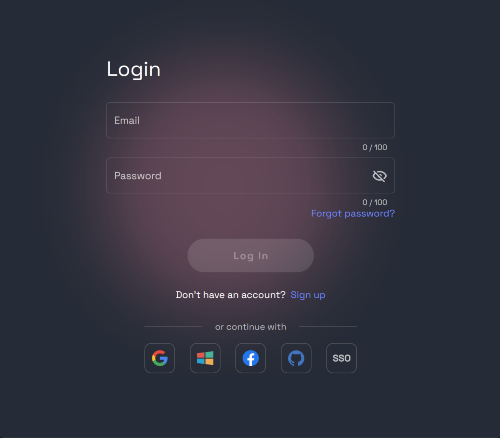
Navigate to the RunDiffusion Platform.
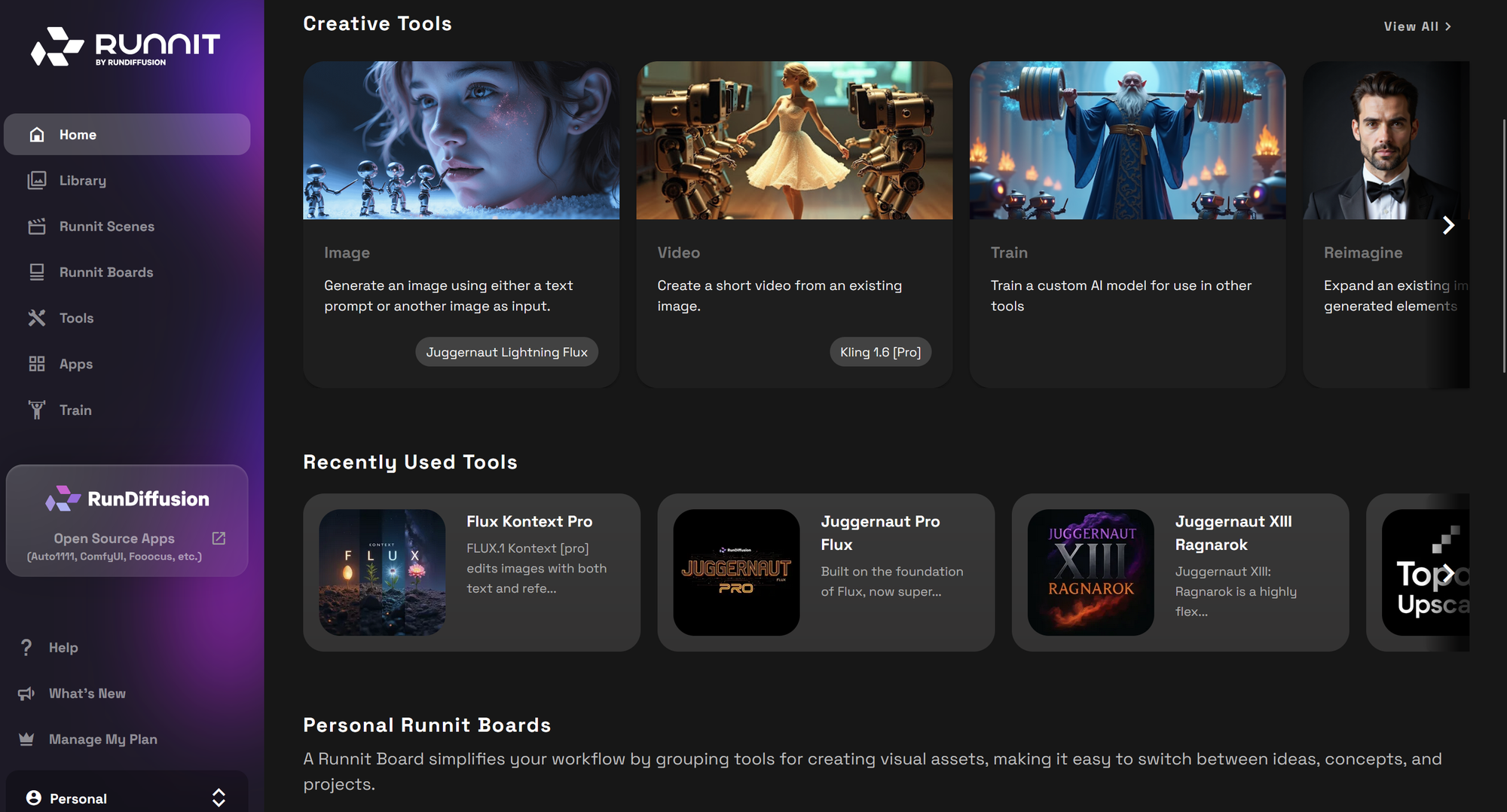
Click on Tools on the left Side Bar.
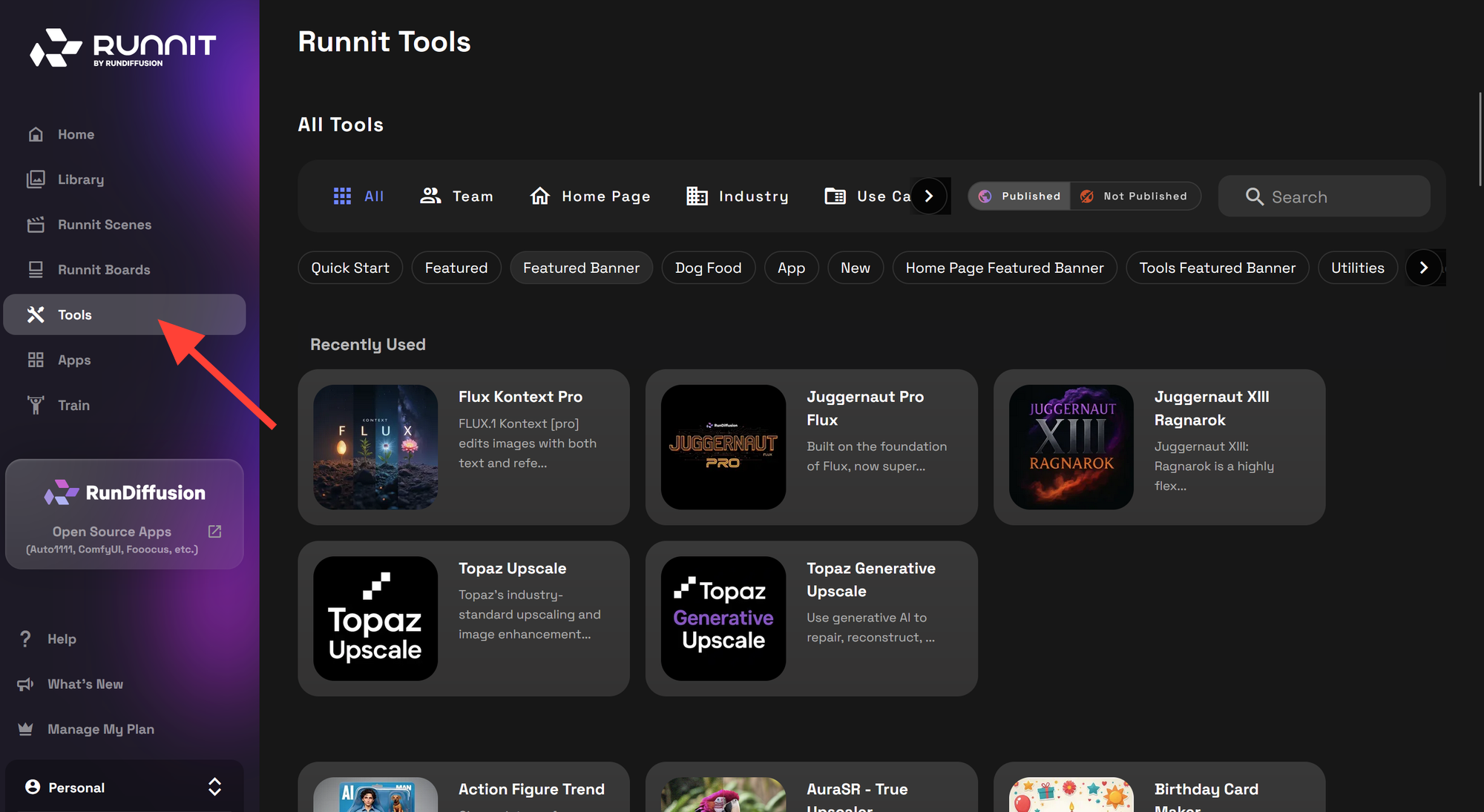
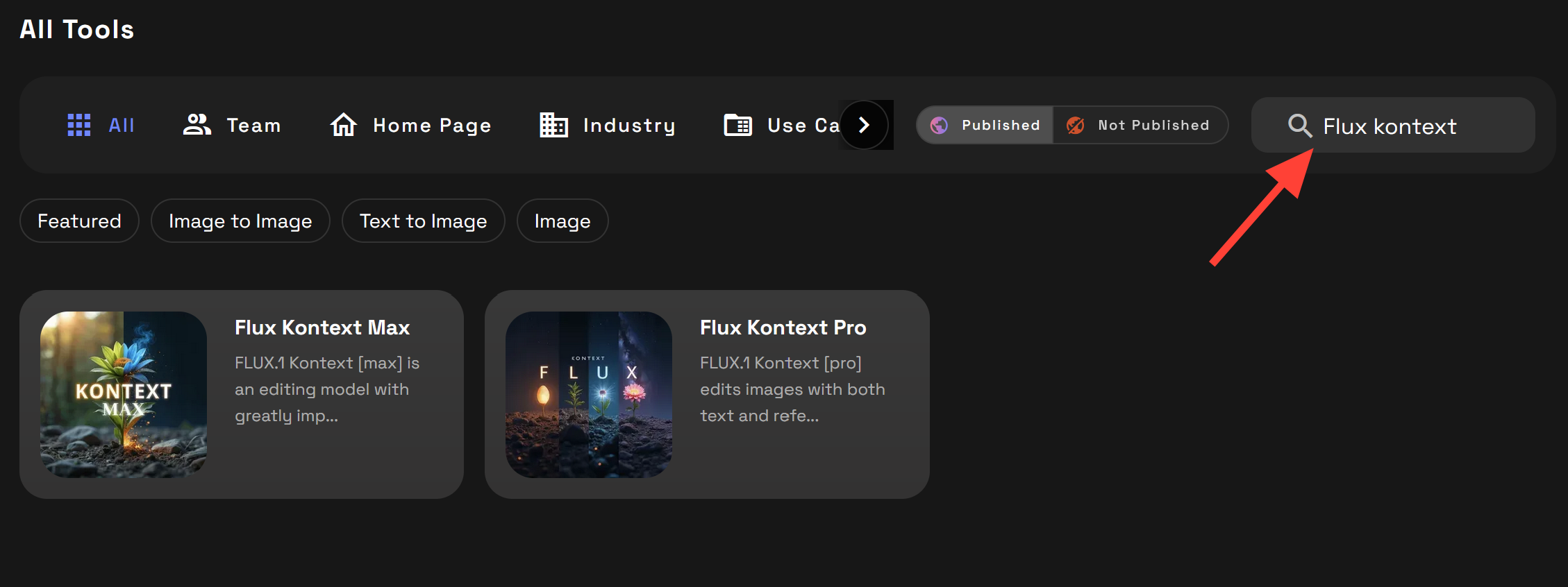
Search for Flux Kontext. Then click on Flux Kontext Max or Flux Kontext Pro.
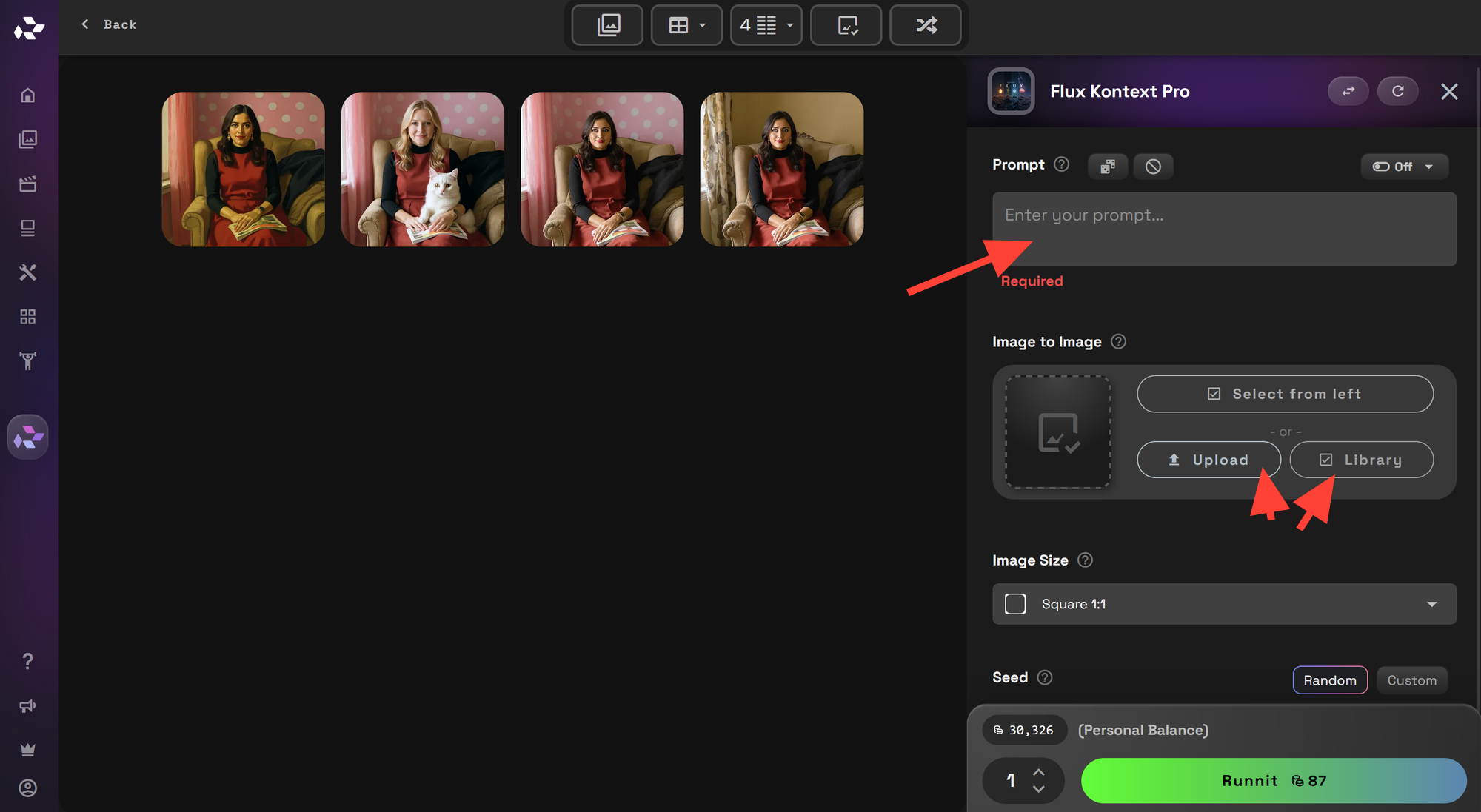
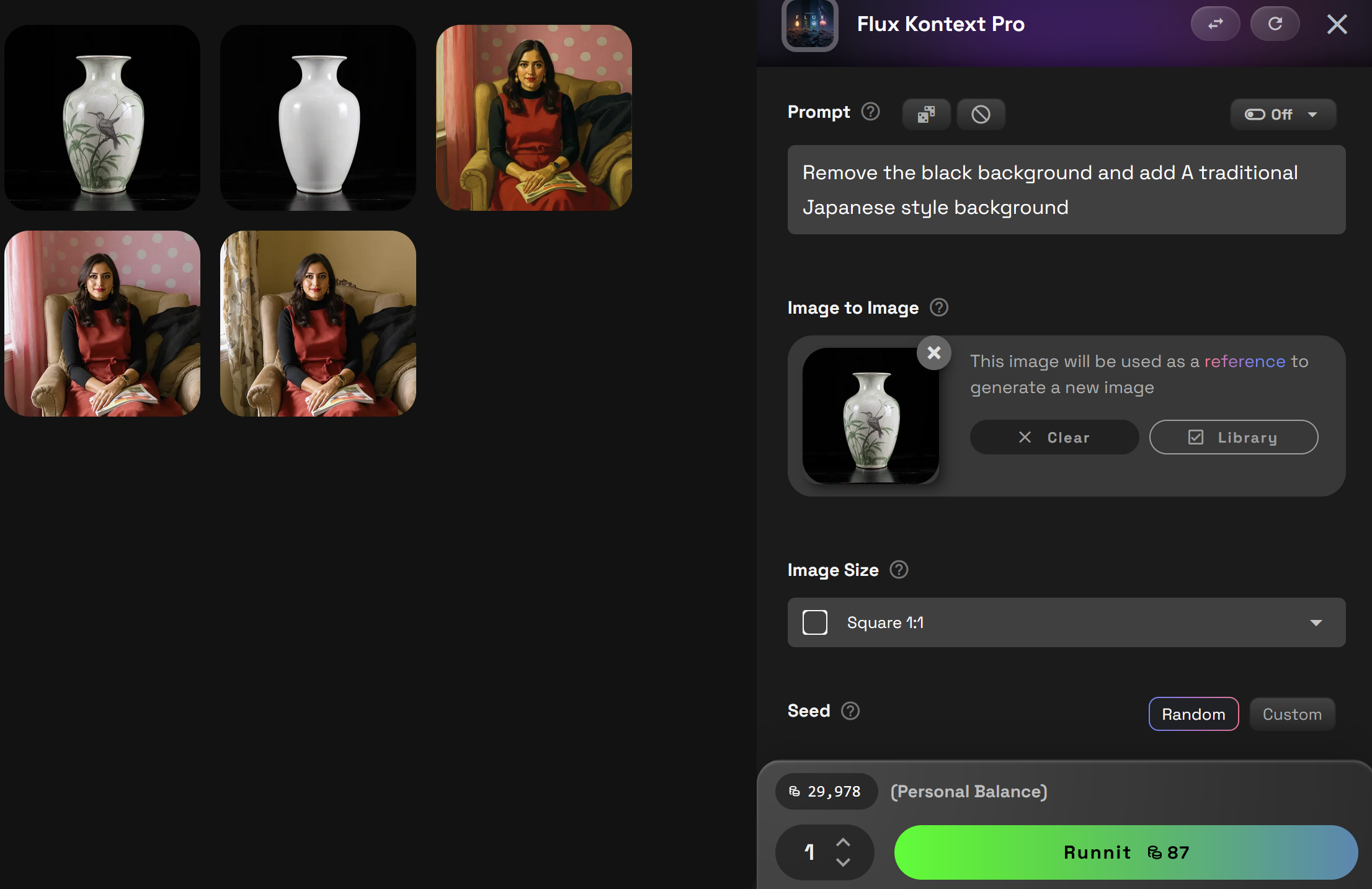
Write a prompt to create your initial image or Upload/Select an image from your library then enter a prompt.
Select Generate to create your new image.
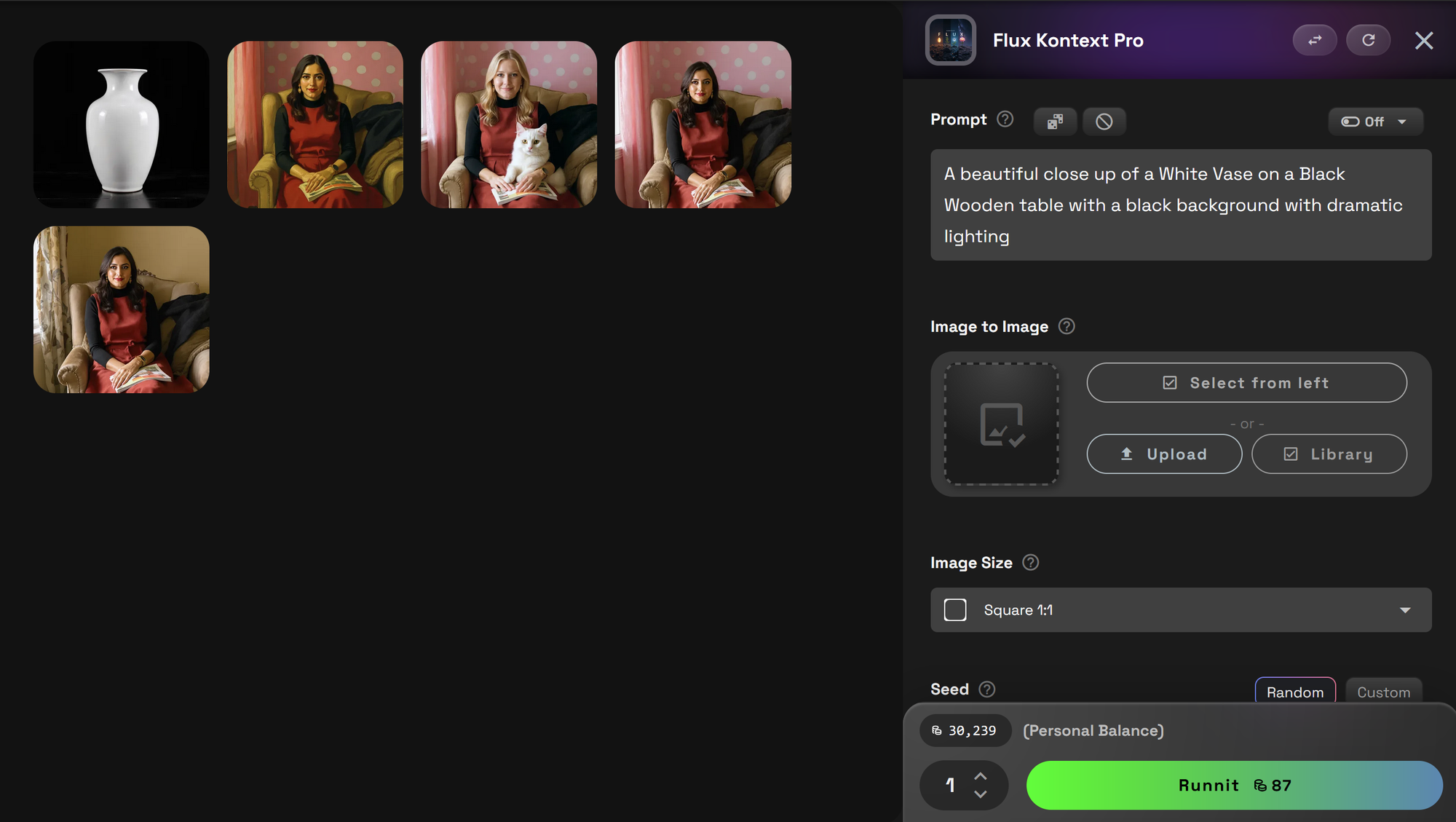
Editing our new creation. Click Select from Left and click on our image.
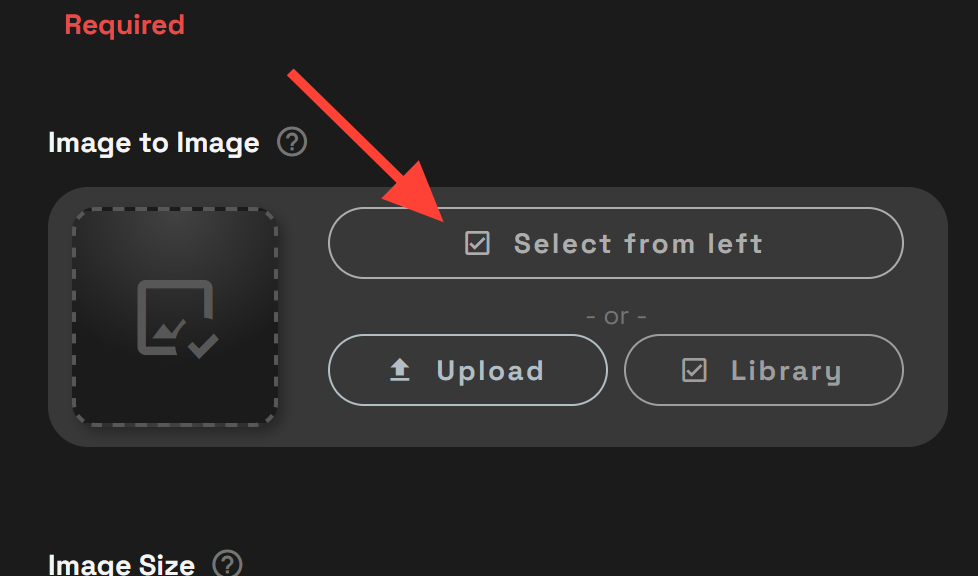
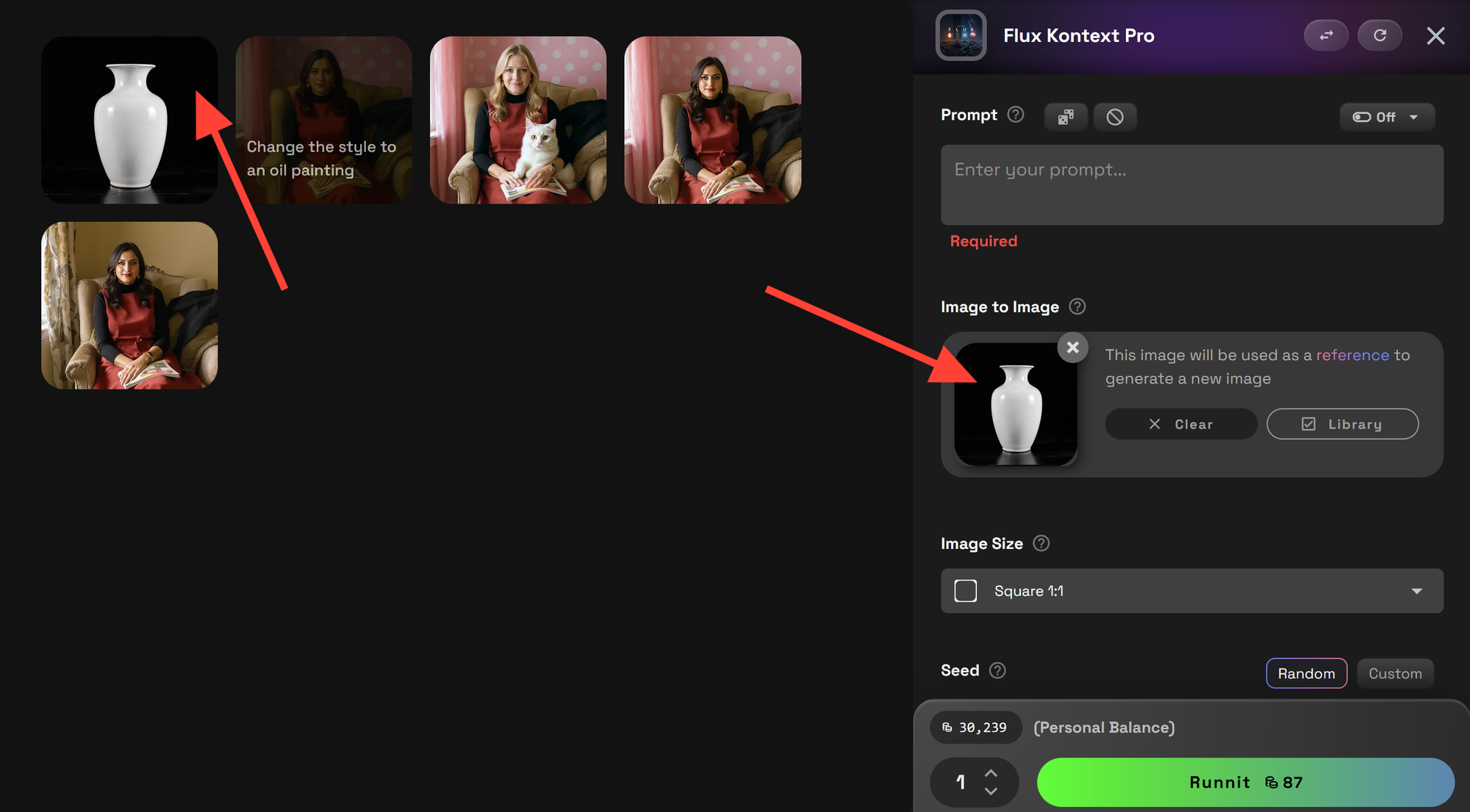
With our image selected we can now direct the changes by entering a new prompt. Then click Generate to render your image.
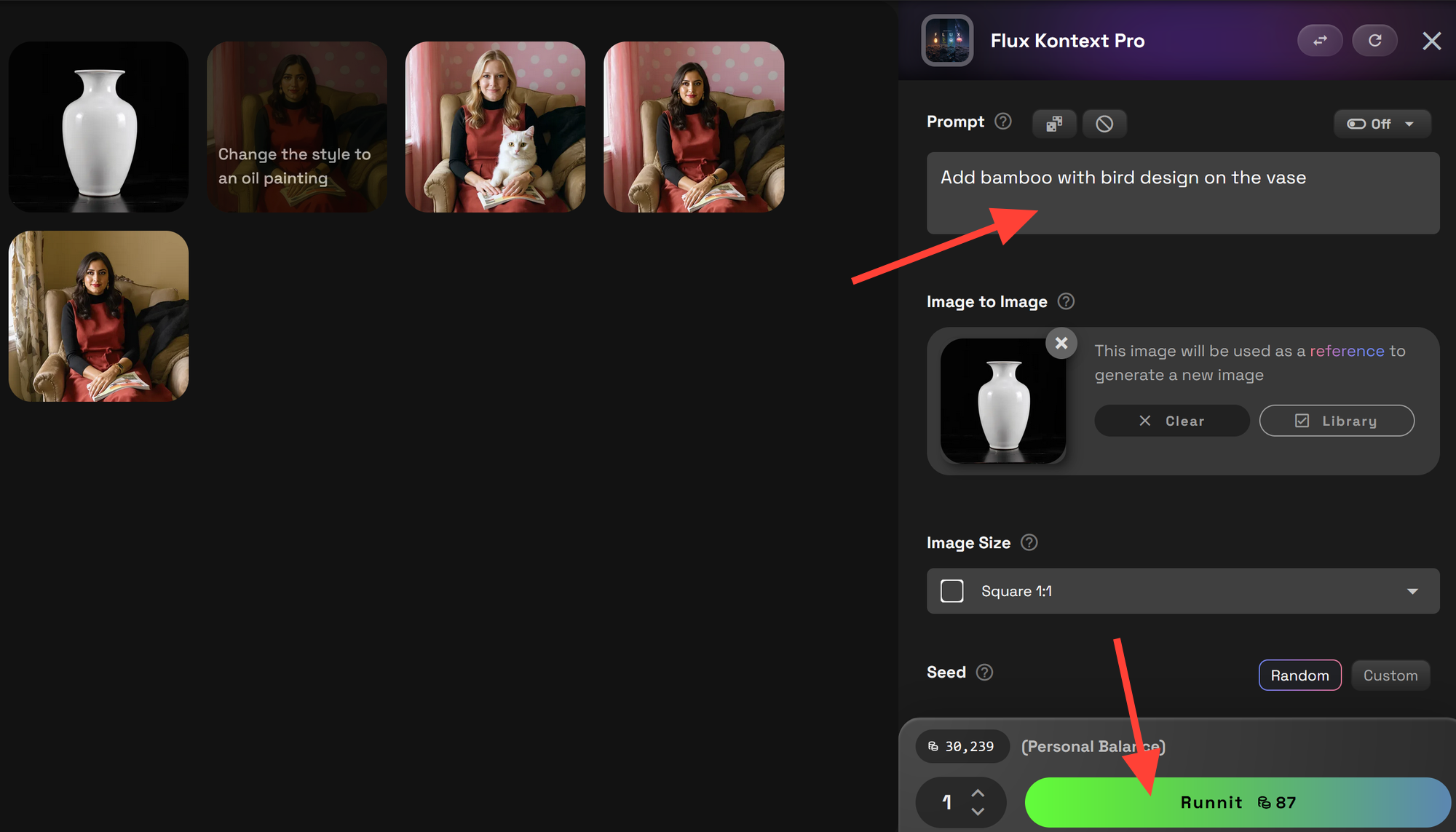

The new image has a nice design. If we want to edit it further we can click Clear. Then click on the new vase.
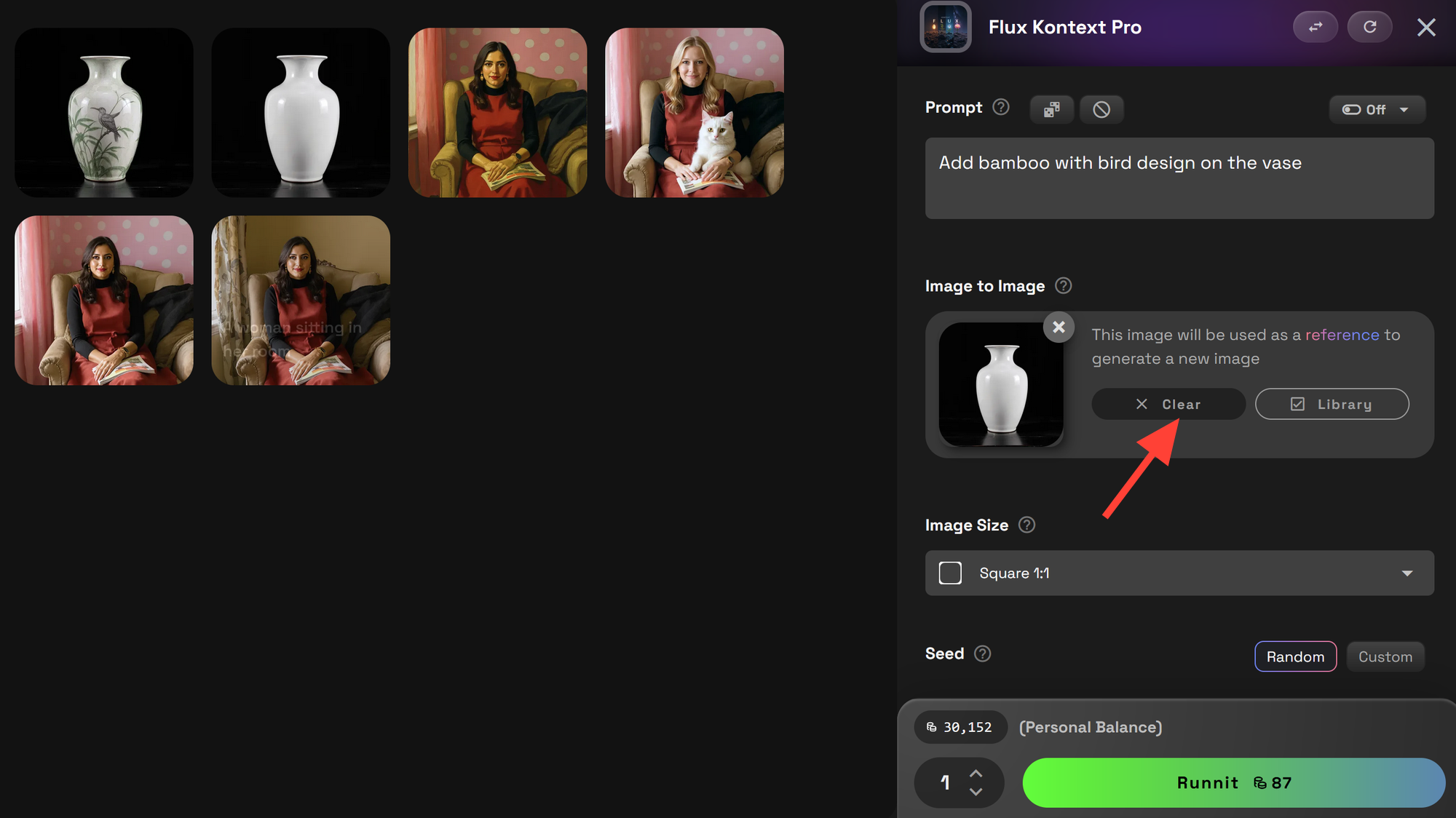
We now enter a new prompt with the new image selected. Then click Generate.

Best Practices for Using Flux Kontext
- Be Specific: Clearly state the desired change, e.g., replace the sky with a sunset.
- Use Direct Commands: Utilize action verbs like add, remove, or change for clarity.
- Preserve Elements: Specify what should remain unchanged, such as keep the original composition.
- Iterate Gradually: For complex edits, make changes step-by-step to maintain quality.
Explore More with RunDiffusion
Enhance your creative projects by integrating Flux Kontext with other tools available on the RunDiffusion Platform:
Sketch to Render Pro for Architecture | RunDiffusion
Sketch to Render on the RunDiffusion Platform revolutionizes architectural design by transforming sketches into high-quality renders with AI-powered automation. This tool accelerates workflows, enhances client presentations, and integrates seamlessly with existing workflows.
RunDiffusion Team

Inpainting on the RunDiffusion Platform | RunDiffusion
Introduction: Inpainting is a powerful technique for editing images by seamlessly blending new elements into existing visuals, often used for restoring, enhancing, or transforming parts of an image. This guide will walk you through each step to add an Inpainting tool to your workspace, enabling you to apply inpainting tools to your projects with ease. Step-by-Step Guide to Adding an Inpainting Tool Step 1: Go to the RunDiffusion Platform * Start by opening the RunDiffusion Platform from your main dashboard
RunDiffusion Team
SVG Generator on the RunDiffusion Platform | RunDiffusion
Overview The SVG Generator on the RunDiffusion Platform is a powerful tool that allows users to create Scalable Vector Graphics (SVG) with precision and ease. Whether you’re designing icons, web elements, or intricate vector illustrations, this tool provides a seamless way to generate high-quality SVGs directly within the RunDiffusion Platform. Why Use the SVG Generator? SVG files are widely used for web and graphic design because they are scalable without losing quality. The SVG Generator on the RunDiffusion Platform simplifies the crea
RunDiffusion Team