
Face swapping in the cloud has never been easier. Whether you're creating character art, fixing a photo, or experimenting with AI, the FaceSwap app on the RunDiffusion Platform (Formerly Runnit Platform) gives you fast, professional-grade results—all from your browser. In this guide, we’ll walk you through opening the app, uploading your images, and customizing your settings for perfect swaps.
🚀 How to Open the FaceSwap App on the RunDiffusion Platform
Follow these steps to launch the FaceSwap app on the RunDiffusion Platform:
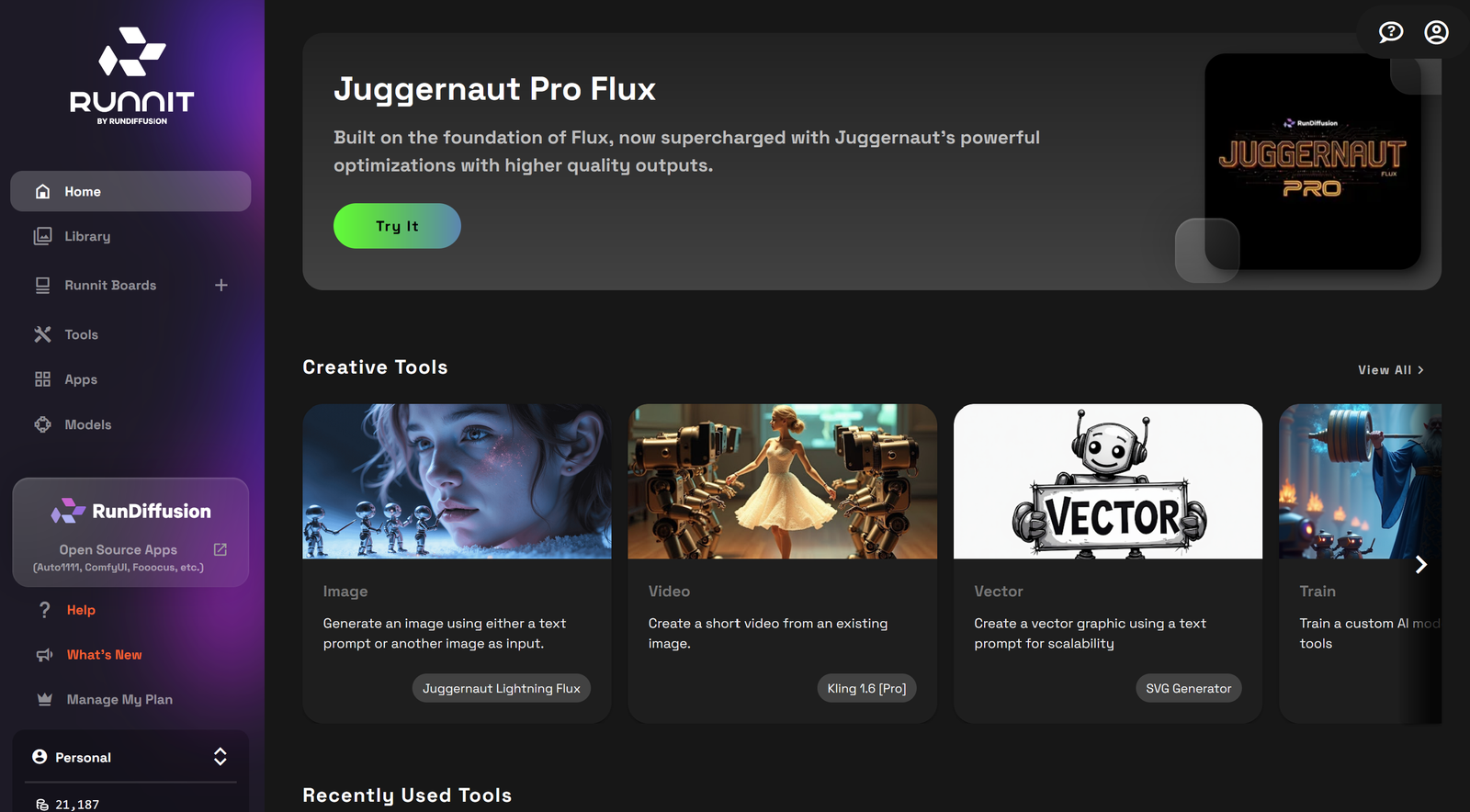
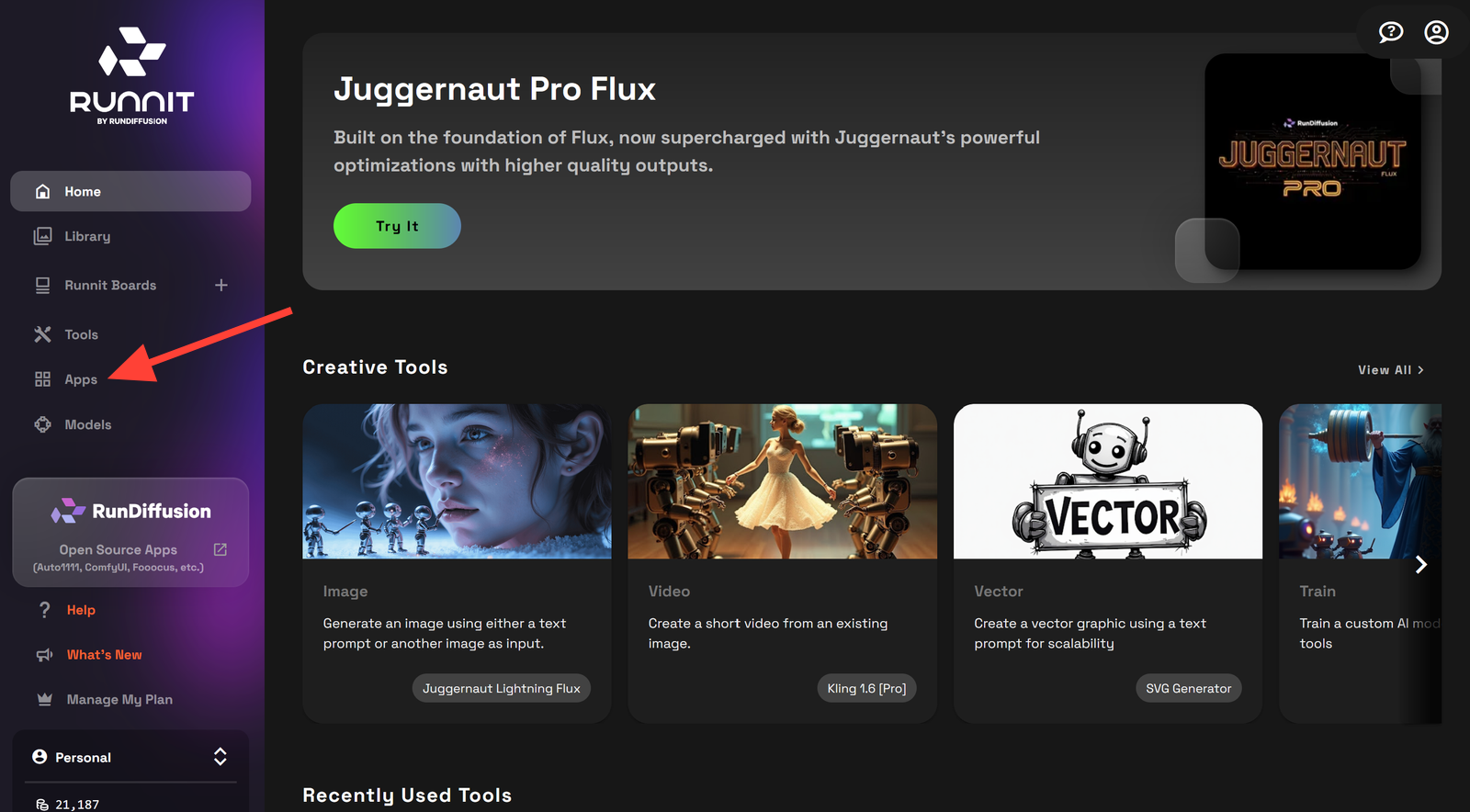
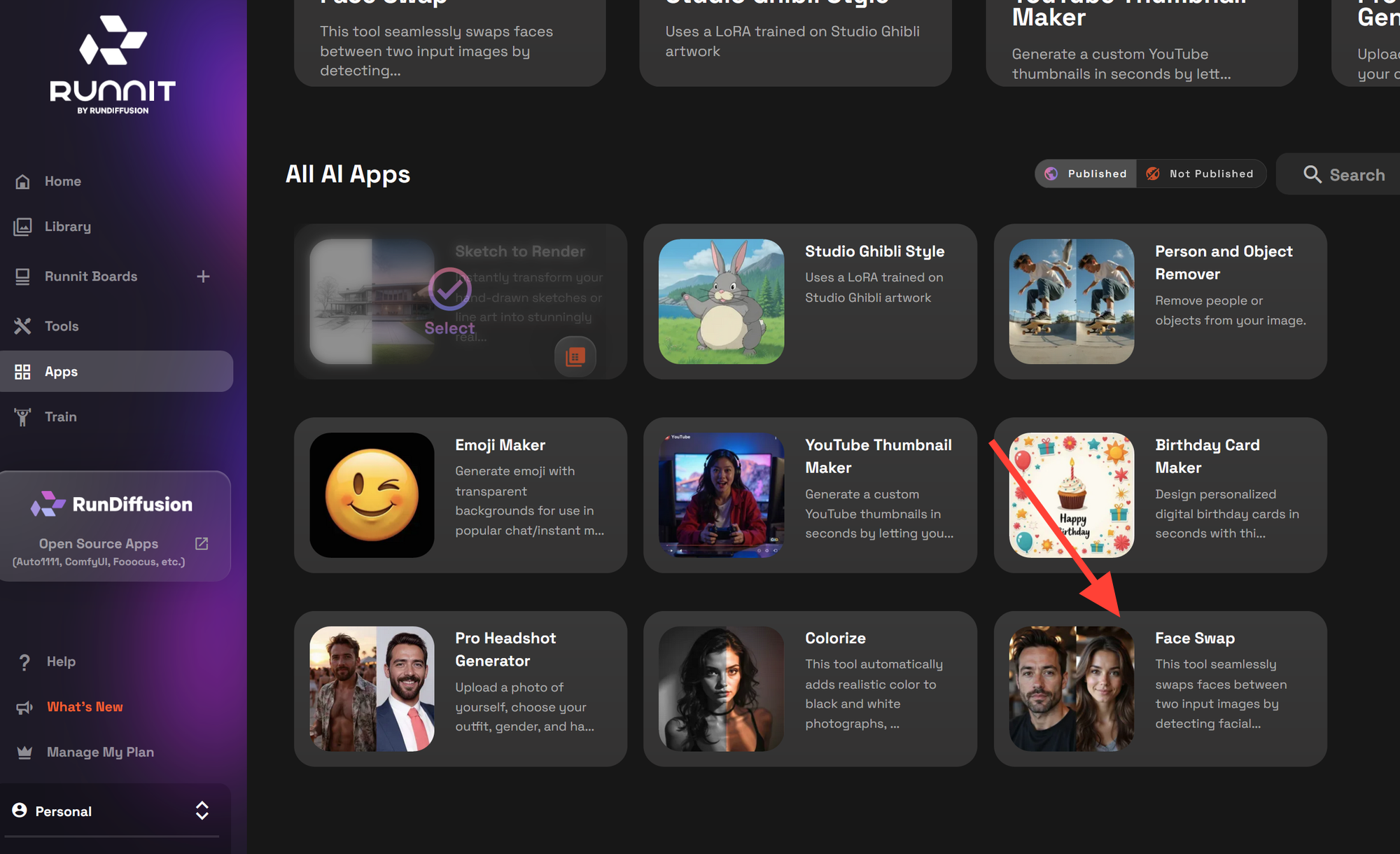
Click on Apps on the left side of the UI
Find FaceSwap in the available apps tiles and Click on FaceSwap.
Using the Face Swap App
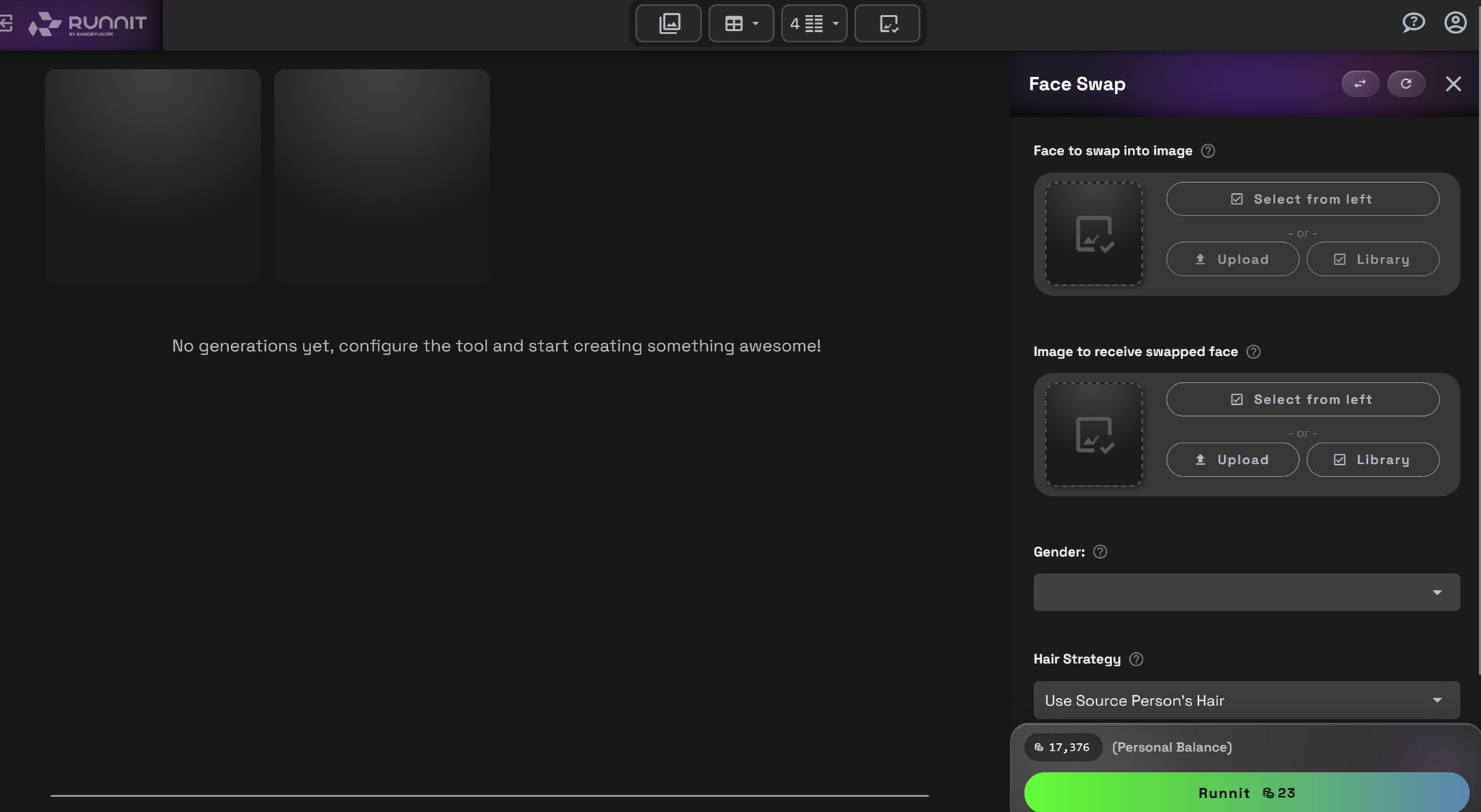
1. Face to Swap Into Image
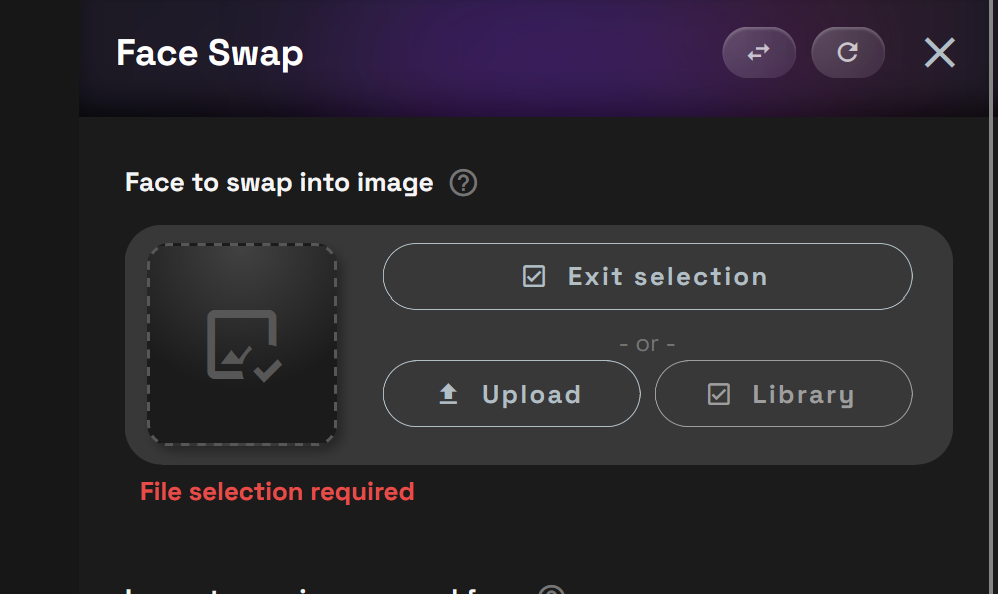
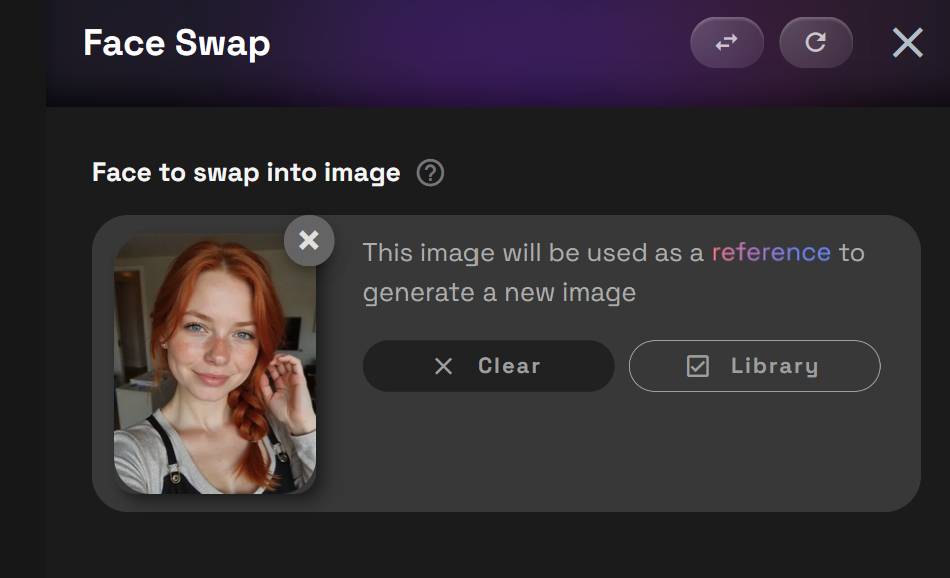
This is the source face — the person whose face will be placed into another image. Choose an image.
- Select from left (if you have existing generations)
- Upload from your device
- Use Library to select a previously uploaded or generated image.
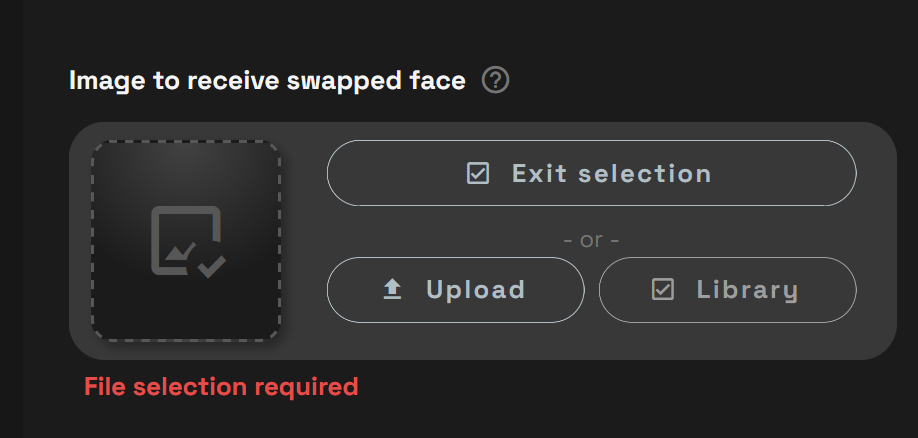
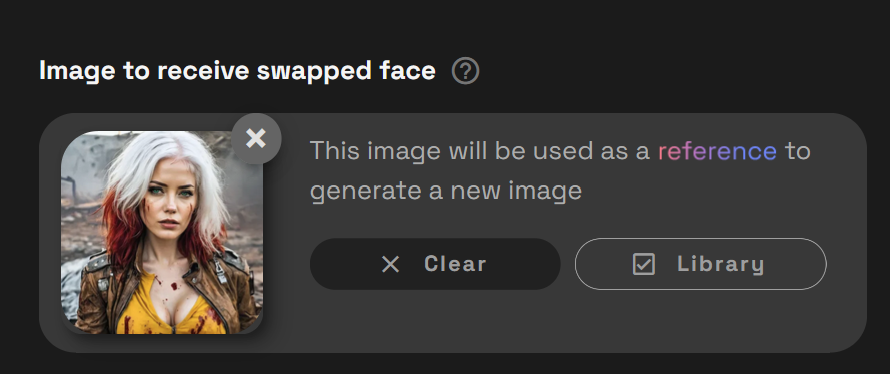
2. Image to Receive Swapped Face
This is the target image — the image that will receive the new face.
Choose a target image.
- Select from left
- Upload
- Use Library
💡 Tip: Choose high-resolution images for best results.
Gender
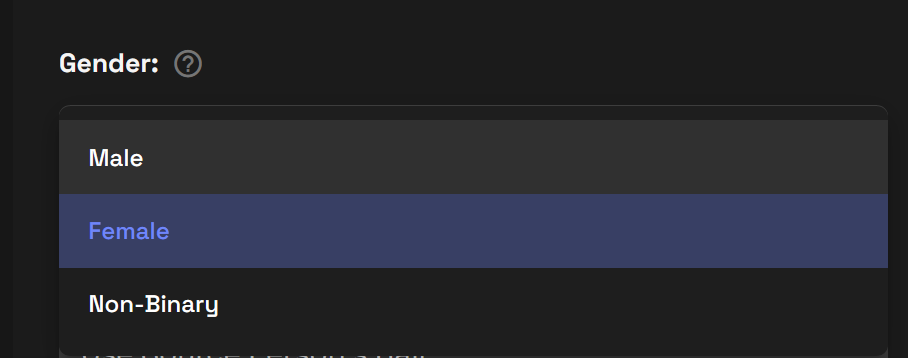
Choose the gender of the source face:
- Male
- Female
- Non-Binary
This setting helps optimize facial structure and alignment.
Hair Strategy
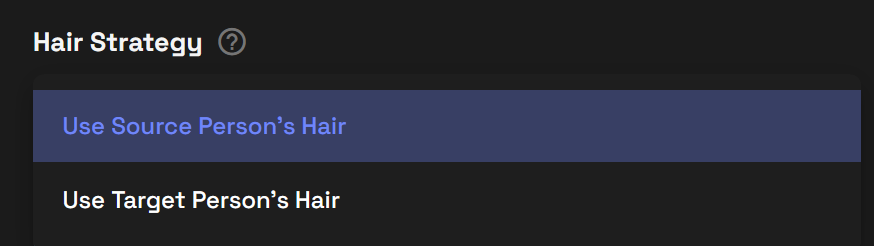
Choose how the app handles the hair during the swap. These are general guidance and the AI may take liberties.
- Use source person’s hair – full face and hair from the source is transferred. The hair transfered may not align perfectly with the original.
- Use target person’s hair – only the face is swapped, original hair remains
Optional: Upscale Generation
Turn this on if you want a higher-resolution final image.

Generate your image
Click Run to render your image.
Examine your results. You can see in this instance the AI took some liberties with their hair.
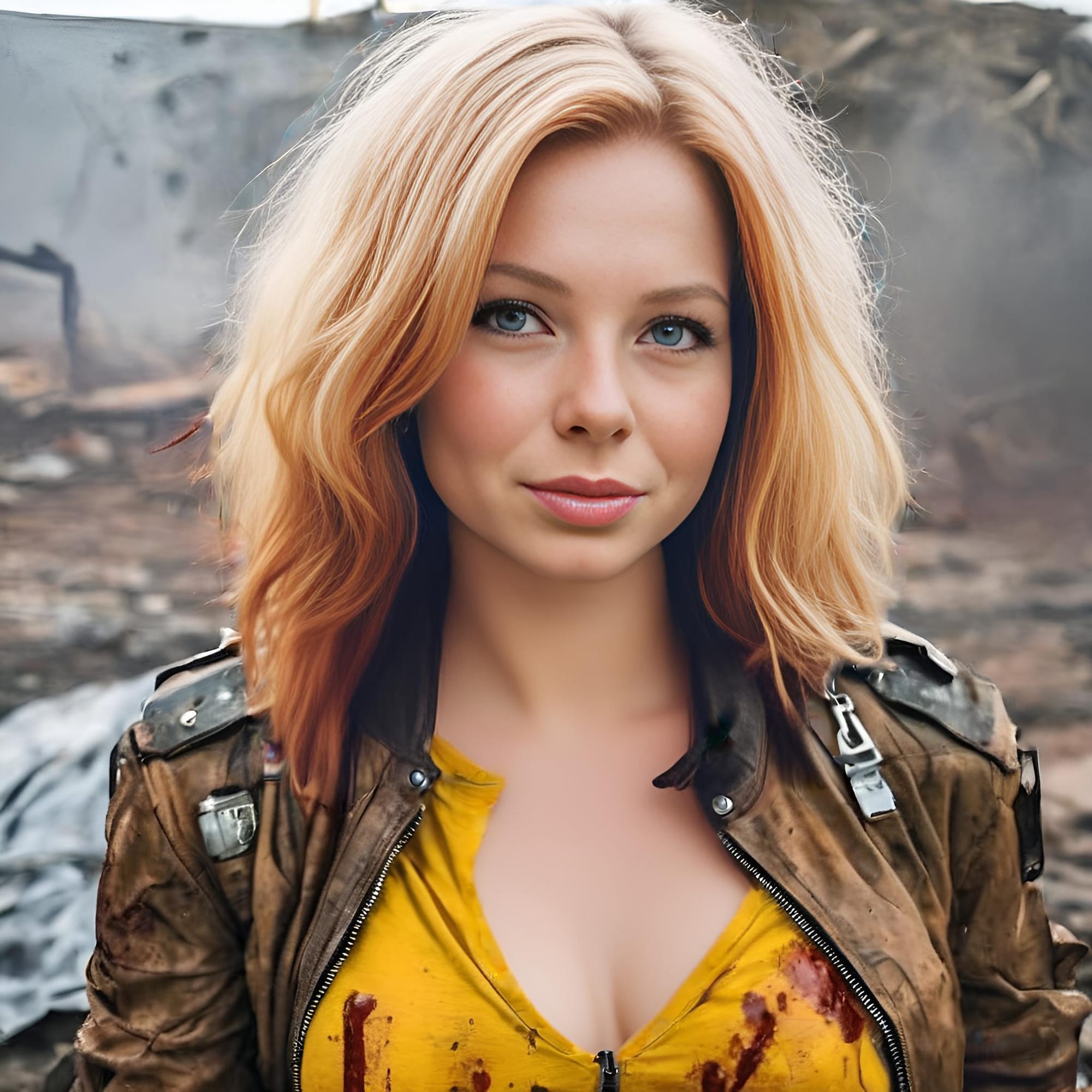
Another example
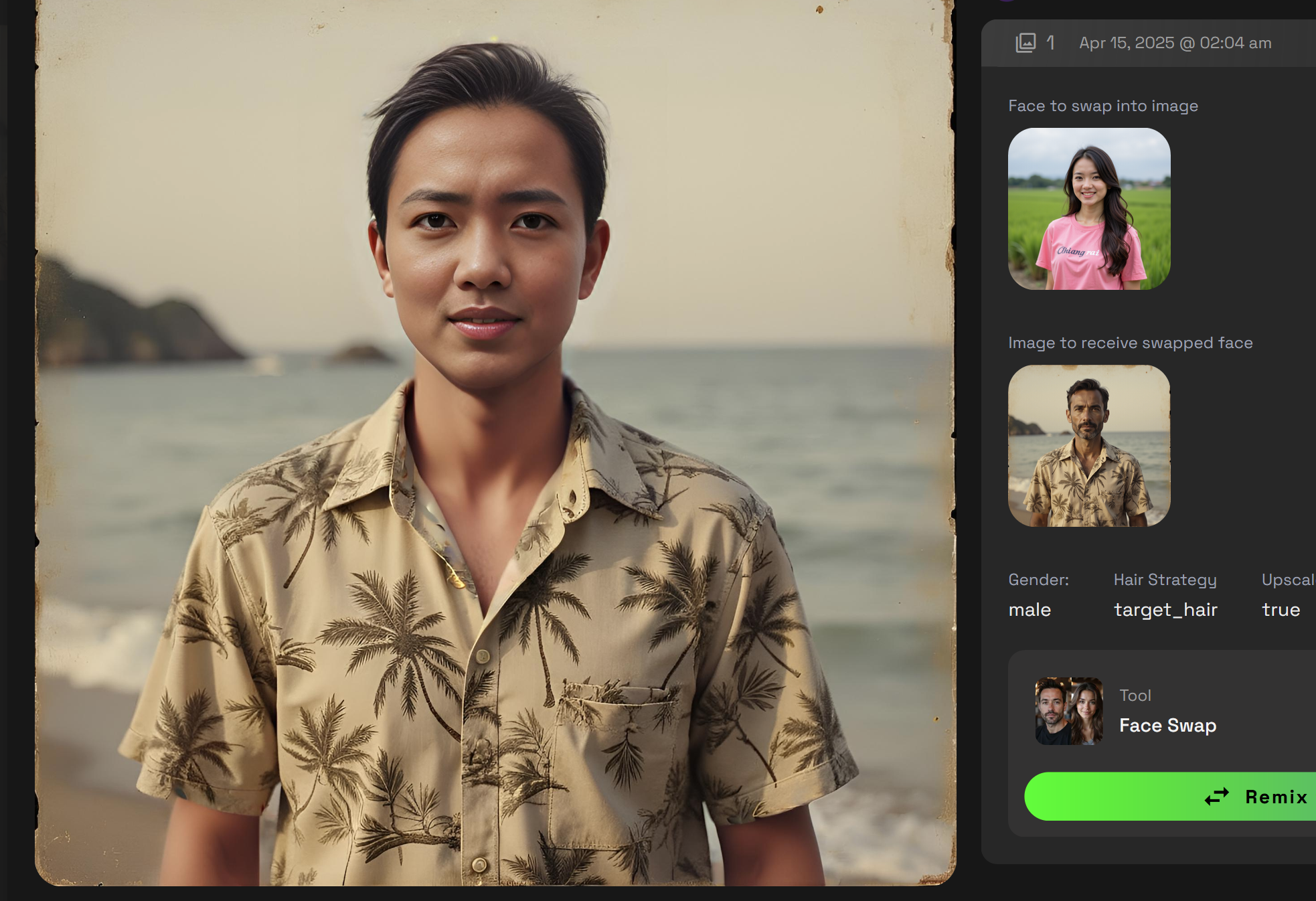
The Faceswap app on the RunDiffusion Platform simplifies the face swap process. If you need more control try Facefusion in our opensource applications.
Bonus: Expand Your AI Workflow
Use your FaceSwap outputs alongside other apps in the RunDiffusion ecosystem:
- Touch up or change background elements.
Inpainting on the RunDiffusion Platform | RunDiffusion
Introduction: Inpainting is a powerful technique for editing images by seamlessly blending new elements into existing visuals, often used for restoring, enhancing, or transforming parts of an image. This guide will walk you through each step to add an Inpainting tool to your workspace, enabling you to apply inpainting tools to your projects with ease. Step-by-Step Guide to Adding an Inpainting Tool Step 1: Go to the RunDiffusion Platform * Start from your main dashboard
RunDiffusion Team

- Generate animations with AI Videos.
AI Videos on the RunDiffusion Platform | RunDiffusion
Getting Started with AI Video Creation Generative AI has opened up incredible opportunities for creating stunning videos with ease. With RunDiffusion and Video Tools users can generate stunning, AI-driven videos with just a few steps. Whether you’re a content creator, a business professional, or simply curious about exploring AI-generated media, this guide will help you master the basics of video creation with RunDiffusion. Let’s get started! Step 1: Log Into RunDiffusion Begin by logging into your RunDi
RunDiffusion Team

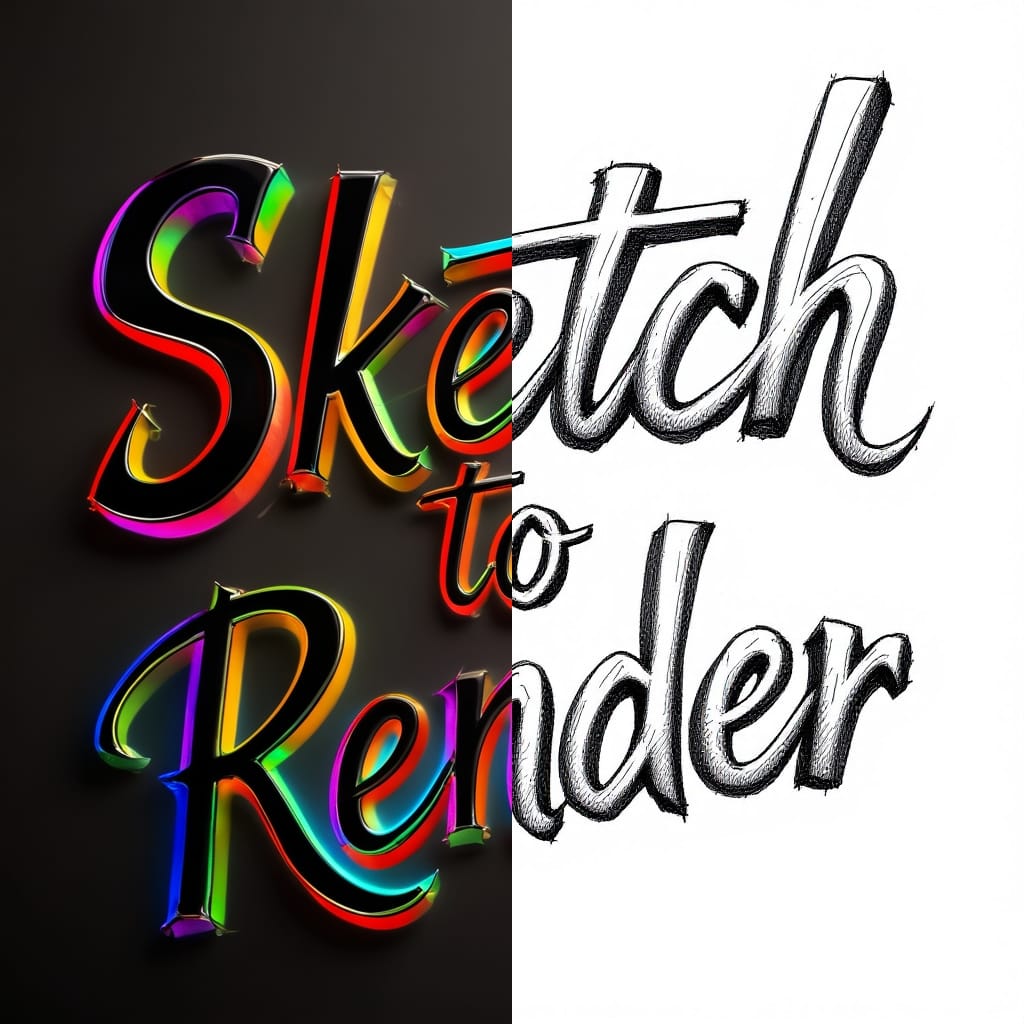
- Apply art styles using Sketch to Render.
Sketch-to-Render AI Guide | RunDiffusion
Sketch to Render on the RunDiffusion Platform turns simple sketches into detailed artwork with ease. Exclusive to Enterprise users, it streamlines art creation without complex workflows. This guide covers setup, optimizing settings, and refining results to transform sketches into high-quality finished pieces.
RunDiffusion Team
Final Thoughts
FaceSwap on the RunDiffusion Platform is a powerful cloud-based tool designed for creators who want quick, high-quality face replacement without the hassle of local installs or GPU setup, or learning complex applications.
FAQ: FaceSwap App on the RunDiffusion Platform
What is the FaceSwap App on the RunDiffusion Platform?
FaceSwap is a cloud-based tool that lets you replace one person’s face with another directly in your browser. It’s designed for fast, high-quality, professional-grade swaps without installing software or configuring hardware.
Who is FaceSwap for?
It’s ideal for creators, designers, photographers, character artists, and anyone experimenting with AI-driven facial editing. It’s especially useful for quick concepting, photo corrections, and character development.
How do I open the FaceSwap App?
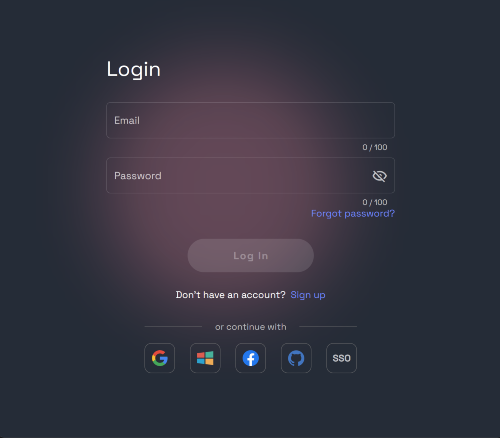
- Log in at app.rundiffusion.com/login
- Go to the RunDiffusion Platform
- Click Apps on the left sidebar
- Select FaceSwap from the app tiles
What images do I need for a face swap?
You need two images:
- Face to Swap Into Image: the source face you want to place into another image
- Image to Receive Swapped Face: the target image that will receive the new face
You can upload images, use your library, or select from recent generations.
Does image quality matter?
Yes. Higher-resolution images produce smoother alignment, better blending, and more accurate facial structure.
What does the Gender setting do?
You can choose Male, Female, or Non-Binary. This helps the model optimize structural alignment and improve realism during the swap.
What does the Hair Strategy option control?
You can choose:
- Use source person’s hair: transfers the face and the source hair (may not align perfectly)
- Use target person’s hair: keeps the original hair and swaps only the face
These are guidelines; the AI may interpret creatively depending on the image.
Can I upscale the final result?
Yes. Turn on the optional Upscale toggle to generate a higher-resolution output.
How do I generate my swapped image?
Click Run after selecting your inputs. Your result will appear in the session view, where you can inspect and download it.
Why did the hair or lighting change unexpectedly?
FaceSwap uses AI to reconstruct the blended face. In some cases, it may take creative liberties with hair, lighting, or fine details. If you need more granular control, you can use Facefusion in the RunDiffusion open-source applications.
Can I combine FaceSwap with other tools on RunDiffusion?
Yes. You can bring your results into Boards on the RunDiffusion Platform
Do I need a GPU or local installs?
No. Everything runs in the cloud on the RunDiffusion Platform. Just upload your images and generate.
What’s the main benefit of using FaceSwap on the RunDiffusion Platform?
Simplicity and speed. You get high-quality, flexible face swaps with minimal effort, all inside the RunDiffusion ecosystem.