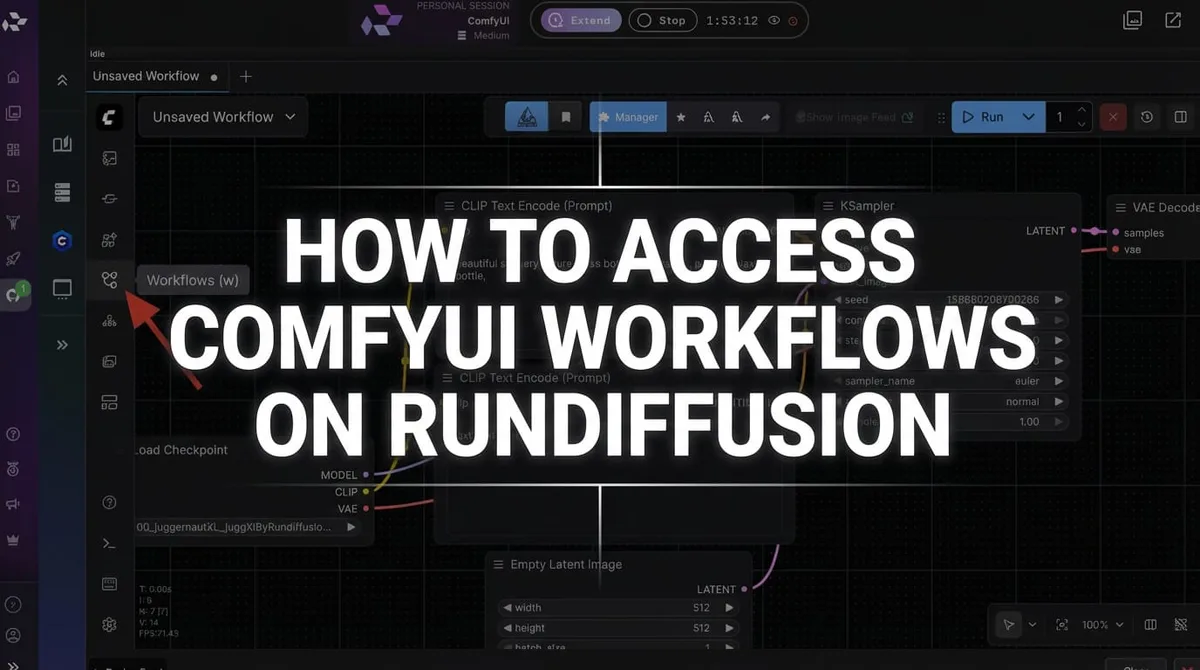
- ComfyUI workflows are node graphs that define image or video generation pipelines.
- RunDiffusion runs ComfyUI on cloud GPUs, so you can use workflows without local setup.
- The RD Workflows folder provides curated workflows that are tested on RunDiffusion.
- You can export workflows as JSON files and load your own workflows into future sessions.
RunDiffusion lets you launch ComfyUI in the cloud, open curated RD Workflows, load your own workflow JSON files, and export workflows for reuse without installing ComfyUI or maintaining local GPU hardware.
| At a glance | |
|---|---|
| Tool | ComfyUI |
| Platform | RunDiffusion cloud GPUs |
| Workflow format | JSON |
| Best fit | Node-based image and video pipelines |
Introduction
Accessing ComfyUI workflows on RunDiffusion allows you to work with advanced node-based image and video pipelines without installing or maintaining local hardware. By running ComfyUI in the cloud, you can load workflows, experiment with complex node graphs, and scale your work reliably.
This guide explains how to access, load, download, and manage ComfyUI workflows on RunDiffusion.
What Are ComfyUI Workflows?
ComfyUI workflows are visual graphs made of connected nodes that define how images or videos are generated. Each node performs a specific function, such as loading a model, applying prompts, controlling sampling, or saving outputs.
On RunDiffusion, these workflows run on cloud GPUs, which means:
- no local installation or updates
- consistent performance across sessions
- easy access to popular and custom workflows
If you need help understanding the basic ComfyUI environment, start with ComfyUI Basics.
How to Launch ComfyUI on RunDiffusion
To access workflows, you must first launch a ComfyUI session.
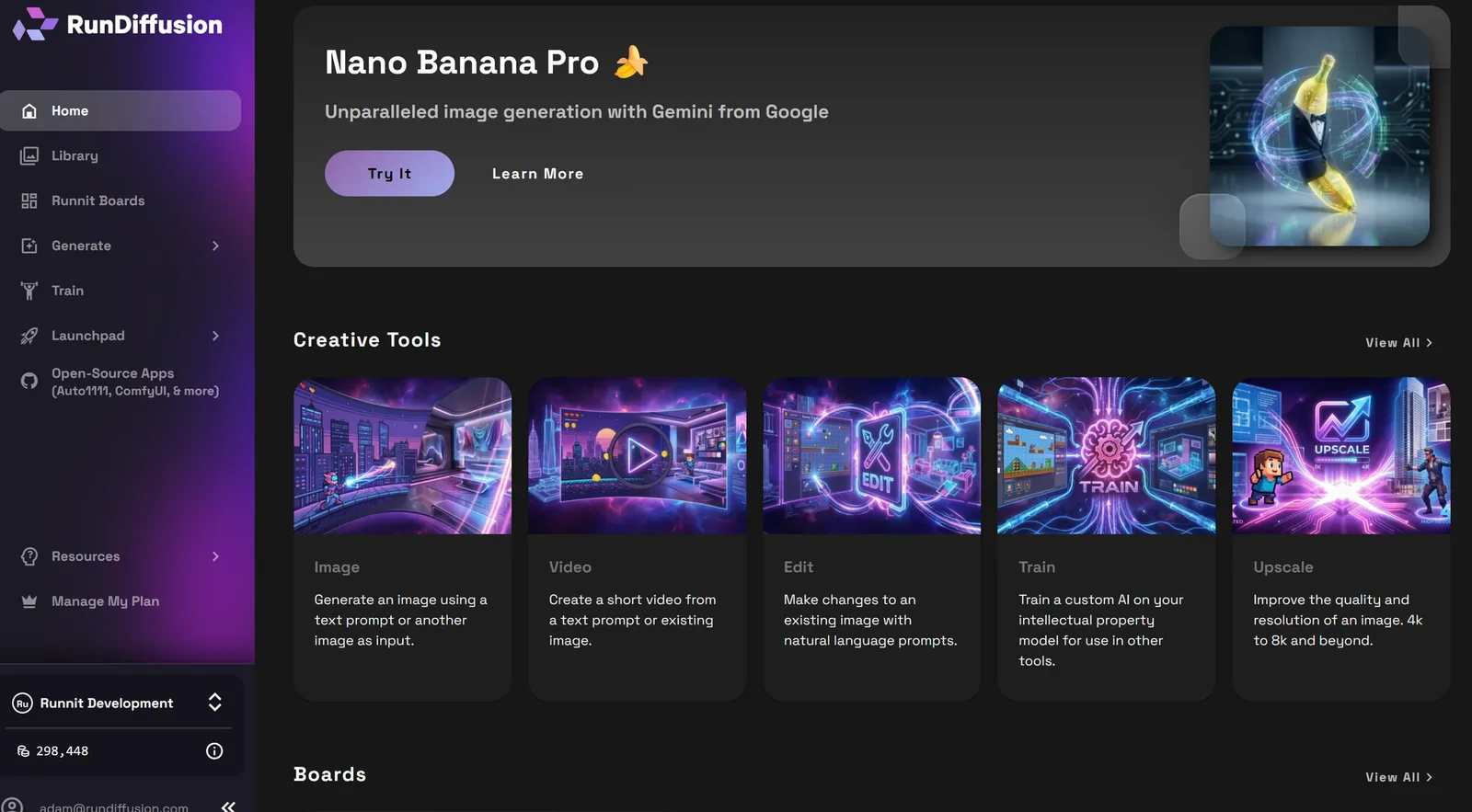
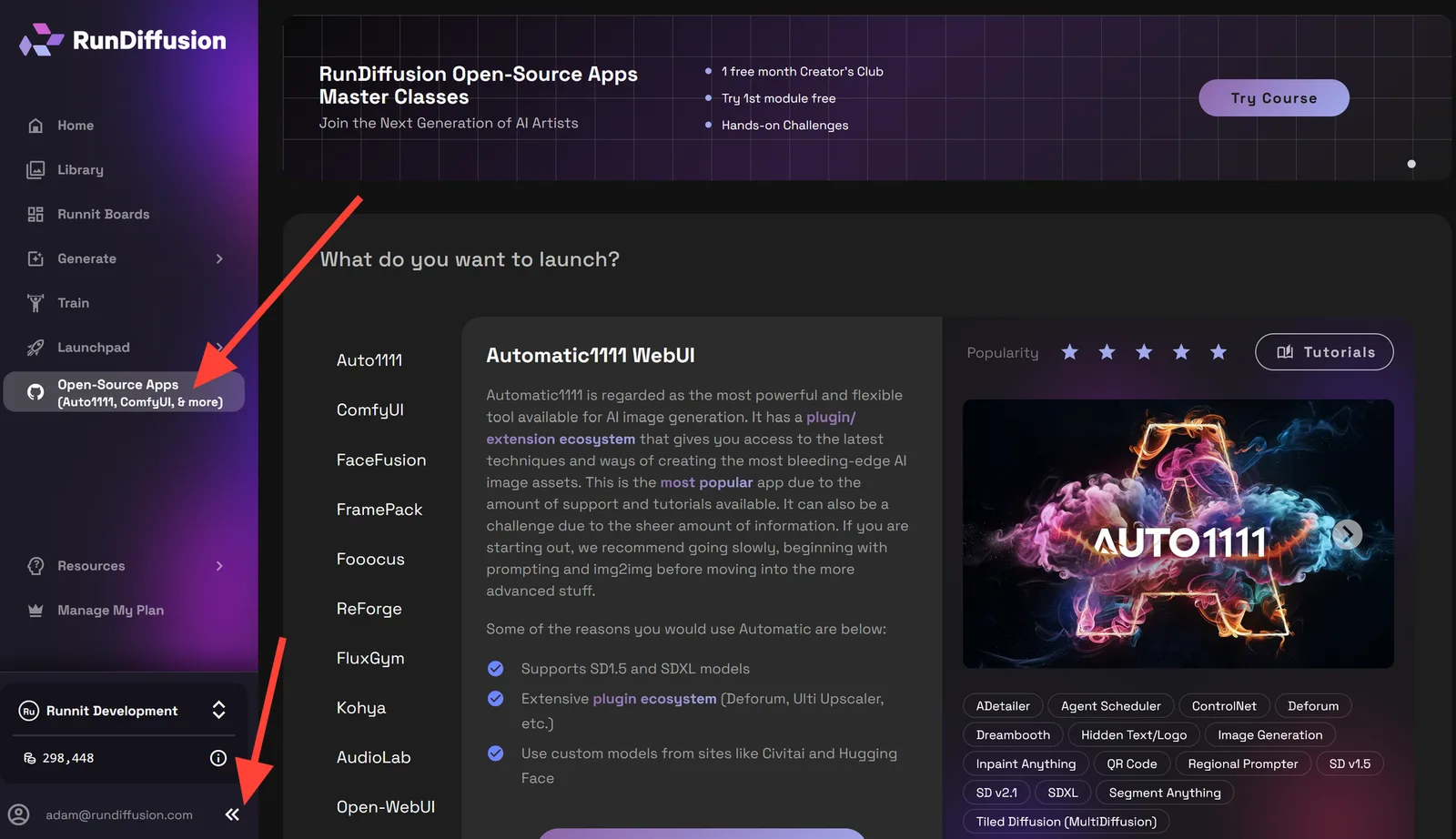
Click OpenSource Apps on the left sidebar. Then click the << symbols to minimize the sidebar.
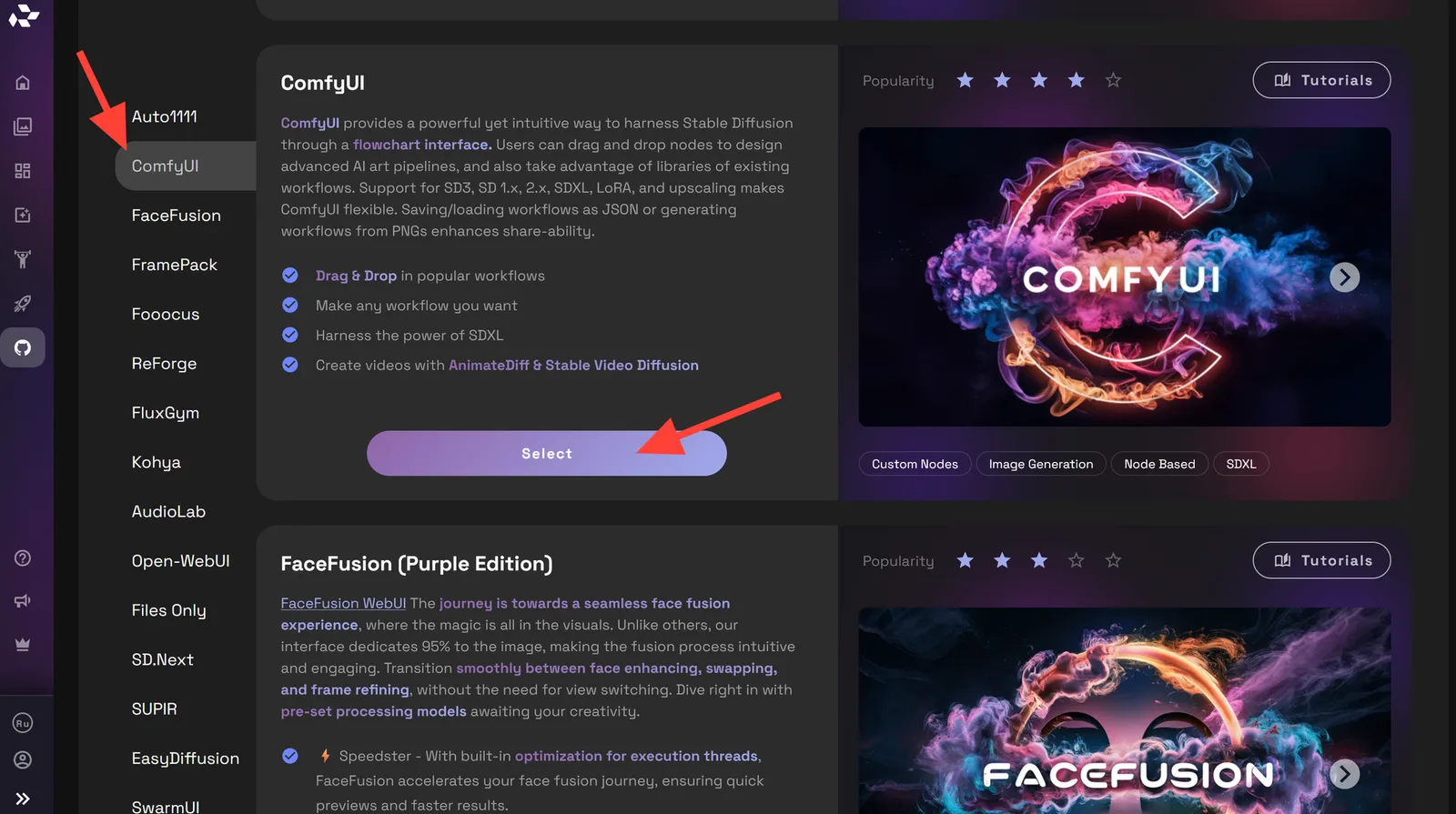
Click ComfyUI, then click Select.
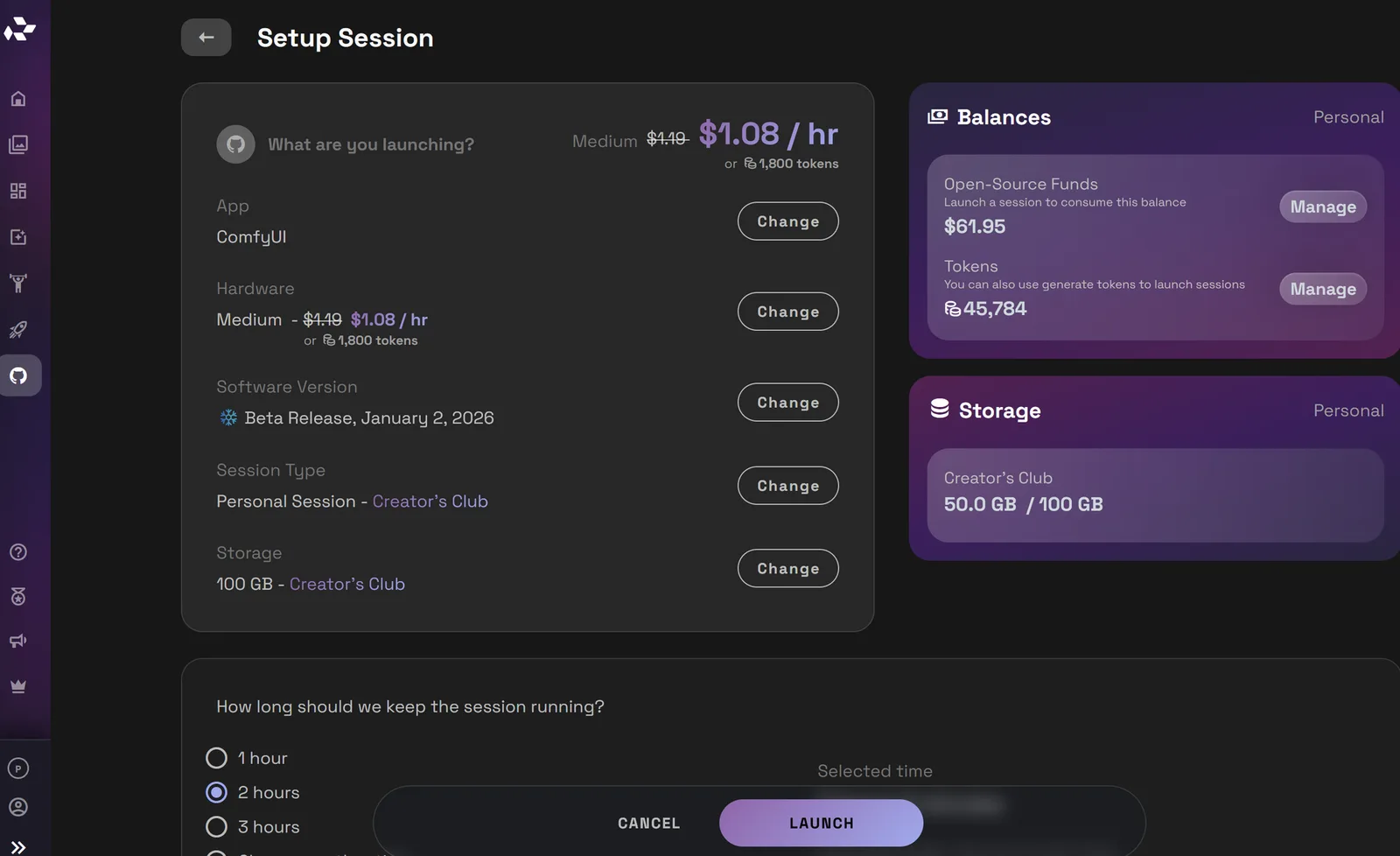
Launch ComfyUI. When you are first exploring, a Small or Medium server is usually enough. If you want to run more GPU-intensive workflows, such as video workflows, use a Large server.
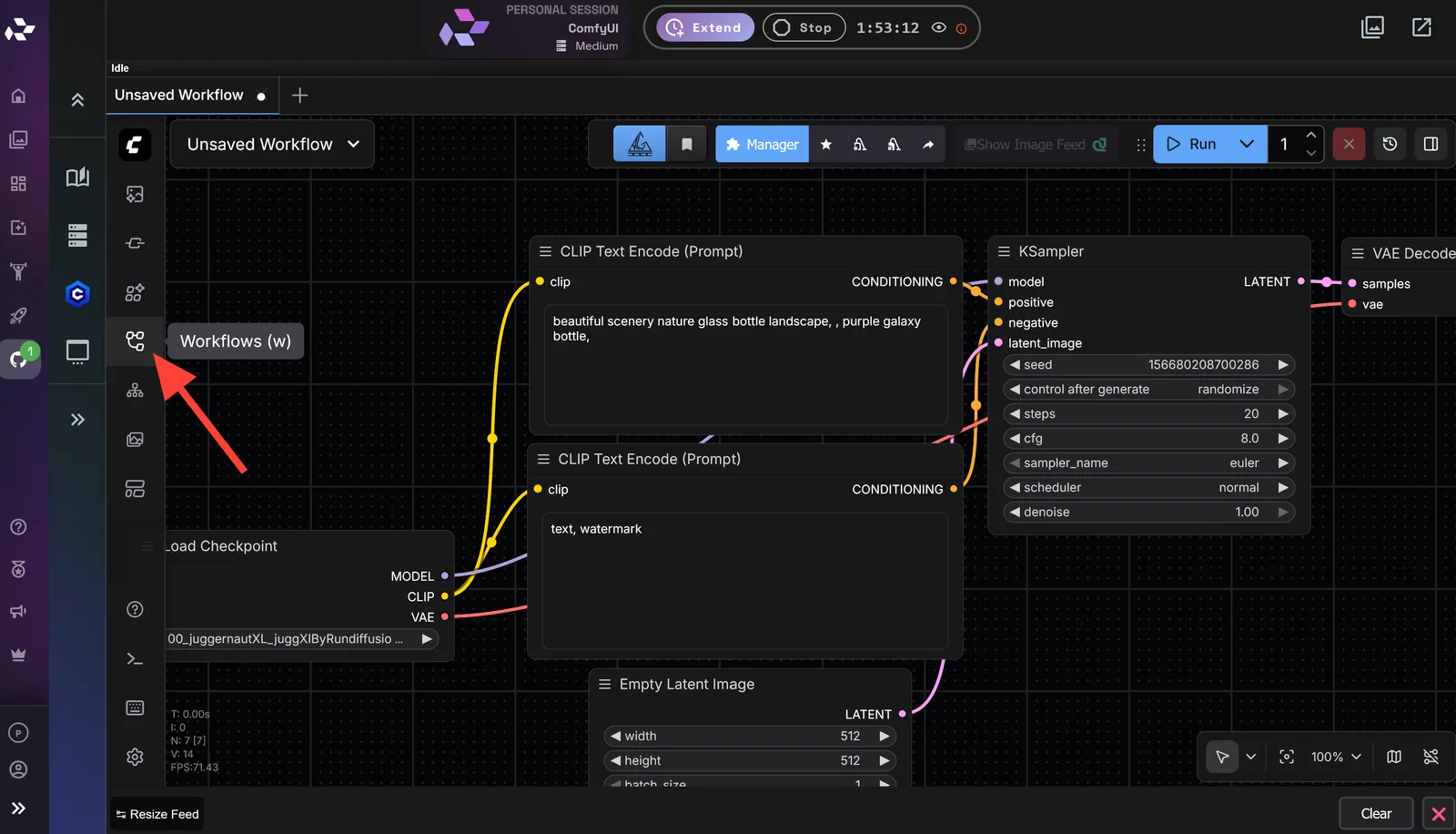
Click the Workflows button.
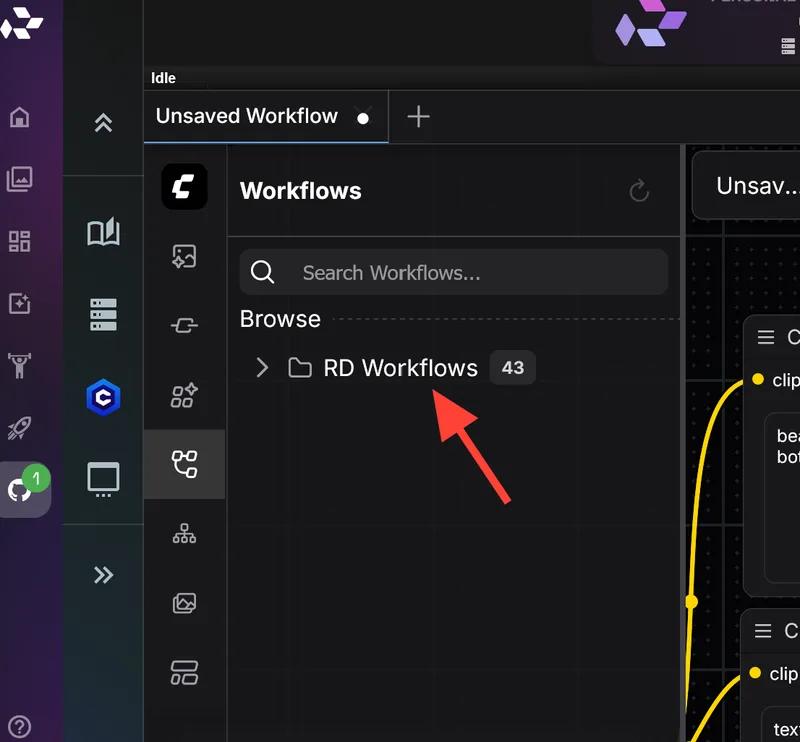
Click the RD Workflows folder.
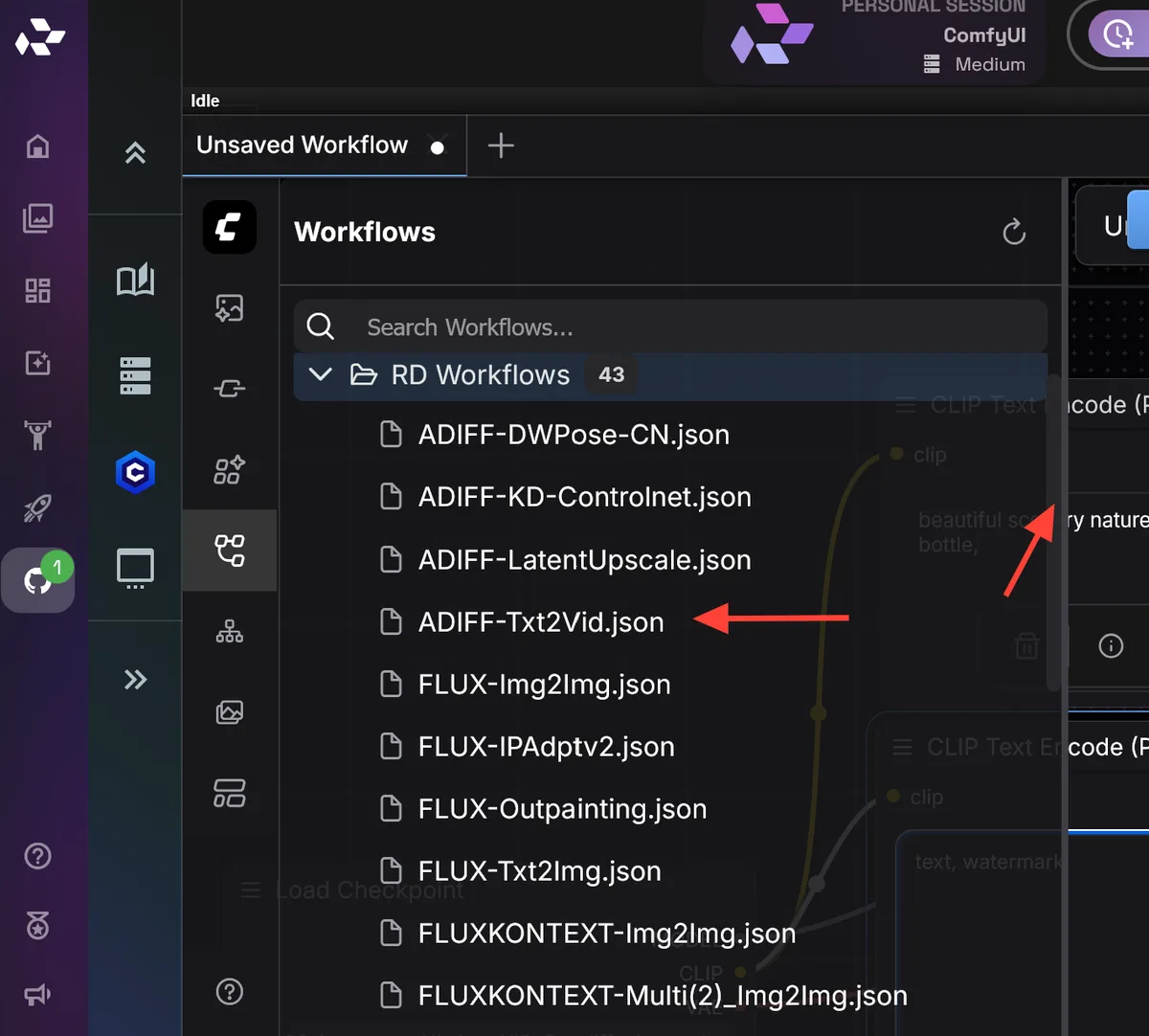
Choose the workflow you want to try. You can use the scrollbar to browse available workflows. You are not limited to these workflows: you can load your own or create your own. The RD Workflows are curated to work on RunDiffusion.
How to Download ComfyUI Workflows on RunDiffusion
If you want to download a ComfyUI workflow, you can export it directly from your RunDiffusion session as a JSON file. This lets you save, share, or reuse your workflow outside the active session.
Steps to Download a ComfyUI Workflow
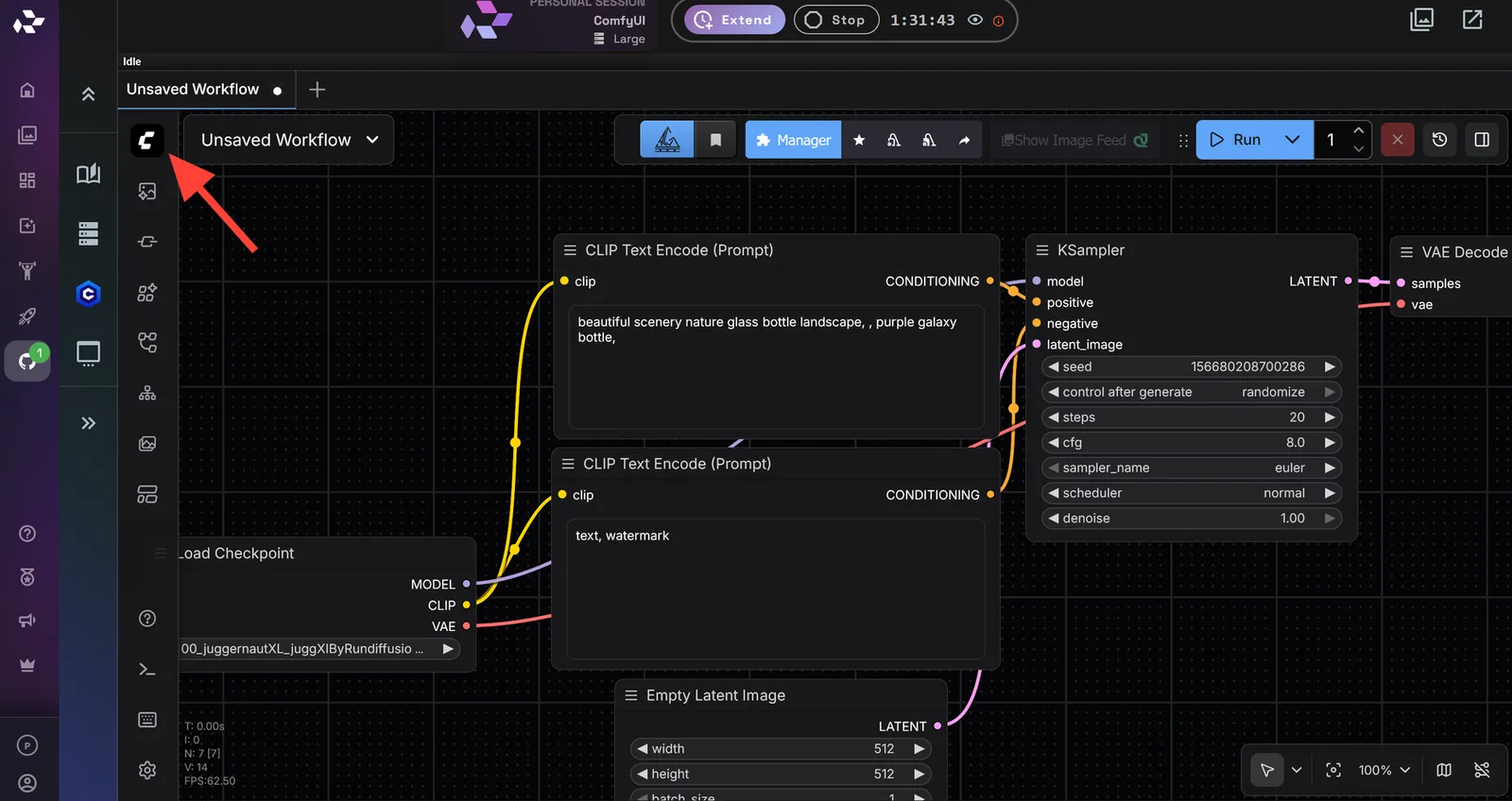
Click the ComfyUI logo in the top left corner of the interface.
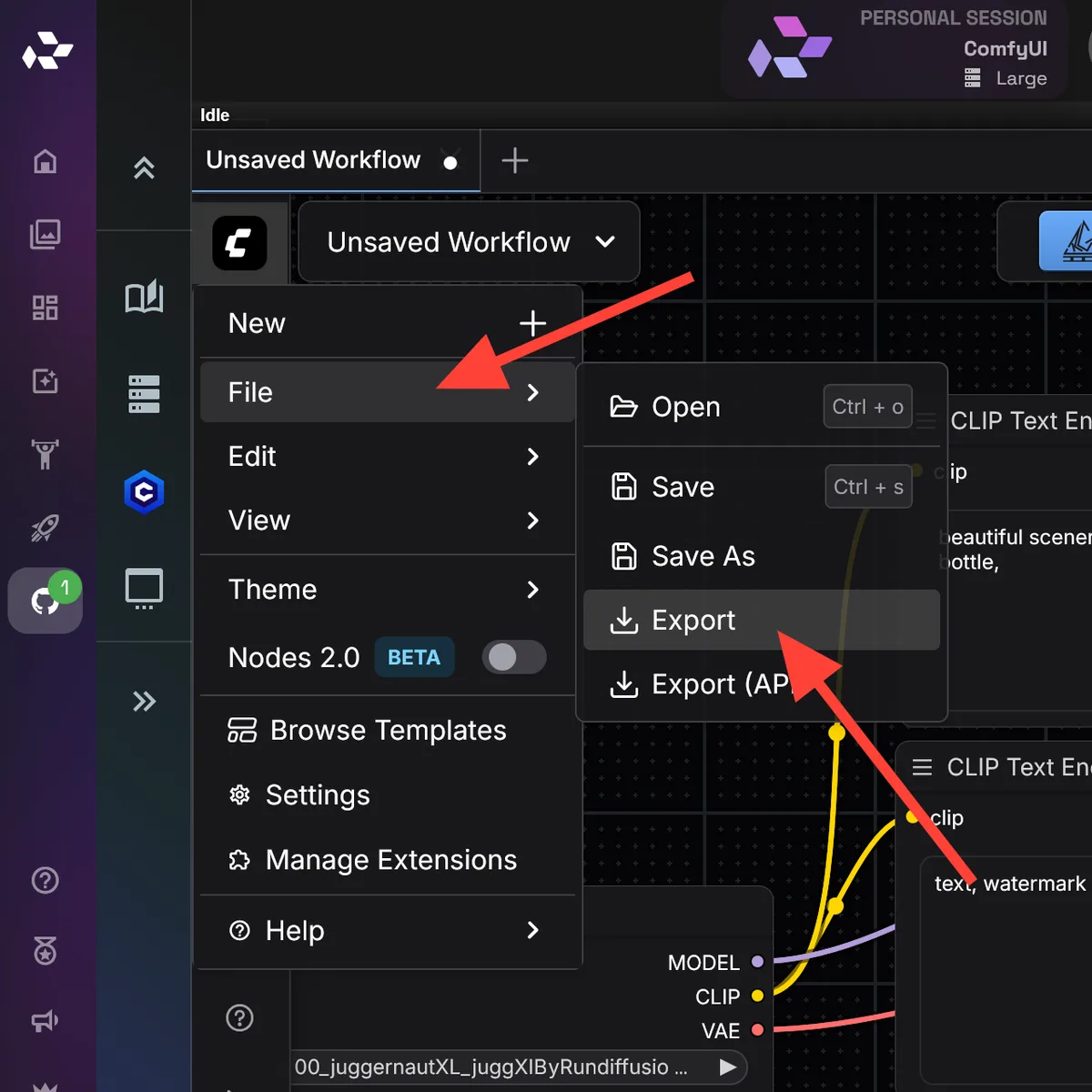
Select File from the dropdown menu, then click Export.
Type a name for the workflow you are downloading. The workflow will download to your computer as a JSON file.
Why Exporting Workflows Matters
Downloading your ComfyUI workflows allows you to:
- share workflow files with collaborators
- create backups of complex node graphs
- version and iterate on production pipelines
- upload workflows into future RunDiffusion sessions
Instead of searching online for random ComfyUI workflow downloads, you can build and export workflows that are already tested in your cloud environment. You can also edit workflows you found online to align with the RunDiffusion cloud environment and save them for future use.
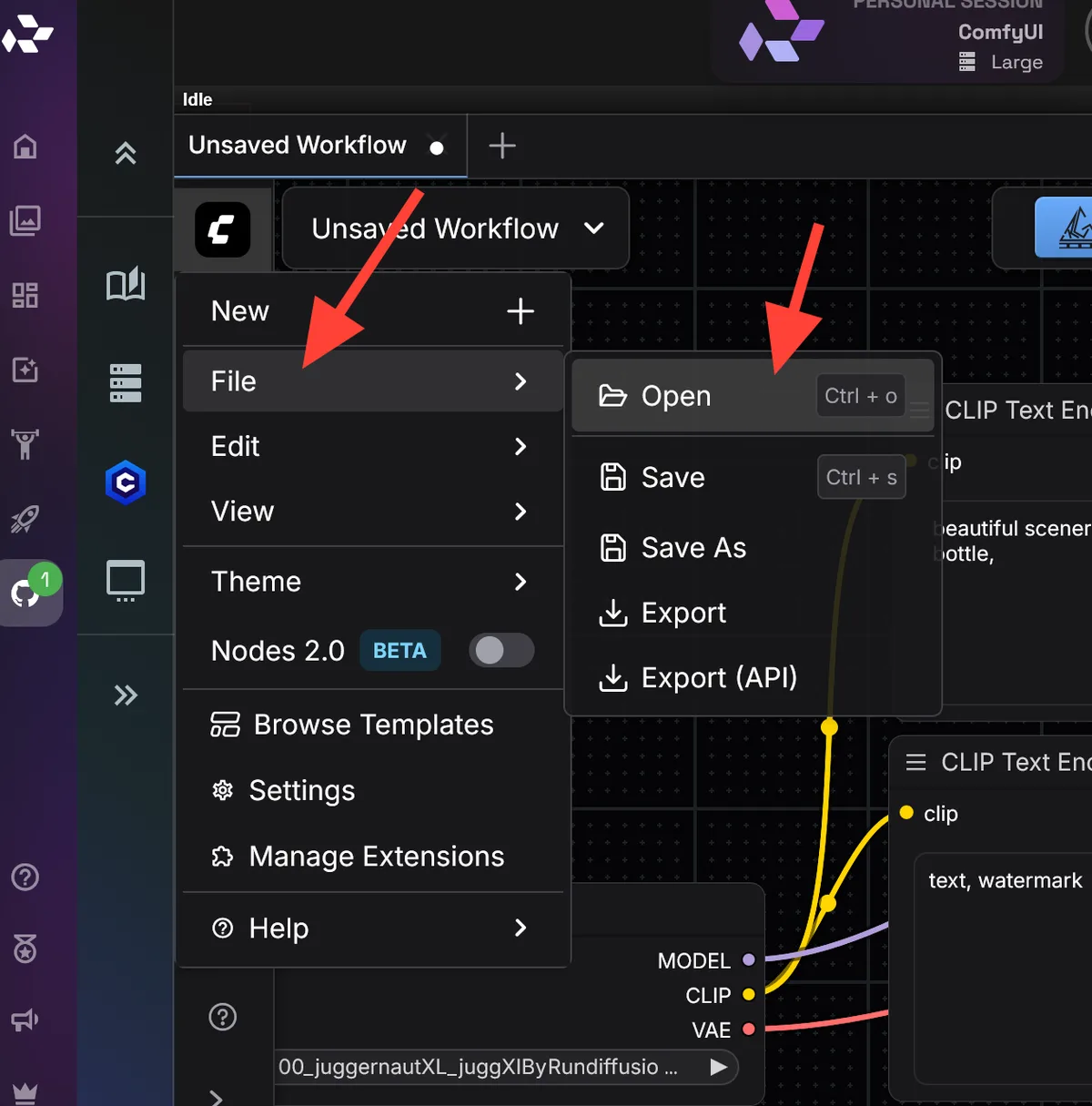
To upload a ComfyUI workflow, click the logo, select File, then select Open.
Common Workflow Issues
Some common issues users encounter include:
- missing nodes
- model not found errors due to incorrect selections
- CLIP assertion errors from incompatible model and prompt combinations
- out-of-memory errors caused by running out of GPU memory
Most issues can be fixed by adjusting the workflow without restarting the session. The most common fix for memory pressure is switching to a Large server.
Why Use ComfyUI Workflows on RunDiffusion?
Using RunDiffusion for ComfyUI workflows provides:
- cloud GPUs with no setup or maintenance
- stable, preconfigured ComfyUI environments
- faster iteration on complex node graphs
- easy scaling for image and video generation
This makes RunDiffusion useful for designers, creative teams, and AI professionals who want reliable workflows without local constraints.
Try ComfyUI on RunDiffusion
Launch ComfyUI in the cloud, open curated RD Workflows, or load your own workflow JSON without managing local GPU hardware.
Frequently asked questions
QWhat is a ComfyUI workflow?
A ComfyUI workflow is a visual node-based graph that defines how images or videos are generated. Each node handles a specific task, such as loading a model, applying prompts, sampling, or saving outputs.
QDo I need to install anything locally to use ComfyUI on RunDiffusion?
No. ComfyUI runs on RunDiffusion cloud GPUs, so you do not need to install software, manage dependencies, or maintain local hardware.
QWhere do the ComfyUI workflows on RunDiffusion come from?
RunDiffusion provides a curated set of workflows that are tested on the platform. You can also load your own workflows or create custom ones.
QCan I upload and use my own ComfyUI workflows?
Yes. You can load your own workflow JSON files into a RunDiffusion session and run them alongside the provided RD Workflows.
QWhat server size should I use for ComfyUI workflows?
For basic image generation and experimentation, a Small or Medium server is usually sufficient. For GPU-intensive workflows such as video generation or large batch jobs, use a Large server.
QWhy am I seeing missing nodes in a workflow?
Missing nodes usually mean the workflow relies on custom nodes that are not available in the environment. Use curated RunDiffusion workflows, adjust the workflow, or use ComfyUI Manager to install missing custom nodes.
QWhat causes “Model not found” errors?
These errors usually happen when a workflow references a checkpoint or model that is not selected or available. Check the model and LoRA selections, or upload the needed model.
QWhat are CLIP assertion errors?
CLIP assertion errors usually happen when a model, prompt, or workflow configuration is incompatible. Adjusting the model, prompt length, or workflow structure often resolves the issue.
QWhat should I do if I run out of GPU memory?
Out-of-memory errors are usually fixed by switching to a Large server or lowering image resolution, batch size, or workflow complexity.
QDo I need to restart my session to fix workflow issues?
In most cases, no. Common workflow issues can usually be fixed by adjusting nodes or models. If you install custom nodes, restart with the server manager on the left side.
QWho is ComfyUI on RunDiffusion best suited for?
ComfyUI on RunDiffusion is ideal for designers, creative teams, and AI professionals who want reliable, scalable workflows without the complexity of local setups.