Need to download an invoice or update billing info for accounting purposes? Whether you need an invoice to show a specific Tax ID number or a different billing address, this quick guide will walk you through how to access and edit your billing details on RunDiffusion.
Why This Matters
Accurate invoices are essential for expense reports, reimbursements, and tax filings. RunDiffusion lets you download past invoices and even change billing information like company name, address, or tax ID.
Step-by-Step: Updating Billing Details on Invoices
Login to Your Account: RunDiffusion Login
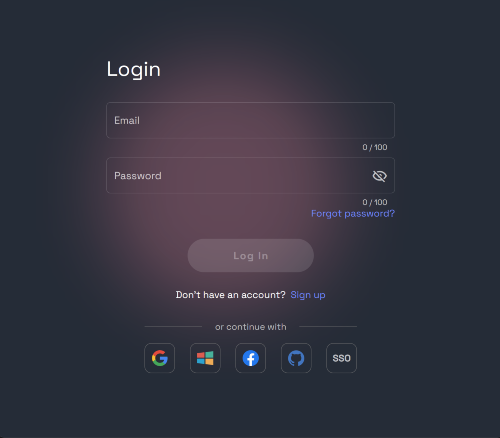
Navigate to the RunDiffusion Platform (Formerly Runnit Platform)
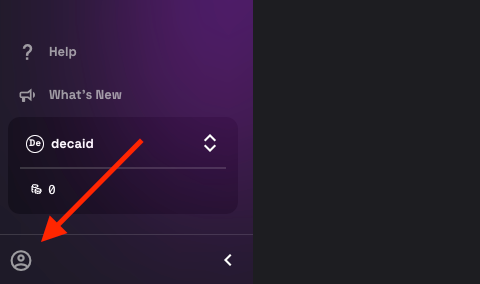
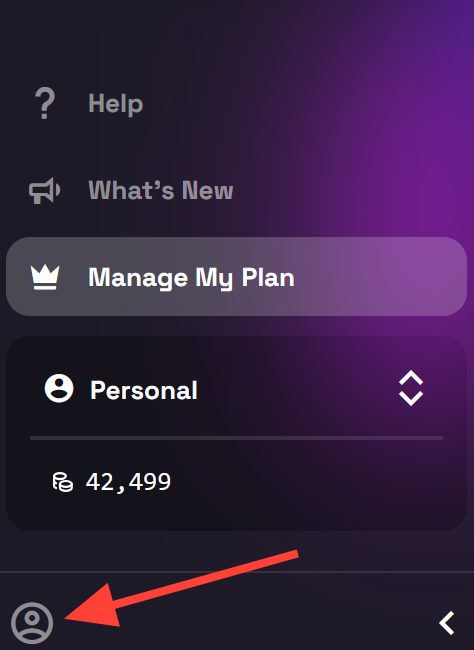
Click on User Account Avatar in the lower left-hand side of the nav-bar.
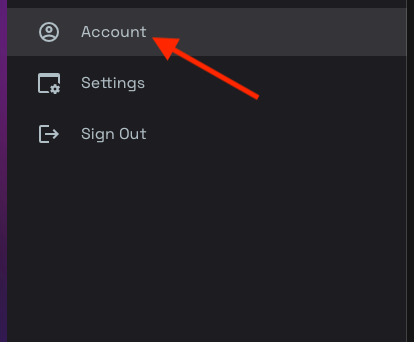
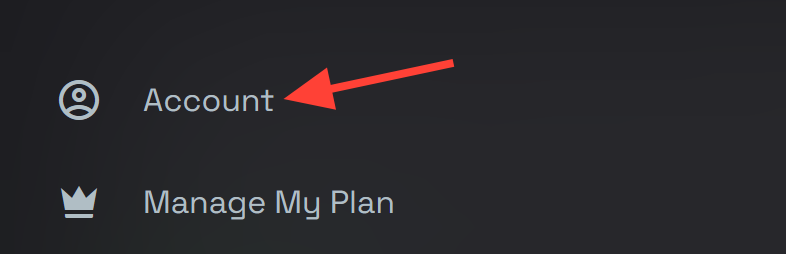
Click on Account
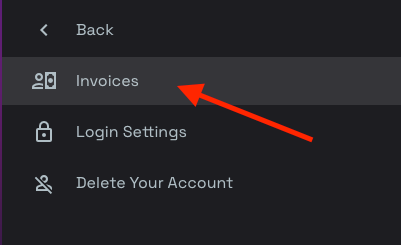
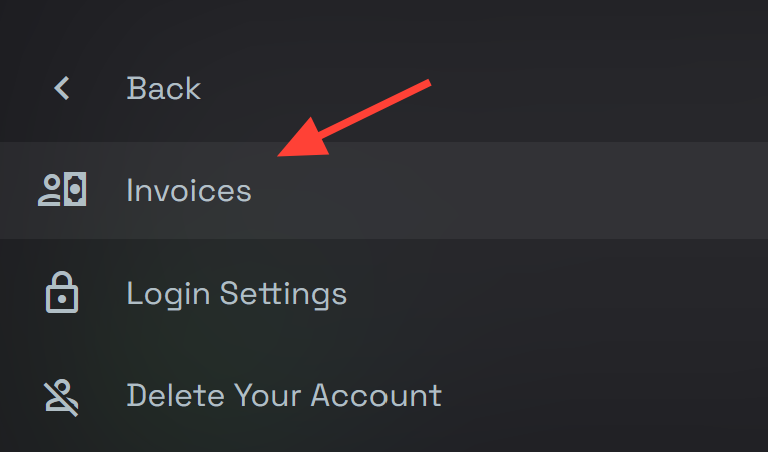
Click on Invoices
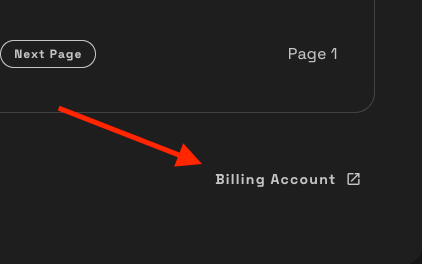
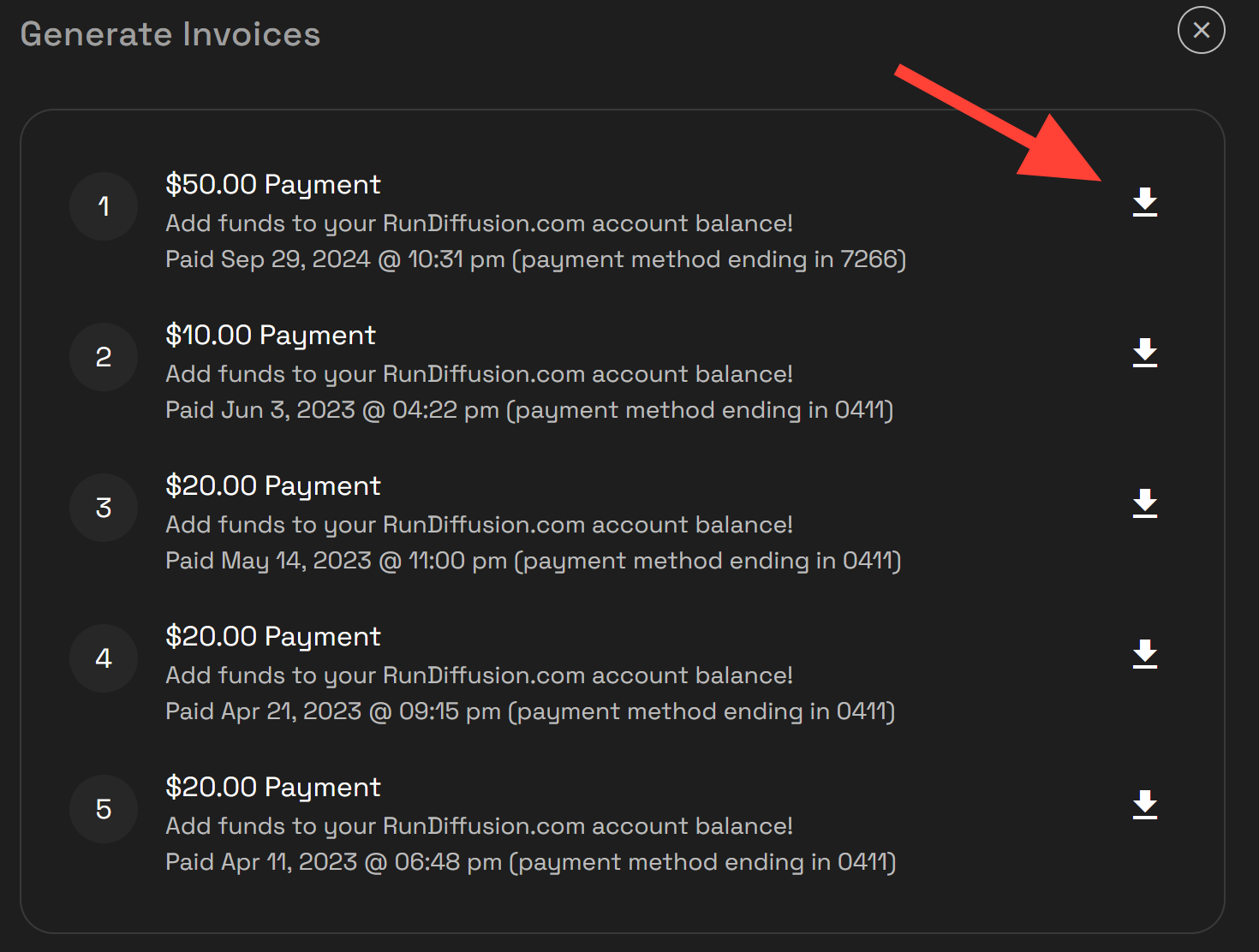
A window titled "Generate Invoices" will appear. At the bottom of this dialogue window (you may need to scroll), you will find a Billing Account button. Click on Billing Account.
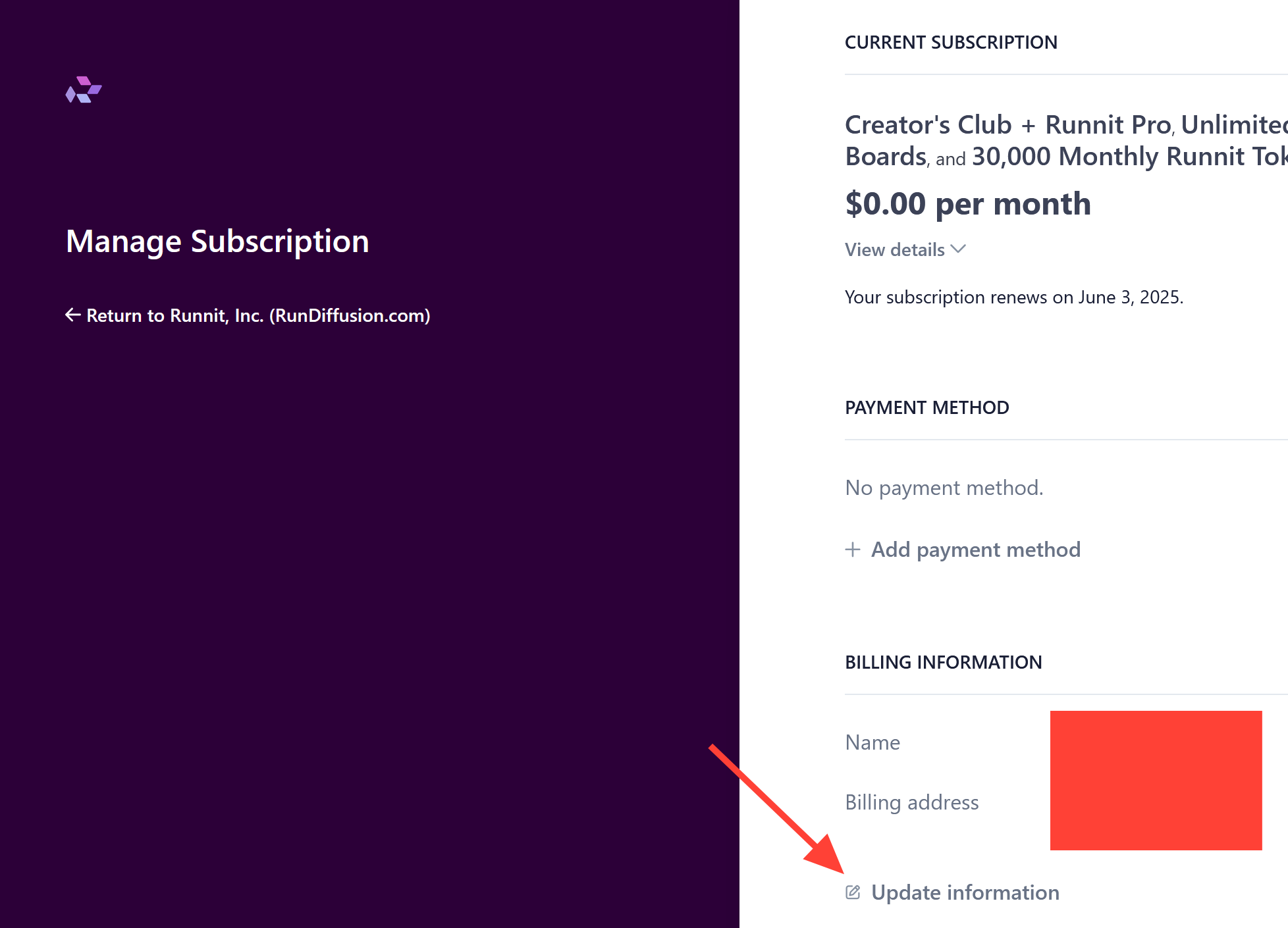
.Click on Update Information.
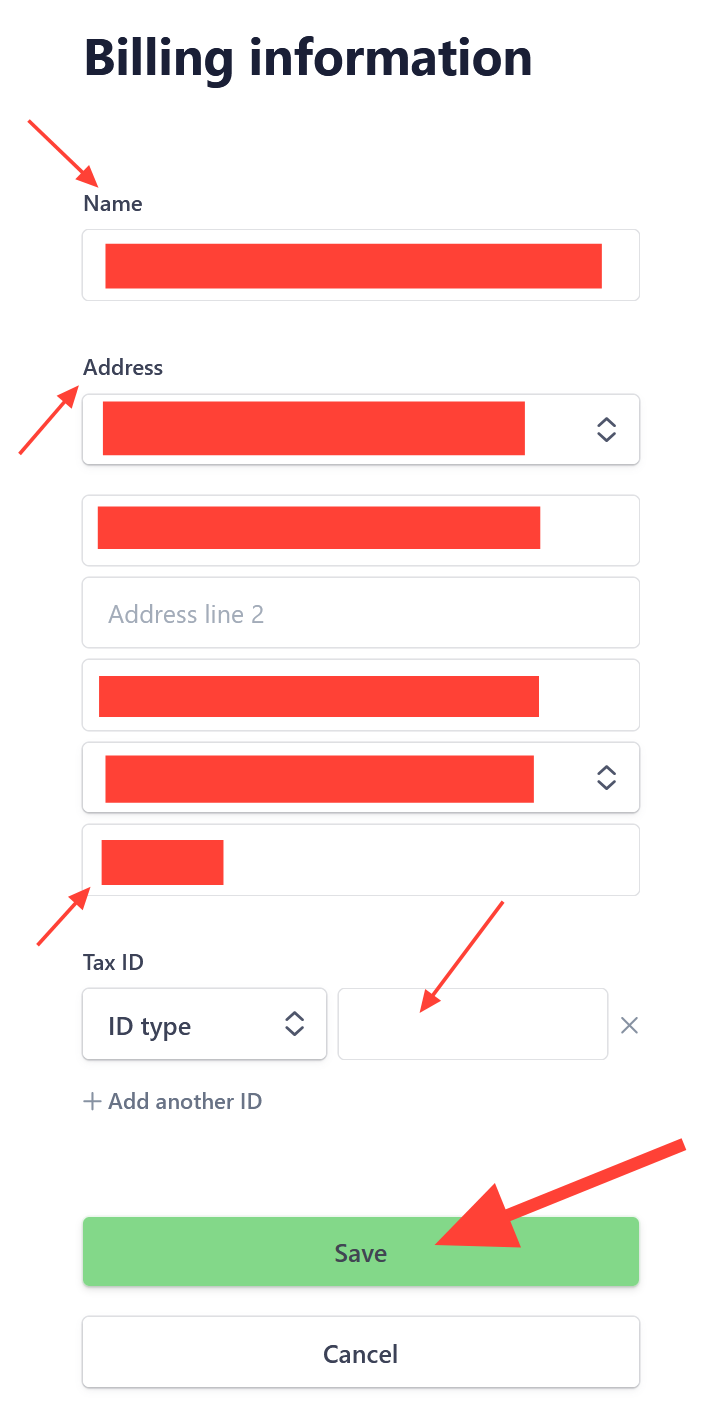
Update your Billing information Name, Address, and Tax ID if applicable. Then Save.
After saving return to the RunDiffusion Platform. Then click on the account icon in the bottom left.
Click on Account.
Click on Invoices.
Download your invoices by clicking on the download icon.
Important Note:
If you're trying to get invoices for two different billing entities make sure to:
- Download older invoices first.
- Then update your billing info before generating or downloading new invoices.
This avoids confusion and ensures accurate documentation for multiple departments or clients.
Want More Help?
How to Download an Invoice from Your RunDiffusion Account | RunDiffusion
Need a copy of your RunDiffusion invoice? This step-by-step guide shows you how to sign in, access your account menu, and download or print receipts with ease.
RunDiffusion Team

If you're unsure which invoices have which info, or need help correcting one, feel free to open a support ticket:
How to Open a Support Ticket | RunDiffusion
Need help? Open a support ticket by clicking the Help Chat Icon in the top right, our team will assist you as soon as possible!
RunDiffusion Team