
- ReActor adds face swapping controls to Automatic1111 for image workflows.
- The extension depends on the InSwapper model, which users must add manually.
- Face restoration and upscaling can improve blurry swapped faces.
- Review model licensing and consent requirements before using face swapping in public or commercial work.
ReActor is an Automatic1111 extension for image face swapping. It can detect multiple faces, swap selected face indexes, and use restoration or upscaling tools such as CodeFormer and R-ESRGAN, but the ReActor project is no longer the recommended path for new workflows.
| At a glance | |
|---|---|
| Tool | ReActor extension |
| Host app | Automatic1111 |
| Required model | InSwapper |
| Restoration option | CodeFormer |
| Upscaling option | R-ESRGAN |
Update: ReActor support status
The ReActor team has stopped supporting ReActor. For newer face swapping workflows, consider RDFaceFusion in Automatic1111 instead.
What is the ReActor extension?
ReActor is an extension for Automatic1111 designed to swap faces in images quickly and accurately. It builds on Stable Diffusion workflows by adding face detection, swapping, and restoration tools that can handle multiple faces in an image.
Key features of the ReActor extension
- Multiple face support: ReActor can detect and swap multiple faces within an image. This makes it useful for group photos or complex AI compositions. Users can select which faces to swap using index numbers.
- Gender detection: For more precise face swapping, ReActor lets users specify gender preferences so source and target faces match more closely.
- Face restoration and upscaling: If a swapped face appears blurry, the CodeFormer restoration tool can improve sharpness. The built-in R-ESRGAN upscaling feature can improve final resolution.
Setting up the InSwapper model for face swapping
The ReActor extension relies on the InSwapper model for its face swapping capabilities. Once you have installed ReActor, you need to manually add this model to models/roop. RunDiffusion cannot provide the model, so you need to download it manually. We cover that topic in our article on face swapping.
This step is critical. Without the InSwapper model in the right folder, ReActor cannot perform face swaps.
Installation and setup
To install the ReActor extension in Automatic1111, follow these steps.
Launch Automatic1111.
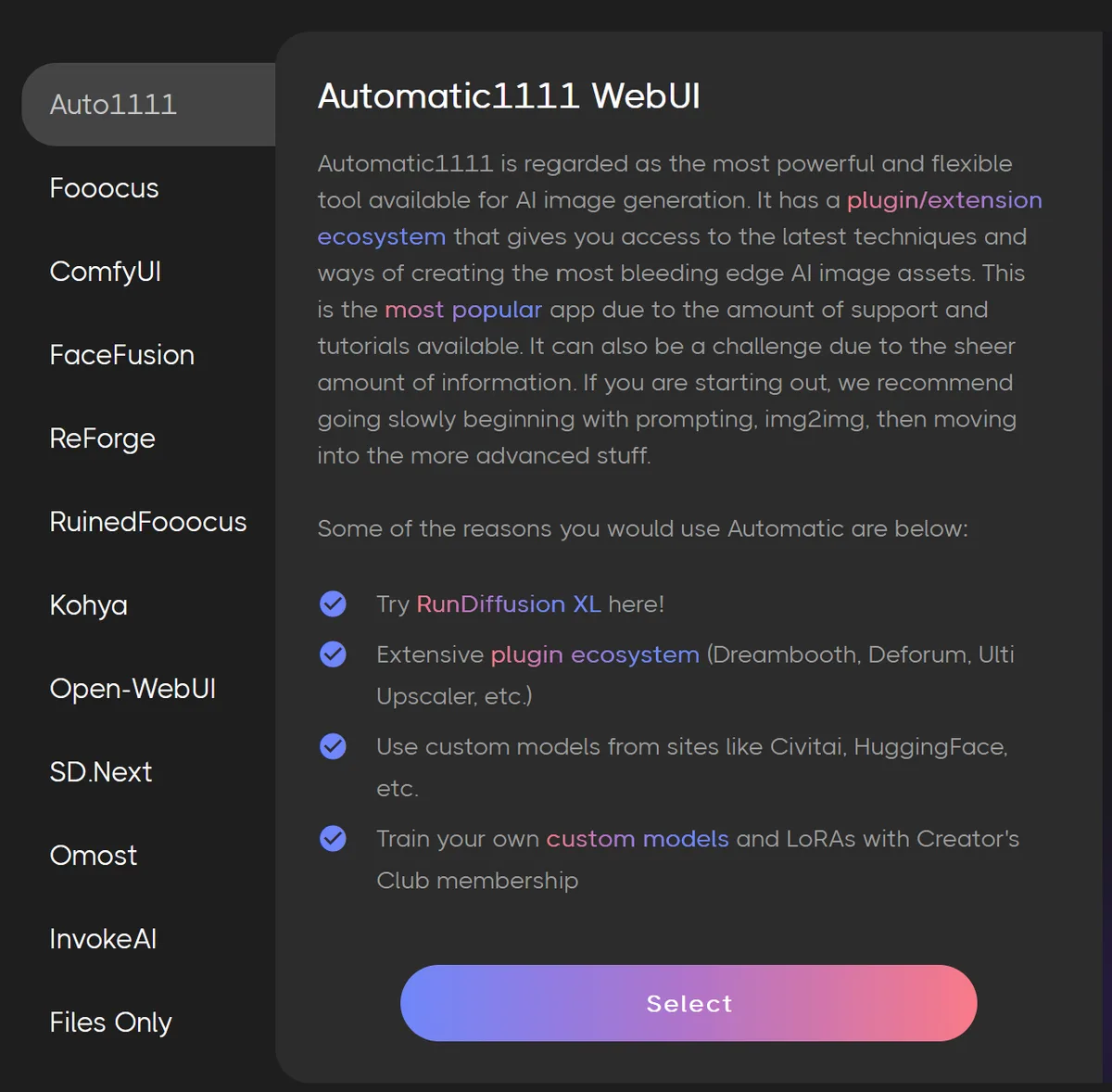
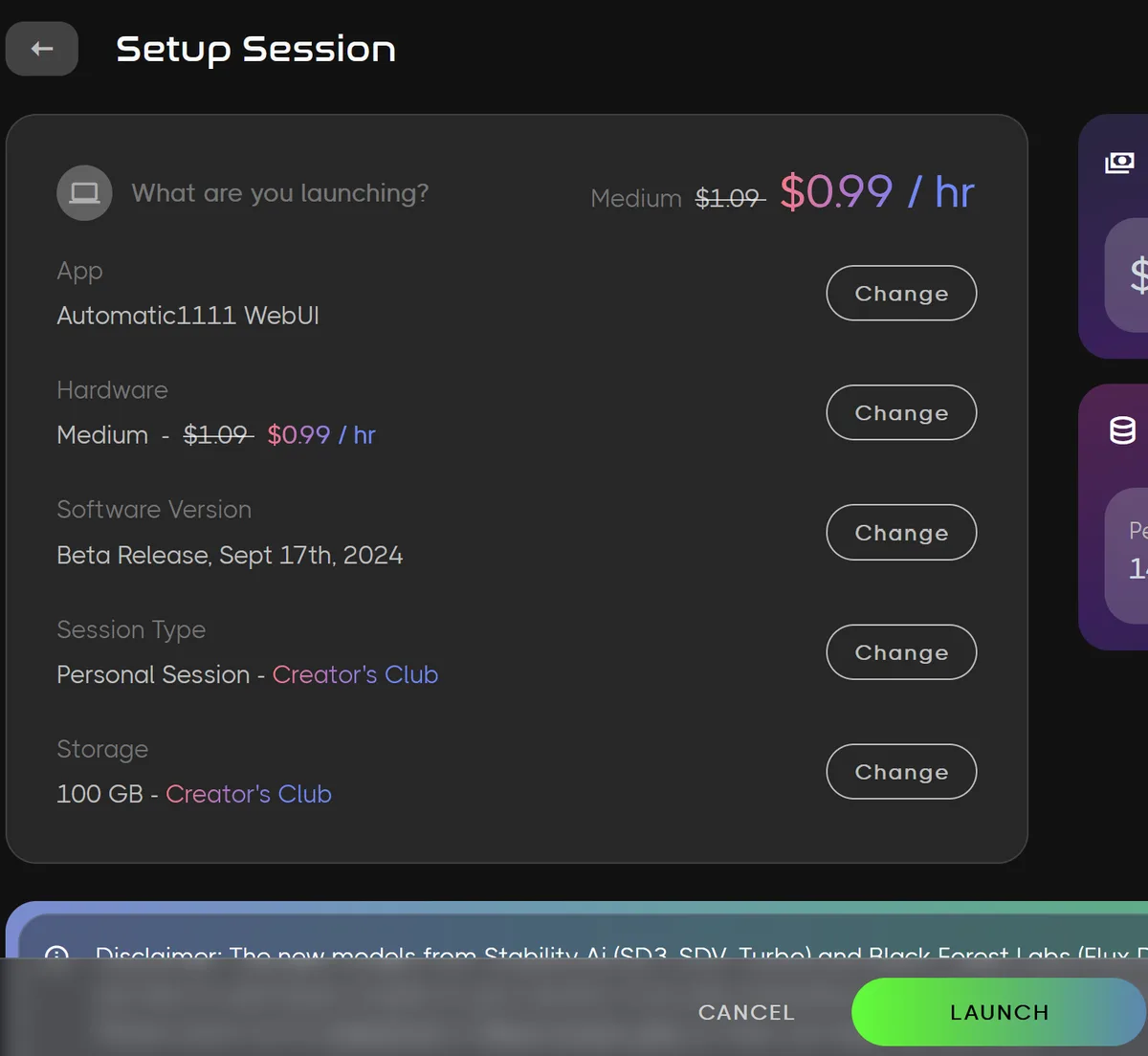
If you have Creators Club, scroll down on this screen and turn on persistent extensions so you do not have to install the extension each time you launch Automatic1111.

Install ReActor: Open Extensions, select the Available tab, and click Load From. This brings up the extension list.
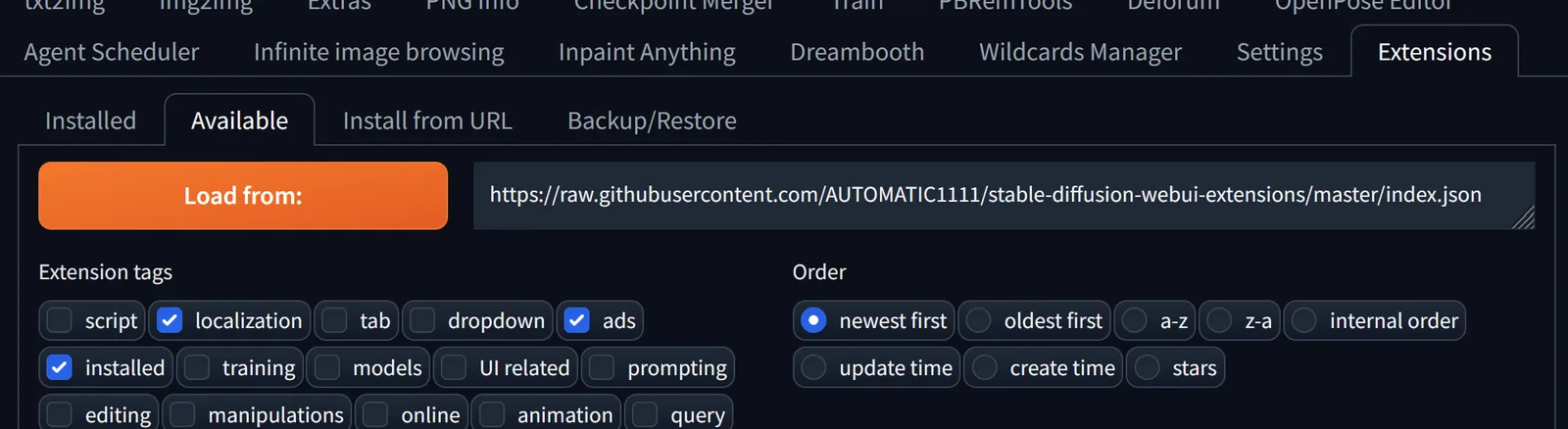
Scroll down to ReActor and click Install. You can also use Control+F to search for ReActor and jump to it quickly.

After installation, select Server Manager on the left side, then click Restart App 'Auto1111'.
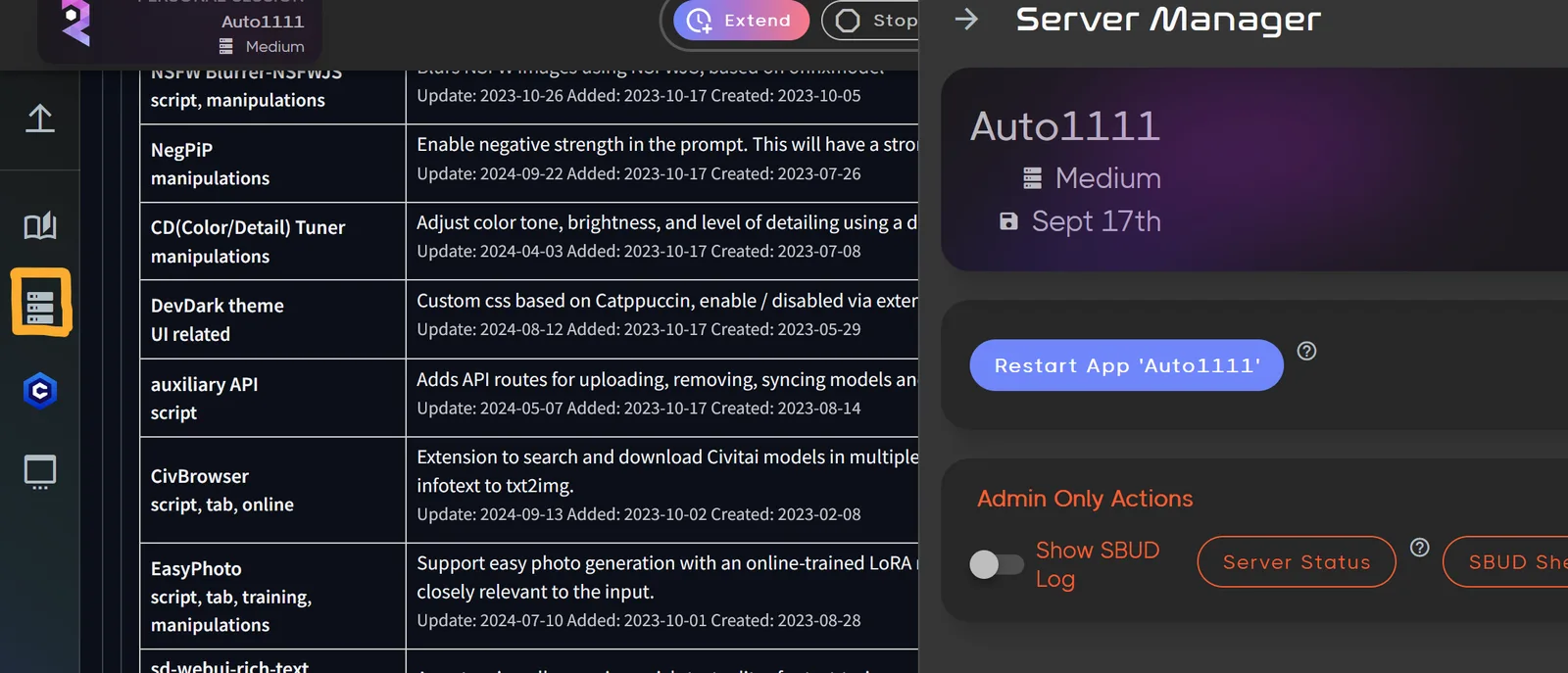
You should now see ReActor available inside Automatic1111.
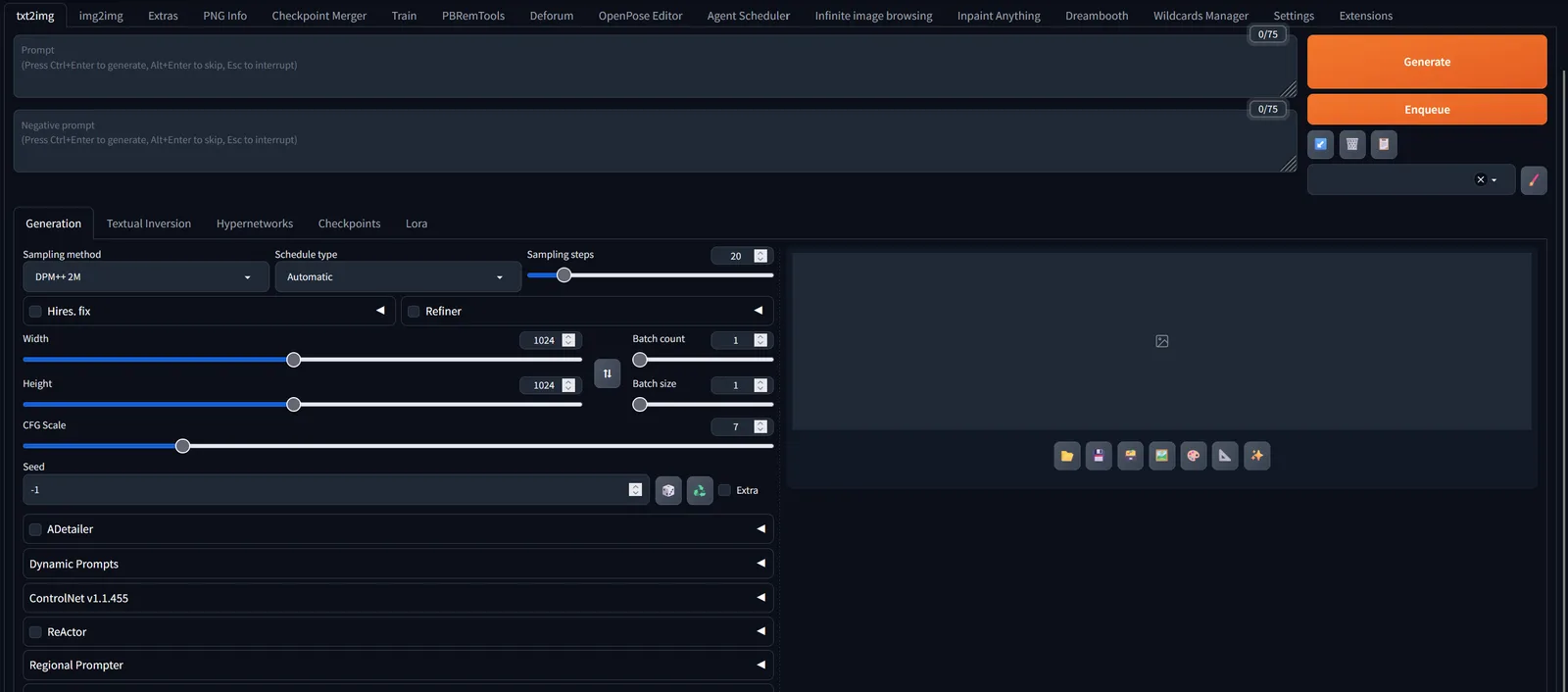
Using ReActor for face swapping
Check the box: This reveals the extension controls. Once the box is checked, ReActor is enabled. If you select Generate, Automatic1111 attempts to use the extension during generation.
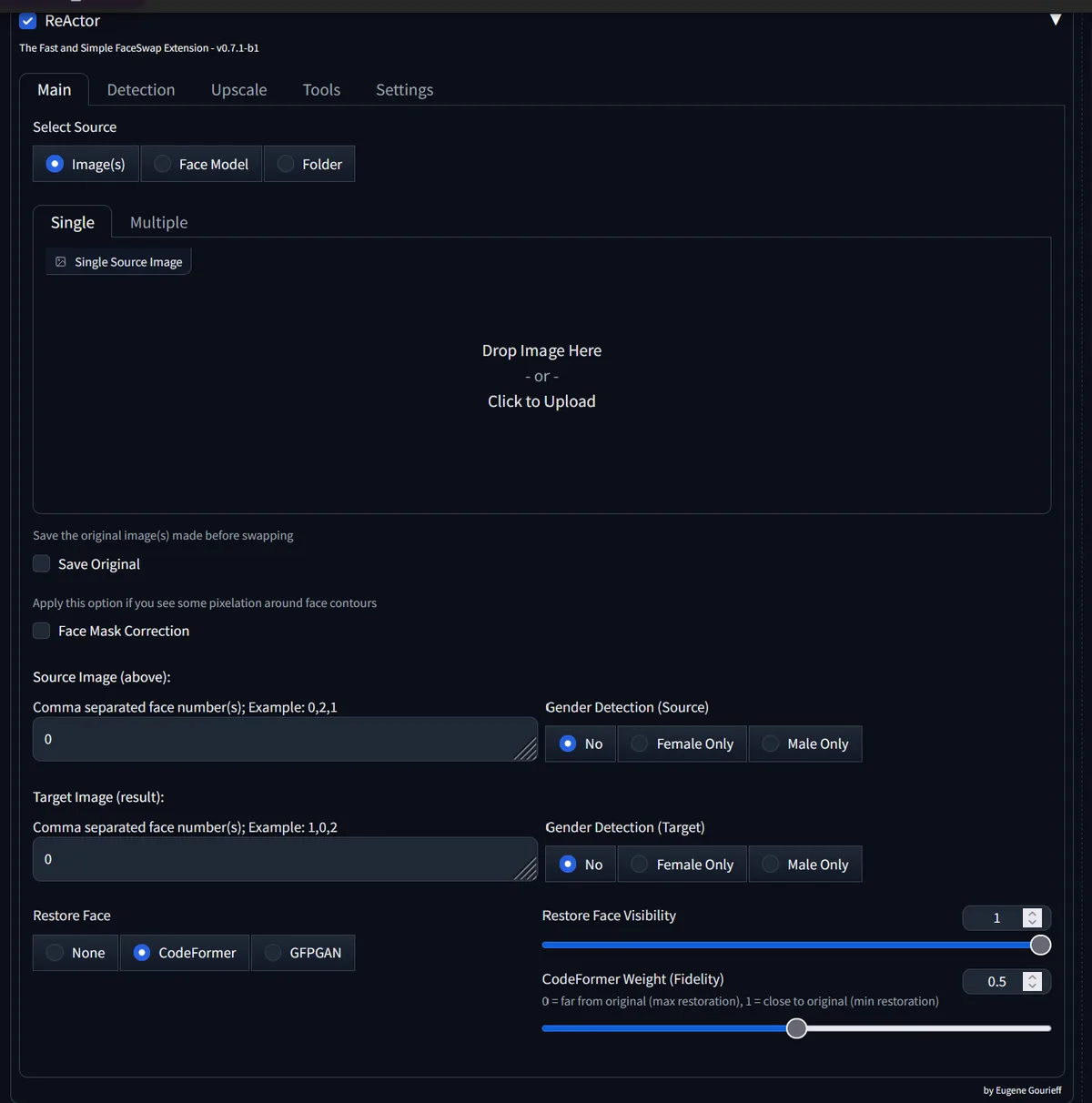
Drop or upload an image: Add a source image by selecting upload or by dragging and dropping an image into the upload area.
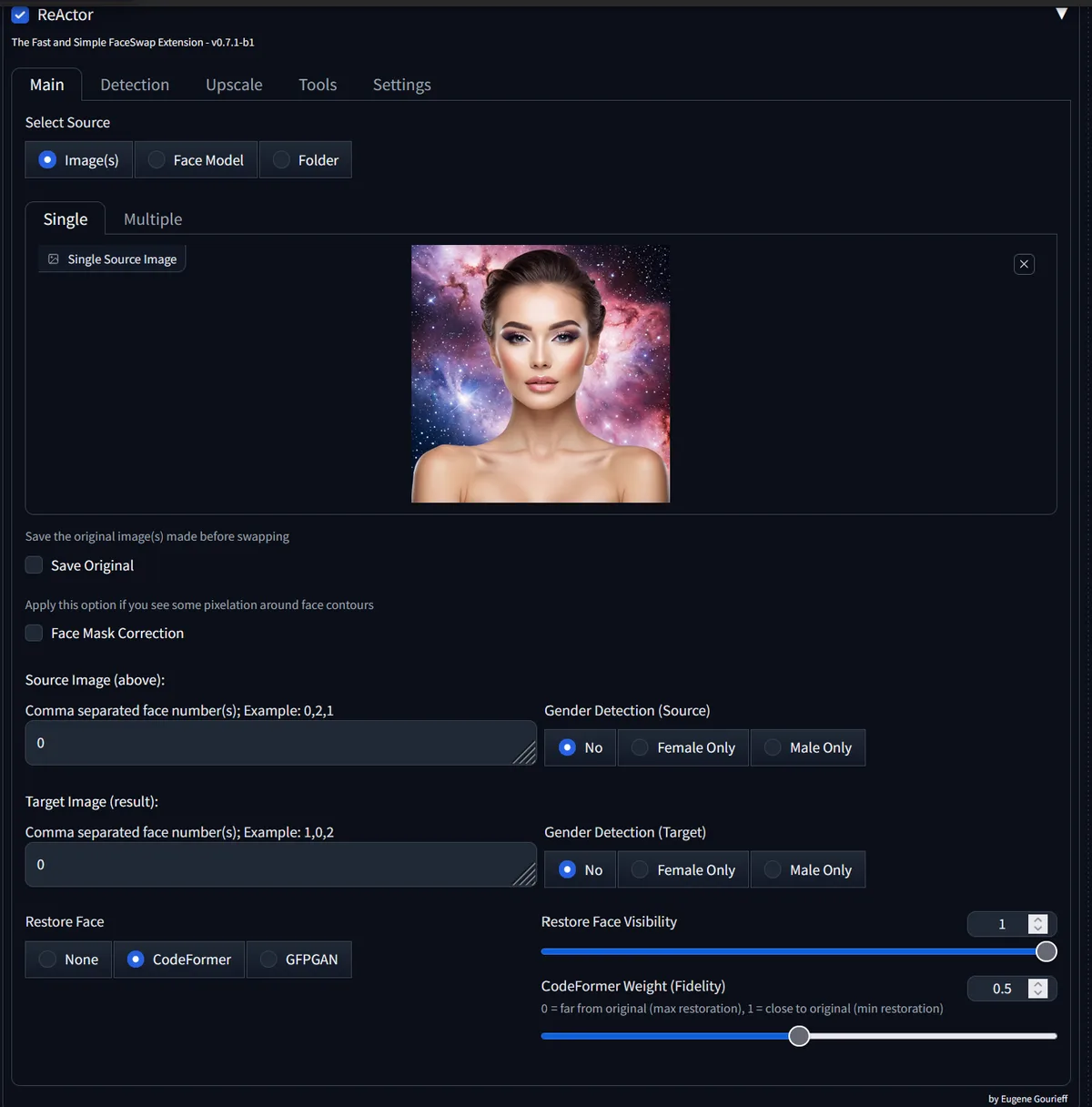
Generate an image: Write a prompt and select Generate. At the end of the image generation process, ReActor applies the face swap.
Prompt: Harley Quinn holding a baseball bat, wearing colorful and vibrant unique fashionable clothes, background graffiti

Face restoration: If the resulting swapped face is blurry, enable the CodeFormer option in the Restore Face tab to improve sharpness.
Upscaling: Improve final image resolution by using the Upscale feature within ReActor. Select upscalers such as R-ESRGAN 4x+ for stronger results, and adjust the scale factor, usually 2x or 4x.
Handling multiple faces: Specify which faces to swap by selecting their indexes, such as 0,1 for the source and 1,0 for the target. This level of control is useful when working with group images. OpenAI Journey also describes the use of face indexes in Stable Diffusion face swap workflows.
Licensing and legal considerations
Before using face swapping in public or commercial projects, review the licensing information for the models and tools you use. The InSwapper model may have specific licensing requirements, especially for commercial or public-facing projects.
Also review rights, consent, and ethical requirements for any person whose face appears in a source or target image. For more context, read our guide to face swapping on RunDiffusion.
Conclusion
The ReActor extension for Stable Diffusion's Automatic1111 can help users perform image face swaps efficiently. Its multiple-face controls, restoration tools, and upscaling options made it useful for Automatic1111 workflows, but the support status matters. For new projects, compare ReActor with newer FaceFusion or RDFaceFusion workflows before choosing a production path.
For more advanced techniques and related setup guides, see:
Run Automatic1111 in the cloud
Start an Automatic1111 session on RunDiffusion and test extensions without local GPU setup.
Frequently asked questions
QWhat is ReActor?
ReActor is an Automatic1111 extension designed for image face swapping, face detection, restoration, and upscaling.
QDoes ReActor need the InSwapper model?
Yes. ReActor depends on the InSwapper model, and users must add it manually to the expected model folder.
QCan ReActor swap multiple faces?
Yes. ReActor can work with multiple faces and lets users choose source and target face indexes.
QIs ReActor still recommended for new workflows?
The source article notes that the ReActor team stopped supporting ReActor, so new workflows should also evaluate RDFaceFusion or FaceFusion options.
QWhat should I check before using face swapping commercially?
Review model licenses, rights of publicity, consent, and any ethical requirements for the people whose faces appear in the source and target images.