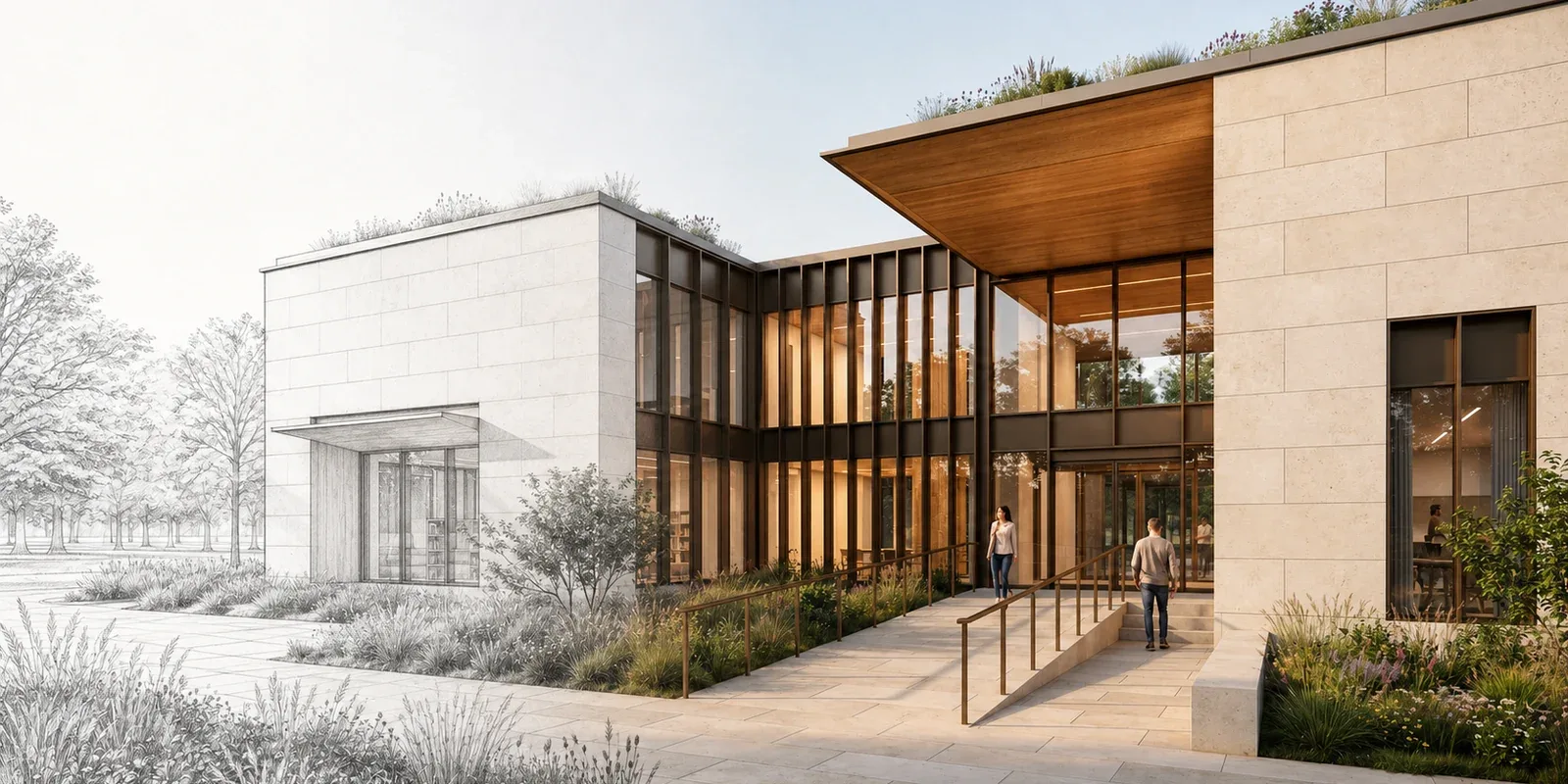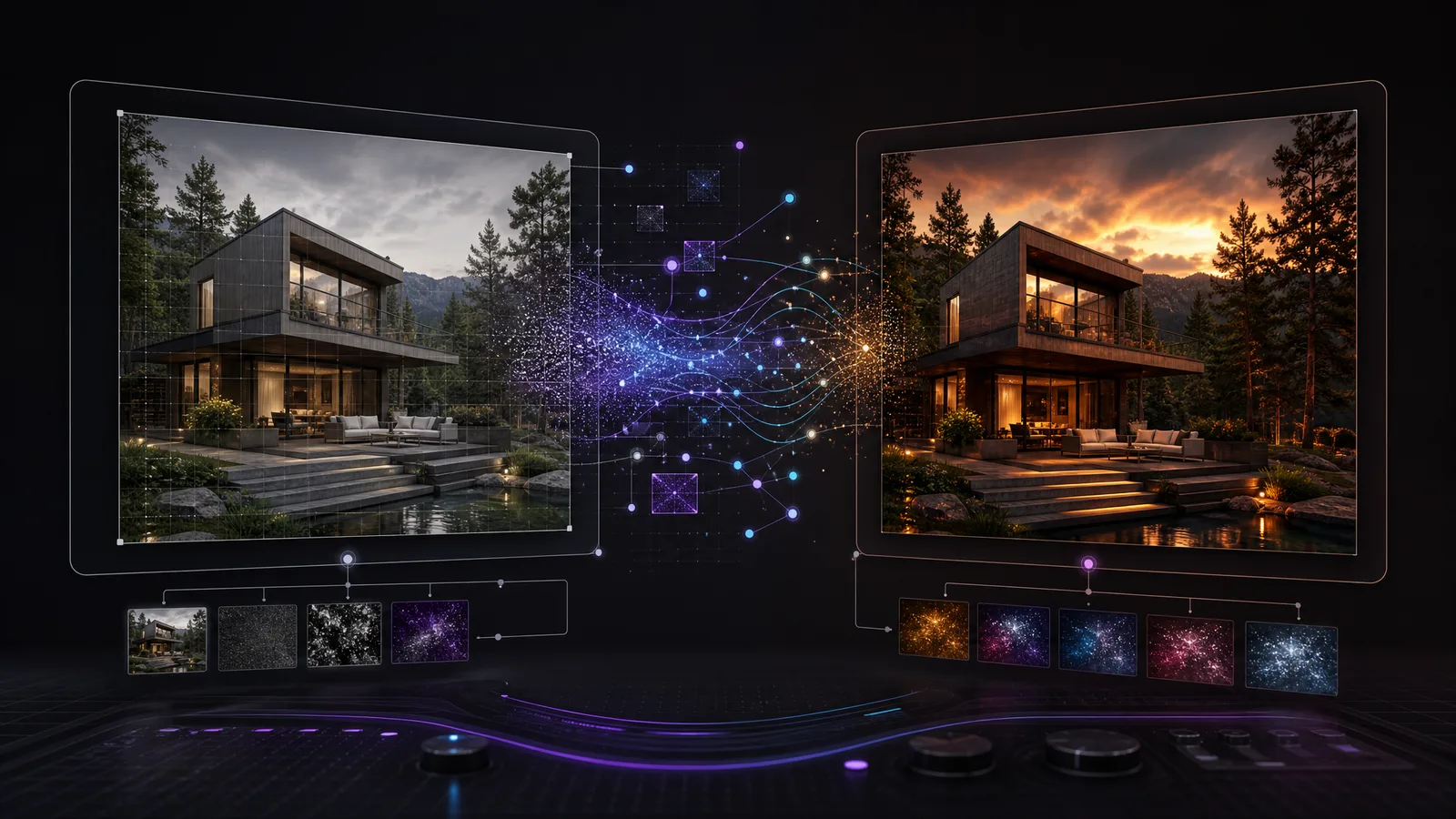
- Img2img is best when you already like the layout, pose, framing, or color mood of a source image.
- Denoising strength controls how much the output changes: low values preserve more, high values redraw more.
- Resize mode, batch processing, Ultimate Upscale, and inpainting are the core Automatic1111 img2img controls to understand first.
- Modern edit-first models such as Nano Banana, Seedream Edit, and Flux Kontext build on the same image-to-image idea with more directed editing workflows.
Img2img, short for image-to-image, starts with an existing image and a prompt. The model adds controlled noise, then rebuilds the image toward your prompt so you can preserve composition, pose, and color direction while changing style, details, or selected areas.
| At a glance | |
|---|---|
| Workflow type | Image-to-image AI editing |
| Common abbreviation | img2img |
| Classic host app | Automatic1111 |
| Key control | Denoising strength |
| Best fit | Restyling, inpainting, upscaling, batch edits, and guided image variations |
Img2img has evolved a lot since the early Stable Diffusion web UI days. It is no longer just a clever way to restyle an image. It is a full image-to-image AI editing workflow for remixing, repairing, upscaling, and iterating from a source image you already like.
Modern img2img pipelines let you upload an existing image, describe the change you want, and get back a version that feels like a polished second pass rather than a random variation. The point is control: preserve the structure that works, then change the parts that need a new style, detail level, lighting condition, or subject treatment.
What img2img does
Img2img, or image-to-image, starts with a source image and a prompt. The model adds a controlled amount of noise to the source, then rebuilds the image toward your prompt. With the right settings, the output keeps the original framing, pose, layout, and broad color direction while shifting the final look.
That makes img2img useful for:
- Turning a rough concept into a polished image.
- Restyling a portrait while keeping the same pose.
- Converting a sketch into a cleaner render.
- Testing different lighting or art direction on the same composition.
- Repairing or replacing one part of an image with inpainting.
- Upscaling and refining generated images.
In systems like Flux Redux, the same idea becomes a re-edit pass: the model takes your original image plus your new prompt, then re-diffuses only what needs to change. Think of it as a second draft that keeps the composition, lighting, and color direction, but lets you rewrite the details.
Why use img2img instead of txt2img?
Use img2img when you already solved the hardest parts of the image: framing, pose, layout, subject placement, or mood. Text-to-image is powerful, but it can change the whole scene each time you reroll. Img2img keeps the source image anchored while you experiment on top.
Creative teams use img2img for concept art passes, design explorations, marketing image variants, consistent character studies, product renderings, inpainting, and controlled upscaling. The workflow is especially useful when a client, art director, or team already approved a composition and you need to improve the image without starting over.
Classic img2img settings in Automatic1111
Below are the core controls you will see in tools like Automatic1111 on RunDiffusion.
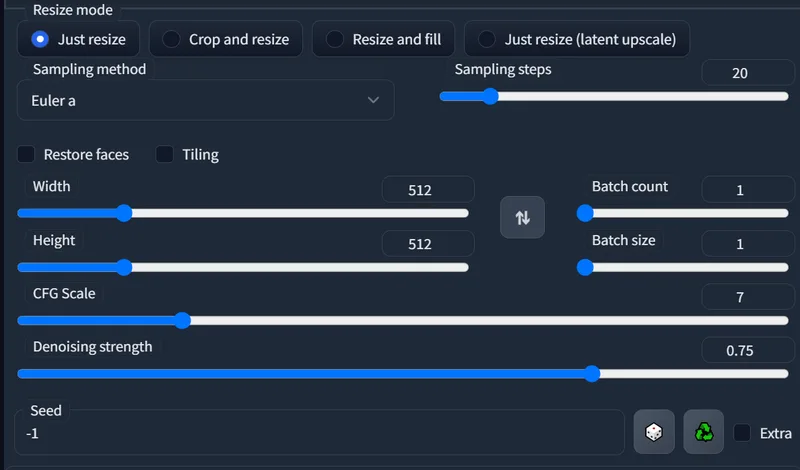
Many controls are shared with txt2img, including sampling method, sampling steps, CFG scale, seed, width, height, batch count, and batch size. The img2img-specific decisions are resize behavior, denoising strength, batch input handling, upscaling, and inpainting.
Resize mode
Resize mode controls how Automatic1111 adapts the source image to the target width and height.
- Just resize: Stretches or squeezes the source image to match the selected width and height.
- Crop and resize: Crops the image to the target aspect ratio before resizing. This is useful when you need a specific composition or output size.
- Resize and fill: Resizes the image and fills empty space using colors from the image.
- Just resize (latent upscale): Resizes in latent space. This can help when you want the model to reinterpret the image during enlargement instead of only scaling pixels.
For predictable results, start with an output size close to the source aspect ratio. Move to crop, fill, or latent upscale once you know how much composition change you want.
Denoising strength
Denoising strength is the most important img2img control. It determines how much diffusion changes the original image.
- Low denoising, around 0.2 to 0.35: Small refinements. Good for cleanup, light style shifts, and preserving identity or layout.
- Medium denoising, around 0.45 to 0.65: Noticeable restyling while keeping the source composition recognizable.
- High denoising, around 0.7 and above: Larger redraws. Useful for dramatic changes, but the image may drift far from the source.
If your output looks too similar, raise denoising strength. If it loses the subject, pose, or composition, lower it.
Batch processing
Batch processing lets you run img2img over multiple images from a folder. This is useful for design variations, frame-by-frame experiments, and repeatable workflows.
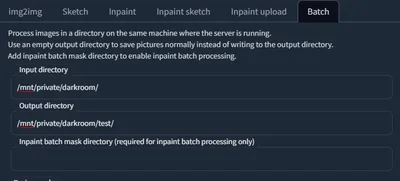
On RunDiffusion, batch processing is strongest when you use private storage. Create a folder for your source images, then reference that folder in the input directory. The root directory for Creators Club private storage is:
/mnt/private/
Batch processing also pairs well with ControlNet because you can process every frame of a sequence or keep structural guidance consistent across many images. For more detail, read Img2Img Batch Processing with ControlNet.
Ultimate Upscale
Ultimate Upscale is useful when you want to enlarge an image while letting the model add detail during the upscale.
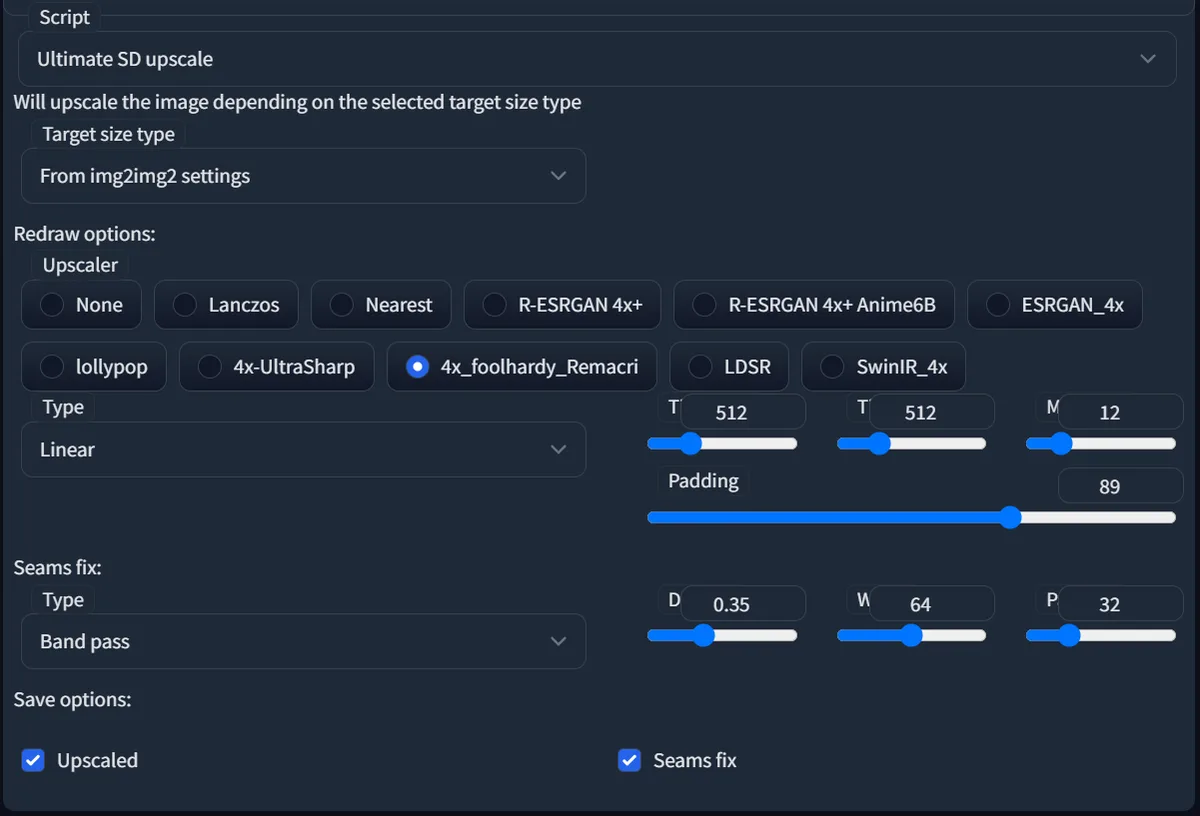
Use a less dynamic sampler for more stable upscale passes. A redraw option gives the upscaler a broad idea of what to enhance, then the script breaks the image into tiles and processes each section.
The img2img width and height help determine the final target size. The Ultimate Upscale settings control how the image gets there, including tile size, padding, and seam-fix behavior. If you see tile boundaries, increase padding or adjust seam-fix settings.
Inpainting and outpainting
Inpainting is an img2img workflow for replacing part of an image. Outpainting extends the canvas beyond the original image.
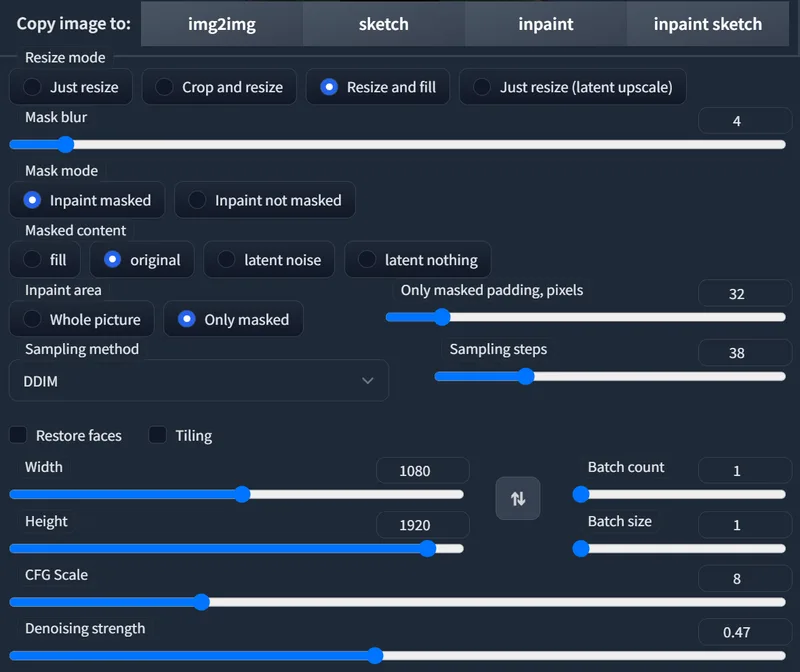
With inpainting, draw a mask over the area you want to replace. Then write a prompt that preserves the surrounding image but describes what should appear inside the masked area.
Use Inpaint masked when you want Automatic1111 to replace the area under the mask. If you keep masked content set to Original, the tool keeps more of the existing image under the mask and edits more conservatively.
For upscaled images, Crop and resize is often a good inpainting choice because it lets the model focus on the masked region at a more manageable size. Start with the model's normal working resolution, such as 512 or 768, then increase complexity after you get a clean result.
Modern edit-first img2img models
New edit-first models build around the same image-to-image idea with more direct editing behavior. On RunDiffusion, tools such as Nano Banana, Seedream 4.0 Edit, Seedream 4.5 Edit, and Flux Kontext let you upload a reference image, describe a targeted edit, and iterate on the result.
These edit models are often better for direct instructions such as:
- Replace the sky with a dramatic storm.
- Turn this product photo into a studio-style hero shot.
- Convert this sketch into a clean 3D render.
- Change the outfit while keeping the pose and framing.
- Preserve the subject but change the lighting or material style.
Classic Automatic1111 img2img still matters because it teaches the core controls. Once you understand denoising, resize behavior, masking, and upscaling, modern edit models become easier to direct.
A practical img2img workflow
- Start with the best source image you have.
- Match the output aspect ratio to the source unless you intentionally want a crop or canvas extension.
- Use a low or medium denoising strength for the first run.
- Write a prompt that describes the desired change, not the entire image from scratch.
- Increase denoising only if the image is not changing enough.
- Use inpainting for localized fixes instead of rerolling the full image.
- Use Ultimate Upscale after the composition is working, not before.
Tips for better img2img results
- Keep prompts focused: Describe the edit you want. Avoid fighting the source image with an unrelated scene.
- Protect composition with lower denoising: If the layout matters, start low and move up slowly.
- Use masks for specific changes: Inpainting is cleaner than forcing the whole image to change.
- Batch only after one image works: Tune settings on a single image before applying them to a folder.
- Save source and output folders clearly: Batch workflows are easier to review when inputs, outputs, and prompts are organized.
Related RunDiffusion guides
- Automatic1111 on RunDiffusion
- Img2Img Batch Processing with ControlNet
- How to Use Qwen Image Edit 2509 on RunDiffusion
Img2img is one of the most important image-editing concepts in diffusion workflows. Whether you are using Automatic1111 controls, inpainting, batch processing, upscaling, or newer edit-first models, the goal is the same: keep what works from the source image and guide the AI toward a better version.
Run img2img workflows in the cloud
Launch Automatic1111 or modern edit models on RunDiffusion and iterate without local GPU setup.
Frequently asked questions
QWhat does img2img mean?
Img2img means image-to-image. You provide a starting image plus a prompt, and the AI generates a new image that keeps part of the source while following the prompt.
QWhen should I use img2img instead of txt2img?
Use img2img when you want to keep composition, pose, camera angle, or color direction from an existing image. Use txt2img when you want to create from only a text prompt.
QWhat is denoising strength in img2img?
Denoising strength controls how much the model changes the source image. Lower values make small refinements, while higher values create more dramatic changes.
QCan img2img be used for inpainting?
Yes. Inpainting is a focused img2img workflow where you mask a specific area, prompt the replacement, and leave the rest of the image mostly intact.
QCan I batch process img2img images on RunDiffusion?
Yes. Batch processing lets you run multiple images through an img2img workflow, and RunDiffusion private storage can provide stable input and output folders for larger runs.