
If you're leading a project or managing a collaborative AI team, understanding how your team uses resources is critical. The RunDiffusion Platform (Formerly Runnit Platform) makes this simple with a built-in Reporting dashboard available for Team and Enterprise accounts.
This guide walks you through how to access reporting, what data it provides, and who can see it.
Why Use Reporting?
When you're working in the cloud, visibility is everything. Reporting helps you:
- Monitor team-wide session activity
- Track resource usage by user email
If you're managing artists, engineers, or researchers, reporting gives you an instant snapshot of what’s happening.
Access Requirements
To access reporting, the following must be true:
✅ You are on a Team or Enterprise plan
✅ You are an Admin on the team account
❌ Individual accounts and team members without admin privileges will not see the Reporting tab.
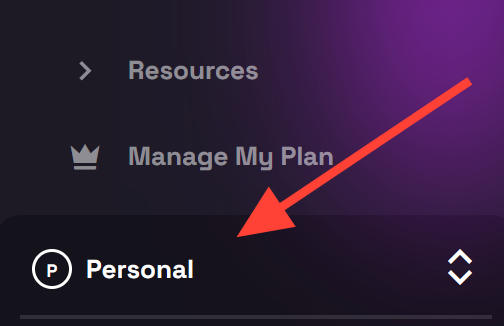
Need to upgrade? Visit RunDiffusion Account Settings and click on Personal on side bar.
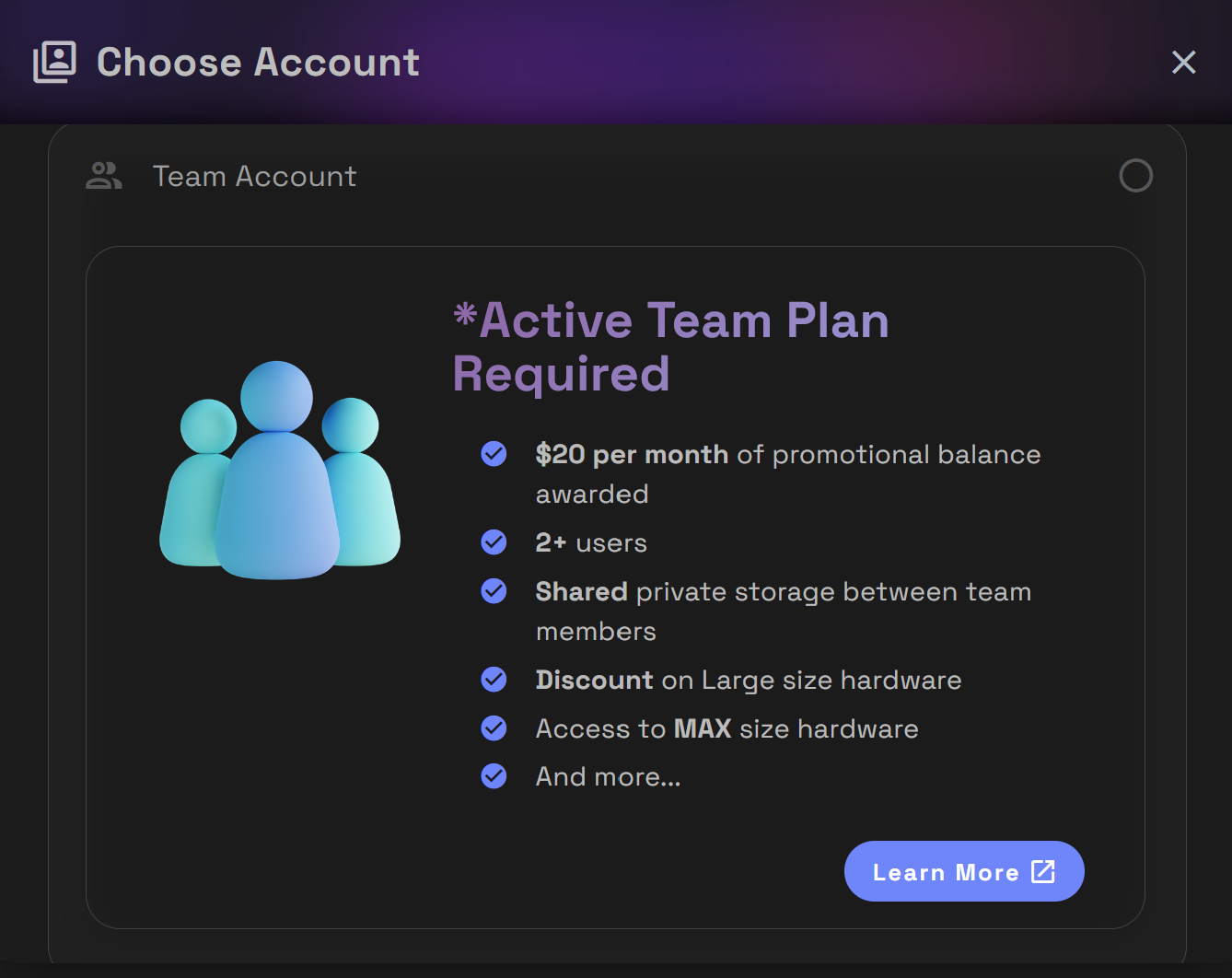
Then click on Team Account to get more information about team plans.
How to Access Reporting
Reporting is available on the RunDiffusion Platform, using the same access flow.
✅ Step-by-Step Instructions:
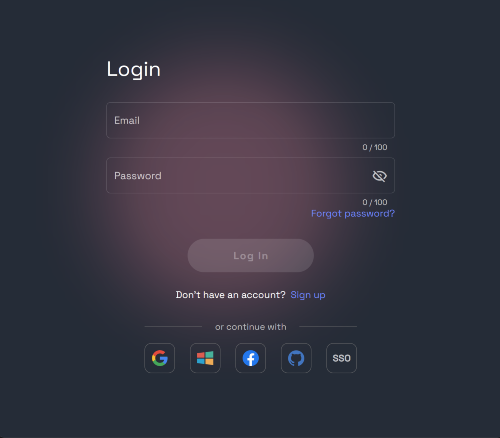
Login at RunDiffusion
Open the RunDiffusion Platform
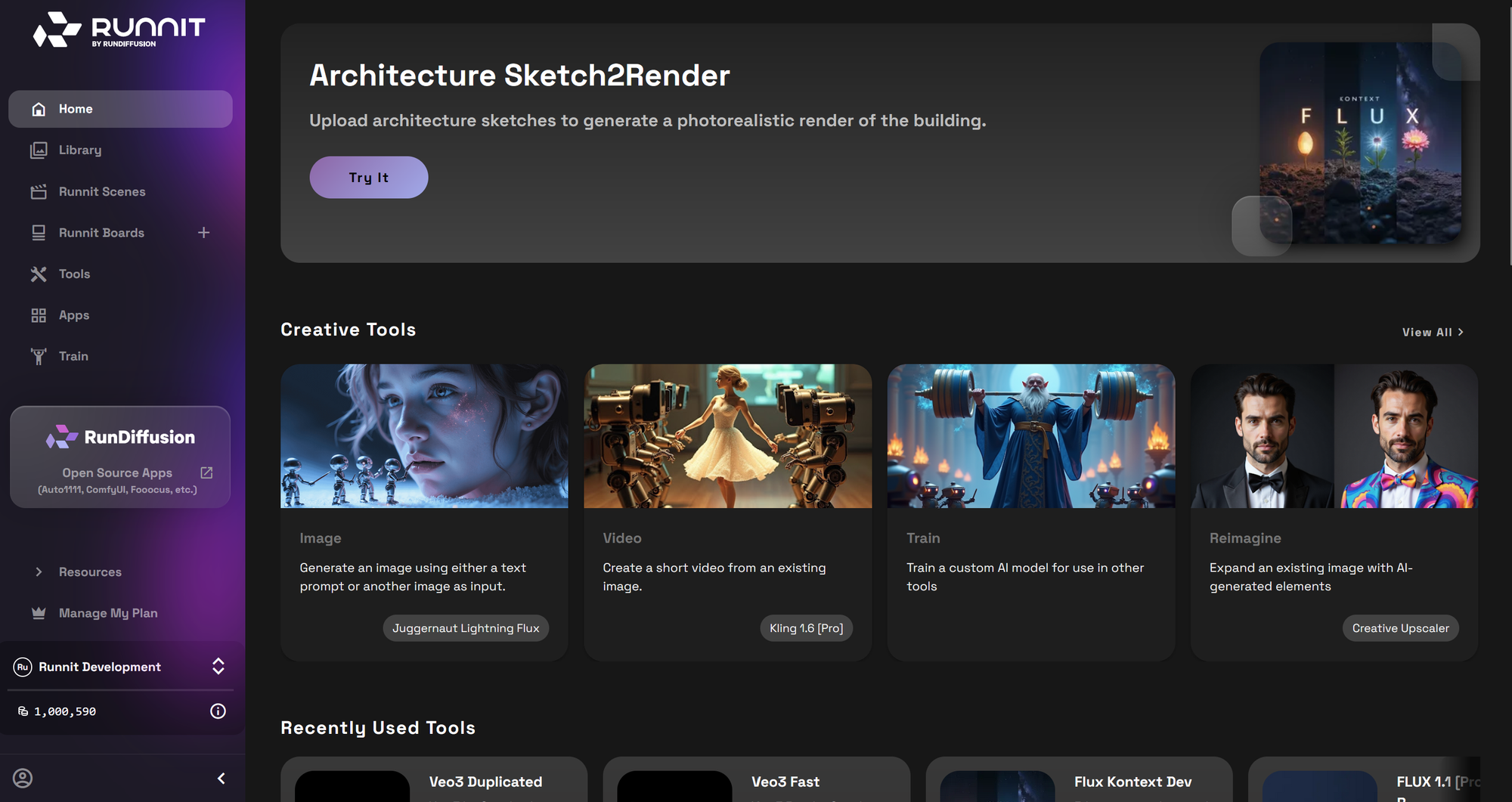
Click on the Account button in the bottom Left.
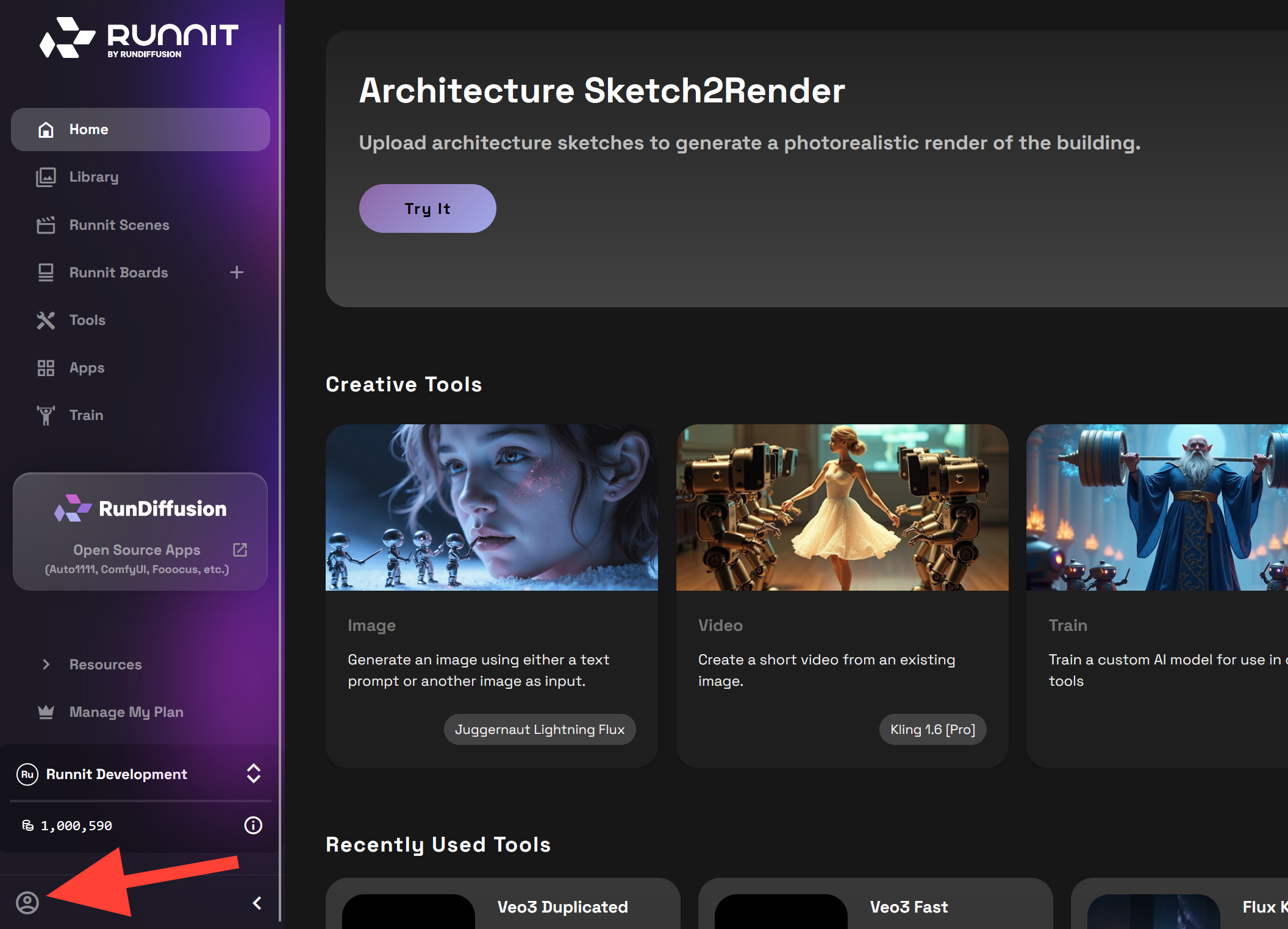
Then click on Team
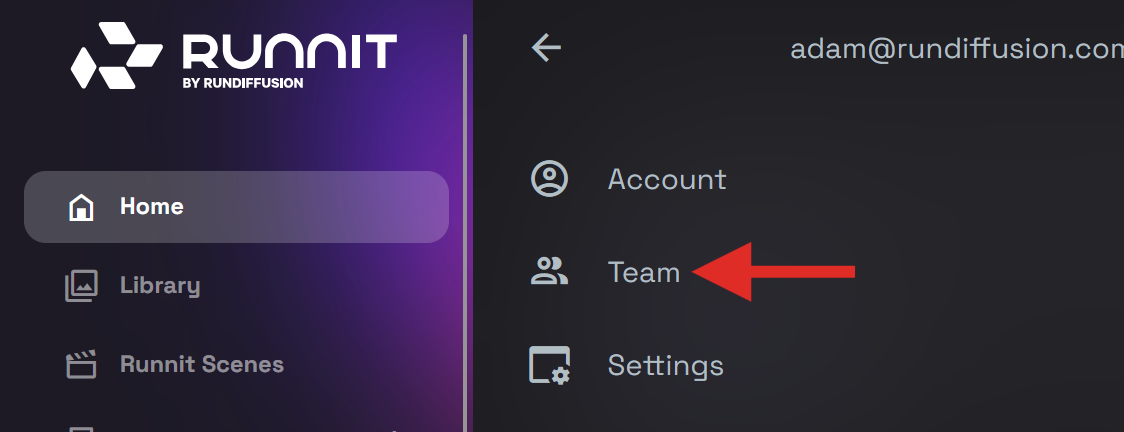
On the top click on Reporting.
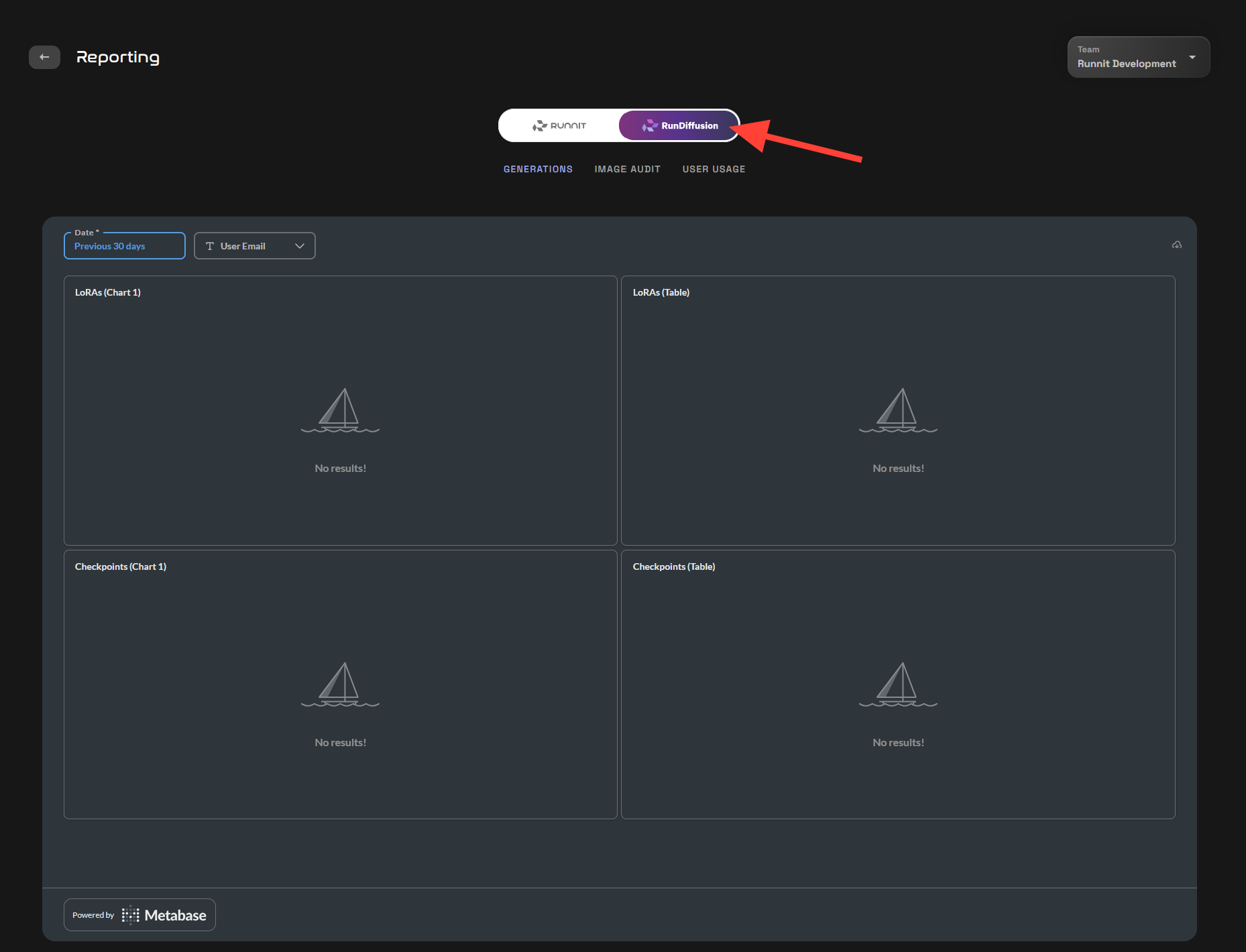
You can select the RunDiffusion Platform or Open Source applications to

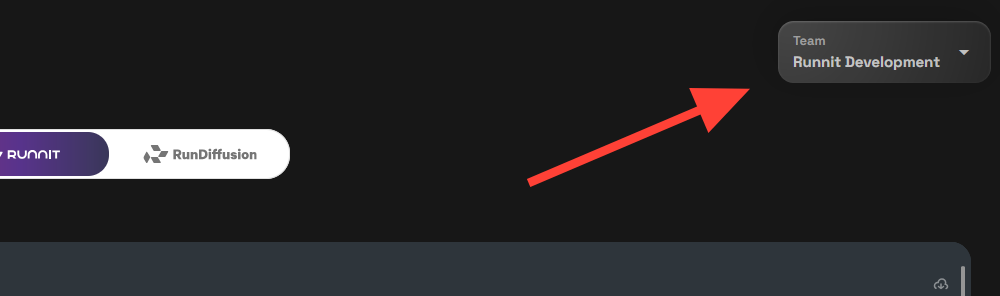
In the top right you can select All Teams or a specific team.
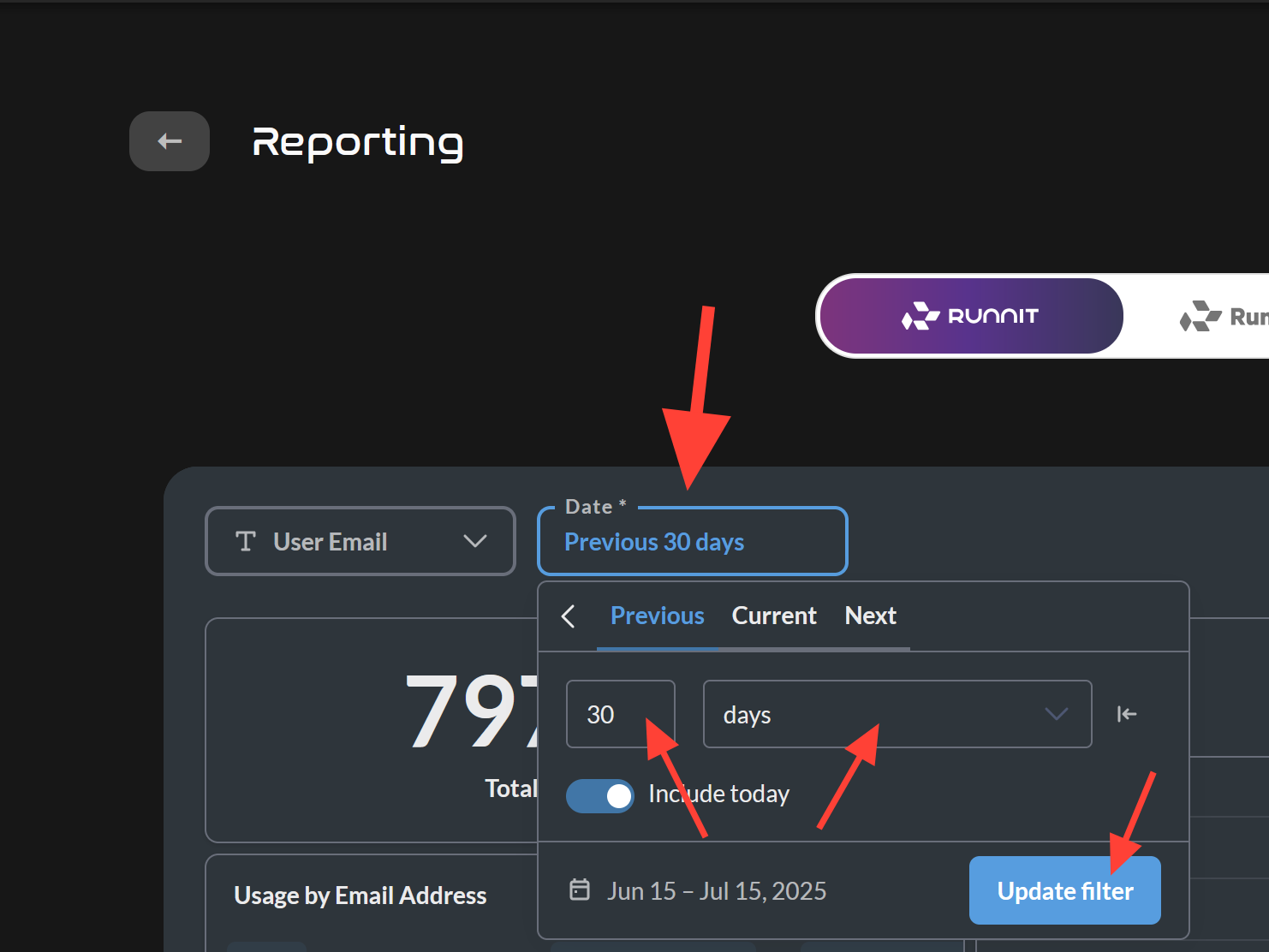
You can click on the Date input box to edit the number of hours, days, months years and click Update Filter to apply your changes.
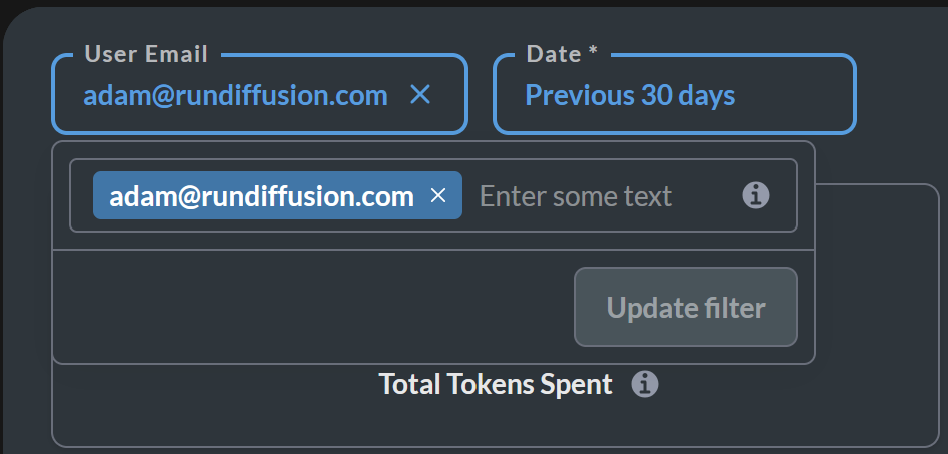
You can also search by specific user. By clicking on User Email and writing the name of the user's email and clicking Add Filter. It is caps sensitive.
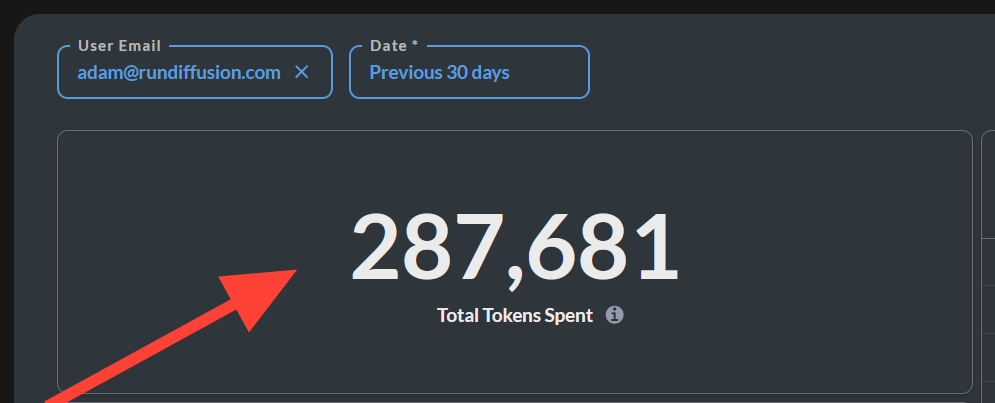
You can see the user adam@rundiffusion.com has used a total of 287,681 tokens on this Team.
The Usage by Email Address has stats broken down by the email addresses of your team members. Use the scroll bar at the bottom to see more stats.
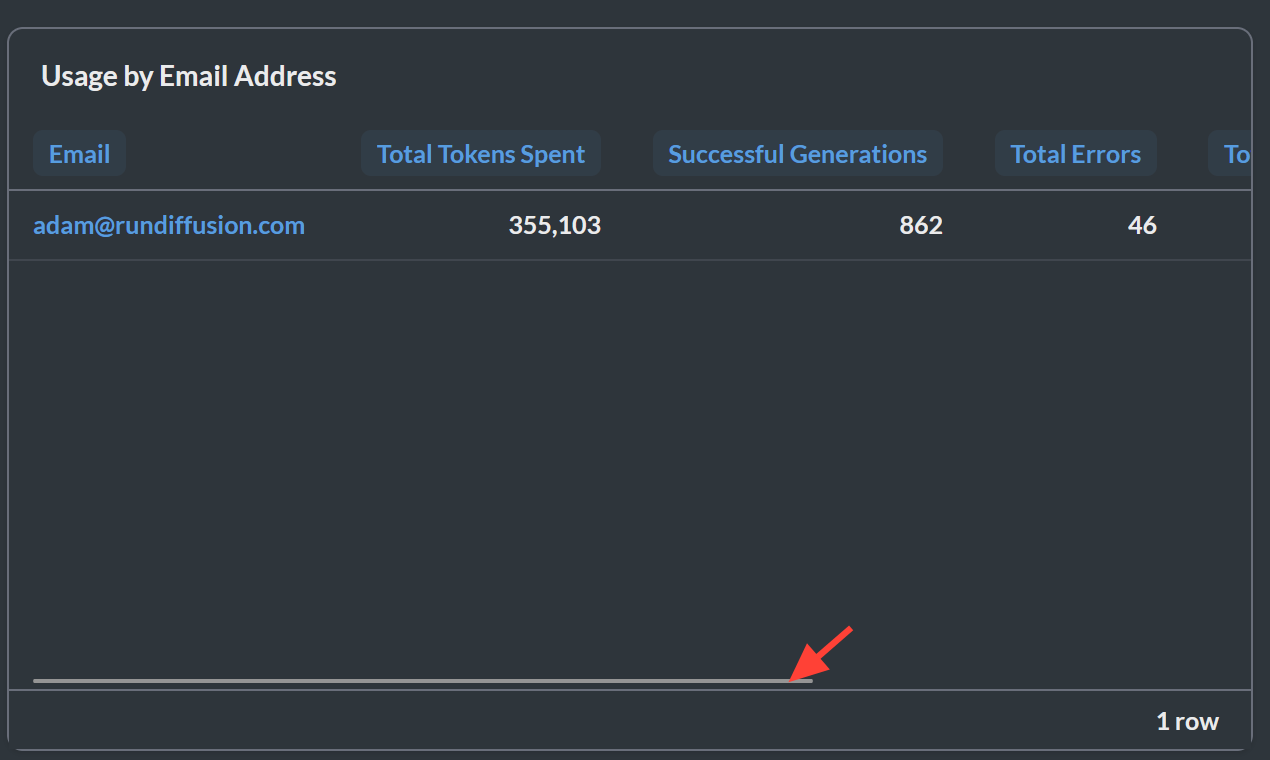
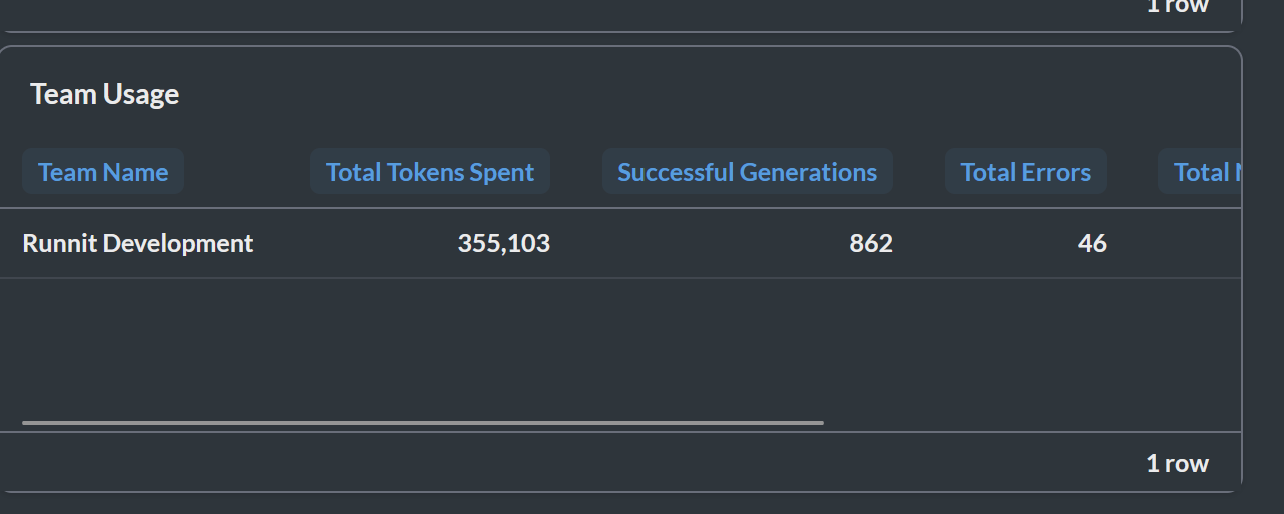
You can also see a users usage on multiple teams in the Team Usage section.
If your team is using RunDiffusion opensource applications you can also click on the RunDiffusion tab at the top and check reporting there as well.
Related Resources
How to Download an Invoice from Your RunDiffusion Account | RunDiffusion
Need a copy of your RunDiffusion invoice? This step-by-step guide shows you how to sign in, access your account menu, and download or print receipts with ease.
RunDiffusion Team

How to Update Invoices on RunDiffusion | RunDiffusion
Learn how to download and customize your invoices on RunDiffusion. This guide covers how to update your billing information, add tax IDs, and ensure accurate records for invoices.
RunDiffusion Team
Final Thoughts
The Reporting dashboard is your team’s command center for understanding tool usage, token usage and . Just remember:
- ✅ Must be on a Team or Enterprise account
- ✅ Must be a Team Admin
If you're not on a team yet, consider upgrading to unlock these powerful insights.