
When you're troubleshooting you often need to access your log file on RunDiffusion. Reviewing log files is a vital step. RunDiffusion’s FILES ONLY app gives you direct access to your Cloud Filebrowser storage including your logs, without needing to relaunch a session.
In this article, we’ll walk through how to access logs using FILES ONLY, what to look for, and how it helps when using apps like ComfyUI, Auto1111, or Kohya etc.
Step by Step: How to Access Logs Using FILES ONLY
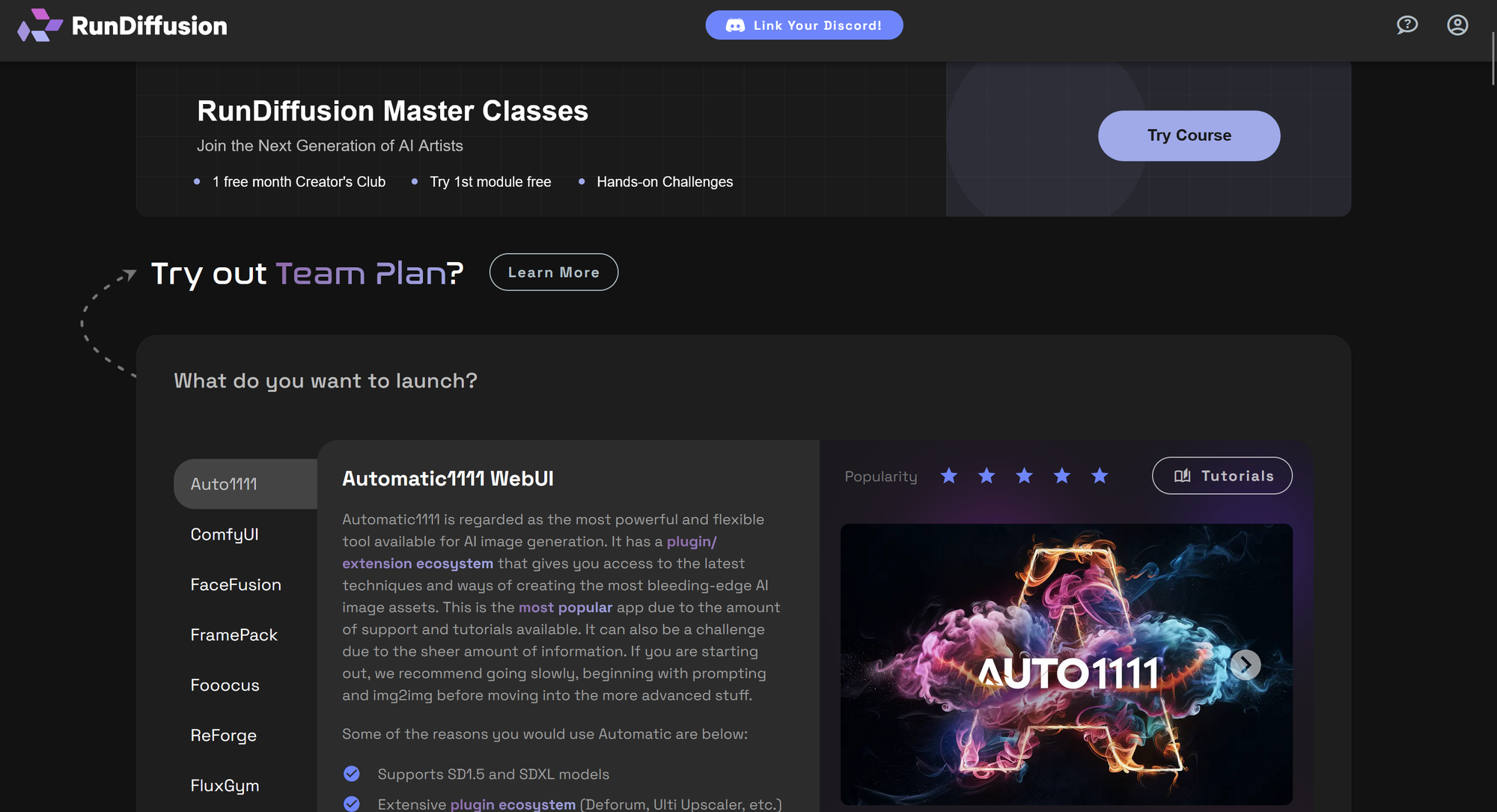
Navigate to the RunDiffusion Opensource Applications Page
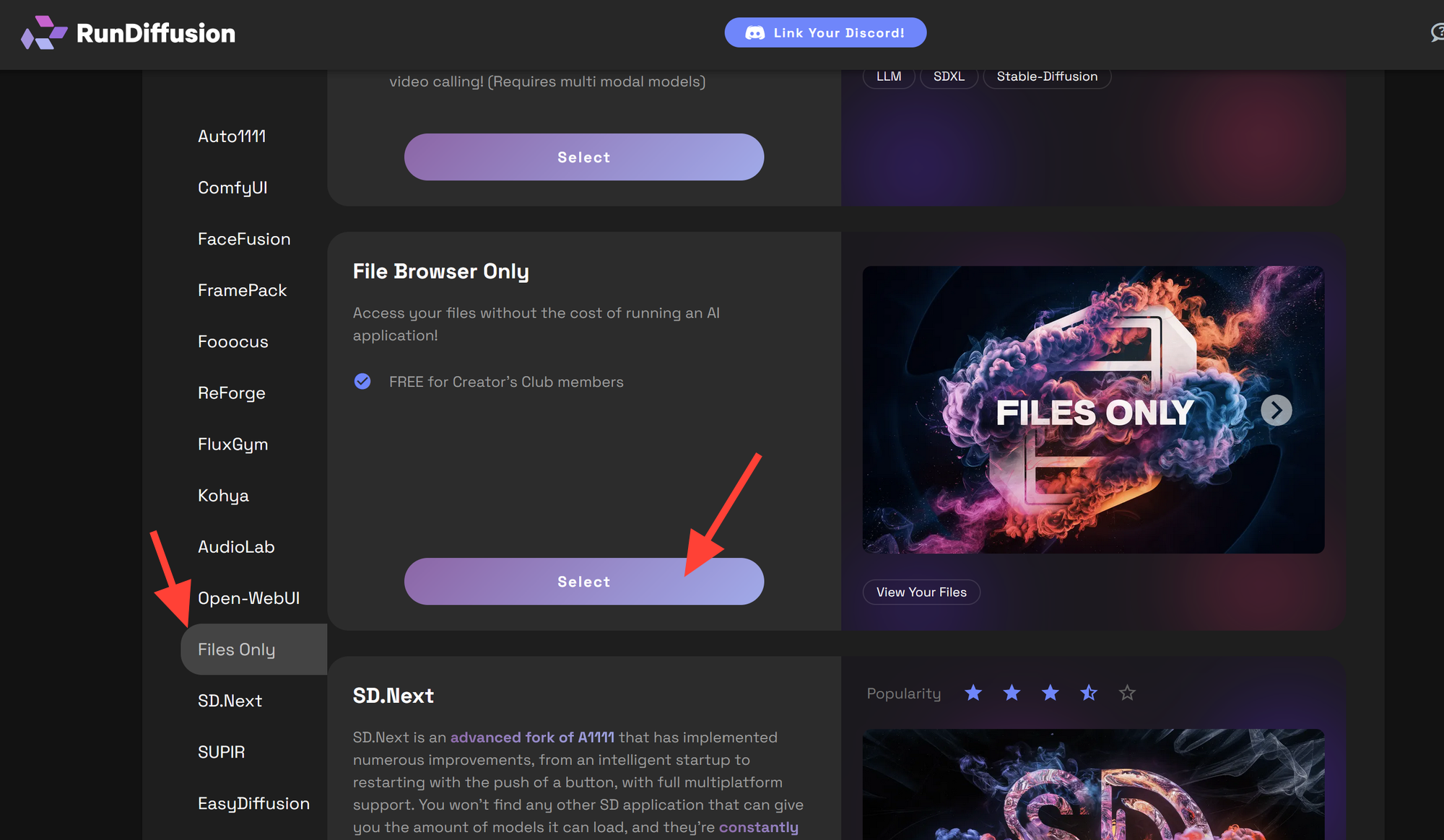
Click on Files Only on the left sidebar then click Select.
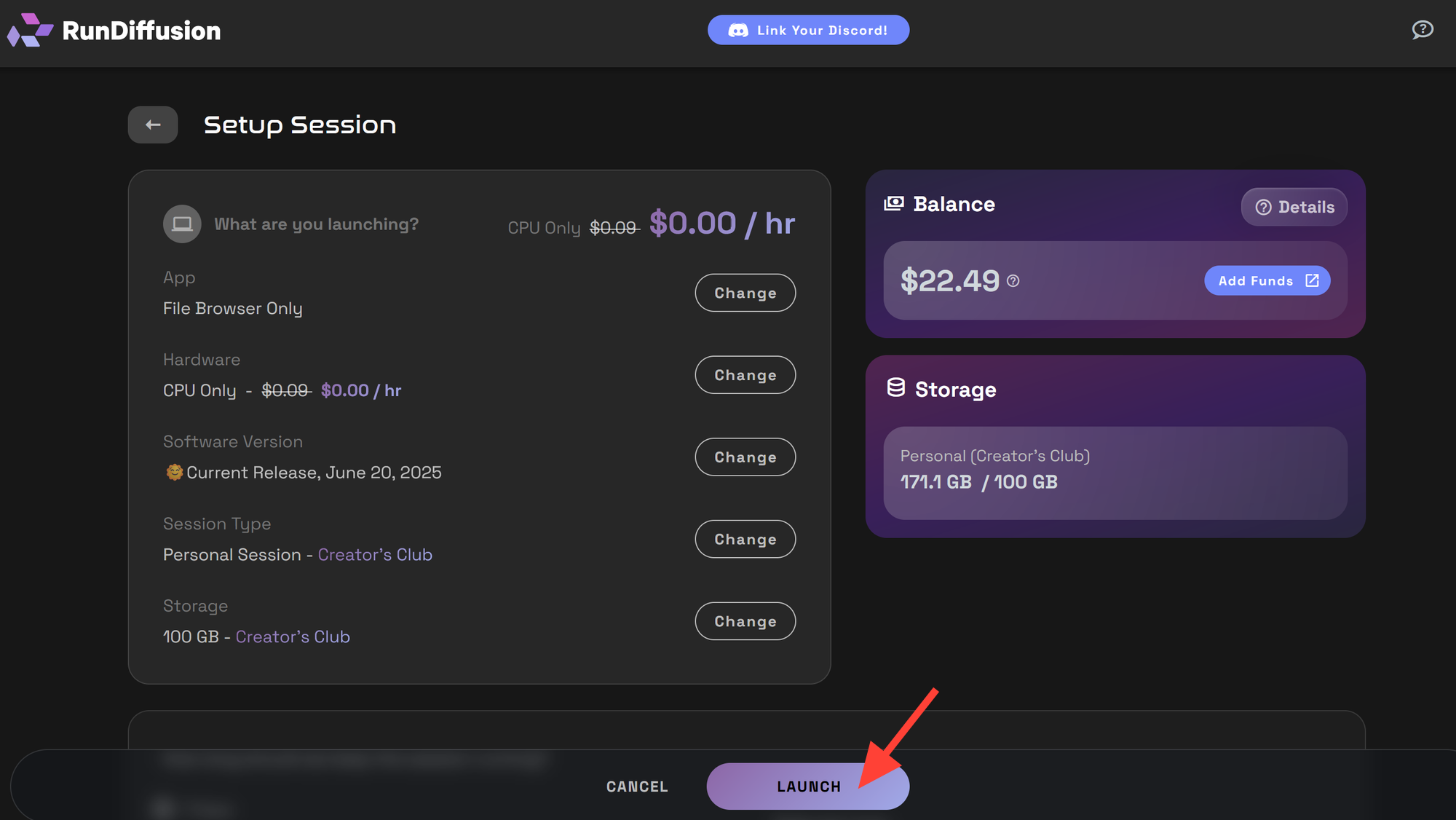
Click Launch.
Click on the logs folder.
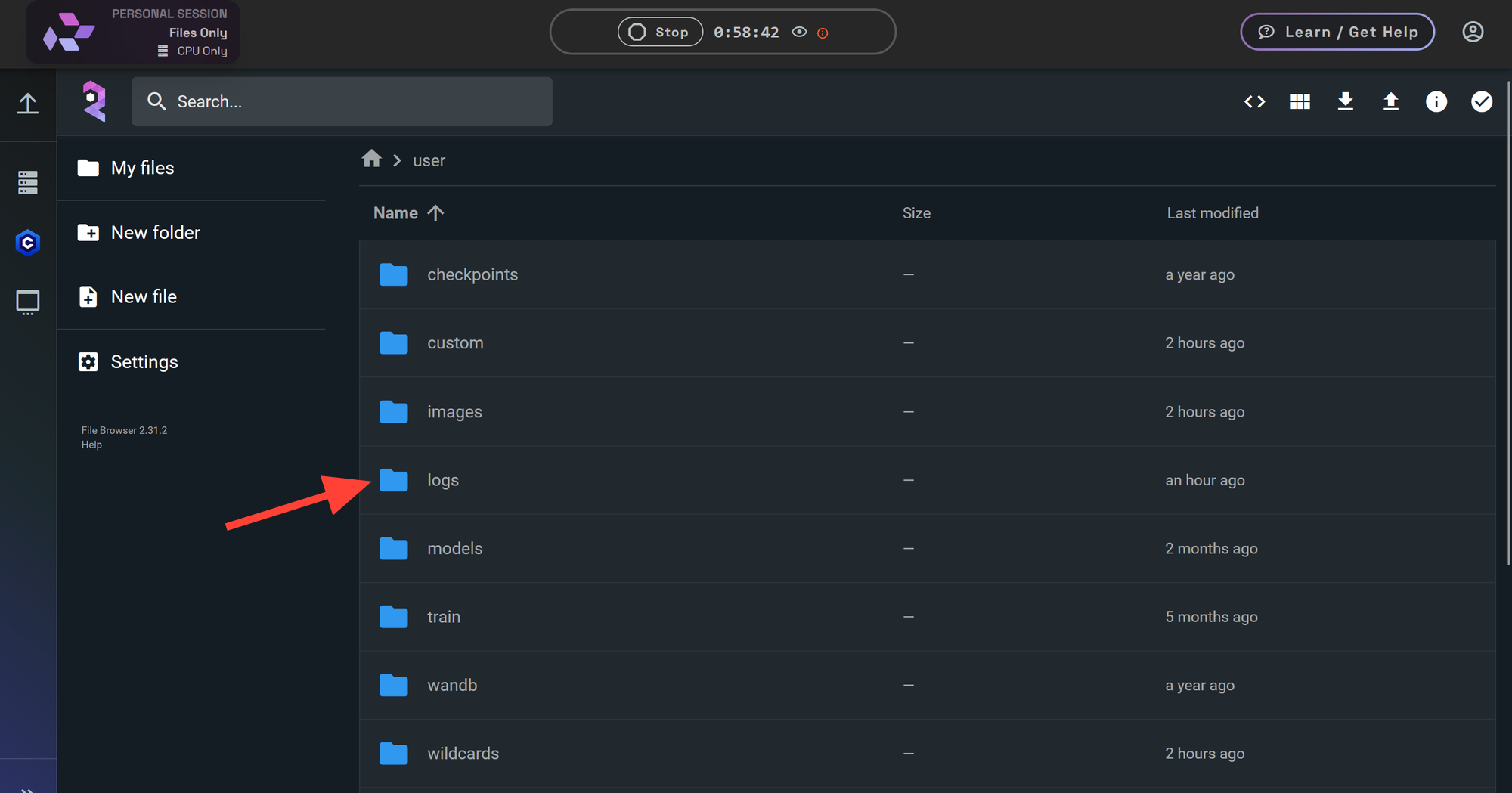
This folder contains the log files.
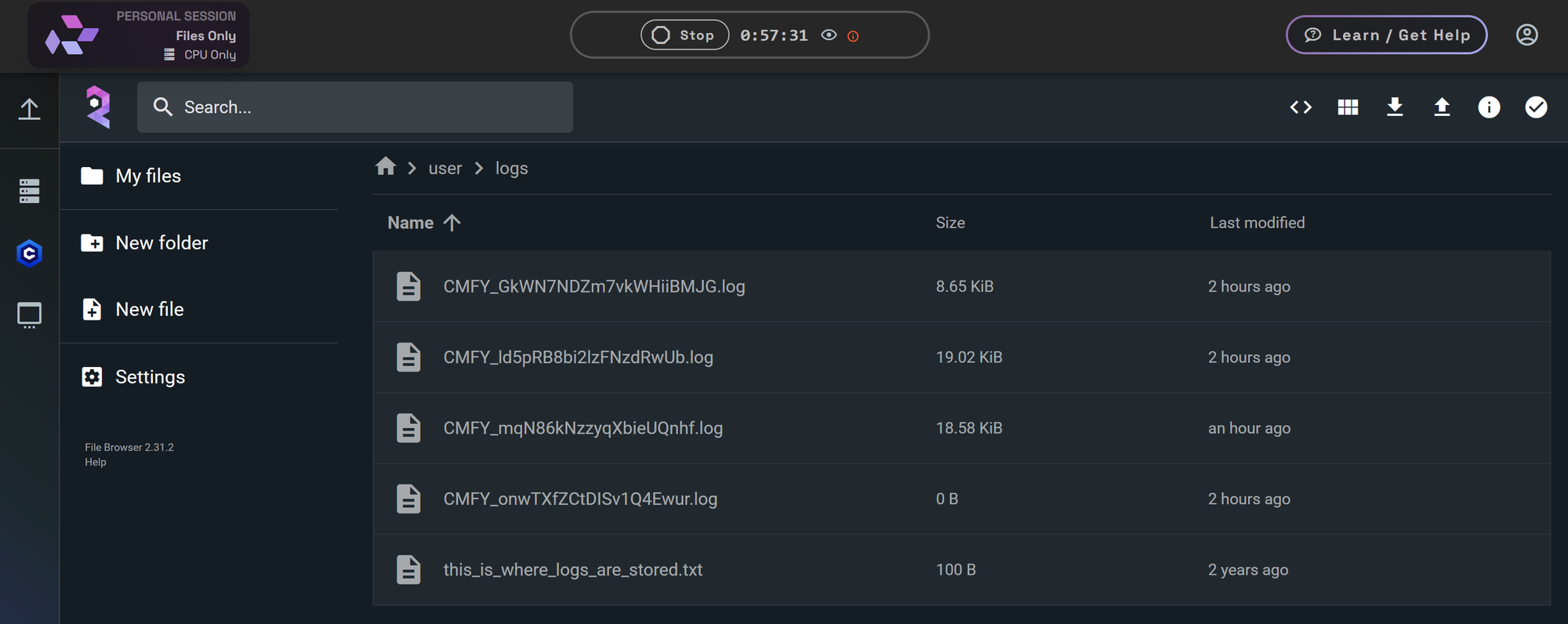
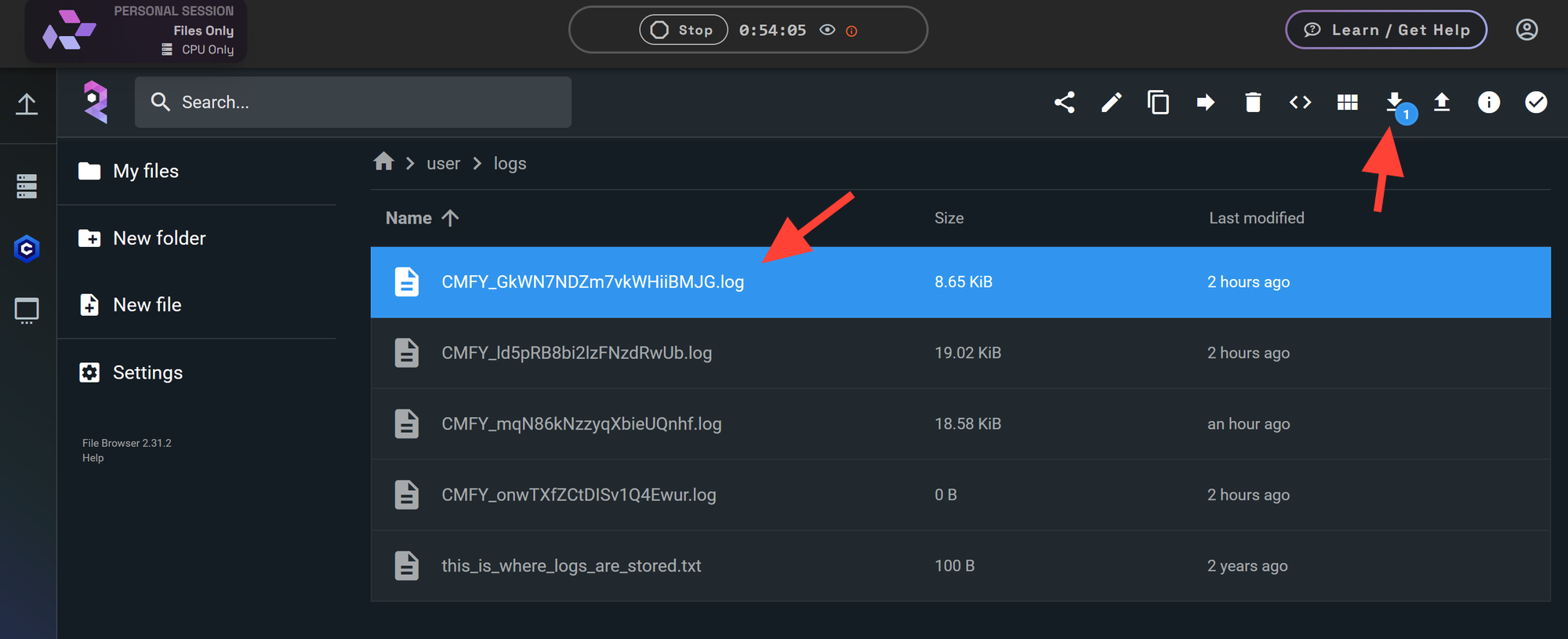
To access a log you can double click on it. Or Click it one time and select the download button.
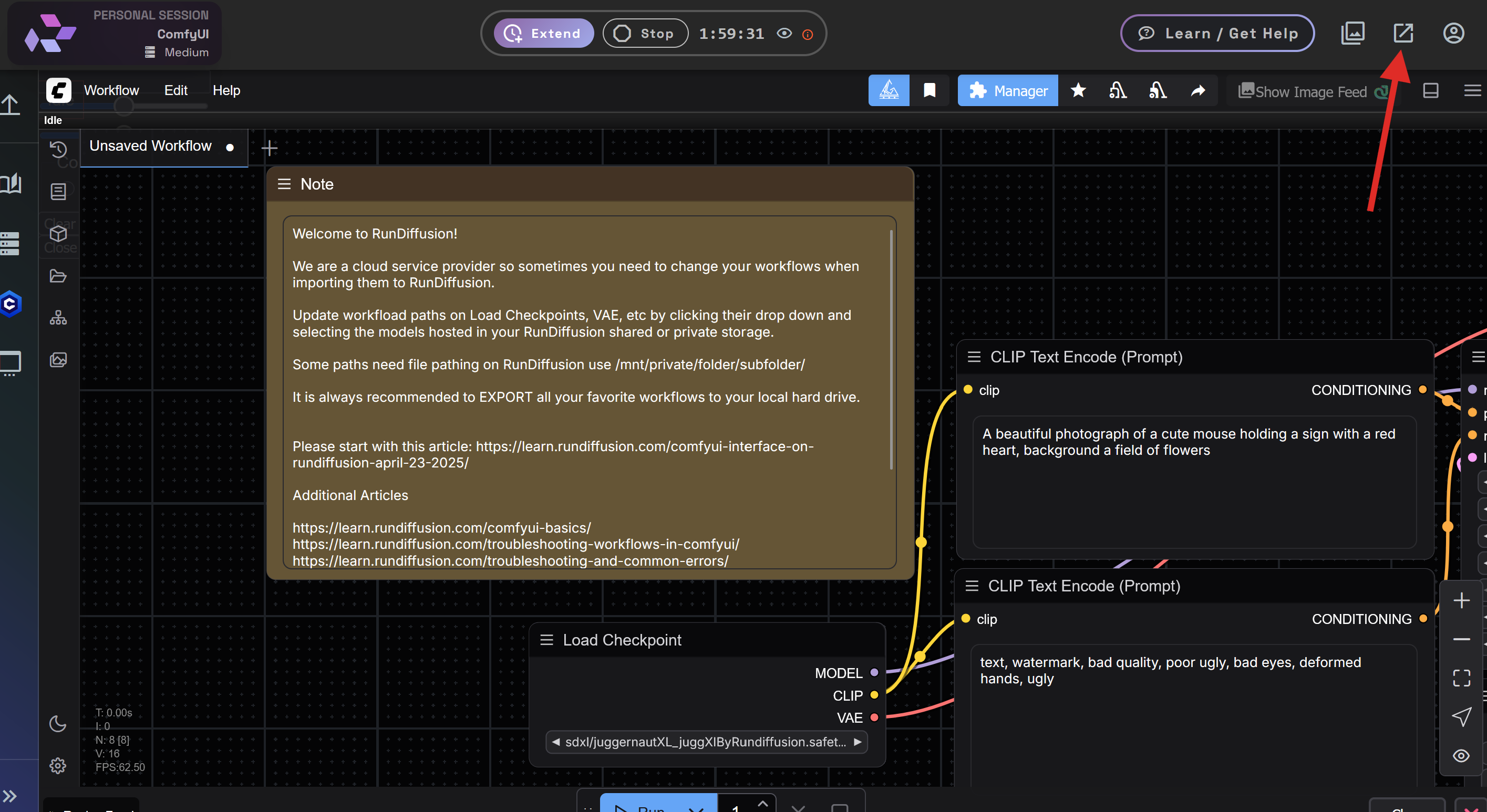
If you already have an application open you can access the logs by clicking in the top right of the UI. This will create a second browser tab that can be accessed just like File browser from FILES ONLY application.
Best Practices for Debugging with Logs
- Check the timestamp of each log file to match it to your session activity
- Scan for ERROR, WARNING, or Traceback entries
- Scanning during Kohya training to check training.
Summary
RunDiffusion’s FILES ONLY a useful application for accessing logs and outputs from your sessions without starting up a server. It’s the fastest way to get direct insight into what went wrong and should be shared when opening a support ticket.
How to Check Your Session History to Monitor Your Usage | RunDiffusion
Learn how to check your session history in RunDiffusion to monitor usage and track balance.
RunDiffusion Team

How to Open a Support Ticket | RunDiffusion
Need help? Open a support ticket by clicking the Help Chat Icon in the top right, our team will assist you as soon as possible!
RunDiffusion Team