
- ComfyUI gives direct control over canvas size, composition, masking, model selection, prompts, and blending.
- RunDiffusion can launch the ComfyUI workflow in the cloud so the Flux outpainting workflow does not need to run on a local GPU.
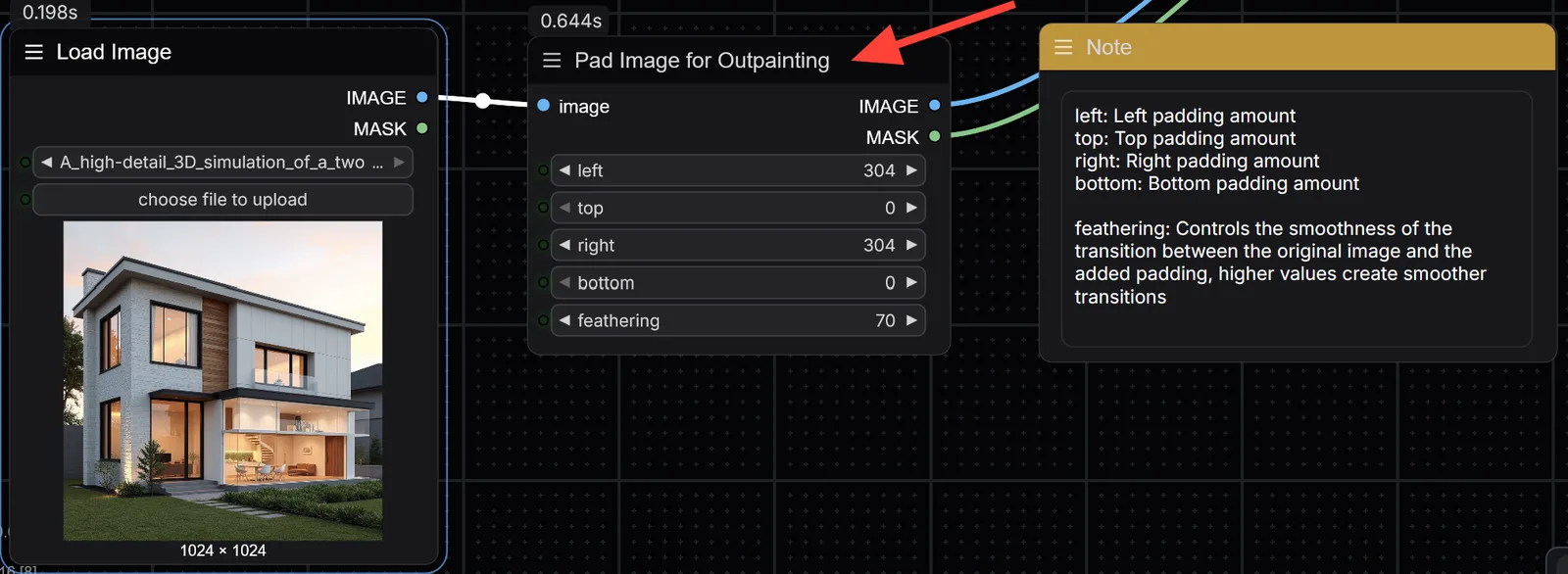
- The Pad Image for Outpainting node controls how far each edge expands and how smoothly the new area blends back into the original.
- If the first result does not blend well, adjust the prompt, feathering, or outpaint in stages.
Outpainting in ComfyUI on RunDiffusion lets you extend the borders of an existing image while keeping control over canvas size, masking, prompts, model choice, and blending.
| At a glance | |
|---|---|
| Host app | ComfyUI |
| Platform | RunDiffusion |
| Workflow | Flux-Outpainting |
| Key controls | Left, Top, Right, Bottom, and Feathering |
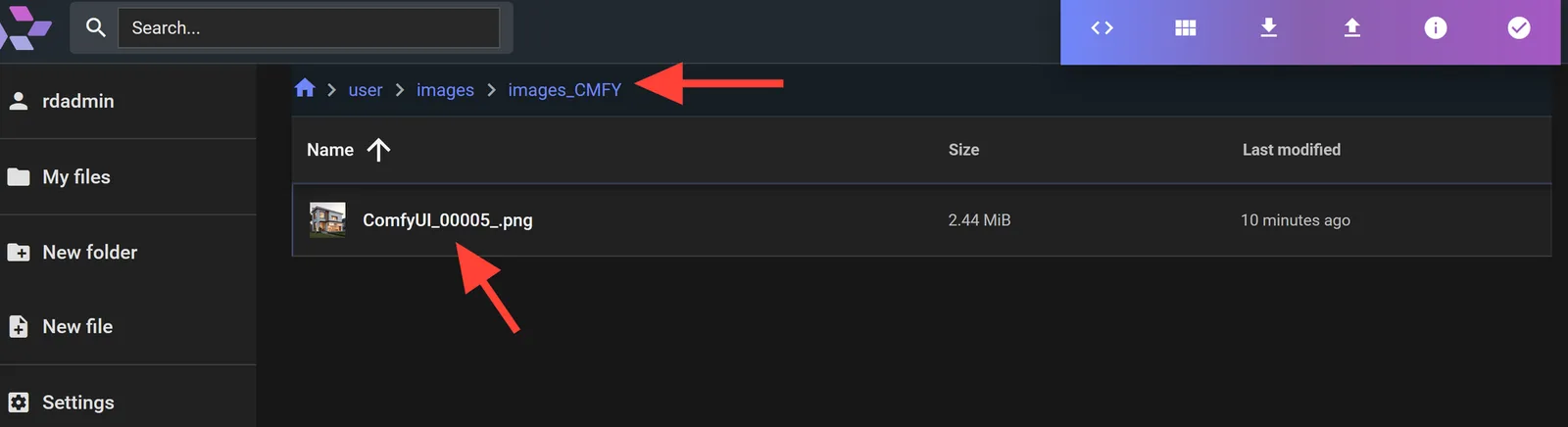
| Output path | images/images_CMFY/ |
Outpainting on RunDiffusion in ComfyUI allows you to expand the borders of an image while preserving quality and style. Whether you are continuing a background, building panoramic scenes, or enhancing framing for storytelling, ComfyUI's node-based system gives you direct control over each part of the process.
Why Use ComfyUI for Outpainting on RunDiffusion?
ComfyUI gives you precise control, allowing you to customize workflows for your company or personal use cases.
- Canvas size and composition
- Masking accuracy
- Model selection
- Prompt engineering
- Image consistency and blending
Getting Started: Launch ComfyUI on RunDiffusion
Log in to RunDiffusion.
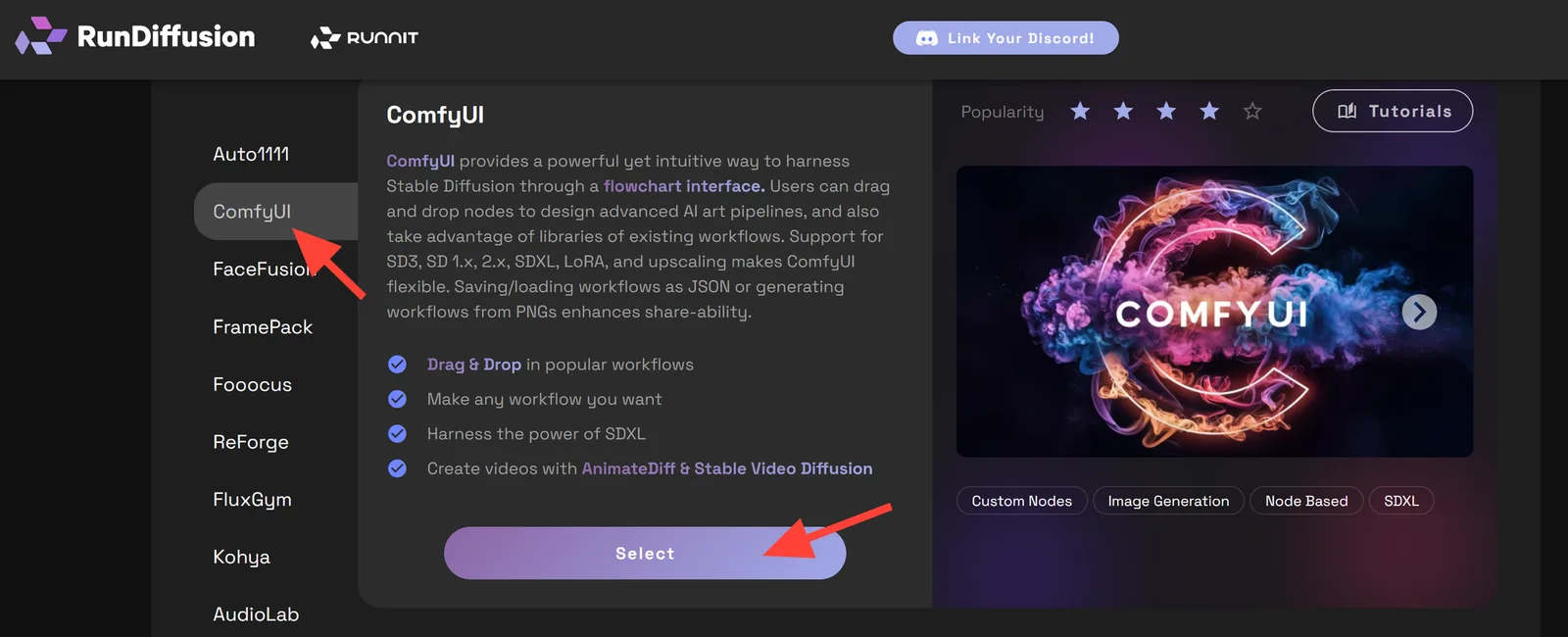
Go to Open Source Apps and select ComfyUI on the left panel, then click select.
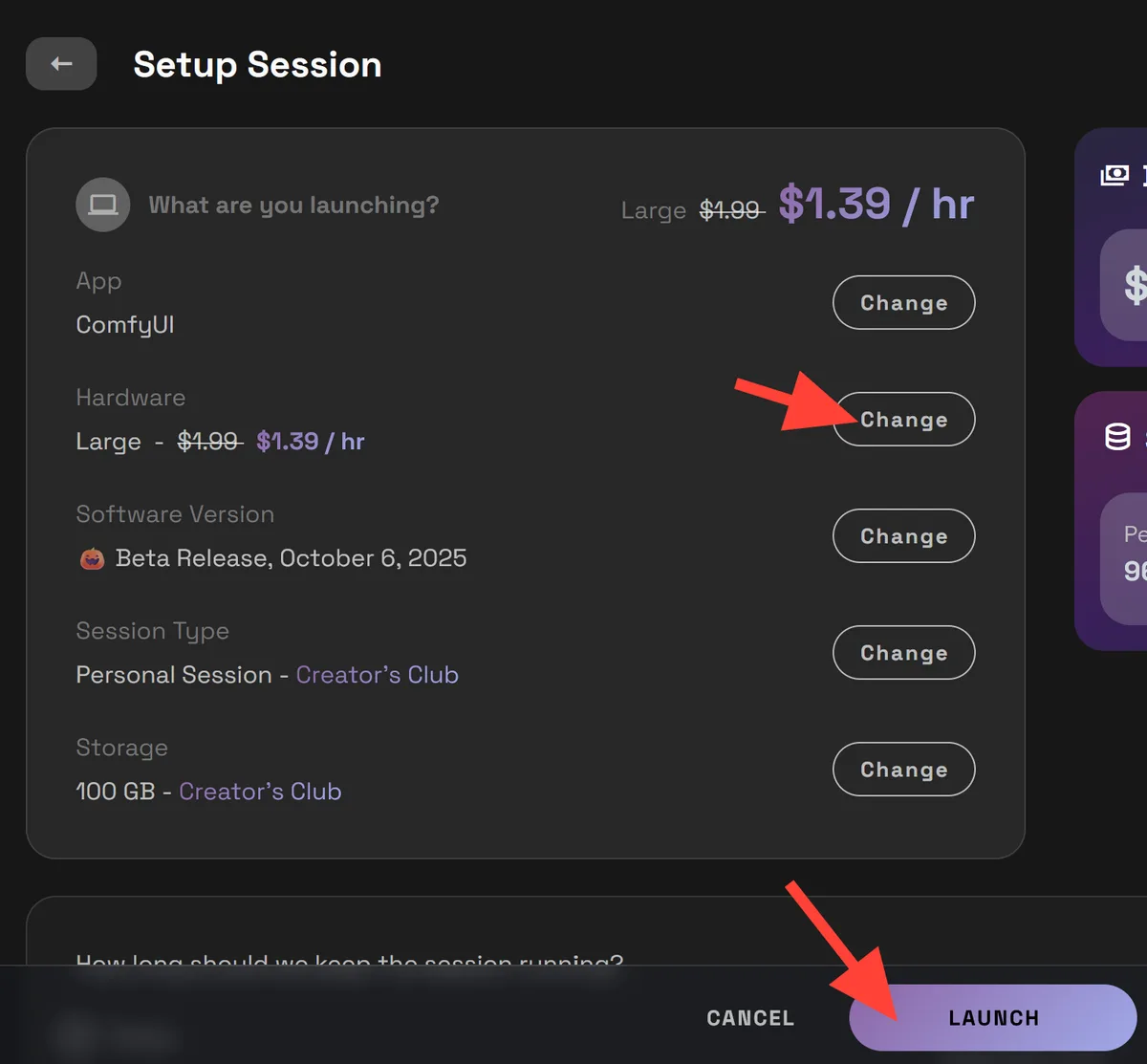
You can use a Medium server, but we recommend a Large server because the workflow uses a Flux model, which is intensive. Then click Launch.
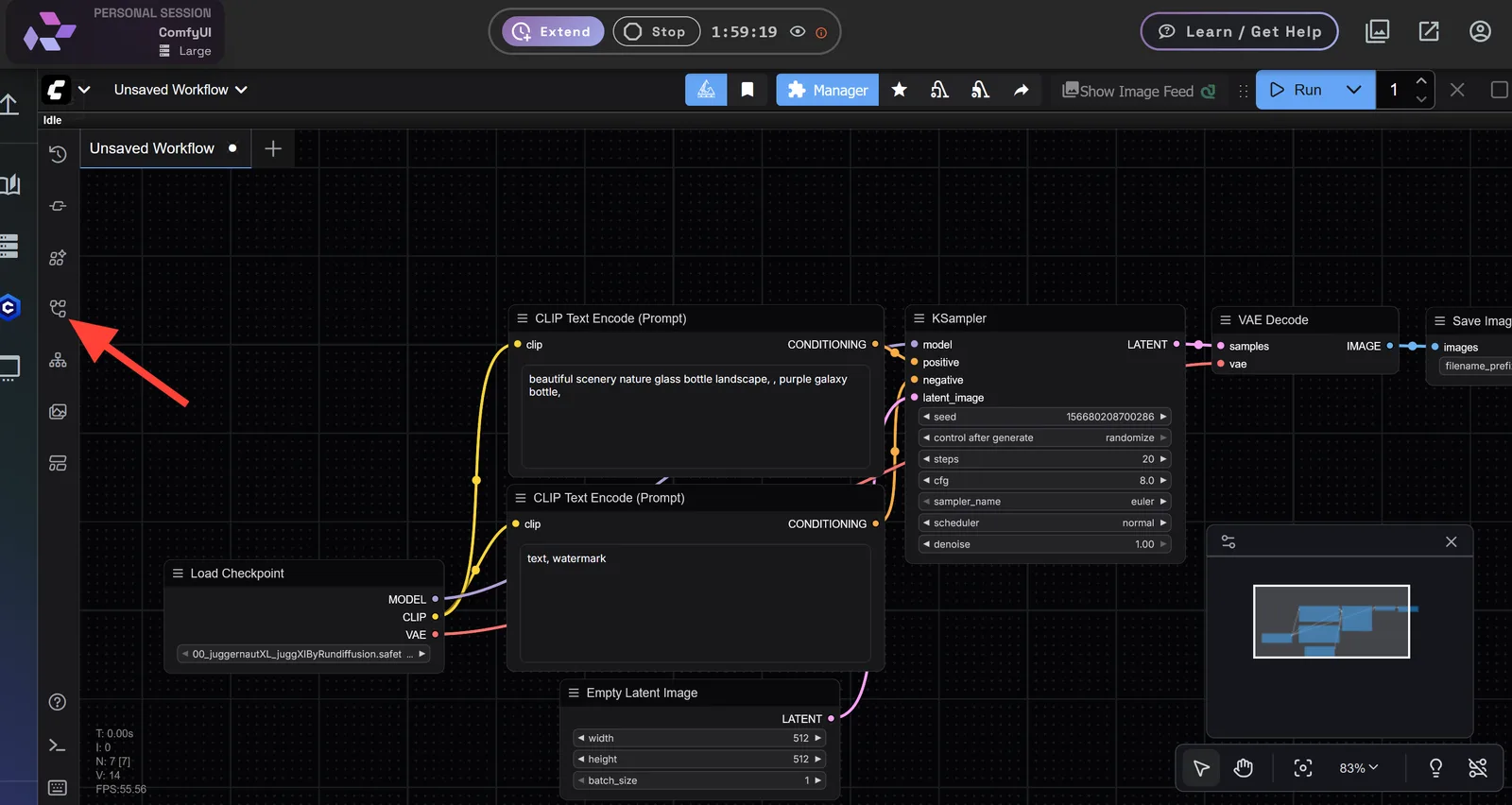
Click the workflow symbol on the left sidebar.
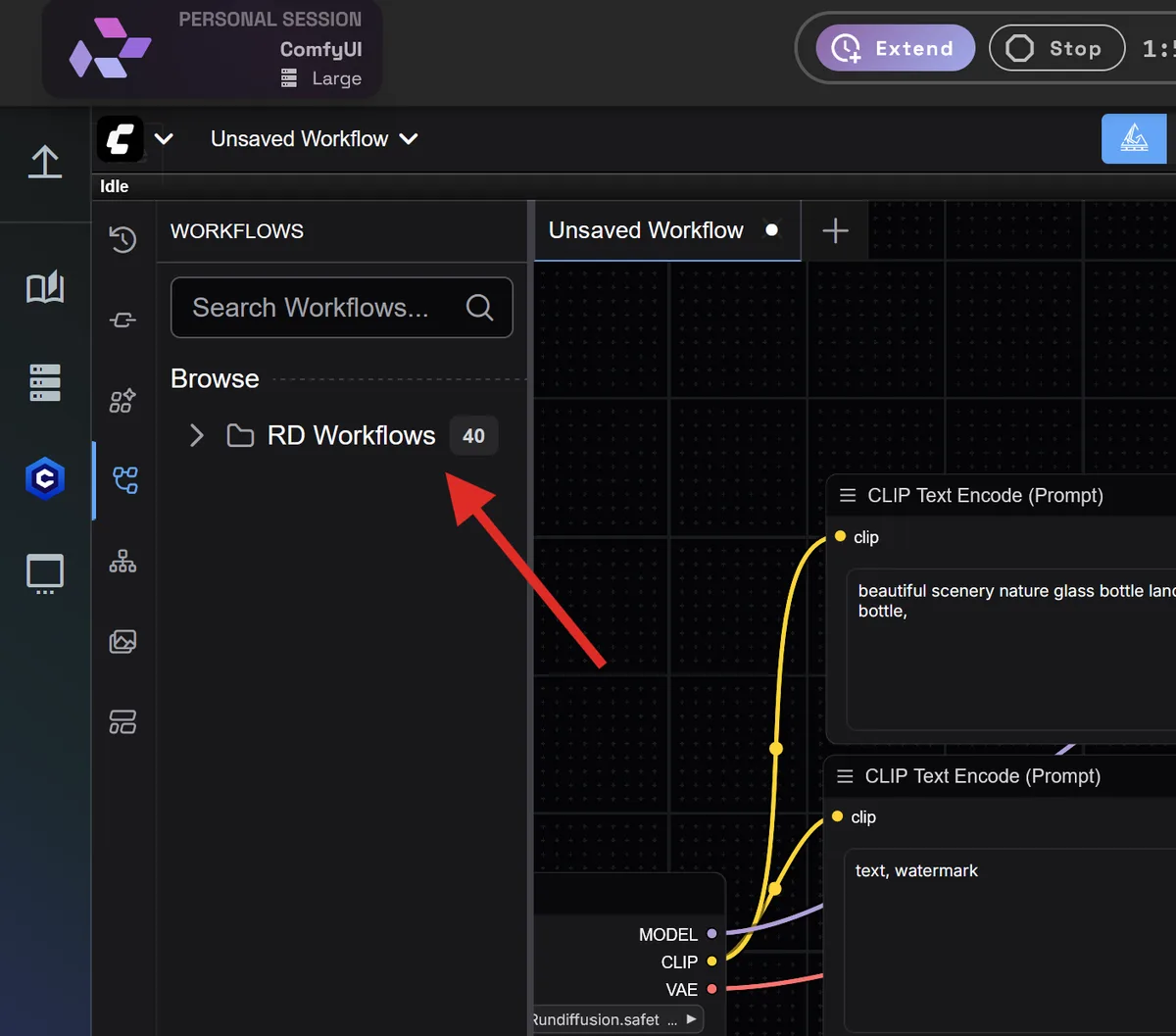
Then click the RD Workflows folder.
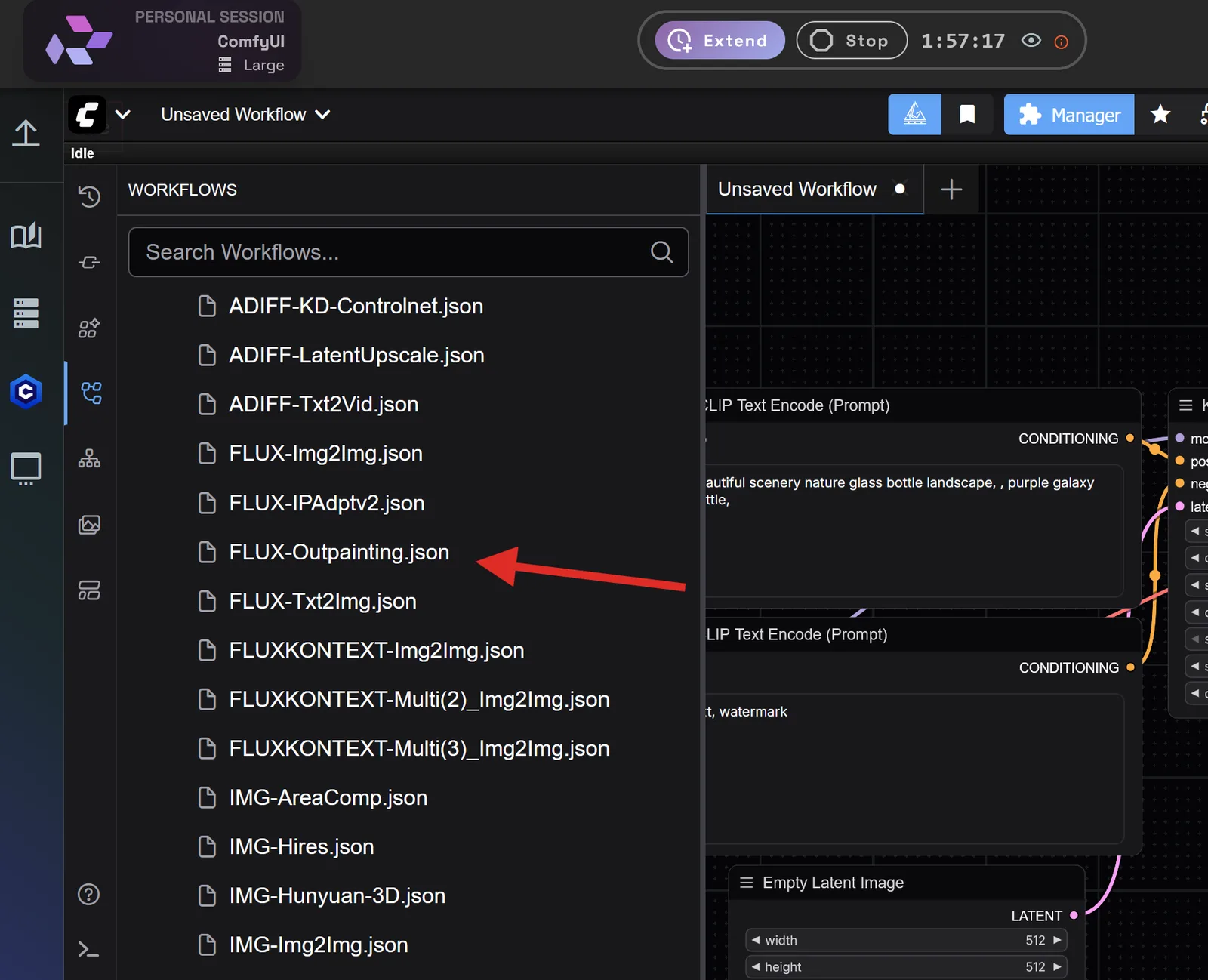
Scroll down to the Flux-Outpaining.json workflow.
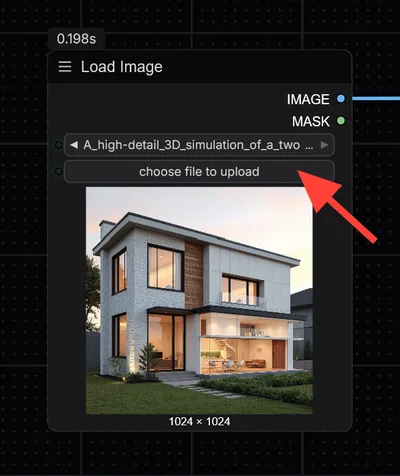
Now that you have the Flux-Outpainting workflow loaded, click the Load Image node and upload the image you want to edit.
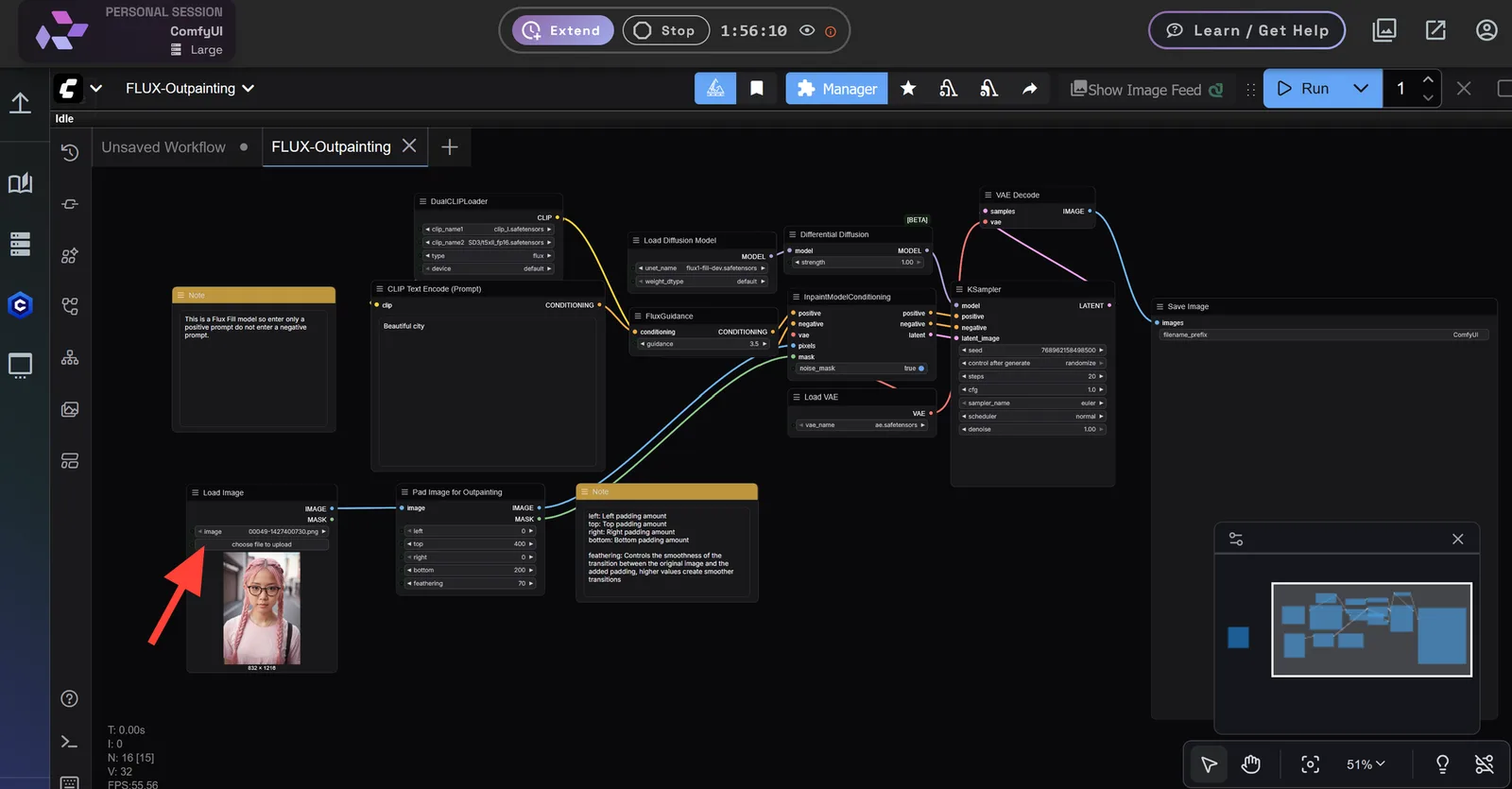
Next, look at the Pad Image for Outpainting node. The values Left, Top, Right, and Bottom influence how the image is outpainted. The higher the value, the more it will outpaint that area, so adjust these numbers to your needs. Feathering controls the transition between the current image and the added outpainted area. The higher the value, the smoother the image; keep that value around 50-80.
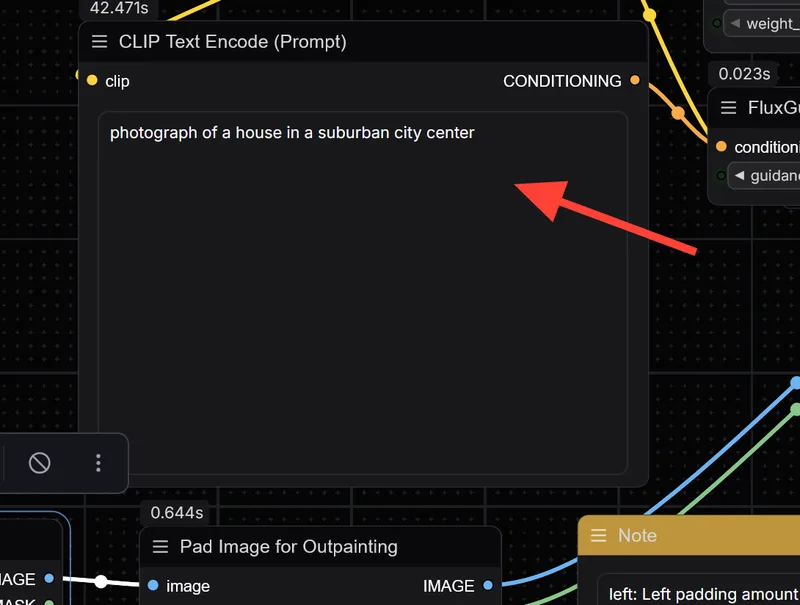
The CLIP Text Encode node is where you enter your prompt. As a Flux model, you will want to align your prompt with the original image's Flux prompting style. You can use a simple prompt first to test and expand from there.
Click Run to generate your image.
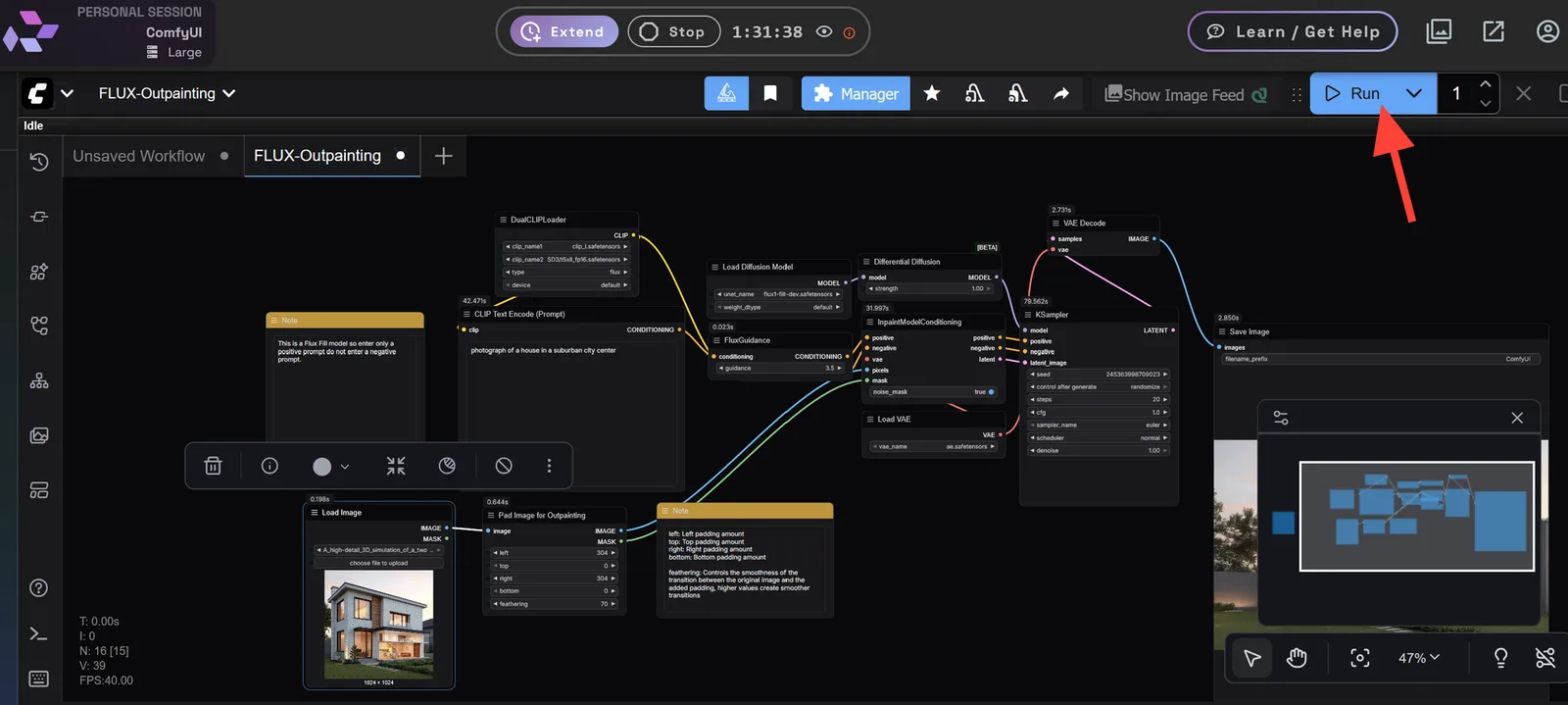
Your new image will appear in the Save Image Node.
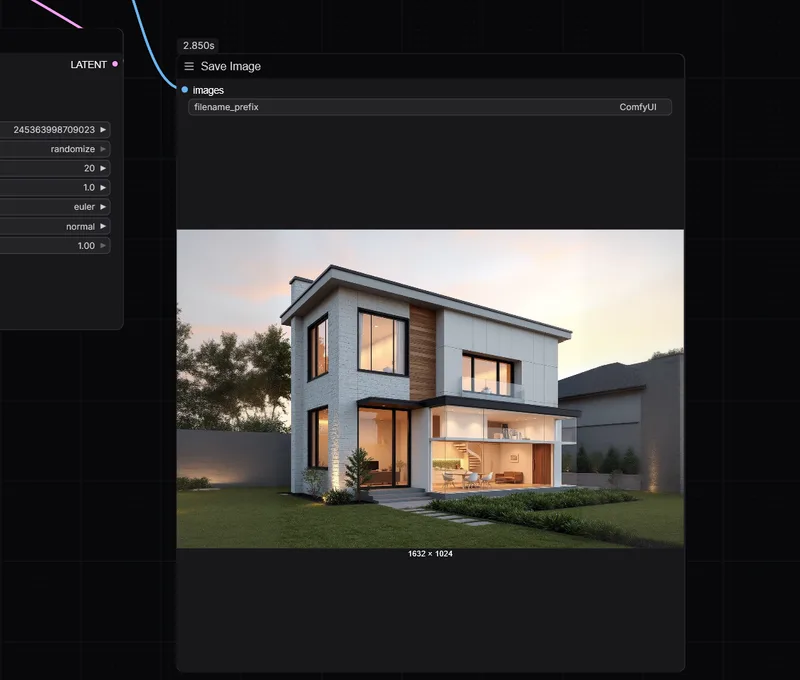
In addition, you can find it in your RunDiffusion File Browser in the path images/images_CMFY/.
Refining Your Outpainted Results
If the first pass does not blend well, try:
- Adjusting your prompt to better guide the scene
- Modifying the feathering for better edge transitions
- Doing the outpainting in stages, such as the left side and then the right side
Run ComfyUI on RunDiffusion
Launch ComfyUI in the cloud, load the RD outpainting workflow, and expand images without local GPU setup.
Frequently asked questions
QWhat is outpainting in ComfyUI?
Outpainting expands the edges of an existing image so the scene can continue beyond the original frame.
QWhy use ComfyUI for outpainting on RunDiffusion?
ComfyUI gives direct control over canvas size, masking, model selection, prompt engineering, and blending while RunDiffusion hosts the workflow in the cloud.
QWhich workflow does the guide use?
The source guide uses the Flux-Outpaining.json workflow inside the RD Workflows folder.
QWhat does feathering control?
Feathering controls the transition between the original image and the new outpainted area.
QWhat should I try if the first outpainted result does not blend well?
Adjust the prompt, change feathering, or outpaint one side at a time.


