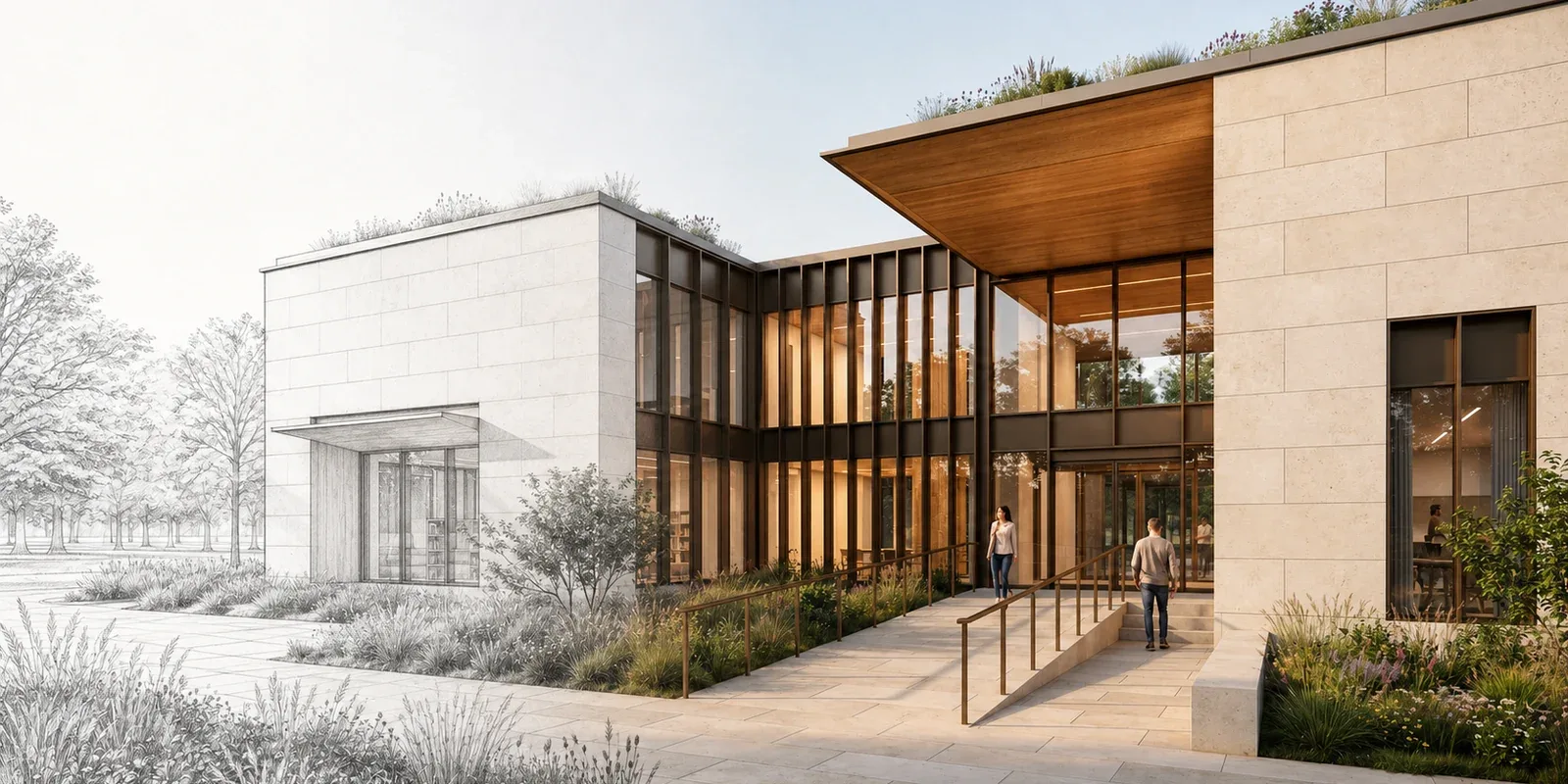
- Revit and SketchUp exports can look flat or under-detailed before final visualization.
- Seedream V4 Edit is useful for clean, photorealistic edits, sharper detail, lighting, and material realism.
- Nano Banana Edit is useful for stronger color, richer texture, and more stylized modern architecture concepts.
- RunDiffusion supports image uploads and prompt-guided refinement, with daily free tokens available for testing before moving to a paid or Enterprise plan.
RunDiffusion lets architects and designers upload Revit or SketchUp PNG renders, refine them with tools such as Seedream V4 Edit and Nano Banana Edit, and improve lighting, material detail, sharpness, and presentation quality without rebuilding the model.
| At a glance | |
|---|---|
| Best fit | Revit and SketchUp render post-processing |
| Inputs | PNG exports from Revit or SketchUp |
| Tools | Seedream V4 Edit and Nano Banana Edit |
| Access | RunDiffusion tools with daily free tokens |
Architects and designers working in Revit and SketchUp often produce fast concept visuals, but those images can fall short when it comes to detail, lighting, or presentation-ready quality. That's where RunDiffusion's AI image enhancement tools come in.
Using models like SeeDreamV4 Edit and Nano Banana Edit, you can take basic image renders from design software and enhance them into polished, high-resolution visuals. These tools support architectural workflows, helping you boost render quality without needing extra software or manual retouching.
What You'll Learn
- How to enhance Revit and SketchUp renders with RunDiffusion tools
- What SeeDreamV4 Edit and Nano Banana Edit can do
- How to use image uploads in RunDiffusion for post-processing
- How to access these tools using your free daily tokens to test the platform before upgrading to an Enterprise plan
Why Enhance Renders from Revit and SketchUp?
While Revit and SketchUp are excellent for modeling and layout, the visuals they produce can often:
- Appear flat or low contrast
- Lack photorealistic lighting
- Miss texture depth or material detail
RunDiffusion's enhancement models help:
- Boost realism and sharpness
- Refine architectural detail
- Add textures, lighting, and mood
- Prepare renders for portfolios, presentations, or client approval
You can upload a simple PNG and use prompt-based refinement tools to transform your render in minutes.
Tools That Work Best for Editing Revit/SketchUp Renders
SeeDreamV4 Edit
- Supports image editing up to 4K resolution
- Ideal for enhancing architectural elements like glass, concrete, and lighting
- Produces clean, minimal, photorealistic results
Nano Banana Edit (Gemini 2.5)
- Adds color vibrancy and richer texture
- Better for stylistic or modern concept visuals
- Works well for both interiors and exteriors
Both models support:
- Prompt-guided refinement
- PNG uploads of your Revit or SketchUp renders
- Resolution boosts and detailed post-processing
How to Use AI Tools to Enhance Revit/SketchUp Renders
You can use these tools with or without a paid plan, thanks to the daily free token system on RunDiffusion.
Step-by-Step:
Navigate to RunDiffusion tools.
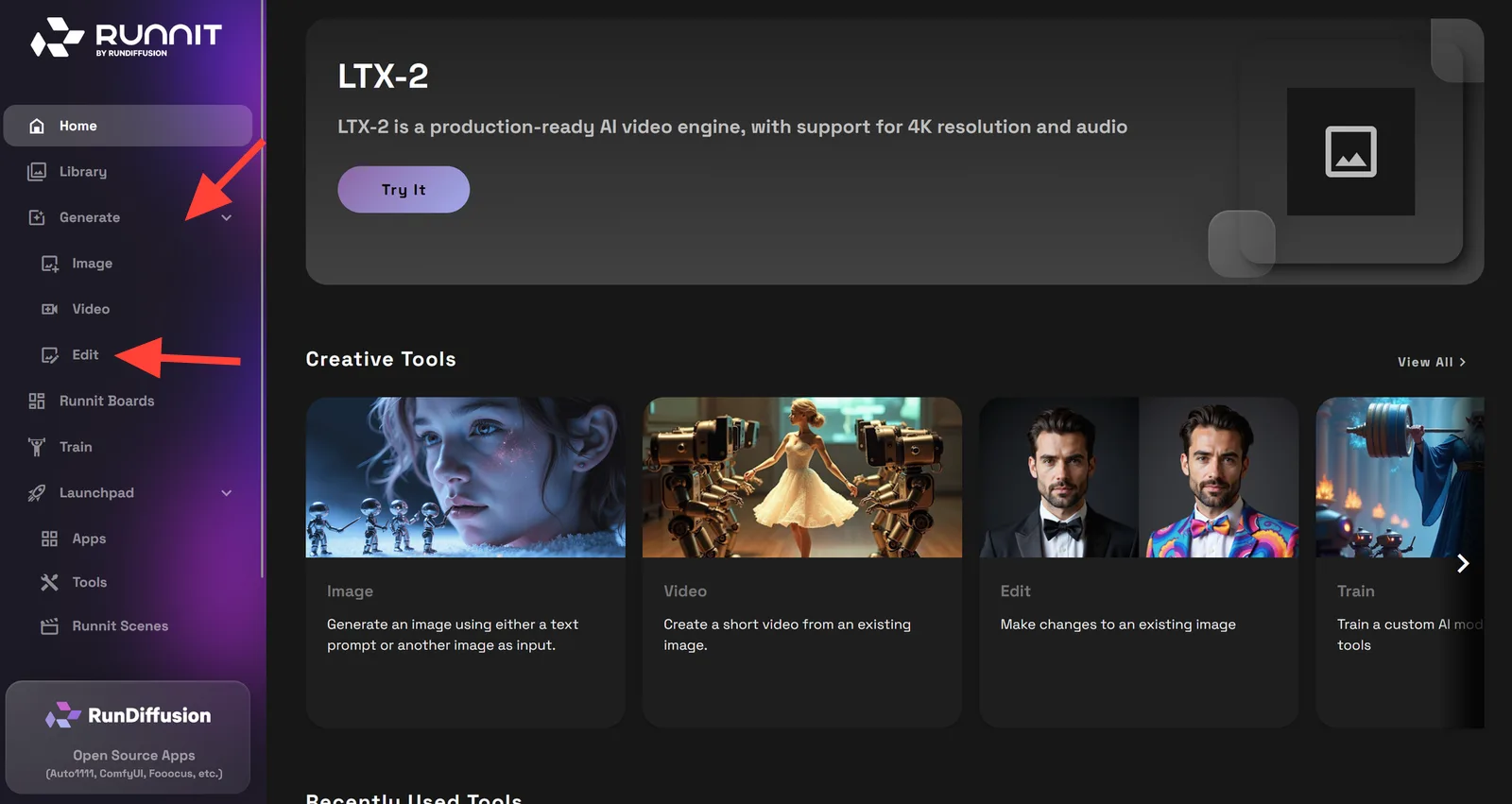
Click Generate on the sidebar, then click Edit.
Click the model at the bottom to change or select a different model.
Select Seedream V4 Edit or Nano Banana Edit.
Upload your SketchUp or Revit image of your architectural model.
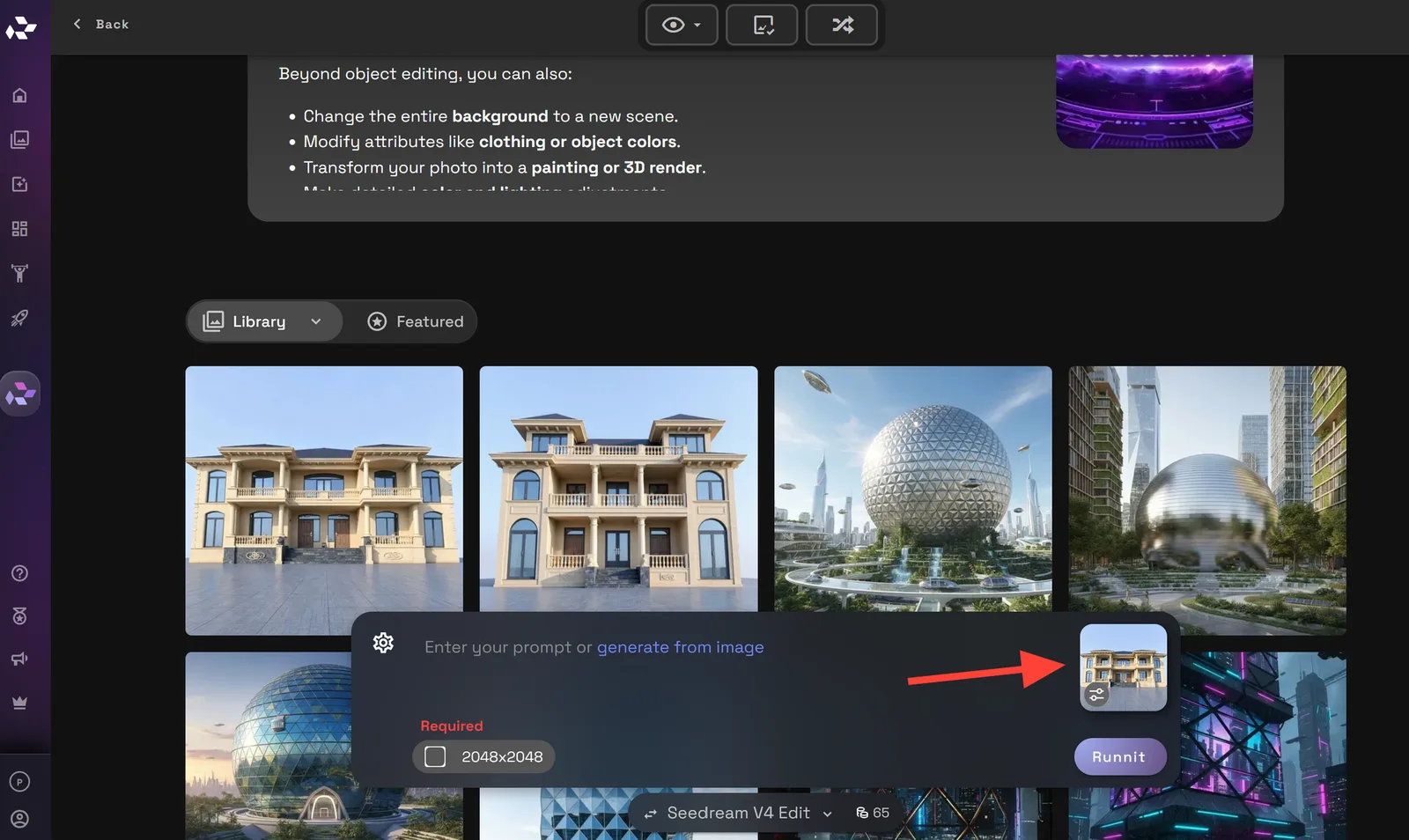
Write a prompt. Here you can change the style, lighting, textures, image size, and more.
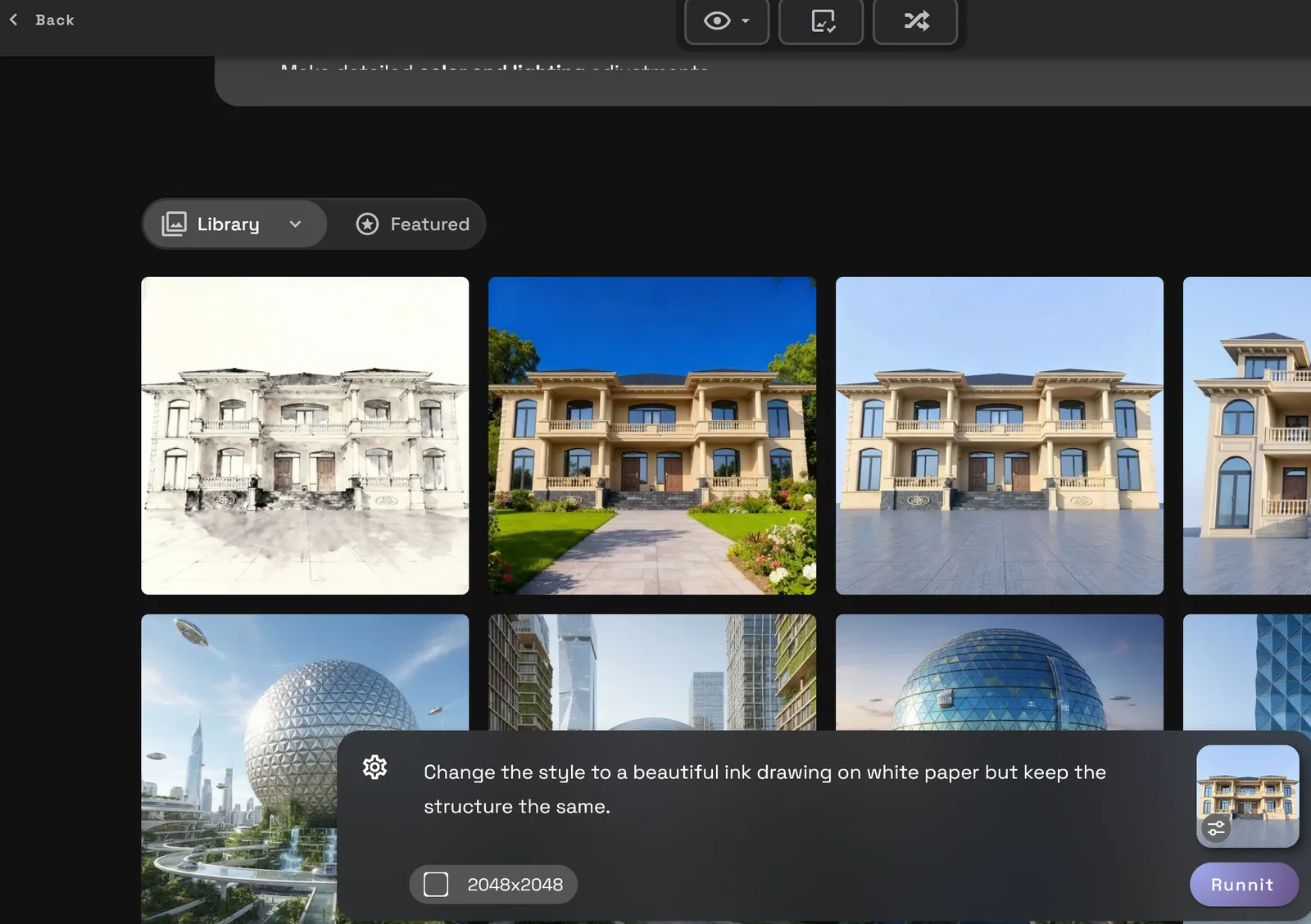
Side by side comparison.
Prompt: Create a beautiful high resolution photograph surrounded by a beautiful garden with deep blue sky.
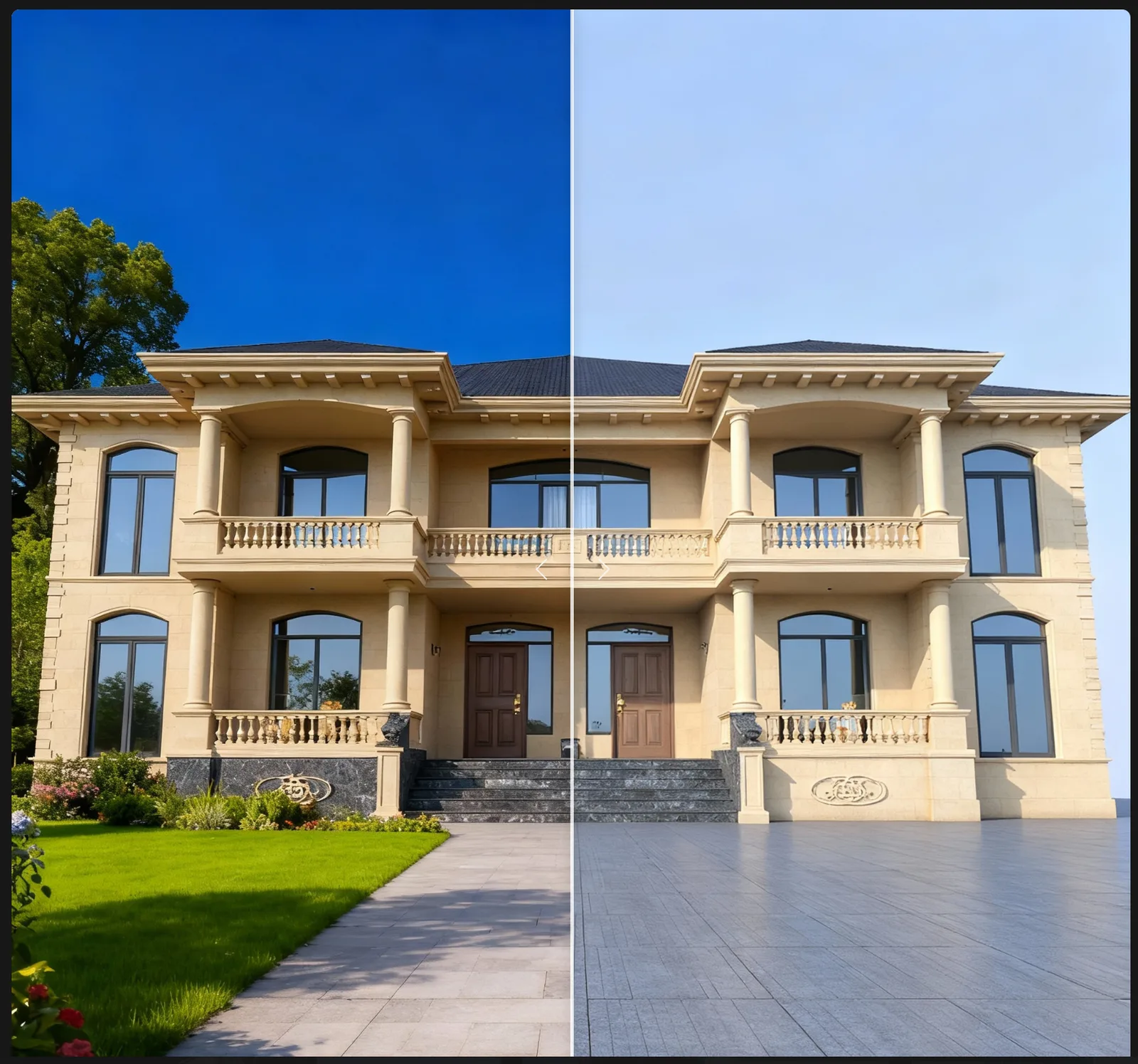
Left after enhancement right original render
Side by side comparison.
Prompt: Create a beautiful high resolution photograph surrounded by a beautiful garden with deep blue sky.
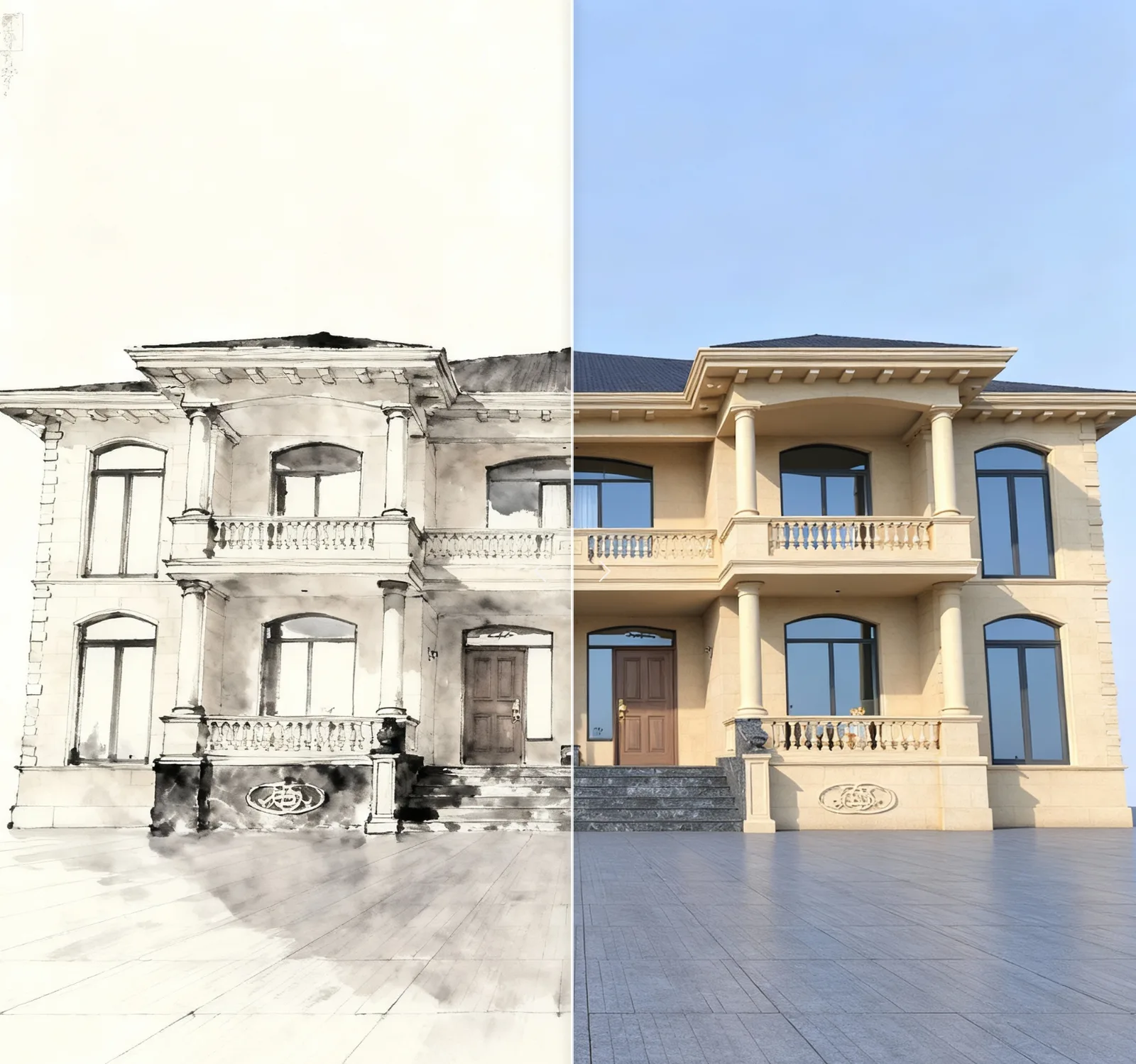
Left with Style transfer right original image
When to Use These Tools
- Internal concept reviews
- Quick turnarounds for client pitches
- Portfolio presentation refinement
- Marketing visuals from Revit/SketchUp base exports
These enhancement models are designed to support fast-paced architecture and design teams who need better visuals without the overhead of full re-renders.
Final Thoughts
If you are creating visuals in Revit or SketchUp, but want to polish them without third-party software or plugins, RunDiffusion provides a seamless solution.
Use tools like SeeDreamV4 Edit and Nano Banana Edit to bring out the best in your exports. Access them with daily tokens on the RunDiffusion Platform (Formerly Runnit Platform) and take your visuals from rough to refined in a few simple steps.
Enhance an architecture render in RunDiffusion
Upload a Revit or SketchUp PNG and use prompt-guided image editing to improve lighting, materials, and detail.
Frequently asked questions
QCan AI enhance Revit and SketchUp renders?
Yes. You can upload a Revit or SketchUp render to RunDiffusion and use prompt-guided AI editing to improve lighting, texture, material detail, sharpness, and presentation quality.
QWhich RunDiffusion tools work best for render enhancement?
Seedream V4 Edit is strong for clean photorealistic refinement, glass, concrete, lighting, and 4K-style detail. Nano Banana Edit is strong for color vibrancy, richer texture, interiors, exteriors, and stylized modern concept visuals.
QDo I need a paid plan to test these tools?
No. You can test RunDiffusion tools with daily free tokens. Larger or team-based workflows can move to a paid or Enterprise plan when more capacity is needed.
QWhat should I upload?
Start with a simple PNG export from Revit or SketchUp. Then describe the enhancement you want, such as realistic lighting, sharper materials, better shadows, or high-resolution detail.