Introduction
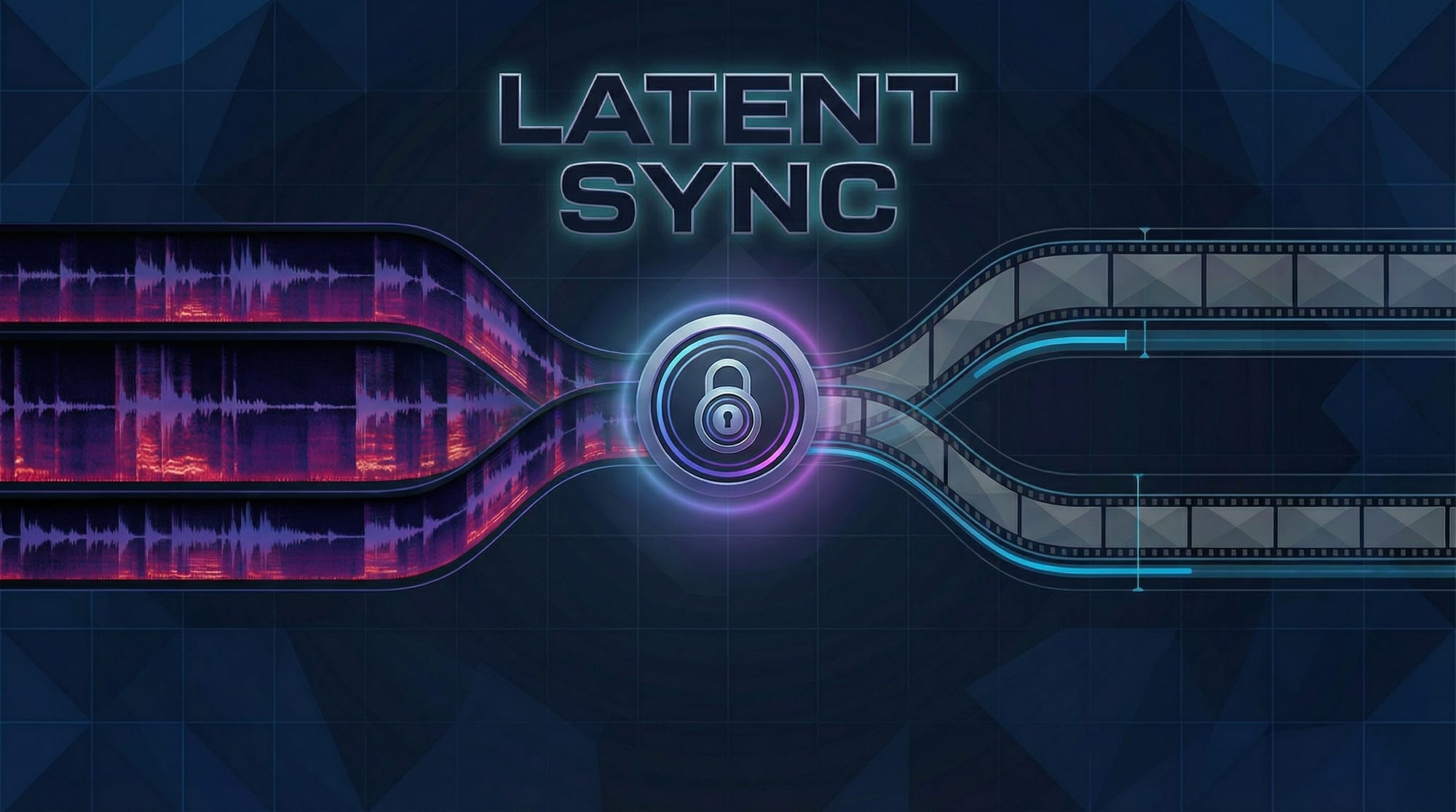
We’re excited to announce that the Latent Sync Workflow is now available in ComfyUI on RunDiffusion! This powerful workflow is specifically designed to enhance lip-syncing workflows. Whether you're creating AI-generated videos where mouth movements must match audio or building intricate art pipelines, Latent Sync is a great addition.
In this article, we'll cover what Latent Sync is, why it matters for lip-syncing, and how you can start using it today on RunDiffusion.
What is Latent Sync?
Latent Sync helps ensure consistent results across your ComfyUI workflow when creating lip-synced videos or talking avatars. In lip-syncing workflows — where audio-driven facial expressions must align frame-by-frame — small inconsistencies can cause unnatural flickering or distortions.
Latent Sync solves this by keeping your outputs smooth, believable, and aligned throughout your project, resulting in professional-quality mouth movements and animations.
Why Latent Sync Matters
- Seamless Lip-Sync Animations: Essential for matching audio-driven mouth movements.
- Frame-to-Frame Consistency: Critical for AI-generated videos.
- Workflow Flexibility: Supports advanced pipelines.
- Higher Quality Outputs: Reduces unwanted flickering or distortion artifacts.
If you've ever tried generating lip-synced videos or dynamic talking avatars in ComfyUI, you’ll immediately appreciate the difference.
How to Use Latent Sync on RunDiffusion
Getting started with Latent Sync is incredibly easy on RunDiffusion!
Common Steps to Start:
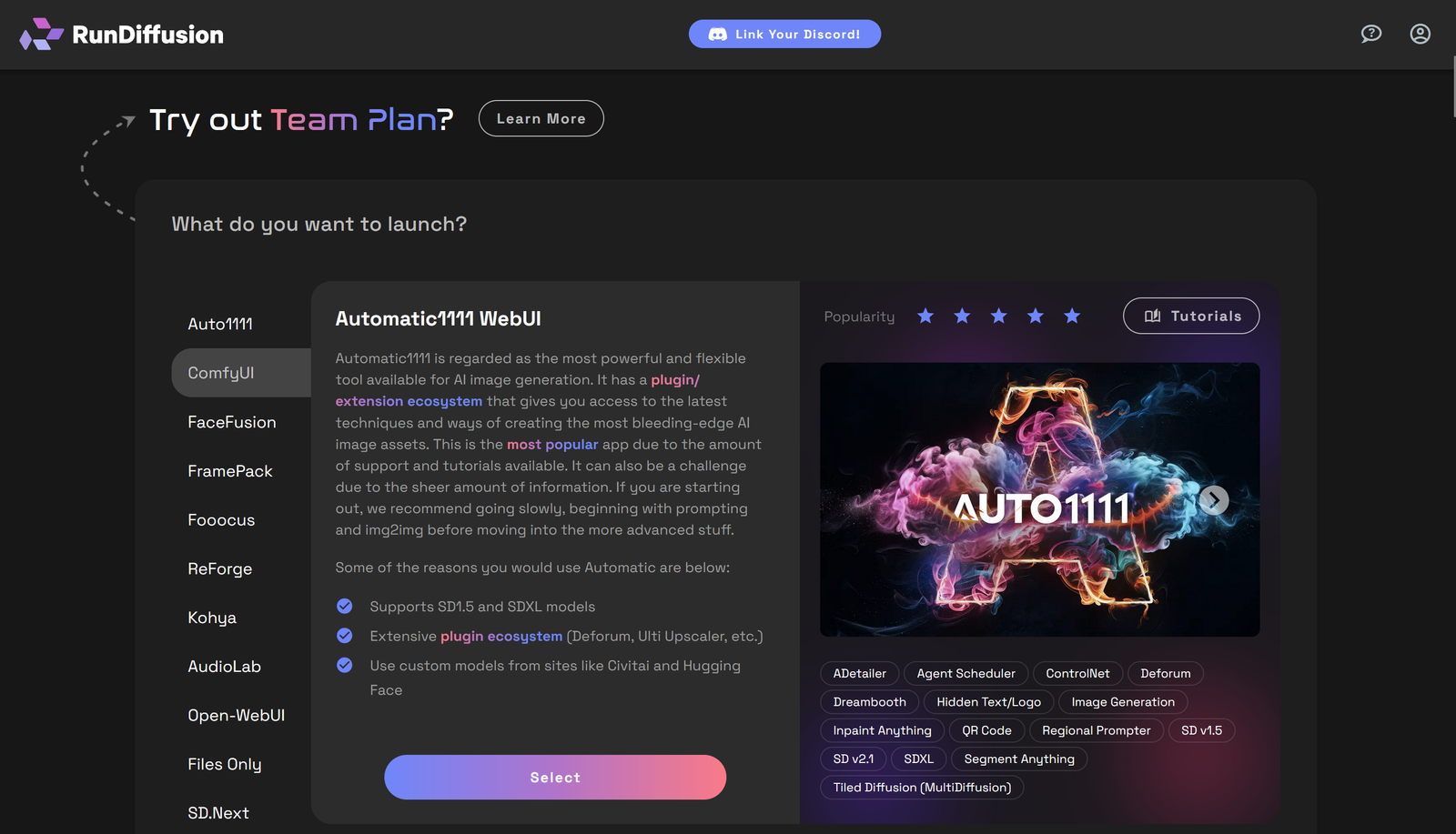
Find ComfyUI in the app list and click select.
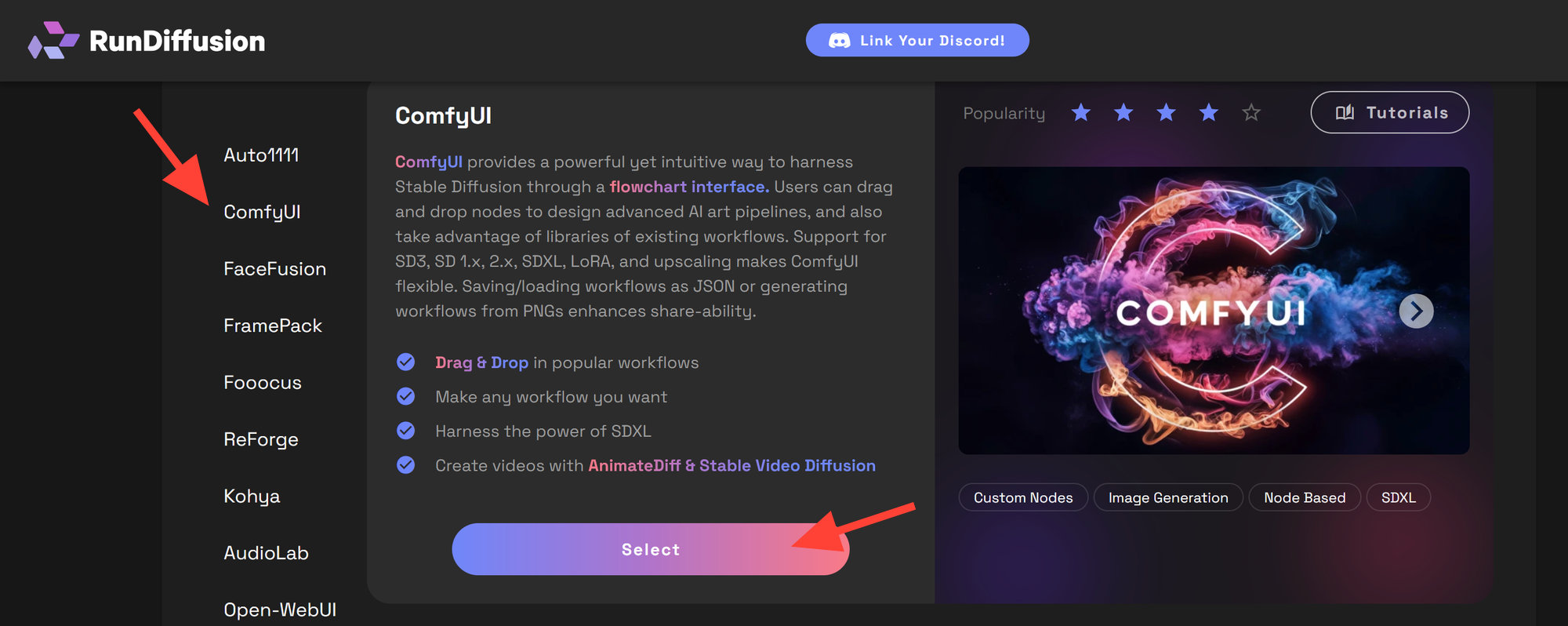
Click Select and Launch a new session.
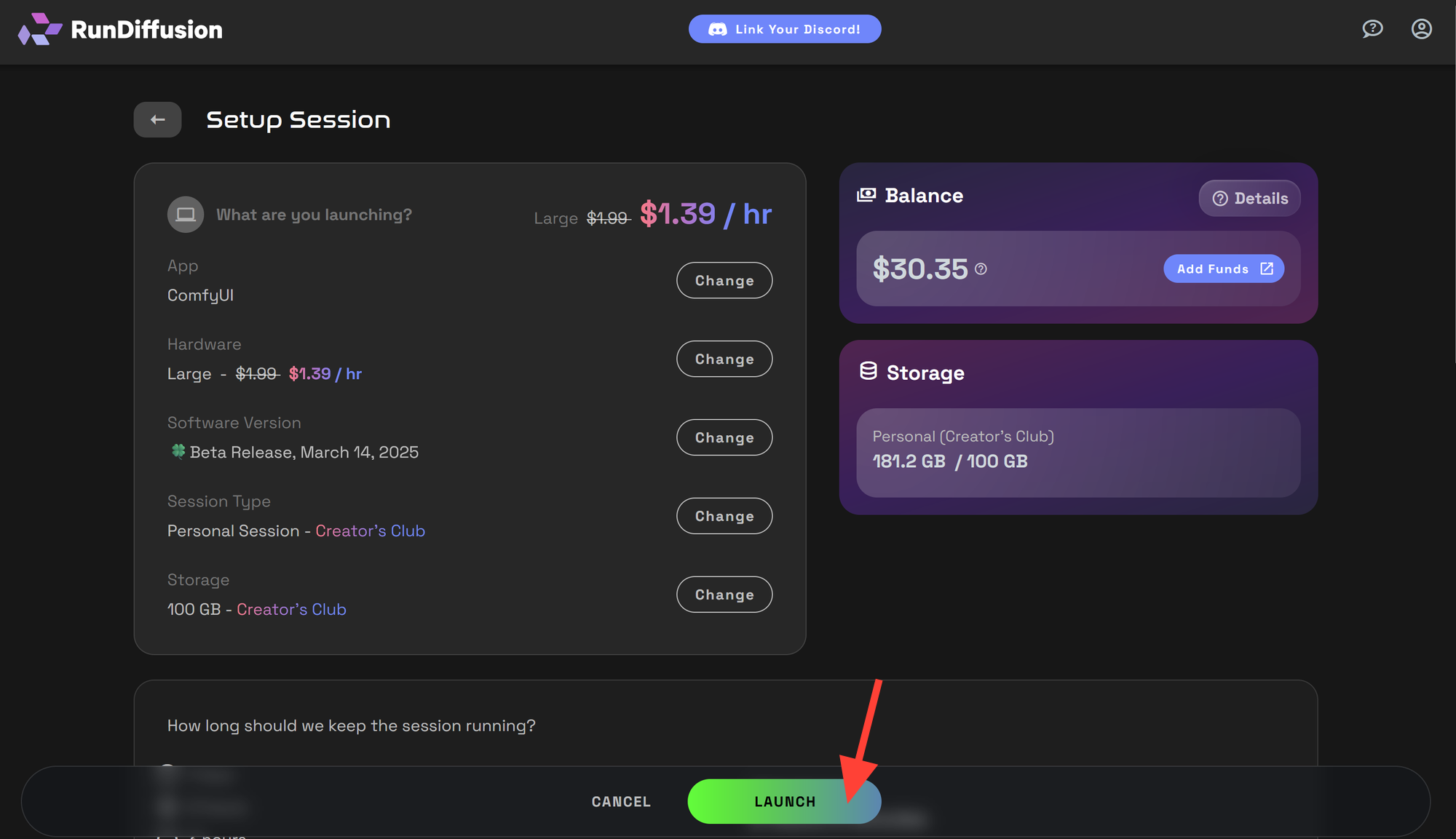
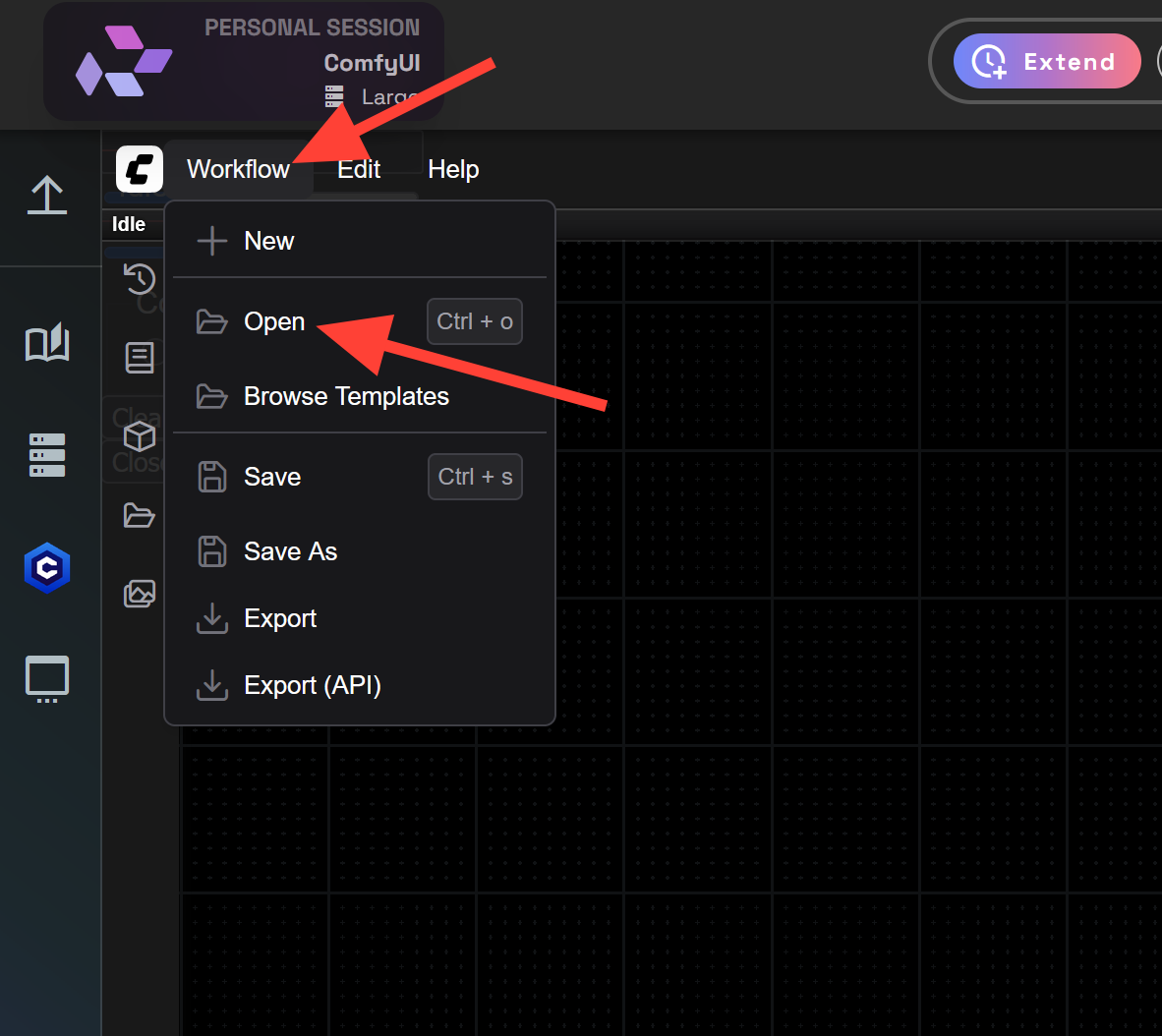
Download this LatentS-Video-Audio.json file.
Load the workflow.
Once your workflow is loaded. You may get a warning that you need to install missing nodes.
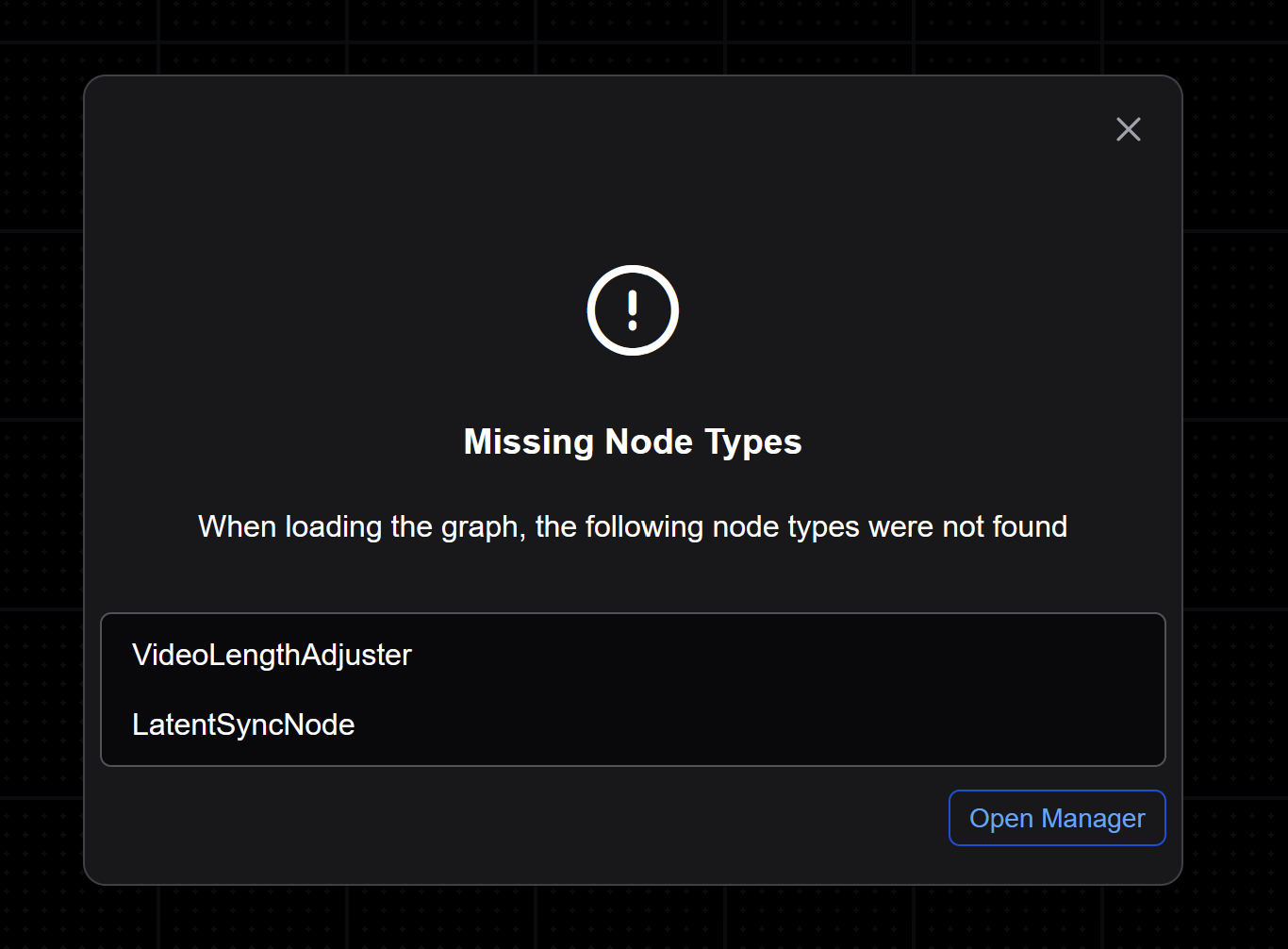
Click on Manager in the top right. Then Click Install Missing Custom Nodes.
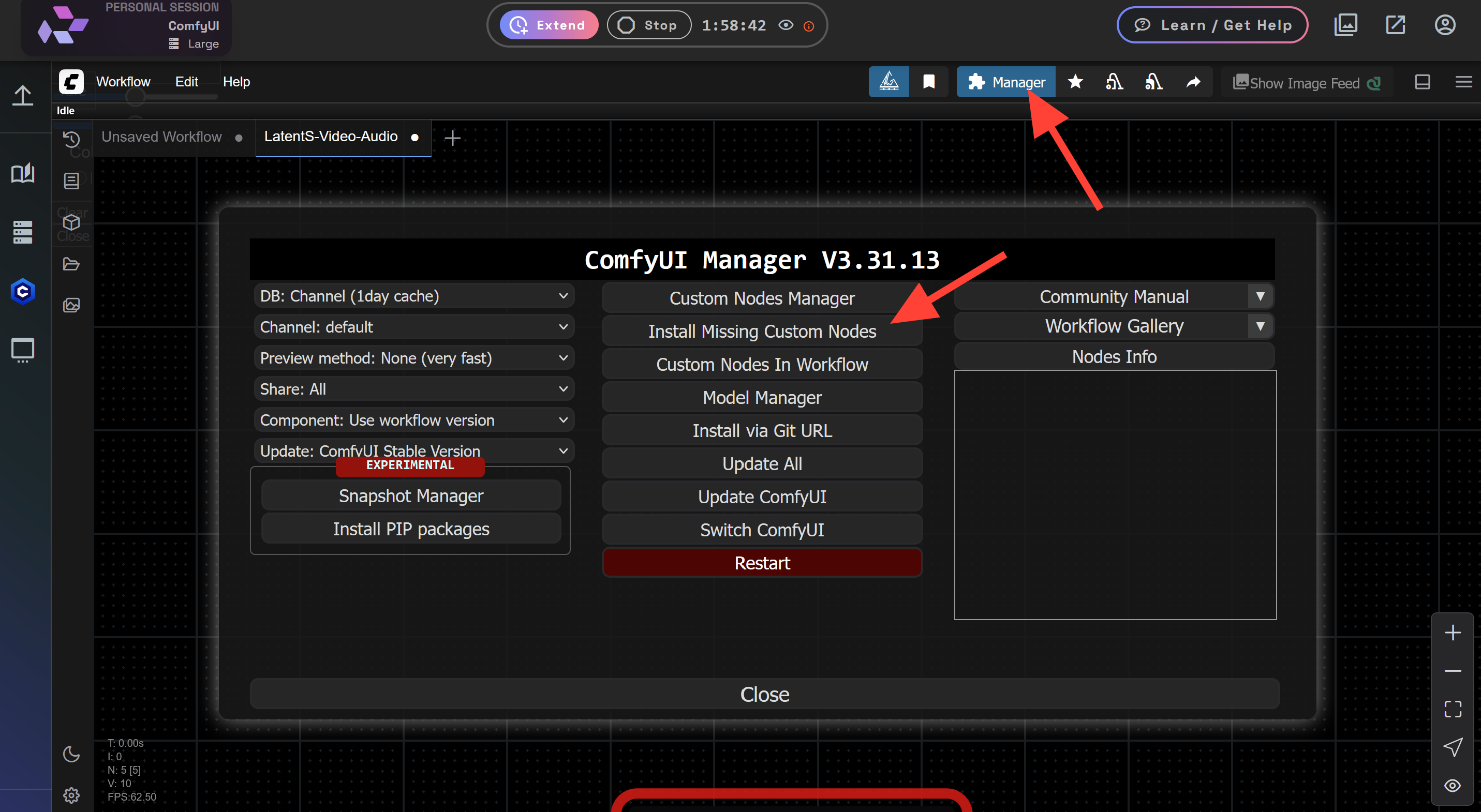
Install the missing custom nodes.
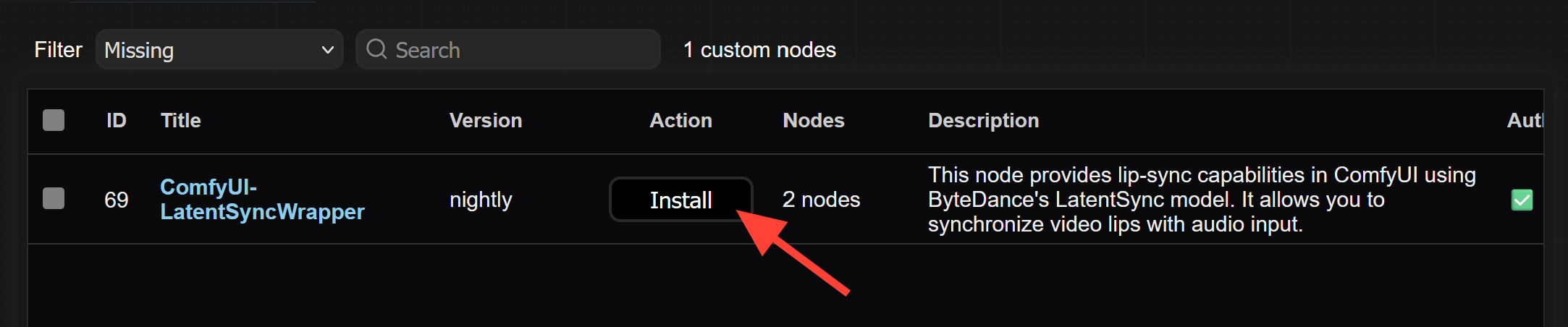
Click Select
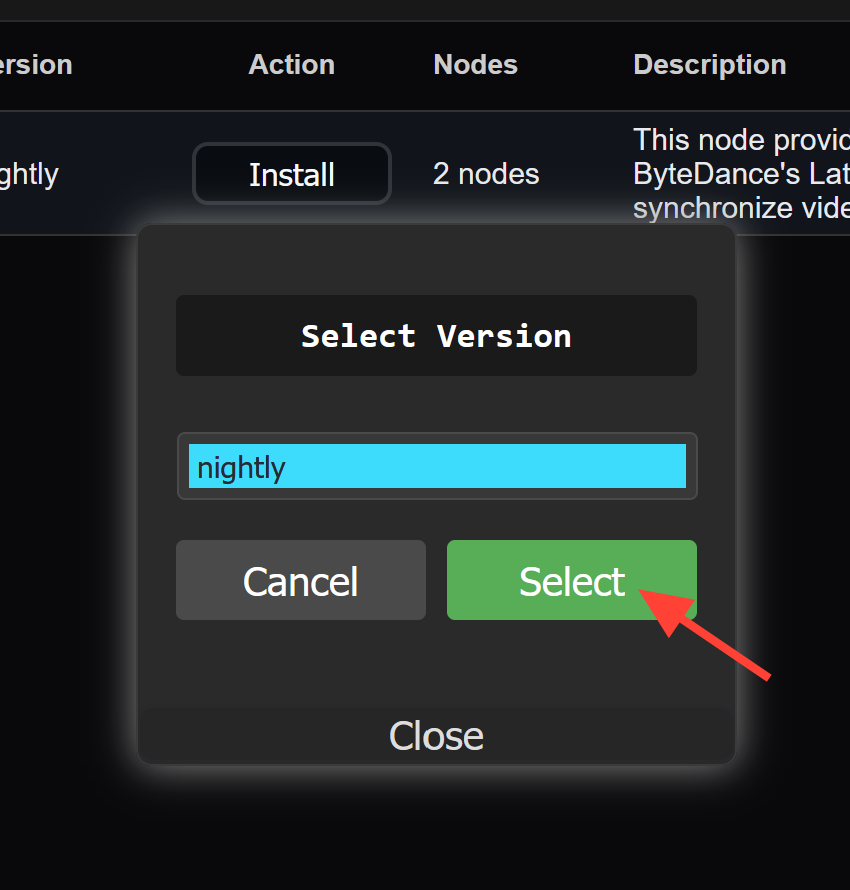
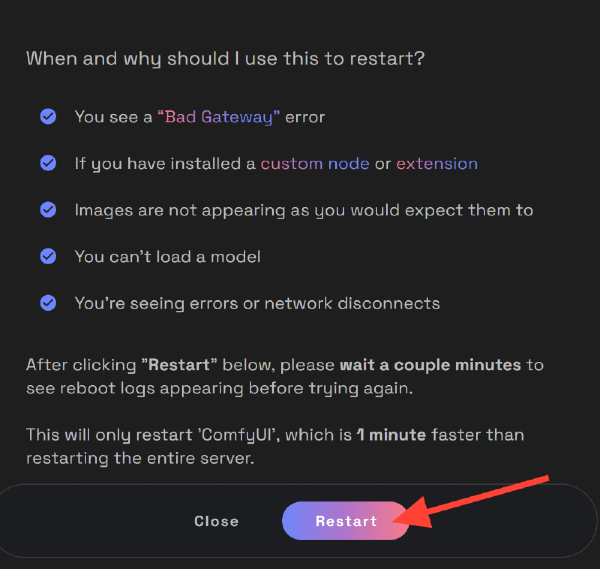
Now Restart with the Server Manager. You can click on the Server Manager icon on the left side, then click Restart App 'ComfyUI'.
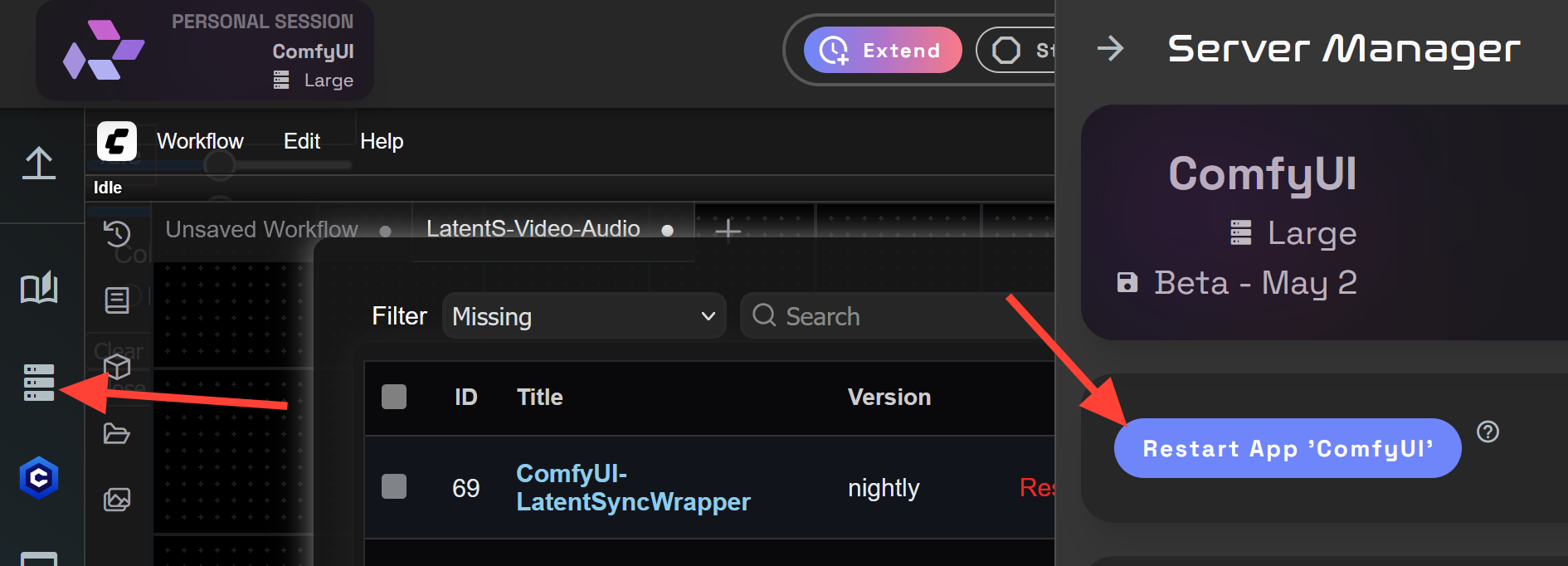
Click Restart.
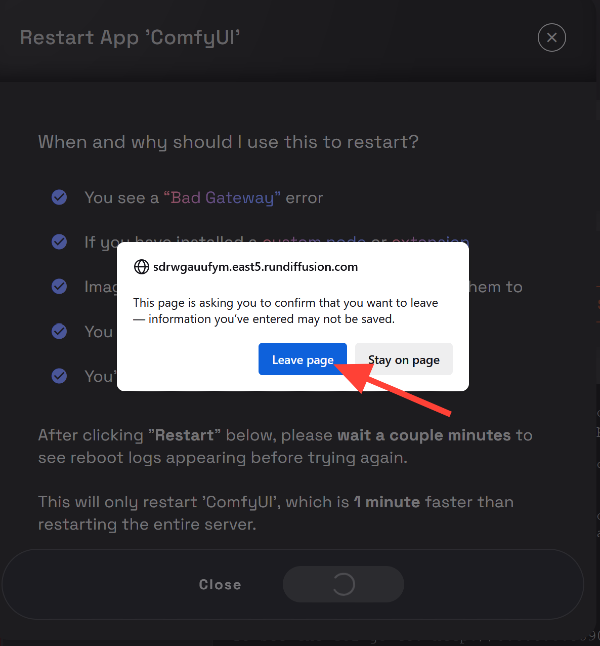
Once it restart you will receive a pop up that says leave page. Click Leave page.
Now the workflow should not have any missing nodes.
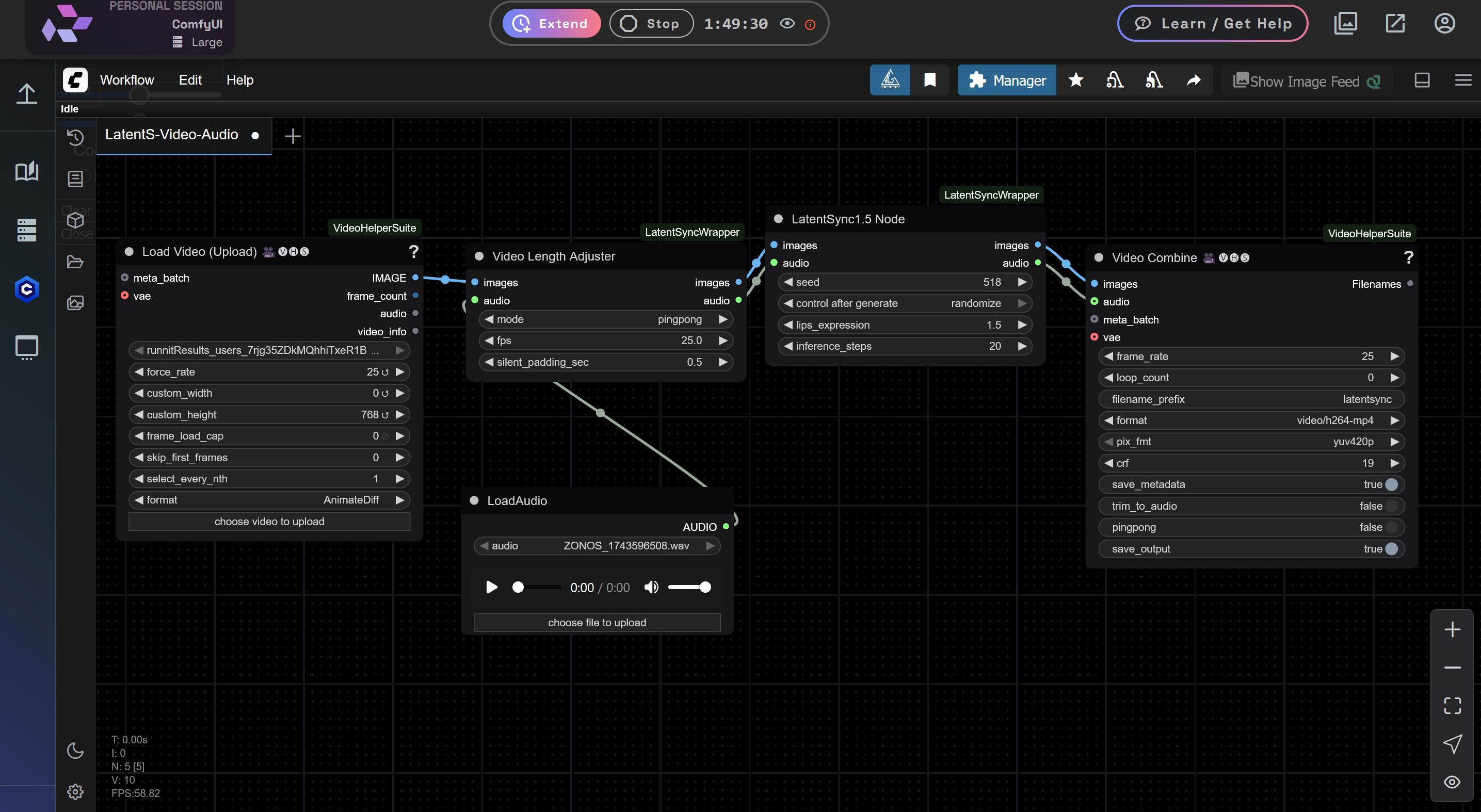
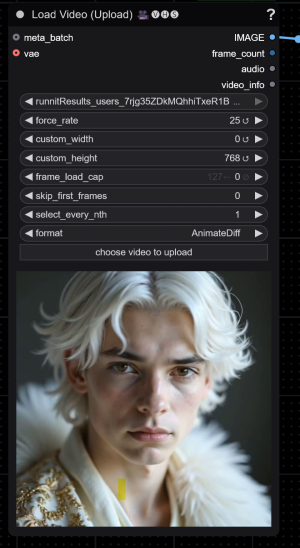
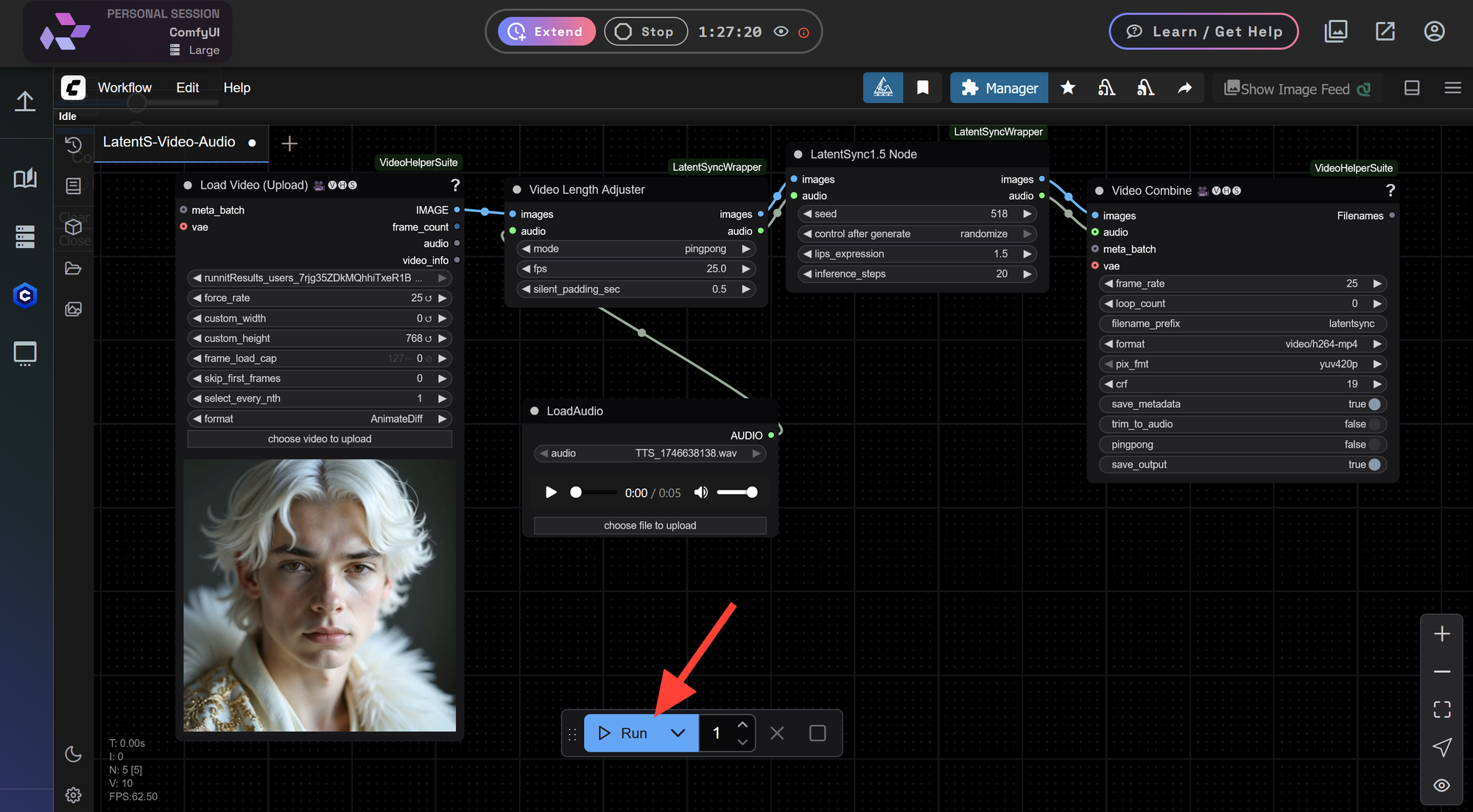
Go to the Load Video (upload) node. Click choose video to upload and select a video from your computer.
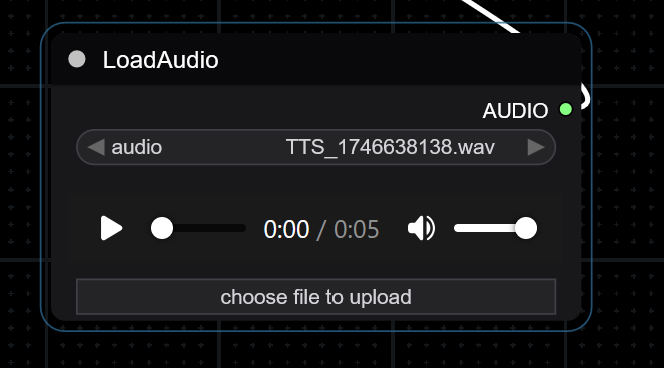
Next go to the LoadAudio node. Click on choose file to upload and select a clean audio file from your computer.
Now you are ready. Click Run.
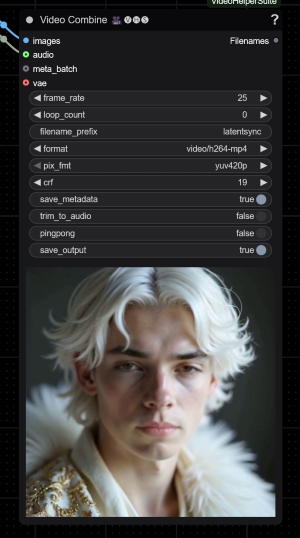
Your completed video will appear on the Video Combine node.
Let's create a second example.
Example Use Cases:
- Lip-Sync Video Generation: Perfect for matching audio-driven mouth movements.
- Talking Avatars: Create dynamic character animations based on speech.
- Video Consistency: Maintain stable features across frames.
- Morphing Animations: Use different prompts while keeping a smooth evolution.
Tips.
- Don't have the face too close to the camera.
- Shorter clips process faster.
- Your video will be cut off at the end of your audio.
Final Thoughts
Latent Sync opens new possibilities for RunDiffusion users who want to create high-quality lip-synced videos and talking avatars. With frame consistency now easily available in ComfyUI, building professional AI-generated video content has never been easier.
Launch your ComfyUI session on RunDiffusion today and start experimenting with the Latent Sync Workflow!
Further Reading
Troubleshooting workflows in ComfyUI | RunDiffusion
Now available an updated Tutorial for troubleshooting Comfyui workflows. So, you have a cool looking workflow and you want to load it on RunDiffusion? First off - this process is complicated and time consuming! Are you sure you need to load the longest workflow with 500 nodes first? Maybe try something easier like the pre-loaded workflows we have here... Okay, still convinced you need this specific workflow and you’re willing to troubleshoot it? There are three steps that need to be followed
RunDiffusion Team
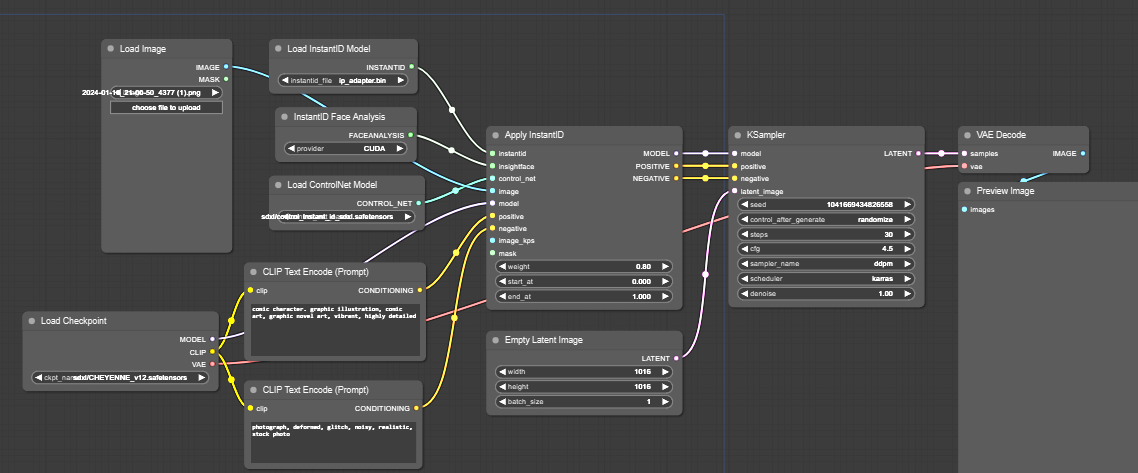
How to Use Qwen Image Edit 2509 on RunDiffusion | RunDiffusion
Learn how to use the Qwen-Image-Edit-2509 image model in ComfyUI on RunDiffusion. Supports multi-image editing, pose transfer, product showcase, and ControlNet. Step-by-step guide and examples.
RunDiffusion Team