- Qwen Image Edit 2509 supports multi-image editing with one to three input images.
- The workflow is useful for pose transfer, product placement, fashion scenes, text edits, and composite images.
- ControlNet inputs such as depth, edge, keypoint, and sketch maps can help guide layout and pose.
- RunDiffusion hosts the ComfyUI workflow in the cloud, so no local model setup is required.
Qwen Image Edit 2509 is available in ComfyUI on RunDiffusion through a prebuilt QWEN-Img2Img-Edit workflow. Launch ComfyUI, open RD Workflows, choose the Qwen workflow, upload one to three input images, write a concise edit prompt, and run the workflow in the cloud.
| At a glance | |
|---|---|
| Model | Qwen-Image-Edit-2509 |
| Host app | ComfyUI |
| RunDiffusion workflow | QWEN-Img2Img-Edit |
| Input images | 1 to 3 |
| Best fit | Controlled image editing and multi-image composition |
If you're looking to improve your AI image editing workflow, Qwen-Image-Edit-2509 is available in ComfyUI on RunDiffusion. The model supports multi-image editing, pose transfer, identity preservation, product showcase edits, and native ControlNet integration.
With a visual workflow setup, creators can run high-fidelity edits such as wedding composites, fashion placements, text overlays, product visuals, and other controlled image edits directly in the cloud.
This article walks through what the Qwen model does, how to launch and run the ComfyUI workflow on RunDiffusion, and examples of where it performs well in practical image editing scenarios.
What is Qwen-Image-Edit-2509?
Qwen-Image-Edit-2509 is a vision-language image editing model built for high-consistency edits. Released in September 2025, it adds several useful capabilities for ComfyUI workflows:
Key features
- Multi-image support: Combine up to three input images, such as a person, an object, and a background.
- Improved consistency: Better stability for identity, product, and text edits.
- ControlNet native support: Work with depth maps, edge maps, pose keypoints, and sketches.
- Precise layout control: Guide position, pose, object placement, and scene composition.
- Cultural and stylistic variation: Create wedding styles, fashion visuals, product posters, cartoons, and other stylized edits.
How to use the Qwen model in ComfyUI on RunDiffusion
RunDiffusion provides a prebuilt ComfyUI workflow configured to run the Qwen model.
Getting started
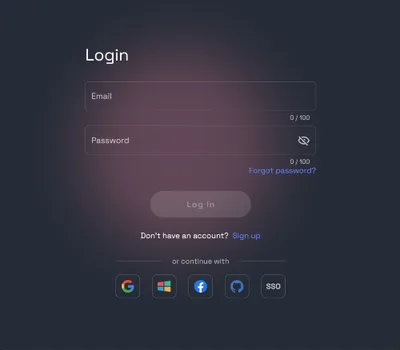
Log in to RunDiffusion.
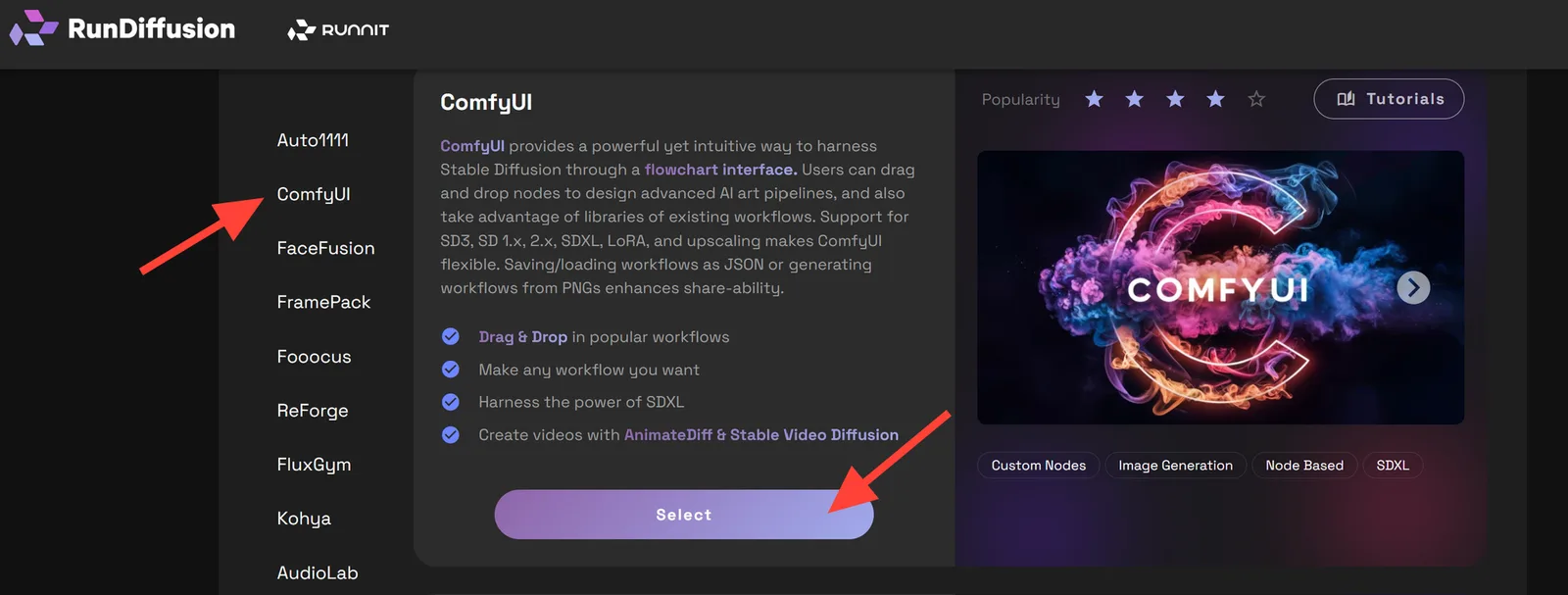
Go to Open Source Apps. On the left sidebar, choose ComfyUI, then click Select.
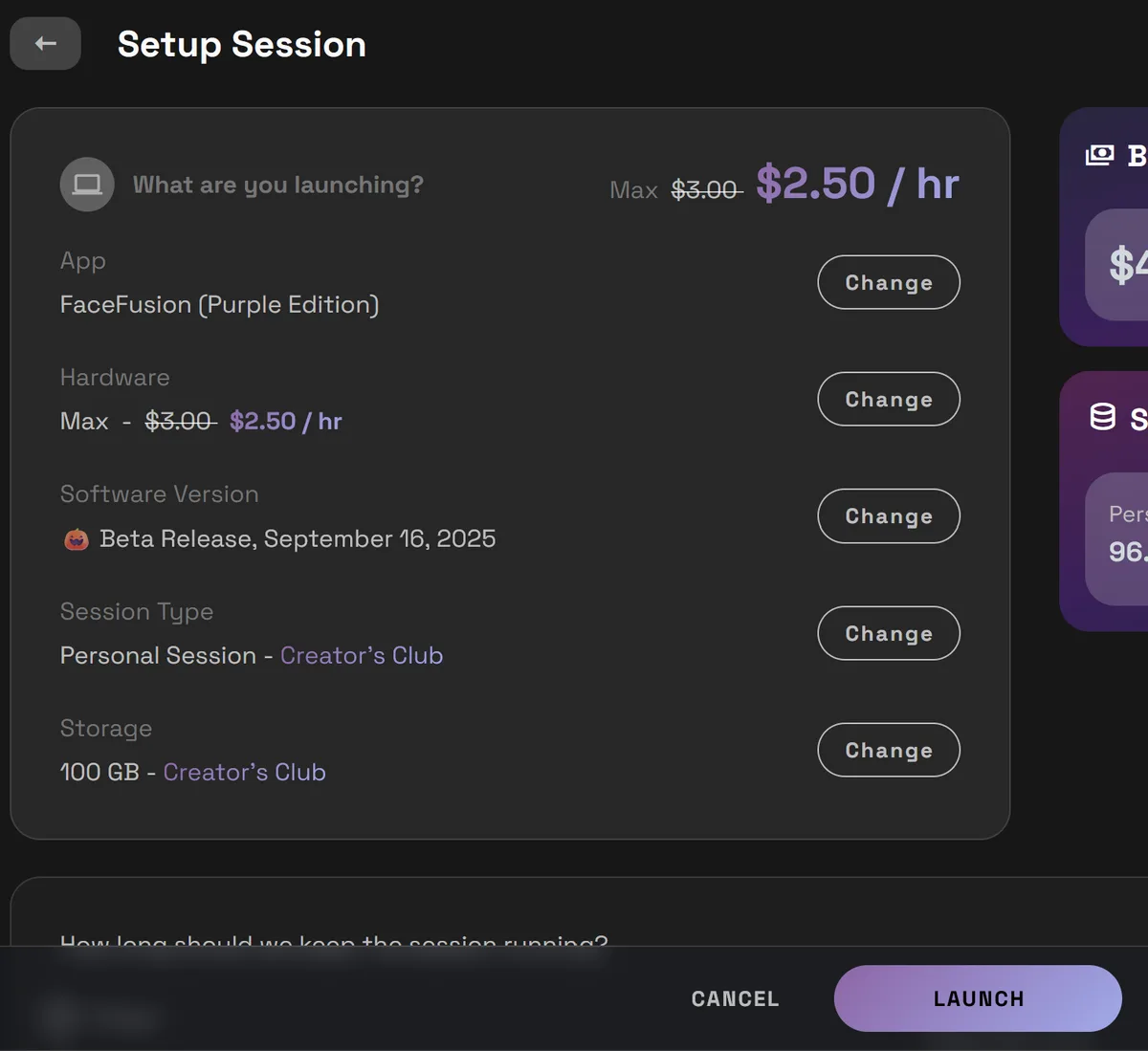
Select ComfyUI on the right side and click Launch. We recommend a Medium, Large, or Max server.
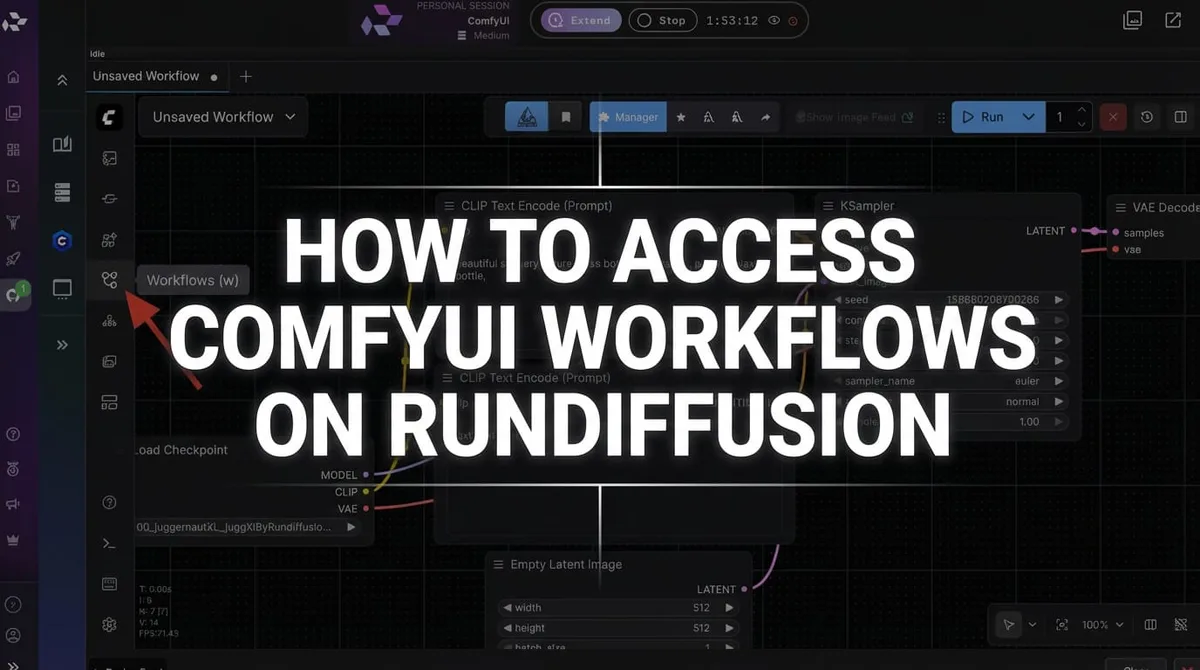
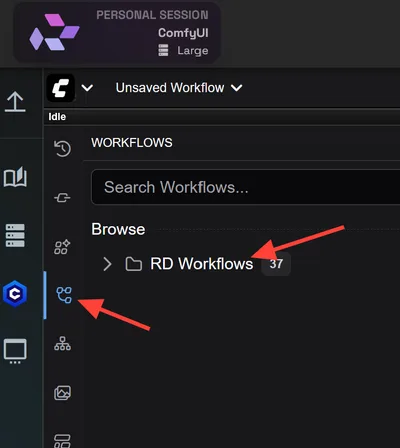
Click the Workflow icon on the left, then click RD Workflows.
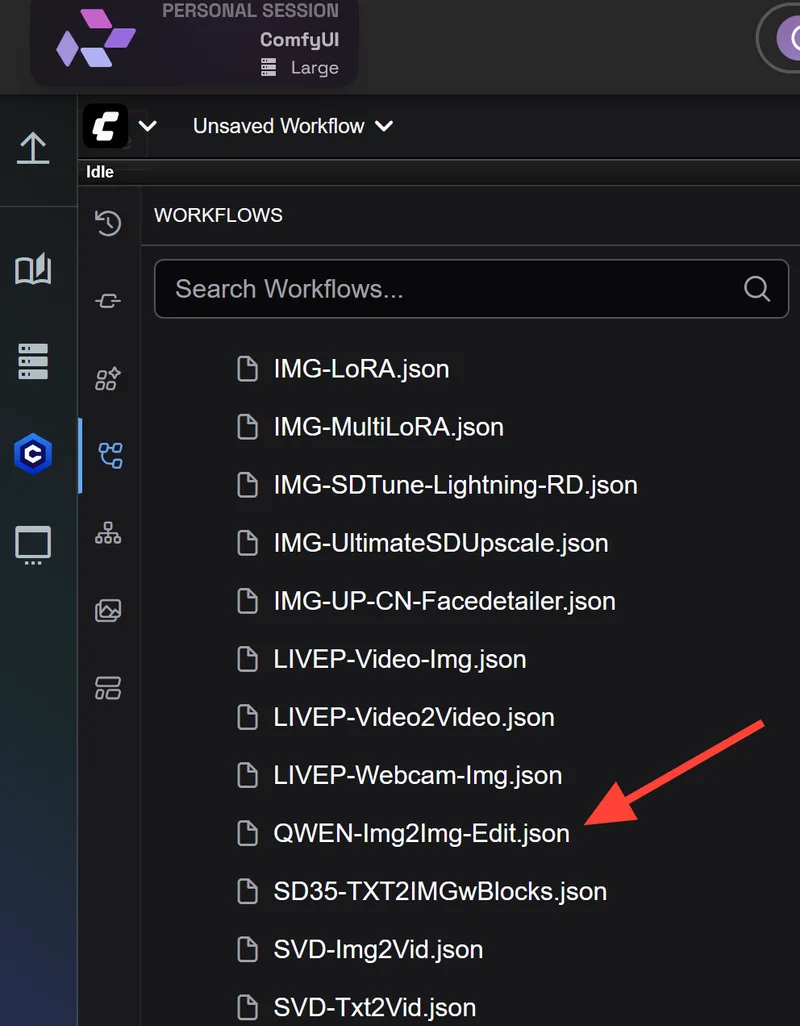
Scroll down and select QWEN-Img2Img-Edit.
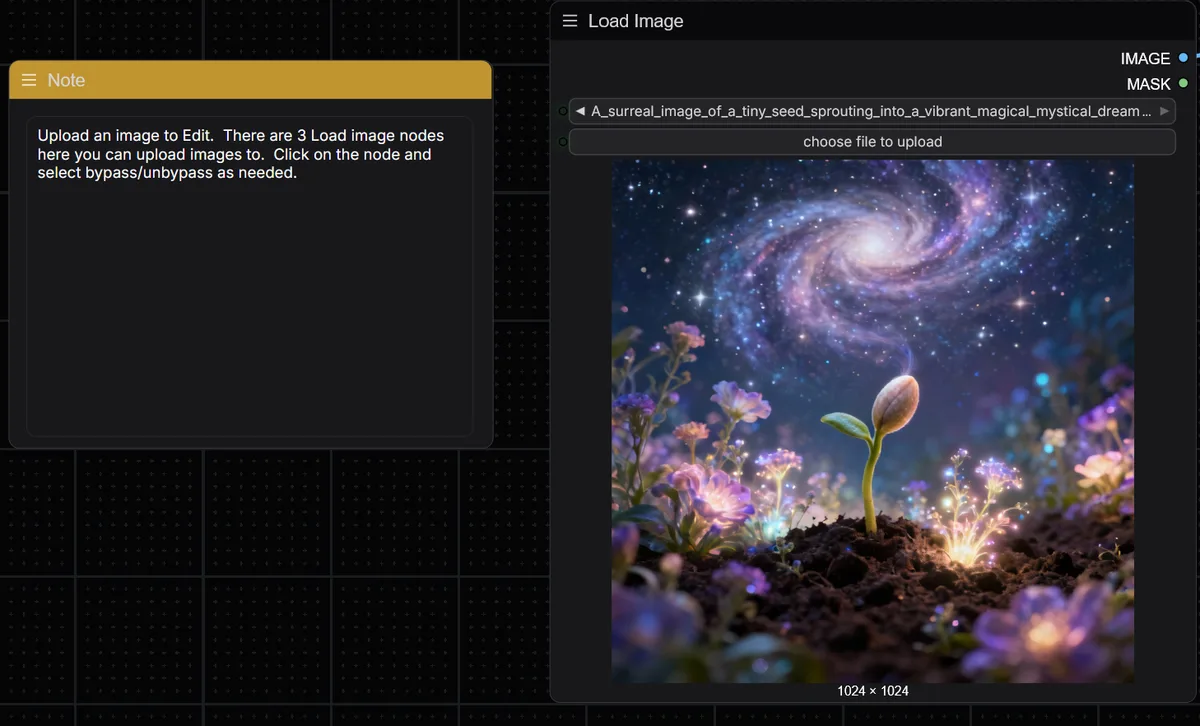
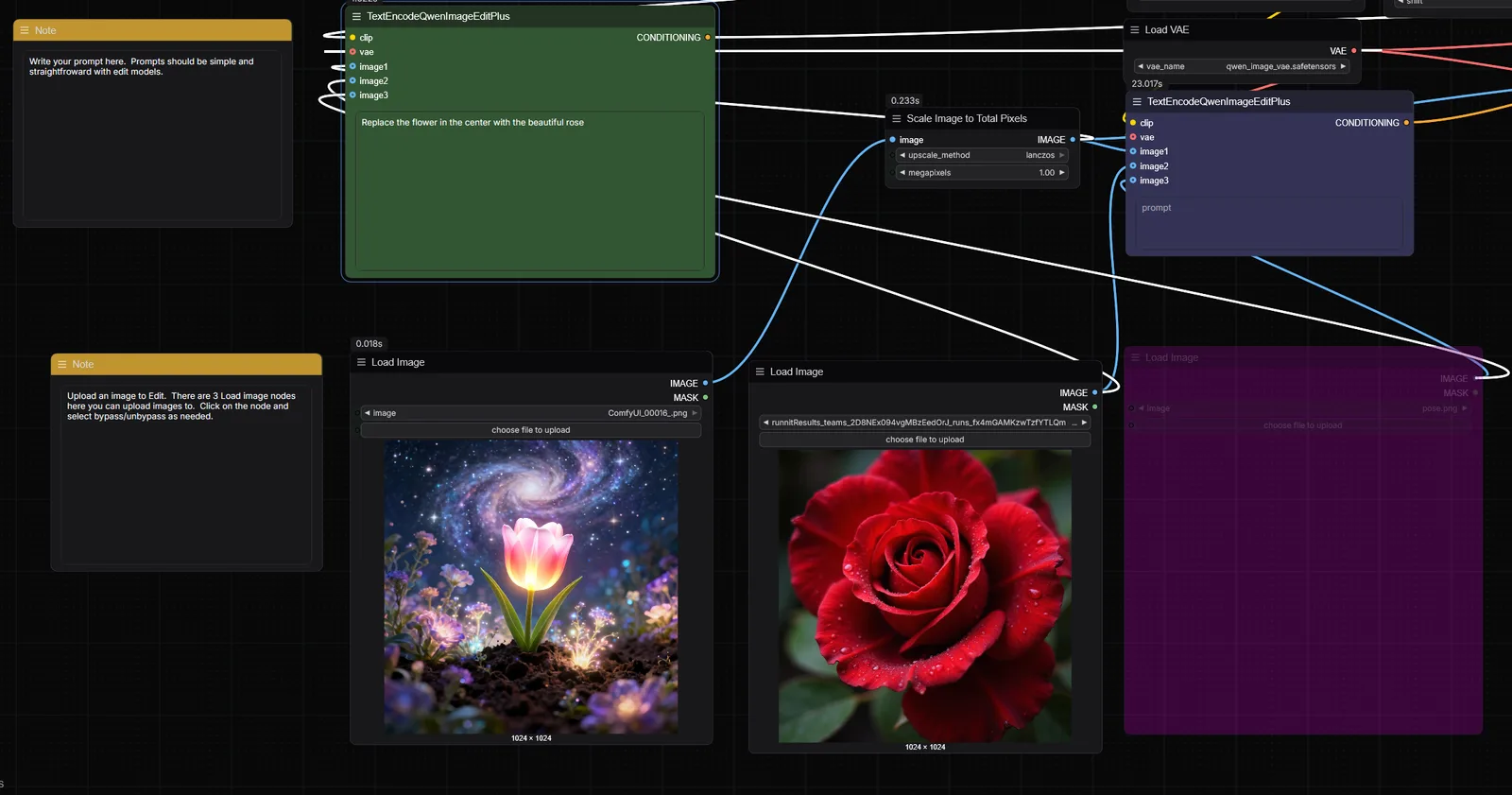
Upload input images: Upload one to three images depending on your task.
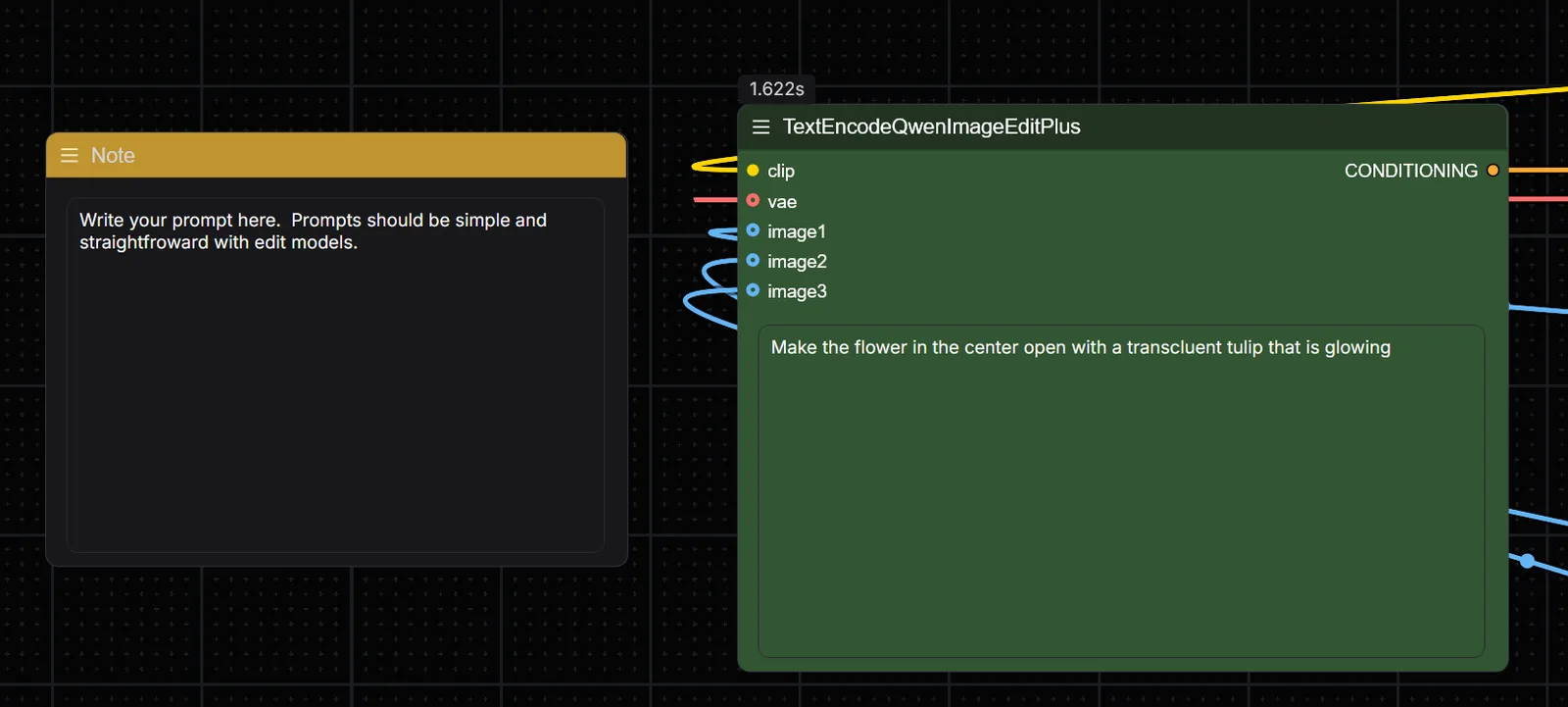
Enter a prompt: Describe your edit in clear, concise terms. For example: "Place subject in the background image wearing a red dress."
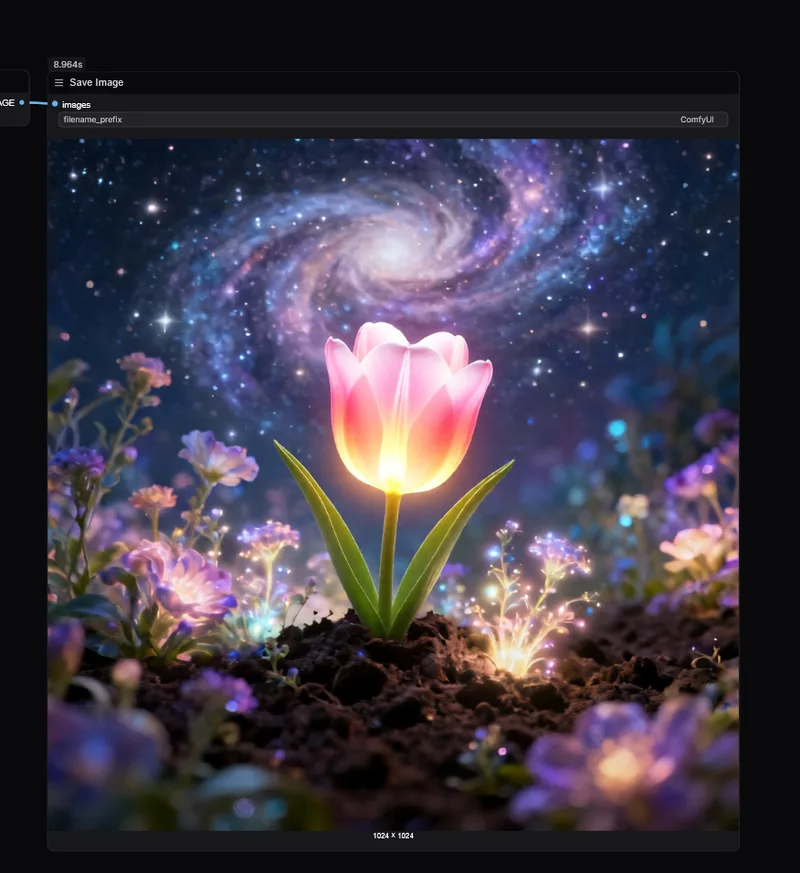
Click Run: Let the workflow process the inputs through the Qwen model. Your results will appear in the Save Image node.
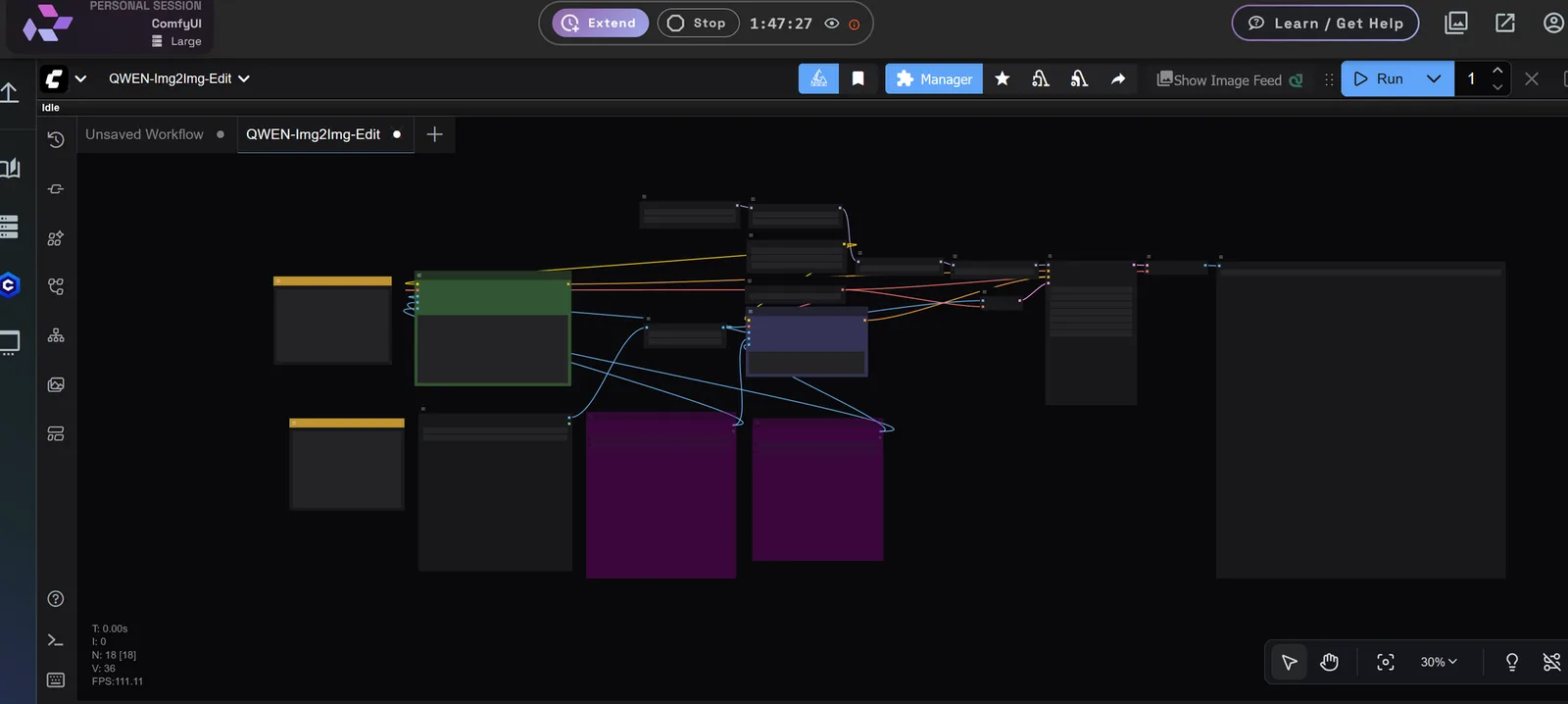
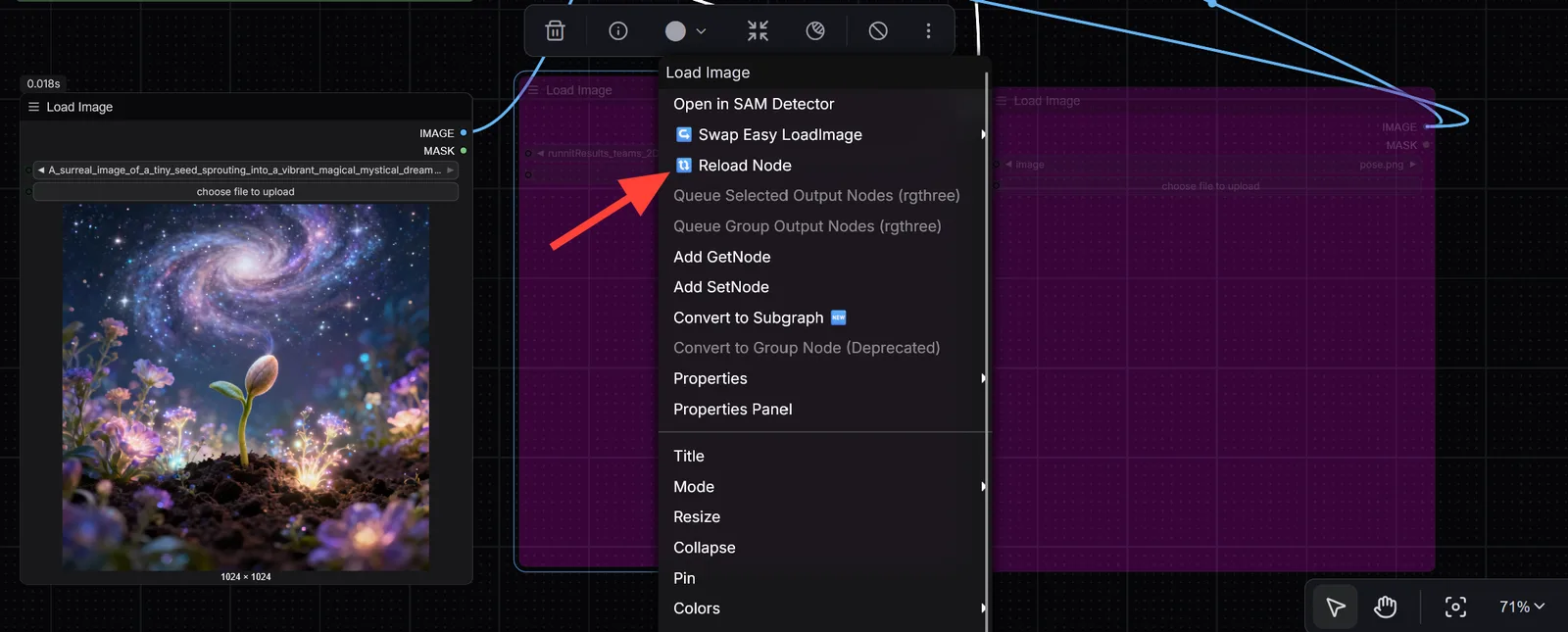
To use the other input nodes, right-click the node and click Reload.
Upload an image, add your prompt, and click Run.

Example uses
These examples follow the kinds of image-editing scenarios shown in Qwen's research visuals.
Wedding photo generation: Combine a male and female subject image, then output a stylized wedding photo, such as traditional Chinese red attire or a modern Korean studio portrait.
Scene placement: Place a person into a new environment, such as adding a woman to a beach chair or seating a subject in a cafe.
Product and fashion showcase: Merge a model image with product images for fashion placements and product visuals.
Keypoint pose editing: Use a keypoint map to transfer a pose onto a subject while retaining facial identity and style.
Multi-character scene composition: Combine multiple characters into a shared environment, such as two women seated on a couch having coffee.
Tips for success with Qwen in ComfyUI
- Use high-quality input images: Clean resolution improves output fidelity.
- Keep prompts short and clear: For example, "Place woman in the red dress on the beach chair."
- Use ControlNet maps where appropriate: Keypoints, depth, edges, and sketches can guide the edit.
- Start with two-image examples, then expand: Once the workflow feels comfortable, try three-image compositions.
Why run Qwen on RunDiffusion?
- No local installation is needed because the workflow runs in the cloud.
- GPU-backed rendering keeps iteration fast.
- RunDiffusion provides ready-to-use workflows for ComfyUI.
Final thoughts
Qwen-Image-Edit-2509 brings high-performance, visually controllable editing to AI workflows. Whether you're doing wedding compositions, marketing visuals, pose transfers, or style edits, the Qwen model can help maintain consistency, realism, and layout accuracy.
Using the Qwen workflow on RunDiffusion's ComfyUI platform gives you a zero-setup, fully cloud-based environment for professional-quality edits.
Related RunDiffusion guides
- Understanding RunDiffusion pathing for Open Source applications
- LTX Video Workflow for ComfyUI
- Flux Kontext Dev in Comfy
Run Qwen Image Edit 2509 in ComfyUI
Open RunDiffusion, launch ComfyUI, and use the prebuilt QWEN-Img2Img-Edit workflow without local GPU setup.
Frequently asked questions
QWhat is Qwen Image Edit 2509?
Qwen Image Edit 2509 is an image editing model in the Qwen Image family focused on multi-image editing, identity and product consistency, text editing, and ControlNet-guided edits.
QHow do I use Qwen Image Edit 2509 on RunDiffusion?
Launch ComfyUI on RunDiffusion, open RD Workflows, select QWEN-Img2Img-Edit, upload your input images, write a clear prompt, and run the workflow.
QHow many input images can I use?
The source workflow is designed around one to three input images, depending on the edit or composition task.
QCan Qwen Image Edit 2509 use ControlNet?
Yes. Qwen Image Edit 2509 supports ControlNet-style conditions such as depth maps, edge maps, keypoint maps, and sketches.
QWhat image edits work well with Qwen Image Edit 2509?
It is useful for wedding composites, product and fashion showcases, pose transfer, scene placement, multi-character scenes, and text-aware edits.