

Sometimes, the best way to troubleshoot an issue or optimize performance is to start over with a clean configuration. When working with tools like Automatic1111, Comfy, Foocus, or Reforge, clearing your system config files can help eliminate bugs, conflicts, or corrupted settings that slow down your workflow.
In this article, we’ll walk you through the steps to delete the system config files. This simple process will reset the software and give you a fresh start without compromising your models and LoRAs.
Why Clear Your Config Files?
Over time, configuration files can accumulate unnecessary data, create conflicts, or become outdated due to software updates. Resetting the config file:
- Helps clear corrupted settings that could be affecting performance.
- Removes conflicting setups when integrating new models.
- Provides a clean base to install new extensions or updates.
Here’s how you can clear the config files and start over with a fresh setup.
Step-by-Step Guide to Clearing Config Files
Before starting, make sure all servers are completely closed. This ensures that no files are actively in use, preventing errors during the deletion process.
1. Launch FILES ONLY
First open the application page on RunDiffusion and select Files Only, you will see the option to Select File Browser Only. Click Select on the next page you don't need to change any settings use the default settings and select Launch.
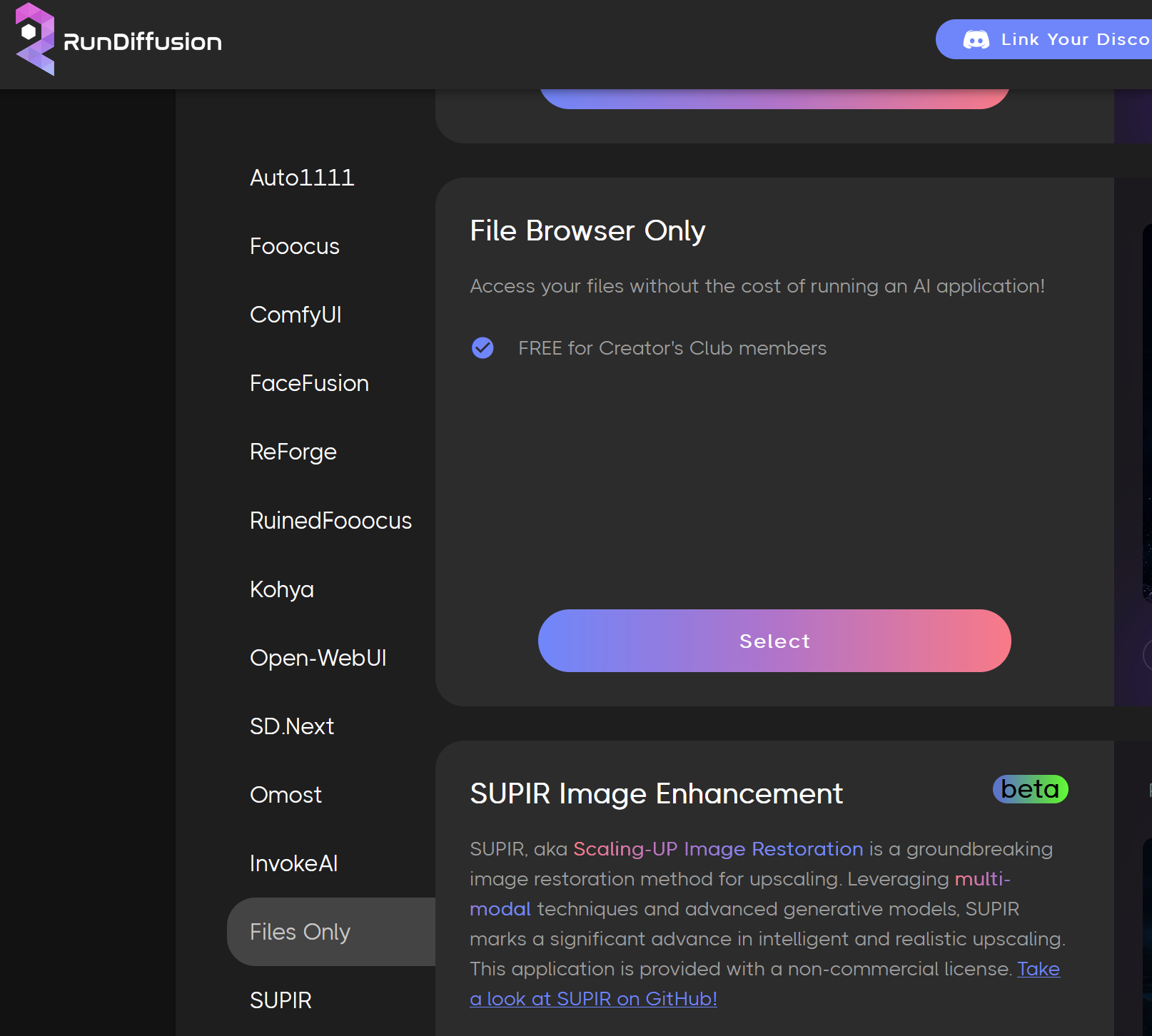
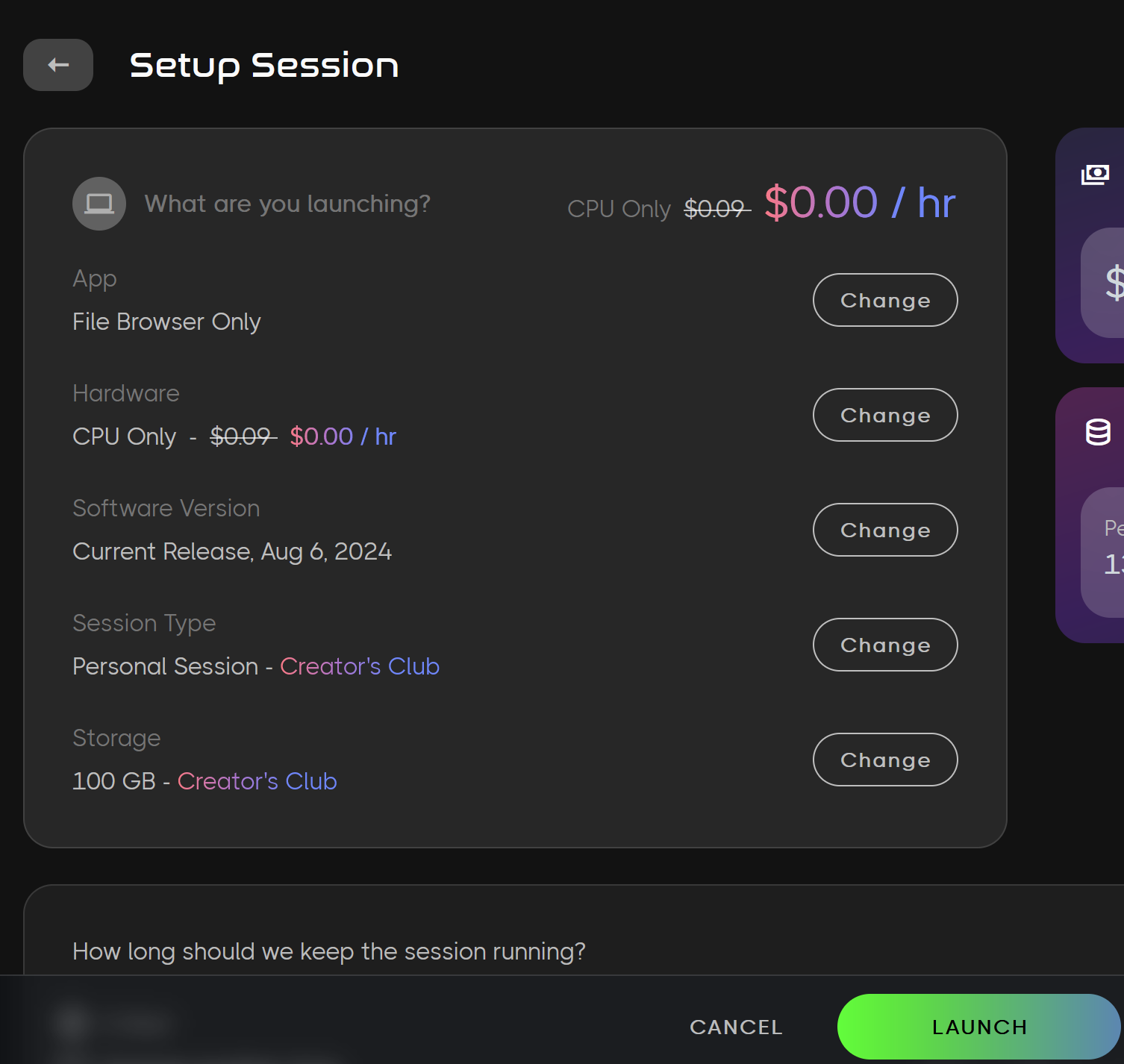
2. Navigate to the Custom Folder
Find and double click on the custom folder.
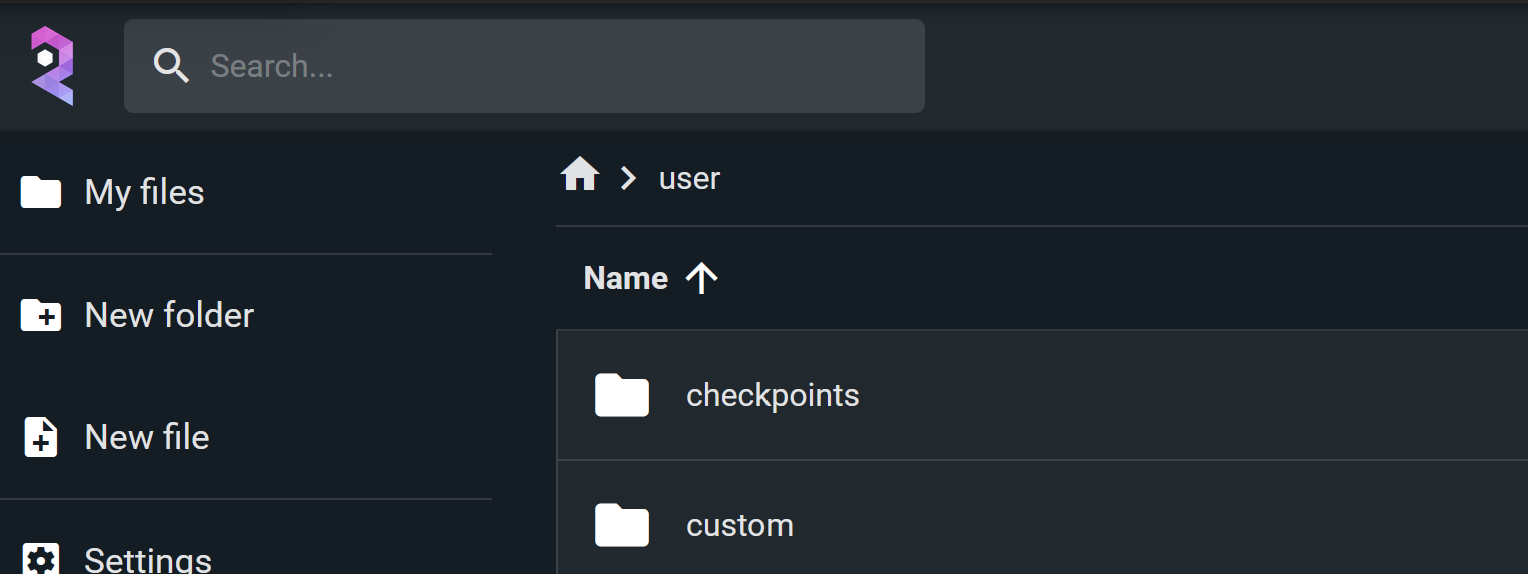
Within the custom folder, you will find several directories, including AUTO, CMFY, etc each containing the configuration files for their respective applications.
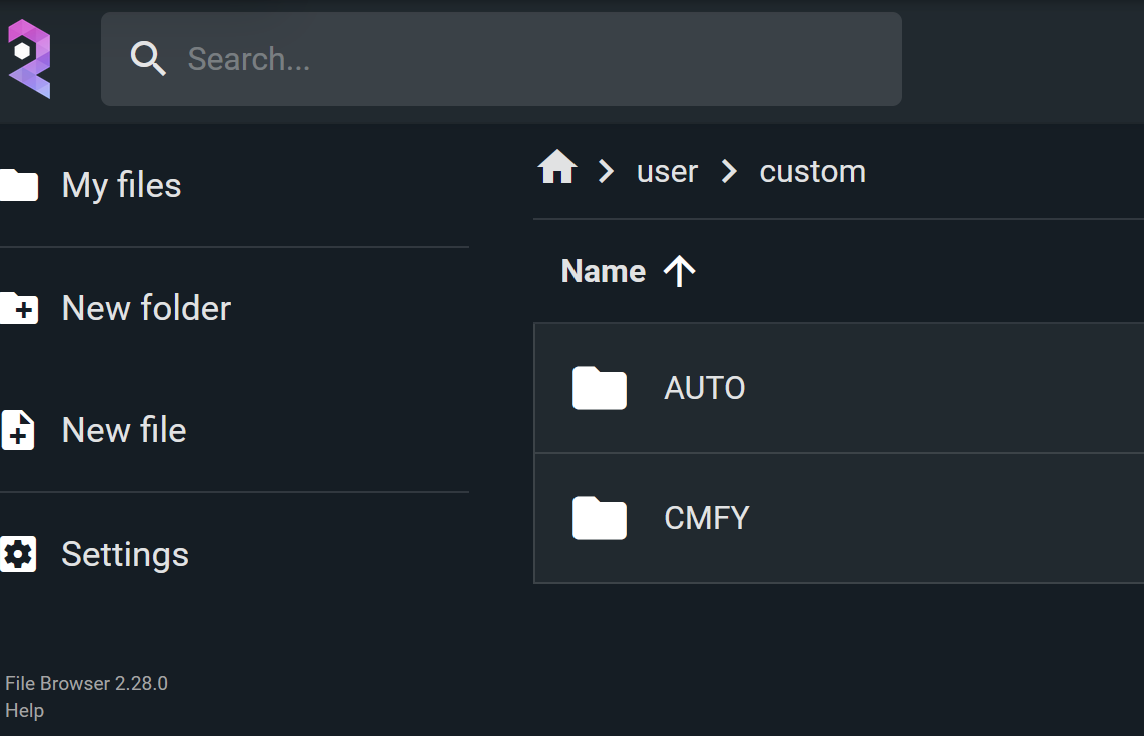
3. Delete the Config Folders
To reset a specific application's configuration, simply locate and delete its corresponding folder. In this example you can see I have selected the AUTO folder. You can hit delete on your keyboard or the trash can at the top of the screen.
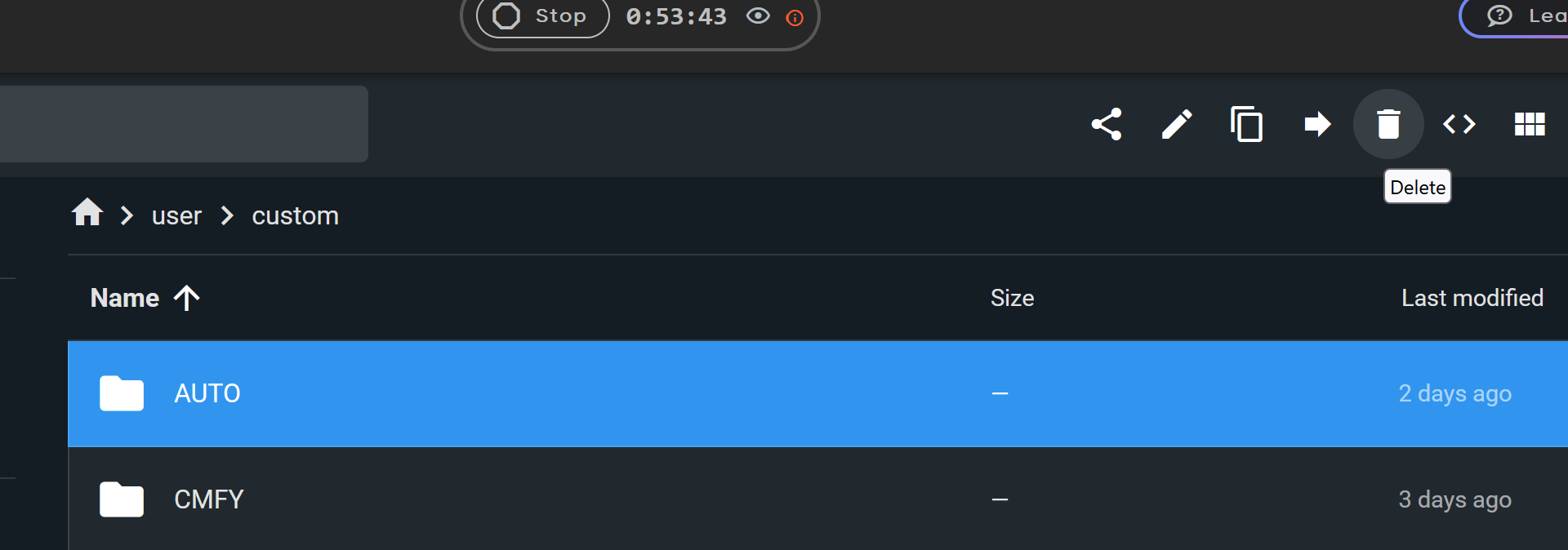
By deleting these folders, you’re removing all existing configurations, restoring the tools to their default settings.
4. Restart Your Tools
Now that the old configuration files are gone stop the FILES ONLY server. Now restart Automatic1111, Comfy, Foocus, or Reforge etc. These applications will regenerate their default configuration files, giving you a clean slate.
5. Test Your Models and LoRAs
Once your tools have restarted, run a few tests to ensure that everything is working correctly. Load some of your favorite models and LoRAs to see if the fresh configuration resolves any previous issues.
Conclusion
Starting over by clearing your config files in Automatic1111, Comfy, Foocus, or Reforge can be a helpful way to resolve performance issues, especially when dealing with corrupted settings or conflicting installations. With these steps, you can easily reset your configuration and optimize your workflows on RunDiffusion.
Additional Resources
For more detailed guides and troubleshooting tips, check out our related articles: