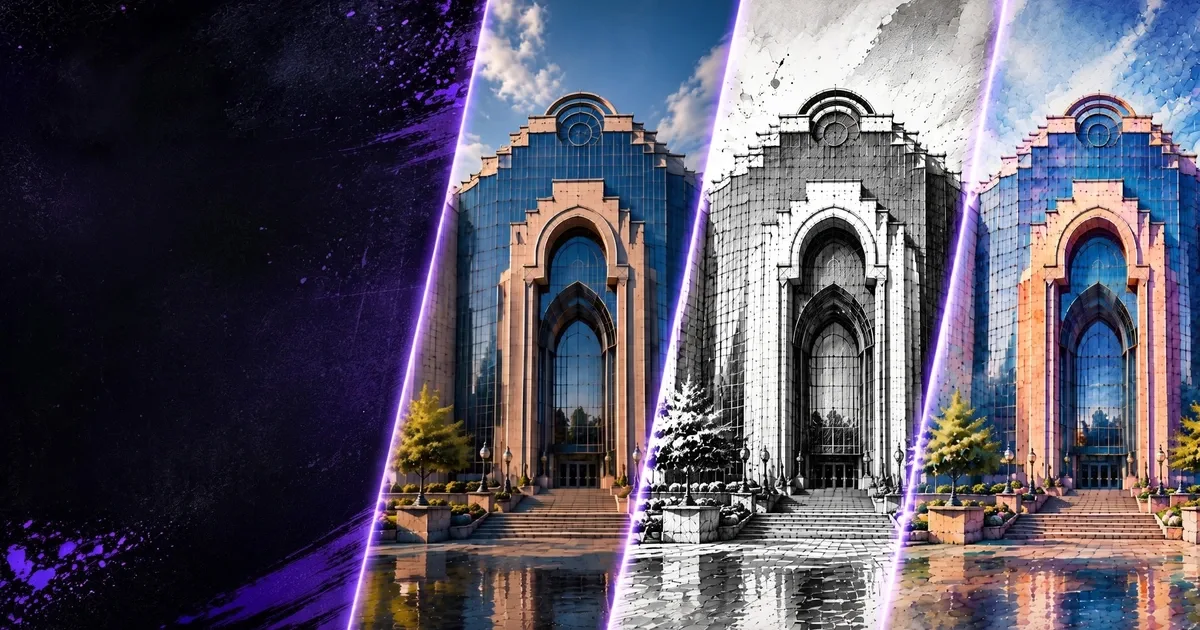
- Magnific and Topaz help sharpen architectural renders, recover detail, and prepare high-resolution deliverables.
- RunDiffusion keeps the upscaling workflow inside the browser, including model selection, prompt guidance, and output review.
- Use Magnific when the base render is already strong and needs extra realism, texture, and presentation polish.
- Use Topaz when the priority is large resolution increases, preserved edges, denoising, and controlled sharpening.
- The workflow is suited for Nano Banana images, Revit and SketchUp exports, CAD/BIM PNGs, and AI-generated concepts.
RunDiffusion lets architecture teams upscale and refine renders with Magnific and Topaz in the cloud. These AI upscalers improve detail, texture clarity, and resolution for portfolios, client presentations, print boards, and high-impact web visuals without moving work into separate third-party software.
| At a glance | |
|---|---|
| Best fit | Architectural render upscaling, client presentations, print boards, and portfolio polish |
| Tools covered | Magnific and Topaz Upscaler on RunDiffusion |
| Access | Available on RunDiffusion Pro and Enterprise plans |
| Source workflows | Nano Banana images, Revit and SketchUp exports, CAD/BIM PNGs, and AI concepts |
When you need your architectural render to stand out for a portfolio, client pitch, or high-resolution print, upscaling becomes essential. RunDiffusion makes it easy to upscale and refine your renders using advanced AI tools like Magnific and Topaz. These AI upscalers sharpen detail, improve texture clarity, and can boost resolution up to 10,000 x 10,000 pixels without requiring third-party software.
Whether you are refining an image generated with Nano Banana or enhancing a Revit or SketchUp export, these tools help deliver professional-grade results.
What You'll Learn
- What makes Magnific and Topaz strong AI upscalers for architecture
- How to use AI render enhancer tools to prepare high-resolution visuals
- How to upscale renders directly on the RunDiffusion platform
- When to use upscaling in your architecture visualization workflow
Why Use an AI Render Enhancer for Upscaling?
Most base renders, especially at fast generation speeds, can lack resolution and fine detail. AI upscalers like Magnific and Topaz solve this by:
- Sharpening edges and textures
- Restoring lost micro-details
- Increasing resolution for print or presentation
- Improving the overall clarity and photorealism of your visuals
This is especially useful for architectural visualization, where materials, light behavior, and structure need to be crisp and readable at scale.
Tools Overview: Magnific vs Topaz
Magnific
Key strengths:
- Designed for high-resolution upscaling and detail enhancement, including significant image enlargement up to 10,000 x 10,000 resolution while adding depth and texture.
- Especially useful in architectural visualization workflows for improving lighting, vegetation, and realism in 3D renders.
- Works well with architectural linework, glass, concrete textures, and high-detail surfaces when you start from a reasonably strong base render.
Why this matters for architecture:
If your render needs to be presentation-ready, printed large, or delivered to clients with high expectations, Magnific helps elevate image quality without reworking the model.
Topaz (Gigapixel AI / Photo AI)
Key strengths:
- Built on AI trained with millions of image pairs to preserve sharp edges, textures, and clarity when upscaling by large factors while minimizing artifacts.
- Strong controls for denoising, sharpening, and preserving small text or architectural inscriptions in renders, especially for close-up facade or interior shots with intricate detail.
- An established tool with broad usage in photoreal workflows, which gives architecture teams more reliability and control.
Why this matters for architecture:
When your deliverable needs extreme resolution, such as print boards or large-format displays, or you are working with exports that lack polish, Topaz offers strong upscaling and clarity fixes.
Which to Choose and When
- Use Magnific when you want to boost realism, add finer detail, and polish renders that already have good base quality.
- Use Topaz when your priority is significant resolution increase, preserved fine textures and edges, or robust control over denoising and sharpening.
- Both tools accept high-resolution PNG exports from CAD/BIM software and are suited for architectural visualization workflows.
How to Use AI Upscalers on RunDiffusion
You can use Magnific and Topaz as part of your render enhancement workflow. These tools are available on Pro and Enterprise plans.
Step by step:
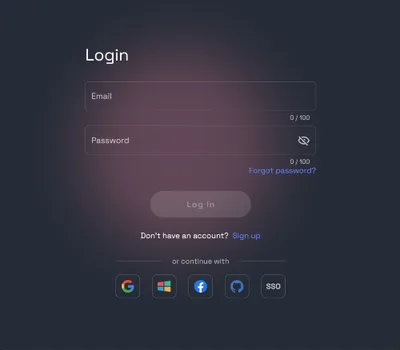
- Log in at app.rundiffusion.com/login.
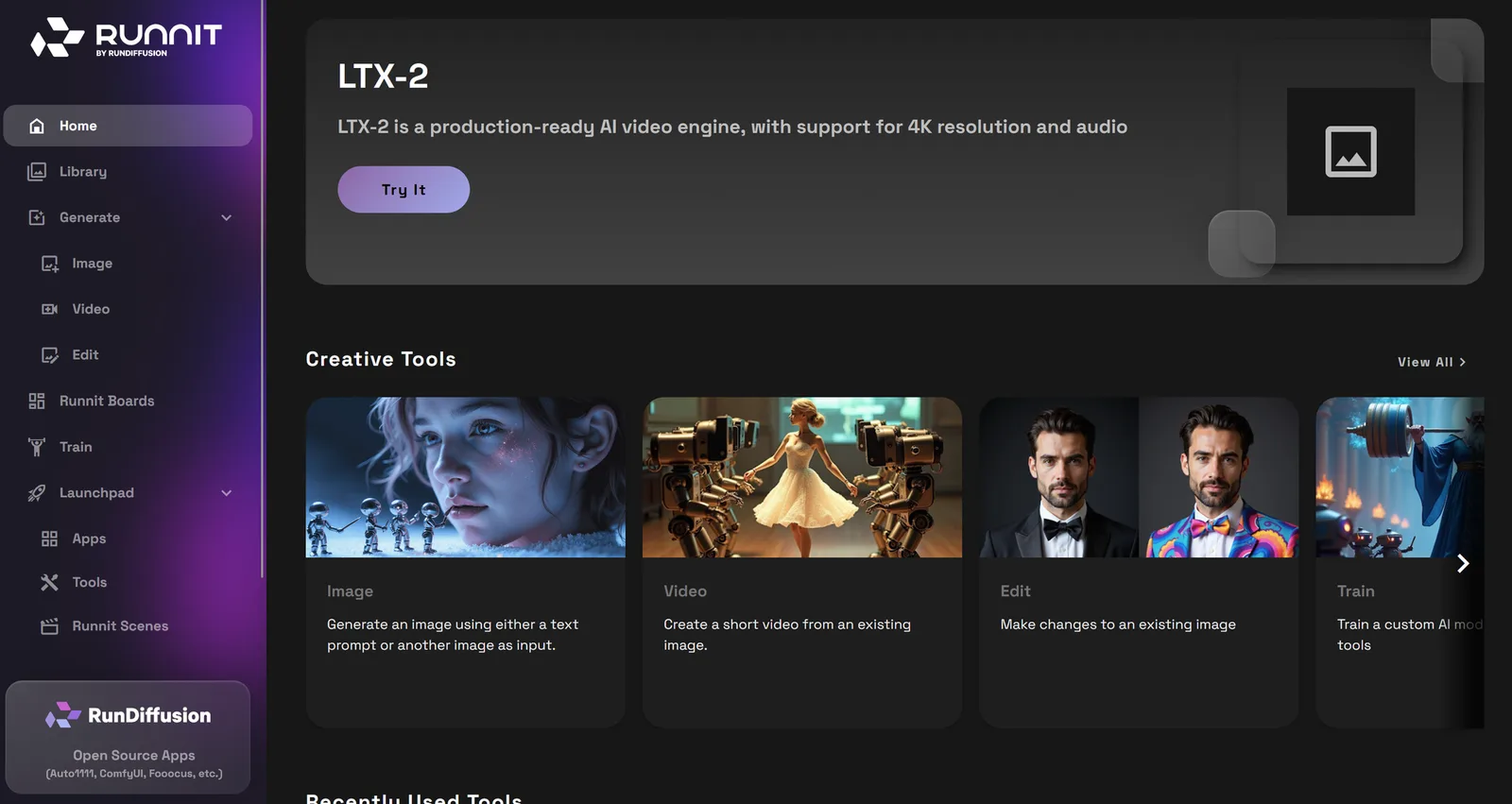
- Navigate to app.rundiffusion.com/runnit/home.
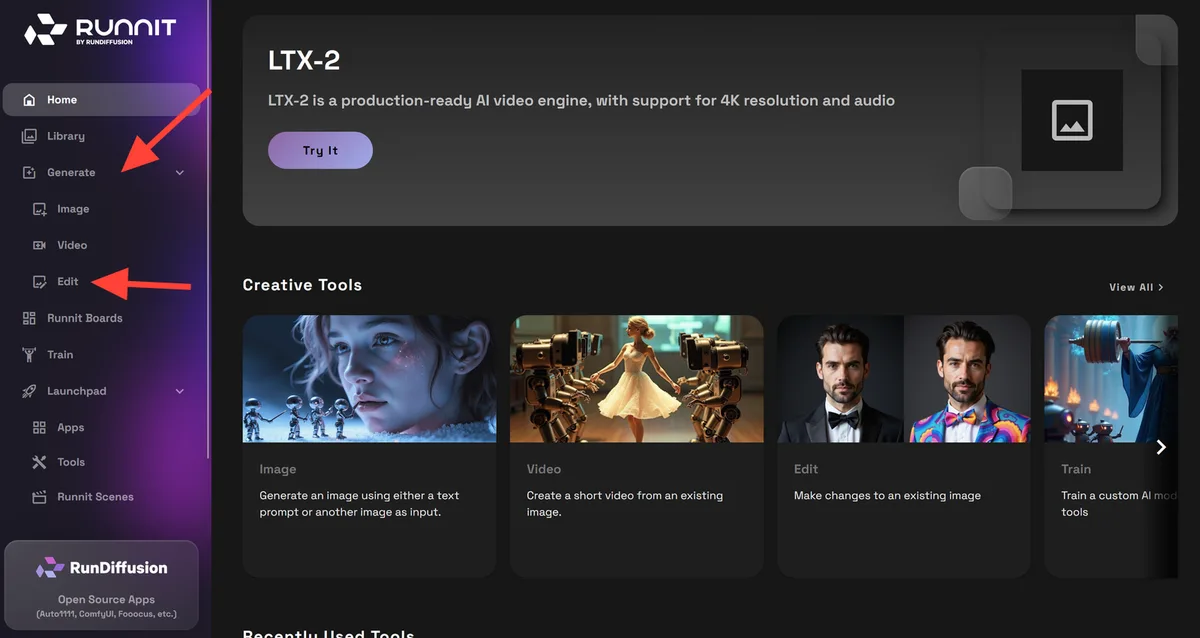
- Click Generate, then Edit, in the left sidebar.
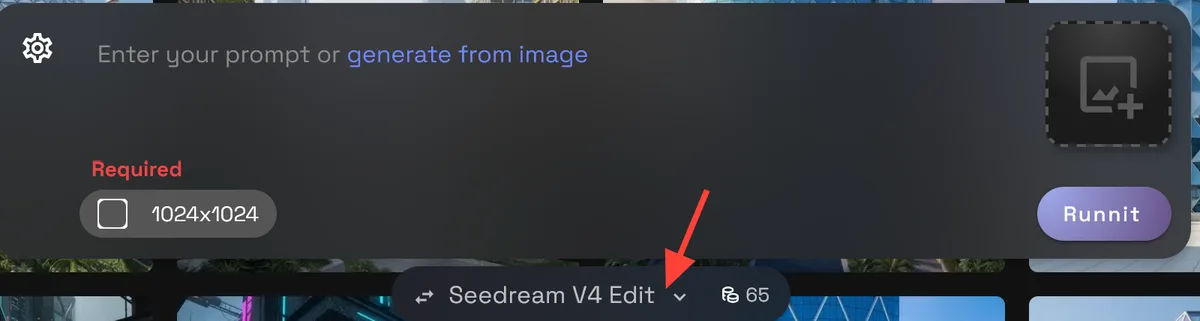
- Click the model selector at the bottom to change or select a model. By default, it loads the last model you used.
-
Select Topaz Upscaler or Magnific from the model options.
-
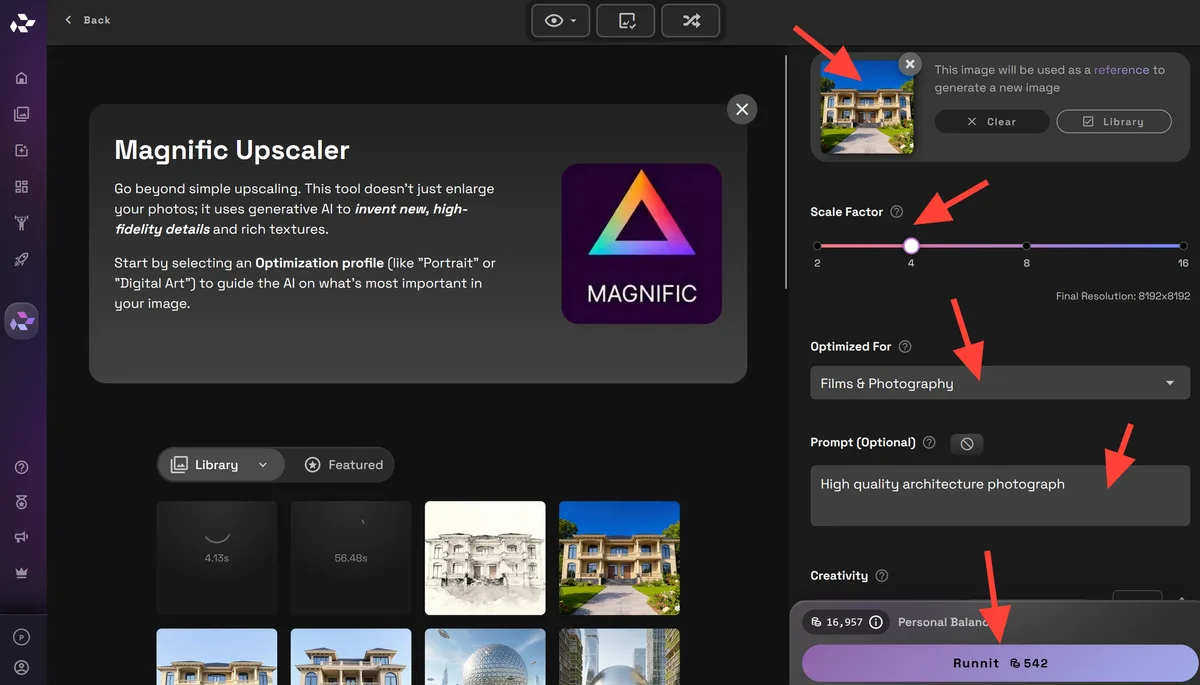
If you select Magnific, upload a PNG file of your render, choose the scale factor, select an optimization type such as Film & Photography, write a short prompt, leave the other settings at their defaults, and click Run to render an upscaled and enhanced version of your image.
For a more detailed look at the Topaz Upscaler, view our dedicated article on Topaz Upscaler.
Ideal Use Cases for Upscaling
- Creating high-resolution portfolio pieces
- Preparing client deliverables
- Printing architectural boards or flyers
- Polishing marketing visuals for social or web
- Enhancing details in concept renders without re-generating the image
Example Prompt for Enhanced Upscaling
Refine texture detail, improve window reflections, preserve lighting quality, architectural accuracy, high-resolution output.
Use this kind of short input to guide the model toward your intended visual finish.
Final Thoughts
Upscaling is more than making an image bigger. It is about enhancing quality and delivering professional, pixel-perfect visuals. With Magnific and Topaz, RunDiffusion gives architects and designers the power to refine renders directly in the cloud.
Try these tools to upscale your favorite outputs, enhance Revit and SketchUp exports, or sharpen AI-generated concepts. With the right tools, your work will look sharper, clearer, and more impactful with no model rework needed.
Related reading:
- Best AI Render Tool Suite For Architecture
- Multilingual Prompt Support for Architecture Teams
- Improve Revit and SketchUp Renders with AI Image Enhancement Tools
Upscale architecture renders in RunDiffusion
Use Magnific and Topaz to sharpen details, improve clarity, and prepare high-resolution visuals from one browser-based workspace.